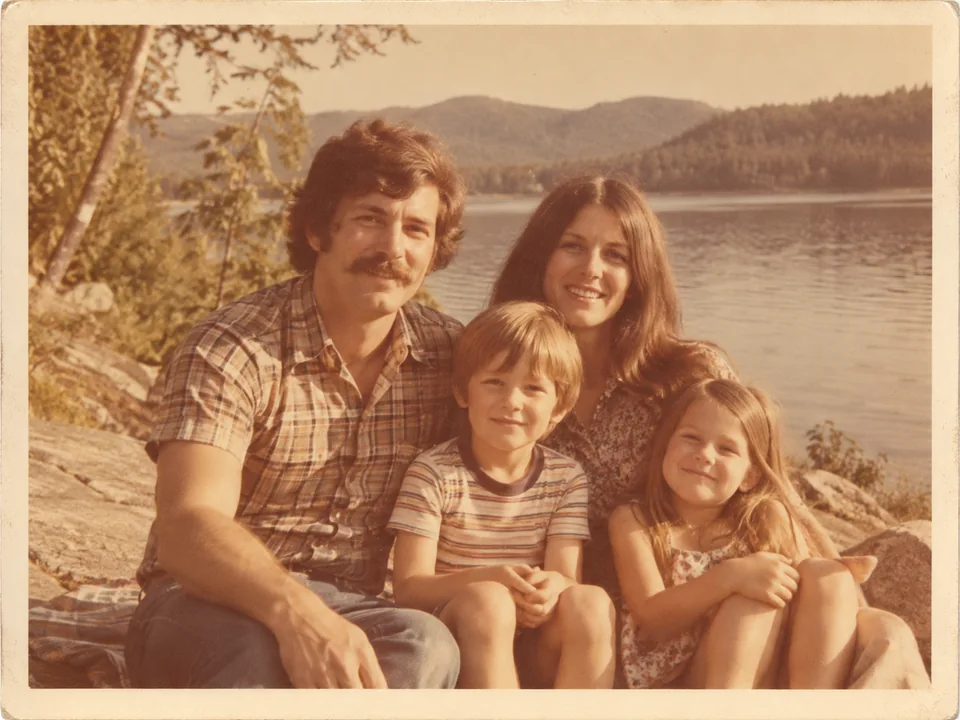
Old Phone and Family Photos
Faded snapshots and early phone photos get the pixels a frame or a slideshow needs, and every face stays the same person.
Upload a small, old or soft picture and turn the image into HD, Full HD or 4K. The AI adds real pixels and crisper edges while faces, text and colors stay exactly as they were, so you get the same photo, only sharper and bigger.
What are you converting?
Fine-tune


Reference example. It is not a result generated from your upload.
HD resolution is a pixel standard, not a filter. HD, also called 720p and the lowest resolution HD standard, is 1280 × 720 pixels. Full HD, or 1080p, is 1920 × 1080, and 4K UHD is 3840 × 2160, four times the pixels of Full HD. An image only looks like an HD photo when it has about that many pixels, which is why an old phone photo, a thumbnail or a saved social image looks soft on a big screen: it simply does not have enough of them.
An HD image converter fixes that by adding pixels. Plain resizing only stretches the pixels you already have, so the result gets bigger and blurrier. This tool uses faithful AI upscaling instead: it predicts the missing detail, so edges, hair, text and fabric come out crisp when you convert image to HD. That is what photo AI HD conversion means here: the same picture, the same faces and the same colors, with real HD picture quality.
Choose HD for photo sharing and web pages, Full HD for phones, laptops and slides, or 4K for TVs, posters and print. Working with clips instead of stills? The HD video converter does the same job for video.
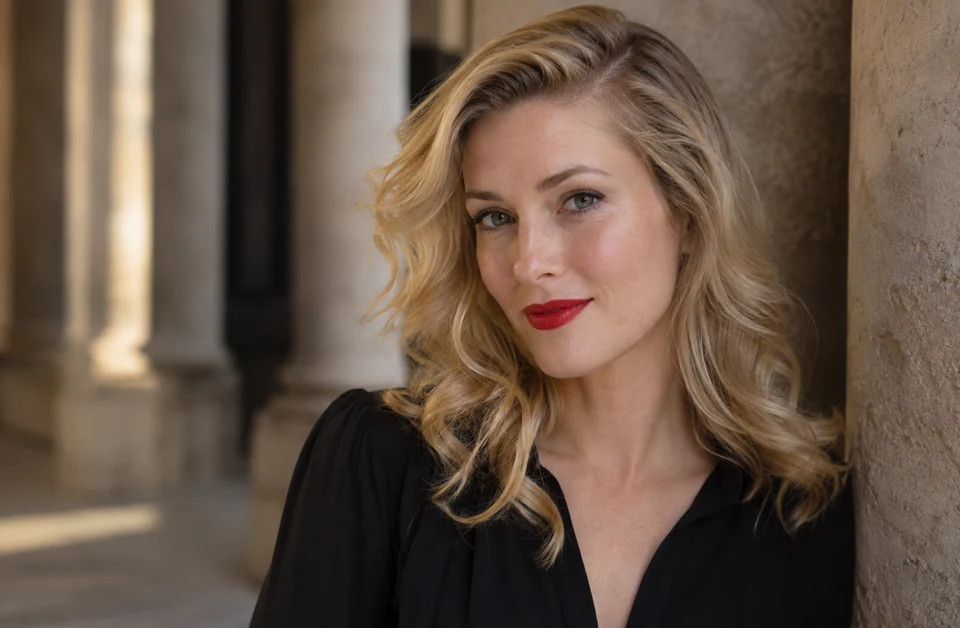
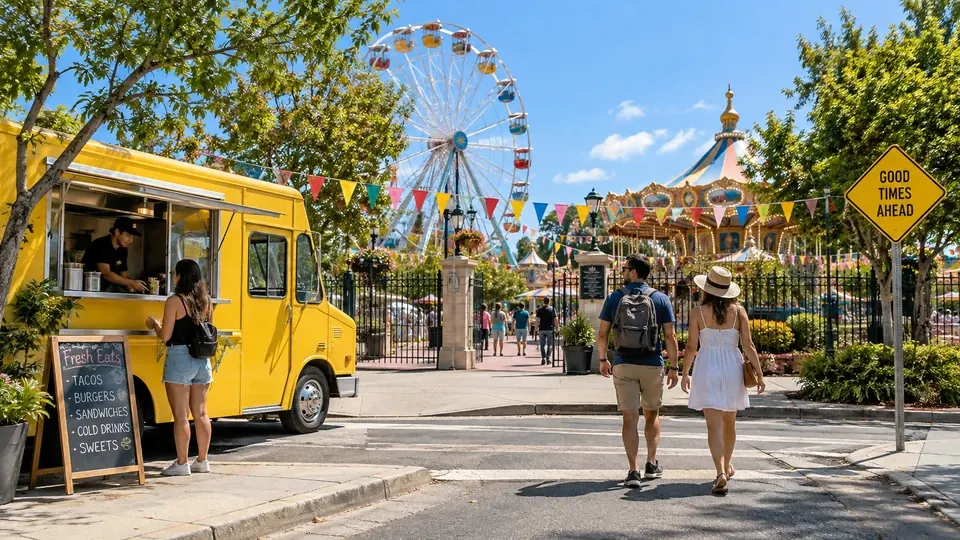
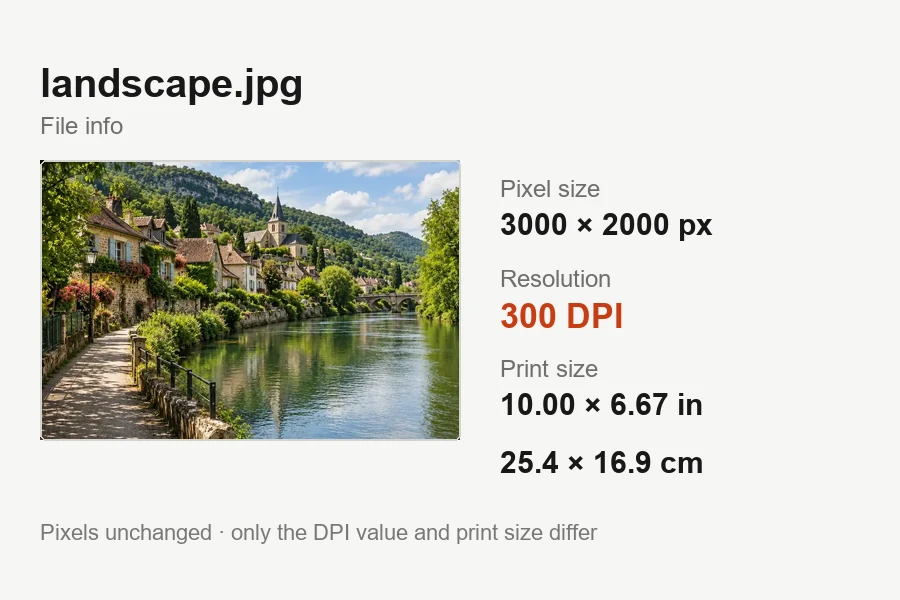
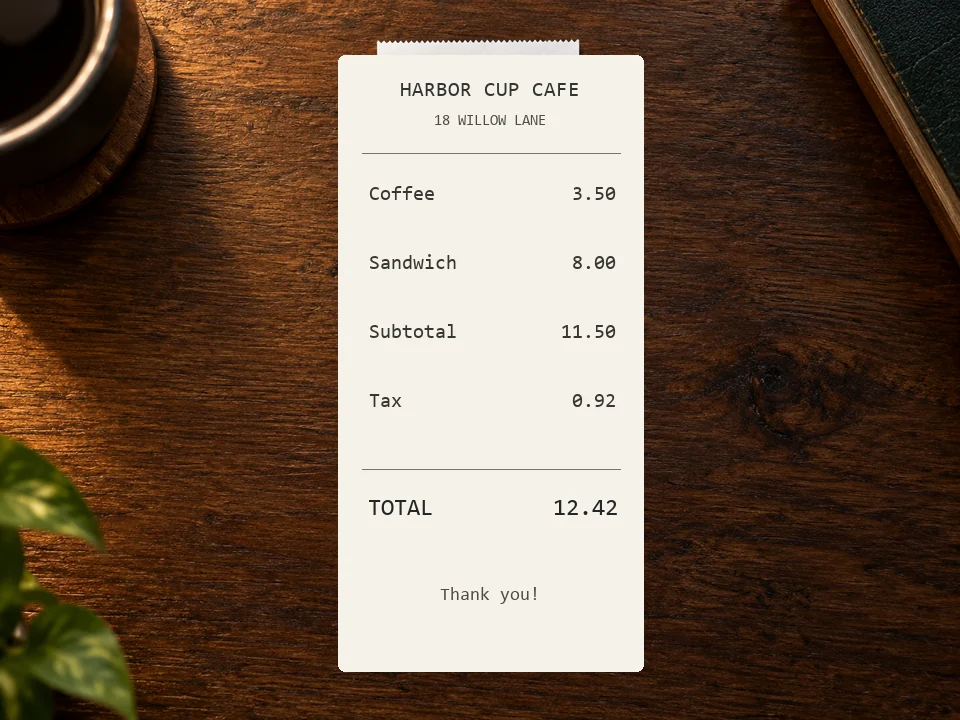
Four everyday pictures converted to HD, shown at the same size. Drag each slider to compare the original with the HD copy.
Faded snapshots and early phone photos get the pixels a frame or a slideshow needs, and every face stays the same person.


Saved posts and compressed downloads lose detail. Converting them to HD brings back crisp edges for reposts and slides.
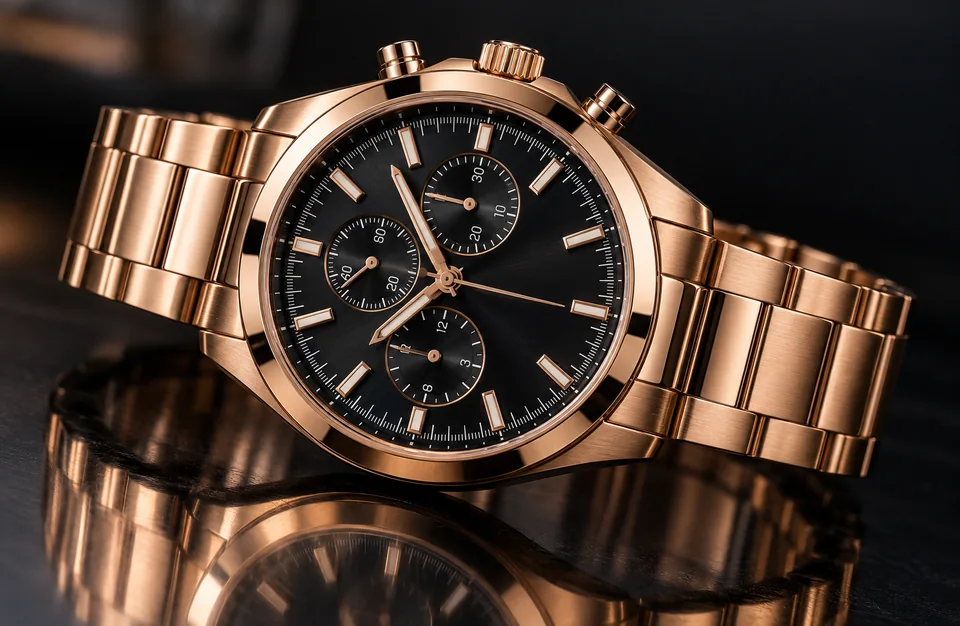

Metal, glass and stitching stay sharp when shoppers zoom in. Pick 4K for marketplace zoom and banners.


Turn a small selfie or travel shot into an HD profile picture that stays sharp in a big header or a print.
Make an image HD online with no software, plugin or graphics card. This is all it takes to turn pic into HD quality.
Add a JPG, PNG or WebP up to 10 MB: an old phone photo, a screenshot, a downloaded image, a product shot or a profile picture. Not sure which quality to use? Pick a preset and it is set for you.
HD doubles the width and height (2×), so a 640 × 360 image becomes 1280 × 720. Full HD quadruples them (4×), turning a 480 × 270 thumbnail into 1920 × 1080. 4K picks the smallest step, up to 4×, that reaches 3840 pixels on the long side.
Click Convert to HD, drag the slider to compare before and after, and download your HD copy.
No layers, sliders or sharpening tricks: upload, pick a quality and the photo HD converter does the rest. It is a faithful upscaler, so it never repaints a face, rewrites text or invents objects; you simply get the same picture in HD with crisper edges. Use it to make photo HD for a slideshow, convert picture to HD for a listing, or get any pic in HD before you share it.
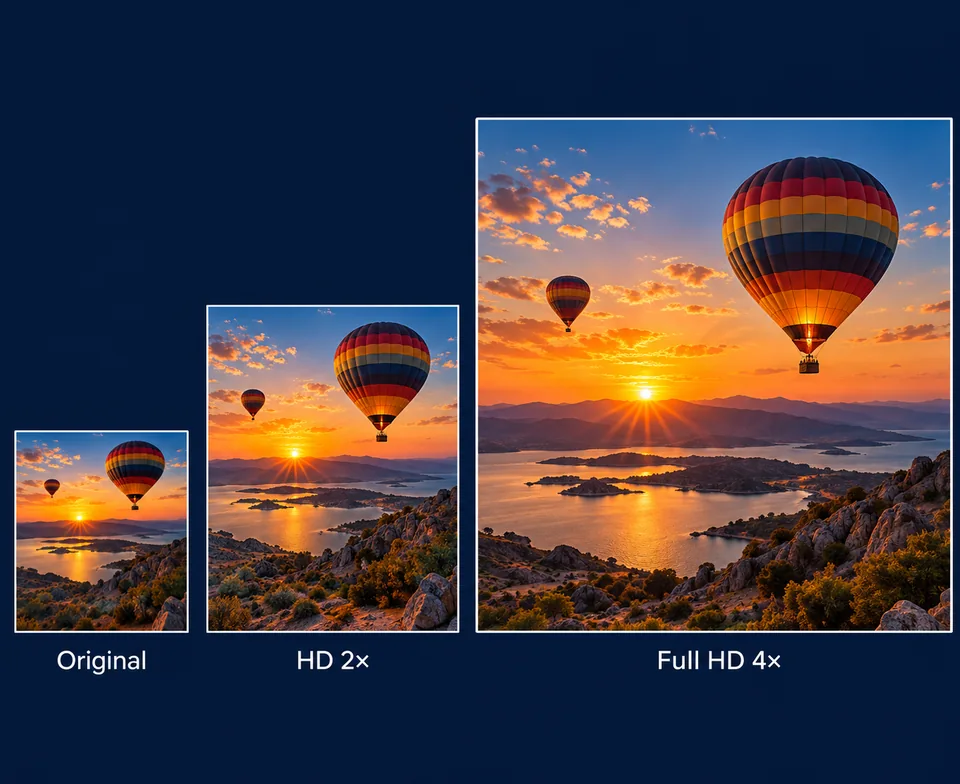
Pick the level that matches where the image will live. HD (2×) is right for web pages and social posts, Full HD (4×) for phone and laptop screens, and 4K for TVs, monitors and print. Each level is a real increase in pixels, not a relabeled file, so you can make HD pictures for one screen today and convert image HD-ready for a bigger one later.


Small files look blurry on big screens because every pixel is stretched. When you convert into HD, the missing pixels are added, so soft edges and blocky steps turn smooth and readable. Unlike a generative HD photo enhancer, nothing is redrawn. For heavy motion blur or missed focus, unblur the photo first; for strong compression blocks, remove JPEG artifacts, then convert.
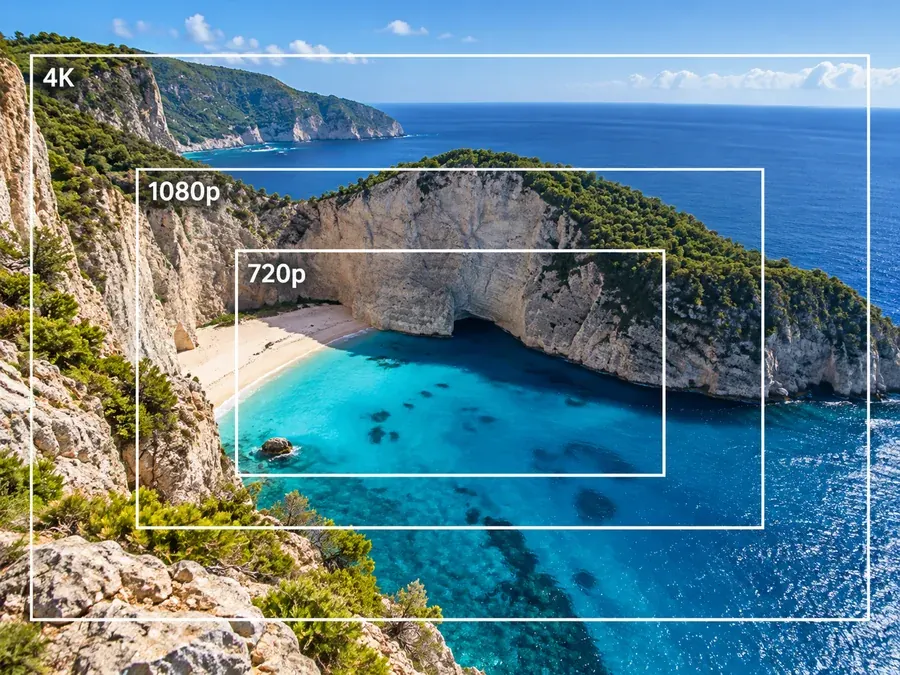
Choose Print-Ready to make HD image files big enough for 4K: about 8.3 megapixels, enough to fill a 4K TV or monitor and to print around 13 × 7 inches at 300 DPI. Slides, posters and digital signs stay crisp from the back of the room. Pair it with Increase DPI when a print shop asks for 300 DPI.
The main resolution HD standards side by side, with what each one is good for and the setting that gets you there.
| Standard | Pixels | Megapixels | Best for | Setting here |
|---|---|---|---|---|
| SD (480p) | 640 × 480 or 854 × 480 | 0.3–0.4 MP | Old phones, early webcams, video stills | Your starting point |
| HD (720p) | 1280 × 720 | 0.9 MP | Web pages, social posts, email | HD · 2× from about 640 px wide |
| Full HD (1080p) | 1920 × 1080 | 2.1 MP | Phones, laptops, slides, thumbnails | Full HD · 4× from about 480 px wide |
| 2K / QHD (1440p) | 2560 × 1440 | 3.7 MP | Gaming monitors, sharp desktop wallpapers | Full HD · 4× from about 640 px wide |
| 4K UHD (2160p) | 3840 × 2160 | 8.3 MP | TVs, 4K monitors, posters and prints | 4K |
Photos in 4:3 or 3:2 keep their own shape: an HD image is roughly 1280 pixels on the long side, Full HD roughly 1920 and 4K roughly 3840. Upscaling adds pixels; it cannot recover detail the camera never captured.
Anyone who needs to turn a picture into HD for a bigger screen, a listing or a print.
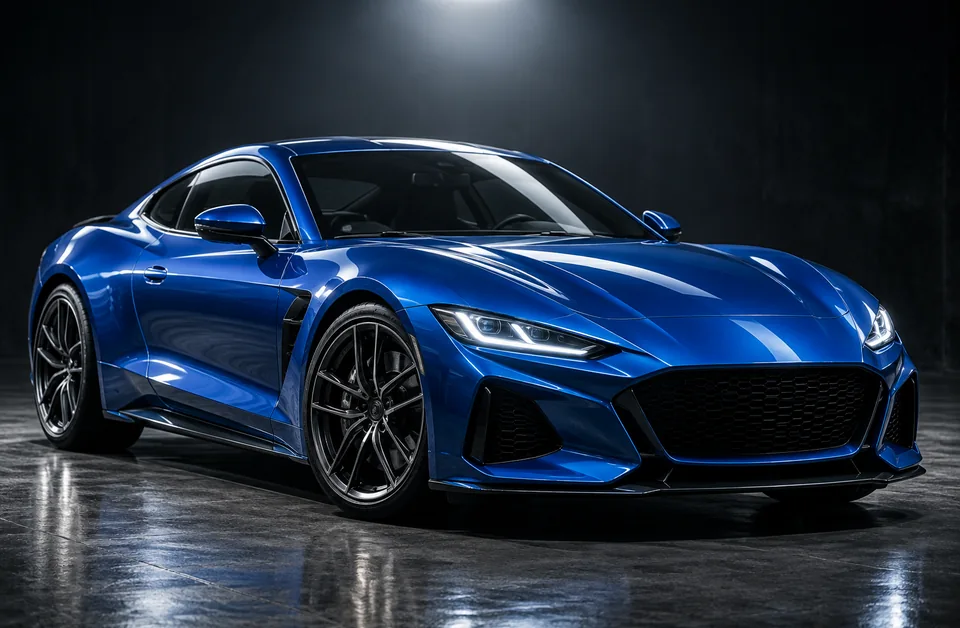
Convert pictures from early phones, compact cameras and scans into HD for albums, frames and slideshows.
Make screenshots, charts and documents readable on a projector; letters keep clean edges and are never rewritten.
Restore crisp edges to saved posts, memes and thumbnails before you repost them or drop them into a video.
Convert product photos to HD or 4K so marketplace zoom shows stitching, metal and labels clearly.
Make picture HD from a small avatar or cropped selfie for professional profiles, team pages and badges.
Give posters, prints, slides and digital signs the resolution of a 4K screen.
A few habits that make your HD copy look its best.
Upload the original, not a screenshot of it. Every re-save adds compression that gets enlarged too.
HD for web and chat, Full HD for phones and laptops, 4K for TVs, posters and print.
An HD converter adds pixels; it cannot refocus a shaky shot. Unblur first, then convert the sharp version.
Convert the whole picture, then crop the square, banner or thumbnail you need, so the crop keeps the most detail.
Each tool covers one job. Pick the one that fits your picture, or read up on HD and 4K first.
Upscale photos, logos and art 2×, 4× or to 4K with faithful AI.
Open toolMake a picture 4K quality for wallpapers, TVs and monitors.
Open toolAn HD image enhancer that can also restore blurry, noisy and faded photos.
Open toolConvert SD and low-resolution video to sharper 720p or 1080p HD.
Open toolClean up blocky compression before you convert a picture to HD.
Open toolUpscale anime, manga and fan art with crisp line art and flat color.
Open toolFull HD vs high definition vs 4K explained, with pixel counts for each.
Read guideIs 4K better than 1080p? Screen size and viewing distance explained.
Read guideHow HD conversion works, what it changes and what it costs.
An HD image has at least HD resolution: 1280 × 720 pixels (720p), or 1920 × 1080 (1080p) for Full HD. An HD picture looks sharp on a phone or laptop because it has enough pixels for the screen; a smaller image has to be stretched and looks soft.
Upload it above, choose HD, Full HD or 4K, and click Convert to HD. The AI upscales the picture, you compare before and after, and you download the result. That is all it takes to convert picture in HD quality, whether it is a selfie, a scan or a screenshot.
It is free to try: new accounts get free credits when they sign up. After that, each conversion uses credits from your balance, and bigger results (4K and above) cost more than HD ones.
It helps when a photo is soft because it is small or compressed: converting can increase HD quality of image files like that by adding pixels and sharpening edges. It cannot refocus heavy motion blur or missed focus; use Unblur Image first, then convert the sharp version to HD.
4K has more pixels: 3840 × 2160 is nine times 720p HD and four times Full HD. That matters on TVs, 4K monitors and prints; for web pages, chats and phone screens, HD or Full HD looks just as sharp and keeps files smaller. The HD vs 4K guide explains when the jump is worth it.
Yes. Pick Full HD (4×): a picture about 480 pixels wide becomes about 1920 pixels wide, which is 1080p. If your image is already larger, HD (2×) may reach 1080p on its own. Going the other way, a 4K to Full HD converter only shrinks the file; any basic resizer does that, no AI needed.
Yes. This is faithful upscaling: it takes no prompt and does not repaint faces, so identity, skin texture and expression stay as in the original. Very tiny faces, only a few pixels wide, cannot gain detail that was never captured.
Uploads can be up to 10 MB in JPG, PNG or WebP. Results can reach 20,000 pixels on the long side; a very large upload is upscaled by a smaller step automatically so it stays within that limit.
Yes. The converter works in any mobile or desktop browser, and the photo HD processing runs on our servers, so there is no app or graphics card needed. You can make photo in HD from your camera roll and save the HD copy right back to it.
Yes. Screenshots, documents, slides and logos convert well: letters keep clean edges and are not rewritten, so the text stays exactly what it was. For text that is already too blurry to read, try Deblur Text first.
Upload a photo or picture and get a sharp HD, Full HD or 4K copy.