Upload Your Clip
Add an MP4, MOV, or MKV video up to 50 MB and 60 seconds: phone footage, a screen recording, an old SD transfer, or an AI-generated clip.
Upload a small or low-resolution clip and the AI video upscaler redraws every frame at 2× or 4× the size, with sharper edges, cleaner texture, and no stretched-pixel blur.
Fine-tune
Your video stays in this browser during this UI preview.
Reference example. It is not a result generated from your upload.
A video upscaler increases the resolution of a clip, turning every frame into a larger one so it fills a bigger screen. Ordinary resizing in a player or editor just stretches the existing pixels, which is why upscaled footage often looks soft and blocky. AI video upscaling works differently: a model trained on pairs of low- and high-resolution footage predicts the missing detail and redraws edges, faces, hair, and textures at the new size.
When you AI upscale videos here, you choose 2× or 4×. 2× doubles the width and height (540p becomes 1080p, 1080p becomes 4K); 4× quadruples them for small and old clips. Compression noise is cleaned in the same pass, and frames are processed with motion in mind so the upscaled video does not flicker.
Upscale videos in three steps, with no software or GPU of your own.
Add an MP4, MOV, or MKV video up to 50 MB and 60 seconds: phone footage, a screen recording, an old SD transfer, or an AI-generated clip.
Pick a preset or the upscale factor directly. 2× suits 540p–1080p sources; 4× is for 480p and smaller videos that need a big jump in size.
The AI upscales the video frame by frame. Compare the result with the original, then download the high-resolution MP4.
AI upscaling video means rebuilt detail, not bigger blur.
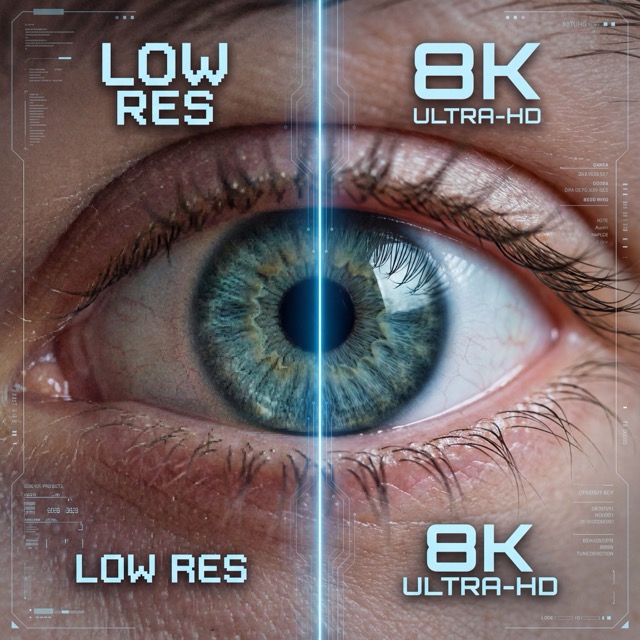
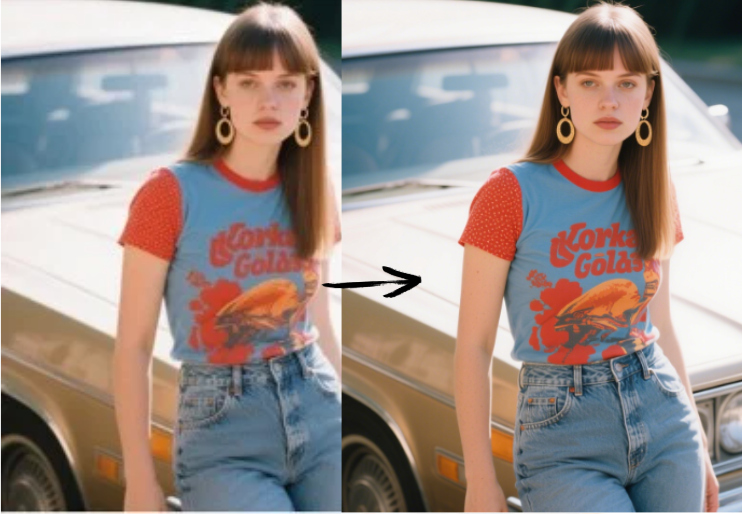
Zoom in on any frame and the difference is clear: jagged, blocky edges become clean lines, and skin, fabric, and metal regain texture. That is what separates an AI upscaler video creators rely on from the bilinear resize built into players and editors.
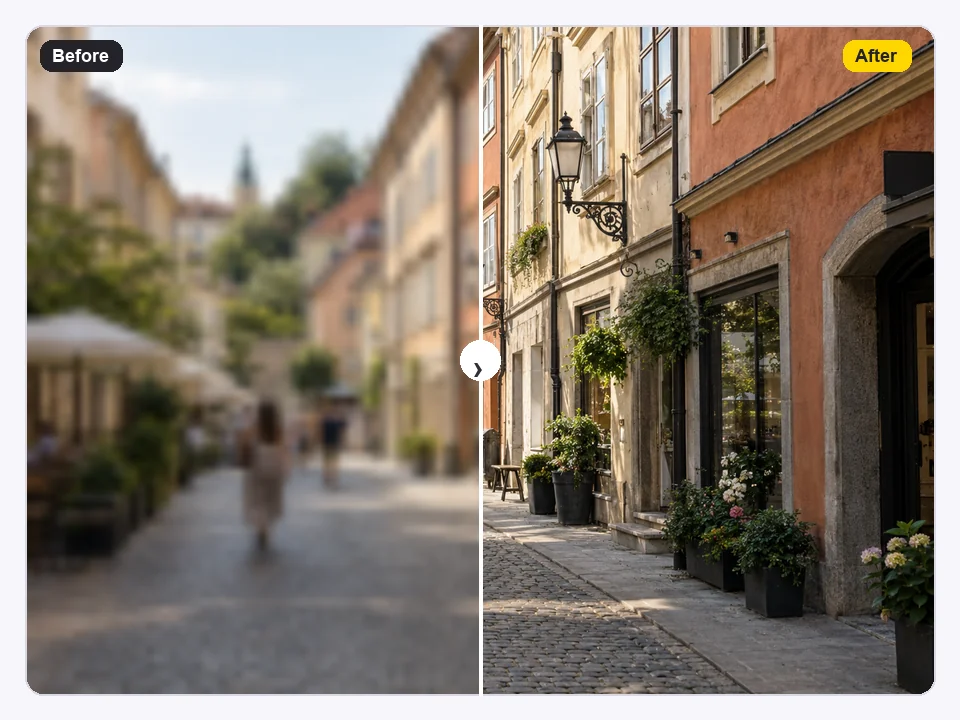
Choose 2× on a 1080p clip to get a 3840 × 2160 4K video for large TVs, projectors, and 4K timelines. The video upscaler AI model sharpens fine detail so the extra pixels carry real information.
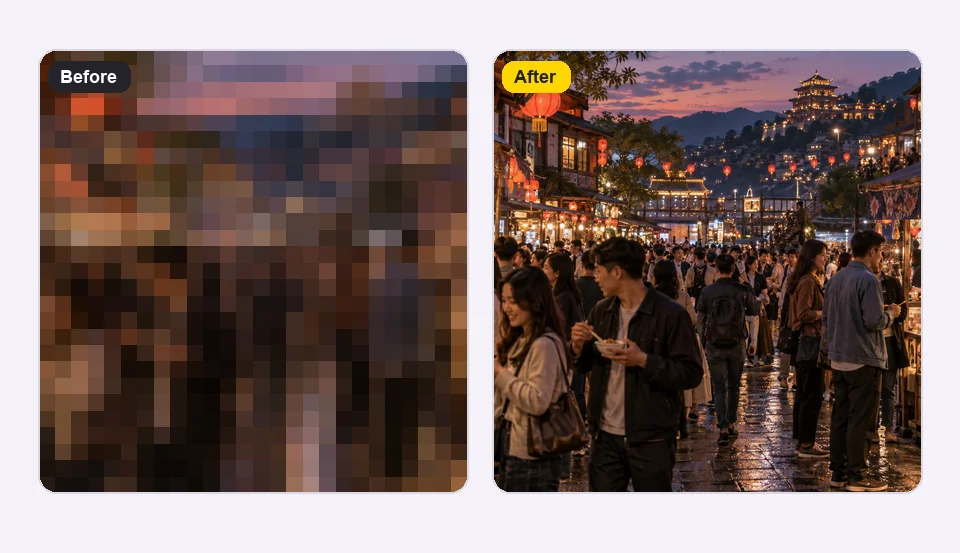
Footage from camcorders, DVDs, and early phones is often 480p or smaller. Choose 4× to upscale videos like these to around 1920 pixels tall, with compression blocks cleaned up along the way.

Phone cameras, drones, screen recorders, and AI video generators all export MP4 or MOV. Upload them as they are; the online video upscaler returns an MP4 you can drop straight into your editor or post.
Output size is the source size multiplied by the factor you choose (landscape 16:9 examples).
| Source | With 2× | With 4× |
|---|---|---|
| 360p (640 × 360) | 1280 × 720 (720p) | 2560 × 1440 (1440p) |
| 480p (854 × 480) | 1708 × 960 | 3416 × 1920 (above 1080p) |
| 540p (960 × 540) | 1920 × 1080 (1080p) | 3840 × 2160 (4K) |
| 720p (1280 × 720) | 2560 × 1440 (1440p) | Usually unnecessary — use 2× |
| 1080p (1920 × 1080) | 3840 × 2160 (4K) | Usually unnecessary — use 2× |
Vertical videos swap width and height. Need exactly 1080p from 480p or 720p? Upscale above 1080p, then export at 1920 × 1080 in your editor.
Upscale video online whenever a clip is too small for where it is going.

Match older or phone footage to a 4K project, a TV, or a projector without visible softness.
Upscale a video from tape or DVD so family memories fill a modern screen instead of sitting in a small box.
Many video generators export at 720p. Upscale those clips to 1440p or 4K before publishing or editing.
Repurpose small clips for vertical and widescreen placements while keeping text and products crisp.
Small choices that change the result.
Upload the camera or export file, not a re-downloaded copy. Less compression means cleaner upscaling.
2× is enough for most 540p–1080p clips. Save 4× for small, old, or 360p–480p videos.
Upscale first, then add captions and graphics in your editor so they render at full resolution.
Upload only the section you will use. Shorter clips are quicker to upscale and use fewer credits.
Typical jobs for an online AI video upscaler.
Illustrative examples adapted from reference material, not verified reviews of EzImgMaker.
I cut 4K projects but clients send phone clips. Upscaling them 2× means the cuts no longer look soft next to my camera footage.
Our DVD of my parents’ anniversary was 480p. At 4× it finally fills the TV without looking like a mosaic.
My generated clips export at 720p. A 2× upscale gets them to 1440p before I post them.
The factor table saved me guessing: 540p at 2× is exactly 1080p, which is what our ad platform wanted.
How to upscale video, sizes, formats, and limits.
Upload the clip, choose 2× or 4× (or a preset), and start. The AI upscales the video frame by frame and you download a larger MP4. That is all it takes to upscale a video online, with no software, plugins, or GPU on your side.
Use 2× on a 1080p clip to get 3840 × 2160, or 4× on a 540p clip. For 720p sources, 2× gives 1440p; true 4K would need about 3×, which is not offered, so most people use 2× and export at their target size.
Yes. You can upscale MP4, MOV, and MKV videos up to 50 MB and 60 seconds. The upscaled video downloads as MP4.
Desktop video upscaler software or a local video AI upscaler needs a strong GPU and hours of processing on your machine. This online AI video upscaler runs on our servers, so you use the video upscaler online and only upload and download. Like other AI video upscalers, quality depends on the source: clean footage upscales best.
Both, to a point. AI upscaling adds detail and removes compression noise as it enlarges. It cannot restore a subject that was completely out of focus; for that, use an unblur tool first.
Use 2× for 540p–1080p clips and 4× for 480p and smaller. See the factor guide above for exact output sizes.
Yes, for clips you made or own. Videos saved back from X / Twitter are heavily compressed, so upscaling your original export usually gives a better result than upscaling the downloaded copy.
New users get free credits to try the video upscaler. After that, upscaling uses credits from a credit pack. Downloads are clean MP4 files.
Only upload videos you recorded or have the right to edit. Upscaling a clip does not give you the right to republish someone else’s footage.
Upload a clip and get a sharper 2× or 4× version for big screens, 4K edits, and social posts.