Rooftop Multi-Shot Fight
Five timed shots in one 12-second generation, from a wide face-off to a bird’s-eye finish, written as Shot 1 to Shot 5 in a single prompt.
Kling 3.0 Omni generates video from a prompt, a first and last frame, or up to three reference images, and it can transform a clip you upload, from new lighting to a new setting. Add native audio and automatic multi-shot, pick 3 to 15 seconds, and render in 720p, 1080p, or 4K.
Multi-shot rooftop fight at dusk. Shot 1 (2 s): wide shot, two boxers face off in the center of the rooftop, feet apart in a boxing stance. Shot 2 (2 s): both move in and test each other up close; one throws a quick punch, the other sidesteps and blocks. Shot 3 (3 s): the first boxer lands a punch on the other’s head and the other retaliates. Shot 4 (4 s): wide shot, the two boxers continue their intense fight. Shot 5 (1 s): a bird’s-eye view shows the two separated, the fight over.
Reference example. It is not a result generated from your upload.
Kling 3.0 Omni is the Omni version of Kling AI’s 3.0 video model, also written Kling 3 Omni, Kling Omni 3.0 or Kling V3 Omni. Where the standard Kling 3.0 generates new clips, the Kling 3.0 Omni model does two jobs in one: it is a Kling 3.0 Omni video generator for text, frames and reference images, and a Kling 3.0 Omni video editor for footage you already have. Upload a 3 to 15.5 second clip, describe the change, and a Kling 3.0 Omni video edit relights it, restyles it or adds a new element while keeping the original movement.
It follows Kling O1 (often typed Kling 01), the first Kling Omni video model. On EzImgMaker, Kling 3.0 Omni has four modes: Text to video, Image to video with a first and optional last frame, Reference to video with up to three images, and Transform video. Generated clips run 3 to 15 seconds in 720p, 1080p or 4K, with native audio and an automatic multi-shot planner you can switch on or off.
Kling 3.0 Omni examples from every mode, with the prompts behind them. Unmute a clip to hear its native audio.
Five timed shots in one 12-second generation, from a wide face-off to a bird’s-eye finish, written as Shot 1 to Shot 5 in a single prompt.
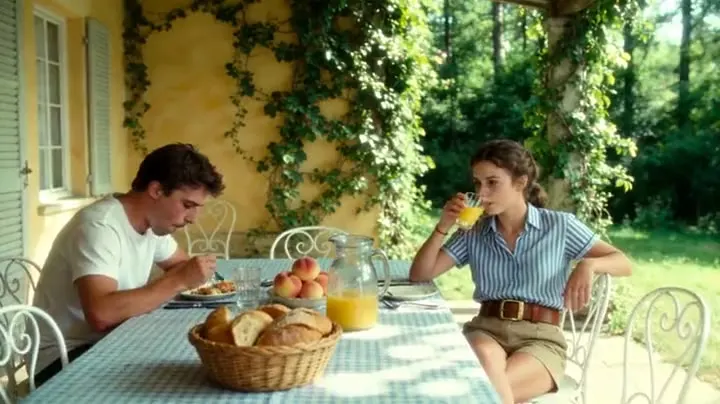
Native audio carries a quiet spoken answer over train rumble and cutlery clatter in a vintage dining car.
Reference to video: the couple’s faces and outfits hold steady through a 15-second scene in the wind.
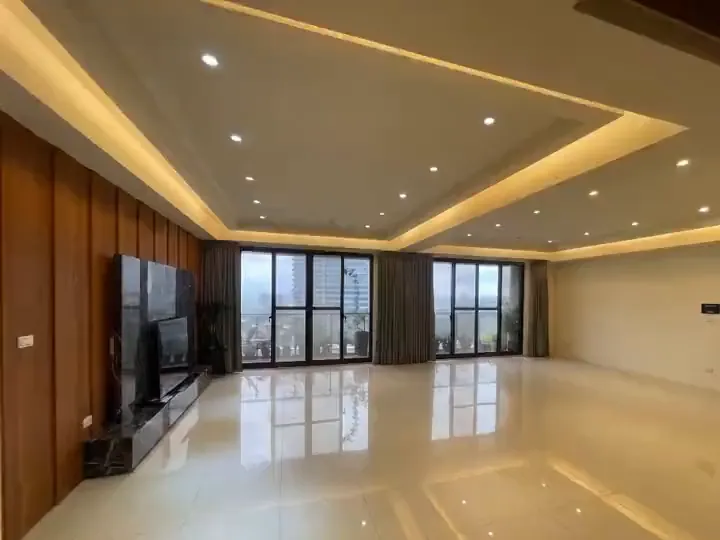
Transform video: daytime footage relit as night, with a cat added to the scene over the original action.
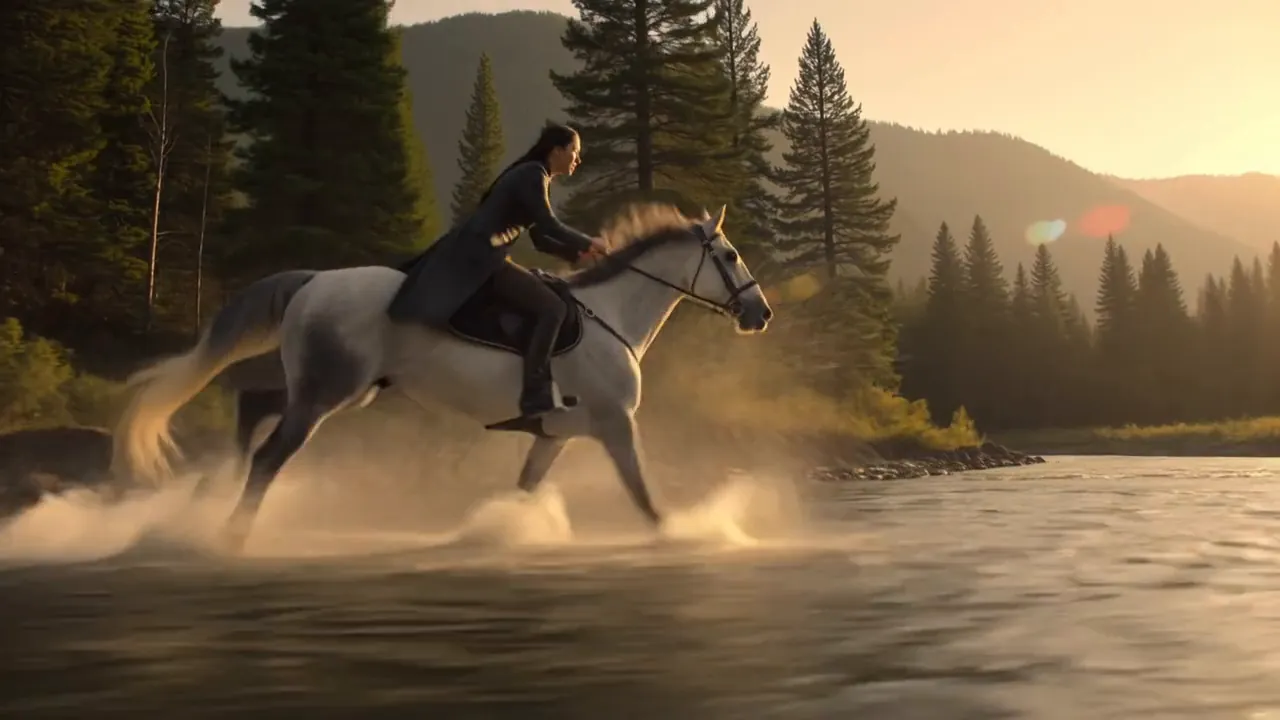
Image to video from a first and a last frame: a handheld underwater POV with calm effects and soft music.
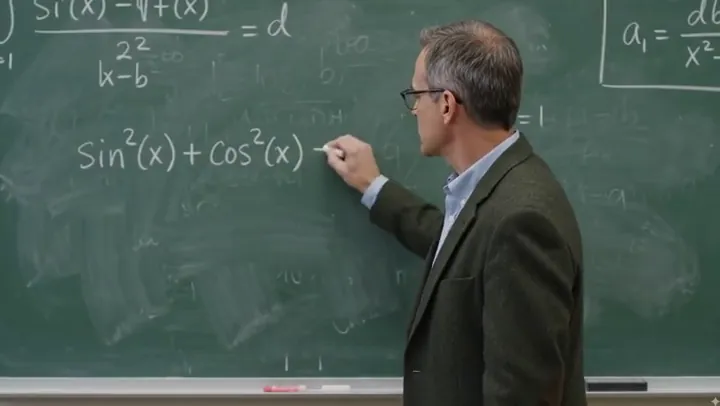
A 3D toddler, a lectern and a chalkboard combined into one speaking scene with classroom ambience.
A four-step Kling 3.0 Omni tutorial for making new clips, or for using Kling Omni edit on your own footage.
Text to video for a scene from words, Image to video to open on your own frame, Reference to video to keep up to three reference images in the shot, or Transform video to change a clip you upload.
Upload a first frame and an optional last frame, one to three reference images, or an MP4 or MOV of 3 to 15.5 seconds with at least 700 px on each side.
For a new clip, write the action, camera and sound, with dialogue in quotes. In Transform video, say what should change and what must stay, such as the people, their movements and the camera.
Switch Native audio and Automatic multi-shot on or off, choose 720p, 1080p or 4K, and set 3 to 15 seconds; a transformed clip keeps the length of your video. The cost shows on the Generate button.
Transform video is the Kling Omni video to video mode. It takes a 3 to 15.5 second MP4 or MOV and rewrites it from your instructions: night instead of day, new weather, a different visual style, or an added animal or prop. The result follows the shape of your clip and no new sound is generated. Use it on your own footage, never to replace or impersonate a real person.
Turn on Native audio for dialogue, ambience and effects generated with the picture. Switch on Automatic multi-shot for Kling 3.0 Omni multishot planning and the model picks the cuts itself, or write the shots yourself with a length for each, as in this five-shot rooftop fight.
Upload the frame the clip opens on and, if you like, the one it ends on. Kling 3.0 Omni image to video fills in the motion between them and takes the shape of your first frame, which suits POV shots, reveals and transitions.
In Kling 3.0 Omni reference mode, add up to three images of a character, outfit or product. Kling 3.0 Omni elements keep those faces, clothes and props consistent through a full 15-second scene, in 16:9, 9:16 or 1:1.
What each mode accepts and returns here.
| Spec | Kling 3.0 Omni |
|---|---|
| Modes | Text to video, image to video, reference to video, transform video |
| Video length | 3 to 15 seconds; Transform video keeps the length of your clip |
| Resolution | 720p, 1080p, or 4K |
| Aspect ratio | 16:9, 9:16, or 1:1 for text and reference clips; image to video and Transform video follow your upload |
| Image to video | First frame required, last frame optional (JPG or PNG, up to 20 MB, at least 300 px per side) |
| Reference images | Up to 3 (JPG or PNG, up to 20 MB) |
| Video to transform | MP4 or MOV, 3–15.5 s, up to 50 MB, 700–4,553 px per side |
| Native audio | On or off; Transform video adds no new sound |
| Automatic multi-shot | On or off in text, image, and reference modes |
| Prompt | Up to 3,072 characters |
Transform video is priced by the length of the clip you upload. The cost of every generation appears on the Generate button before you start.
Which of these three models fits the job, based on what each one supports on EzImgMaker.
| Kling 3.0 Omni | Kling 3.0 | Seedance 2.5 | |
|---|---|---|---|
| Best for | Editing footage and reference-led scenes | Multi-shot story clips with sound | Long takes guided by many reference files |
| Text to video | Yes | Yes | Yes |
| Image to video | First frame, or first + last frame | Start frame, or start + end frame | Start frame, or start + end frame |
| References | Up to 3 images here | Up to 3 elements, each 2–4 images or a short video | Up to 30 images, 10 videos, and 10 audio clips |
| Edit an existing video | Yes (3–15.5 s clip) | No | Yes |
| Clip length | 3–15 s | 3–15 s | 4–30 s |
| Resolution | 720p, 1080p, 4K | 720p, 1080p, 4K | 480p, 720p, 1080p |
| Native audio | On or off | On or off | Yes, can be switched off |
Is Kling 3.0 Omni better than Kling 3.0? Kling 3.0 or Omni depends on the job, not one being better across the board: pick Omni to change footage you already have, and Kling 3.0 for planned multi-shot stories with element references and voice clips.
Relight a day shot as night, change the weather, or add a missing prop without a reshoot.
Dialogue scenes with native audio, and fights or chases split into timed shots.
Keep a mascot, product or outfit identical across vertical, square and widescreen versions.
3D cartoon characters, props and classroom sets combined into one talking scene.
A Kling Omni prompt guide for both halves of the model: writing new shots and directing Kling 3.0 Omni edit prompts.
Write the line in quotes and how it sounds: he answers in a quiet, natural voice, "We missed the last stop." With Native audio on, Omni voices it.
"Train rumble and cutlery ambience" or "calming underwater SFX, soft music at low volume" tells the audio what to mix. Turn Native audio off if you will score the clip yourself.
Write "Shot 1 (2 s): … Shot 2 (3 s): …" and keep the total within your duration, or switch on Automatic multi-shot and let Omni plan the cuts.
"Change the lighting to night and add a cat; keep the people, their movements and the camera" stops the edit from drifting.
Upload sharp images on plain backgrounds, ideally different angles of the same character or product, and describe that subject in the prompt.
A first and last frame with the same subject, light and lens give Omni a believable path between them; a sudden change of scene tends to break the motion.
Other Kling models and close competitors to compare with Kling 3.0 Omni.
The standard 3.0 model: up to five planned shots with element references and voice clips.
Read the guideAn earlier Kling with native speech, singing and sound effects in 5 or 10 second clips.
Read the guideKling 3.0 Omni vs Seedance 2.5: Seedance runs up to 30 seconds with dozens of reference files.
Read the guideKling 3.0 Omni vs Veo 3.1: Google’s model for realistic shots with dialogue, plus Extend.
Read the guideCommon questions about Kling 3.0 Omni and the Kling Omni line.
Kling 3.0 Omni (Kling Omni for short) is a multimodal video model from Kling AI. It makes 3 to 15 second clips from text, a first and last frame, or reference images, with optional native audio and automatic multi-shot, and it can transform a video you upload. Output goes up to 4K.
Kling Omni vs Kling 3.0 comes down to editing. Kling 3.0 is built for planned multi-shot stories with element references and voice clips. Kling 3.0 Omni adds video editing: it can change the lighting, setting or style of footage you upload. Both make 3 to 15 second clips up to 4K with native audio, so choose Omni when you have footage to change or reference images to keep consistent.
Kling O1 (also written Kling 01) was the first Kling Omni model, bringing generation and editing together. Kling 3.0 Omni is the newer model in that line, built on the Kling 3.0 generation. On EzImgMaker you can use Kling 3.0 Omni with native audio, automatic multi-shot and 4K; Kling O1 itself is not offered.
Kling 3.0 Omni Edit is the model’s video to video mode, called Transform video here. Choose it and upload an MP4 or MOV of 3 to 15.5 seconds, up to 50 MB and at least 700 px on each side. Describe what should change and what must stay, pick 720p, 1080p or 4K, and generate. The result keeps your clip’s shape and adds no new sound. Only upload footage you own or have permission to use.
Kling 3.0 Omni is free to try on EzImgMaker: new accounts get free credits when they sign up. After that, Kling 3.0 Omni pricing depends on resolution, length and whether native audio is on, and a transformed clip is priced by the length of your upload. The exact Kling 3.0 Omni cost appears on the Generate button before you start.
Generated clips run any whole number of seconds from 3 to 15, in 720p, 1080p or 4K. Text and reference clips can be 16:9, 9:16 or 1:1; image-to-video clips take the shape of your first frame, and transformed clips keep the length and shape of your upload.
Yes to both. With Native audio on, dialogue, ambience, effects and music are generated with the picture in text, image and reference modes; write spoken lines in quotes and name the sounds you want. Automatic multi-shot lets the model plan its own cuts, or you can leave it off and write each shot with a length. Transform video adds no new audio.
Judging by the clips on this page, it is at its best when it changes real footage, like the day-to-night edit, or keeps two people consistent through a 15-second scene. Dialogue with native audio and timed multi-shot fights also hold up. The limits: Transform video adds no new sound, and generated clips stop at 15 seconds.
All three generate from text and images. Kling Omni vs Google Omni comes down to the edit: Gemini Omni can edit or extend a clip of up to 30 seconds (it reads the first 10) and takes up to four reference images, while Kling 3.0 Omni transforms a 3 to 15.5 second clip and adds native audio and automatic multi-shot to the clips it generates. Veo 3.1 focuses on realistic shots with dialogue and extends its own clips.
Kling 3.0 Omni is developed by Kling AI, part of Kuaishou. EzImgMaker is an independent site that provides access through a third-party provider and is not affiliated with, endorsed by, or sponsored by Kuaishou or Kling AI.
Start from a prompt, two frames or three reference images, or upload a clip to transform, and render it in up to 4K.
EzImgMaker is an independent site and is not affiliated with, endorsed by, or sponsored by Kuaishou or Kling AI. Model names are used only to describe compatibility.