Upload Your Video
Add an MP4 or MOV clip up to 60 seconds and 100 MB. Use the original export rather than a screen recording, so the AI has the cleanest pixels around the mark.
Upload a video you made or have the rights to edit, tell the AI which logo, text, timestamp, or moving mark should go, and get the full frame back without a crop or a blur box.
Fine-tune
Your video stays in this browser during this UI preview.
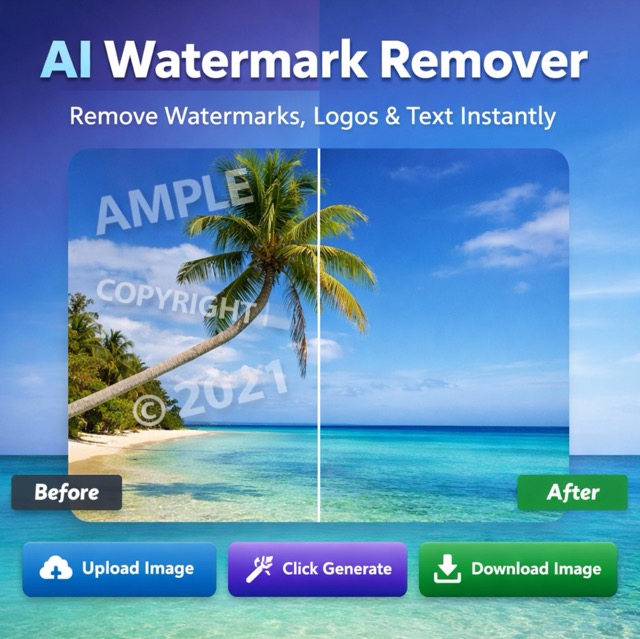
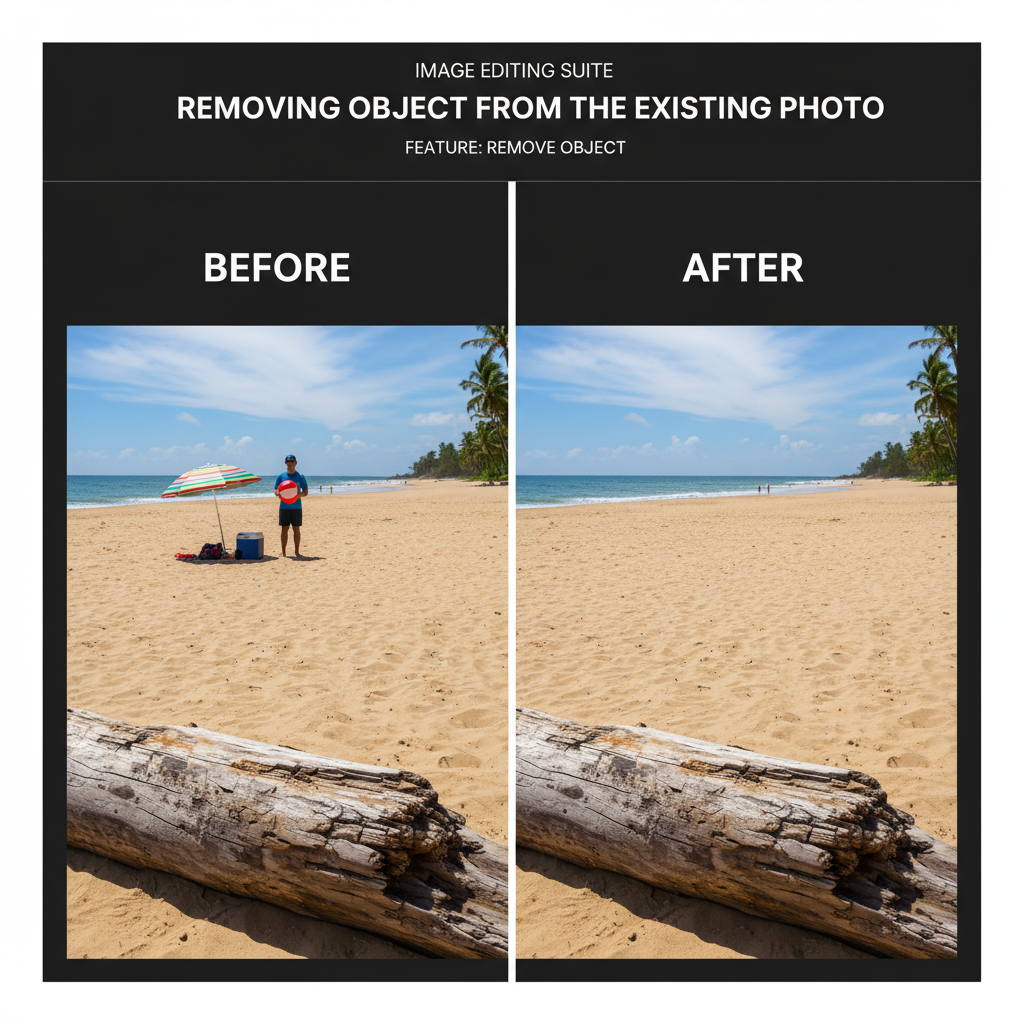
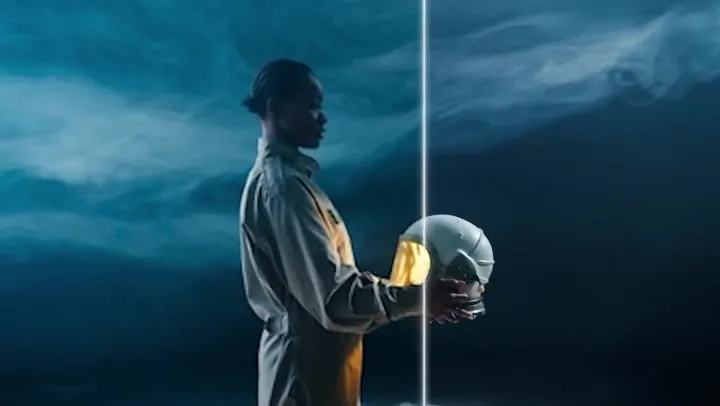
Reference example. It is not a result generated from your upload.
A video watermark remover finds a mark that is burned into the picture, such as a channel logo, an @username, a "preview" stamp, a date code, or a caption, and rebuilds what should be behind it on every frame. Removing watermark from video frames by hand means masking every frame in an editor, cropping cuts off part of the shot, and a blur box draws attention to the corner. An AI video watermark remover fills the area from the surrounding pixels and neighboring frames, so the clip keeps its framing and the patch does not flicker as the camera moves.
EzImgMaker is built for footage you created or have permission to edit: your own channel intro, an old export that still carries your previous logo, a clip from an AI video tool you generated yourself, or a TikTok you posted and want to share elsewhere. Upload it, pick what to remove, and you can remove watermark from video files without the frame-by-frame masking a manual watermark remover from video editing software needs. Watermarks protect creators, so the tool is not for taking marks off other people’s work.
Remove video watermark marks without masking frame by frame.
Add an MP4 or MOV clip up to 60 seconds and 100 MB. Use the original export rather than a screen recording, so the AI has the cleanest pixels around the mark.
Pick watermark, logo, text, or timestamp, and say whether it sits in a corner, moves around, or covers the frame. A short note such as "white handle that jumps corners" helps with tricky marks.
Click Remove Watermark, play the result from start to finish, and check the cleaned area while things move. Download the clean video in 1080p or 720p with the original audio.
One upload covers the marks people most often need to clean from their own footage.
Channel bugs, studio badges, and old brand marks usually sit in a corner for the whole clip. As a logo remover from video intros and B-roll, it rebuilds the corner with matching grass, sky, or wall texture instead of blurring or cropping it out.
Tiled "preview" text and see-through stamps sit on top of faces, fabric, and light. The AI separates the overlay from the scene underneath and restores the original tones, which is where a simple blur leaves a hazy patch.
Camera date codes, promo text, and old captions are part of the pixels, so a player cannot switch them off. Choose Text or Timestamp and the frame is rebuilt under the characters, ready for new titles or a different language version.
Some marks jump between corners or drift across the shot, like the handles on short-video exports and the labels on AI video generations. Set the position to "Moves around" and the AI follows the mark through the clip, so you can erase video watermark traces from your own Sora, Veo, or TikTok uploads.
Match the mark in your clip to the options in the workspace.
| Mark in your video | Typical position | What to choose | Tip |
|---|---|---|---|
| Channel logo or studio badge | One corner, whole clip | Logo or badge · In a corner | Works best on the original export |
| @username or app handle | Jumps between corners | Watermark · Moves around | Name the corners in the note box |
| "Preview" or stock-style text | Tiled across the frame | Watermark · Across the frame | Expect the most work on faces and fine texture |
| Camera date or time code | Bottom corner | Timestamp · Auto-detect | Remove it before adding new captions |
| Old captions or promo text | Bottom third | Text or caption · Auto-detect | Describe the line if there are several |
| AI video label | Corner or moving | Watermark · Auto-detect | Visible label only; keep disclosing AI content |
Clips are processed up to 60 seconds at a time. Split longer edits into parts and remove the watermark from each part.
A watermark remover for videos you own or are licensed to edit. Typical jobs:
Changed your name or logo? Clean the old bug off past intros and B-roll instead of re-shooting them, then add the new mark in your editor.
A clip you exported from one app often carries that app’s handle. Remove it before posting the same video on another platform you run.
When a clip you generated is ready except for the visible label, clean it for a storyboard, pitch, or edit, and keep labeling it as AI-made where it is published.
Footage you licensed may arrive with a supplier’s preview stamp or an old date code. Clean the version you are allowed to use so it fits the new project.
A few habits make the rebuilt area hold up in playback, not just on a still frame.
Re-encoded downloads and screen recordings smear detail around the mark. The first export gives the AI the most to work with.
Cut the clip to the part you need. Shorter clips stay within the 60-second limit and are easier to review.
If the mark changes position or fades in and out, say where and when in the note box.
Use it on your own videos or ones you have written permission to edit, never to pass off someone else’s work.
Typical ways people clean their own footage.
Illustrative examples adapted from reference material, not verified reviews of EzImgMaker.
After a channel rename, every old intro still showed my previous logo. Cleaning the corner was quicker than rebuilding the intros from scratch.
I reuse my own vertical clips on three platforms. Removing the app handle in place kept my captions and framing exactly where I put them.
Our licensed B-roll arrived with an old date stamp. The cleaned version dropped straight into the edit without a crop.
The AI clips I generate for storyboards are fine apart from the corner label. Cleaning them makes the board easier to present, and we still note they are AI-made.
Answers about removing watermarks, logos, and text from videos you own.
Upload the clip, choose what should go (watermark, logo, text, or timestamp) and where it is, then click Remove Watermark. The AI rebuilds the covered area on every frame. Play the result before downloading, especially if the mark moves or sits on a face.
It depends on who owns the video. Removing marks from your own footage, or from footage you have permission to edit, is generally fine. Removing a watermark from someone else’s video to reuse or repost it can infringe copyright and break platform rules, and in some places removing ownership information is itself unlawful. Only upload videos you created or are authorized to edit.
No. Do not use EzImgMaker to strip watermarks, credits, or handles from videos made by other creators, stock libraries, or studios, or to present their work as your own. If you want to use someone else’s clip, ask for permission or license a clean copy.
Both are quick but visible: a crop changes the aspect ratio and cuts off the edge of the shot, and a blur box stays obvious as the background moves. Rebuilding the area, which is what this tool does, keeps the full frame. For very large marks over faces, compare the result carefully before you use it.
Yes. Set the position to "Moves around" and describe the path in the note box if it is unusual. Moving and semi-transparent marks are harder than a fixed corner logo, so always check the result in playback.
It works on any clip you have the rights to edit, including AI video you generated and videos you posted yourself. Removing the visible label does not remove invisible watermarks or content credentials, and you should still disclose AI-generated content where a platform or law requires it.
Only the marked area is rebuilt, and you can export in 1080p or 720p with the original audio. Busy textures, text, or faces directly under the mark are the hardest to reconstruct, so start from the original file for the cleanest result.
MP4 and MOV files up to 100 MB and 60 seconds. For longer videos, trim them into parts and remove the watermark from each one.
New users get free credits to try it. After that, video watermark removal uses credits from a credit pack, based on the length of the clip.
Yes. The page works in mobile browsers, so you can upload a clip from your iPhone or Android camera roll, remove the mark, and save the result without installing an app.
Upload a clip you own, choose the logo, text, or moving mark, and get a clean, full-frame video back.
Sora is a trademark of OpenAI, Veo and Gemini are trademarks of Google LLC, and TikTok is a trademark of ByteDance Ltd. EzImgMaker is an independent tool and is not affiliated with or endorsed by them. Remove watermarks only from videos you created or have permission to edit, and do not use cleaned videos to mislead viewers.