Cinematic Nature Shot
A low tracking shot of horses at sunrise — the kind of epic B-roll that Veo 3.1 and Seedance 2.0 render with natural motion.
Write a scene, a script, or a single sentence and watch it become a video. Pick Seedance 2.0, Seedance 2.5, Veo 3.1, Kling 3.0, Grok Imagine, Wan, or Hailuo, set the length and format, and generate clips with camera motion and native sound.
Wild horses gallop across a vast grassland at sunrise, their manes flowing in the wind. The camera tracks alongside them from a low angle, revealing distant mountains under a clear sky. Golden light, dust in the air, epic film look.
Reference example. It is not a result generated from your upload.
Text to video AI is a type of generative model that reads a written description and renders it as moving footage. You type who is on screen, what happens, where it takes place, and how the camera moves, and the model turns text into video — complete with lighting, physics, and, on models that support it, dialogue and sound effects. Text-to-video is the fastest way to visualize an idea without a camera, actors, or an editing timeline.
This text to video generator lets you convert text to video with the leading models in one place: Seedance 2.0 and Seedance 2.5, Veo 3.1, Kling 3.0, Grok Imagine, Wan 3.0, and Hailuo 02. Each one is a different take on text to video artificial intelligence, so you can write a prompt once, compare results, and keep the version that matches your vision. Unlike single-model text to video tools, it is AI text to video online with every major model a tap away.
Every clip below starts from a prompt. Tap “Try” to load a similar idea into the text video maker, then change the details.
A low tracking shot of horses at sunrise — the kind of epic B-roll that Veo 3.1 and Seedance 2.0 render with natural motion.
A dancing cartoon kitten on a neon street. Kling 3.0 and Grok Imagine keep fast choreography smooth and on beat.
A penguin barista serving a latte. Add a spoken line in quotes and Seedance or Veo 3.1 generates the voice and café sounds.
The camera plunges into a latte to find a tiny village. Describe the camera path and the model follows it from start to finish.
Label shots in your prompt to build a short sequence — Seedance 2.0 and Kling 3.0 cut between them in one clip.
Choose 9:16 for Reels, Shorts, and TikTok. A funny character, one clear action, and a punchy setting work best.
All seven models turn text into video, but each has its own limits and strengths. These are the options available on EzImgMaker.
| Model | Max prompt | Length | Resolution | Aspect ratios | Sound | Strengths |
|---|---|---|---|---|---|---|
| Seedance 2.0 | 20,000 characters | 4–15 s | 480p, 720p, 1080p, 4K | 16:9, 9:16, 1:1, 4:3, 3:4, 21:9 | Native audio, on or off | Multi-shot storytelling, realistic people, reference images |
| Seedance 2.5 | 30,000 characters | 4–30 s | 480p, 720p, 1080p | 16:9, 9:16, 1:1, 4:3, 3:4, 21:9 | Native audio, on or off | Long video from text, consistent characters |
| Veo 3.1 | Long prompts | 4, 6, or 8 s | 720p, 1080p, 4K | 16:9, 9:16 | Always on | Photoreal scenes, dialogue, sound design |
| Kling 3.0 | Multi-shot: 500 characters per shot | 3–15 s | 720p, 1080p, 4K | 16:9, 9:16, 1:1 | Sound effects, on or off | Action, motion quality, multi-shot sequences |
| Grok Imagine | Long prompts | 6–30 s | 480p, 720p, 1080p | 16:9, 9:16, 1:1, 3:2, 2:3 | Native audio | Fast, playful, long single takes |
| Wan 3.0 | 20,000 characters | 2–30 s | 480p, 720p, 1080p | 16:9, 9:16, 1:1, 4:3, 3:4 | Audio on by default | Long clips, text and file references |
| Hailuo 02 | 1,500 characters | 6 or 10 s | 768p; 1080p on Pro | Set by the model | Silent | Expressive character motion |
The generator caps prompts at 1,500 characters so they work on every model. Length, aspect ratio, and sound map to the closest option the chosen model offers — for example, Veo 3.1 stops at 8 seconds and has no square format.
Three steps from a blank page to a finished clip.
Describe the subject, action, setting, camera move, style, and sound. Paste a short script and label the shots for a sequence, or tap an idea to start from a working prompt to video AI template.
Pick a text to video AI model, then set the length, aspect ratio (16:9 for YouTube, 9:16 for Reels and Shorts, 1:1 for feeds), resolution, and whether you want generated sound. Add a reference image to lock a character or product.
Press Generate, preview the clip, and download the take you like. Same prompt, different model? Switch and generate again to compare text to video generation side by side.
Modern AI text to video models understand camera language — dolly in, crane up, handheld follow, orbit — along with lenses, lighting, and pacing. Write like a director and the AI video generator from text frames the shot the way you describe it, from text to AI video in one step.
Label Shot 1, Shot 2, Shot 3 and Seedance 2.0 or Kling 3.0 cut between them in one clip — use it as a Kling AI text to video generator with Kling 3.0’s multi-shot mode. For a long video from text, Seedance 2.5, Grok Imagine, and Wan 3.0 reach 30 seconds, and the AI Video Extender continues any clip.
Put dialogue in quotes and list the sounds you expect. Seedance 2.0, Seedance 2.5, Veo 3.1, Grok Imagine, and Wan 3.0 generate speech, effects, and ambience together with the picture, so the clip is ready to post without a separate audio edit.
Make widescreen B-roll, vertical shorts, and square posts from the same text to video maker. Choose 720p for quick drafts or 1080p for final cuts, then sharpen the result further with the Video Upscaler. Need a photo to move instead? Switch to Image to Video.
A simple formula that works across every model: subject + action + setting + camera + style + sound.
Say exactly who or what is on screen: “a penguin barista in a green apron” beats “an animal in a café”.
Short clips work best with one main movement. Save extra beats for labeled shots or a follow-up clip.
Tracking shot, slow push-in, drone flyover, orbit, or static tripod — camera words have the biggest effect on the result.
Golden hour, neon night, overcast; photoreal, anime, claymation, documentary. Match it with the Visual style setting.
Quote spoken lines and list sound effects or music mood. Models with audio follow it; silent models ignore it.
If a detail is missing, add it in the next version rather than stacking ten ideas into one prompt.
From solo creators to marketing teams, text to video AI tools replace hours of filming and editing for short-form content.
Turn ideas and scripts into shorts, B-roll, and channel intros without stock footage.
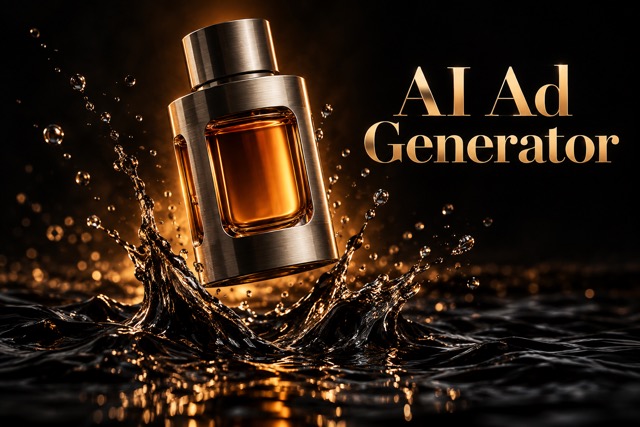
Draft product ads, launch teasers, and social campaigns from a written brief.
Previsualize scenes, test camera moves, and pitch concepts with moving storyboards.
Convert text to video for lessons, explainers, and course intros that hold attention.
Generate loops and visualizers for tracks, lyric snippets, and live shows.
Make menu promos, event announcements, and seasonal posts without hiring a crew.
Illustrative examples adapted from reference material, not verified reviews of EzImgMaker.
I paste a three-shot script, run it on Seedance 2.0 and Kling 3.0, and pick the better cut. It replaced most of the stock footage I used to buy.
Our product team writes the ad brief as a prompt and we have draft videos for review the same day.
I make short visual explainers for my history class. Writing the scene and the narration line in one prompt is a huge time saver.
It is artificial intelligence that turns a written description into a video clip. You describe the scene, action, camera, and style, and the model generates the footage — and on models with audio, the dialogue and sound effects too.
New users get free credits to try the text to video generator, so you can test prompts and compare models at no cost. After that, generations use credits from credit packs, with longer and higher-resolution clips using more.
Type your prompt or script, choose a model, set the length, aspect ratio, resolution, and sound, then press Generate. Preview the result, adjust the wording if needed, and download the clip.
It depends on the shot. Veo 3.1 is excellent for photoreal scenes with dialogue, Seedance 2.0 for multi-shot stories and reference-driven ads, Kling 3.0 for action and motion, Grok Imagine for quick playful clips, and Seedance 2.5 or Wan 3.0 for longer takes up to 30 seconds.
Single generations run up to 15 seconds on Seedance 2.0 and Kling 3.0 and up to 30 seconds on Seedance 2.5, Grok Imagine, and Wan 3.0. For longer pieces, generate several shots from one script or continue a clip with the AI Video Extender.
Yes, on most models. Seedance, Veo 3.1, Grok Imagine, and Wan generate speech and sound effects with the video, and Kling 3.0 adds optional sound effects. Hailuo 02 makes silent clips.
Add a reference image of the character or product. Seedance, Veo 3.1, Kling 3.0, Grok Imagine, and Wan use it to keep the look consistent from clip to clip. For exact framing, animate a start frame with Image to Video.
No. It runs in your browser on desktop, tablet, or phone, so you can write prompts and download clips without installing a text to video app.
Do not ask for real people’s likenesses without consent, minors in unsafe situations, explicit content, or footage meant to mislead viewers about real events. These requests are blocked by the models’ safety filters.
No. EzImgMaker is an independent text to video AI platform that gives you access to these models in one place. Model names belong to their respective owners.
Write a prompt, pick a model, and let text to video AI do the filming.
EzImgMaker is an independent service and is not affiliated with, endorsed by, or sponsored by ByteDance, Google, Kuaishou, xAI, Alibaba, or MiniMax. Seedance, Veo, Kling, Grok Imagine, Wan, Hailuo, and other model names are trademarks of their respective owners.