
Upload a Photo or Screenshot
Choose a picture with one clear subject. This is also how to turn a screenshot into a sticker: crop it to the part you want first, then upload the image here.
Upload a selfie, pet, food photo, or screenshot and pick a sticker style. Photo Cut-Out removes the background for a transparent PNG sticker; drawn styles like die-cut, cartoon, chibi, emoji, and kawaii redraw it with a thick white border. Free credits when you sign up.
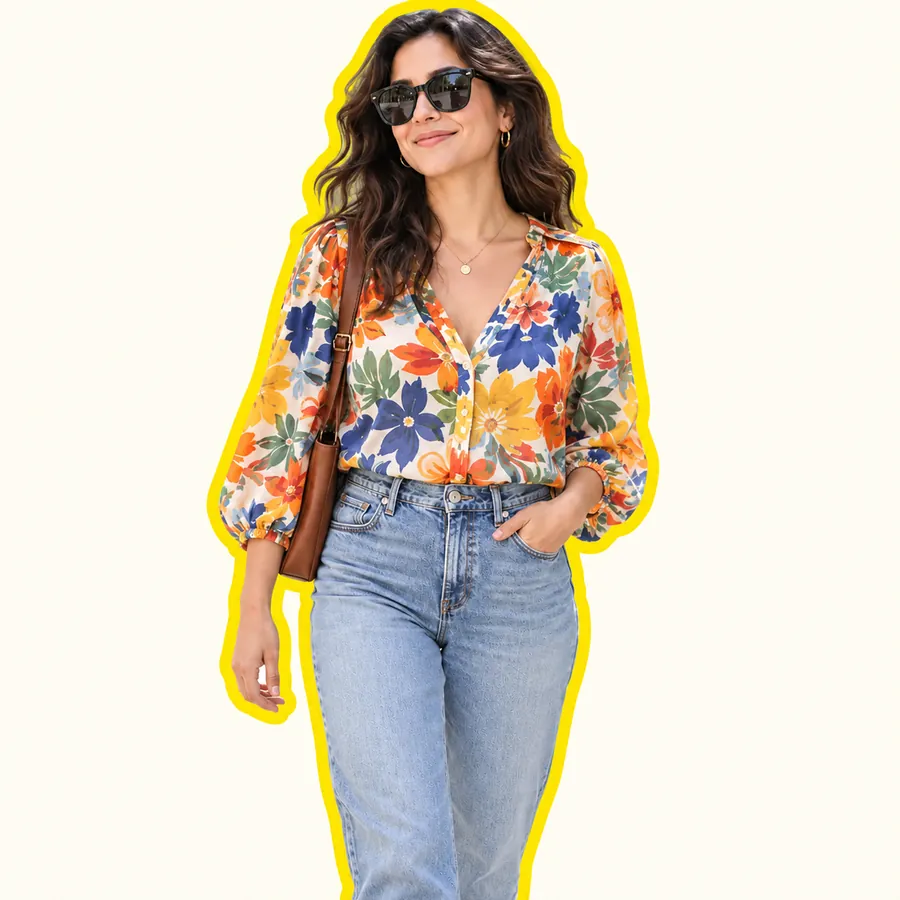
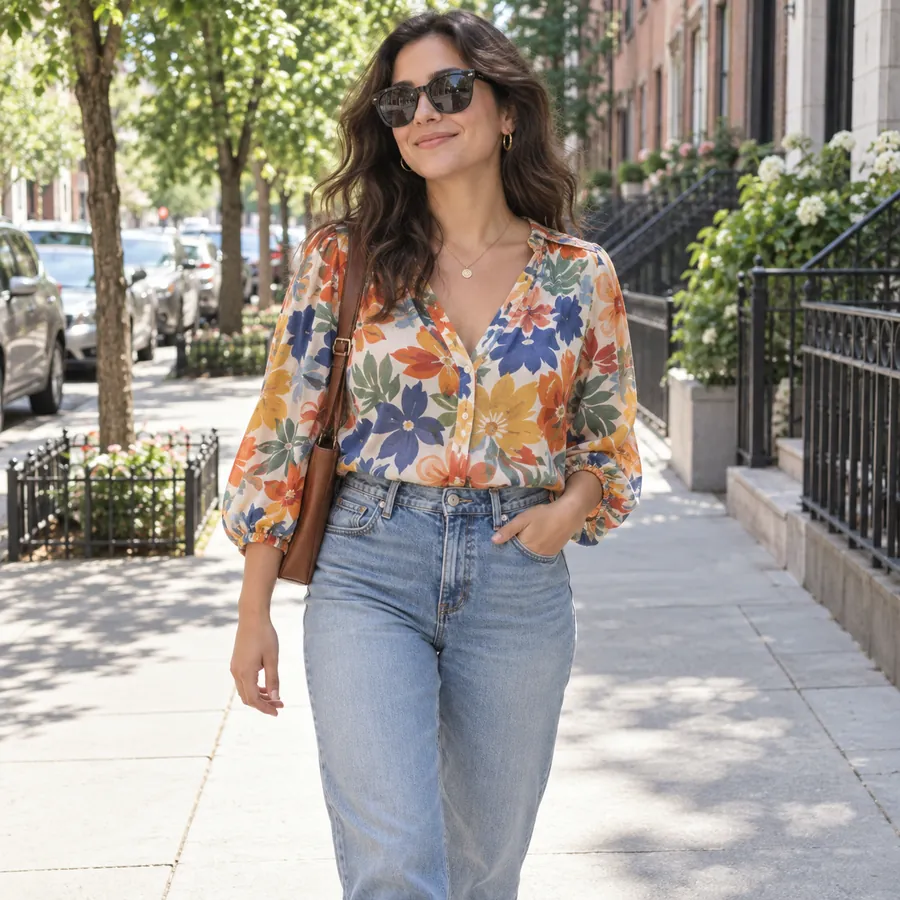
Reference example. It is not a result generated from your upload.
Making a picture into a sticker, or making a sticker from a photo, used to mean tracing the subject by hand, erasing the background pixel by pixel, and adding a white outline in a design app. This sticker maker does it for you: upload the photo, choose a style, and the AI finds the main subject, cuts it out, and finishes it as a sticker. It is the quickest answer to how to make a photo into a sticker or how to make a picture into a sticker, whether the photo is a selfie, a pet, a meal, a product, or a screenshot.
Pick Photo Cut-Out to keep the photo exactly as it is and get a transparent PNG sticker, or choose a drawn style, such as Die-Cut Classic, Cartoon, Chibi, Anime, Kawaii, 3D Cute, Emoji, Pixel Art, Comic Pop, or Doodle, to redraw the subject with a thick white die-cut border. Reaction packs and shapes like heart shaped stickers make it easy to build a whole set of fun stickers to make with friends. You can design stickers online with no design app at all: this sticker creator online lets you create stickers online and make your own stickers online from any phone or computer.
Here is how to make a sticker from a photo, a picture, or a screenshot, and how to turn pictures into stickers for any app. The same three steps work on a phone or a computer.
Choose a picture with one clear subject. This is also how to turn a screenshot into a sticker: crop it to the part you want first, then upload the image here.
Photo Cut-Out keeps the real photo and removes the background. Drawn styles, reactions, and shapes redraw it as an illustrated sticker; add a caption in the box if you like.
Save the PNG sticker, then add it to iMessage, WhatsApp, Snap, Instagram, or your keyboard using the app guide below, or print it on sticker paper.
Different starting images need slightly different steps. Find yours below.
| You have | What to do |
|---|---|
| A photo from your camera roll | How to make a sticker out of a photo: upload it, then choose Photo Cut-Out for a real-photo sticker or a drawn style for an illustrated one. |
| A picture you saved | How to make a sticker out of a picture: upload the image, pick a style, and download the PNG. Only use pictures you have the right to use. |
| A screenshot | How to make a sticker from a screenshot: crop it to the part you want, upload it, and choose Photo Cut-Out or Comic Pop. |
| A Live Photo | How to make a sticker out of a live photo: on iPhone, touch and hold the subject in Photos and tap Add Sticker; it plays as a moving sticker. |
| A whole image, edge to edge | How to make a whole image a sticker without cutting anything out: choose Polaroid Frame or Circle Badge under Shapes & Frames. |
| A group photo | Crop to the person you want first, or say who to keep in the caption box, for example “only the person in the red jacket”. |
| Product photos for a shop | How to make custom stickers from photos of products: use Die-Cut Classic for a clean, print-ready look. |
Wondering how to turn photos into stickers people actually use? Making stickers from photos works best when the subject is easy to read at a small size. These ideas always work.
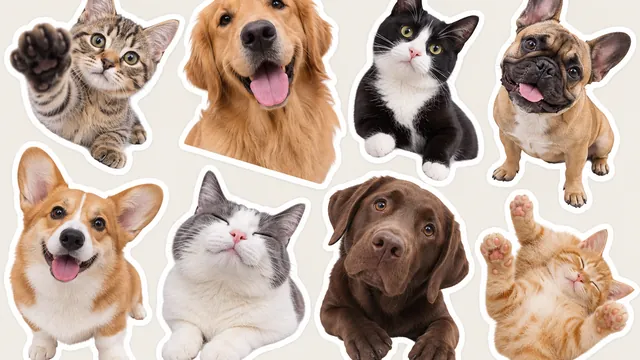
Dogs and cats make the funniest reaction stickers. Fur, ears, and collars stay crisp.
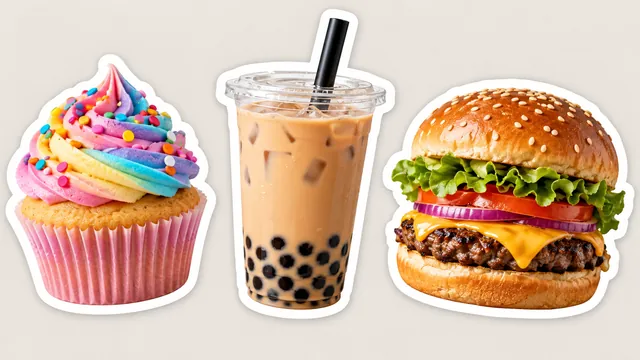
Cupcakes, bubble tea, and burgers for menus, food blogs, and group chats.
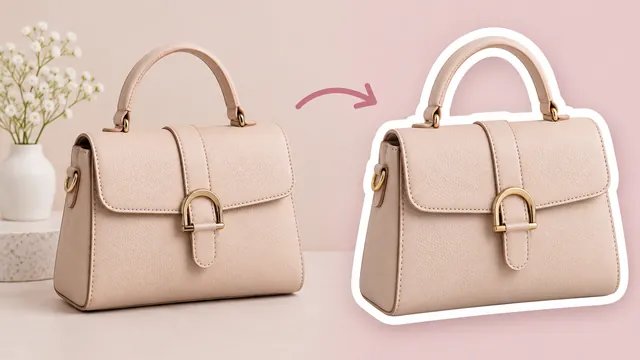
Turn product photos into clean die-cut stickers for packaging, inserts, and social posts.
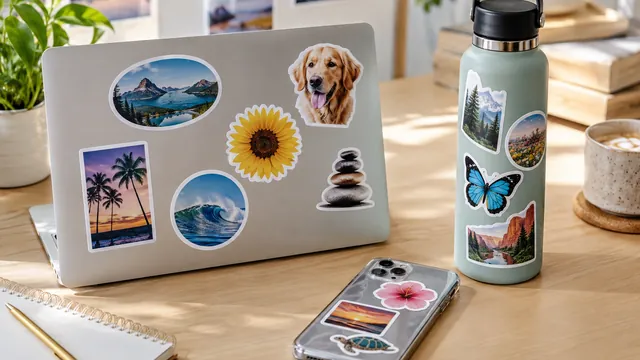
Print your own stickers and decorate a laptop, phone case, or water bottle.
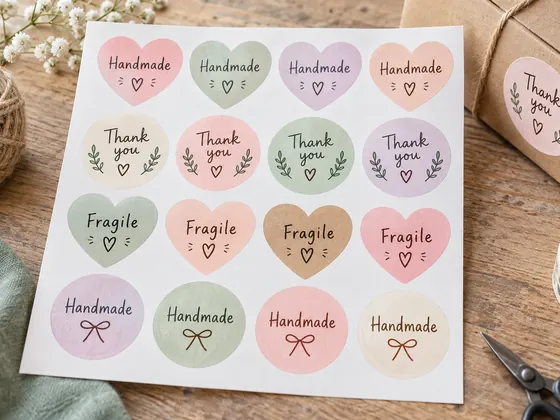
Round badges and heart shapes for handmade orders, gift wrap, and small shops.
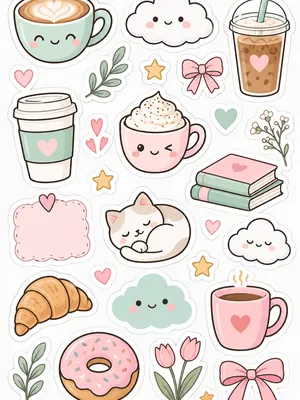
Make a matching set in one style for planners, scrapbooks, and bullet journals.
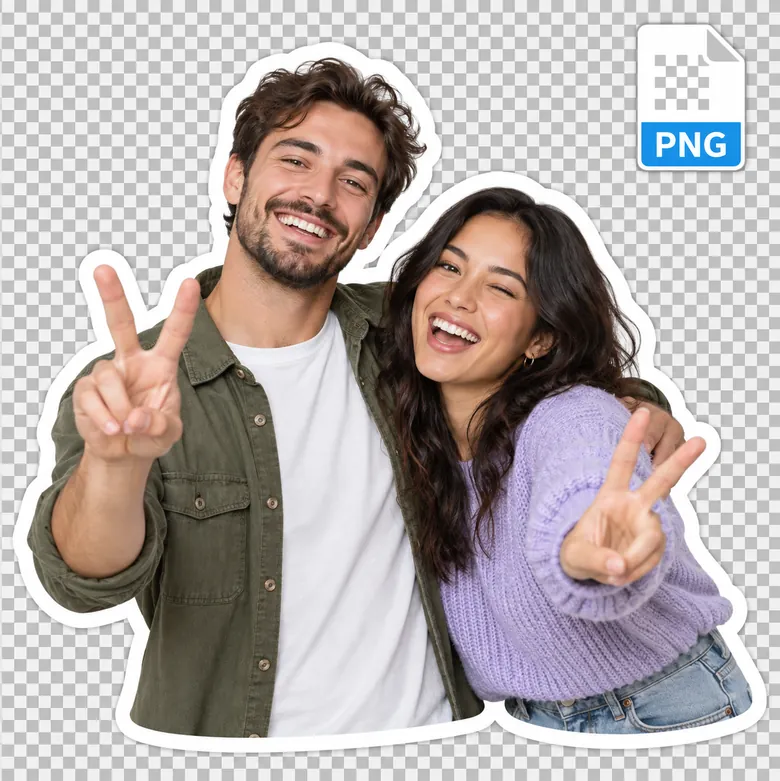
Photo Cut-Out detects the person, pet, or object and removes everything else, so you get a PNG sticker with a transparent background that sits cleanly on any chat, story, or design. It is the fastest way to make a whole image a sticker-ready cut-out without tracing edges by hand.
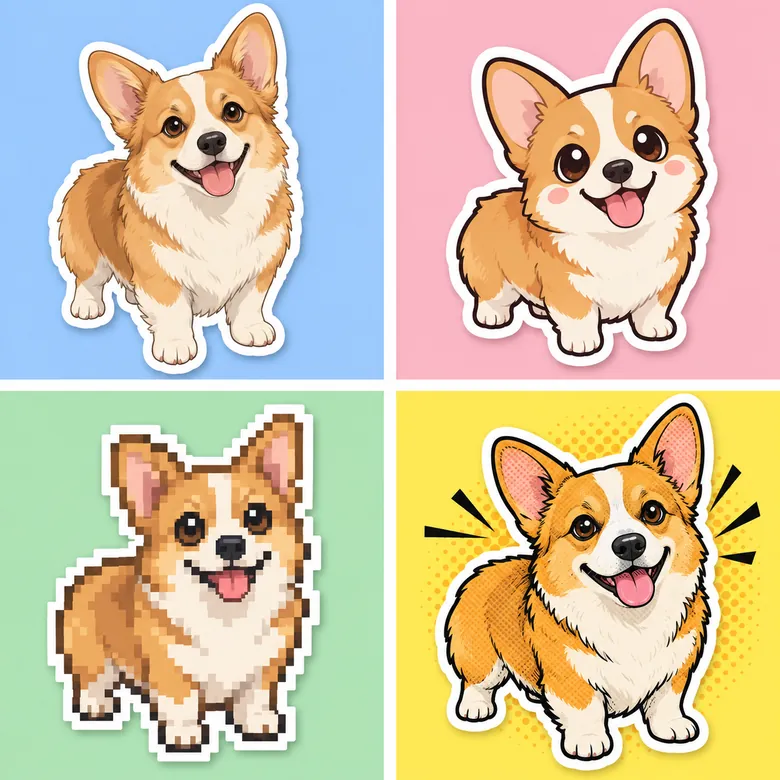
Turning photos into stickers does not have to mean the same cut-out every time. Make pictures into stickers in 11 styles: redraw one picture as Die-Cut Classic, Cartoon, Chibi, Anime, Kawaii, 3D Cute, Emoji, Pixel Art, Comic Pop, or Doodle, and every style finishes with the thick white border that makes a sticker look like a sticker.
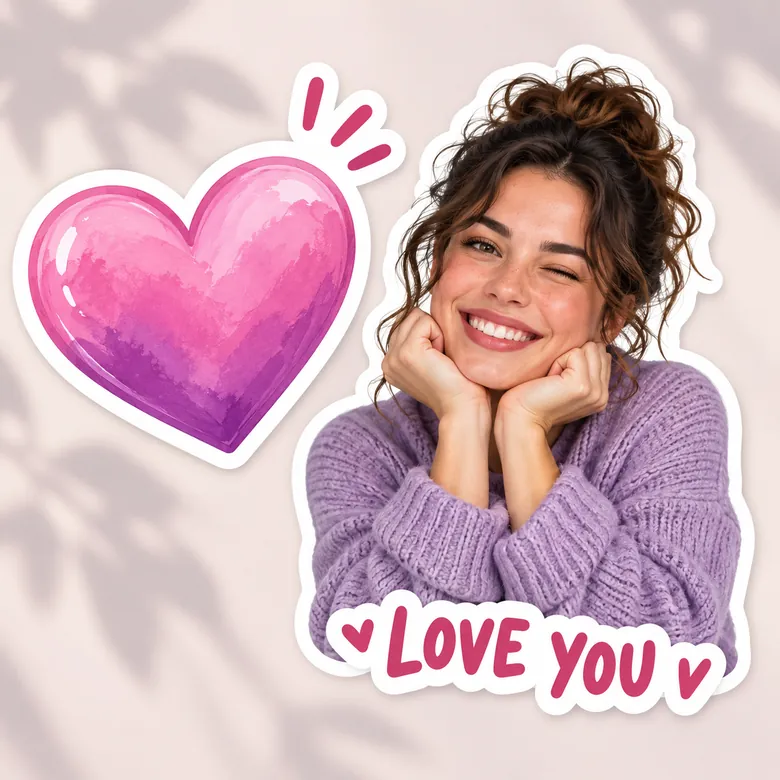
Build a reaction pack from one selfie: Laughing, Heart Eyes, Crying, Thumbs Up, or shocking stickers with a wide-eyed face. Add a short caption like “LOL” or “Miss you”, or frame the photo in a heart, circle badge, speech bubble, or instant-photo frame.

Create stickers from photos once and use them everywhere. Every sticker downloads as an image you can add to your favorite apps: a custom set for WhatsApp, iMessage stickers on iPhone, Snap stickers from your camera roll, a Messenger custom sticker, or a Telegram pack made with the official stickers bot.
After you download the PNG, here is how to use it as a sticker in the apps people ask about most.
| App | How to add your sticker |
|---|---|
| iPhone Messages (iMessage) | Open the PNG in Photos, touch and hold the subject until it lifts, then tap Add Sticker. That is how to make a sticker for iMessage: it appears in the Messages sticker drawer and the emoji keyboard (iOS 17 or later). |
| In any chat, open the sticker tray, tap Create, and pick your PNG. The sticker is saved to your WhatsApp stickers on iPhone, Android, and the web. | |
| Snapchat | In the snap editor, open the sticker tray and look for the Camera Roll option to add the PNG; it then stays in your recent stickers for the next snap. |
| Instagram Stories | In the story editor, open the sticker tray, choose the photo or cutout sticker, and pick your PNG to place it on the story. |
| Messenger | Send the transparent PNG from your gallery: Messenger stickers made this way show without a background, like a custom sticker. |
| Telegram | Open Telegram’s official @Stickers bot, start a new pack, and send the PNG resized so one side is exactly 512 px. |
| Android keyboard | Save the PNG to a WhatsApp or sticker app pack; most keyboards then show it in their sticker tab. |
App menus change from time to time; if a step looks different, look for “sticker” or “create” in the sticker tray.
Turn pictures into stickers for chats, gifts, shops, and planners. Once you know how to make stickers out of photos, these are the sets people make most.
Your own face as Laughing, Heart Eyes, or Shocked stickers for group chats and streaks.
One sticker per mood for the dog or cat everyone in the chat already loves.
Product stickers, thank-you badges, and logo stickers for packages and stalls.
Matching sticker sheets of trips, friends, and food for journals and photo albums.
Baby announcements, birthday party favors, and wedding stickers made from photos of the real moments.
Print photos on stickers for laptops, water bottles, phone cases, and gift wrap.
A single person, pet, or object with some space around it gives the cleanest cut-out.
A subject that stands out from the background keeps hair, fur, and edges crisp.
Wondering how to make screenshots into stickers that look clean? Crop away the status bar and other apps so the AI knows what to keep.
One to three words, like “LOL” or “On my way”, stay readable when the sticker is small.
Use the same style for every sticker in a pack so they look like they belong together.
For printed stickers, download the full-resolution file and print on glossy or matte sticker paper.
Sticker makers, emoji tools, background removers, and art styles that turn pictures to stickers, emoji, and cut-outs.
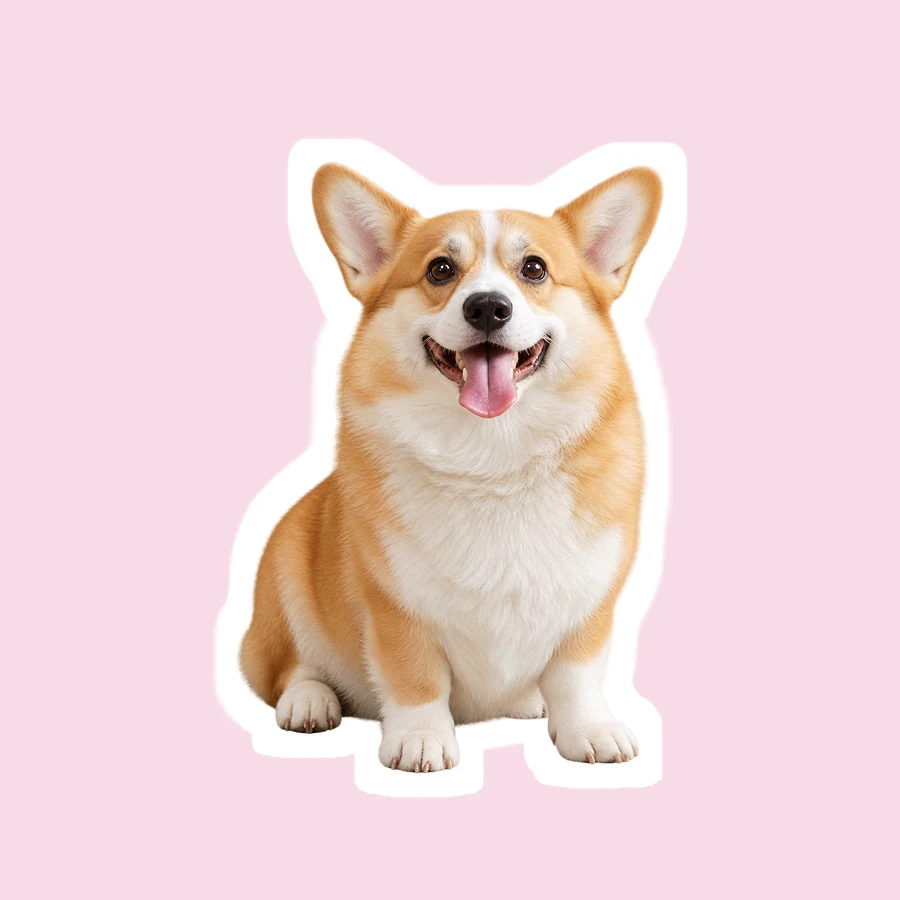 Snapchat Sticker MakerHow to make a sticker for Snapchat from any photo: upload it, let AI cut out the subject, add a white outline or caption, and save a transparent PNG sticker.
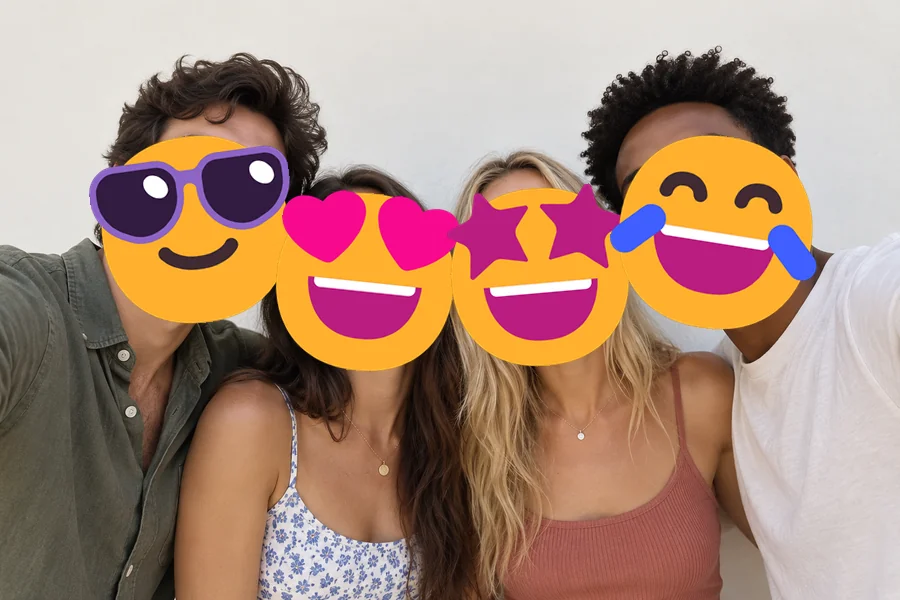 Add Emoji to PhotoAdd emoji to photo files for free: put any emoji in photos and pictures, then drag, resize, rotate, or delete it and download at full size. No upload needed.
 Remove Emoji from PhotoRemove emoji from photo shots in one pass: the AI emoji remover erases emojis and stickers from pictures and fills the covered area with matching background.
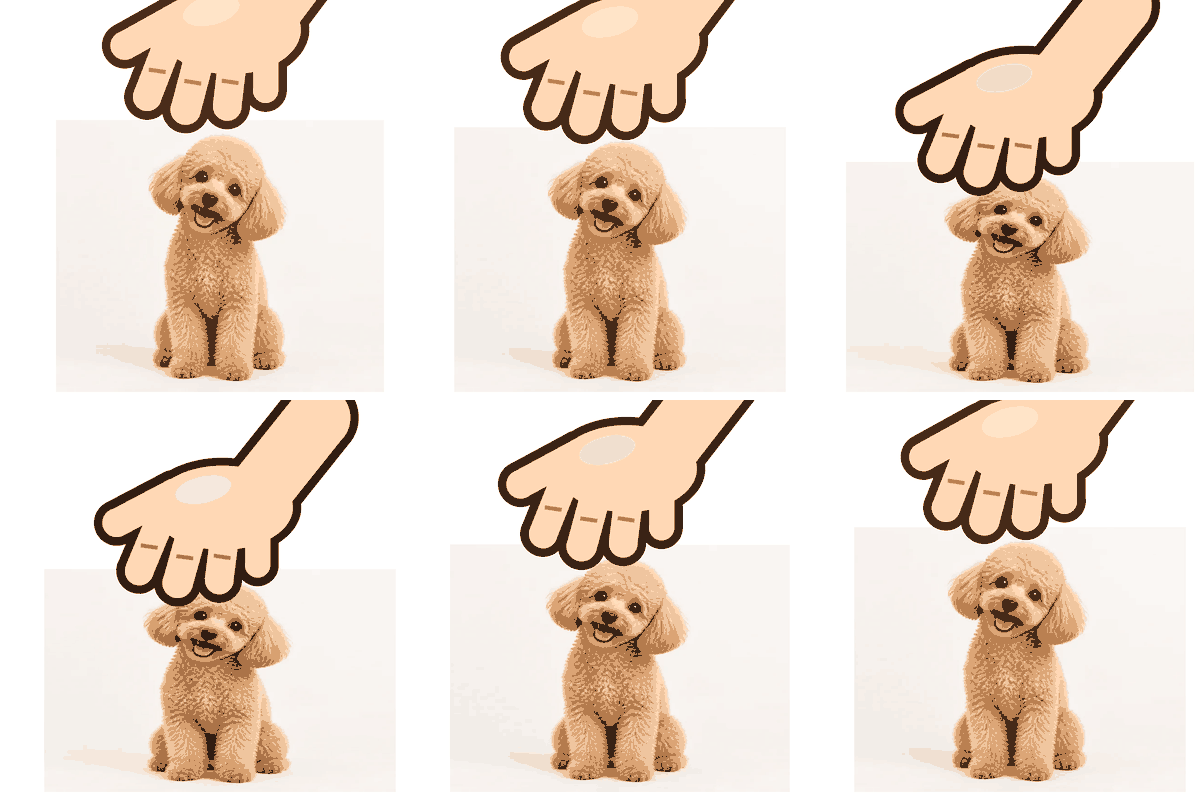 Petpet GIF GeneratorFree petpet generator: upload any image and a cartoon hand pats it in a looping GIF. Set speed and squish, pick a size, and download. Runs in your browser.
 Realistic Troll Face GeneratorMake a realistic troll face from a selfie or the classic meme. Pick a troll level and a hyper realistic, creepy, or black-and-white look for your meme edits.
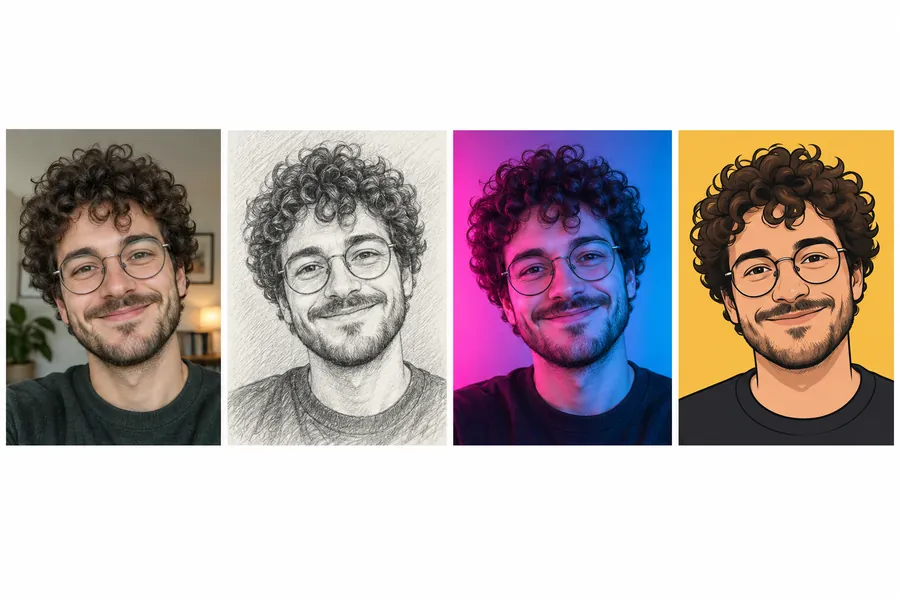 AI PFP MakerPFP maker for any app: upload a selfie, pick anime, 3D, pixel art, aesthetic, or letter styles, and the AI profile picture maker creates a square pfp to download.
 Background RemoverRemove background free to try: the AI background remover online cuts out people, products and pets, then gives you a transparent PNG, white, color or new scene.
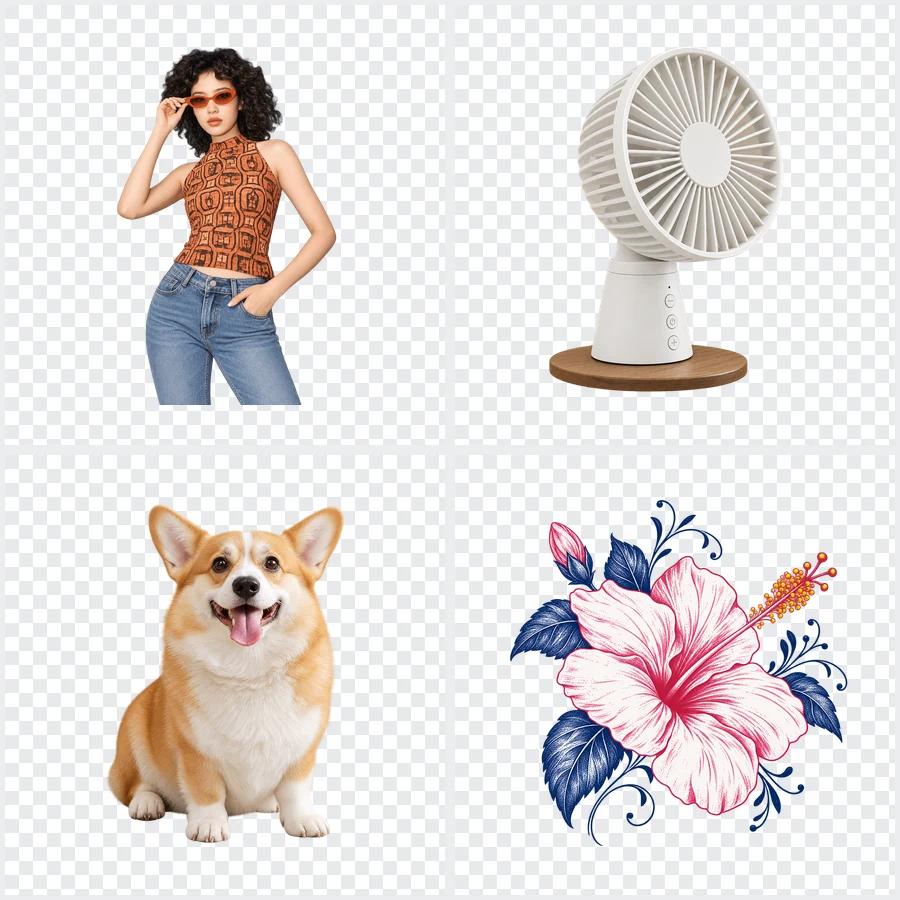 Bulk Background RemoverBulk background remover for product photos and portraits. Upload a batch, let AI cut out every subject, and get matching transparent or white backgrounds.
 GIF Background RemoverRemove background from GIF animations with AI. Upload an animated GIF, cut out the subject on every frame, and make the GIF transparent or swap in a new color.
 Green Screen RemoverFree green screen remover in your browser: chroma key green or blue backdrops out of photos, clean up green edges, and download a transparent PNG.
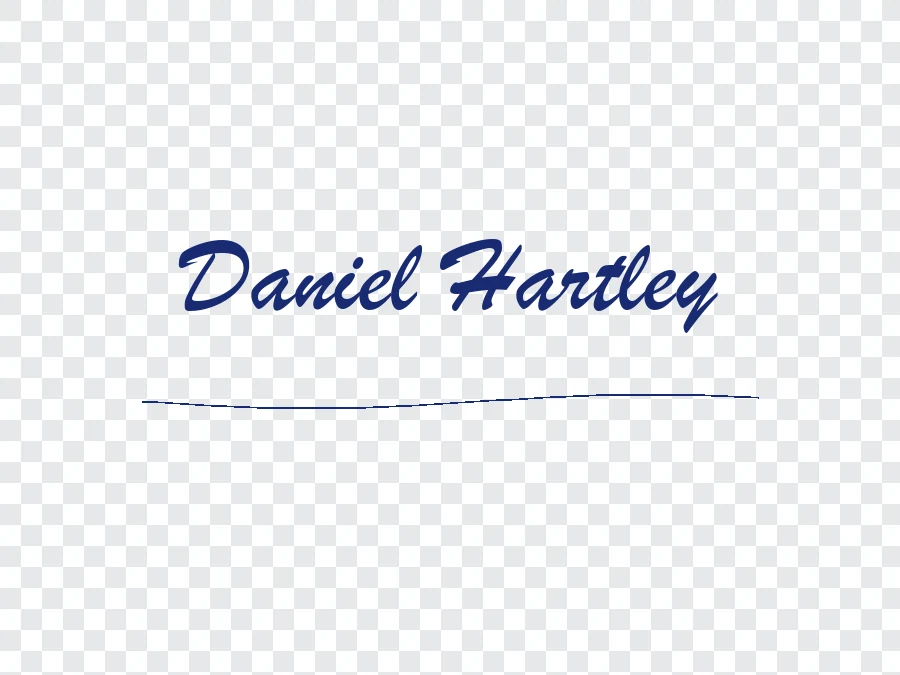 Remove Background From SignatureRemove background from signature photos and scans with AI. Paper, shadows, and ruled lines are cleared, leaving a sharp transparent PNG for Word or PDF.
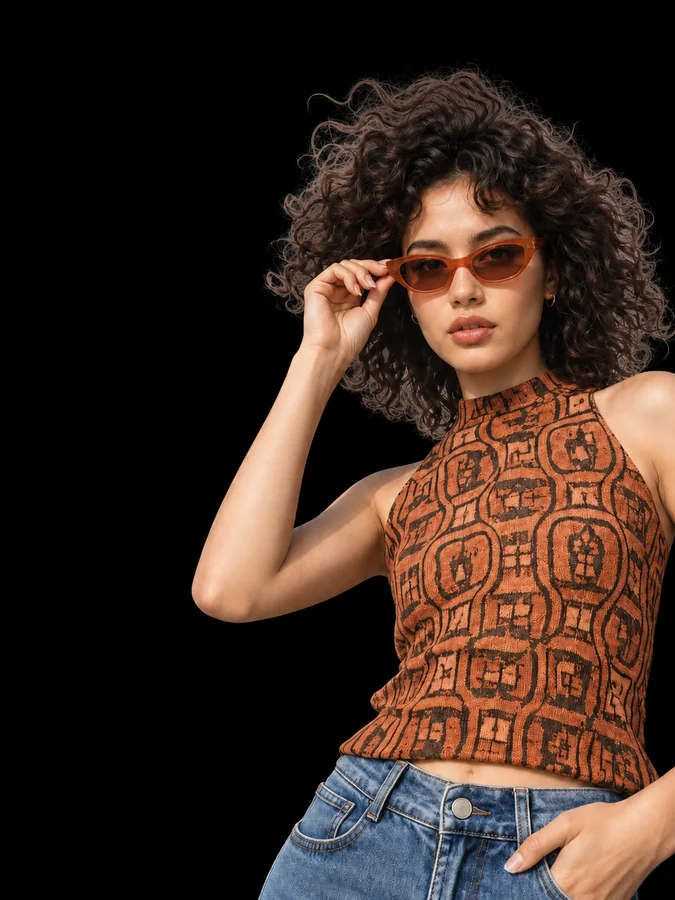 Make Background BlackMake background black in any photo with AI. Upload a portrait or product shot and get the subject on a clean black backdrop, with edge light for dark tones.
 Remove a Color from an ImageRemove a color from an image for free in your browser: make one color transparent, replace it with white, or keep only that color for a color splash photo.
 Photo to CartoonPhoto to cartoon AI cartoonizer: pick 3D animated, anime, comic, caricature or line art and turn a photo into a cartoon of you, your pet or car. Free to try.
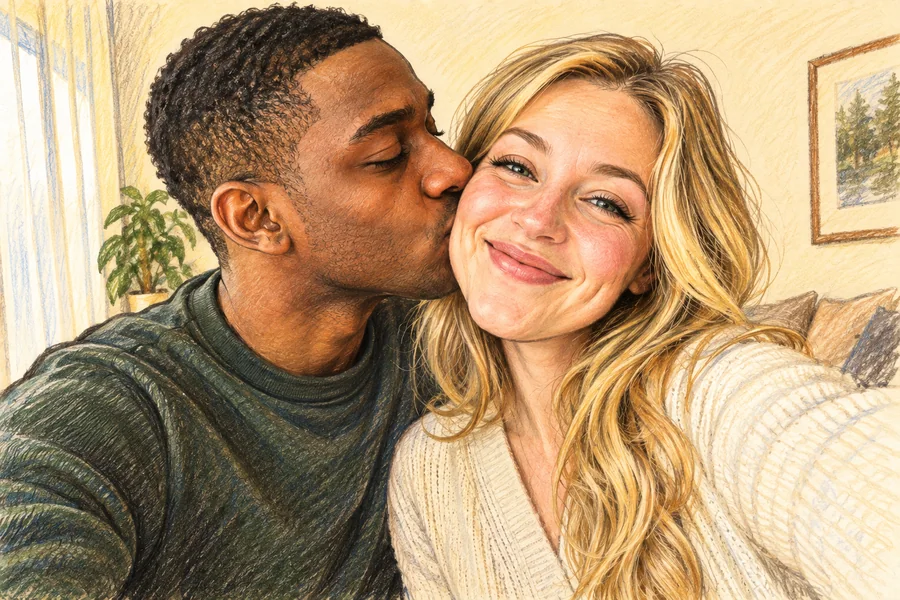 AI Caricature MakerHow do I create a caricature of me? Upload a photo to the AI caricature maker, pick a style, and turn your picture into a funny, recognizable caricature.
 Photo to Pixel ArtTurn any image to pixel art with AI. Upload a photo, pick 8-bit, 16-bit, handheld green, or game sprite style, and get grid-aligned retro pixel art, not a blur.
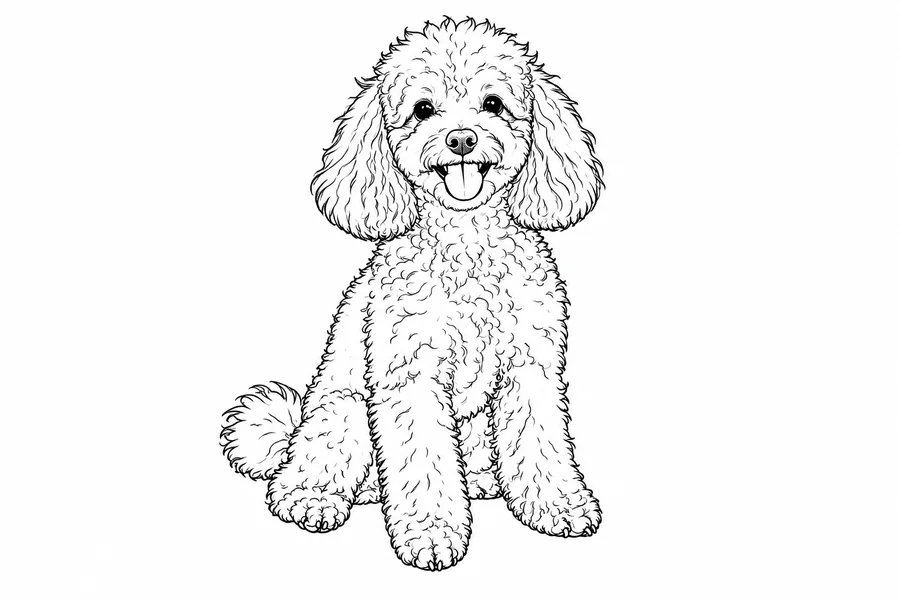 Photo to Line Art GeneratorConvert photo to line drawing online. Upload any picture to the line art generator, pick a style, and turn it into clean line art, outlines, or coloring pages.
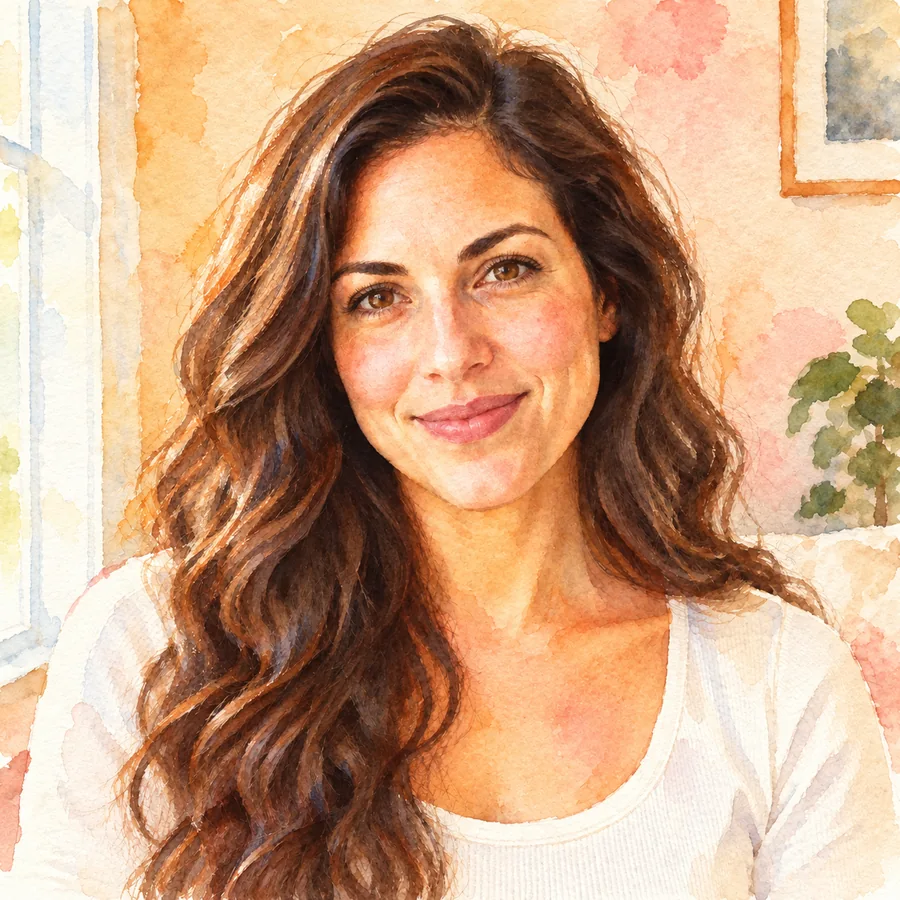 Photo to WatercolorTurn photo into watercolor art online. Upload a portrait, pet, or travel shot, pick a style, and turn it into a watercolor painting with soft, natural washes.
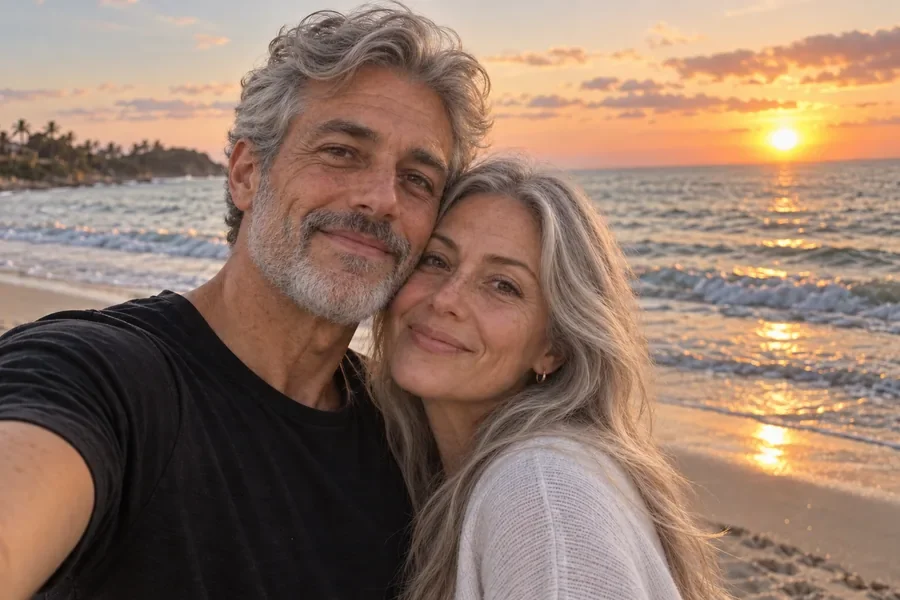 AI Filters70+ AI filters for any photo: face filters for age, bald, beard, gender swap and zombie, plus cartoon and color looks. Upload a pic, add a filter. Free to try.
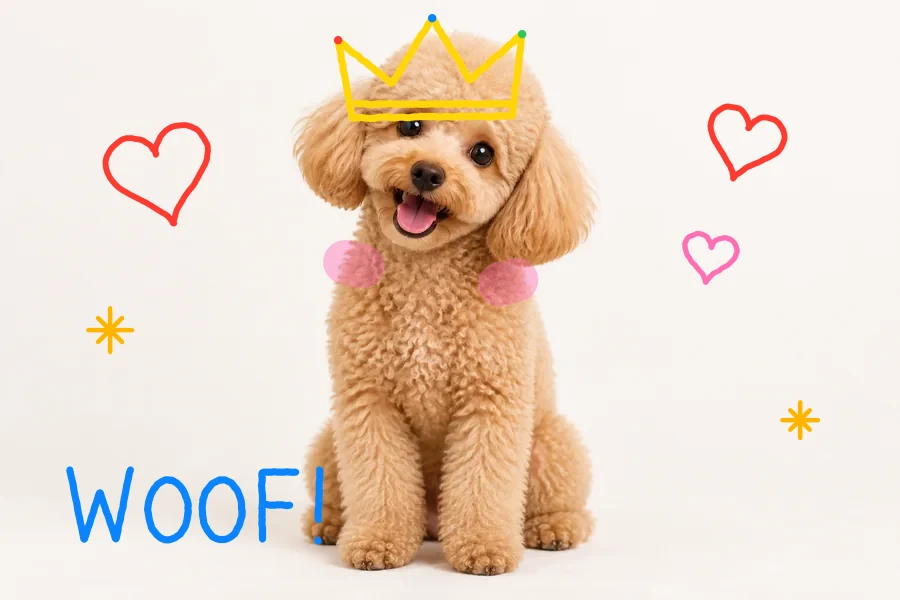 Draw on ImageDraw on image files online for free: doodle on photos and pictures with pen, highlighter, and neon brushes, erase or undo, and download at full size.
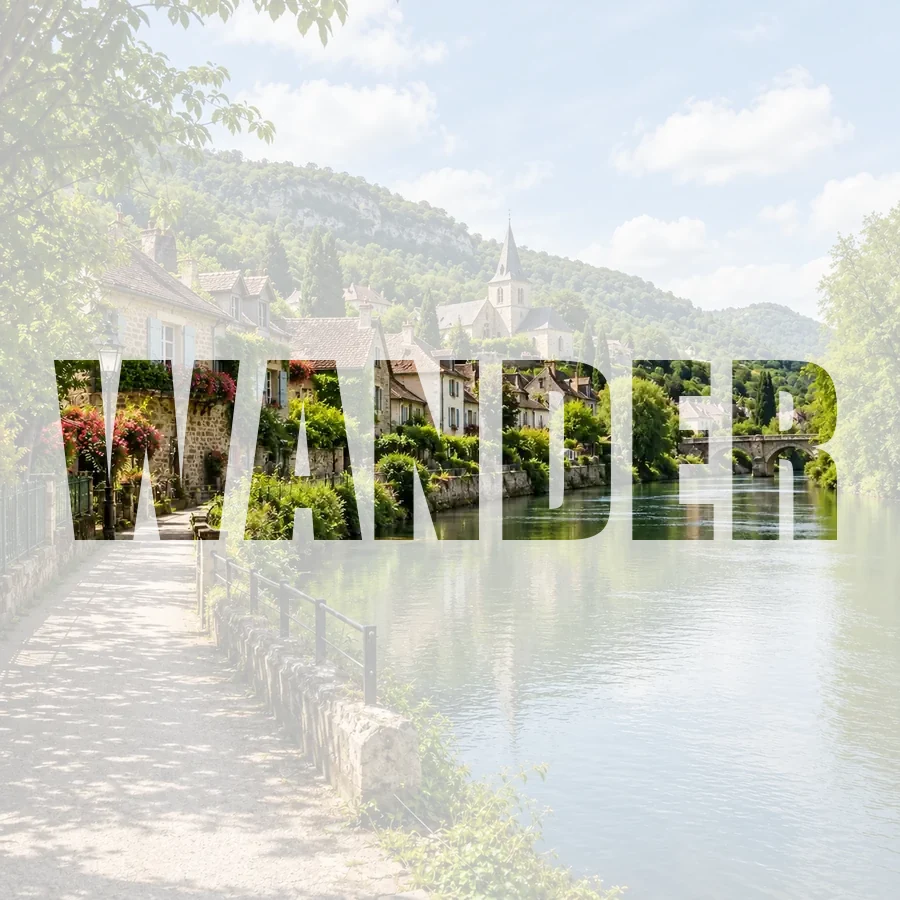 Picture Inside TextPut a picture inside text online for free: fill any word with your photo, pick a font, add a color, faded, or transparent background, and download a PNG.
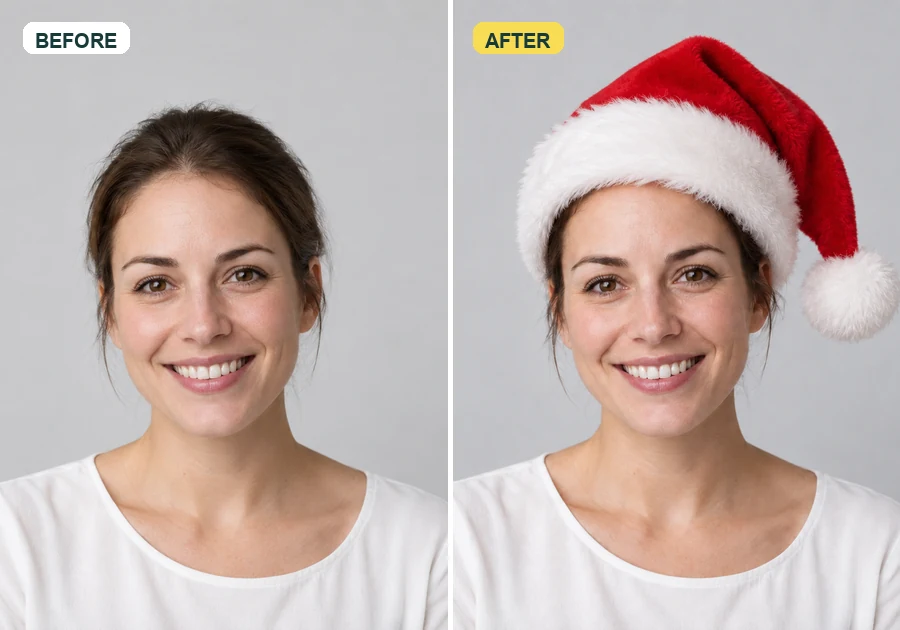 Add Santa Hat to Your PictureAdd santa hat to your picture with AI: upload a photo, pick a classic, elf, blue, or antler Christmas hat, and it fits every head in the shot, pets included.
 Christmas Free Frames and BordersChristmas free frames and borders for photos: add a Merry Christmas frame, holly, lights, or snow border in your browser and download a printable frame image.
 Image CombinerFree image combiner: combine photos side by side, stack them, or merge pictures into a grid with spacing and a background color, right in your browser.
Here is how to create a sticker from a photo: upload the picture above, pick a style, and press Start. Photo Cut-Out removes the background and keeps the photo as it is; the other styles redraw it with a white die-cut border. That is how to turn a photo into a sticker in one go, and how to make my own sticker sets from photos too. If you are wondering how do I make my own stickers or how do I turn a picture into a sticker on a phone, the steps are exactly the same.
Yes. Take the screenshot, crop it to the person, meme, or message you want, and upload it here. That is how to make a screenshot a sticker, and how to make stickers from screenshots in any style: Photo Cut-Out keeps it looking exactly like the screenshot, while Cartoon or Comic Pop turns it into an illustration.
On iPhone, open the downloaded PNG in Photos, touch and hold the subject, and tap Add Sticker; it then shows up in the emoji keyboard. To make a sticker from a photo on Android, add the PNG to a WhatsApp or sticker app pack, and your keyboard’s sticker tab will show it.
Make the sticker here, save it to Photos, then touch and hold the subject and tap Add Sticker (iOS 17 or later). In Messages, tap the plus button, choose Stickers, and your new sticker is ready to drop on any message.
Save the PNG to your camera roll. When you edit a snap, open the sticker tray, look for the Camera Roll option, and pick it. That is how to send a sticker on Snap that you made yourself instead of using the built-in scissors tool.
Live stickers are an iPhone feature. Here is how to make a sticker out of a live photo: open the Live Photo, touch and hold the subject, and tap Add Sticker, and the sticker moves. For a still sticker in a drawn style, upload a frame of the photo here.
Download the result as a PNG, which keeps the transparent or white sticker background. Going from PNG to sticker takes one more step in each app, shown in the app table above; it is also how to save a picture as a sticker, or how to save an image as a sticker, that you can reuse.
Change the style, reaction, shape, or caption and press Start again to get a new version. If you are asking how to edit a sticker you already saved on iPhone, tap it and choose Add Effect for an outline, comic, or puffy look. Small edits here, like a different caption or outline color, work best as a short note in the caption box.
Just a clear photo, this sticker maker, and sticker paper. Download the full-resolution file, print it on glossy or matte sticker paper, and cut along the white border by hand or with a cutting machine.
Only upload photos you took or have permission to use. Ask friends before turning their faces into stickers, and do not make stickers that harass, impersonate, or embarrass anyone.
Upload a picture, pick a style, and download a sticker ready for chats, keyboards, or printing.