
Mixed Batch to Transparent PNGs
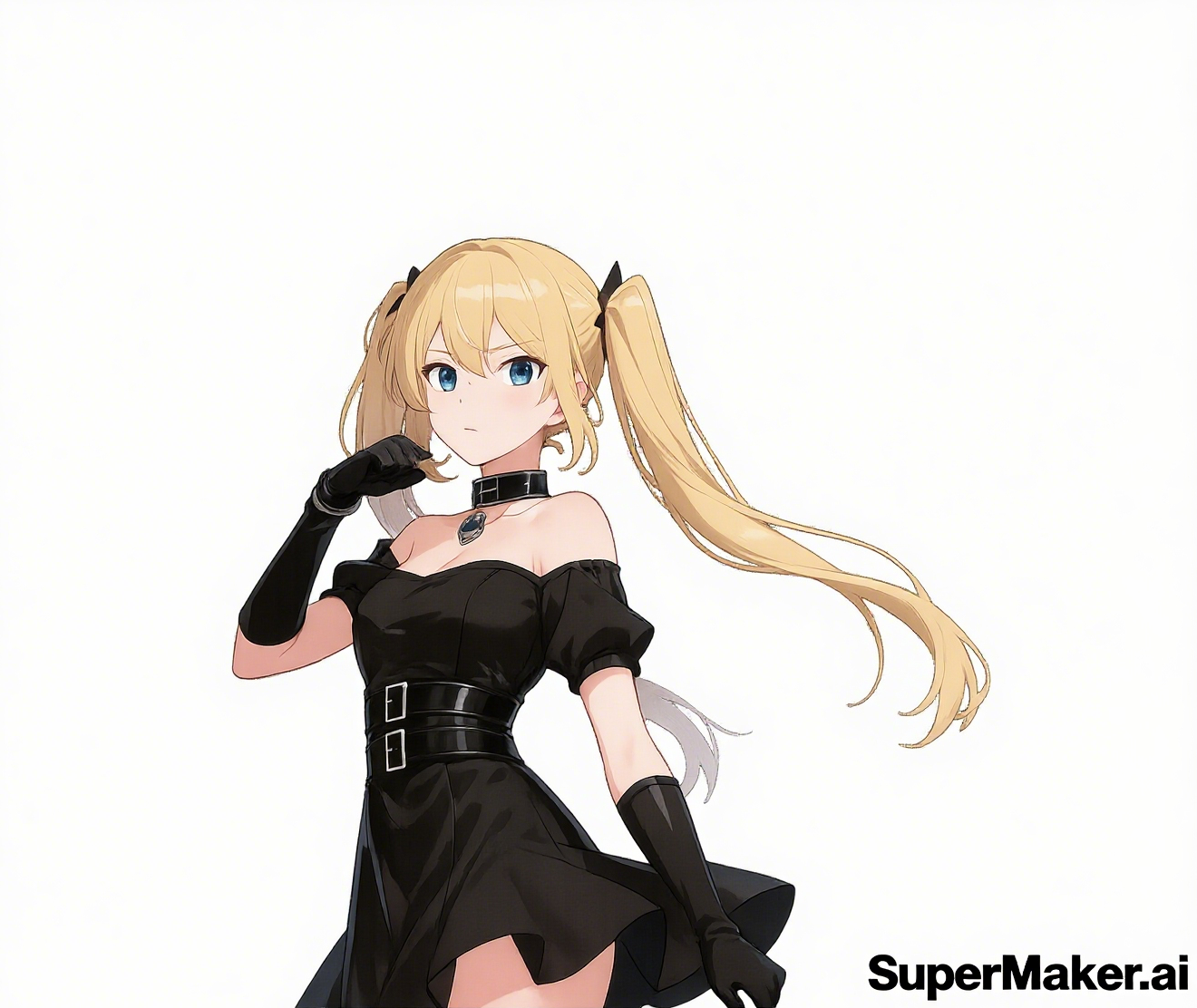
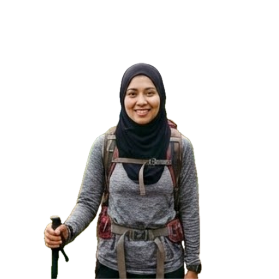
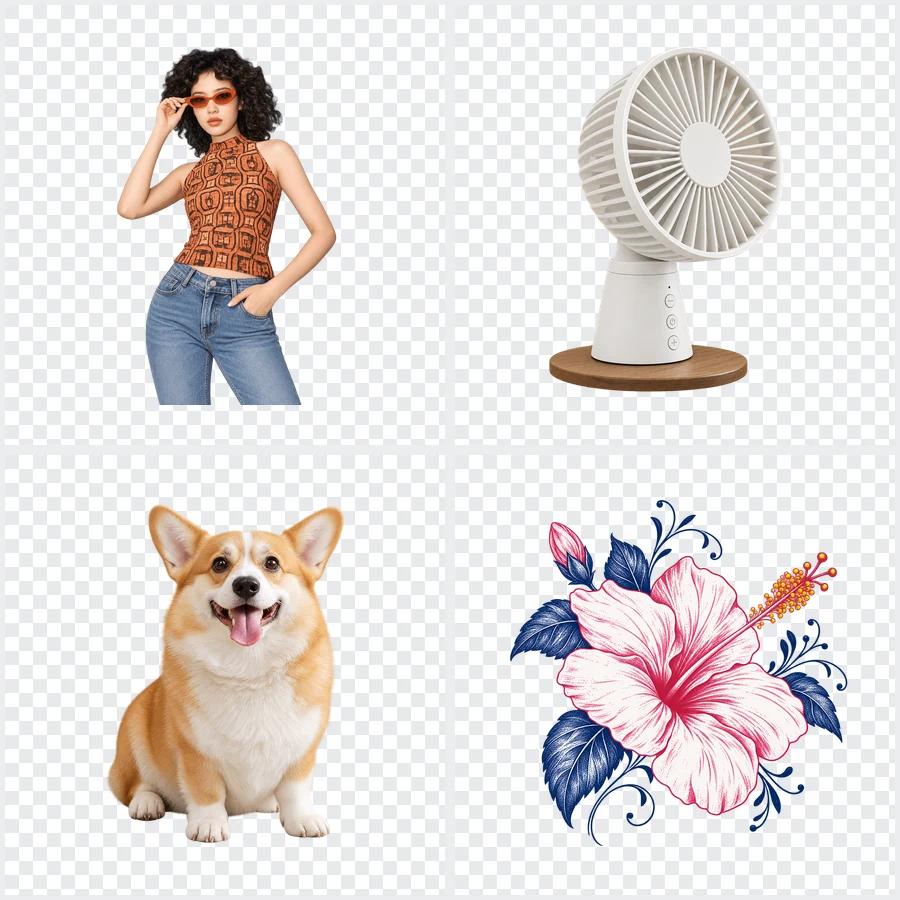
A portrait, a product, a pet, and a printed graphic processed in one batch, each cut out onto transparency.
Upload up to 30 product photos, portraits, or graphics at once and the AI cuts out every subject with the same settings, then exports matching transparent PNGs or clean white, gray, or black backgrounds.
0 of 30 images added
Batch presets
Fine-tune
Your photo stays in this browser during this UI preview.
Reference example. It is not a result generated from your upload.
A bulk background remover cuts the background out of many images in one job instead of one file at a time. You upload a batch, the AI detects the subject in each photo, and every image comes back with the same treatment: a transparent background, or the same white, gray, or black backdrop, on the same canvas size and in the same file format.
Batch background removal matters most when consistency matters: a product catalog where every item should sit on identical white, a team page where every headshot should match, or a design library of transparent PNGs. Settings are chosen once and applied to the whole batch, so the results look like one set.
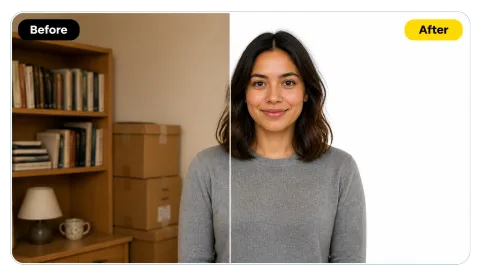
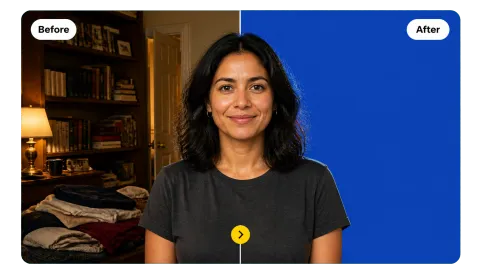
Drag each image to compare the originals with the processed batch.
A portrait, a product, a pet, and a printed graphic processed in one batch, each cut out onto transparency.
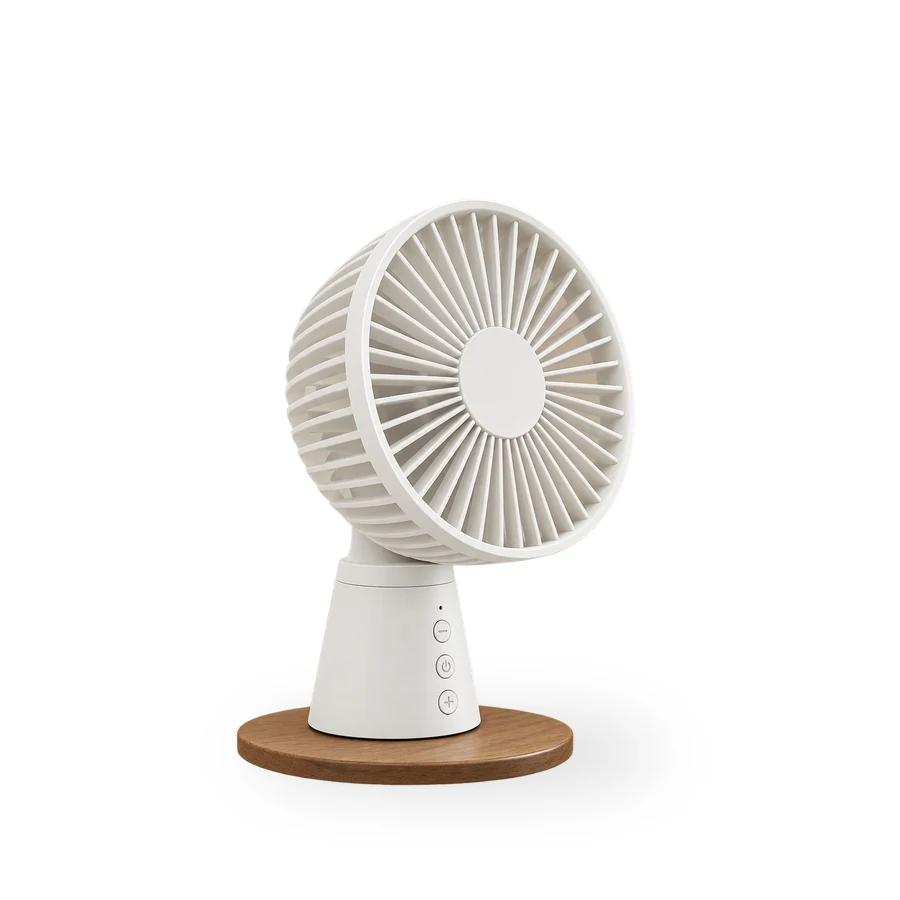
Studio clutter replaced with pure white and a soft shadow on a square canvas, the format most marketplaces expect.

Photos taken in different places get the same light-gray backdrop and 4:5 frame for a consistent team page.
How the background remover bulk workflow works, from upload to download.
Select or drag in up to 30 JPG, PNG, or WebP images at once (up to 10 MB each): product shots, portraits, or graphics. Each image appears as a thumbnail so you can check the batch before you start.
Choose a preset such as Transparent PNGs or Marketplace White 1:1, or set the background, canvas, and file format yourself. The same settings apply to every image.
The AI removes the background from each image. Check the results side by side and download the whole set.
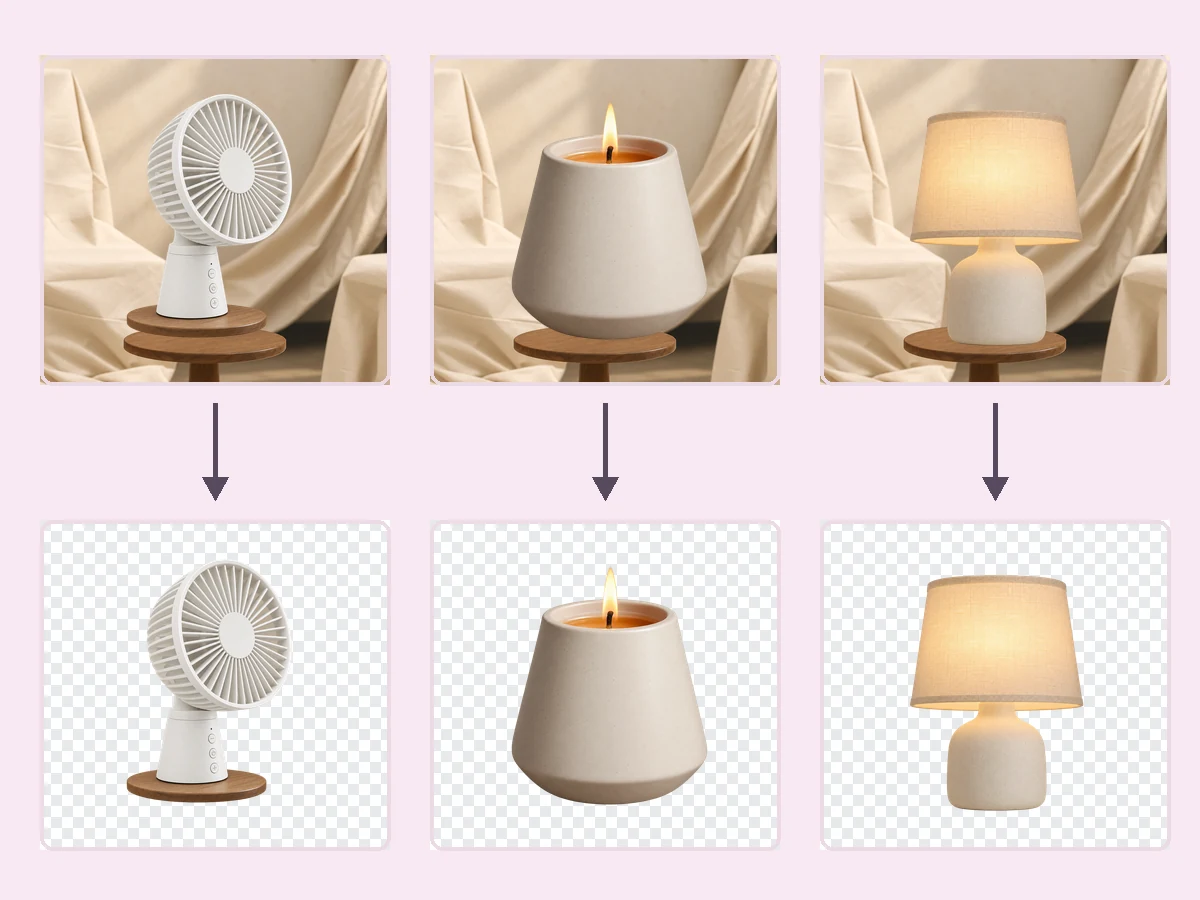
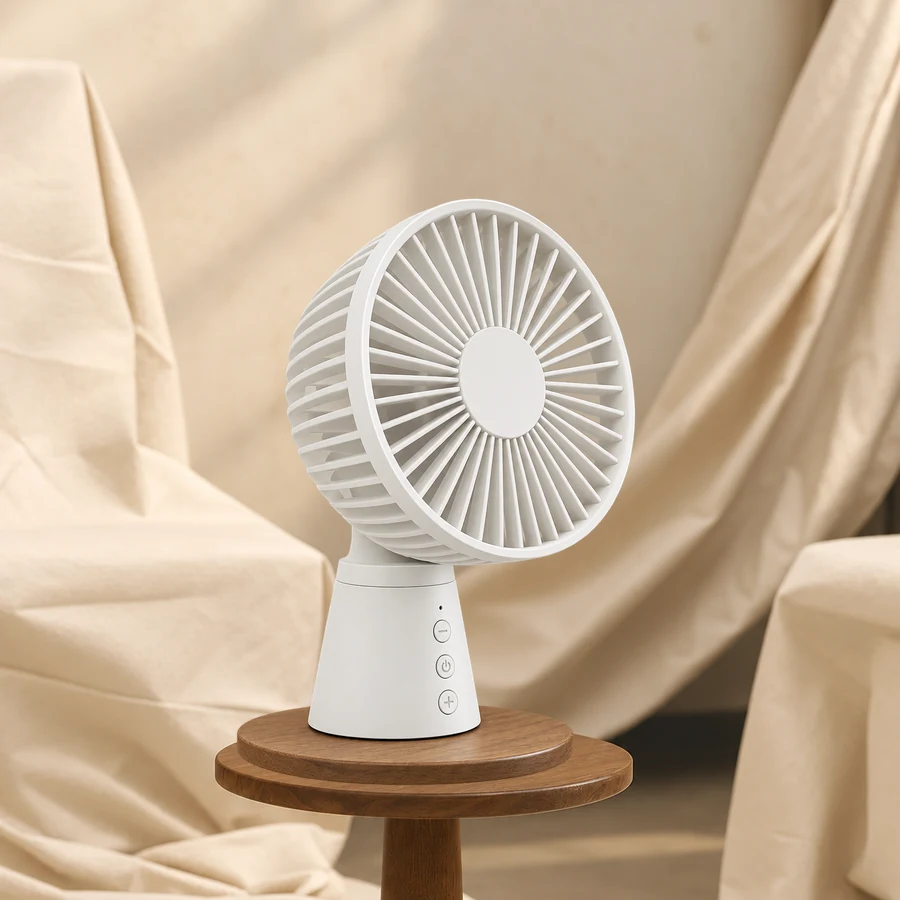
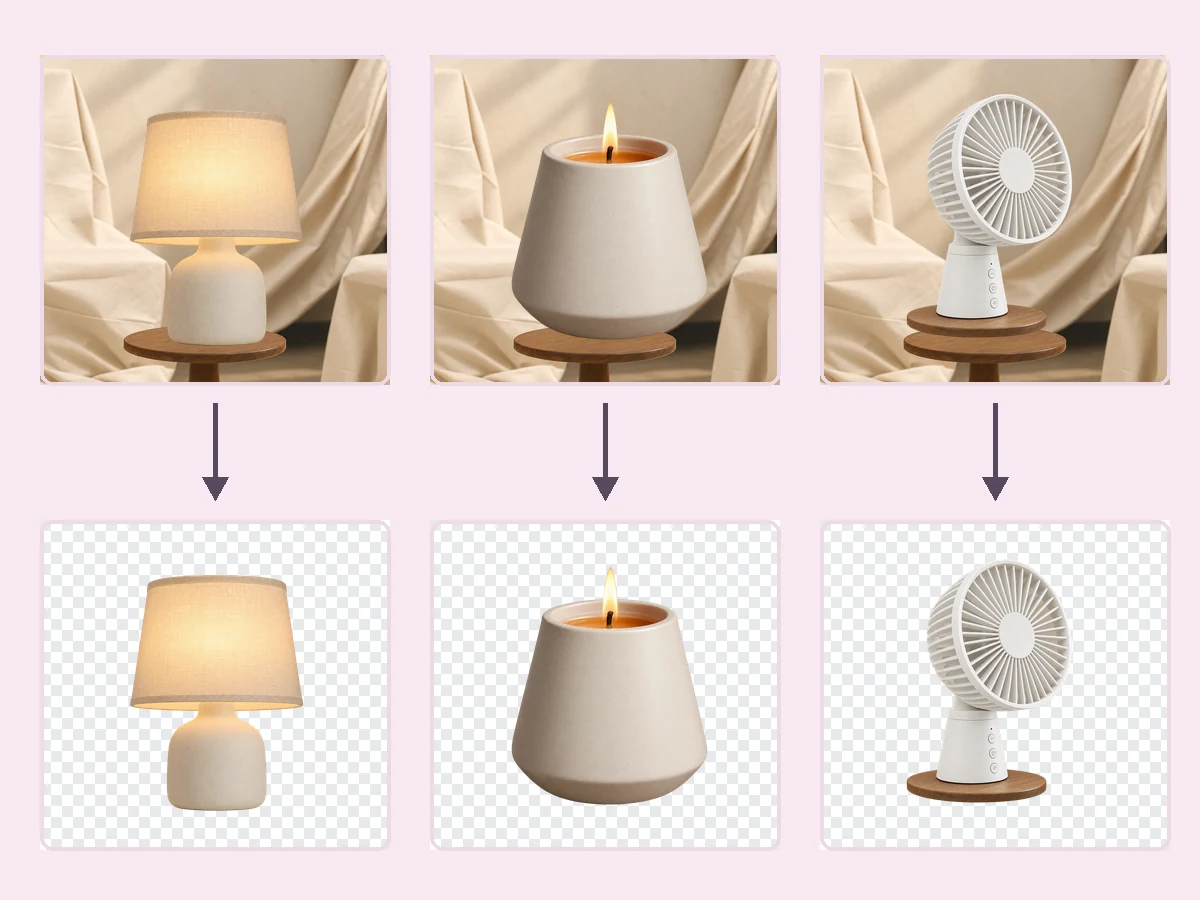
Shot a new collection in different rooms and lighting? Run the whole set through once and every vase, lamp, and candle comes back cut out and ready for listings, catalogs, and ads.
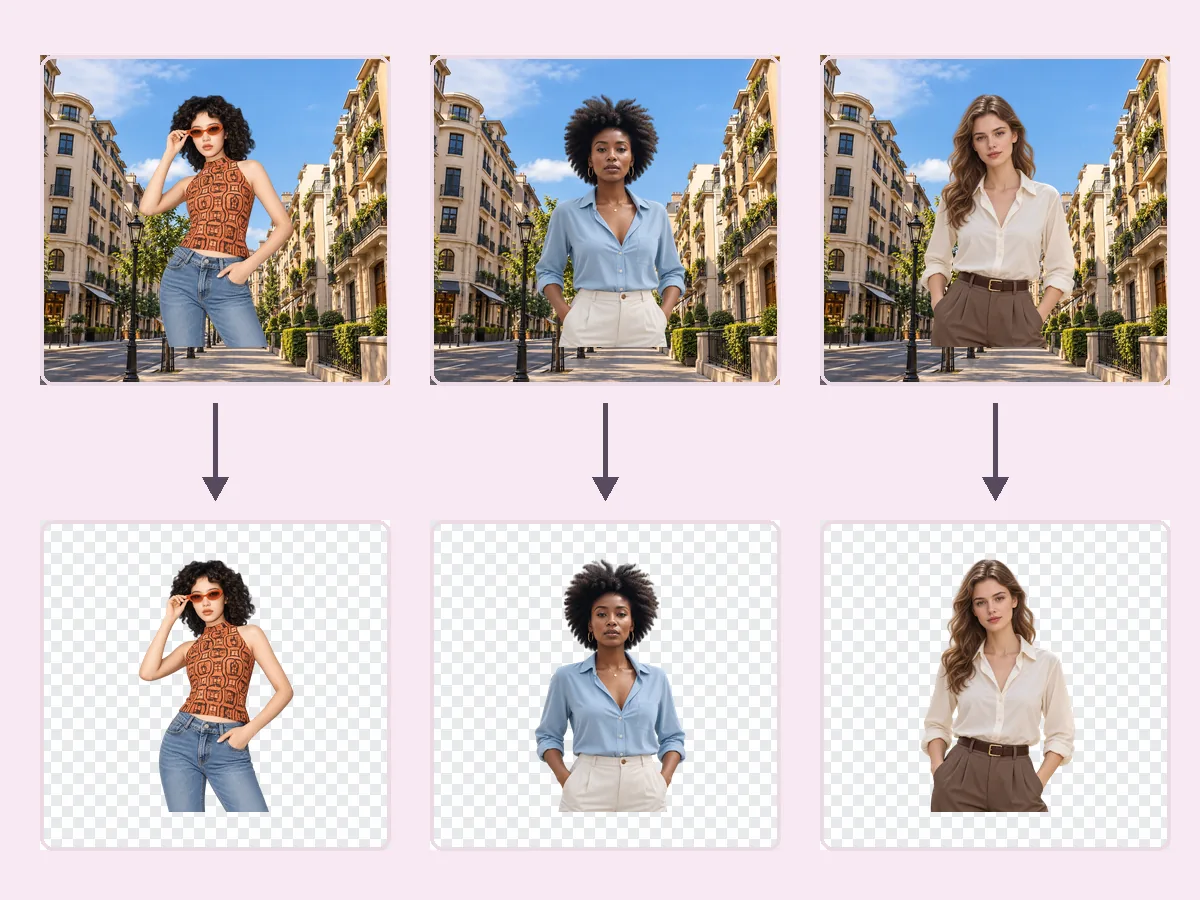
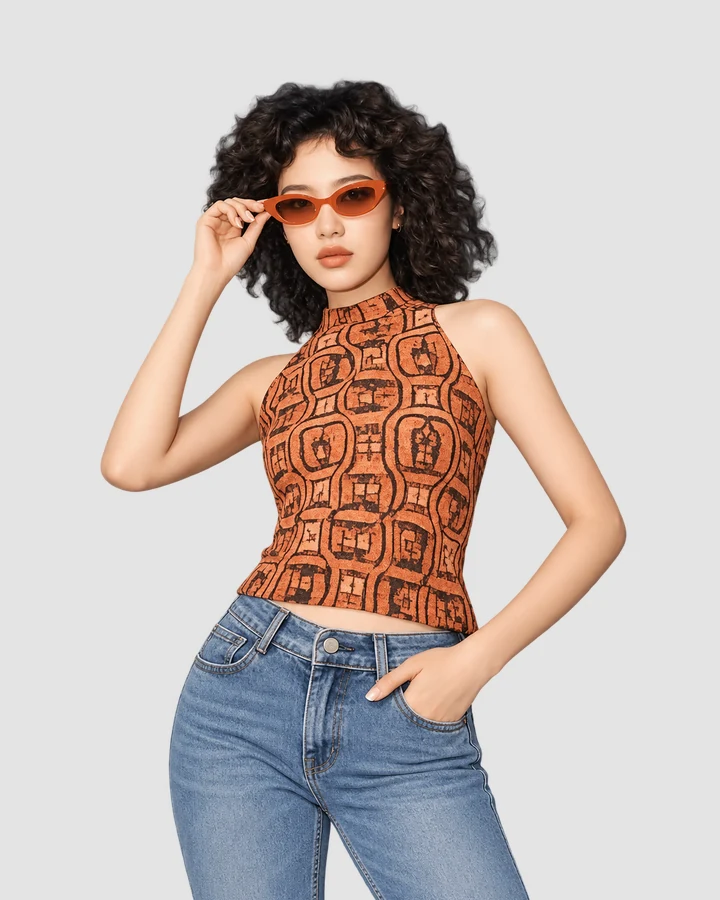
Portraits taken outdoors, in offices, and on the street end up on one shared backdrop. Use it as a mass background remover for staff pages, event badges, and speaker lineups.
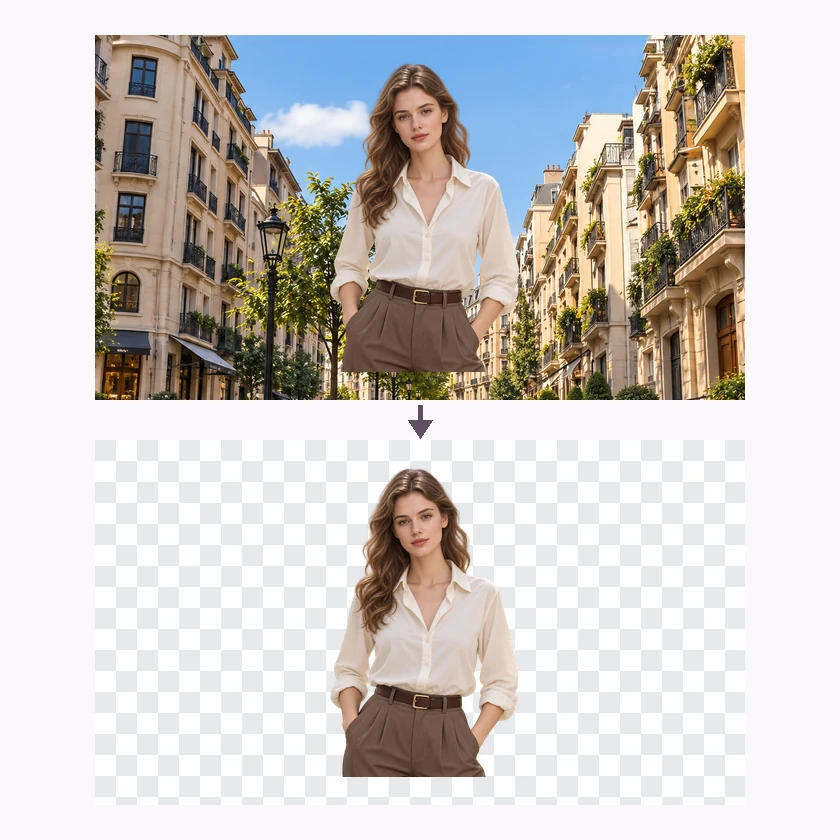
Each image is cut out individually by the AI, not with one shared mask, so curly hair, glass shades, and candle glow keep natural edges across the batch.
Keep the backgrounds transparent, or replace them all with white, light gray, or black, on the original canvas or a square or 4:5 frame, exported as PNG, JPG, or WebP.
Prepare a full product line on identical white backgrounds for marketplace and store listings.
Deliver school, event, or corporate portraits on one consistent backdrop without masking each frame.
Build a library of transparent PNGs for ads, banners, decks, and social templates.
Turn mixed staff or speaker photos into matching headshots for websites and badges.
A few habits that keep a whole batch looking consistent.
Batch products with products and portraits with portraits so one setting fits all.
Original photos give cleaner edges than screenshots or compressed copies.
PNG or WebP keeps transparency; JPG is smallest for white-background listings.
A subject that stands out from its background gives the most reliable cut-out every time.
Typical batch jobs from sellers, studios, and marketers.
Illustrative examples adapted from reference material, not verified reviews of EzImgMaker.
We relaunched 140 home-decor listings. One batch on Marketplace White and the whole storefront finally looks like one brand.
Our speakers sent photos from kitchens, offices, and beaches. Team Headshots gave us a matching lineup for the event site.
I keep a library of transparent product PNGs for ads. Batch remove background, export WebP, and drop them into templates.
School portrait days used to mean hours of masking. Now the whole class comes back on the same backdrop.
Common questions about batch background removal.
It is a background remover that processes a batch of images in one job. The AI cuts out the subject in each image and applies the same background, canvas, and format to all of them, so you do not repeat the same edit file by file.
Upload the batch, choose a preset or your own background, canvas, and file format, and start. Every image is processed with those settings, and you review and download the results together.
You can add up to 30 images in one upload, each a JPG, PNG, or WebP of up to 10 MB, and remove any of them before you start. Every image in the batch gets the same background, canvas, and format settings. Larger catalogs can be split into several batches. While this page is an interface preview, starting a batch shows a demo instead of processing the files.
Yes. It works as a bulk background changer: pick white, light gray, or black and every image in the batch gets the same backdrop. Choose Square 1:1 or Portrait 4:5 to standardize the frame too.
Every image gets the same settings, but each one is cut out individually, so edges follow each subject. For the most uniform set, batch similar photos together, such as products shot from the same angle.
Choose PNG or WebP to keep transparency. Choose JPG for white or colored backgrounds when you want the smallest files, for example for marketplace listings.
Yes. Hair, fur, glass, and soft glows are cut out per image. Very blurry or low-contrast subjects are the hardest, so sharp originals work best.
Yes. However it is spelled or phrased, the idea is the same: removing or replacing the background of many images in one go instead of editing each photo separately.
Only upload images you have the right to edit, such as your own product photos or portraits taken with the subjects’ consent.
Upload your photos, choose one look, and get a consistent set of cut-outs.