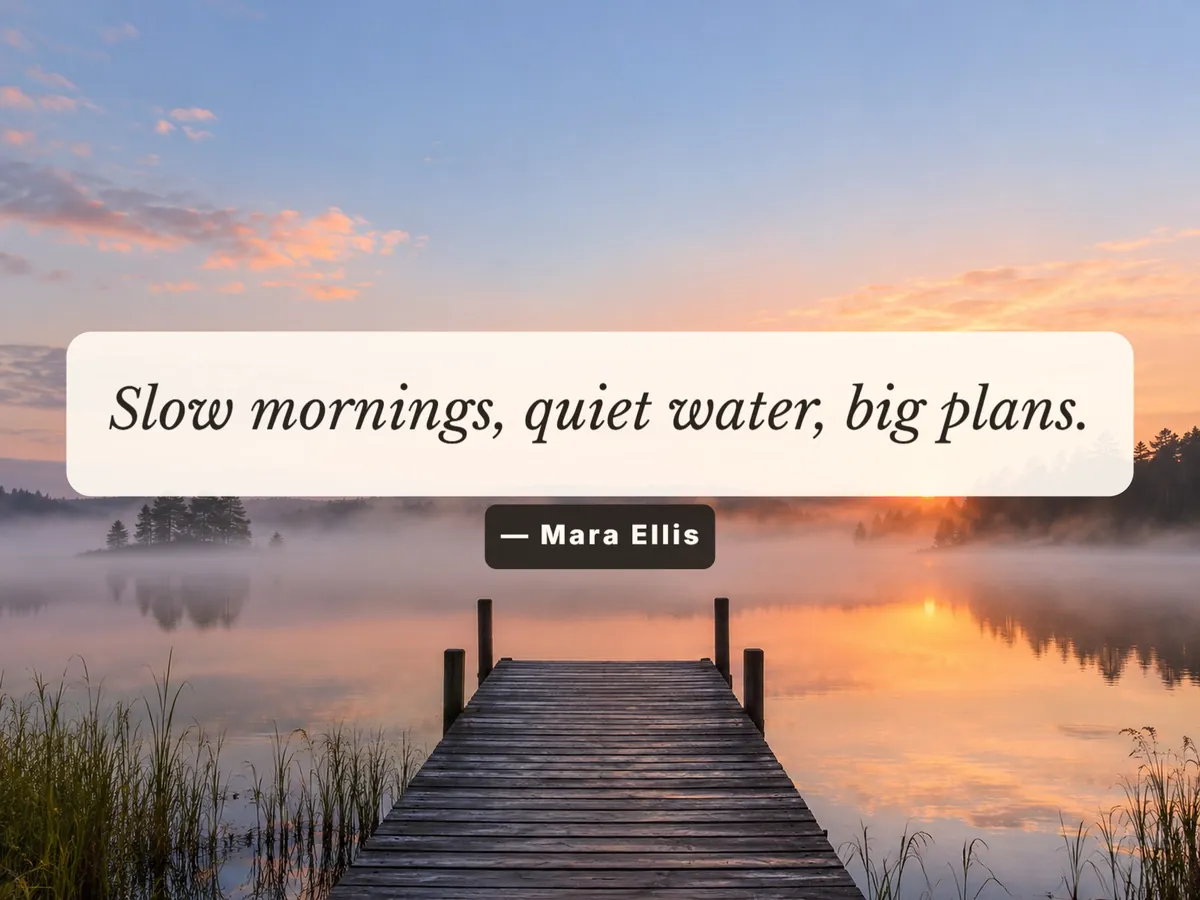
Quote Card
A centered serif quote in a soft rounded box with a small author line, for sayings, reviews and short poems.
Add photo text in a few taps: type a caption, quote, price or title, then drag it into place, resize and rotate it, and style it with ten fonts, outlines, shadows and background bars. Stack up to 20 text layers as you need and download the picture at its original size. Put text on photo online for free, with no sign-up: your picture never leaves your device.
1Your photo
Sample photoTry the editor on the sample, then upload your photo. Your text stays in place.
2Start from a template
A template replaces the current text. Undo brings it back.
3Text layers
0 of 204Edit the selected text
Select a text on the photo or in the list to edit it. Double-click a text to type right away.
Putting text on an image should take a minute, not a design course. Open a picture, type what you want to say and it appears on the photo right away, so you can add text in photo online without installing an app. Each line of text is its own layer, so a headline, a caption and a small credit can sit on the same photo and be moved separately.
Readability is the hard part with text over pictures, so every layer gets the tools that solve it: an outline for busy backgrounds, a soft shadow for bright skies, and a box or full-width bar behind the words when the photo is too detailed for anything else. Letter spacing, line height, alignment and opacity are there when you want finer control.
Adding text to a photo here happens on your device. Your photo is drawn on a canvas in this tab and is not uploaded, there is no account to create, and the download keeps the picture at its original pixel size instead of a shrunken preview.
Pick a layout, then change the words, fonts and colors. Every example here was made with the editor above.
A centered serif quote in a soft rounded box with a small author line, for sayings, reviews and short poems.
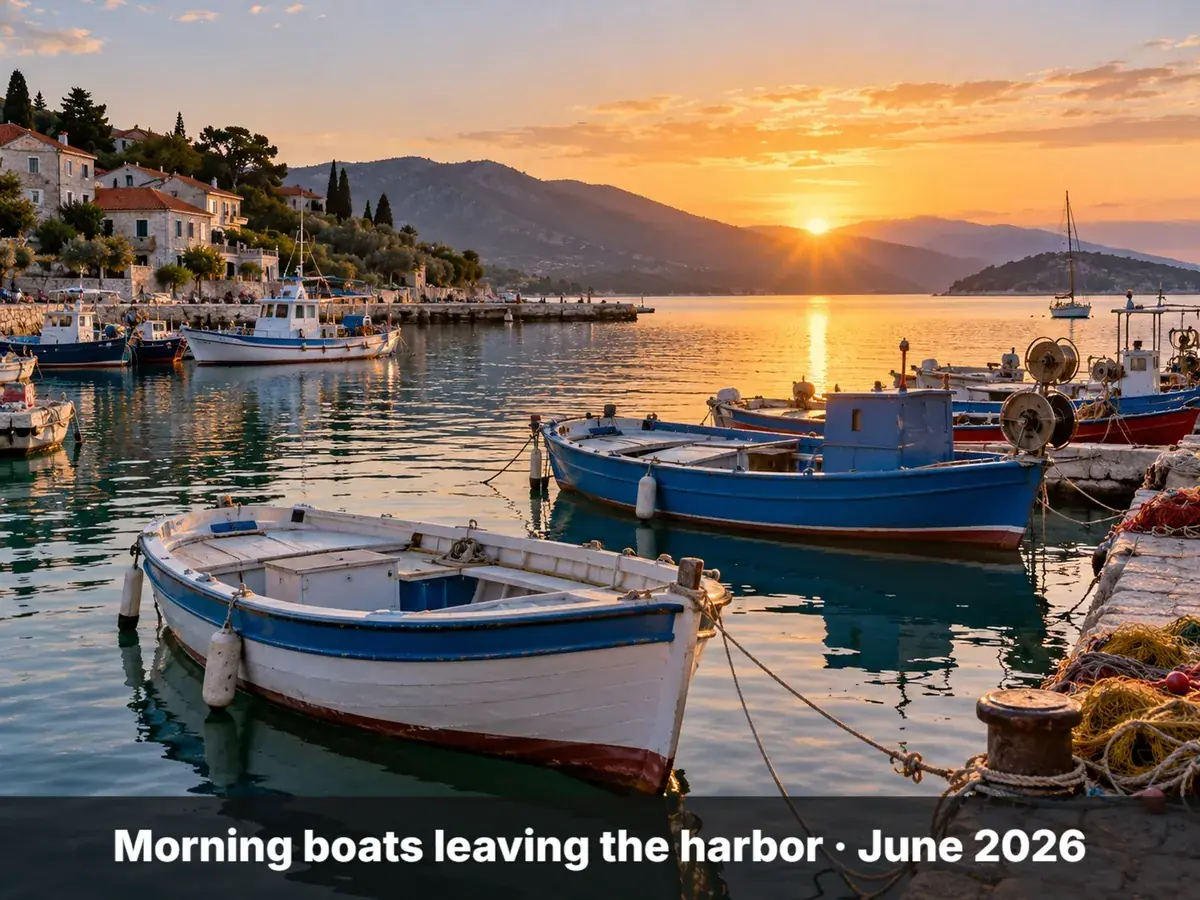
A dark bar across the bottom with one clear line of white text: the classic way to add text on picture edges for news-style or travel photos.
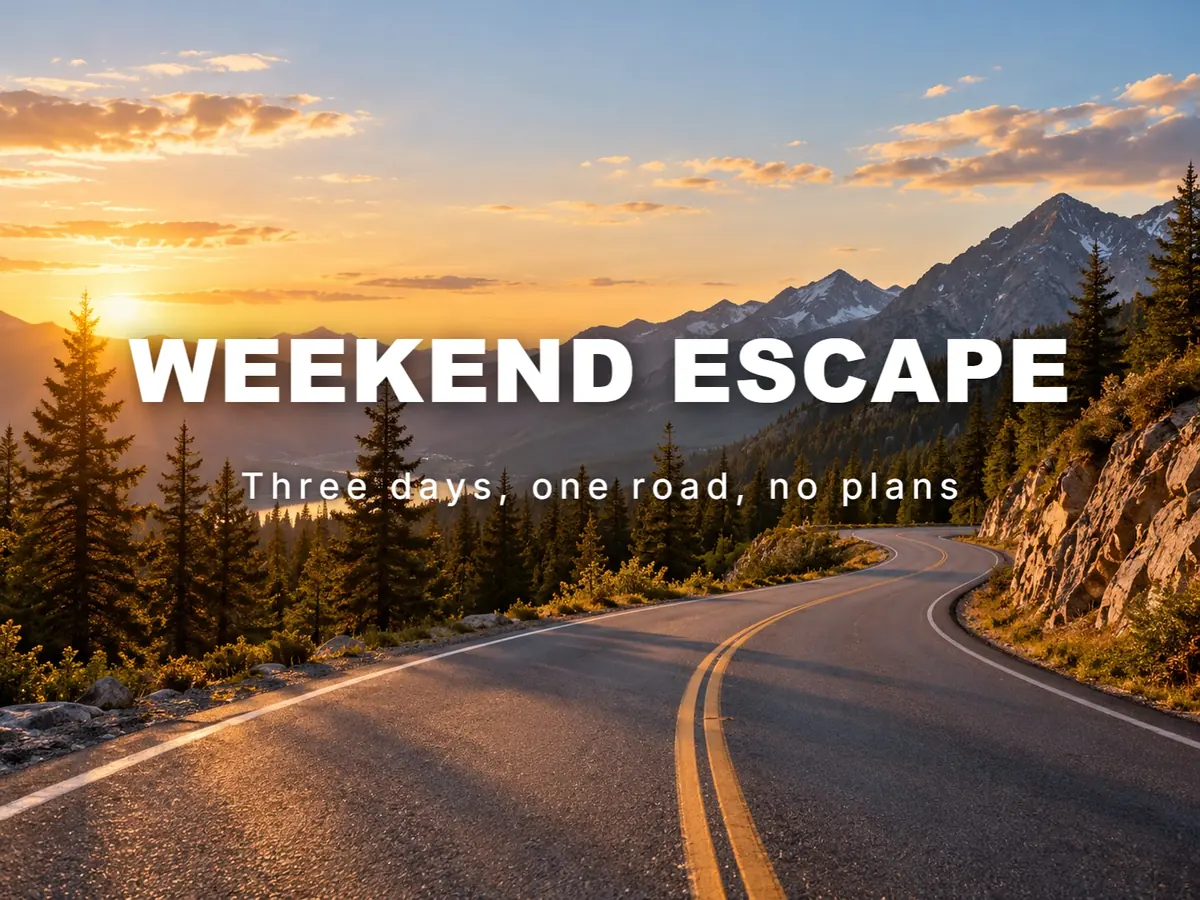
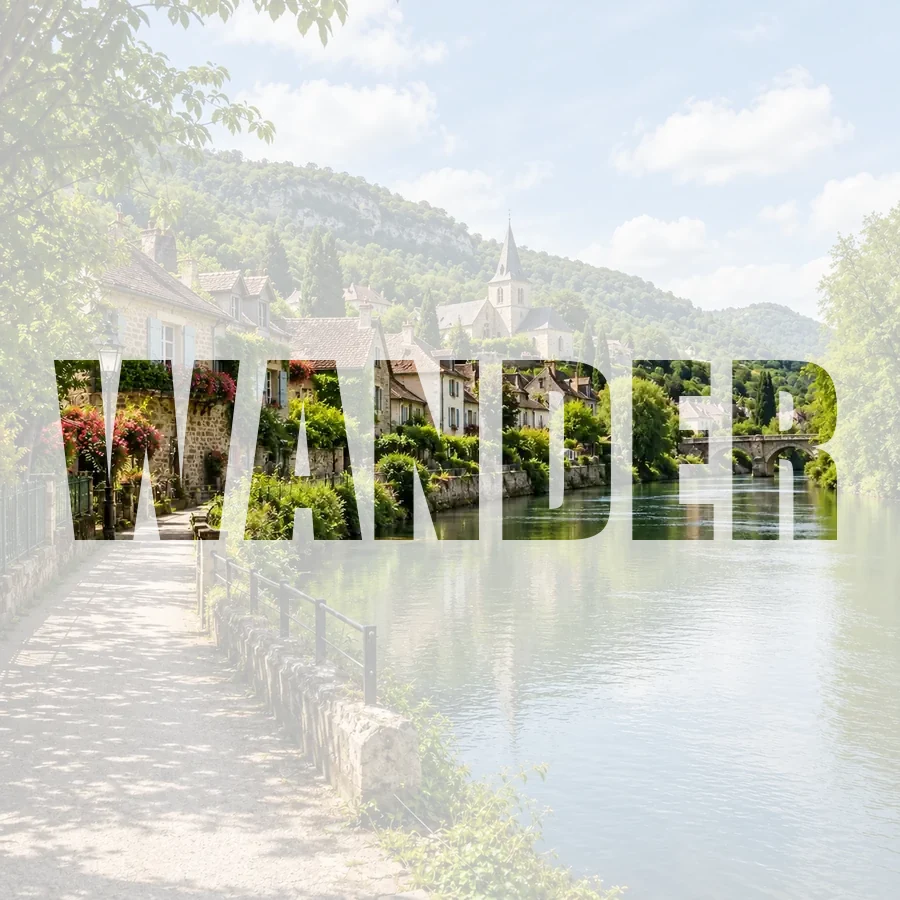
A large heavy title with a drop shadow and a small subtitle, ready for album covers, blog headers and event photos.
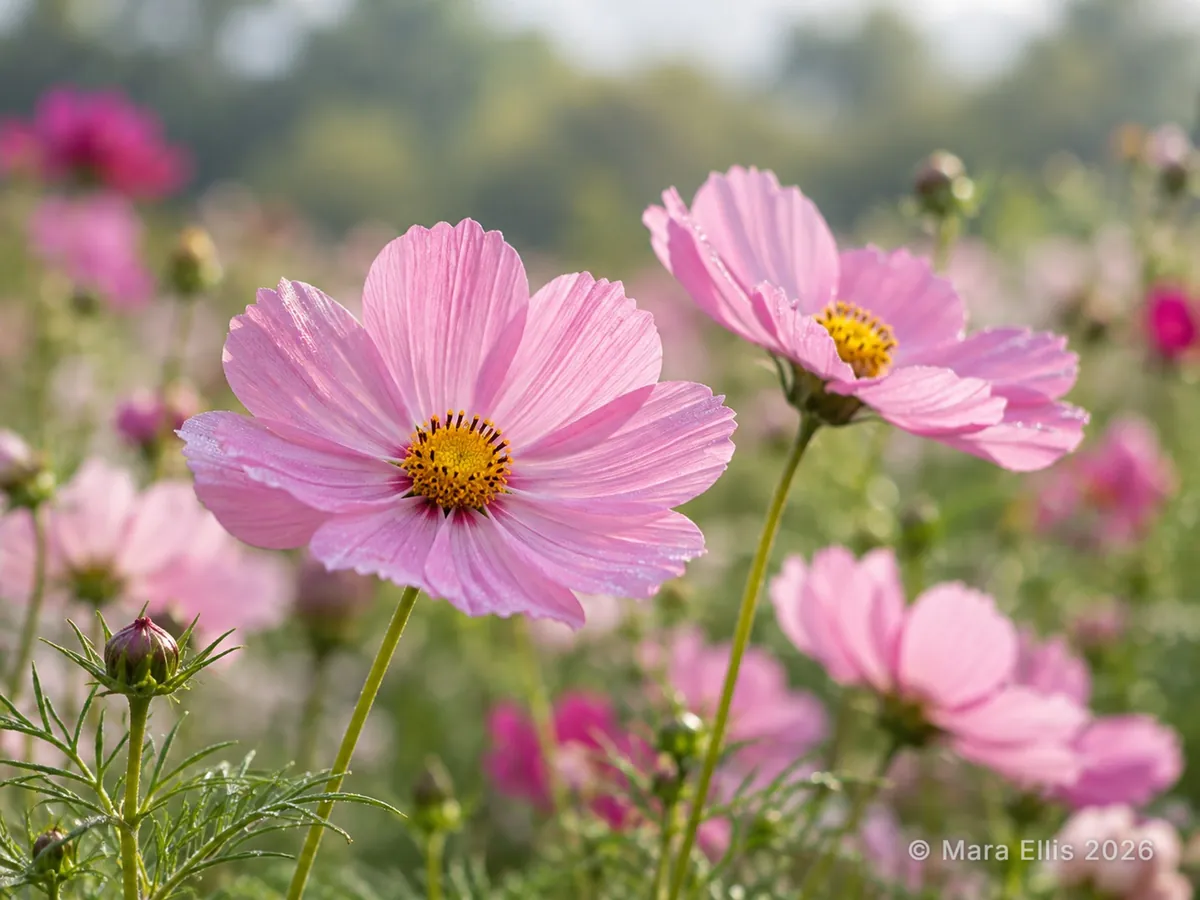
A small, semi-transparent name and year in the corner, so shared photos still carry your credit.

A tilted red tag with a price and a short label, for product photos, flyers and marketplace listings.

A bold headline in a colored box plus a handle line, laid out for square and vertical posts.
Drop a JPG, PNG or WebP image up to 20 MB into the upload box. Until you do, the editor shows a sample picture so you can try every control first.
Write in the text box to add text to the image (press Enter for a new line), then drag the words on the photo. Pull the yellow corner handle to resize and rotate, or pinch with two fingers on a phone.
Choose a font, color and size, then add an outline, a shadow or a background bar if the photo is busy. Add more layers for a subtitle, a date or a credit line.
Save as PNG for crisp lettering or JPG for a smaller file. The download uses the full resolution of your original photo.
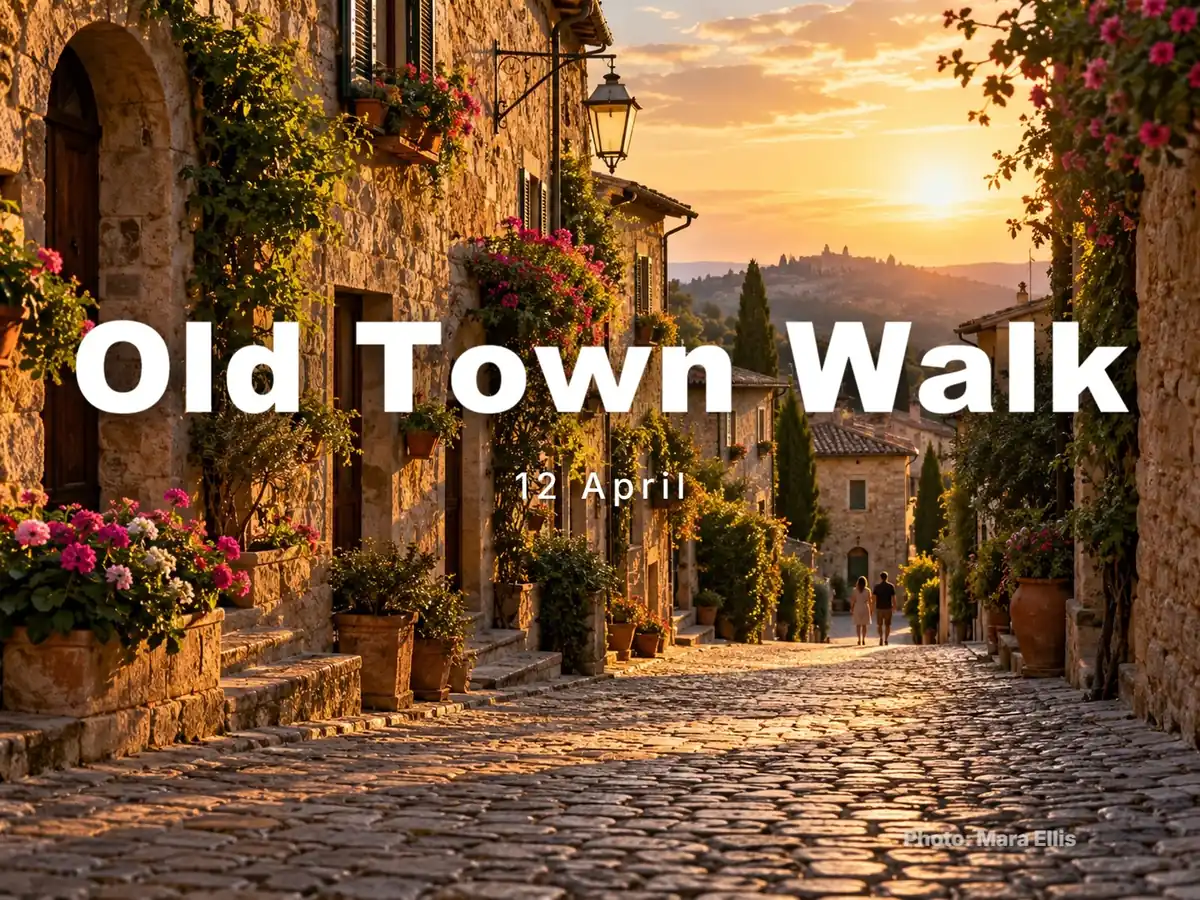
Add up to 20 text layers, duplicate one to keep its style, hide it for a moment or send it behind another. Undo and redo cover every change, from a drag to a color swap, so you can experiment without losing a good version.
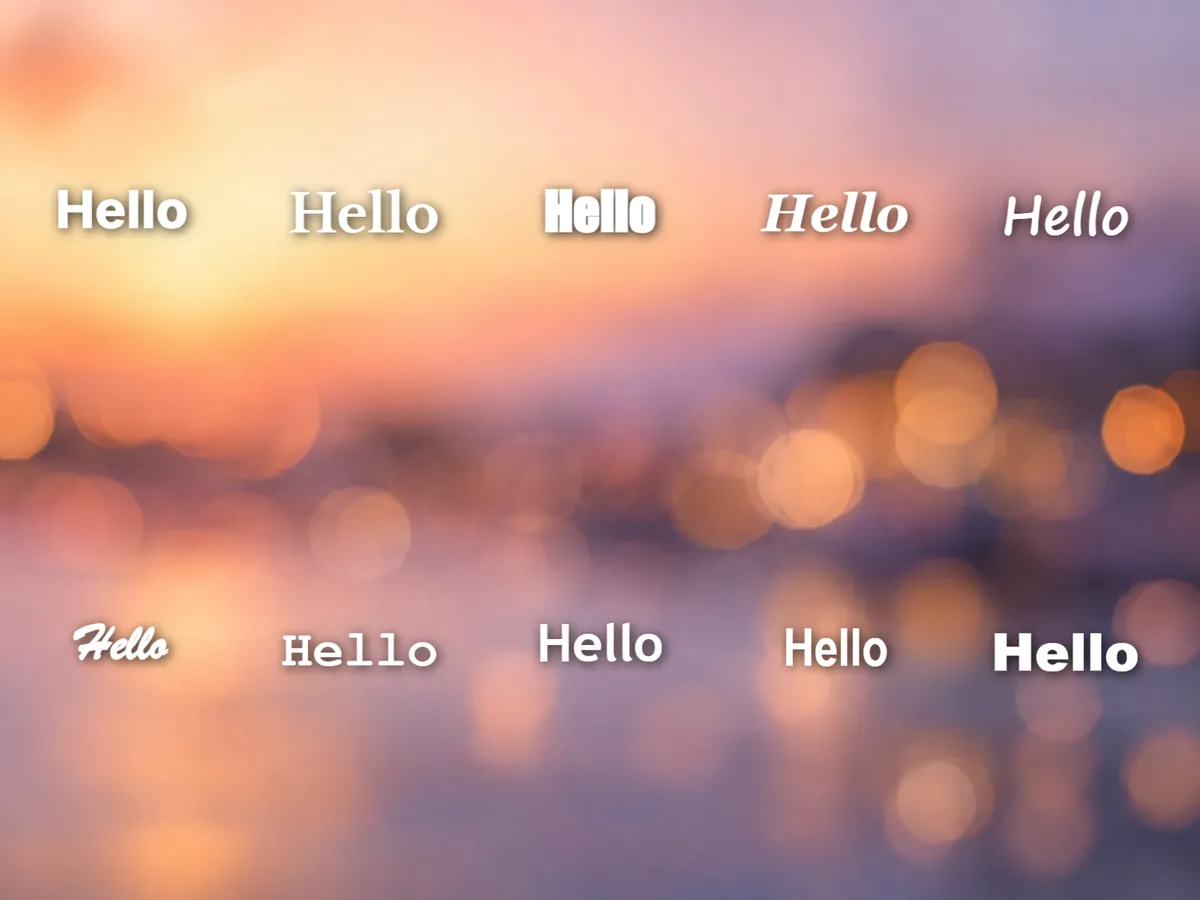
Switch between a clean modern sans, a classic book serif, a heavy poster face, handwriting, script, typewriter, rounded and condensed styles. Bold and italic work on each, and the font list previews every face before you pick it.
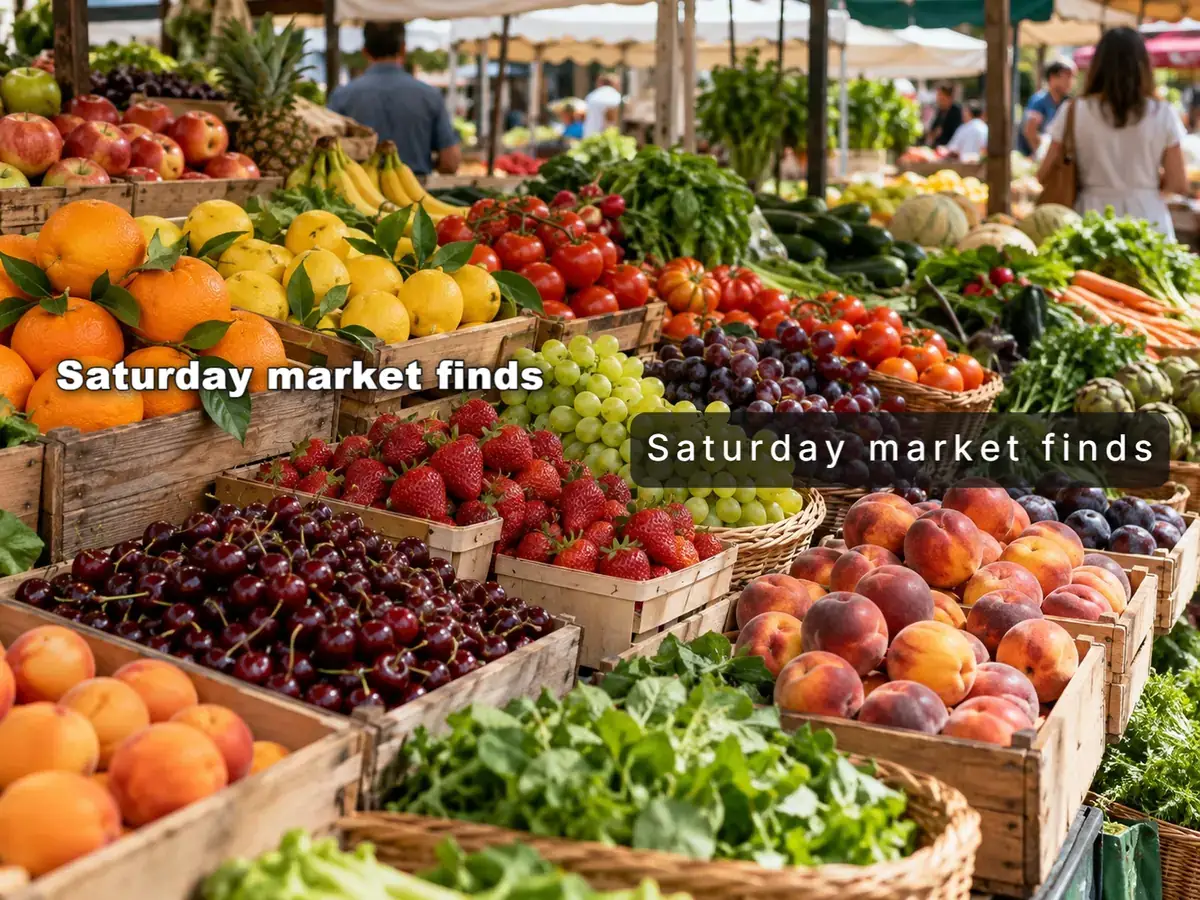
A thin dark outline lifts white letters off a busy street scene, a soft shadow separates a title from a bright sky, and a box or full-width bar gives small print a calm base. Set the bar color and opacity so the photo still shows through.
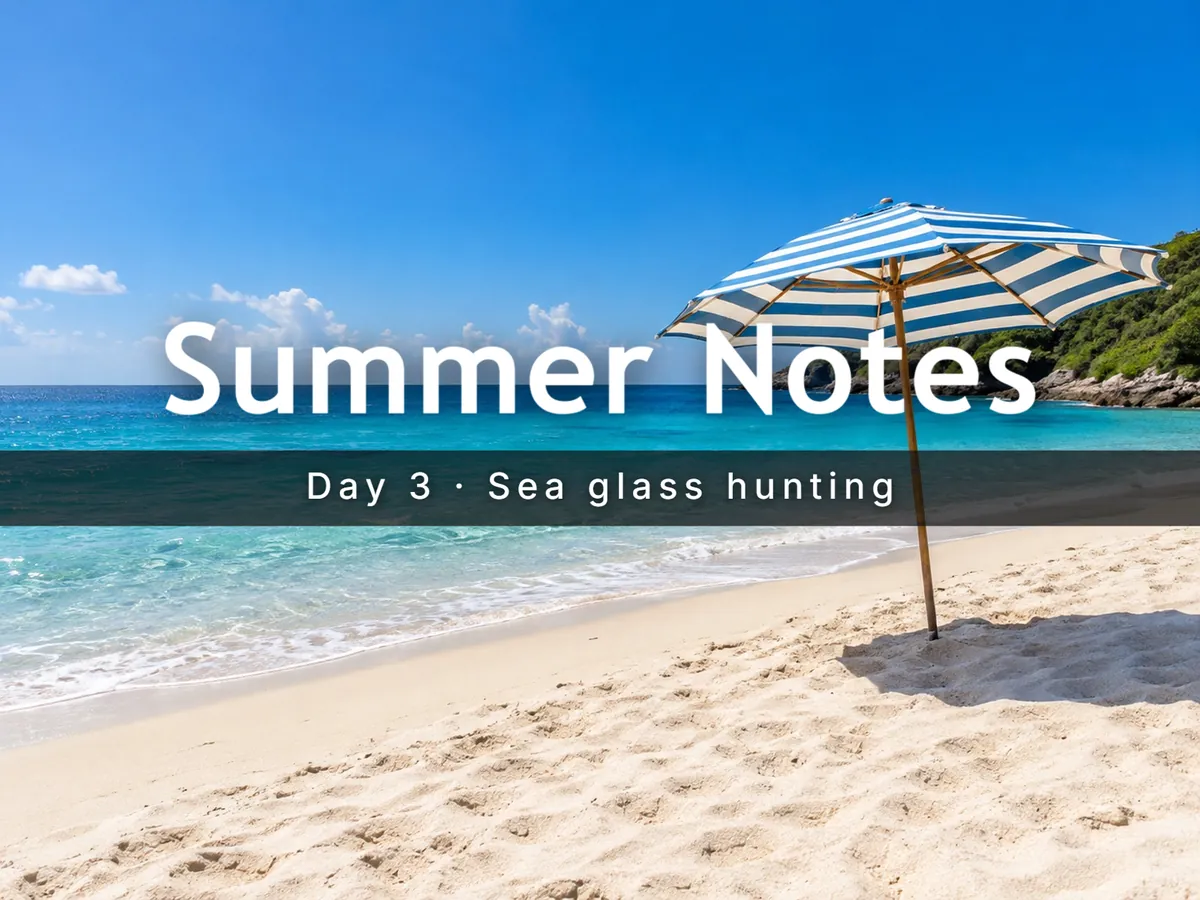
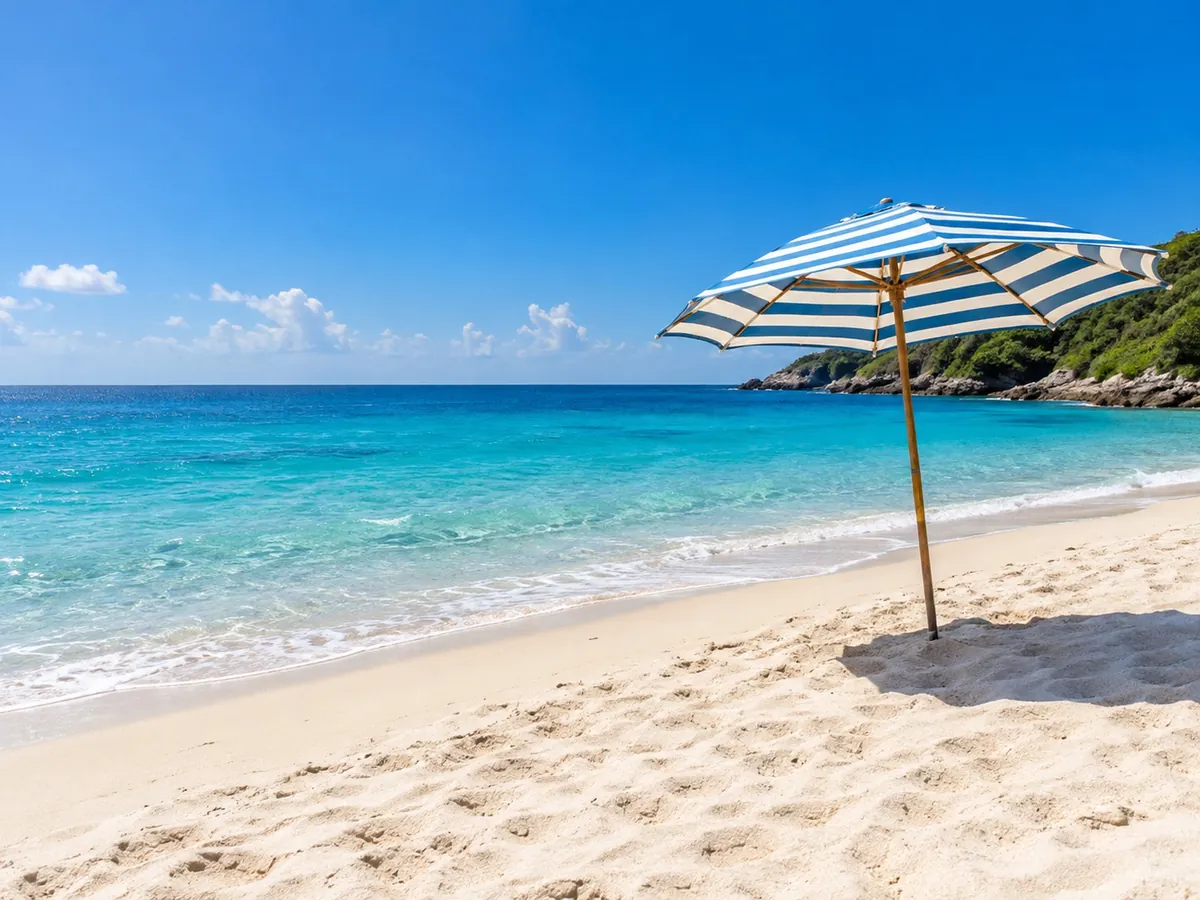
Many quick editors export a reduced copy. Here the finished picture is rendered again at the size of your upload, so text edges stay sharp for printing or zooming. Very large photos are scaled to 16 megapixels to keep the download reliable.
| Layout | Best for | Readability trick | Starting font |
|---|---|---|---|
| Quote Card | Quotes, reviews, short poems | Translucent box behind the words | Classic serif |
| Caption Bar | Travel, news-style and event photos | Full-width dark bar | Modern sans |
| Title Overlay | Covers, headers, thumbnails | Drop shadow under a heavy title | Heavy |
| Watermark Text | Photo credits on shared images | Low opacity in a quiet corner | Modern sans |
| Price Tag | Product photos and listings | Solid red box, slight tilt | Heavy |
| Social Post | Square and vertical posts | Colored box plus a small handle line | Rounded |
Every layout is a starting point: change the font, color, size and position of each layer after you apply it.
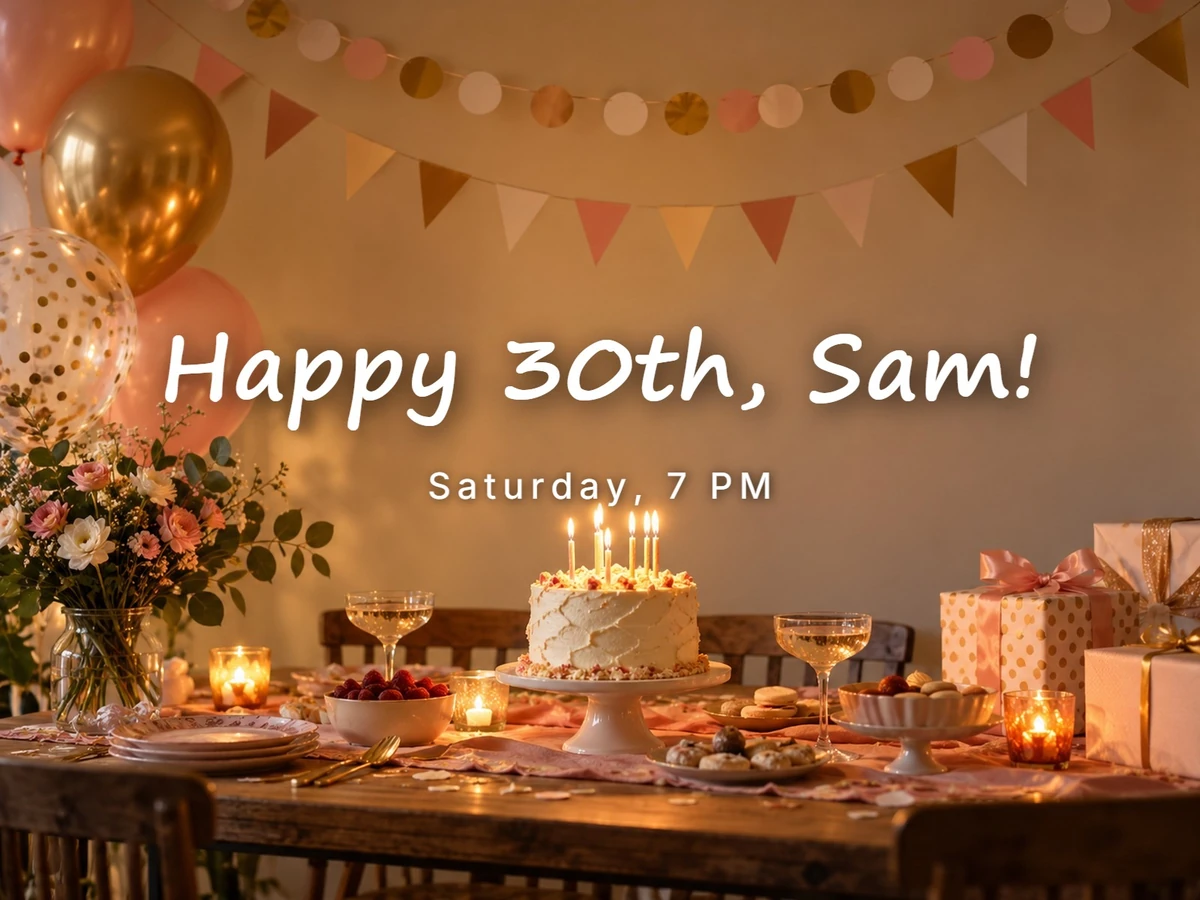
Add caption to photos before you share them, so the message reads even with the sound off and the post text collapsed.
Add writing to pictures of products: a price, a size or "new in" right on the photo instead of hoping buyers read the description.
Turn a favorite photo into a party invite or a moving notice with a title, a date and a short line of details.
Add the place and year to old snapshots so the story stays with the picture when it is printed or forwarded.
Label the parts of a diagram, number the steps of a recipe or point out the detail that matters in a screenshot.
Sign photos and artwork with a faint name in the corner before posting them in public galleries.
Sky, walls, water and table tops make the best spots when you add text on image backgrounds. Keep words off faces and away from the main subject.
White or black text with an outline reads on almost anything. Bright colors look great but need a darker area or a background bar.
A large short headline plus a smaller supporting line is easier to scan than three lines of the same size.
Keep text a little away from the border: platforms and printers crop a few percent, and words touching the border feel cramped.
Pair a display face for the title with a plain sans for details. More than two fonts on one picture starts to look busy.
Zoom the preview out before you download: if you cannot read the caption at thumbnail size, make it bigger or add a bar.
Turn the captioned picture into a short video with a song, a slow zoom and a fade at the end.
Open the toolCombine several captioned photos into a looping GIF for chats and posts.
Open the toolNeed the opposite, photo text to text? Copy the words that are already printed in a picture as editable text.
Open the toolTo make an image with text from scratch, such as a complete designed flyer, describe it and let AI lay it out.
Open the toolOpen the photo in the editor above, type your words in the text box and drag them where you want them on the picture. Use the corner handle to resize or rotate, pick a font and color, then press Download PNG or Download JPG.
Start with the Caption Bar layout: it puts one line of white text on a dark strip along the bottom edge. For a lighter look, keep the text on the photo and add a thin outline or a shadow instead of the bar.
Yes. This photo text editor is free, works in the browser without an account and has no export limit, because everything runs on your device. You can write text on pic online from a phone or a computer.
No. The picture is opened and drawn locally in this browser tab, and the download is created on your device. Closing the tab clears it.
The download is rendered at the original pixel size of your upload, so the photo is not shrunk. PNG keeps lettering perfectly crisp; JPG is smaller and saved at high quality. Extremely large images are limited to 16 megapixels.
Yes. Add up to 20 layers; each can be dragged, resized, rotated, restyled, duplicated, hidden or moved in front of or behind the others. Arrow keys nudge the selected layer and Ctrl+Z undoes a change.
Ten styles: modern sans, classic serif, a bold poster face, elegant italic, handwritten, script, typewriter, rounded, condensed and heavy. Some styles use fonts already on your device, so phones may show a close substitute.
It is a manual image text adder: you type the words and they are drawn exactly as written, so spelling and fonts are always right. To make an image with text generated by AI, try the AI Flyer Generator instead.
Yes. The Watermark Text layout places a small, semi-transparent name and year in the corner; change the text and opacity to suit. Only mark photos you took or created.
Only edit and share photos you own or have permission to use, and do not add text that misrepresents a person, a product or an event. Adding a caption does not change who holds the rights to an image.
Open a picture, type a caption or title, style it until it reads well and save it at full size. Free, private and done in your browser.