
Scratched Black-and-White Portrait
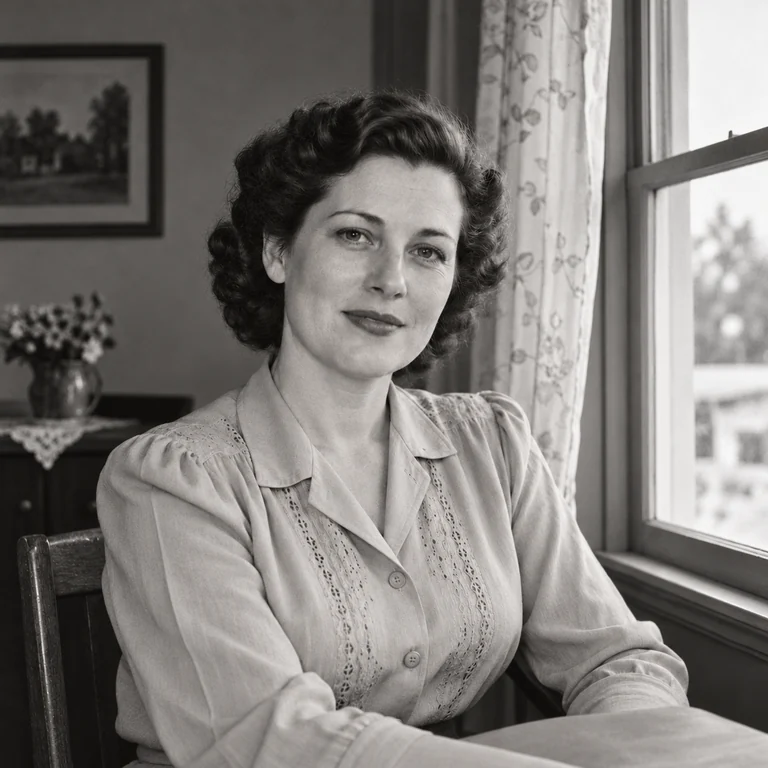
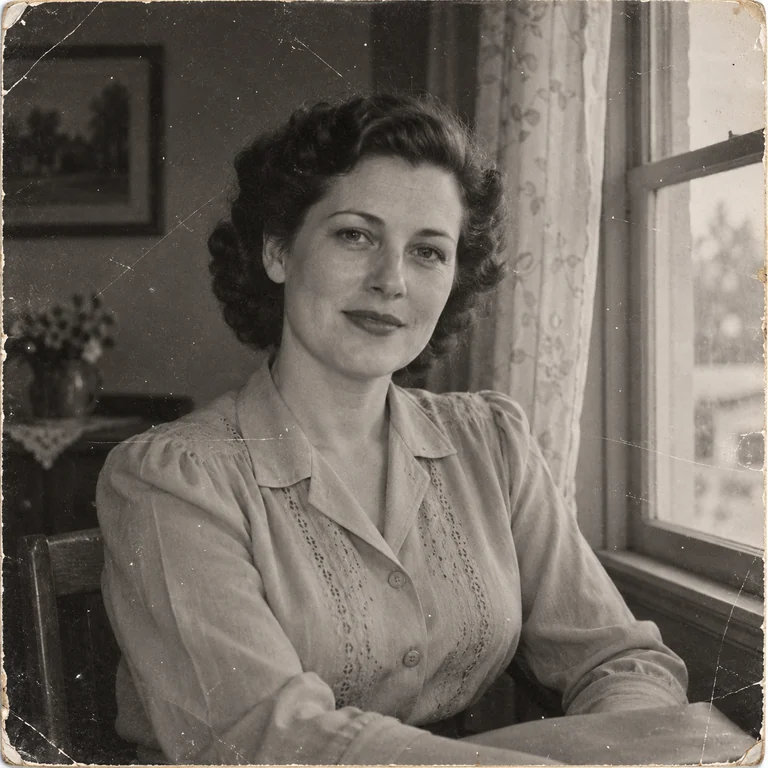
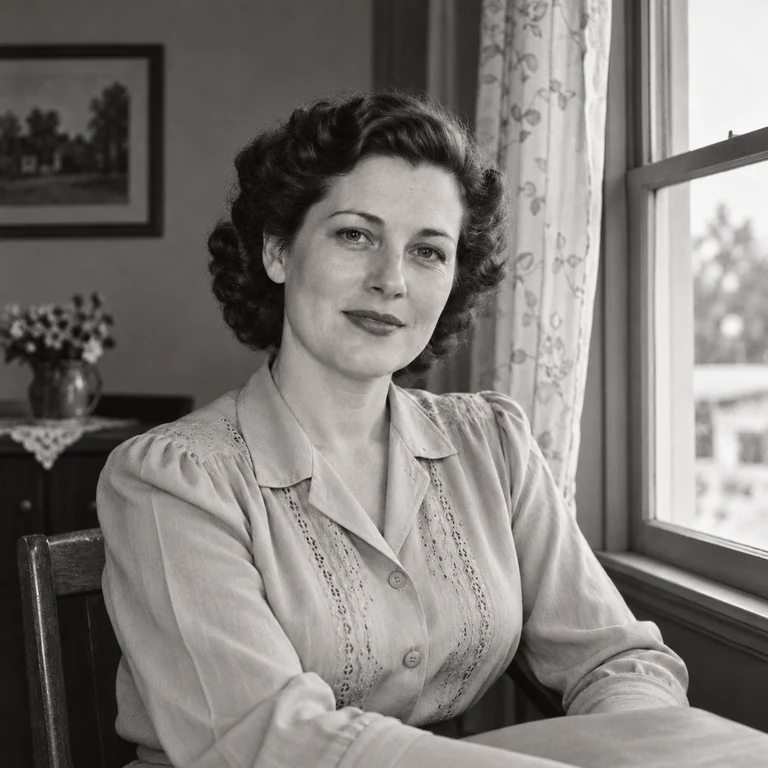
Hairline scratches and worn corners cross a studio-style portrait. Full restoration clears them while keeping the curls, the embroidered blouse and the soft window light.
Upload a scan of an old photo, choose Light clean-up or Full restoration, and keep the original tones or colorize. Compare faces at full size, then save a 2K or 4K restored copy.
Common old photo problems
Fine-tune
Reference example. It is not a result generated from your upload.
Old photo restoration starts with what survives in the print. Upload a scan and the AI photo restorer removes dust, scratches, creases and color casts, then rebuilds contrast that has faded over the decades. Light clean-up handles surface marks; Full restoration also tackles tears, stains and heavy fading, so you can restore pictures of grandparents, weddings and school days without turning them into new pictures.
Photo restoration AI fills gaps with informed guesses, so a missing eye corner or a torn collar is reconstructed, not recovered. That is also why restoring old photos differs from recreating old photos, where you stage a new shot in the same pose. If you are learning how to restore old pictures, start here: the page works as all in one image restoration for mixed damage, and the table below points to focused tools for blur, grain or poor lighting.
Hairline scratches and worn corners cross a studio-style portrait. Full restoration clears them while keeping the curls, the embroidered blouse and the soft window light.
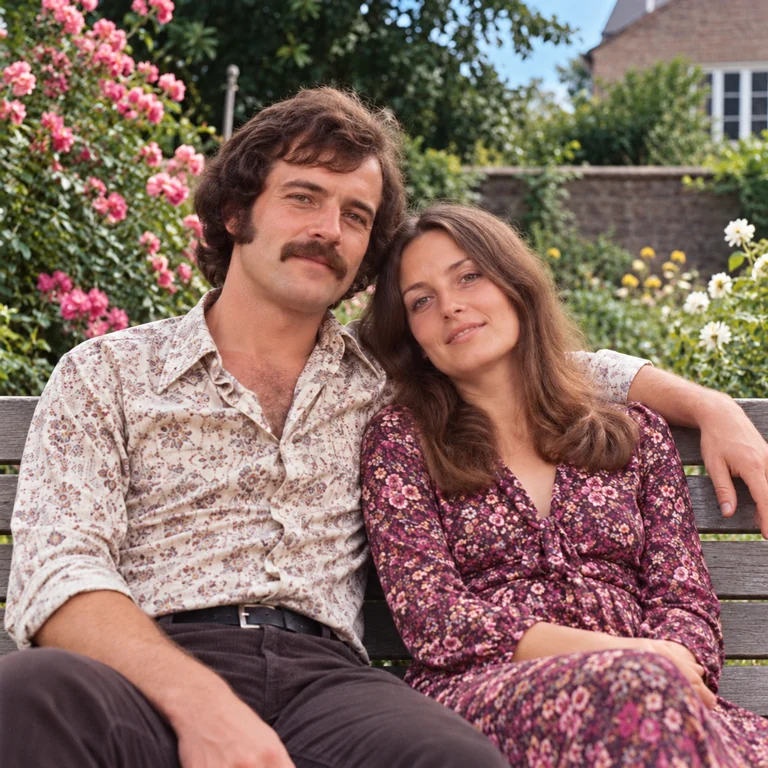
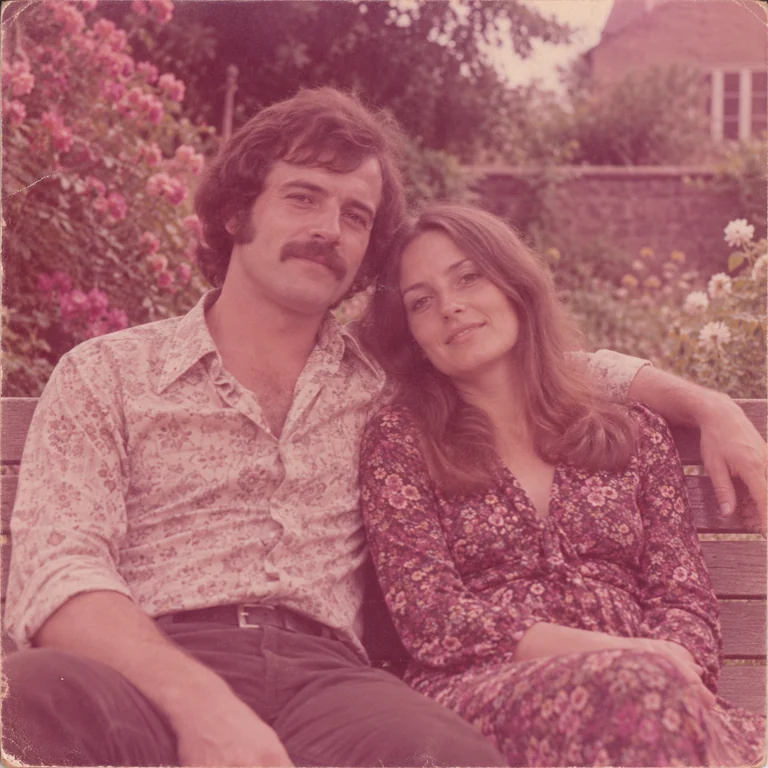
A magenta cast has washed out a couple on a garden bench. Keep original brings back green leaves, pink roses and natural skin tones instead of inventing a new palette.
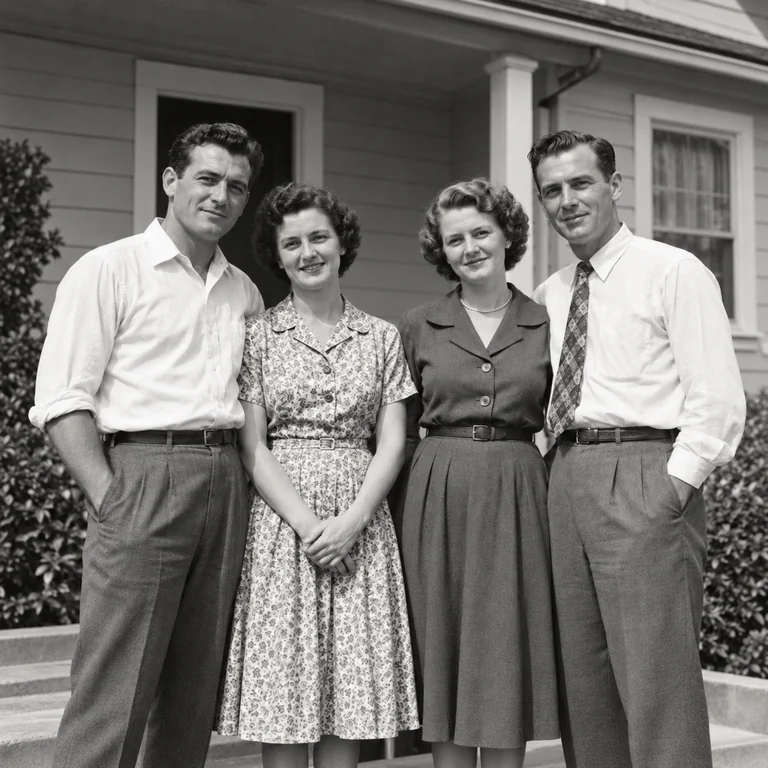
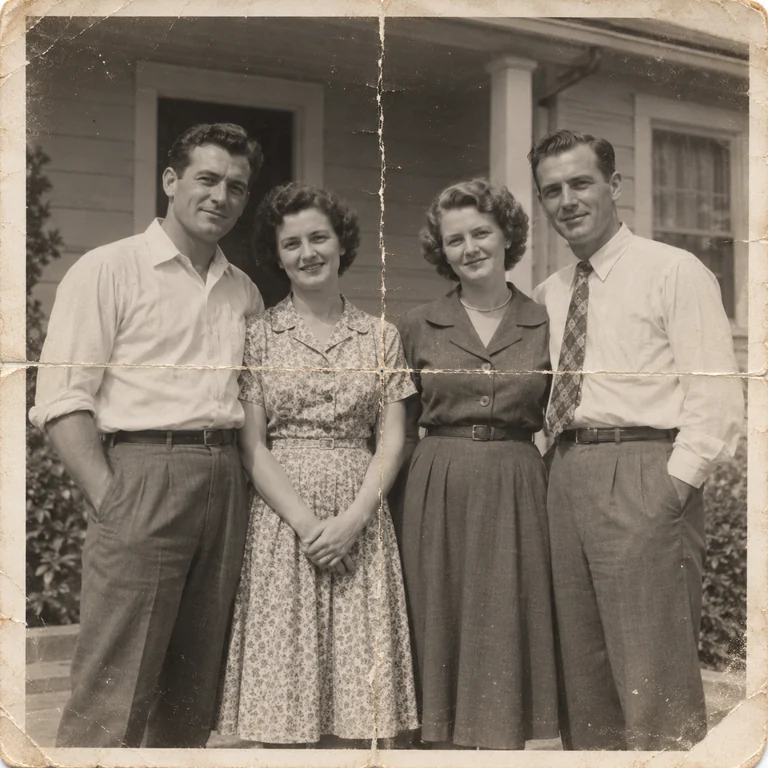
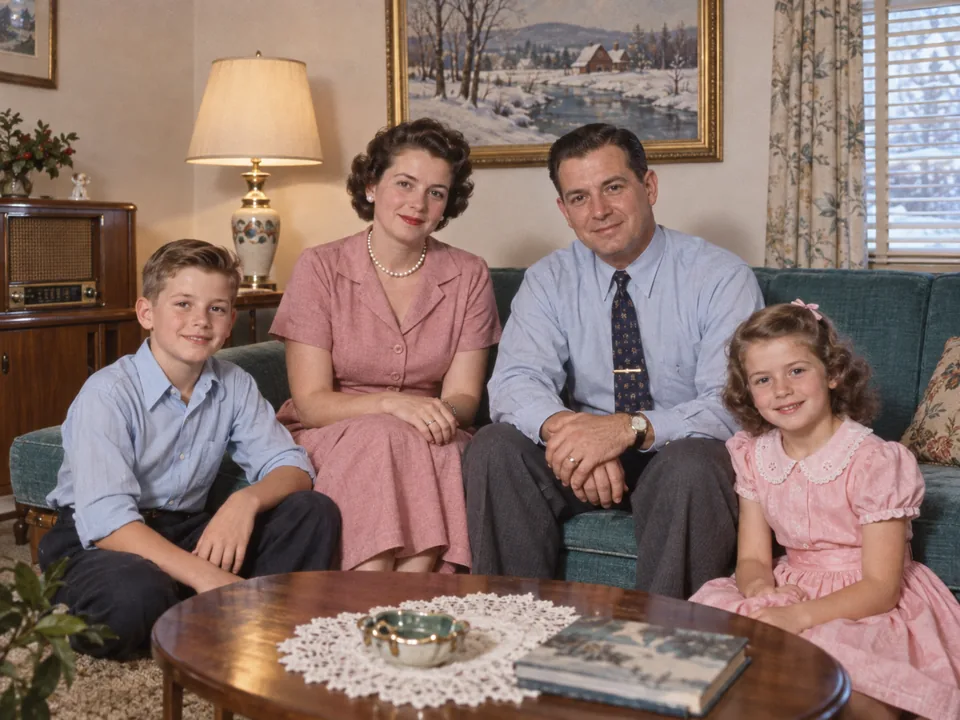
A fold and a torn edge run through four people. Full restoration rejoins shirts, dresses and porch posts; check the faces where the crease crossed.
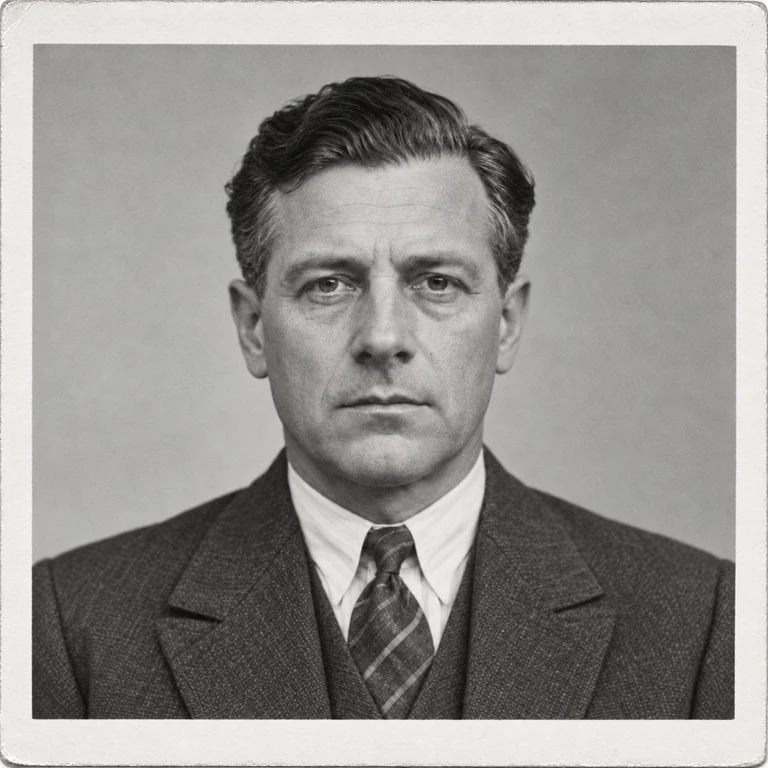
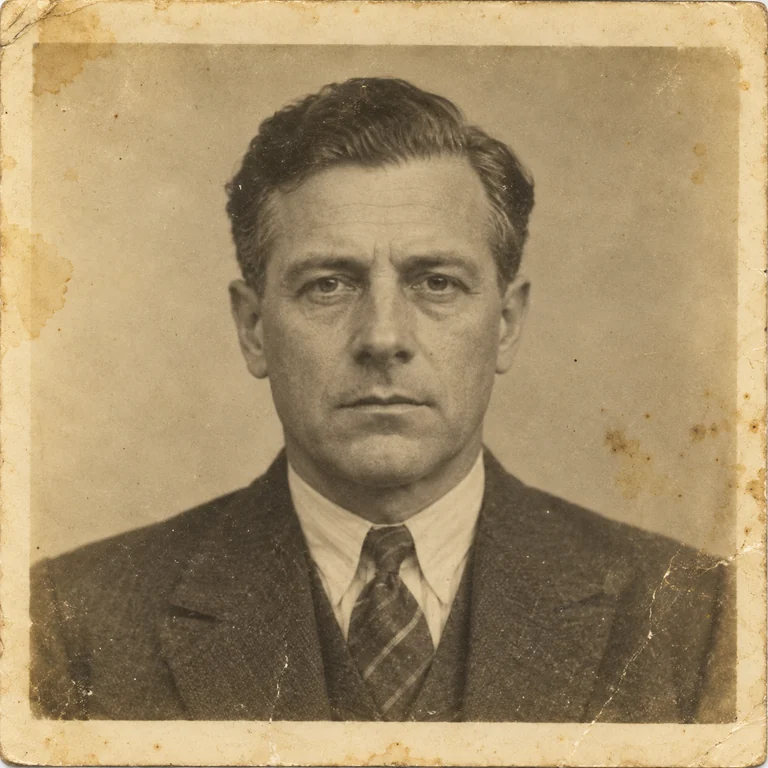
Yellowed paper, foxing spots and a stained border surround a formal portrait. The restored copy returns neutral grays and clean edges, a typical antique photo restoration job.
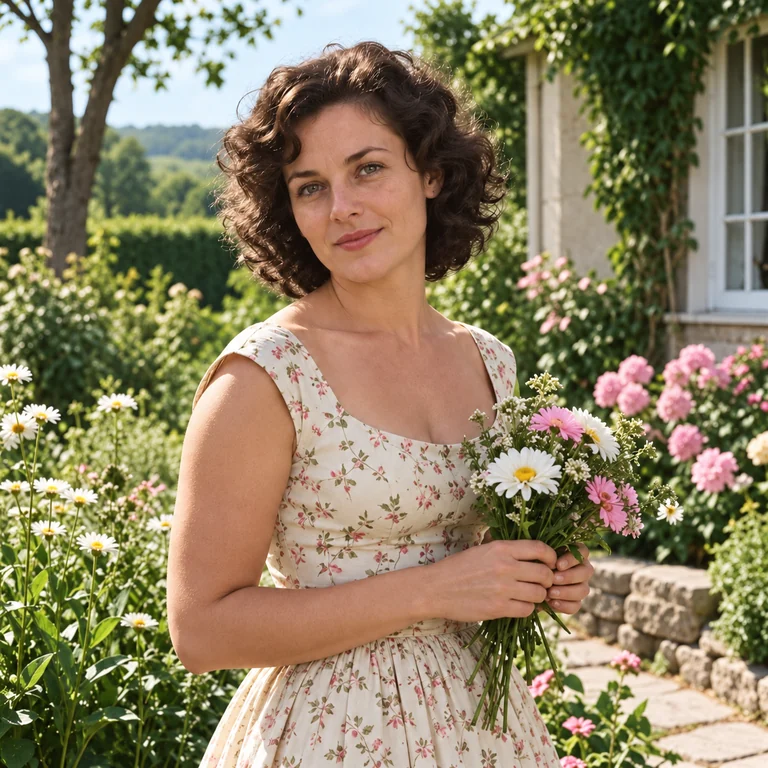
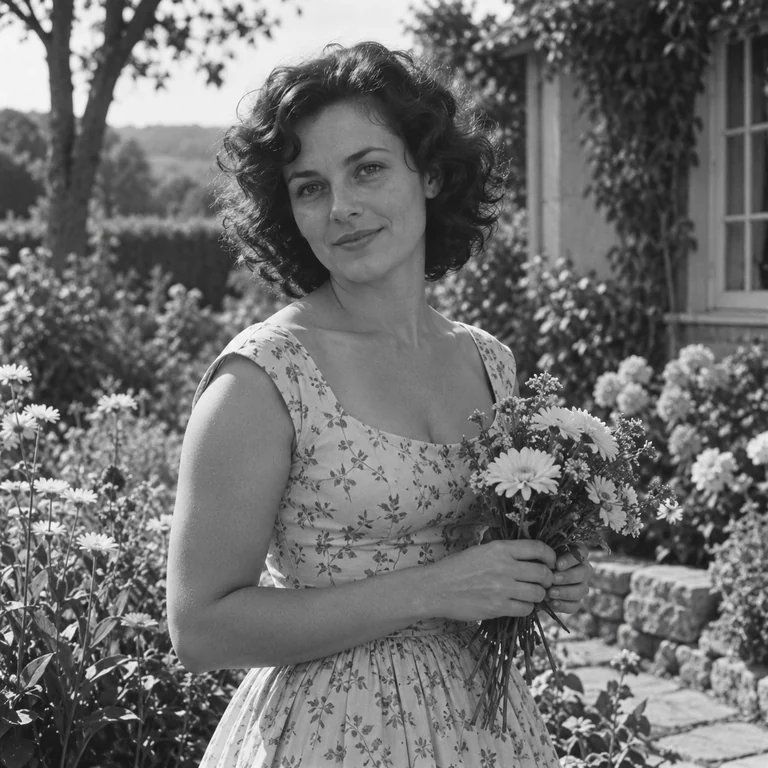
A garden portrait restored first, then colorized. The dress, flowers and skin get plausible colors, but the real ones are unknown, so label the result as colorized.
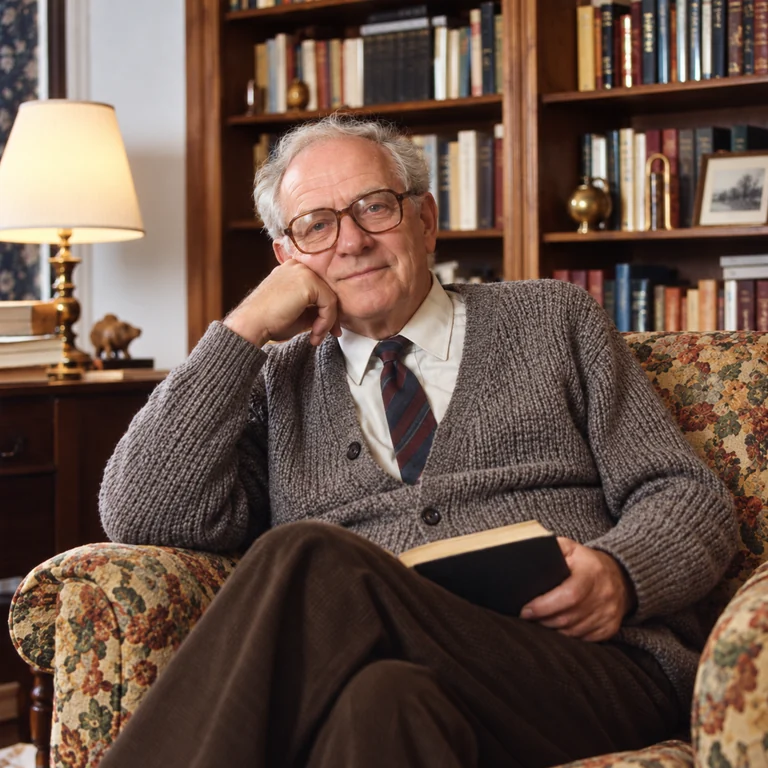
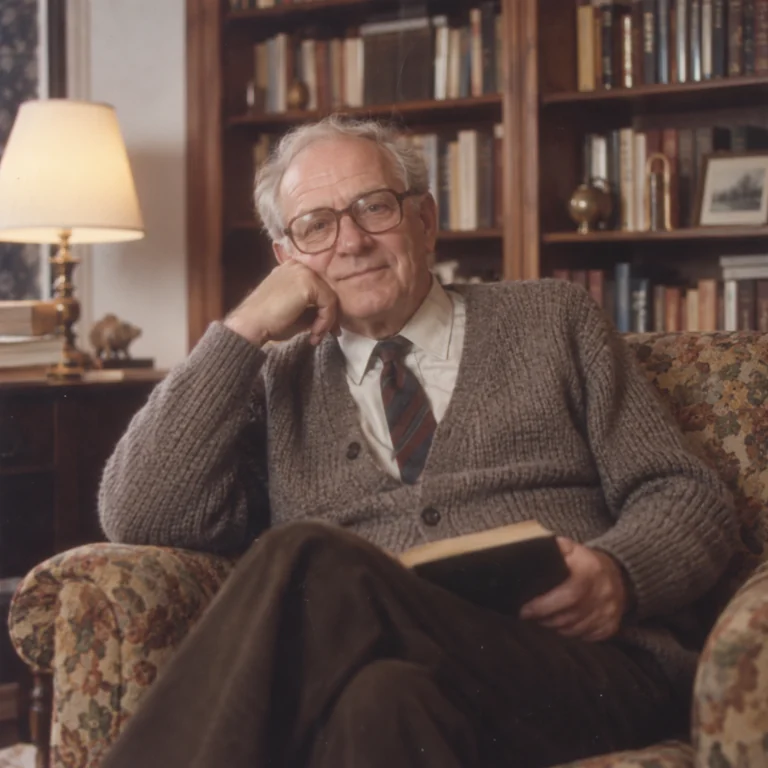
A slightly soft color photo of an older man in a reading chair. Face detail firms up his eyes, glasses and knit cardigan without changing his expression.
Scan at 300–600 DPI on clean glass. With a phone, hold it parallel to the print and light it from both sides so glare does not hide the damage.
Light clean-up handles dust and faint scratches. Full restoration also repairs creases, stains and fading. Leave Color on Keep original for the first pass.
Zoom into eyes, mouths, lettering and fabric patterns. If a face looks too smooth or unfamiliar, run it again with Face detail off.
Pick 2K for screens or 4K for larger prints, then download. Keep the untouched scan, and colorize a separate copy if you want color.
Not every old picture needs the same strength. Light clean-up removes dust, specks and hairline scratches and changes the least. Full restoration also repairs creases, stains and lost contrast. Try both on a treasured print and keep the one that fixes the damage with the fewest changes.
Keep original is the safe way to restore old images: black-and-white stays black-and-white, and faded color prints regain their own colors. Colorize adds plausible color to a monochrome photo. It is an interpretation, so share colorized old images with a note, or use Colorize Image for more color control.
Faces are where an AI photo restorer can overreach. With Face detail on, soft or small faces get firmer eyes, lips and hair; with it off, the original softness stays when a face is already readable. In group photos, check every face, not only the front row.
2K suits sharing, on-screen albums and an old picture challenge post; 4K gives more pixels for a larger print or a tight crop. More pixels do not add historical accuracy, so check faces and lettering before you order prints of old photos restored with AI.
| Damage in the photo | Focused tool | Best for |
|---|---|---|
| Scratches, tears and water stains | Repair Damaged Photo | Picking one damage type, such as creases or water damage |
| Black-and-white original | Colorize Image | Adding plausible color after the repair |
| Motion blur or missed focus | Unblur Image | Blur that restoration alone cannot fix |
| Film grain and noise | Denoise Image | Grainy scans and high-ISO snapshots |
| Slightly soft edges | Image Sharpener | Crisper edges on a photo that is mostly in focus |
| Small or low-resolution scan | Image Upscaler | More pixels before printing a small old pic |
| Dark or uneven exposure | Fix Photo Lighting | Underexposed scans and harsh shadows |
If you are wondering how to find old photos worth restoring, ask relatives for original prints and negatives. An original usually holds more detail than a copy saved from old picture websites.
A good scan gives the AI real texture to work with. Trying to restore images from a screenshot or a tiny thumbnail rarely works; enlarging them first only magnifies the blur.
Restore with Keep original and save that file. Colorize a copy afterwards, so you always keep a faithful black-and-white version.
For portraits, run both settings and compare at 100% zoom. Keep the version that preserves the person’s age, expression and grain.
Creases through eyes, jewelry, buttons or printed lettering are where the AI is most likely to invent detail. Check those spots before saving.
Store the untouched scan next to the restored file. Old photo hosting sites often compress uploads, so keep full-resolution copies on your own drive too.
 AI Photo RepairPhoto repair for old and damaged photos: remove scratches, fold lines, faded patches and water stains from a scan, then save a 2K or 4K copy. Free to try.
 Colorize ImageColorize image files with an AI photo colorizer: turn black and white photos to color with natural skin, sky and clothing tones, or color sketches, up to 4K.
 Unblur ImageUnblur image files with AI: remove motion blur, camera shake and out of focus blur, fix blurry pictures of faces and text, and export at 2K or 4K. Free to try.
 Denoise ImageDenoise image files with an AI image denoiser: remove grain, color noise and high-ISO speckles from night, indoor and phone photos while faces stay the same.
 DescreenDescreen scanned magazines, newspapers, comics, and photo prints. AI removes halftone dots and the moire pattern on scans while keeping text and detail sharp.
 AI Image SharpenerUse the AI image sharpener to make image clearer: crisp product edges, text, fur and landscapes, or sharpen and upscale 2× or 4× in one step. Free to try.
 AI Image UpscalerAI image upscaler for photos, logos, PNGs and art. Upscale images and pictures 2×, 4× or to 4K with faithful AI upscaling that keeps faces and text intact.
 Fix Photo LightingFix lighting in any photo with AI relighting: brighten dark faces, fix backlight and harsh sun, soften shadows, or add golden hour and studio light. Free to try.
Give a restored photo an overall lift in light, color and clarity before sharing.
Read the guideType a custom fix, such as removing a date stamp or a pen mark from the corner.
Read the guideCreate new artwork from a text prompt, like a cover for a family history album.
Read the guideScan the print at 300–600 DPI, or photograph it flat in soft, even light. Upload it, choose Full restoration with Keep original color, and leave Face detail on for portraits. Compare the result with your scan at full size, then save a 2K or 4K copy and keep the original.
Yes, AI photo restoration is free to try. Each restoration uses account credits, and the Generate button shows the cost before you start.
Upload only photos you own or have permission to restore, such as prints from your own family album. If a picture belongs to an archive, a photographer or another relative, ask first, and respect the privacy of the people shown.
Choose Light clean-up for dust, specks and faint scratches on an otherwise healthy print. Choose Full restoration when the photo also has creases, stains, tears or heavy fading. If you are unsure, run both and compare them at full size.
Restore first with Keep original, then colorize a copy. Colorize adds plausible colors to a black-and-white photo, but it cannot know the real color of a dress or a car. For more color options, run the restored file through Colorize Image.
Upload a JPG, PNG or WebP up to 20 MB, such as a flatbed scan or a phone photo of the print, and pick 2K or 4K under Output. To restore scanned image files from an archive, start from the largest scan you have rather than a resized copy.
The best old photo restoration software is the one that fixes the damage and keeps the person recognizable. Test the same scan in a few AI photo restoration tools and compare faces, grain and lettering at full size. This one runs in the browser, so there is no photo restoration app to install; antique photo restoration of valuable prints may still call for a professional retoucher.
This tool restores the digital copy, not the paper. Remove loose dust with a soft blower brush, never wipe or wet the surface, and hold prints by the edges. Yellowed photos with stuck emulsion or mold need a photo conservator; scan them as they are and let the restoration handle the copy.
No. The Restore level, Color and Face detail settings build the instructions for you, so there is no prompt box on this page. In a general editor such as AI Photo Editor, a good old photo restore prompt names the damage to remove and what to keep: face, pose, clothing and the original tones.
Send the 4K file to a local or online photo lab and check its print sizes and paper options. If you need to know where to get old pictures copied from fragile originals, ask whether the lab scans prints by hand. Old photo sharing sites and old photo storage sites often compress files, so keep your full-resolution copy too.
Upload a scan, choose a restore level and compare the result with your original before you download. AI photo restoration is free to try.