Sketch to Render
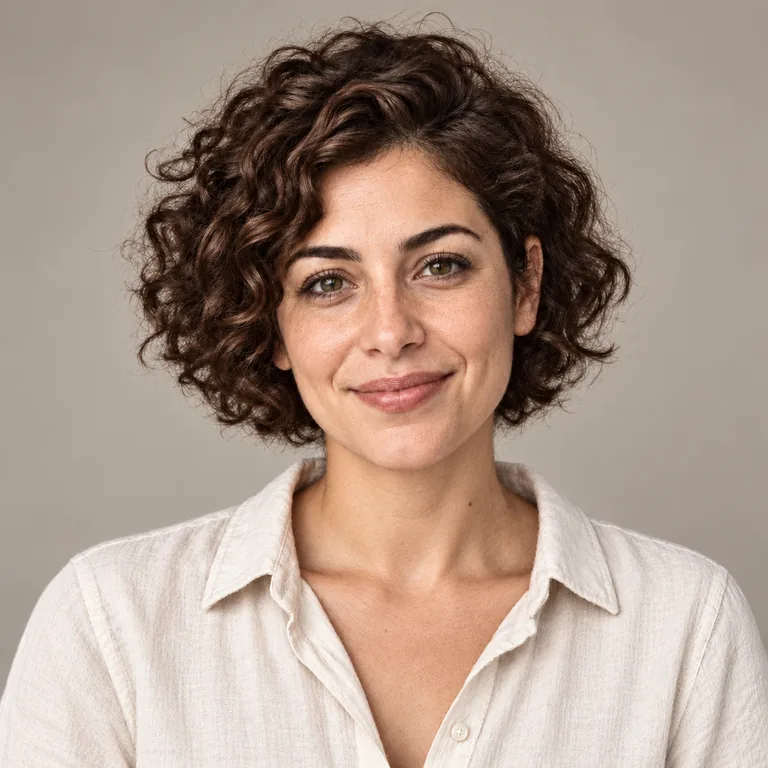
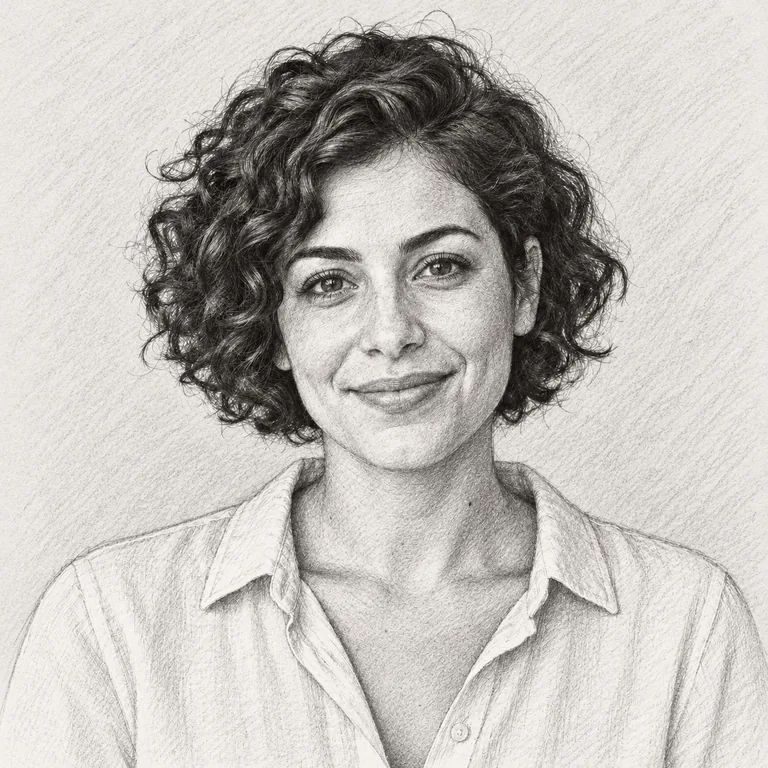
A graphite portrait of a curly-haired woman becomes a natural studio photo. The face, pose and cream blouse come from the drawing; only the medium changes.
Upload a photo, sketch or product shot, say what should change and what must stay, and turn it into a new render, scene, season or painting. Nano Banana 2 Lite accepts up to ten reference images.
Render this pencil portrait as a natural studio photograph. Preserve the face, pose and blouse.
Reference example. It is not a result generated from your upload.
An AI image generator from image input starts from a picture you already have instead of a blank prompt. Upload a photo, sketch or product shot, then describe the change: a new season, a lifestyle setting, oil paint or a photo-real version of a drawing. The image to image generator reads both the picture and your words, so the layout, subject and colors you ask it to keep carry over, and you get a new image from image and text together.
That is the main difference from text-to-image, and from a plain AI image converter that only swaps formats or filters. Words alone have to invent every detail; a reference already fixes the composition, so a short instruction goes further. Use this image to AI image generator to remix an image with AI for product mockups, concept art, room ideas or a portrait of yourself in a new style. Nano Banana 2 Lite takes up to ten references in one request, while Flux 3 Klein and Grok Imagine Image 2 work from a single picture.
A graphite portrait of a curly-haired woman becomes a natural studio photo. The face, pose and cream blouse come from the drawing; only the medium changes.
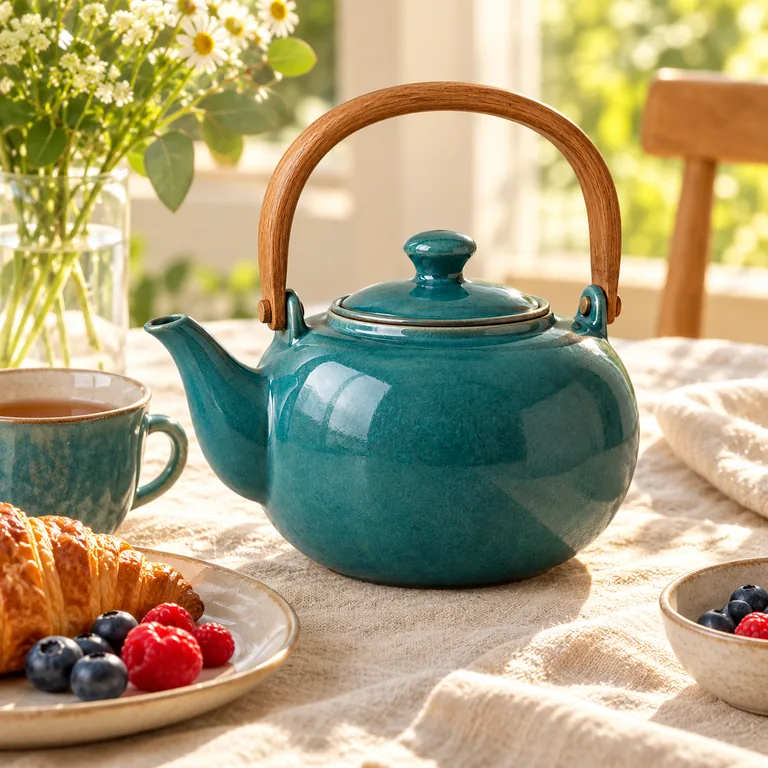
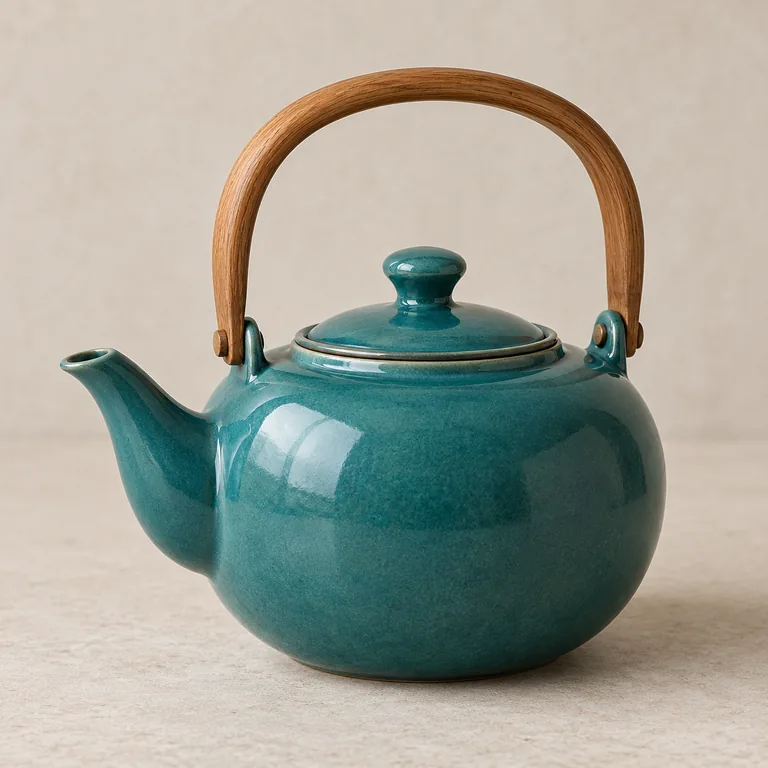
A teal teapot shot on a plain backdrop is set on a sunny breakfast table with linen, croissants and berries, keeping its glaze color and curved wooden handle.
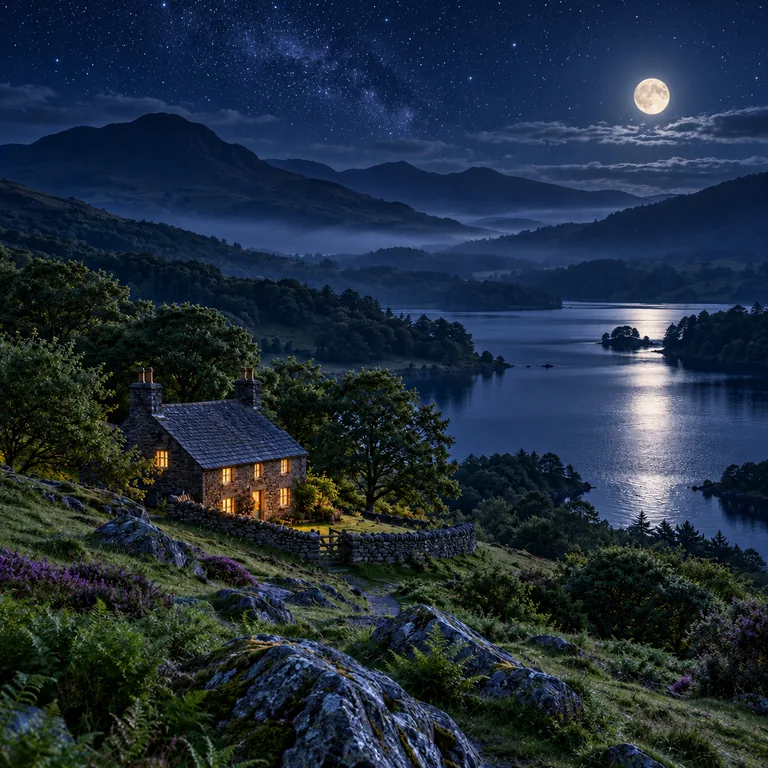
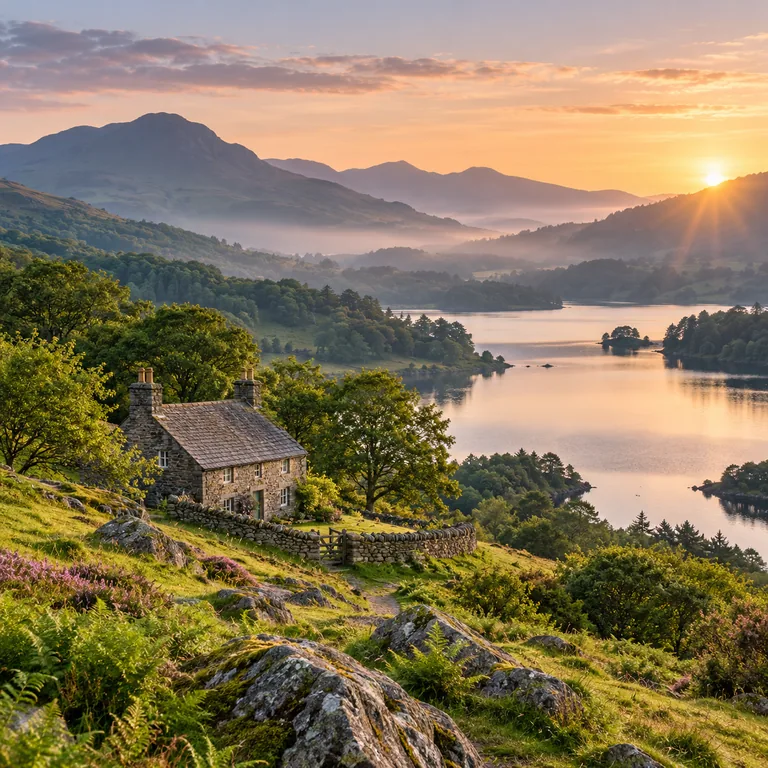
A lakeside cottage at sunset turns into a moonlit scene with stars and a warm window, while the hills, shoreline and cottage stay in place.
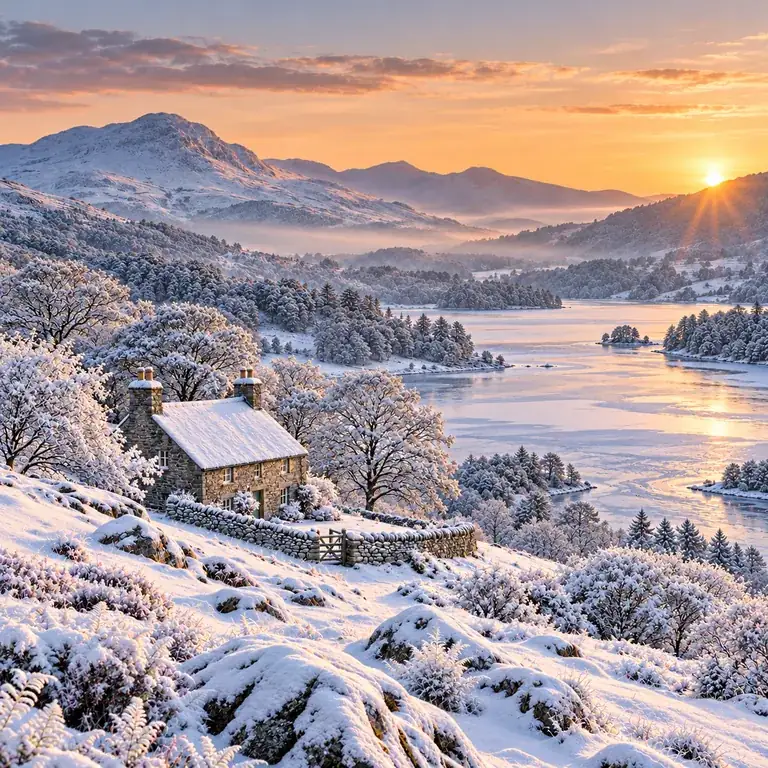
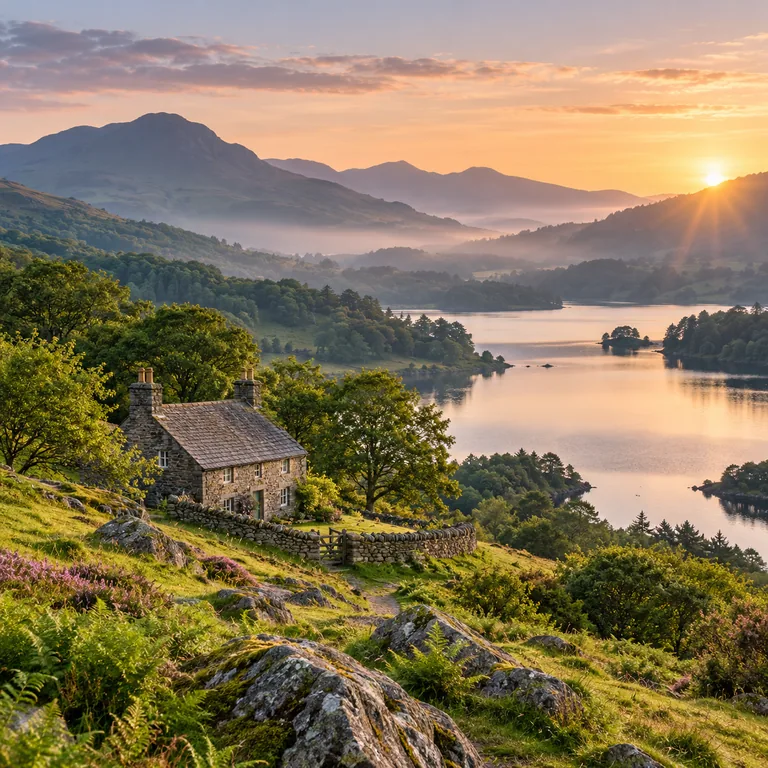
The same summer valley is covered in snow. A prompt like “make this picture a winter scene” works best when it also names what must not move.
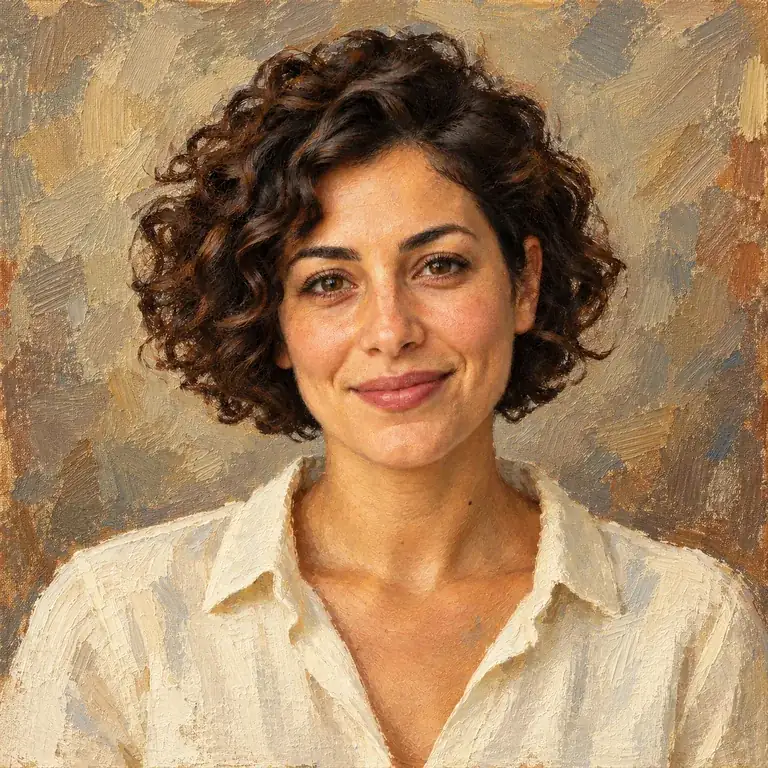
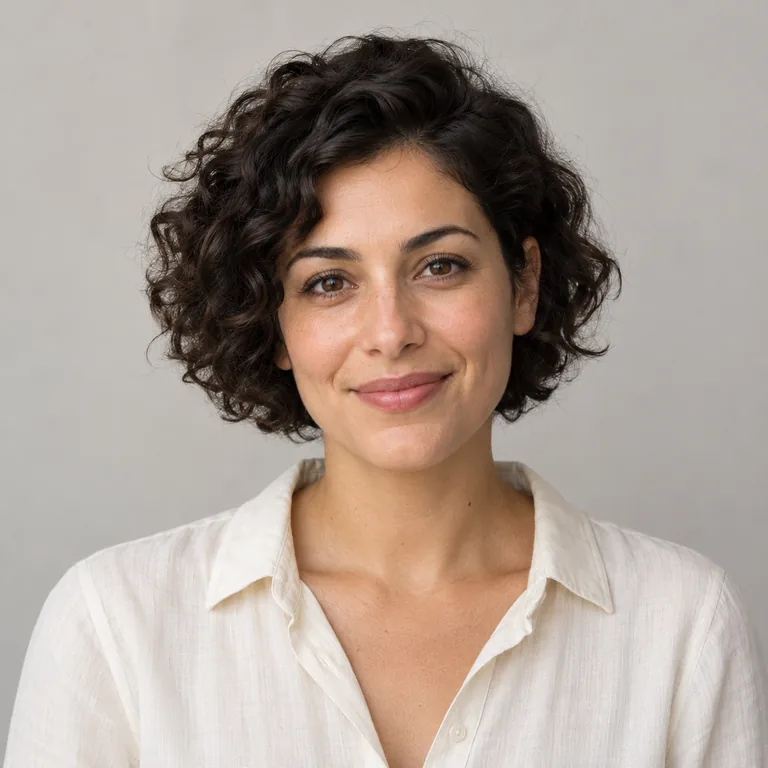
A portrait photo repainted in textured oil on canvas with a warm, muted palette: a quick way to make an oil-paint illustration from picture details you already have.
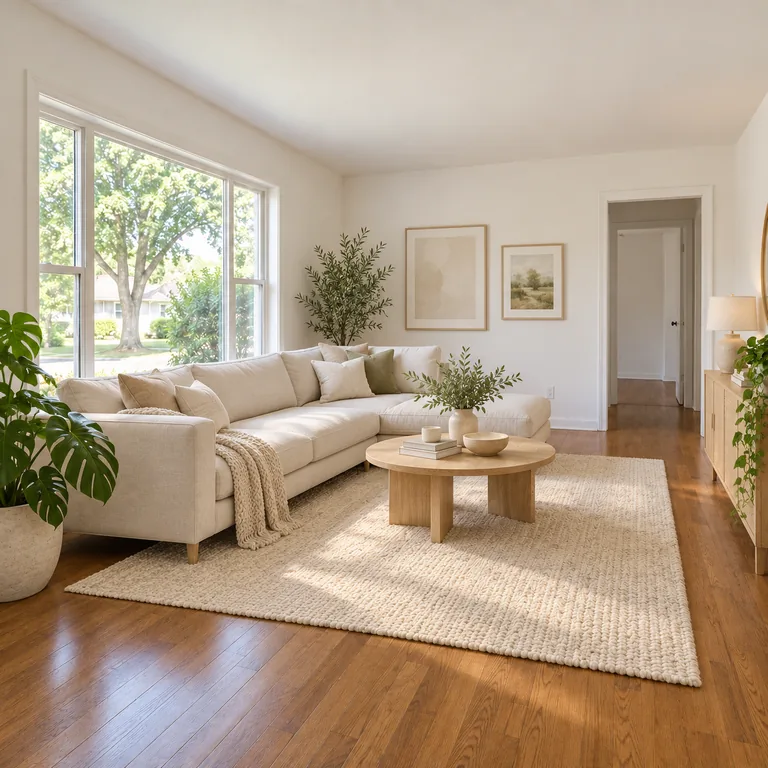
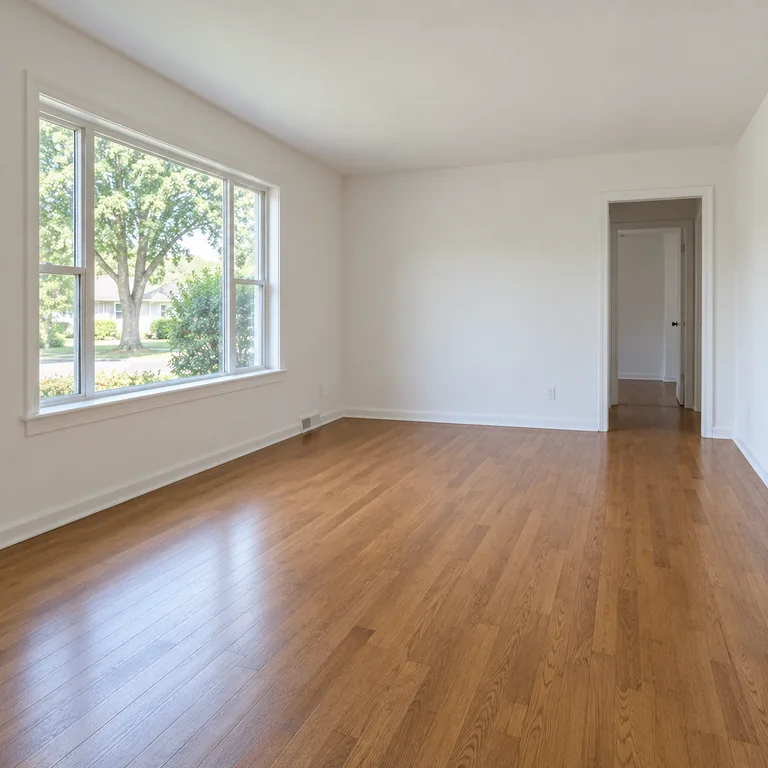
An empty living room with oak floors gets pale wood, a cream sofa, a rug and plants, while the walls, window and doorway stay where they were.
Add the photo, sketch or product shot that should guide the result. The AI image upload takes JPG, PNG or WebP up to 20 MB; with Nano Banana 2 Lite, nine optional slots let you add more references.
Lead with the change, then list what to protect, for example: “Place this teapot on a breakfast table; keep its shape and teal glaze.” One clear request works better than several unrelated edits.
Match reference follows the shape of your upload; Square, Portrait, Story or Landscape asks for a new frame. Generate one to four variations to compare side by side.
Check faces, product edges and any lettering against the reference. If something drifted, rewrite that part of the prompt, generate again and download the version you prefer.
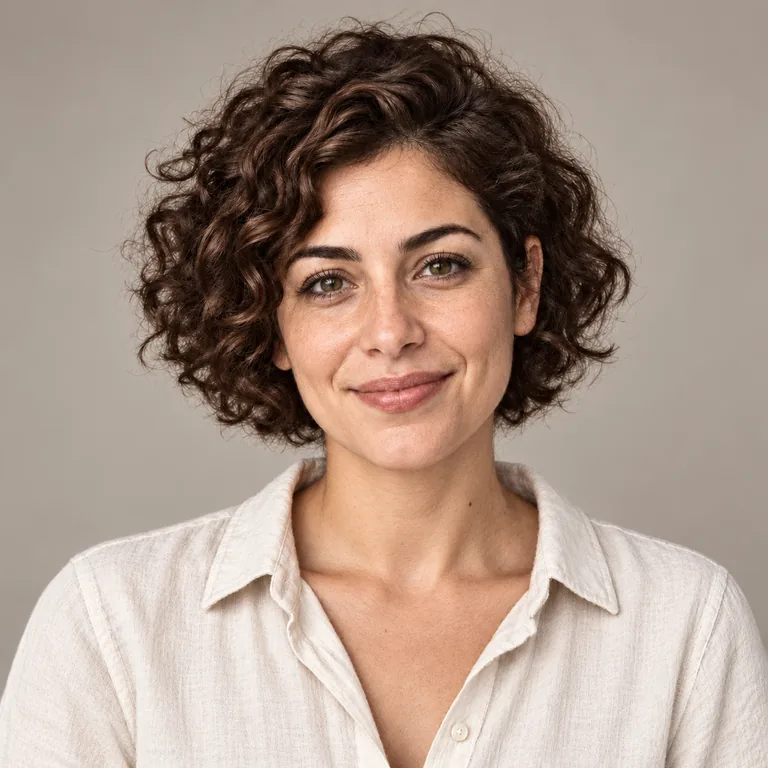
Upload a pencil drawing and ask for a natural photograph. The image to image converter uses the drawing as a map for face, pose and clothing, then adds skin, fabric and studio light. It also works for character sketches and product drafts.
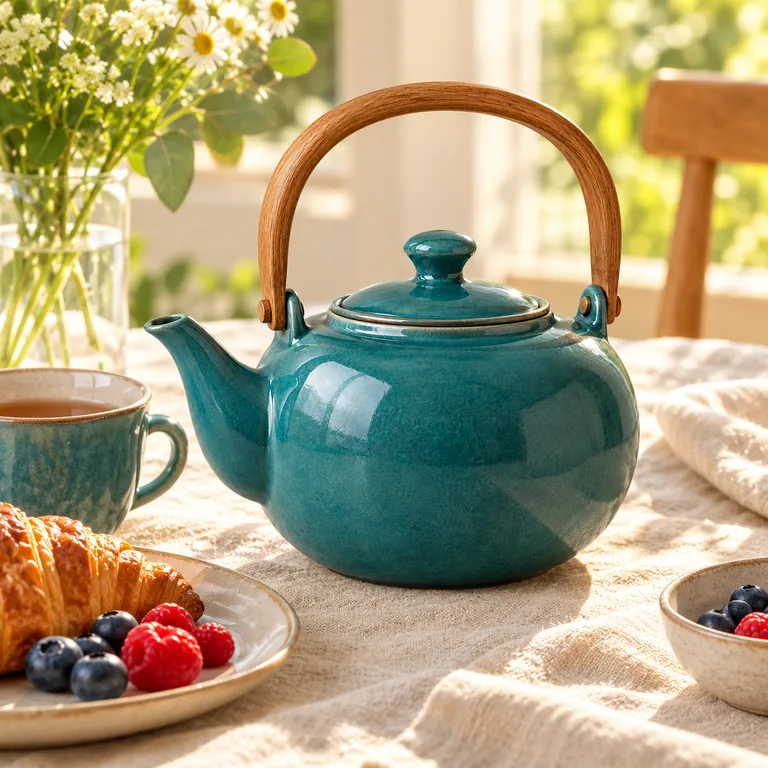
Shoot the product on a plain background, then describe the table, light and props around it. Ask the AI photo generator from image to keep shape, color and printed details, and check edges and reflections before using the mockup.
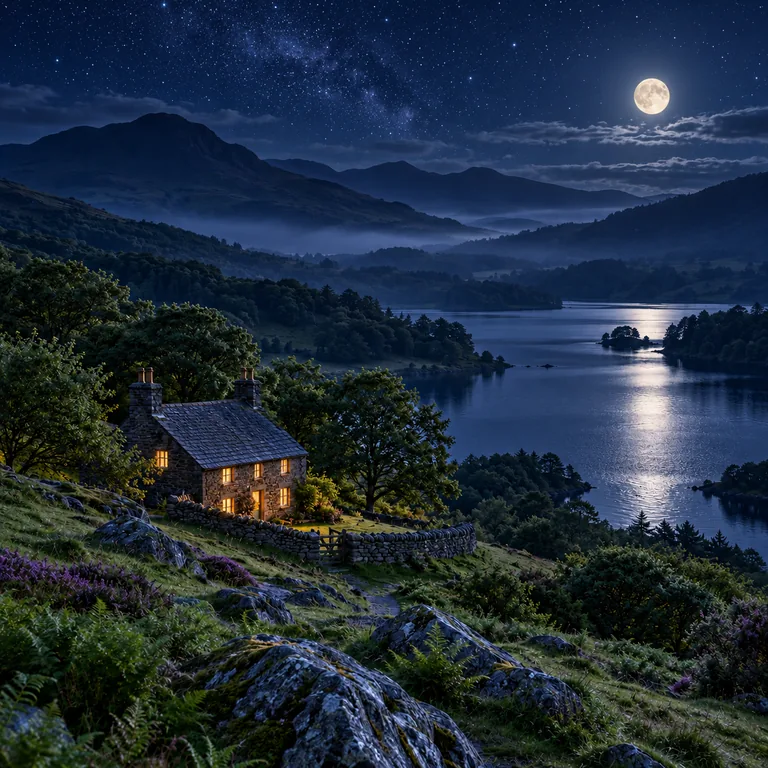
Describe the new light, such as moonlight, stars or a lit window, and add “keep the scene layout.” The AI image generator from photo relights the sky, water and buildings while the hills and shoreline stay put.
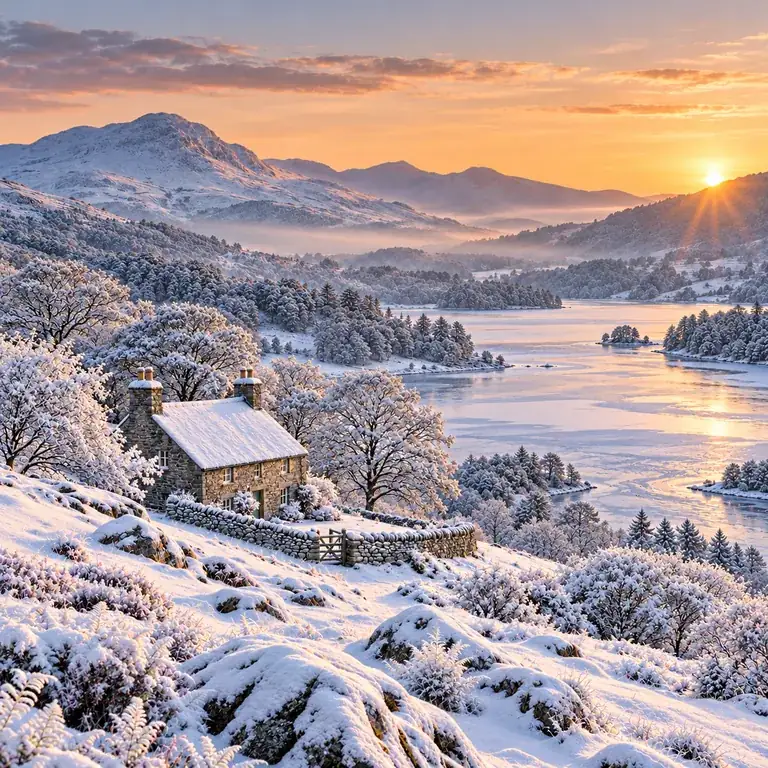
Snow, autumn leaves or spring blossom can be painted onto the same view. As with any AI photo generator from photo references, name the landmarks to protect, here the cottage, lake and hills, and generate two to four variations to pick the most believable one.
An AI picture generator from photo uploads can only keep what it can see. Blurry or tiny files lose detail, so crop away clutter and let the subject fill most of the frame.
“Oil on canvas,” “soft graphite,” “clay figure” or “flat vector” are clearer than “make it artistic.” Naming the medium and finish gives the result a deliberate look.
When a person is in the picture, add “keep the face and expression” to the prompt. Compare eyes, hairline and glasses before sharing the result.
With several uploads, say which image is the subject, which is the background and which is only a style sample, for example “use the second image for the color palette.”
If you want a new season and a new art style, do them in two passes. A single change is easier to check and easier to fix.
Upload your own photos or images you are allowed to edit, and ask before restyling a portrait of someone else.
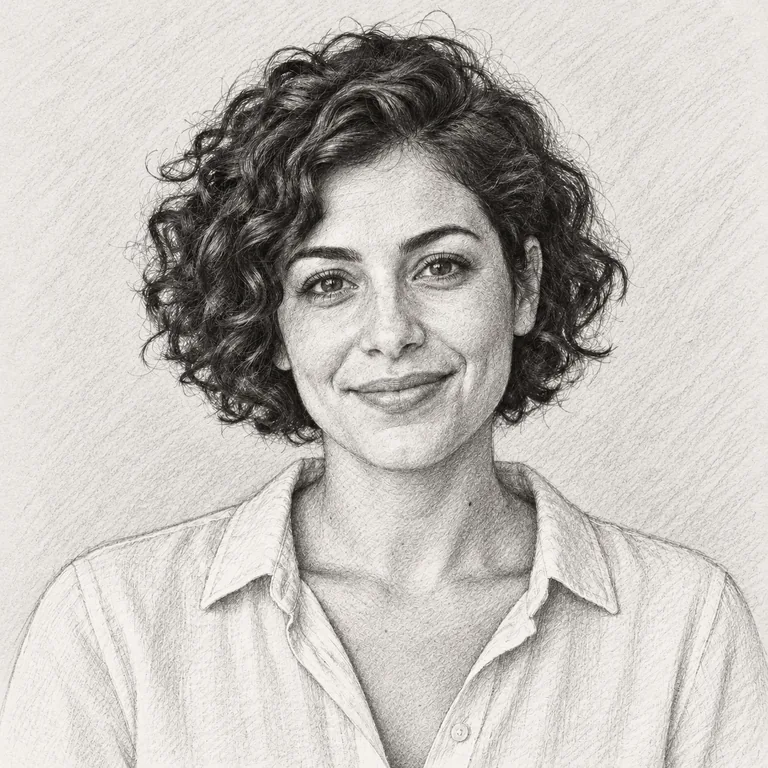 Photo to SketchPhoto to sketch converter with 12 AI styles: pencil, graphite, charcoal, crosshatch, ink, manga, colored pencil and blueprint. Upload a picture and compare.
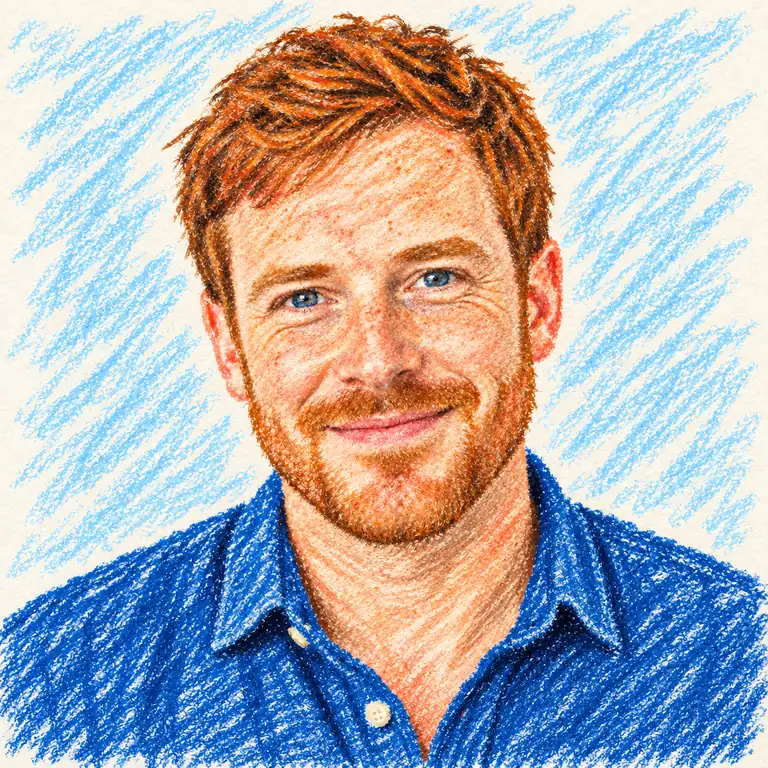 Image to DrawingImage to drawing in 12 materials: crayon, marker, ballpoint pen, oil pastel, chalkboard, kid’s drawing and more. Turn a photo into a drawing. Free to try.
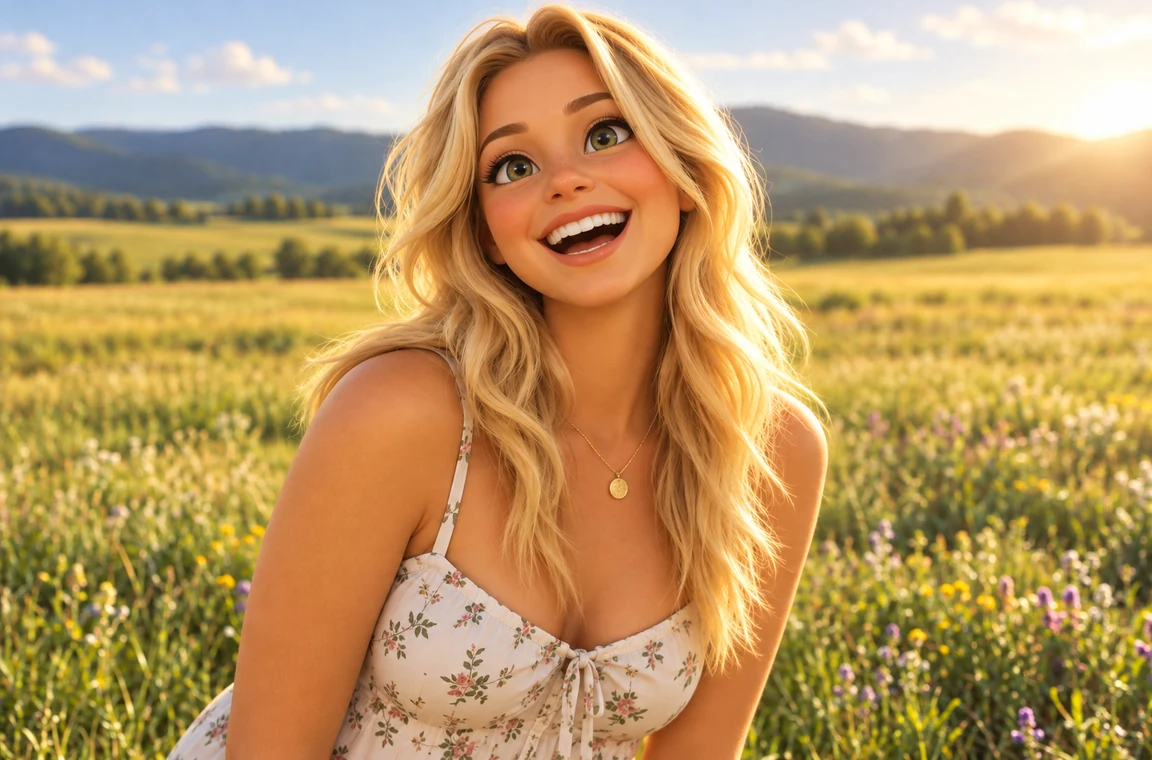 Photo to CartoonPhoto to cartoon AI cartoonizer: pick 3D animated, anime, comic, caricature or line art and turn a photo into a cartoon of you, your pet or car. Free to try.
 Photo to Pixel ArtTurn any image to pixel art with AI. Upload a photo, pick 8-bit, 16-bit, handheld green, or game sprite style, and get grid-aligned retro pixel art, not a blur.
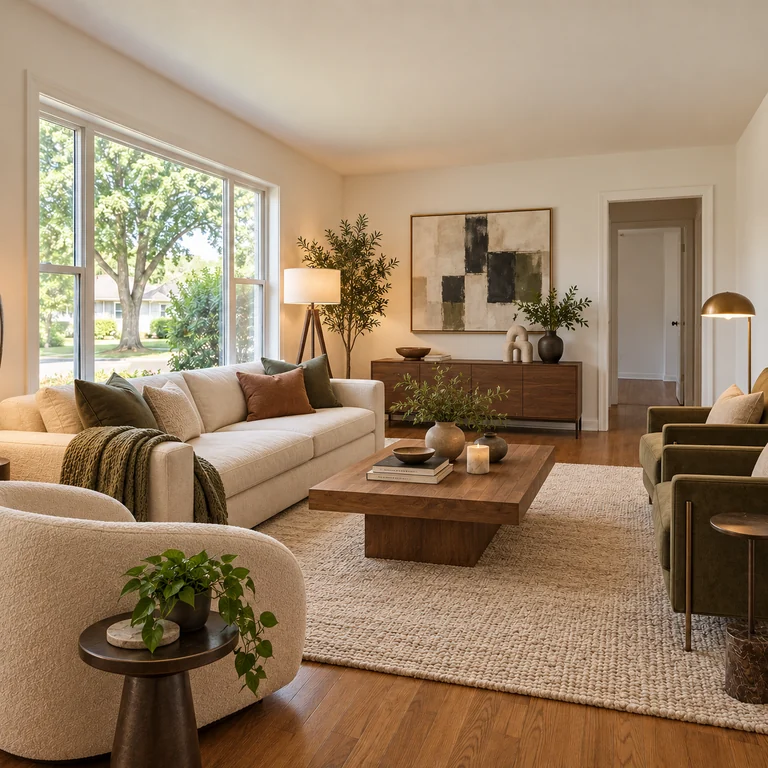 AI Interior DesignAI interior design free to try: upload a room photo, pick the room type and one of 12 styles, and see new furniture, colors and materials in the same space.
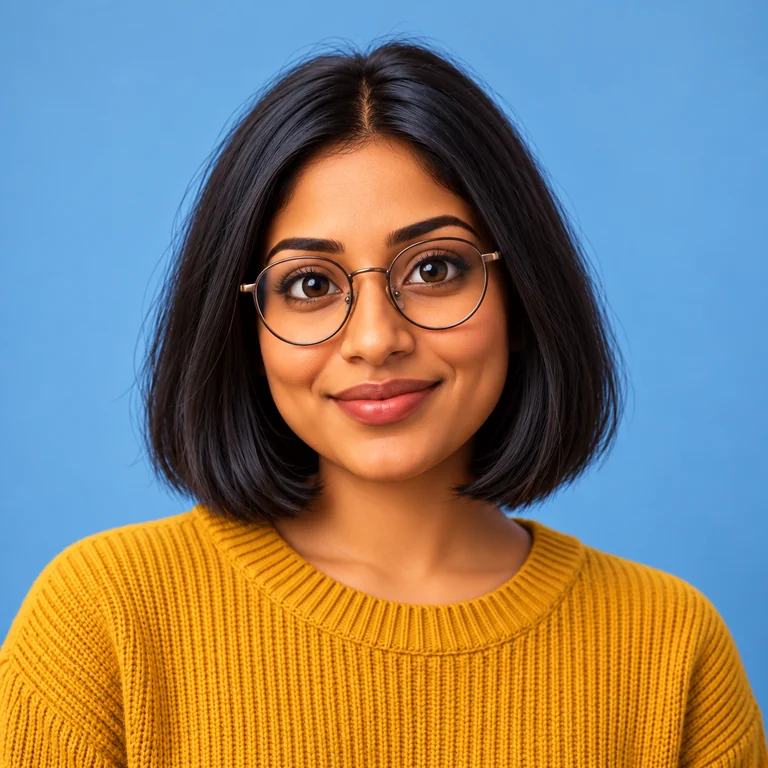 AI Avatar GeneratorAI avatar generator free to try: create an avatar from a photo in 12 styles, from 3D clay and vinyl toy to anime, comic, pixel and fantasy elf. Square results.
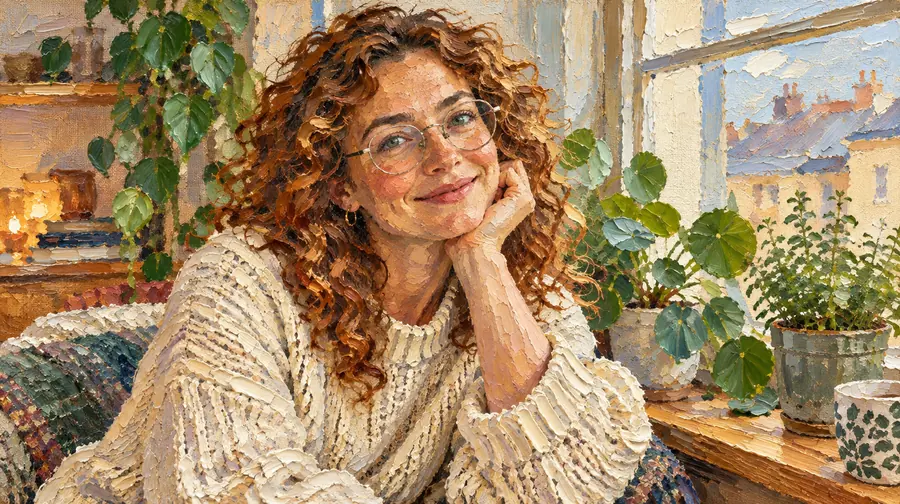 Turn Photo into PaintingTurn photo into painting with AI: oil, watercolor, acrylic, impressionist and more. Upload a picture, pick a painting filter, get canvas-ready art. Free to try.
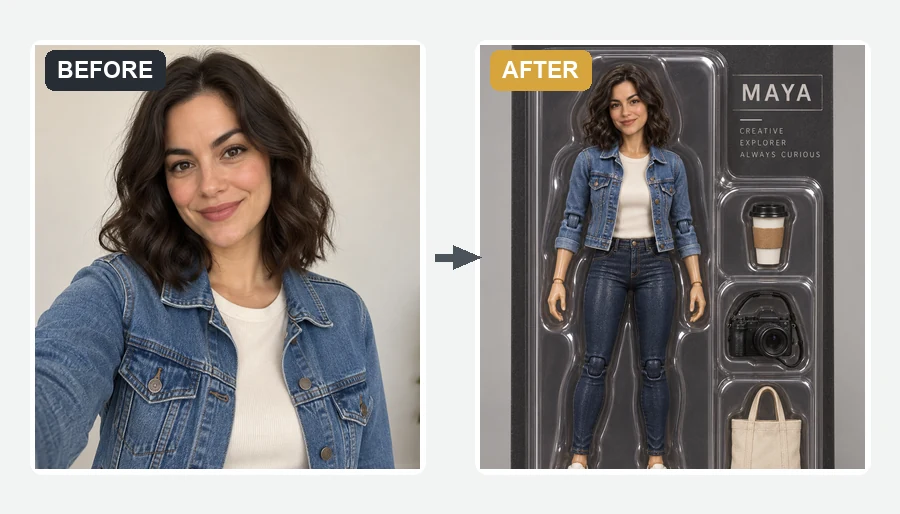 AI Action Figure GeneratorMake yourself an action figure with the AI action figure generator. Upload a photo, pick a theme, blister pack or window box, and get a boxed 3D toy of you.
Upload the picture, write what should change and what must stay, choose a model and aspect ratio, then click Generate. Compare the result with your reference and refine the prompt if a detail drifted. The steps are the same for photos, sketches and product shots.
Yes. Upload a clear selfie and describe the look, for example an oil portrait, a studio photo or a winter scene. Going from photo to AI portrait works best when you add “keep my face and expression” to the prompt; compare the likeness before you download.
Text to image invents the whole picture from words. Image to image starts from your upload, so going from picture to AI art keeps layout, proportions and subject, and the prompt only has to describe the change. Use the AI Image Generator when you have no reference.
Img to img is shorthand for image-to-image generation: a model receives a picture plus an instruction and returns a new image based on both. Here that means a reference upload, a written prompt and a choice of three models.
Nano Banana 2 Lite is the default and the only one that takes extra references, up to ten images in total. Flux 3 Klein and Grok Imagine Image 2 each work from one reference. Running the same prompt on two models is a simple way to see which follows it best.
Yes. The first upload is required, and Nano Banana 2 Lite adds nine optional slots. Each AI upload slot takes JPG, PNG or WebP up to 20 MB. You can upload a logo or packaging shot too; with any logo upload, check the lettering closely because it may be redrawn.
Upload the photo and name the medium in the prompt: watercolor, ink line art, oil on canvas or flat vector, plus whether to keep the composition. For one-click presets, Photo to Sketch and Photo to Drawing offer ready-made pencil, crayon and marker styles.
Match reference follows the shape of the uploaded image, so a portrait stays a portrait. Square, Portrait, Story and Landscape ask the model for a new frame, which can add or crop scenery at the edges.
Image to image is Free to try. Each run uses credits from your account, and the Generate button shows the cost for the chosen model and number of results before you start.
Only pictures you took, own or have permission to edit. If a photo shows other people, get their consent first, and do not create misleading images of real people.
Upload a reference, describe what should change and compare up to four image to image AI results side by side.