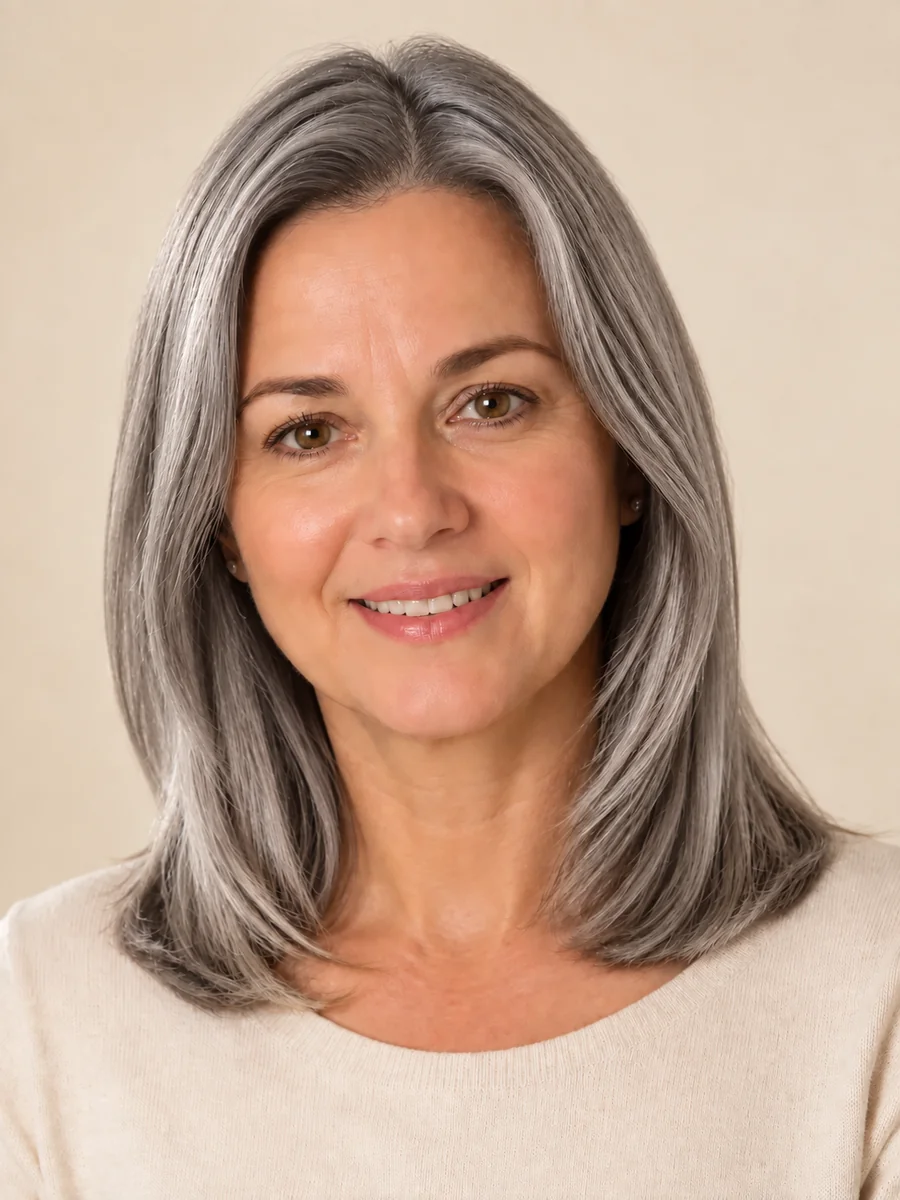
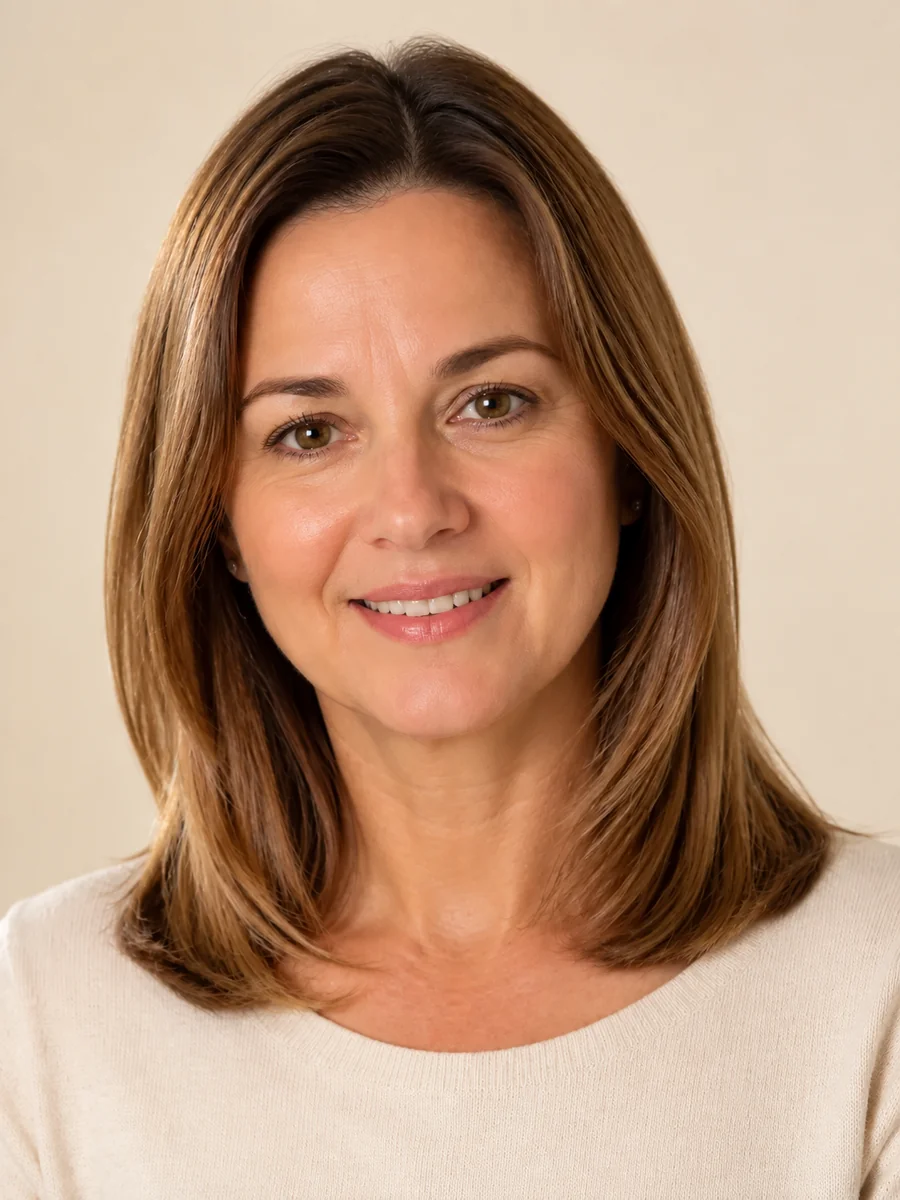
Brown to Silver Grey
Preview a soft silver or ash tone over warm brown hair before you decide on grey blending, a gray coverage break, or a full silver transformation.
Upload a photo, pick a hair color from the swatches or the color picker, choose all-over color, highlights, balayage, or ombré, and preview the new shade on your own hair while your face, haircut, and lighting stay the same.
Popular hair colors
Fine-tune
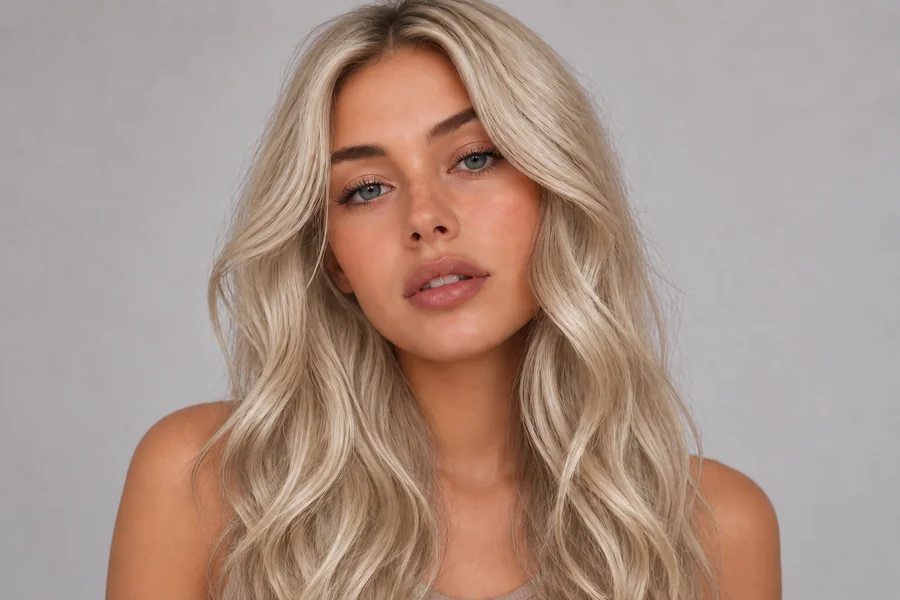
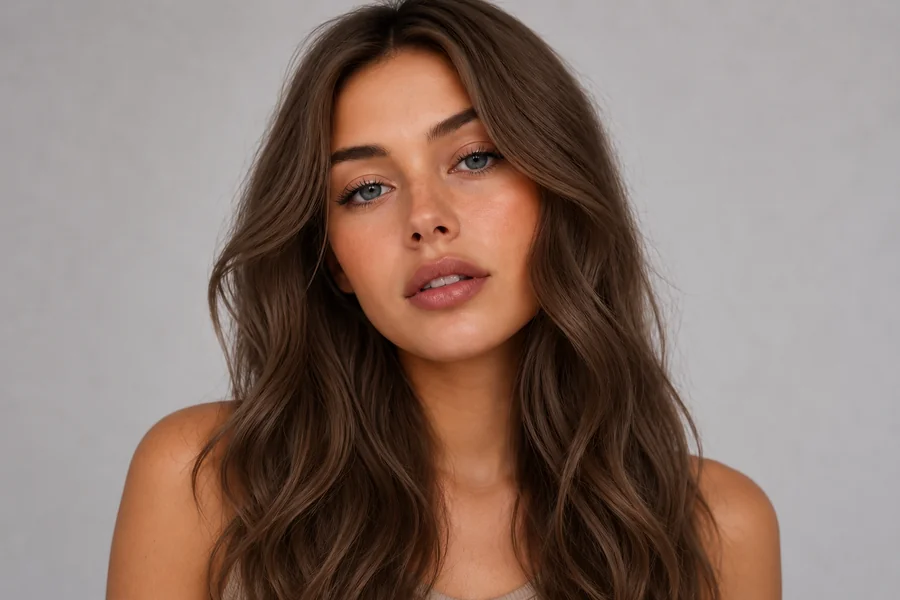
Reference example. It is not a result generated from your upload.
An AI hair color changer is a hair color editor that finds the hair in your photo and recolors only those strands. Hair color changing used to mean painting a mask around every curl in a photo editor. Here the AI change hair color step is automatic: it keeps the shine, shadows, and texture of your real hair, so the new shade looks grown in rather than painted on. The hair color AI does the masking; you only choose the shade.
Use it as a virtual hair color try on before a salon visit, as a hair color generator for bold ideas you are not ready to commit to, or simply to change the color of hair in a photo for fun. Pick any shade from the swatches or the color picker, choose all-over color, highlights, balayage, or ombré, and compare the result with your original. It is a visual preview, not a dye formula.
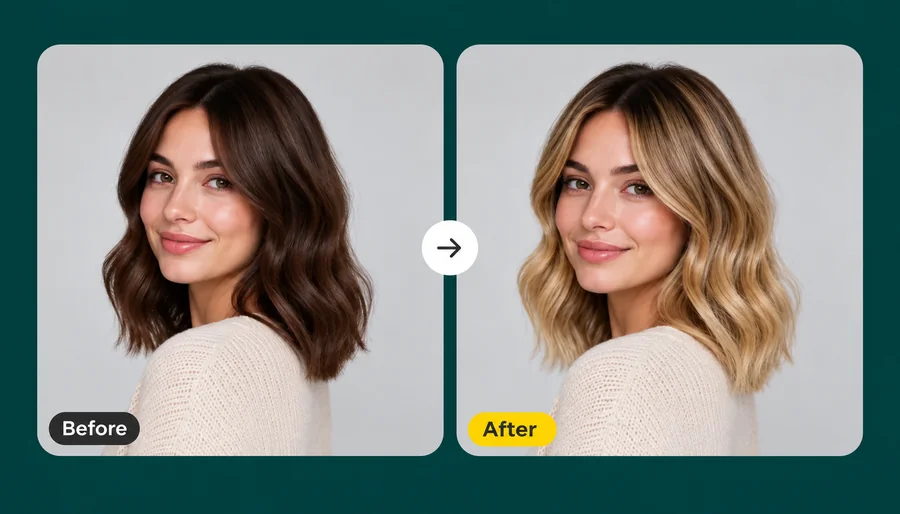
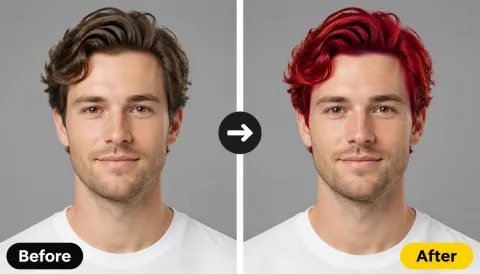
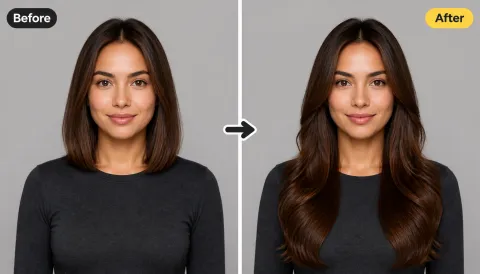
Drag each image to compare the original hair with the new color. Face, haircut, and background stay the same.
Preview a soft silver or ash tone over warm brown hair before you decide on grey blending, a gray coverage break, or a full silver transformation.
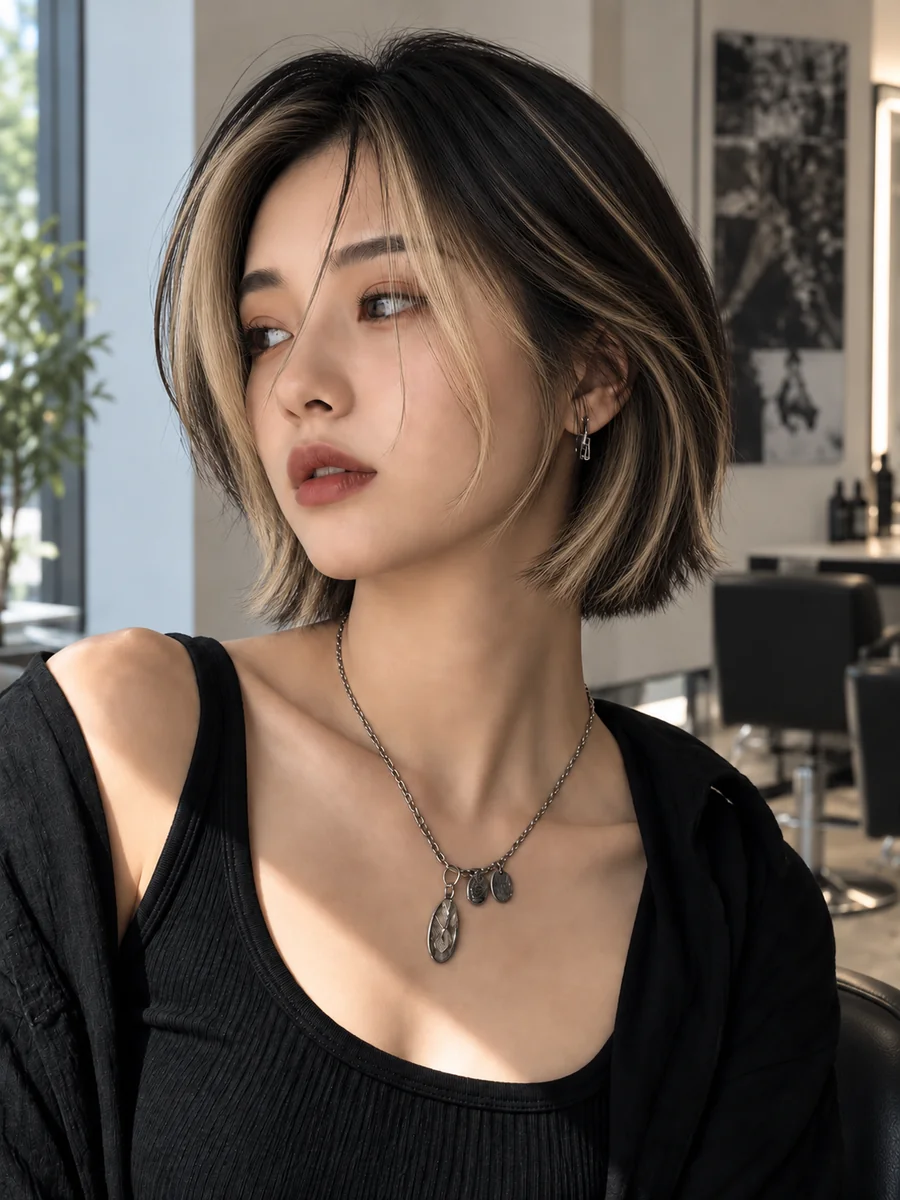
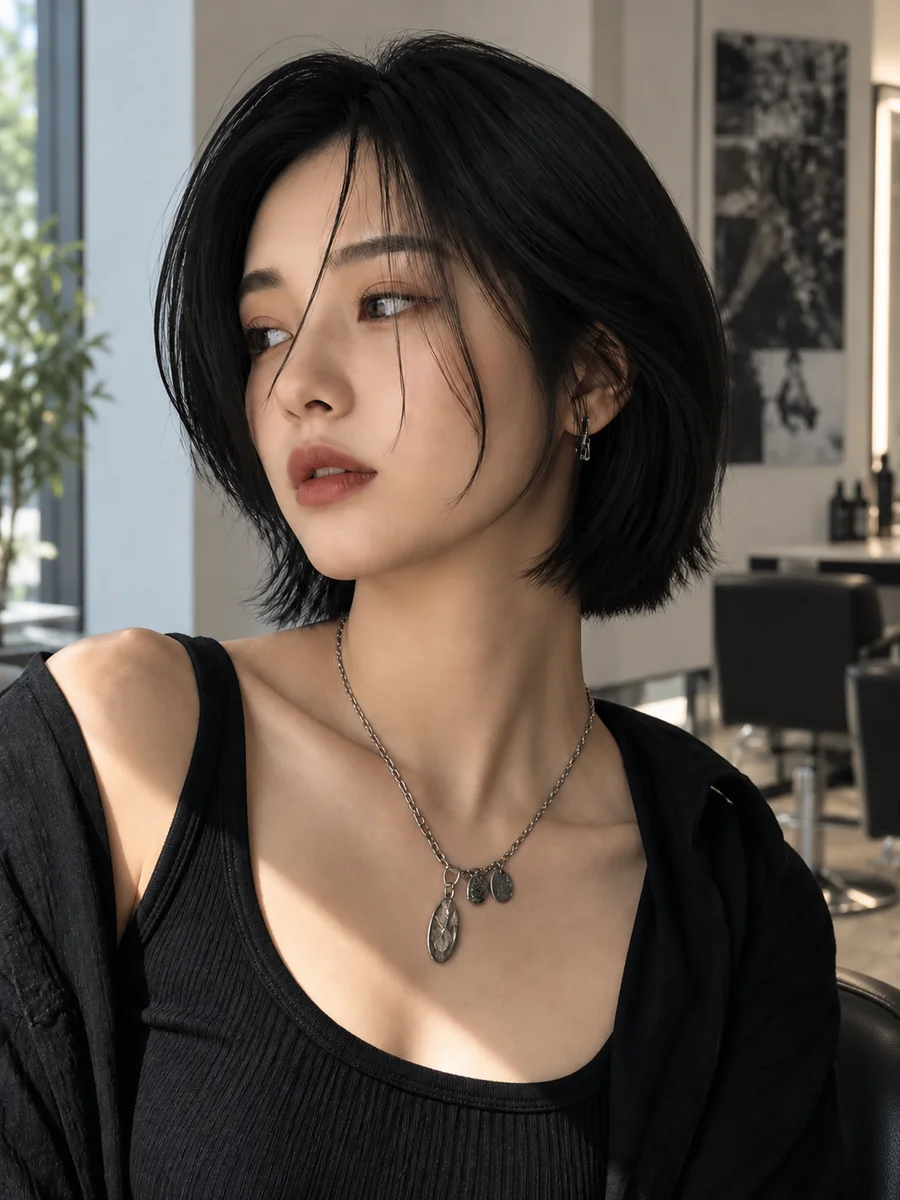
Add lighter pieces around the face without touching the rest of the cut. Switch Color placement to Highlights and pick the tone you want on top.
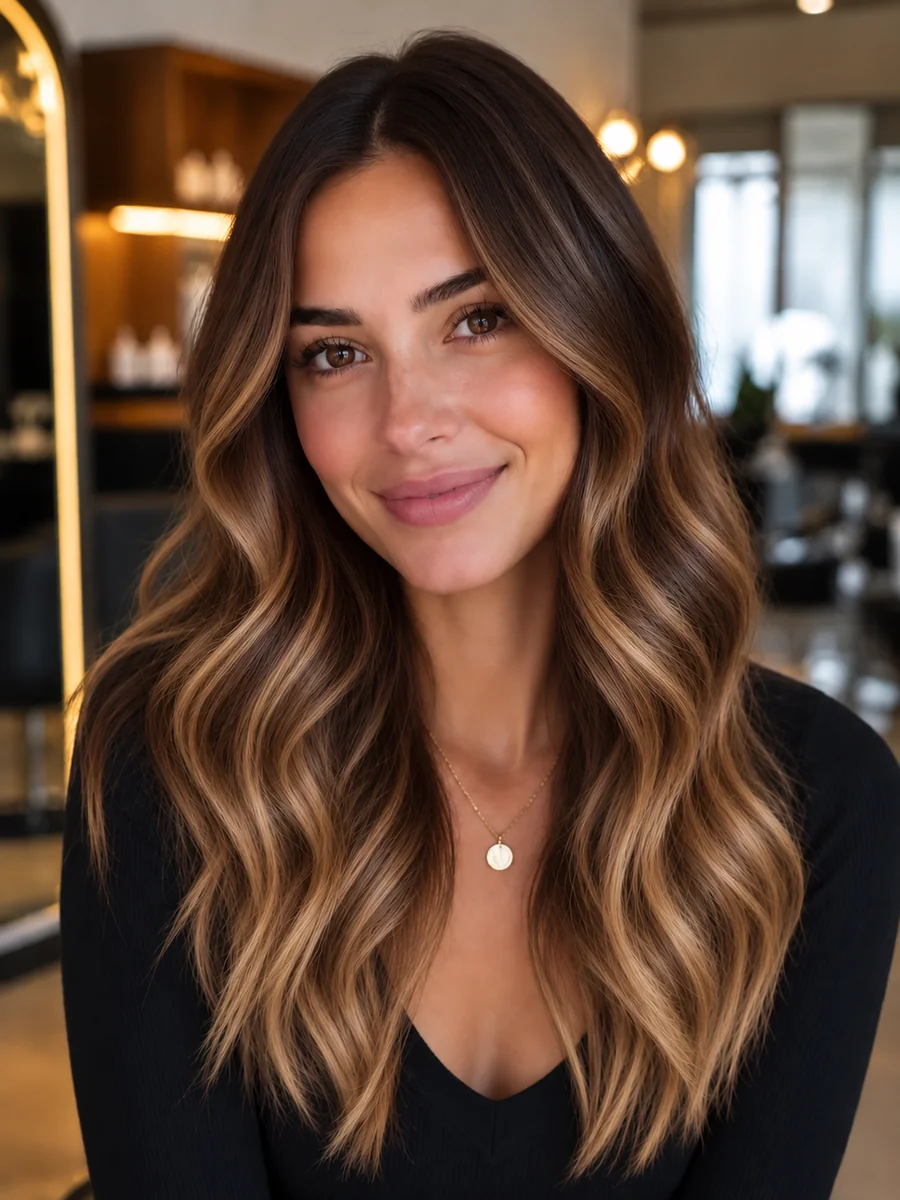
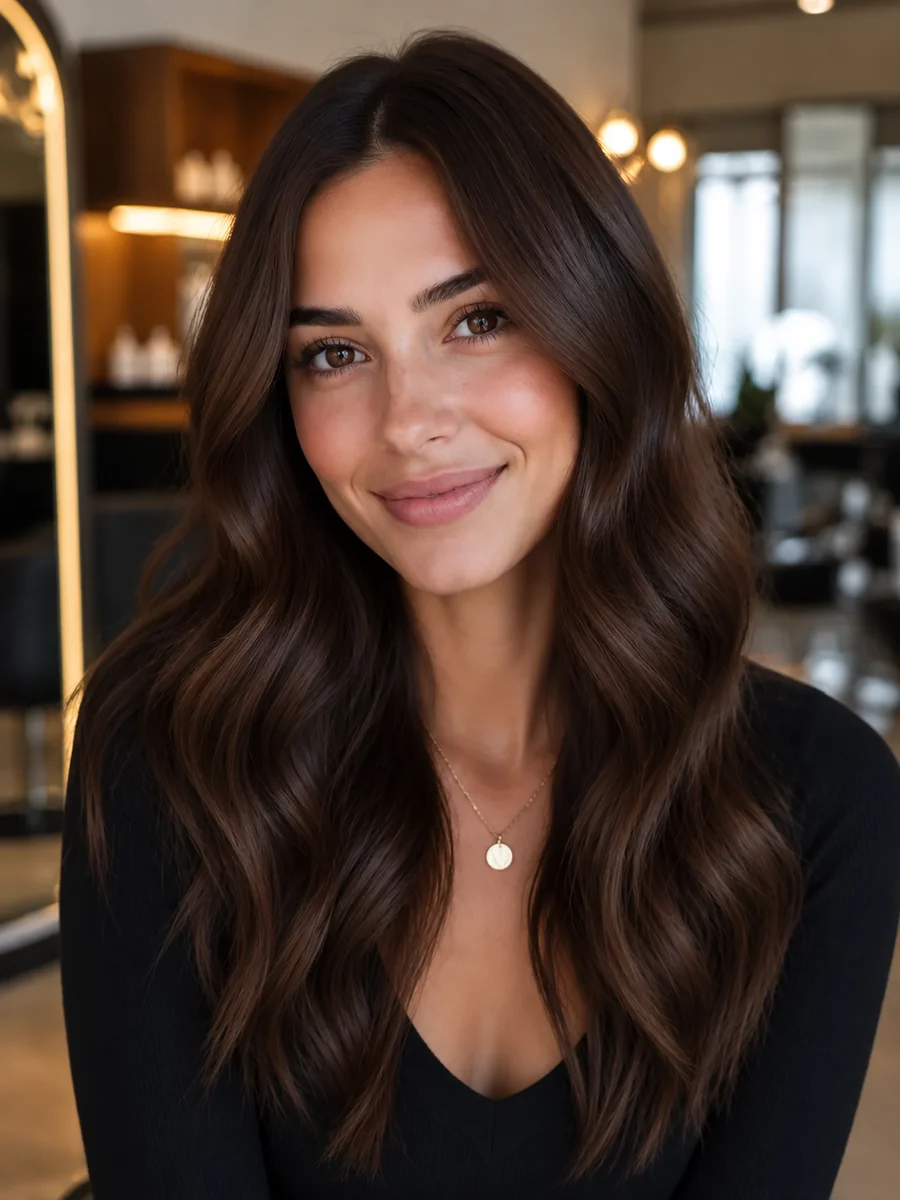
A blended, sun-lit balayage keeps the roots dark and lifts the lengths, a low-maintenance look you can test before booking a long salon appointment.
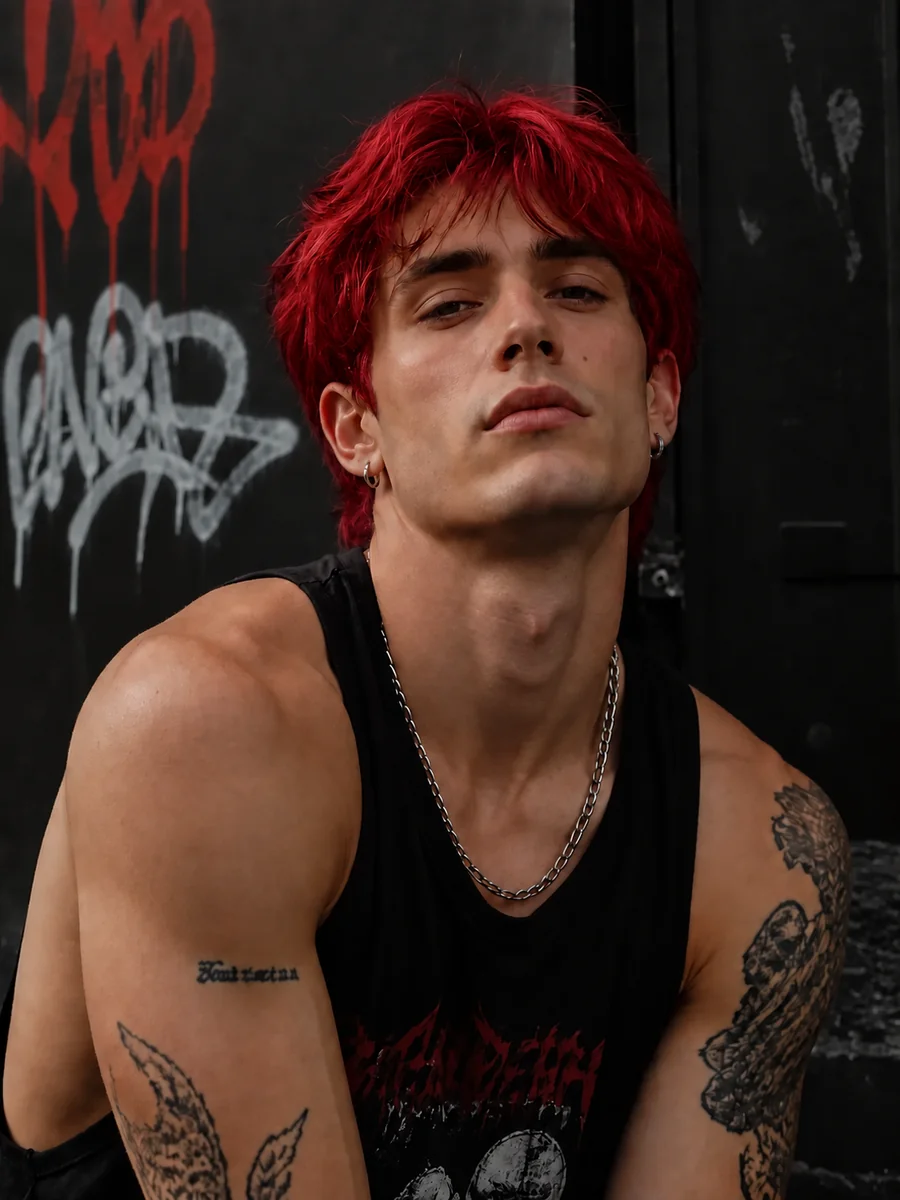
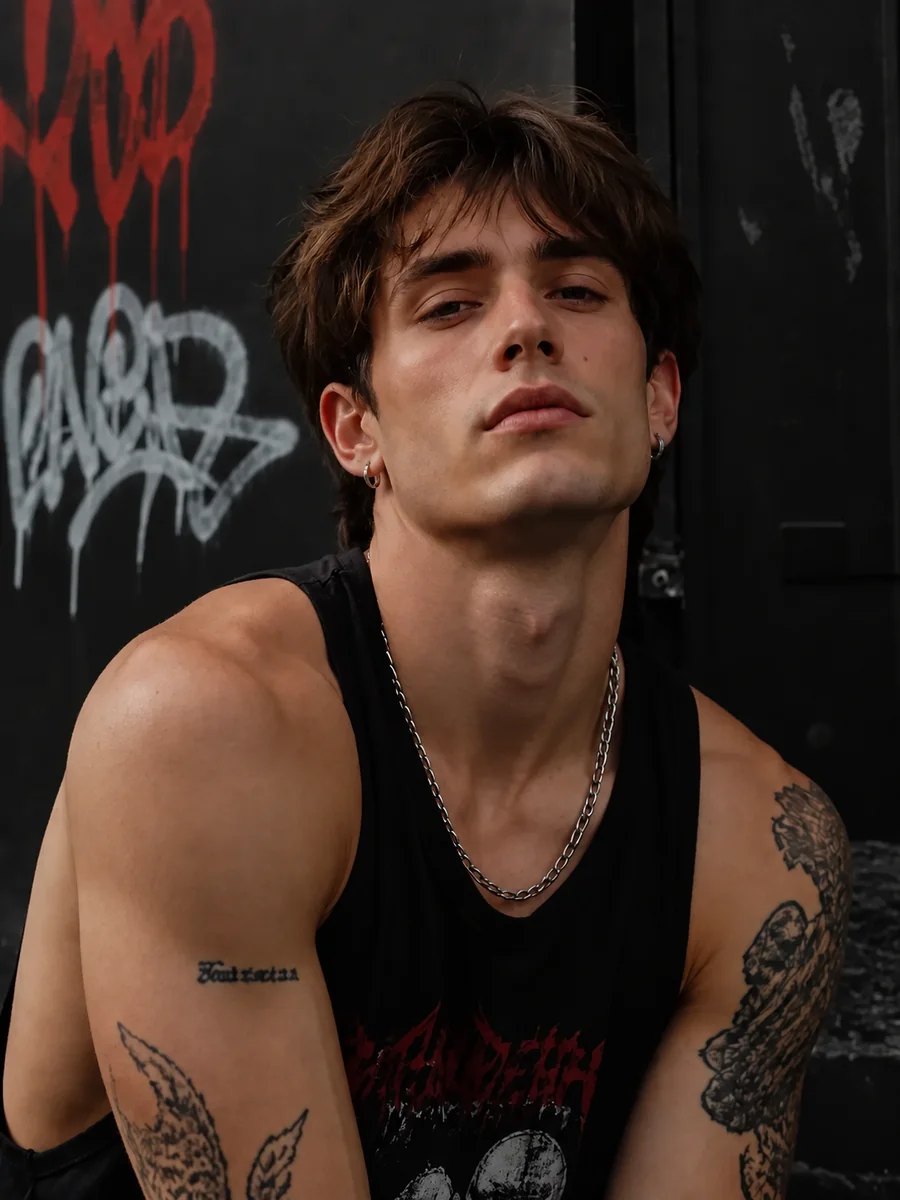
Bold colors are where a hair color changer online shines: try fire red, violet, pink, or blue on your own photo before you bleach anything.
Change hair color online in three steps, right in your browser. No app to install and no manual masking.
Add a JPG, PNG, or WebP portrait up to 10 MB. Have a photo of a shade you love? Add it as an optional Hair Color Reference.
Tap a popular hair color, choose a swatch, or use the color picker for any shade. Then choose All-Over, Highlights, Balayage, Ombré, or Roots Only and set the intensity.
Start the change, drag the slider to compare the new hair color with your original, and switch hair color online until one feels right.
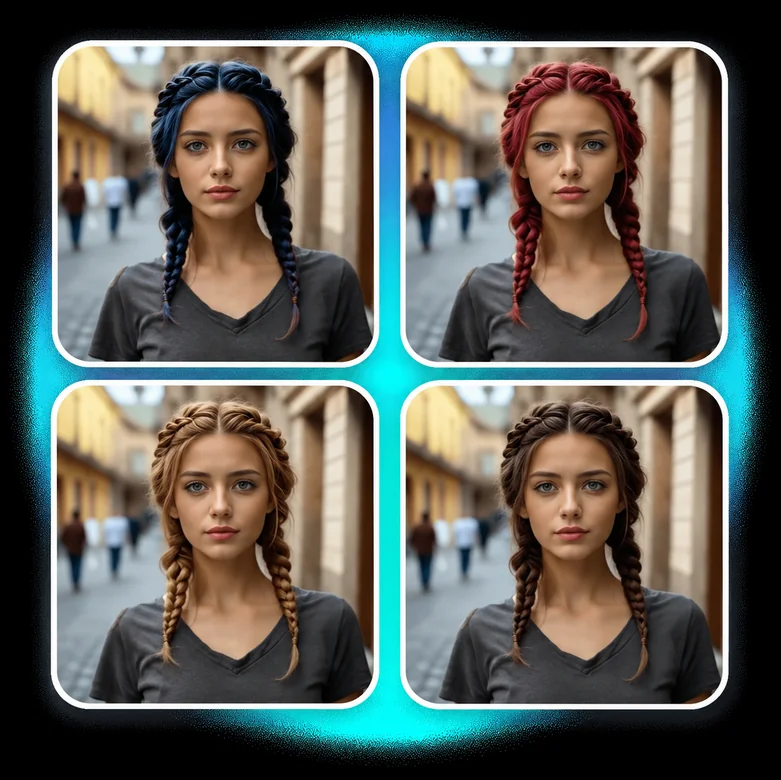
Unlike a flat hair color change filter that tints everything in the frame, the AI separates hair from skin, ears, and clothing. Braids, curls, fly-aways, and shine keep their shape, so the color follows the real texture of your hair.
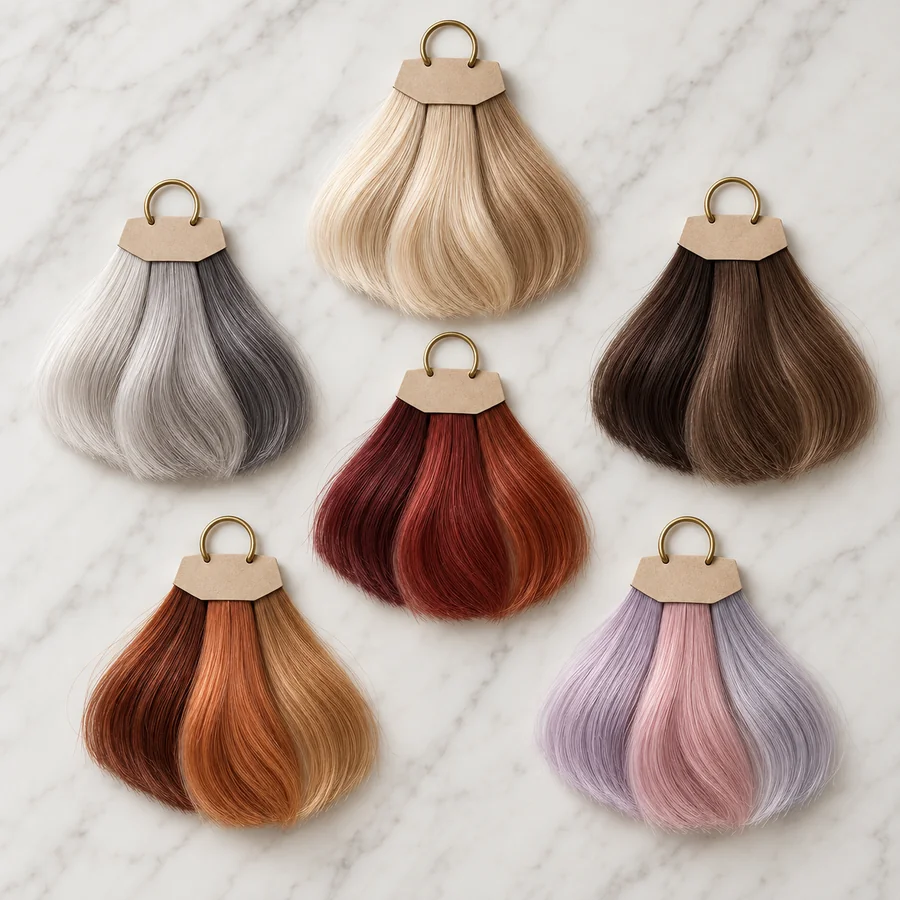
Start from natural blonde, brunette, black, red, and grey, or go pastel and vivid. The color picker and the optional reference photo cover shades no preset list has, from strawberry blonde to a specific box-dye color.
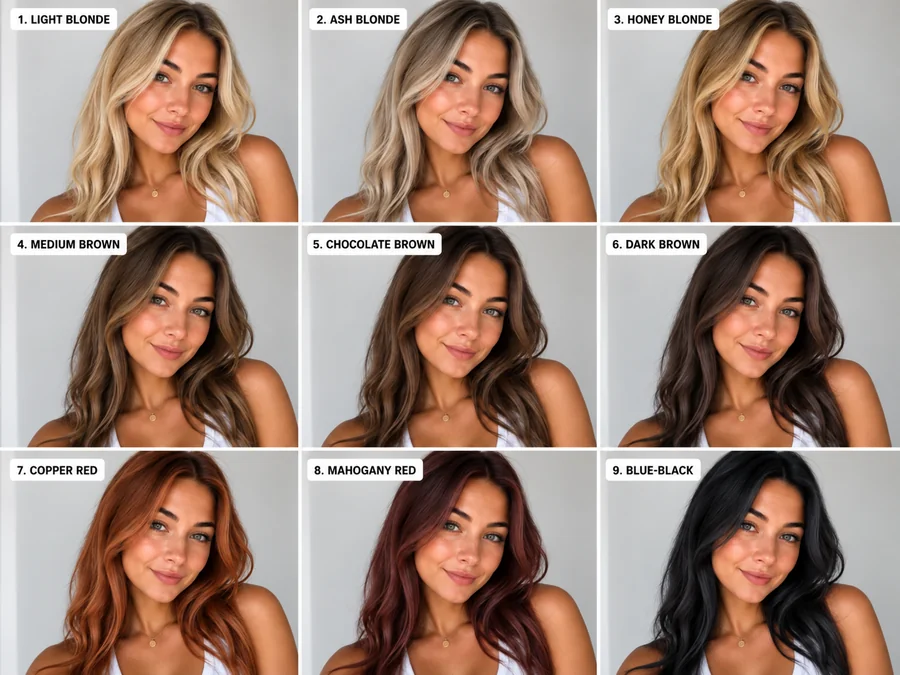
Two shades can look identical on the box and completely different on you. Run the same portrait through several colors and compare them side by side against your skin tone, eye color, and haircut before buying dye.
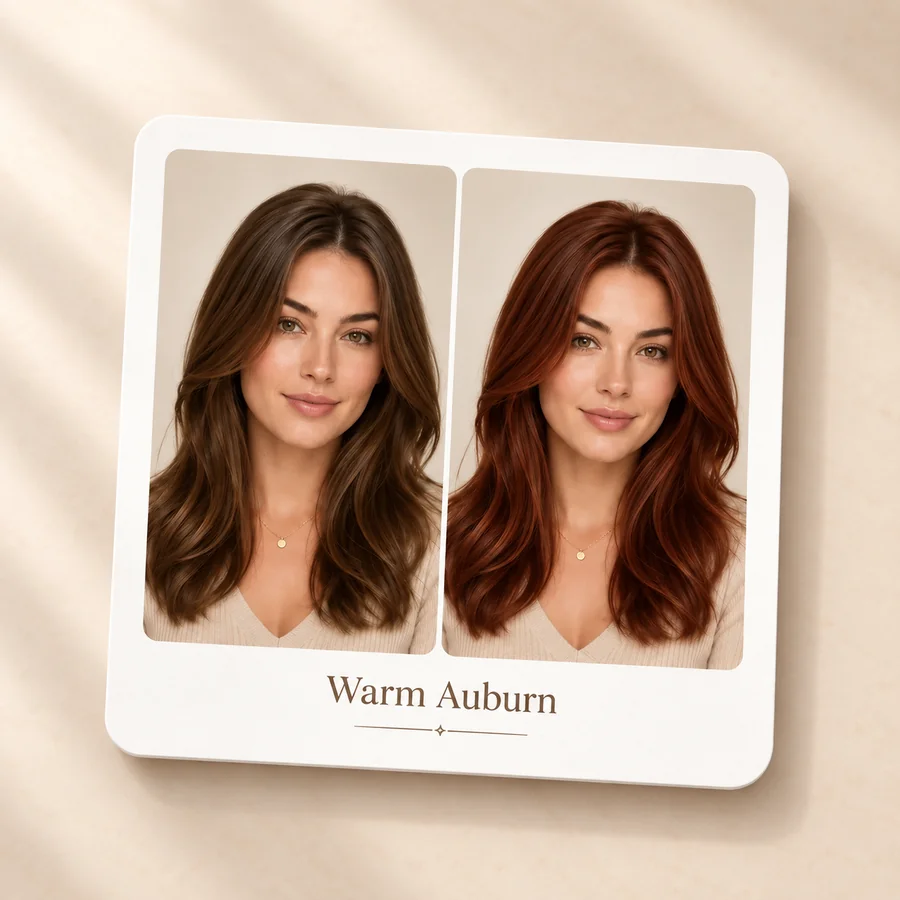
Instead of describing "warm but not orange" from memory, show your stylist the before and after on your own face. A side-by-side preview makes the salon conversation faster and keeps expectations realistic.
A hair color virtual try on is useful well beyond curiosity.
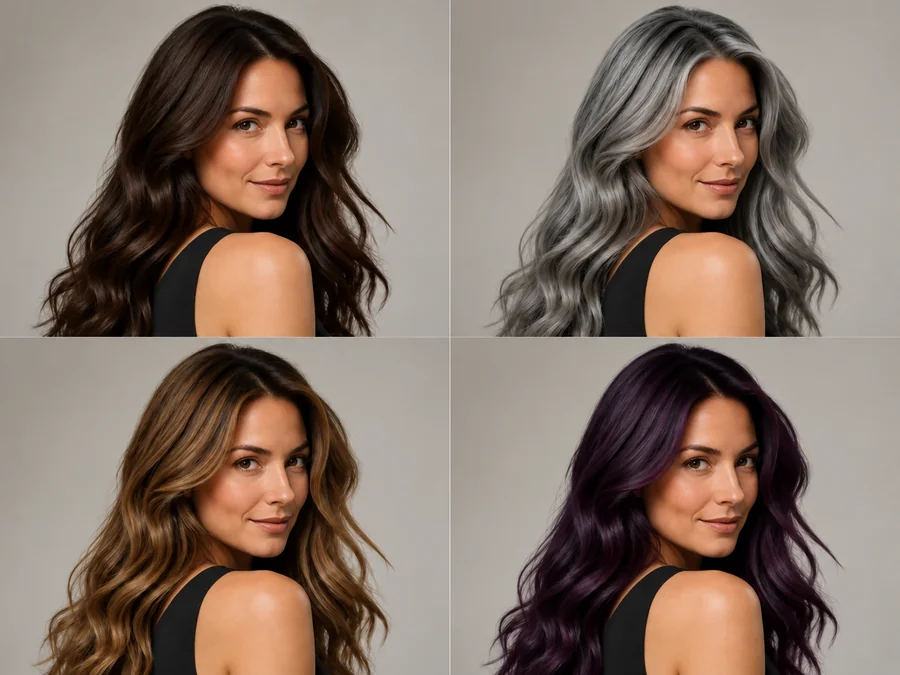
Bring a picture of the exact direction you want, whether that is cooler blonde, warmer copper, or softer balayage.
Narrow two or three similar colors down to one on your own photo before buying, instead of guessing from the model on the box.
Share a few online hair color previews in a group chat and let friends pick the shade that suits you best.
Curious about pink, blue, or silver but not ready to bleach? A virtual hair dye preview lets you enjoy the idea before changing hair color for real.
The photo you upload matters more than any setting.
Pick a photo where most of your hair is visible and not hidden under a hat, hood, or scarf.
Soft daylight shows the true base color and keeps the new shade from looking flat or too bright.
Try a shade near your natural color first, then compare it with a dramatic one at the same intensity.
Beauty filters and strong color grading shift the base tone and make the result harder to judge.
What people ask before they change hair color in pictures.
It is a photo tool that detects the hair in a portrait and recolors only the hair, keeping your face, skin tone, haircut, and lighting. Unlike a simple tint, an AI hair color change rebuilds the color across each strand so highlights, shadows, and texture still look natural.
Upload a clear photo, tap one of the popular hair colors or pick any shade with the color picker, choose a placement such as All-Over or Highlights, and start the change. Then compare the result with your original and adjust the shade or intensity.
The AI first segments the hair from the face, ears, clothing, and background. It then applies the color you chose with the placement and intensity you set, following the light and texture of the original strands instead of laying a flat color layer on top.
Any color. The popular hair colors are shortcuts; the color picker accepts any shade, and you can upload a Hair Color Reference photo or type a note such as "strawberry blonde with darker roots" for something more specific.
Yes. Use Color placement to switch between All-Over, Highlights, Balayage, Ombré, and Roots Only. Highlights and balayage keep part of your natural color, which makes the preview useful for planning dimensional color.
Yes, you can preview light shades over dark hair. Keep in mind that going from black to platinum in real life usually needs bleaching and toning over several sessions, so use the preview to choose a direction and ask a stylist what is achievable.
Yes. This hair color editor runs in your browser on phone or desktop, so you can edit your hair color without installing an app to change hair color in a photo.
No preview can promise that. Real results depend on your starting color, hair condition, porosity, and the products used, and screens show color differently. Treat the result as a visual guide and confirm big changes with a professional.
The tool works best on one clearly visible person. For group photos, describe who should change in Extra instructions, or crop the photo to one person first for the cleanest result.
Only upload photos you own or have permission to edit, and do not use an edited photo to mislead anyone about how a real person looks.
Upload a photo and preview any shade, from honey blonde to electric blue, before you dye.