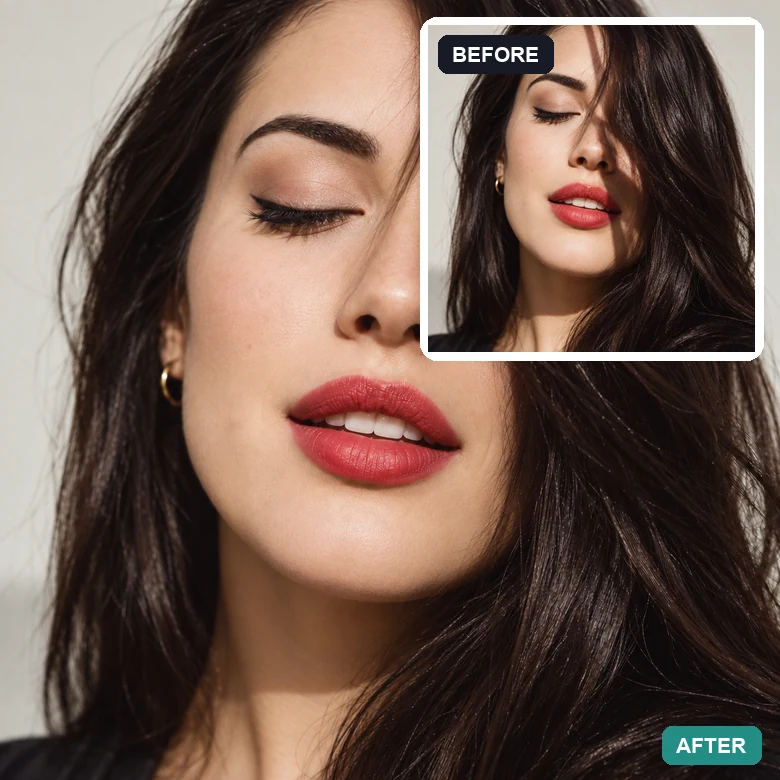
Hair Shadow on a Face
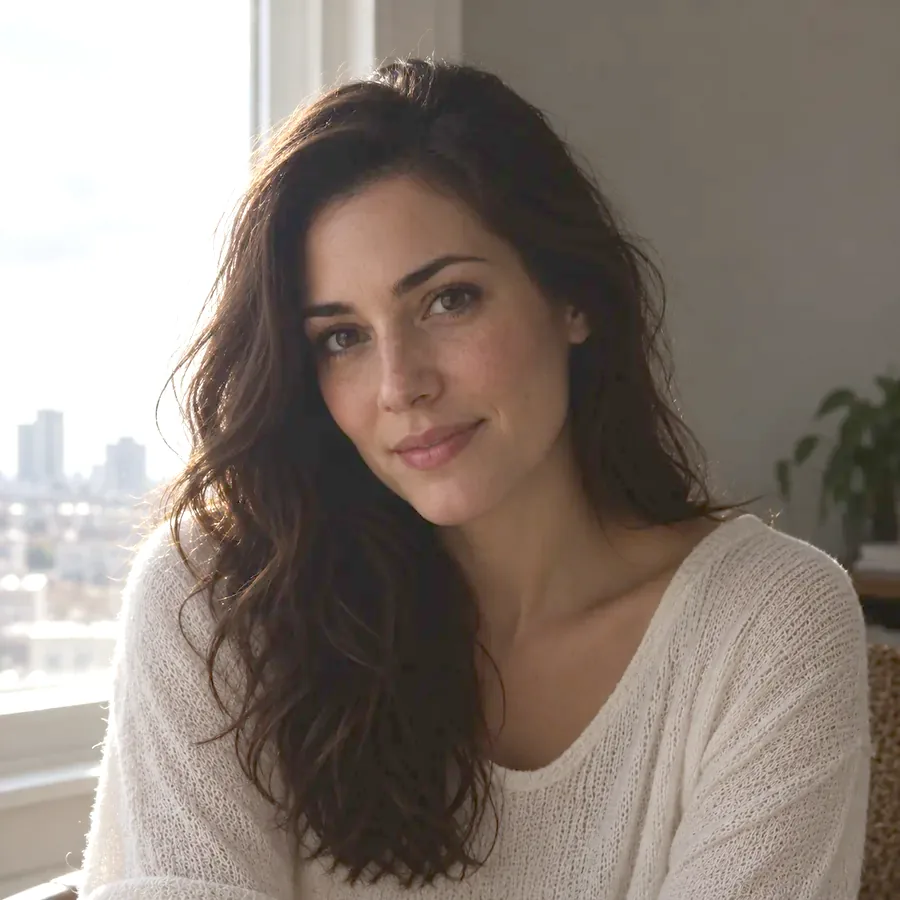
A strand of hair cast a dark band across the eyes. The face is evenly lit again.
Upload a picture with a hat shadow across the face, a phone shadow on a receipt, or a hard cast shadow behind a product. Let the AI find the shadows or brush over the one you want gone, and it relights the dark areas so the photo looks evenly lit.
Fine-tune
Your photo stays in this browser during this UI preview.
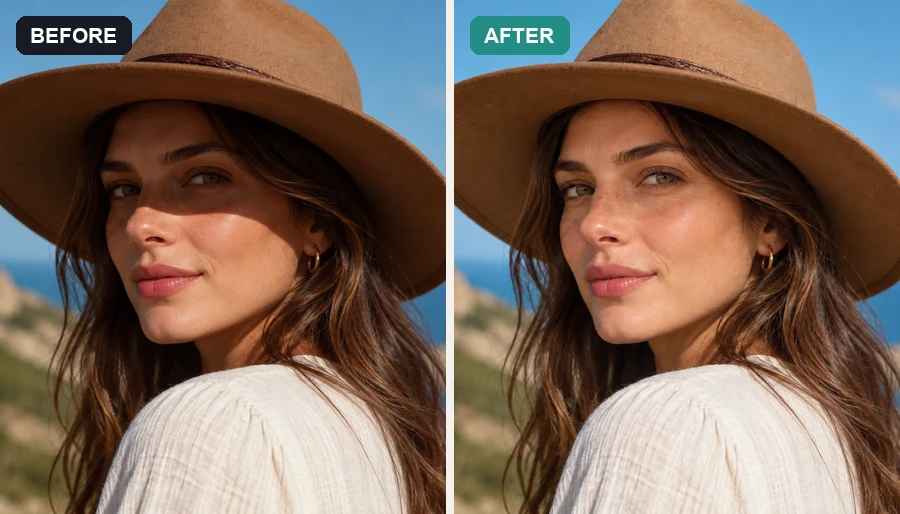
Reference example. It is not a result generated from your upload.
A photo shadow remover is an AI tool that finds areas where light was blocked, such as a hat brim across the eyes, your own hand over a document, or a lamp throwing a hard shadow behind a product, and relights them so they match the rest of the image. Unlike a brightness slider or a manual shadow editor, it changes only the shadowed parts and keeps texture, color, and contrast elsewhere.
Use it as a shadow remover from photo shoots you cannot redo: outdoor portraits taken at noon, product photos lit by one lamp, or quick phone snapshots of receipts and notes. Shadows that hide detail completely, such as deep black areas, are rebuilt from the surrounding pixels, so very dark regions are an informed estimate rather than recovered data.
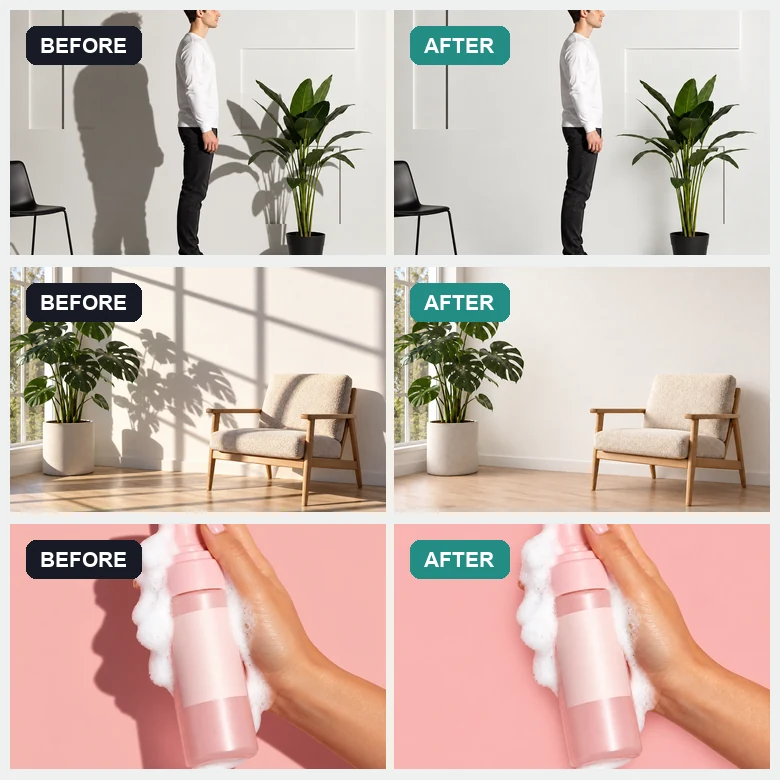
Each shadow remover photo below shows the original next to the shadow-free result.
A strand of hair cast a dark band across the eyes. The face is evenly lit again.
Studio shadows on the wall and window patterns on the floor are cleared from each shot.
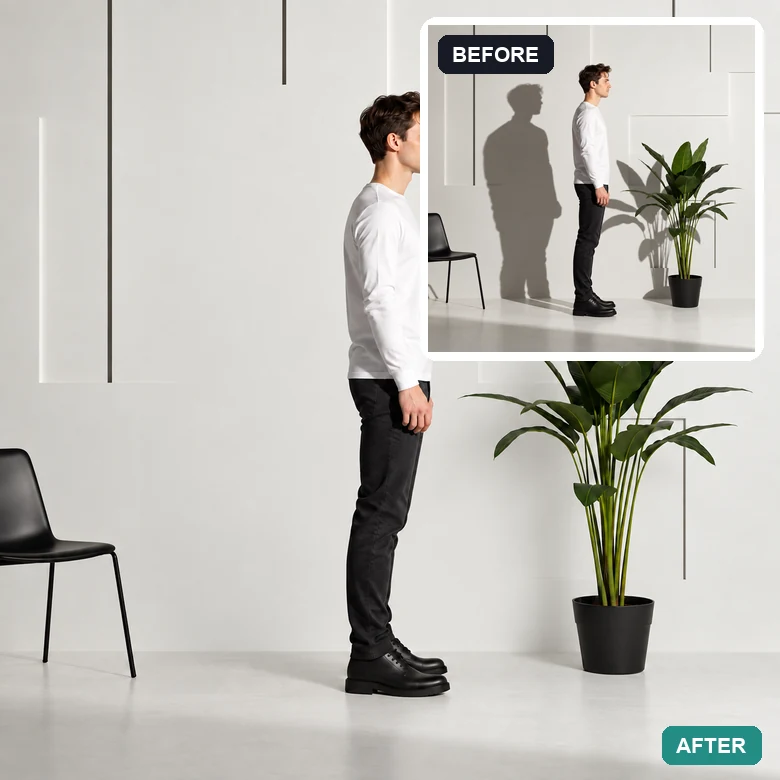
A double shadow on a white wall disappears so the person and plant stand out.
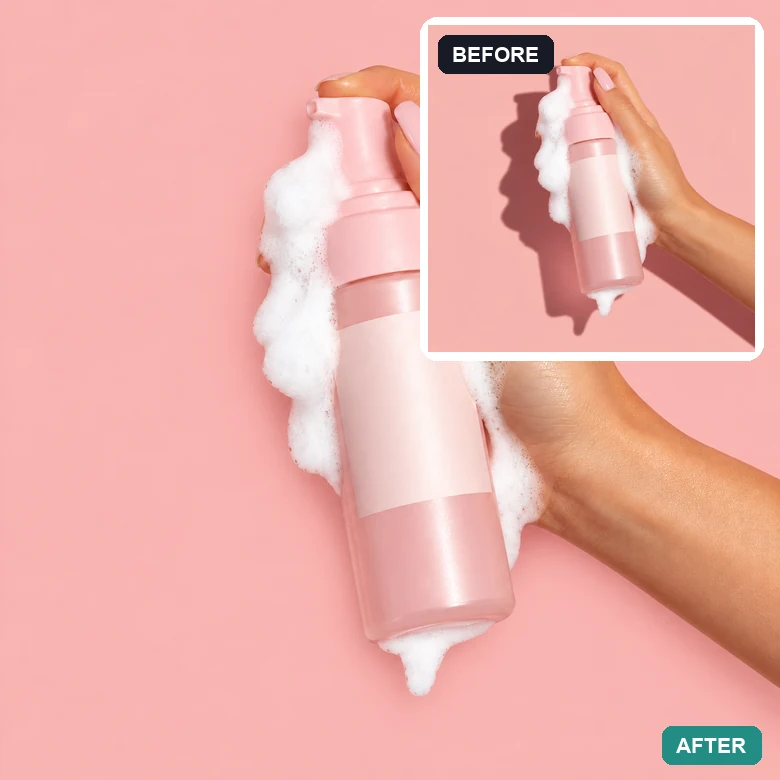
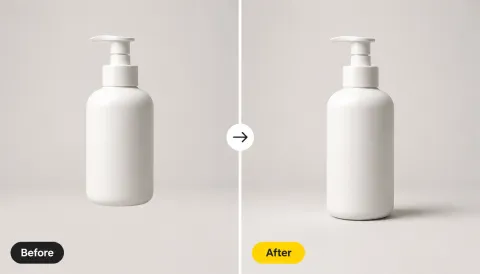
The shadow of a hand over a skincare bottle is lifted, so the label and color read clearly.
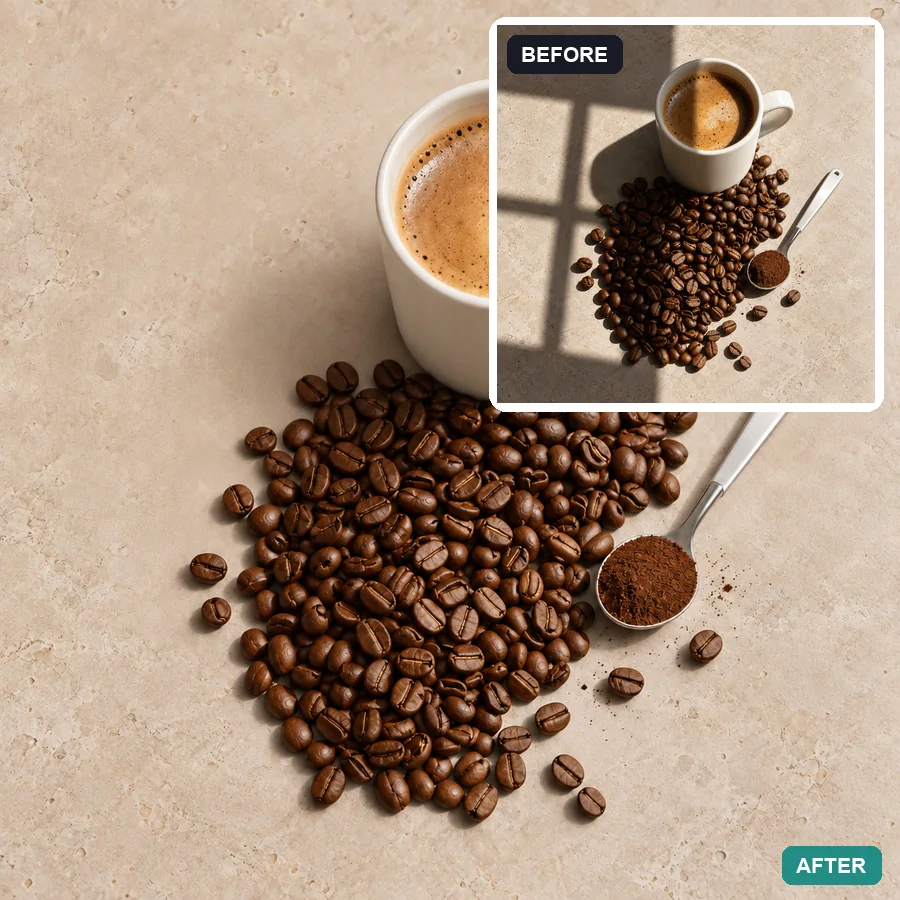
A heavy shadow across beans and cup is relit for a bright, even flat lay.
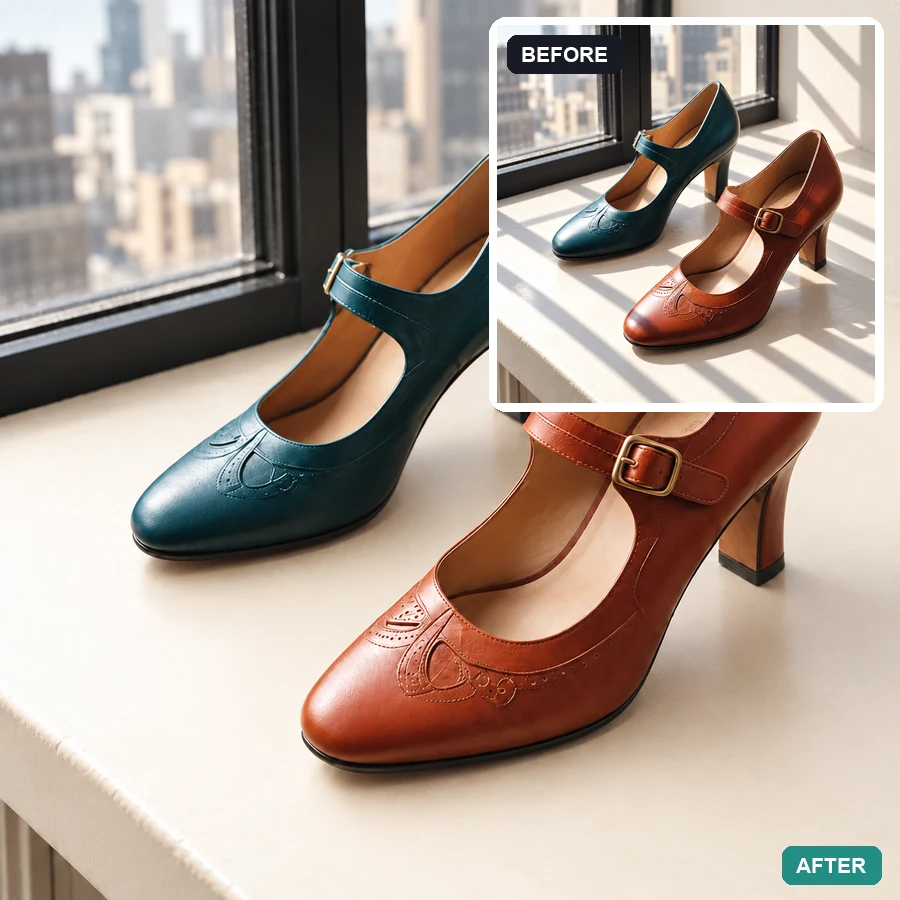
Hard window light split a product shot in two. The shoes now share one soft light.
Here is how to remove shadow from photo files without layers or relighting rigs. Marking the shadow is optional.
Add a JPG, PNG, or WebP up to 10 MB: a portrait, a product shot, a document photo, or a room.
Leave it on Auto-detect or choose face, product, document, or background shadows. To remove only one shadow, brush over it. Choose "Soften shadows" if you want to keep some depth.
Start the shadow removal, compare it with your original, and save the evenly lit photo.
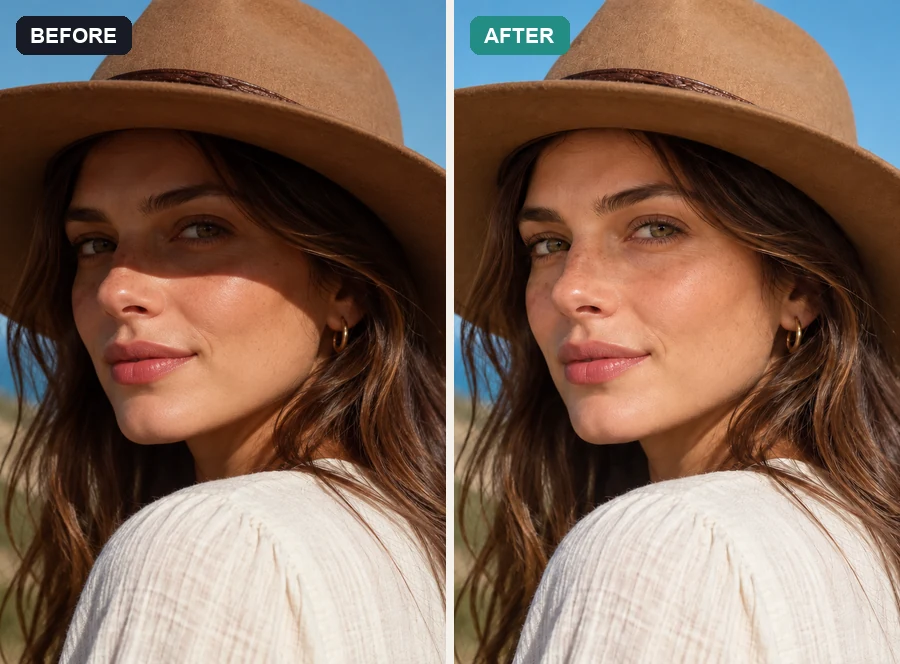
Hat brims, harsh sun, and phones held too close leave dark patches under the eyes and across the cheeks. The AI lifts the shadow while keeping skin texture and the natural shape of the face, so the portrait still has depth.
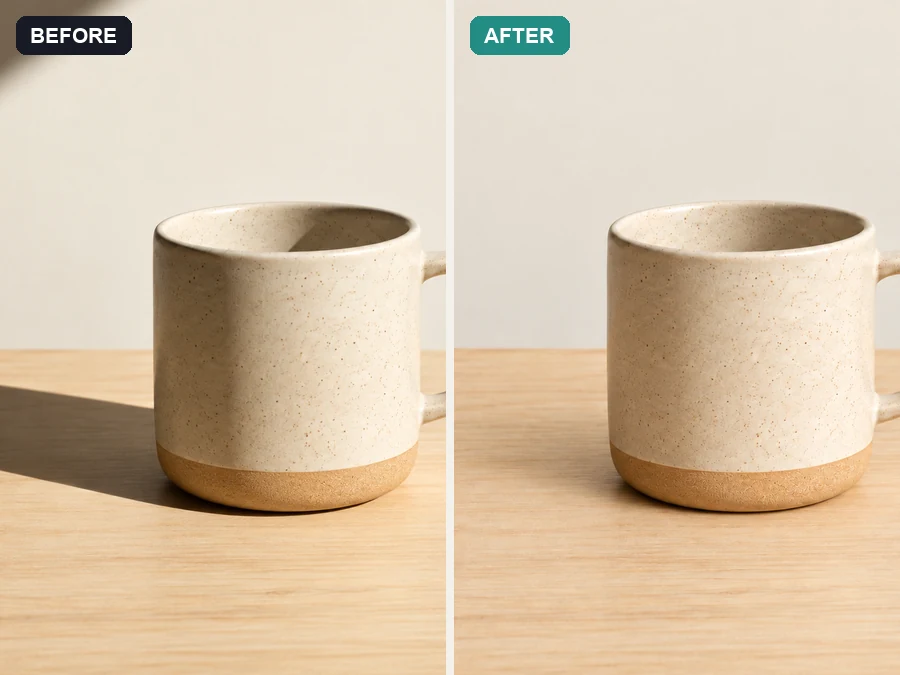
A single desk lamp throws a hard shadow beside every product. This photo shadow remover cleans table and hand shadows so colors, shapes, and surfaces are easy to judge on a listing or catalog page.
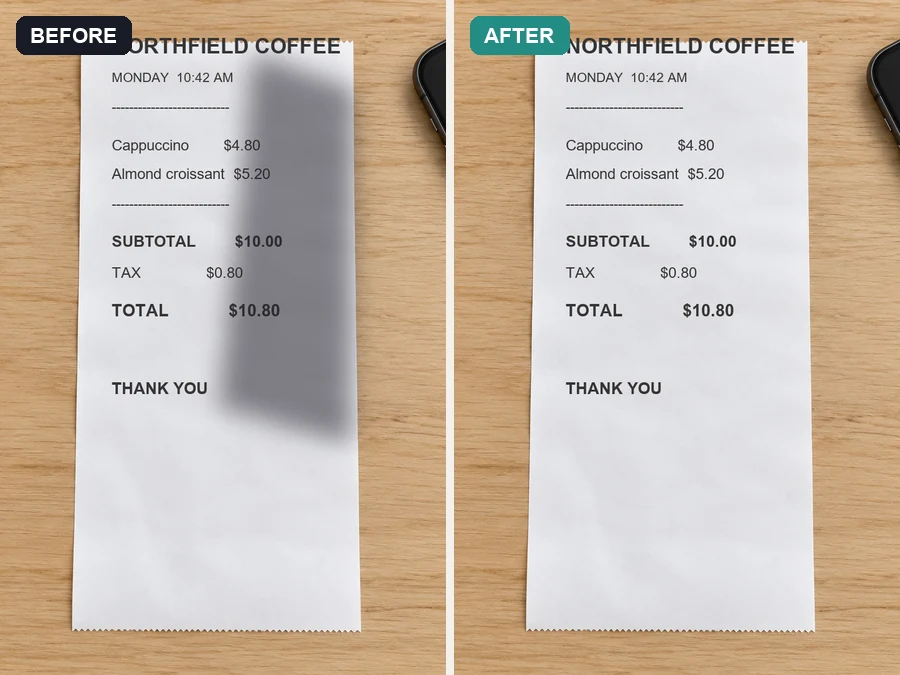
Leaning over a page with your phone puts a shadow on picture after picture of receipts and notes. The AI evens out the paper so text is easier to read and the file looks like a clean scan.
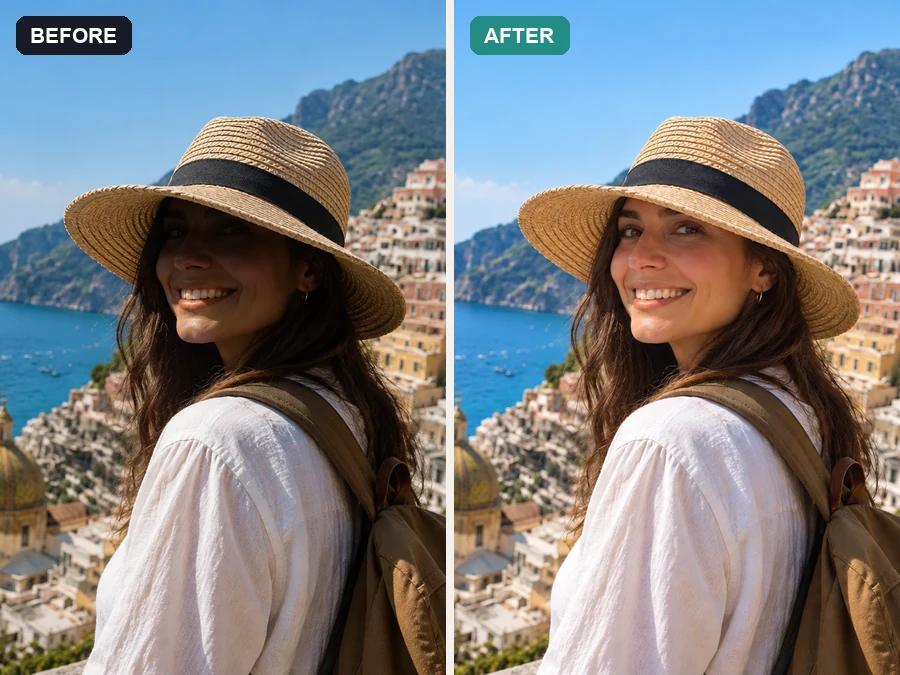
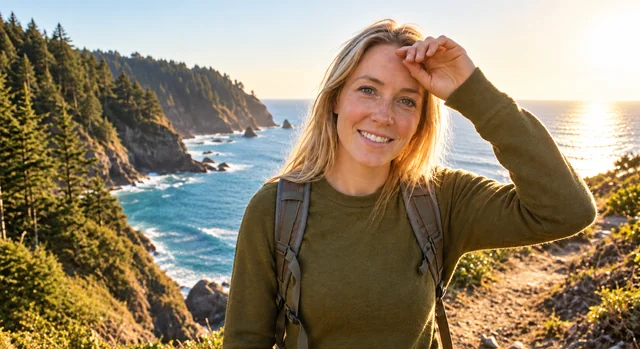
Midday sun leaves faces in deep shade under hats and trees. Remove shadows from photo memories so the person and the view are both visible, without turning the whole picture grey.
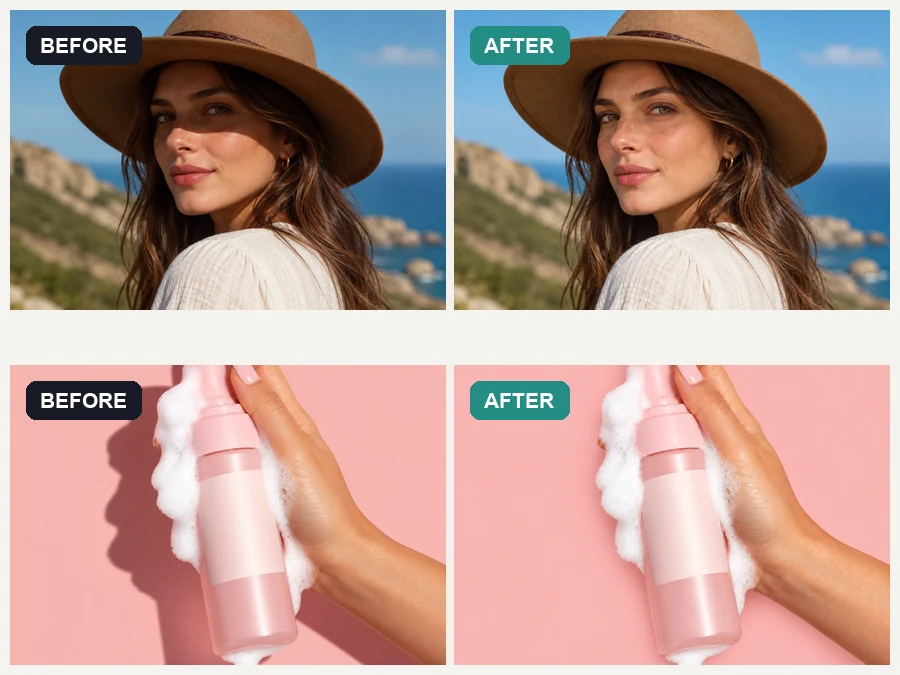
Get consistent, shadow-free product photos without building a lighting setup.
Fix uneven shadows on selfies, LinkedIn photos, and outdoor portraits.
Turn shadowy phone photos of notes, receipts, and whiteboards into clean files.
Soften harsh window and lamp shadows so rooms look evenly lit.
Wondering how to get rid of shadows in photos for good? Prevent most of them while shooting, then let the AI clean up the rest.
Shoot near a window or in open shade instead of under direct noon sun or a single lamp.
The most common picture shadow on documents is your own. Raise the phone and shoot from slightly to the side so it misses the page.
Some shadow gives products and faces depth. Try "Soften shadows", or brush over only the harshest shadow, before removing them all.
Upload the full-resolution file; compressed copies lose the detail hidden in dark areas.
Everyday photos people clean up instead of reshooting.
Illustrative examples adapted from reference material, not verified reviews of EzImgMaker.
A product photo had a heavy desk shadow running into the item. After cleanup it looked bright enough to list without a studio reshoot.
My outdoor portrait had a dark hat shadow across the eyes. Removing it made the photo usable for my profile.
I photographed a receipt under a desk lamp and my phone shadow covered the total. The cleaned version was easy to read.
For social posts I want edits that do not look overworked. "Soften shadows" kept some depth while fixing the harsh parts.
Answers about removing shadows from pictures online.
A shadow remover is an AI tool that detects dark areas caused by blocked or uneven light and relights them to match the rest of the photo. It works on faces, products, documents, and backgrounds, and changes only the shadowed parts.
Choose "Wall & background shadows" and start the removal. The AI evens out walls, floors, and backdrops while keeping the person or product in front untouched. If only one shadow should go, brush over it.
Pick "Face & hat shadows". The AI lifts dark patches from hats, hair, or harsh sun and keeps skin texture and facial contours. Use "Soften shadows" if you want a more sculpted look.
Select "Document & hand shadows" to clear your phone or hand shadow from receipts, notes, and printed pages. Only use this to make a page easier to read, never to alter what a document says.
Yes. The page works in mobile browsers, so you can remove shadow from photo iPhone or Android shots straight from your camera roll without installing a shadow eraser app.
No. On Auto-detect the AI finds and relights shadows by itself, so marking is optional. Brush or box over a shadow only when you want that one gone and the others kept, for example to remove the shadow under the figure in a studio shot while the soft shading on the face stays. Set Result to "Soften shadows" if you would rather reduce a shadow than erase it.
No. Brightening lifts every pixel; shadow removal relights only the shadowed areas, so highlights do not blow out. If the whole photo is simply too dark, an image brightener is the better tool.
This tool removes shadows. If you want the opposite, such as a soft drop shadow under a product cut-out, use a dedicated add-shadow tool.
Deep black shadows contain little or no detail. The AI rebuilds those areas from the surrounding texture, so treat them as a careful estimate and compare with your original.
JPG, PNG, or WebP files up to 10 MB that you own or have permission to edit.
Upload a shadowy portrait, product, or document photo and get an evenly lit version.