Multi-Shot Dialogue
A wide two-shot, then a close-up for each line, with voices and lip sync in one generation.
Write a scene or a shot list, add a start frame or character references, and Kling 3.0 directs it: up to five shots in one video, 3 to 15 seconds long, with dialogue, sound effects, and steady characters from cut to cut.
Outdoor terrace of a European villa, by a dining table with a blue and white checkered tablecloth, a young woman in a blue and white striped short-sleeve shirt and khaki shorts sits opposite a young man in a white T-shirt. The camera zooms in, the woman swirls the juice in a glass, looks at the distant woods, and says, "These trees will turn yellow in a month, won’t they?" Close-up of the man, he lowers his head and says, "But they’ll be green again next summer." The woman smiles and says, "Are you always this optimistic? Or just about summer?" He looks up: "Only about summers with you."
Reference example. It is not a result generated from your upload.
Kling 3.0 (also written Kling3.0, Kling 3, or Kling V3) is the video generation model behind Kling AI, the creative platform from Kuaishou, launched in February 2026. The Kling Video 3.0 model turns text or images into 3 to 15 second clips and, for the first time in the series, can plan several shots inside one video while generating dialogue and sound in sync with the picture.
The 3.0 generation comes in three flavors you can use here. Kling 3.0 handles single-shot and multi-shot videos with element references. Kling 3.0 Omni adds heavier reference control, including a reference video, and can transform an existing clip. Kling V3 Turbo trades some features for speed and lower cost. Pick one in the workspace above and you are using Kling AI 3.0.
What each Kling 3.0 version supports on EzImgMaker.
| Kling 3.0 | Kling 3.0 Omni | Kling V3 Turbo | |
|---|---|---|---|
| Best for | Story clips with sound and several shots | Reference-heavy shots and editing existing video | Fast, low-cost drafts |
| Text to video | Yes | Yes | Yes |
| Image to video | Start frame, or start + end frame | Start frame, or start + end frame | Start frame |
| Multi-shot | Up to 5 shots, 1–12 s each | Up to 6 shots | No |
| References | Up to 3 elements: 2–4 images or a short video each, plus an optional voice clip | Up to 7 reference images, or a 3–15 s reference video | No |
| Edit an existing video | No | Yes (3–15 s clip) | No |
| Video length | 3–15 s | 3–15 s | 3–15 s |
| Resolution | 720p (Standard), 1080p (Pro), 4K | 720p, 1080p, 4K | 720p, 1080p |
| Aspect ratio | 16:9, 9:16, 1:1 | 16:9, 9:16, 1:1 | 16:9, 9:16, 1:1 |
| Native audio | Yes (on or off) | Yes (on or off) | No |
With a start frame, the aspect ratio follows your image. 4K takes longer and uses more credits than Standard or Pro. Multi-shot mode supports a start frame but not an end frame.
Placeholder clips with the prompts behind them. Copy one and change the subject to make your own Kling 3.0 video.
A wide two-shot, then a close-up for each line, with voices and lip sync in one generation.
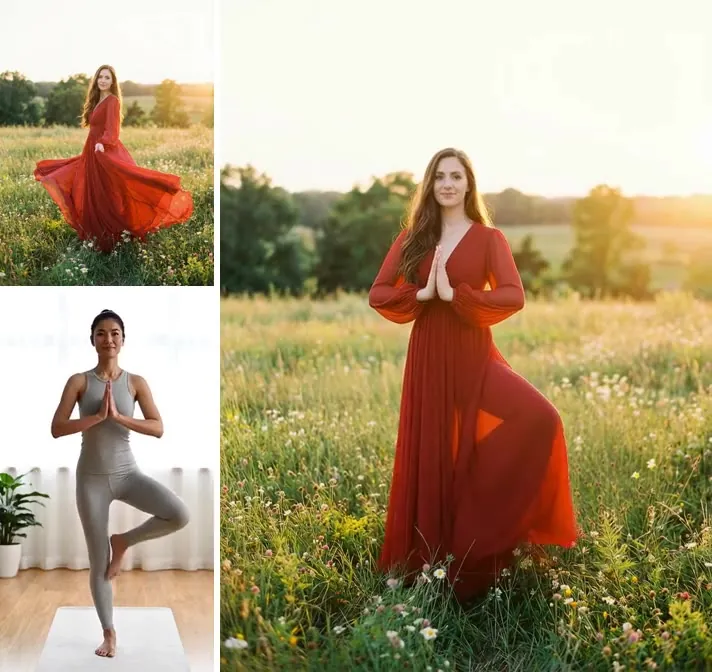
Native audio with a requested accent, natural pauses, and lip movement that matches the words.
A rising camera move through archways that ends on a wide valley reveal.
Image to video that keeps the face, hands, and workshop of the original photo.
Lettering on the bottle stays sharp, which matters for ads and e-commerce.
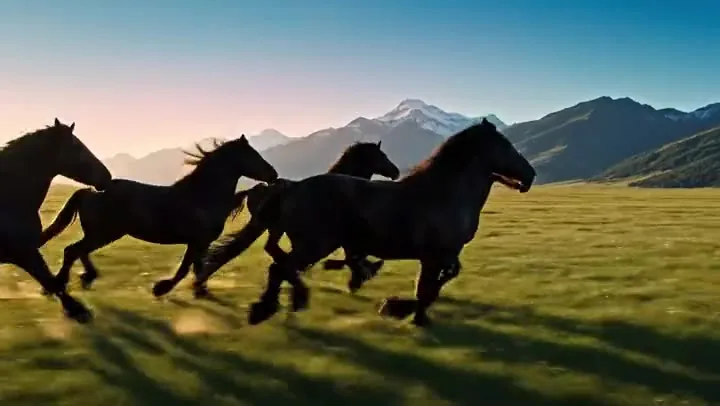
A long tracking shot through a garden party without stitching clips together.
Three steps in your browser. No app or desktop software needed.
Describe one scene, or switch to multi-shot and write up to five shots with a length for each. Add a start frame, an end frame, or element images of a character you want to keep.
Pick Kling 3.0, Omni, or V3 Turbo, then Standard 720p, Pro 1080p, or 4K, a length from 3 to 15 seconds, the aspect ratio, and whether to add native audio.
Create the Kling 3.0 video, check motion, voices, and consistency, then download it or tweak one line of the prompt and run it again.
Kling 3.0 can split one generation into up to five shots, each with its own prompt and length from 1 to 12 seconds, while keeping the same characters and setting. It reads cinematic language such as close-up, reverse shot, or cut to, so a short scene comes out already edited.
Turn on native audio and Kling 3.0 generates speech, effects, and ambience with the video. Assign lines to each character in the prompt; it handles English, Chinese, Japanese, Korean, and Spanish, can mix languages in one scene, and follows accents you ask for.
Define up to three elements, each from 2–4 photos or a short video of a character or object, plus an optional voice clip, and call them by name in the prompt. The element looks and sounds the same in every shot, even as the camera moves.
Render in Pro 1080p or 4K. Kling 3.0 keeps logos, labels, and signs legible instead of turning them into scribbles, which makes Kling 3.0 AI video useful for product ads and e-commerce clips.
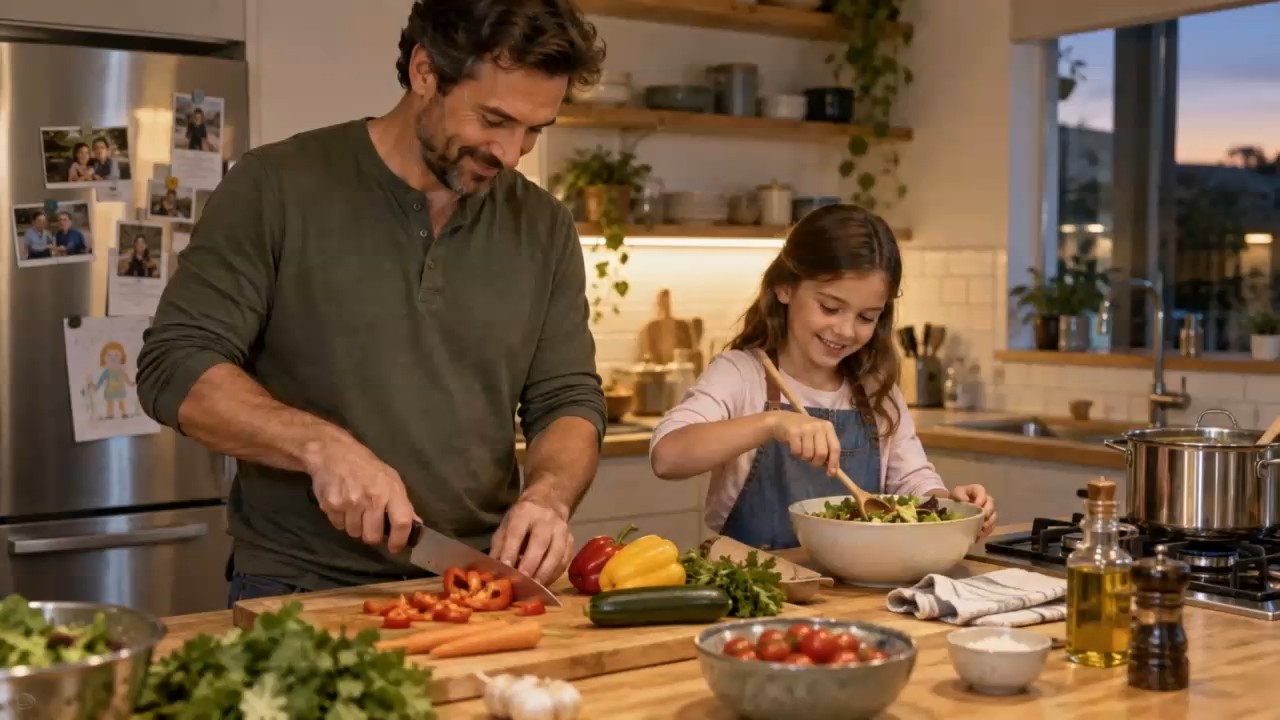
Multi-shot scenes with consistent characters and dialogue for episodic social content.
Product videos where packaging text and logos stay readable.
Vertical 9:16 clips with voices and sound already mixed in.
Previsualize sequences, camera moves, and character designs before full production.
Short, specific prompts give the most reliable Kling 3.0 video results.
In multi-shot mode, write "Shot 1, Shot 2…" with a framing and a length for each; keep each under 500 characters.
Name who speaks each line of dialogue and in which language or accent.
Give a recurring character 2–4 clear photos from different angles instead of describing them in words.
Say how the subject moves and how the camera follows: tracking, orbit, push-in, handheld.
Common questions about Kling AI 3.0.
Kling AI 3.0 is the third-generation video model from Kuaishou’s Kling AI. It creates 3 to 15 second videos from text or images, with multi-shot storyboards, element references for consistent characters, native audio with dialogue, and up to 4K output.
Kling 3.0 is the all-round model for single and multi-shot clips with sound. Kling 3.0 Omni adds more reference control, including a reference video, and can edit an existing clip. Kling V3 Turbo is a faster, cheaper version for text or image to video in 720p or 1080p, without audio.
Each generation is 3 to 15 seconds. In multi-shot mode the shots share that total, with each shot lasting 1 to 12 seconds.
Standard mode renders 720p, Pro renders 1080p, and 4K mode renders 3840×2160 for 16:9 (or the matching size for 9:16 and 1:1). V3 Turbo offers 720p or 1080p.
Kling 3.0 is a paid model because every clip needs serious GPU time. On EzImgMaker, new users get free credits to try it; after that, each video uses credits based on the model, length, quality, and audio, and the cost is shown before you generate.
No. There is no honest "Kling 3.0 unlimited" plan, since each generation has a real compute cost. EzImgMaker uses credit packs instead, and Standard 720p or V3 Turbo keeps the cost per clip low while you experiment.
They are the same model. Kling 3.0 is often written Kling3.0, Kling3, Kling 3, Kling V3, or kling-v3 (the model ID style). Kling 2.6 is the previous version, and Kling 3.0 motion control is a separate tool for copying movement from a video.
No. EzImgMaker is an independent service that provides access to Kling 3.0 through a third-party API provider. It is not affiliated with, endorsed by, or sponsored by Kuaishou or Kling AI.
Only photos, videos, and voice recordings you own or have permission to use. Do not upload other people’s likeness or voice without consent, and do not create misleading or harmful videos of real people.
Write a shot list, add a character, and let Kling 3.0 generate the scene with sound.
Kling and Kling AI are trademarks of Kuaishou Technology or its affiliates. EzImgMaker is an independent service and is not affiliated with, endorsed by, or sponsored by Kuaishou. Model names are used only to describe compatibility.