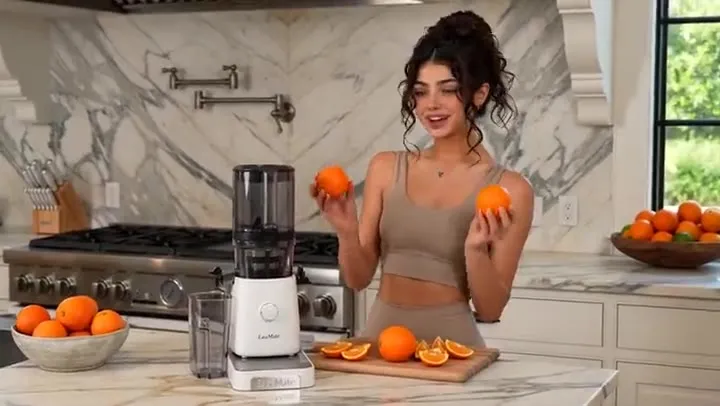
Live-Stream Product Ad
A host turns, shows the hoodie, and pitches it straight to camera with lip-synced lines.
Describe a scene or upload one photo, and Kling 2.6 creates the video and its soundtrack together: dialogue with lip sync, singing, ambience, and sound effects in a 5 or 10 second clip. Turn sound off for a silent clip at half the cost.
Scene: a fashion live-streaming sales setting, with clothes hanging on racks and the host’s figure reflected in a full-length mirror. [Female host] turns around to show the cut of the beige hoodie. [Female host, cheerful tone] says: "360-degree tailoring, slimming and easy to style." She leans closer to the camera. [Female host, lively tone] says: "Double-sided fleece, and thirty dollars off when you order now."
Reference example. It is not a result generated from your upload.
Kling 2.6 (also written Kling2.6 or Kling AI 2.6) is the video model Kuaishou’s Kling AI released in December 2025, and the first Kling model that generates sound and picture in one pass. Give it a text prompt or a single photo and it returns a 5 or 10 second clip in 1080p with speech, singing, ambient sound, and sound effects that line up with what happens on screen, so you no longer have to add a voiceover or foley afterward.
This Kling 2.6 AI video generator runs the full-quality version that API platforms list as Kling 2.6 Pro. Type a scene for text to video, or switch to Image to video and upload a start frame. Kling 2.6 takes one image only: there is no end frame, so if you need to control the last frame, use Kling 3.0. For multi-shot scenes and longer clips, step up to Kling 3.0; for sound-led clips at a lower price, stay with Kling 2.6.
What you can set when you generate with Kling 2.6 here.
| Kling 2.6 | |
|---|---|
| Text to video | Yes, a prompt of up to 2,500 characters |
| Image to video | Yes, one start frame (JPG or PNG, up to 10 MB); no end frame |
| Video length | 5 or 10 seconds |
| Resolution | 1080p (HD) |
| Aspect ratio | 16:9, 9:16, or 1:1 for text to video; image to video follows your photo |
| Native audio | On or off: dialogue with lip sync, singing, ambience, and sound effects |
| Voice languages | English and Chinese speech |
| Cost | Sound on costs twice as much as a silent clip, and 10 seconds twice as much as 5 |
| Best for | Talking ads, dialogue, singing, ASMR, and short cinematic clips with sound |
The credit cost appears on the Generate button before you start. Kling 2.6 makes one shot per clip; multi-shot storyboards, end frames, and 4K are on Kling 3.0.
Choosing between Kling 2.5/2.6 and the newer Kling 3.0 on EzImgMaker.
| Kling 2.6 | Kling 3.0 | Kling 2.5 Turbo | |
|---|---|---|---|
| Native audio | Yes: speech, singing, sound effects | Yes: dialogue, effects, multilingual voices | No |
| Start frame | Yes | Yes | Yes |
| End frame | No | Yes | Yes |
| Length | 5 or 10 s | 3–15 s | 5 or 10 s |
| Resolution | 1080p | 720p, 1080p, or 4K | 1080p |
| Multi-shot | No | Up to 5 shots | No |
| Pick it for | Sound-led clips at a moderate cost | Final-quality scenes and longer clips | Silent action clips at the lowest cost |
Clips made with Kling 2.6 and the prompts behind them (previews play muted; the generated files include sound). Copy a prompt and change the details to make your own.
A host turns, shows the hoodie, and pitches it straight to camera with lip-synced lines.
Image to video from one rehearsal photo: the lead vocal and harmonies are generated with the motion.
Close-up sound effects: every crunch and knife tap lands on the matching frame.
Two speakers trade lines, each with their own voice and mouth movement.
A heartfelt monologue with natural pauses, hall reverb, and a quiet crowd.
A cinematic effects shot with a roaring fireball, an ice blast, and a heavy impact.
Three steps with the Kling 2.6 AI video generator, right in your browser.
Describe who is on screen, what they do, and how the camera moves. Put dialogue in quotes with a speaker tag such as [Host, cheerful], and name the sounds you want. Or switch to Image to video and upload a start frame.
Choose 5 or 10 seconds, pick 16:9, 9:16, or 1:1 for text to video, and leave native audio on for speech and effects or turn it off for a silent clip.
Press Generate With Kling 2.6, check the voices and timing, then download the MP4 or tweak one line of the prompt and run it again.
Kling 2.6 generates the soundtrack with the video instead of adding it later, so footsteps, cutting, wind, and crowd noise land on the right frame. That is the big change from Kling 2.5 Turbo, which only makes silent clips.
Write lines for one or several characters and Kling 2.6 voices them with matching mouth movement, tone, and pauses. Tag each line with the speaker and an emotion, for example [Customer, surprised], to keep two voices apart.
Ask for a sung line, a chorus, or a cappella harmonies and the performers sing it on beat. Short musical moments like this make Kling 2.6 popular for music teasers, birthday clips, and social posts.
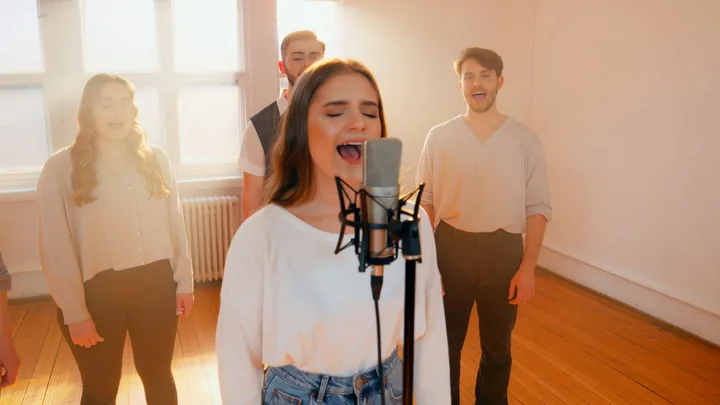
Upload a start frame and Kling 2.6 keeps the people, outfits, and setting from your image while it adds motion and sound. The clip takes the photo’s shape, so crop to 9:16 first if you need a vertical video.
Talking product ads and live-stream style pitches with the voiceover built in.
Vertical 9:16 skits, reactions, and ASMR clips that already have sound.
Short sung hooks and performance clips to tease a new song.
Narrated scenes, speeches, and dialogue for explainers and short stories.
A simple structure gets the most reliable sound and motion.
Start with the setting and action, then add the dialogue: [Speaker, tone] says: "…". One speaker tag per line.
List the background and effect sounds you want, such as rain on glass, crunching, applause, or engine roar.
One or two lines of speech fit a 5-second clip; save longer exchanges for 10 seconds. Prompts stop at 2,500 characters.
A clear photo keeps a person or product consistent better than a long description.
What is Vidu Q3 (ViduQ3)?
Open toolKling 3.0, 2.6, 2.5 Turbo, and 2.1 in one workspace, with each model’s settings.
Read the guideMulti-shot storyboards, start and end frames, element references, and up to 4K.
Read the guideAnimate a photo with Kling, Veo 3.1, Seedance, Grok Imagine, Hailuo, or Wan.
Read the guideCommon questions about the Kling 2.6 AI video model.
Kling 2.6 is a video generation model from Kuaishou’s Kling AI, released in December 2025. It turns a text prompt or one image into a 5 or 10 second 1080p video and can generate speech, singing, ambient sound, and sound effects together with the picture.
Kling 2.6 Pro is the full-quality 1080p tier of Kling 2.6, the version most platforms and APIs list (its model ID is often written kling-2.6-pro). The Kling 2.6 model on this page is that version, with native audio on or off.
On EzImgMaker each Kling 2.6 video uses credits, and the exact Kling 2.6 price is shown on the Generate button before you start. A 10-second clip costs twice as much as a 5-second clip, and turning native audio on doubles the cost again, so a silent 5-second clip is the cheapest option. For Kling AI’s own plans, check the official Kling website.
Kling 2.6 runs on paid GPUs, so every clip has a real cost. New users on EzImgMaker get free credits to try it, and after that you buy credit packs only when you need more.
No. Kling 2.6 image to video takes a single start frame. If you need the clip to finish on a specific image, use Kling 3.0 or Kling 2.5 Turbo on the Kling AI page, or the First and Last Frame to Video tool.
Kling 2.6 voices dialogue in English and Chinese. Lines written in other languages are usually spoken in English, so write the dialogue in the language you want to hear.
Use Kling 2.6 for single-shot clips with sound when 5 or 10 seconds is enough and you want to keep costs moderate. Use Kling 3.0 when you need 3 to 15 seconds, several shots in one video, an end frame, character elements, or 4K. Kling 2.5/2.6 users often draft on 2.6 and finish the hero shot on 3.0.
All the same model. You will also see it written Kling 2.6 AI, Kling Video 2.6, or kling-2.6 in API docs. Do I need the Kling 2.6 API to use it? No: this page runs Kling 2.6 in the browser without any code or API key.
No. EzImgMaker is an independent service that provides access to Kling 2.6 through a third-party API provider. It is not affiliated with, endorsed by, or sponsored by Kuaishou or Kling AI.
JPG or PNG photos up to 10 MB that you own or have permission to use. Do not upload other people’s likeness without consent or images of minors, and do not create videos meant to impersonate, mislead, or harass anyone.
Write a scene with lines and sounds, or upload a photo, and let Kling 2.6 generate the clip.
Kling and Kling AI are trademarks of Kuaishou Technology or its affiliates. EzImgMaker is an independent service and is not affiliated with, endorsed by, or sponsored by Kuaishou or Kling AI. Model names are used only to describe compatibility.