Selfie Stickers
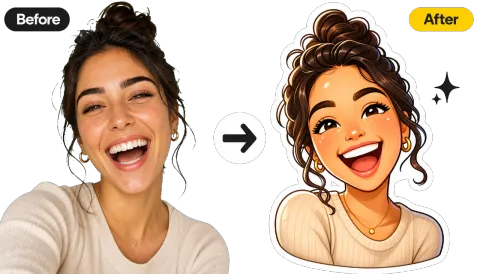
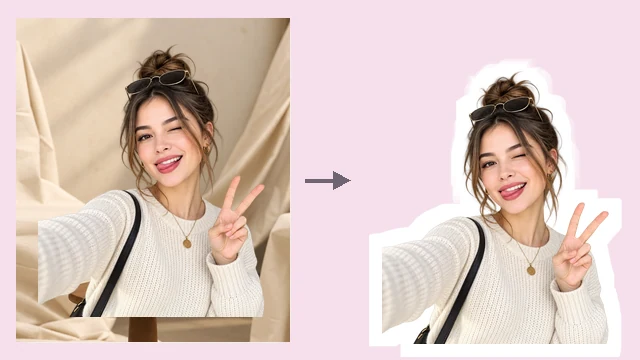
Turn a reaction face or a favorite pose into a sticker of yourself for snaps and streaks.
Turn a selfie, pet, or object from your camera roll into a custom Snapchat sticker. AI cuts out the subject, adds a die-cut outline or caption, and saves it as a transparent PNG.
Sticker presets
Fine-tune
Your photo stays in this browser during this UI preview.
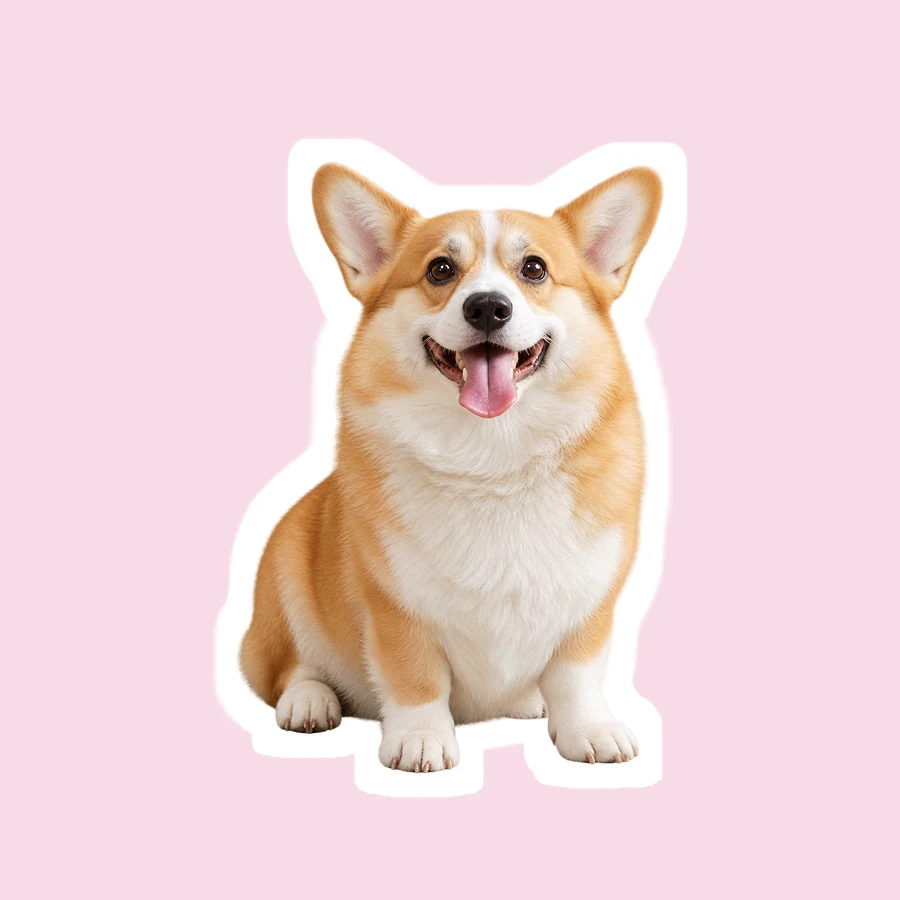
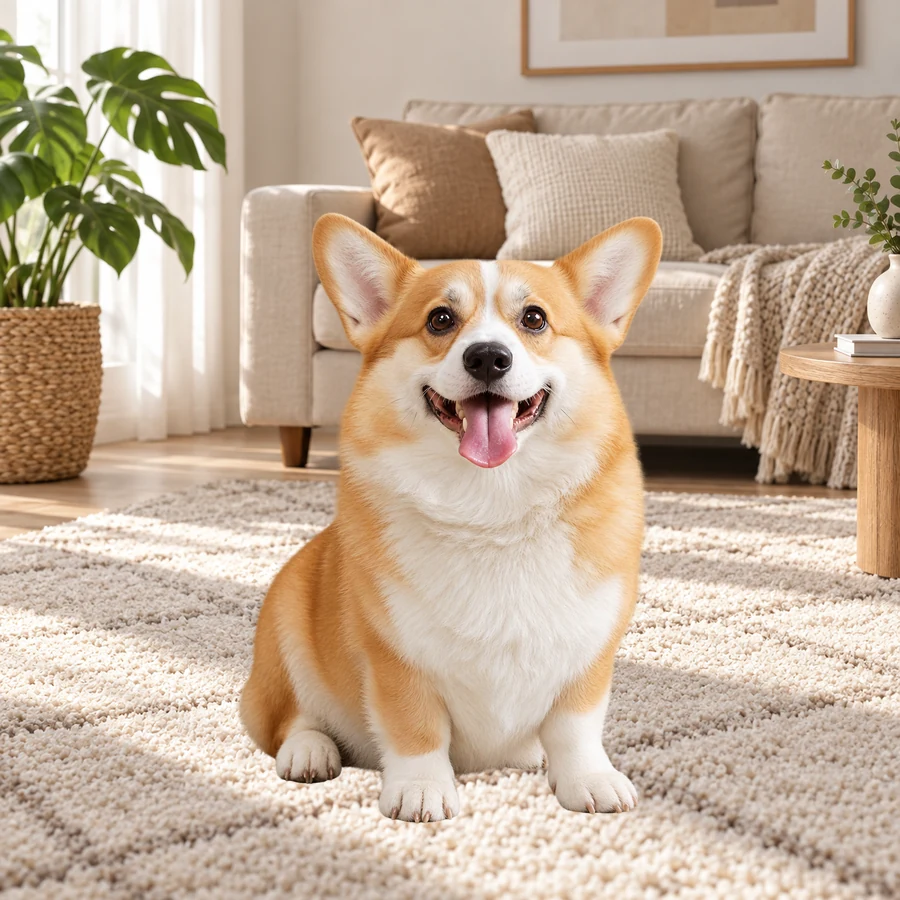
Reference example. It is not a result generated from your upload.
A Snapchat sticker maker turns an ordinary photo into a cut-out sticker you can drop on a snap or send in a chat. Inside the app you can trace an object with the scissors tool, but tracing a face, fur, or hair with your finger is slow and the edges rarely come out clean. This snap sticker maker detects the subject for you, removes the background, and wraps it in a die-cut outline, so custom stickers for Snapchat look like a real sticker pack instead of a rough crop.
If you have been searching for how to make a sticker for Snapchat or how to make stickers for Snapchat from your camera roll, the workflow is simple: make the sticker here from the original photo, save the transparent PNG, then open it in Snapchat and keep it in your sticker drawer. Selfies, pets, food, products, inside jokes, and logos all make good Snapchat stickers.
Any photo with a clear subject can become a sticker. These are the ideas people reuse most often.
Turn a reaction face or a favorite pose into a sticker of yourself for snaps and streaks.
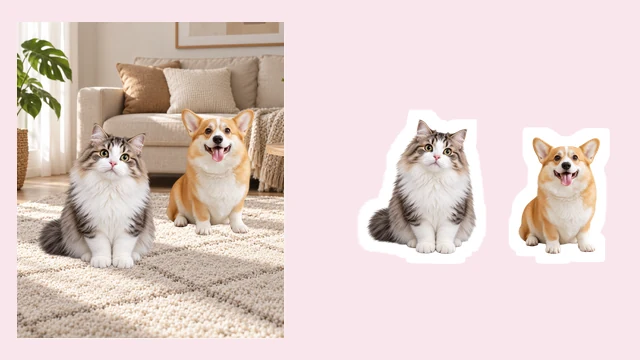
Cats, dogs, and other pets make the funniest Snapchat stickers. Fur edges are kept.
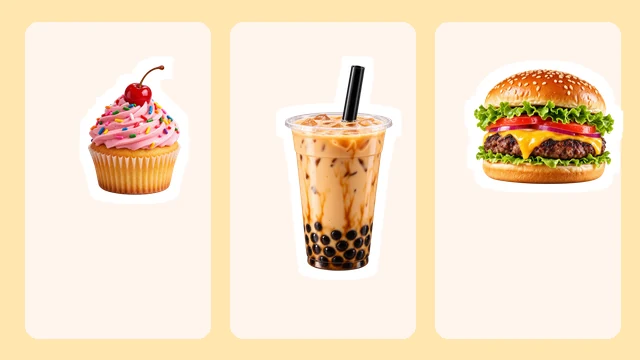
Cupcakes, bubble tea, and burgers become cute stickers for food snaps and stories.
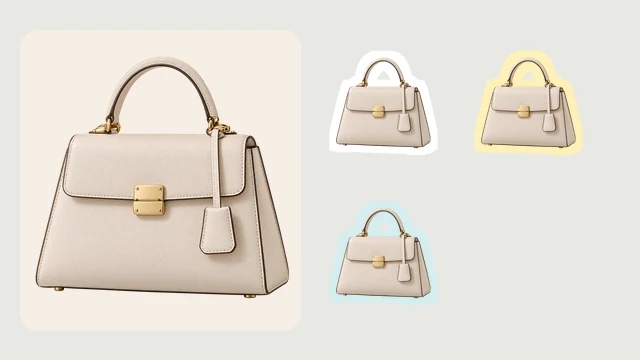
Small shops and creators turn products, mascots, and logos into branded stickers.
How do you make Snapchat stickers without tracing edges by hand? Here is how to make snap stickers from any photo.
Choose a selfie, pet, food, or product photo where the subject is easy to see. JPG, PNG, and WebP files up to 10 MB are supported.
Start from a preset such as Classic White Outline or Yellow Pop, then change the outline color, outline width, and sticker style. Add an optional caption if you want text on the sticker.
AI cuts out the subject and builds the sticker on a transparent background. Save the PNG to your phone and it is ready to add to Snapchat.
How to create Snapchat stickers that look professional comes down to three things: a clean cutout, a bold outline, and a transparent file.
Auto Snapchat stickers start with a clean cutout. The AI finds the person, pet, or object and separates it from the room, the street, or the sofa behind it, including tricky edges such as fur and loose hair. No finger tracing, no jagged scissor lines.
A thick white border is what makes a cutout read as a sticker. Choose white, black, yellow, or pink, set the outline width, or skip the border for a plain cutout. Custom Snapchat stickers stay visible on bright, dark, and busy snaps alike.

How to make a snap sticker that says something? Type a short caption such as "OMG" or "Miss you" and it is added to the sticker design, ready for reactions, replies, and inside jokes.
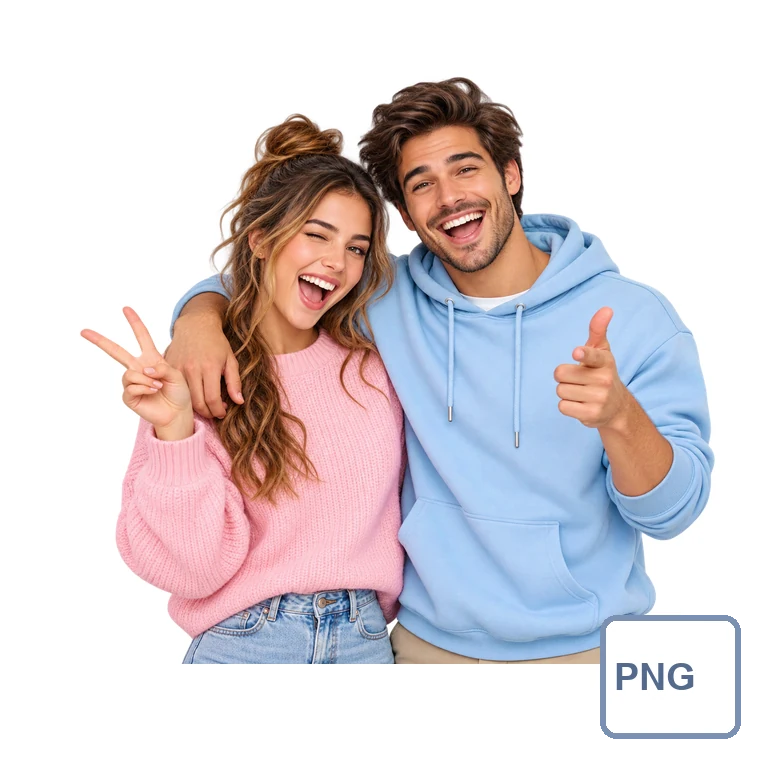
Your sticker is saved as a PNG with a transparent background, so only the subject and its outline show when you place it. The same file works for Snapchat, other messaging apps, digital scrapbooks, and printed sticker sheets.
Once your sticker PNG is saved, this is how to add stickers to Snapchat and how to use stickers on Snapchat. Menus can vary slightly between app versions.
In Snapchat, open Memories, switch to Camera Roll, and select the sticker PNG you saved. This works for any of your Snapchat stickers from camera roll images.
Tap the scissors tool and loop around the sticker. Because it already has a clean outline on a plain background, one quick loop is enough, and Snapchat keeps the cutout in your sticker drawer.
Tap the sticker icon, open the scissors tab, and tap your sticker to add it to a snap. Pinch to resize or rotate it. In a chat, open the emoji or sticker menu and use the same tab to send it.
Once you know how to make Snapchat stickers, these are the ways people use them most.
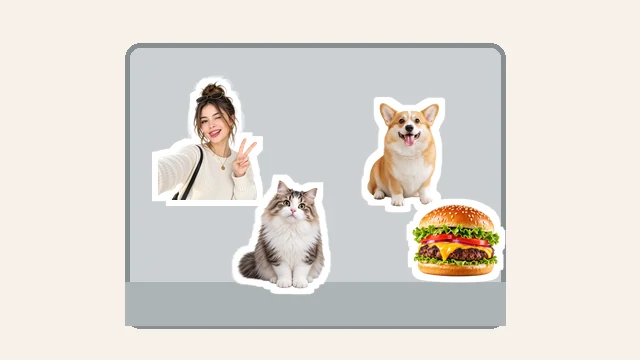
Keep a set of reaction stickers of your own face and drop them on snaps instead of the same stock emoji everyone uses.
Turn a funny group-chat photo into a sticker and bring it back every time the joke comes up.
Make a mini sticker pack of your pet or your favorite meals for stories, chats, and digital journals.
Turn a logo, mascot, or product into a branded sticker for stories, giveaways, and community posts.
How to make custom stickers on Snapchat that stay sharp: it starts with a good source photo.
Upload the full-quality photo instead of a screenshot so edges and details stay sharp when the sticker is resized.
One person, pet, or object that stands out from the background gives the AI the cleanest cutout.
Even light without heavy shadows keeps hair, fur, and outlines crisp.
White outlines work almost everywhere; black or yellow borders stand out on light or busy snaps.
Common ways people turn photos into stickers for snaps and chats.
Illustrative examples adapted from reference material, not verified reviews of EzImgMaker.
I used to trace my dog with the scissors tool and it always looked chewed. The auto cutout kept his ears and fur, and the white outline makes it look like a real sticker.
I made five reaction stickers of my own face from old selfies. They are now the most-used stickers in our group chat.
Our café logo became a yellow-outline sticker we add to every story. It took one upload instead of a design session.
Adding a caption was the best part. A cutout of my friend with "not again" written under it is now an inside joke.
How to make, add, and use custom stickers on Snapchat.
If you mean how to make a sticker in Snapchat itself: take a snap or open a photo from Memories, tap the scissors tool, and trace around the object; the cutout is saved in your sticker drawer. For a cleaner result with an outline, upload the photo here, let AI cut out the subject, save the PNG, and then add it to Snapchat as described above.
Upload the photo from your camera roll to this sticker maker, choose an outline, and save the sticker PNG. Then open Memories in Snapchat, switch to Camera Roll, select the PNG, and use the scissors tool once to keep it in your sticker drawer.
After taking a snap, tap the sticker icon and open the scissors tab to find stickers you have made. Tap one to add it, then drag, pinch, and rotate it into place. In a chat, open the emoji or sticker menu and pick it from the same tab.
Skip the screenshot and start from the original photo. Make the sticker here from the full-quality file, or open the photo in Snapchat directly from Memories and Camera Roll. Both keep more detail than a screenshot, so the sticker stays sharp.
Choose the Classic White Outline preset, which is the default. Custom Snapchat stickers can also use a black, yellow, or pink outline, a thicker or thinner border, or no border at all for a plain cutout.
Yes. The AI detects the main subject automatically, so there is nothing to trace. It works best when one person, pet, or object stands out clearly from the background.
Open this page in your phone browser on iPhone or Android, upload a photo from your camera roll, and save the finished sticker PNG to your phone. No extra sticker app is required.
Stickers are PNG files with a transparent background, which is the format that keeps the outline and cutout clean when you place them on a snap or share them in other apps.
Only upload photos you have the right to edit, and get permission before turning a friend into a sticker. Do not use stickers to harass, impersonate, or embarrass anyone.
No. EzImgMaker is an independent sticker maker and is not affiliated with Snap Inc. It simply creates sticker images that you can use in Snapchat and other apps.
Upload a photo, pick an outline, and save a transparent sticker PNG for your next snap.
Snapchat is a trademark of Snap Inc. EzImgMaker is an independent tool and is not affiliated with, endorsed by, or sponsored by Snap Inc.