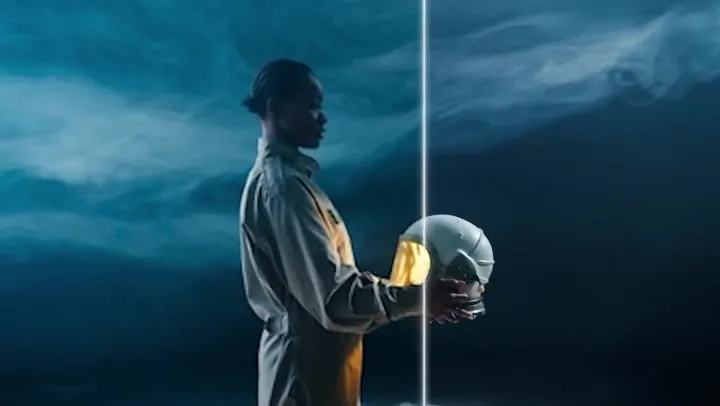
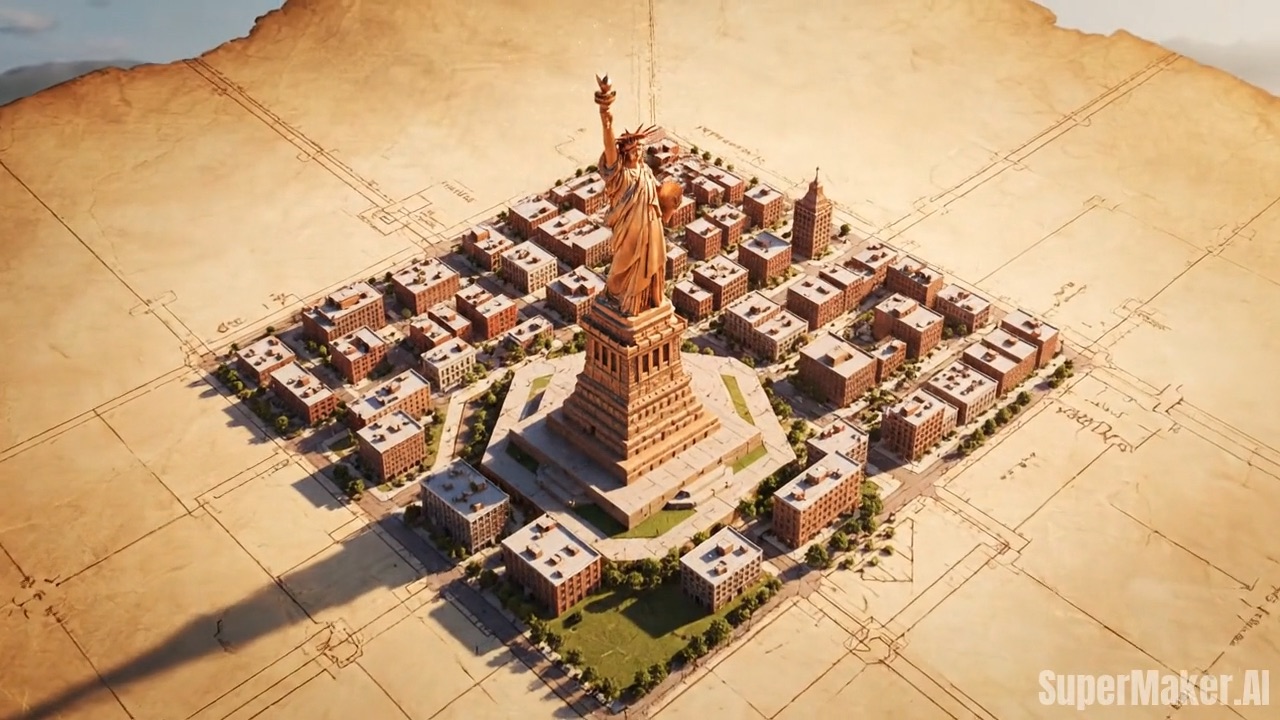
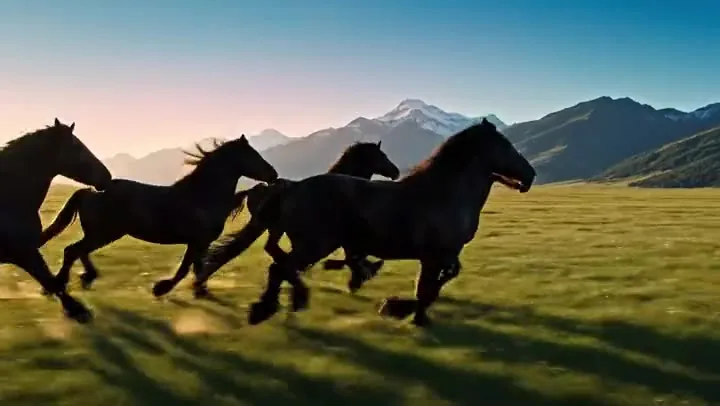
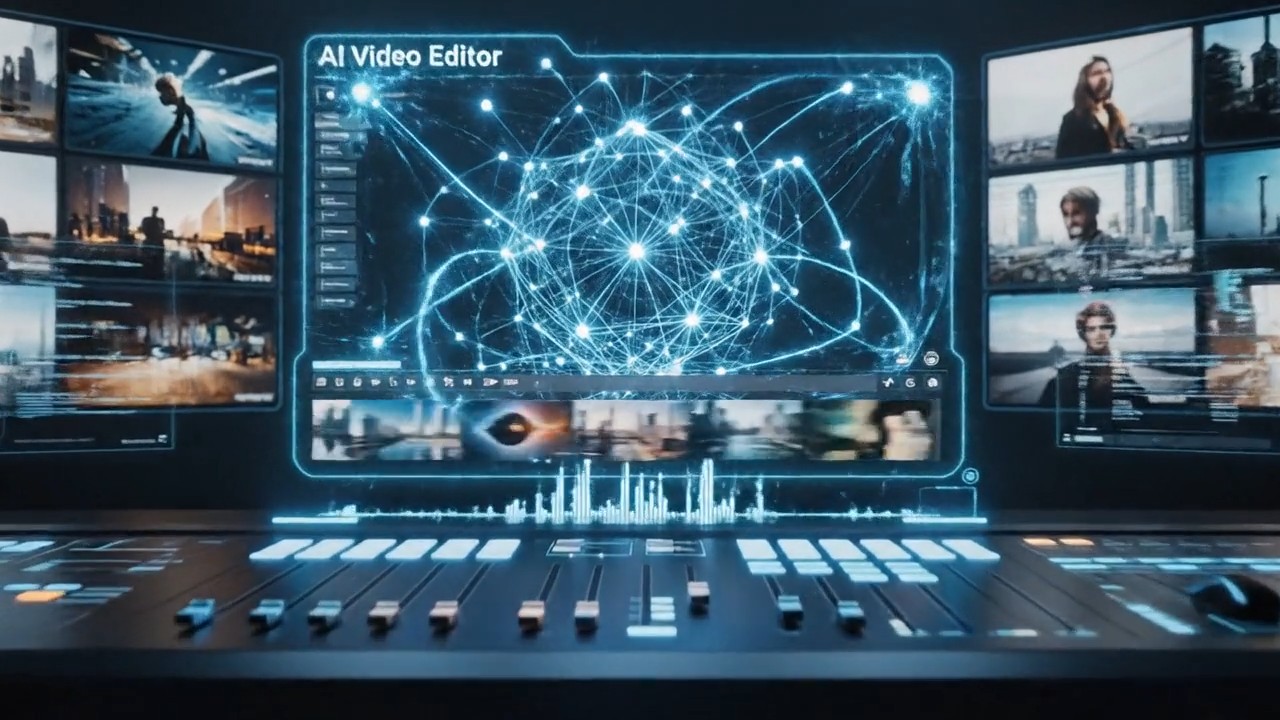
Add a Plot Twist
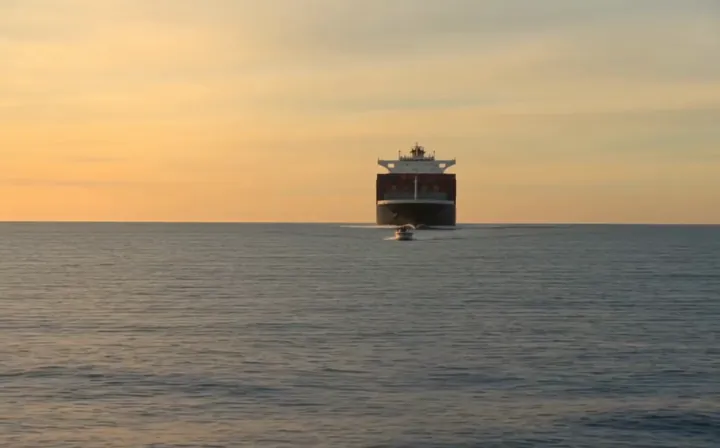
Prompt: "The man in the picture sees another ship in the distance; the two ships are very close and about to collide." The close-up turns into a wider story.
Upload a short clip and describe what should happen next. The AI video extender continues from the last frames, keeping the subject, lighting, and camera style, and adds up to 15 seconds of new footage.
The man in the picture sees another ship in the distance; the two ships are very close and about to collide.
Reference example. It is not a result generated from your upload.
An AI video extender makes a short clip longer by generating new footage that picks up where your video ends. It studies the final frames, the subject, the motion, the lighting, and the camera movement, and then continues the scene, so the extended video plays as one continuous shot instead of a loop or a freeze frame.
Most extend video AI tools also take a prompt, and that is where it gets creative: you can simply keep the action going, or describe what happens next, like a camera pull-back, a new character, or a plot twist. Let AI extend video clips from your phone, AI generators, animations, or B-roll, then download the longer version.
What you can upload and what you get back.
| Setting | Details |
|---|---|
| Input video | MP4, MOV, or WebM, up to 50 MB and 30 seconds |
| Prompt | Required, 3 to 5,000 characters describing what happens next |
| Added length | 1 to 15 seconds per extension (+5, +8, +10, or +15 s here) |
| Resolution | 540p, 720p, or 1080p |
| Audio | Optional: generate sound for the new footage |
| Longer results | Extend the result again to keep the story going |
Each extension adds new footage after the end of your clip. Credits depend on the added length, resolution, and audio, and are shown before you start.
The label in each clip marks where the original footage ends and the AI-extended part begins.
Prompt: "The man in the picture sees another ship in the distance; the two ships are very close and about to collide." The close-up turns into a wider story.
A solo dance continues as a duet. The black-and-white look, haze, and moon backdrop carry straight through.
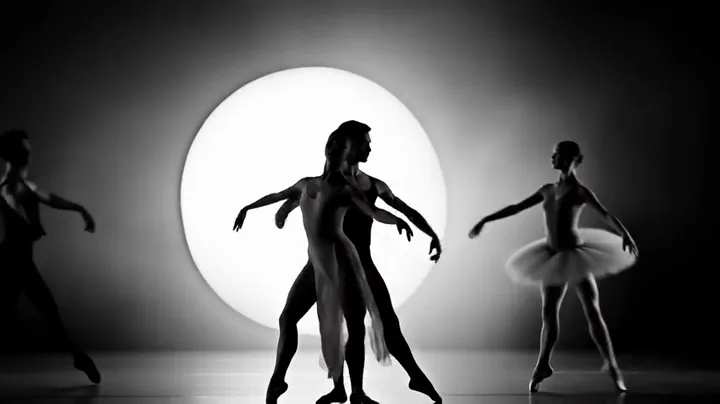
Run the extender again on the result. The same scene grew from one dancer to a full ensemble over several extensions.
Make a video longer in three steps.
Add the MP4, MOV, or WebM video you want to extend, up to 30 seconds and 50 MB. A steady ending with a clear subject gives the smoothest result.
Write a short prompt, or pick an idea like "Continue the same motion" or "Camera pulls back". Choose how many seconds to add, the resolution, and whether to generate audio.
The AI generates the new footage after your last frame. Preview the extended video, download it, or extend it again for an even longer clip.
Unlike simple video extenders that loop footage or slow it down, the AI writes new frames from your prompt. Keep the action going, or steer it: reveal the horizon, start a chase, end on a close-up.
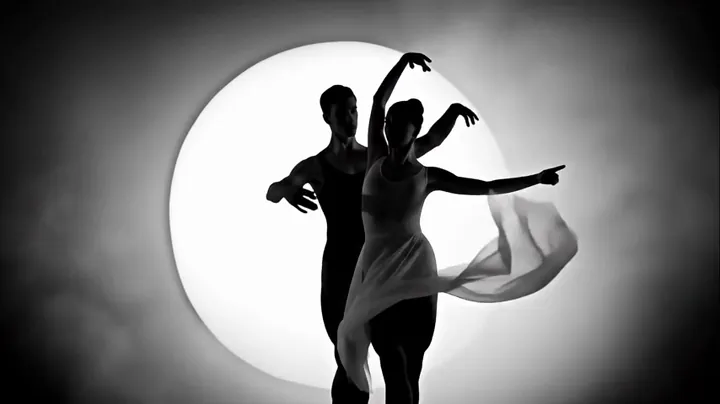
The extended video keeps the same faces, outfits, lighting, color grade, and camera language as your original, so the cut point is hard to spot.
Add 5, 8, 10, or 15 seconds at a time in 540p, 720p, or 1080p. Need more? Extend the result again and build a longer extended video step by step.
Turn on audio generation to get ambience and effects for the added footage, or leave it off and lay your own soundtrack over the whole clip in an editor.
Most AI video generators stop at a few seconds. Extend AI video clips to give a scene room to breathe, or let AI extend videos you made with other tools.
Stretch a 5-second shot to fit a voiceover, a beat drop, or a platform’s ideal length.
Add a few extra seconds of establishing footage or a smoother lead-out for your edit.
Finish a product spin, hold on the hero shot longer, or add a closing camera move.
The last second of your clip matters most.
Avoid clips that end mid-cut, in heavy motion blur, or on a black frame. The AI continues from what it sees last.
Say what happens after the clip ends: "she turns and walks toward the door", not a description of the whole video.
Add one new action or camera move at a time, then extend again. Small steps stay consistent.
Mention the look, like "black-and-white" or "golden hour", so the new footage keeps matching.
Stable framing and even lighting give better continuations than shaky, flickering clips.
Extend your own recordings or videos you generated, not other people’s content.
Common questions about extending videos with AI.
Upload your clip, write a prompt describing what should happen after it ends, choose how many seconds to add and the resolution, then start. The AI generates new footage that continues from your last frame, and you download the extended video.
Each extension adds 1 to 15 seconds; on this page you can pick +5, +8, +10, or +15 seconds. To go further, extend the result again.
MP4, MOV, or WebM files up to 50 MB and 30 seconds long. Live action, animation, B-roll, and clips from AI video generators all work; steady footage with a clear subject works best.
Yes. Your original file is never altered. The AI generates new footage that starts where your clip ends and matches it, so the original and the extension play as one continuous shot.
Yes, a short prompt of at least a few words is needed. If you just want more of the same, use something like "Continue the same camera motion and extend the scene naturally."
Turn on Generate audio to create sound for the new footage. With it off, the added part is silent, which is handy if you plan to add music or a voiceover to the whole clip.
Uploaded clips are extended with the PixVerse V6 video extension model, which continues a video from a prompt at up to 1080p with optional audio.
Extending a video uses credits. New users get free credits to try it, and the cost for your chosen length, resolution, and audio setting is shown before you start.
Only extend videos you own or have permission to edit. Do not use the extender to alter other people’s content, impersonate anyone, or create misleading footage.
Upload a clip, describe what happens next, and let the AI video extender continue the scene.
PixVerse is a trademark of its respective owner. EzImgMaker is an independent service and is not affiliated with PixVerse. Example clips are placeholders from public demos and will be replaced with our own extensions.