Talking-Head Subtitles: Before
White outlined captions across the bottom of a vlog clip.
Upload a clip with burned-in subtitles or captions, tell the AI where the text sits, and get the same video back without the text. The frame stays full size, with no crop and no blur bar, and the original soundtrack is kept.
Fine-tune
Your video stays in this browser during this UI preview.
Reference example. It is not a result generated from your upload.
An AI subtitle remover takes subtitles that are burned into the picture, also called hard subtitles or open captions, and rebuilds the pixels behind them on every frame. You do not crop the bottom of the frame, cover the text with a blur bar, or paint each line out by hand; you remove subtitles from video and get the full composition back.
Soft subtitles are different: they live in a separate track (SRT, VTT, or a caption track in the player) and can simply be switched off. This caption remover is for text that cannot be switched off, such as social video captions, translated subtitles in a downloaded master, and creator captions baked into an export.
Play each pair: the left clip has burned-in subtitles, the right clip is the same footage with the text removed.
White outlined captions across the bottom of a vlog clip.
The subtitle lines are gone; hands, shirt, and wall are rebuilt.
Boxed subtitles over a moving nature shot.
Grass and flowers fill the space where the subtitle box was.
Three steps to remove subtitles from a video without re-editing the timeline.
Add an MP4 or MOV clip between 3 and 60 seconds, up to 100 MB. Use a video you made or are authorized to edit, such as your own vlog, a course lesson, or a client master.
Choose where the text sits (bottom, top, middle, or auto-detect) and whether to remove only subtitles and captions or all burned-in text, such as timestamps and titles. Add a note for anything else, like a date in a corner.
Play the cleaned clip from start to finish, check faces, hands, and busy backgrounds where the captions used to be, then download it at 720p or 1080p with the original audio.
A subtitle remover that rebuilds the frame instead of hiding the text.
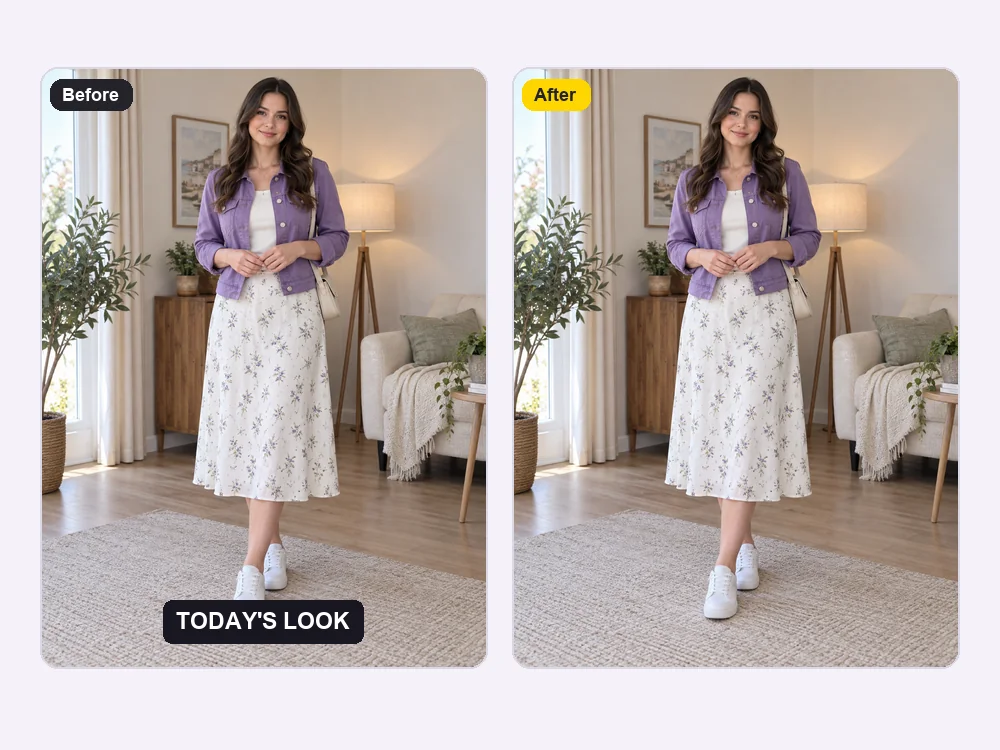
Cropping loses part of the picture and a blur bar looks like a patch. The AI repaints what was behind each caption, so the video keeps its original framing for a new edit, a new language, or a different platform.
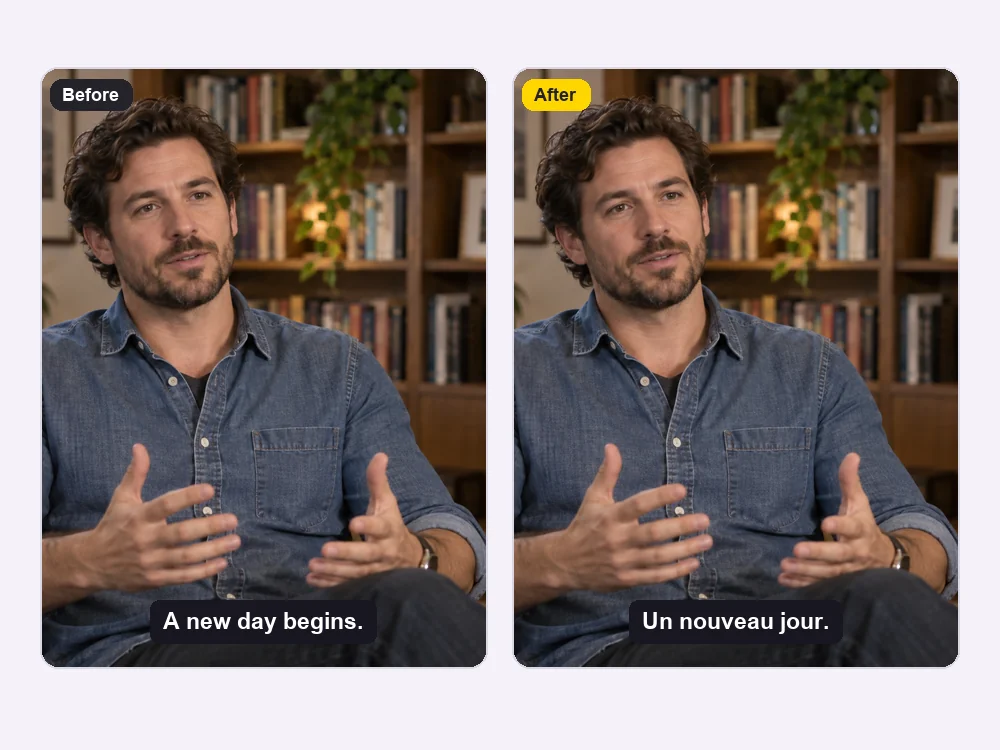
Remove captions from video masters before localization. Clear the original-language subtitles, then add translated subtitles or new on-screen copy in your editor without old text showing underneath.

Lace, metal, grass, skin, and reflections are rebuilt across the motion, not smeared. Watch the clip at full size to judge the repair, especially where captions crossed detailed areas.
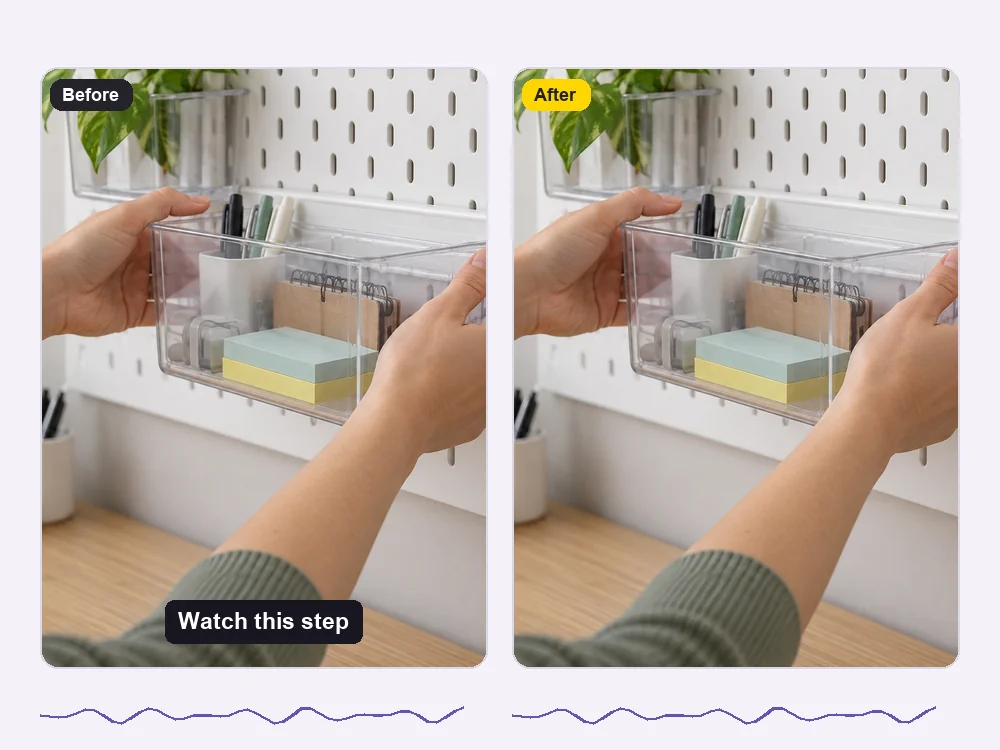
Only the picture changes. Duration, cuts, dialogue timing, and the original audio track are kept, so a new subtitle file lines up with the cleaned video exactly as it did with the old one.
People remove video subtitles for editing, teaching, and localization work.
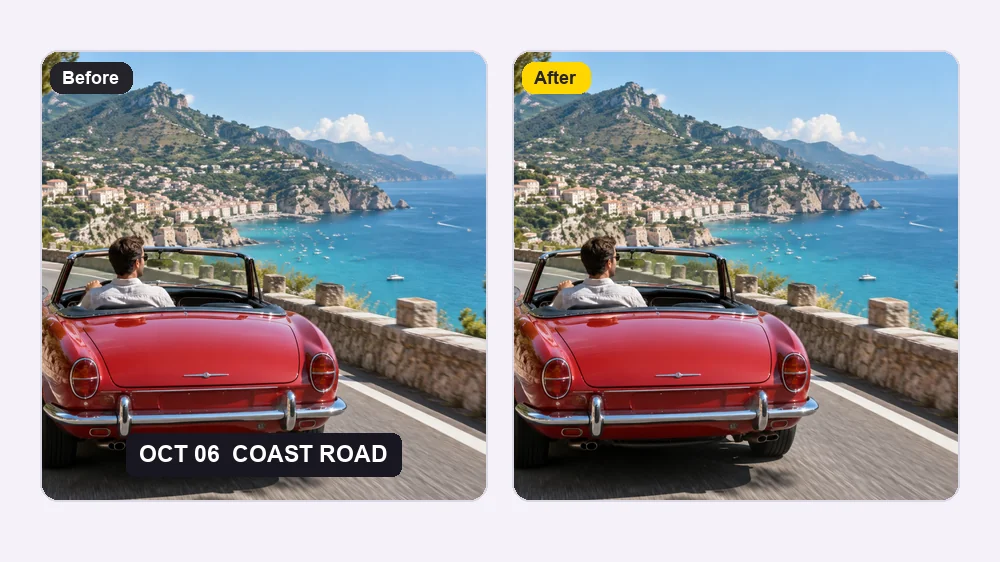
Strip source-language subtitles from a master and re-caption it for every market.
Update lessons whose captions use old terms without re-recording the presenter.
Remove creator captions from your own clips before reposting with new copy and styling.
Clear date stamps and old labels from home videos so the footage feels timeless.
A few habits that make removing captions from video cleaner.
Choosing Bottom or Top tells the AI where to look and protects other text you want to keep.
A sharp, high-bitrate file restores more detail than a re-compressed download.
Process up to 60 seconds at a time and join the cleaned parts in your editor.
Watch fast motion, hands, and faces near the old captions before you publish.
Typical reasons people remove captions.
Illustrative examples adapted from reference material, not verified reviews of EzImgMaker.
Our source videos came with English subtitles burned in. Cleaning them first meant the Spanish and German versions did not have two layers of text.
A lesson used product names we had since changed. I removed the old captions, added new ones, and kept the presenter footage as it was.
I had exported a batch of my own clips with captions on, then lost the project files. The caption remover gave me clean versions to restyle.
Old family clips had a date stamp in the corner the whole time. Removing it made the footage much nicer to watch together.
Questions about removing captions and hard subtitles.
Upload the clip, choose where the captions appear, pick Subtitles and captions or All burned-in text, and start. The AI removes the captions frame by frame and rebuilds the background, so you can remove captions from video files without cropping or masking each line.
Yes. Burned-in (hard) subtitles are part of the image, which is exactly what this subtitle remover is for. If your captions are a separate track (SRT or VTT, or a CC button in the player), you can simply turn them off or delete the track instead.
Upload the highest-quality copy you have and choose 1080p output. Only the subtitle area is rebuilt; the rest of the frame, the timing, and the audio are kept. Very compressed sources will still show their original compression in the result.
No. video-subtitle-remover is a desktop project you install and run on your own computer. This AI subtitle remover runs online in your browser: upload a clip, choose the area, and download the cleaned video.
Choose Auto-detect when captions move around, as in social videos with animated text. For fixed subtitles, choosing Bottom or Top gives the AI a clearer target. Always watch the whole clip, not just the first frame.
Each upload can be an MP4 or MOV clip from 3 to 60 seconds and up to 100 MB. For longer videos, split them into parts, remove subtitles from each part, and join them again in your editor.
No. The cleaned video keeps the original duration, cuts, and soundtrack, so existing or translated subtitle files still line up.
Only remove subtitles from videos you own or have permission to edit, such as your own recordings, licensed footage, or client files. Removing captions does not change who owns the video, and it should not be used to pass off someone else’s work as your own.
New users get free credits to try the AI caption remover. After that, credit packs cover more videos.
Upload a clip, choose where the text sits, and get the full frame back with the original audio.