Turn People Into Characters
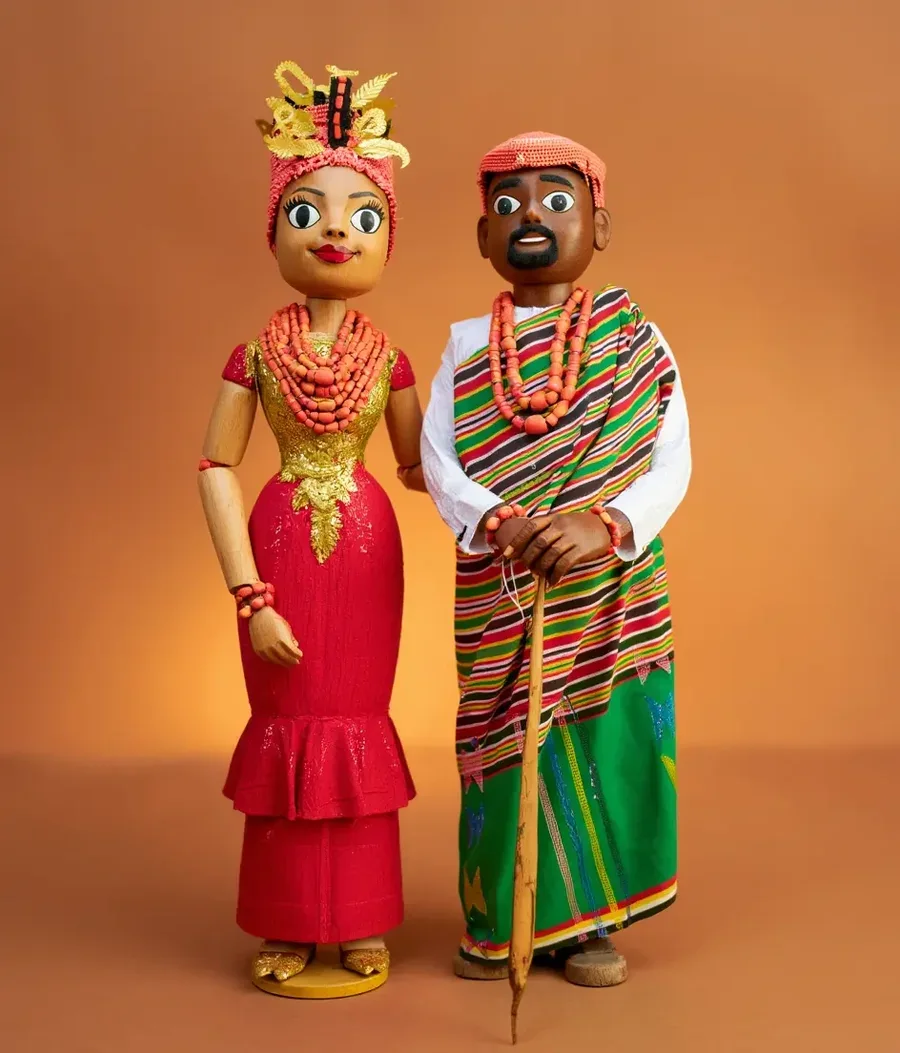
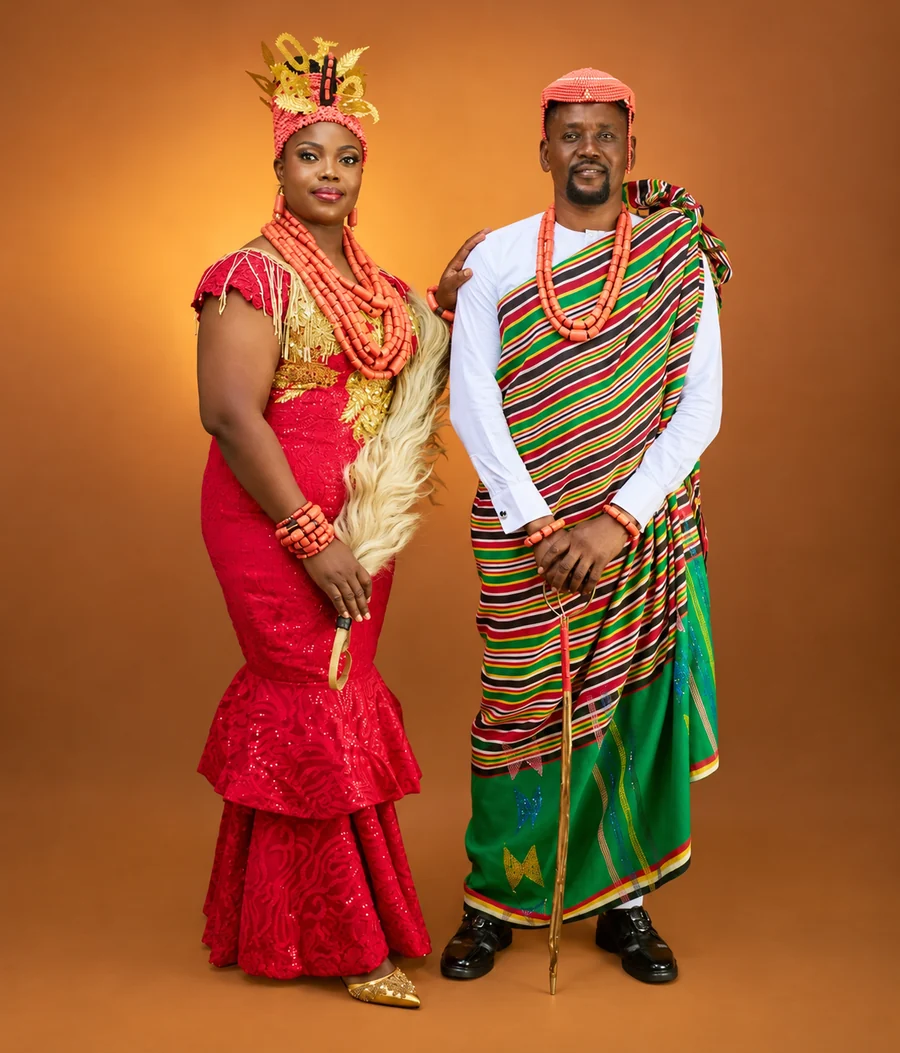
Instruction: "Make them into wooden dolls." The outfits, colors, and poses carry over, which shows how well Kontext keeps details while changing the material.
Upload a photo and describe the change in plain words. FLUX.1 Kontext edits just that part, from a new background or outfit to a restyle or a text swap, while the person and scene stay consistent.
Try an instruction
Fine-tune
Your photo stays in this browser during this UI preview.

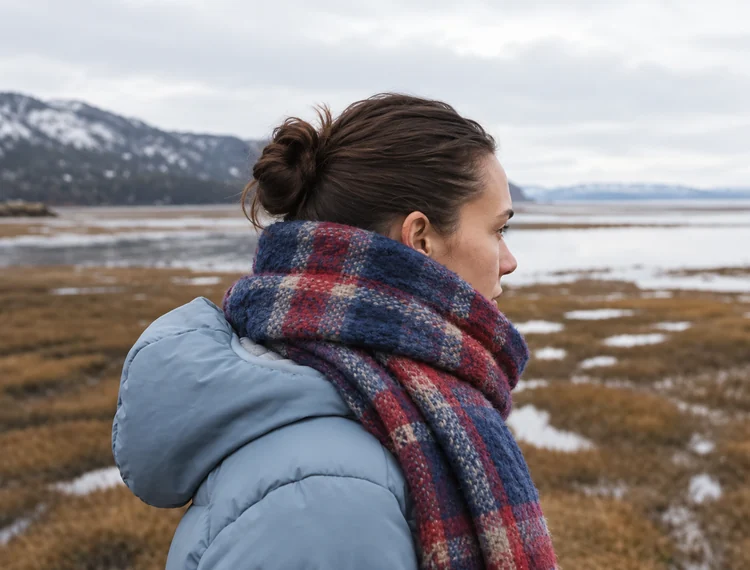
Reference example. It is not a result generated from your upload.
FLUX.1 Kontext is a family of image generation and editing models from Black Forest Labs. Unlike a text-to-image model that starts from nothing, FLUX Kontext reads the image you give it together with your text, so you can ask for one specific change, such as "make it snowy" or "change the sign to OPEN LATE", and the rest of the picture stays the same.
The family has three versions: FLUX.1 Kontext Pro for fast, iterative editing, Kontext Max for stronger prompt adherence and typography, and Kontext Dev, a 12-billion-parameter open-weights model released under a non-commercial license. On this page you can work with Kontext Pro or Kontext Max through a simple upload-and-describe editor, with no nodes, masks, or code.
Each result below comes from a single plain-language instruction. Drag to compare.
Instruction: "Make them into wooden dolls." The outfits, colors, and poses carry over, which shows how well Kontext keeps details while changing the material.

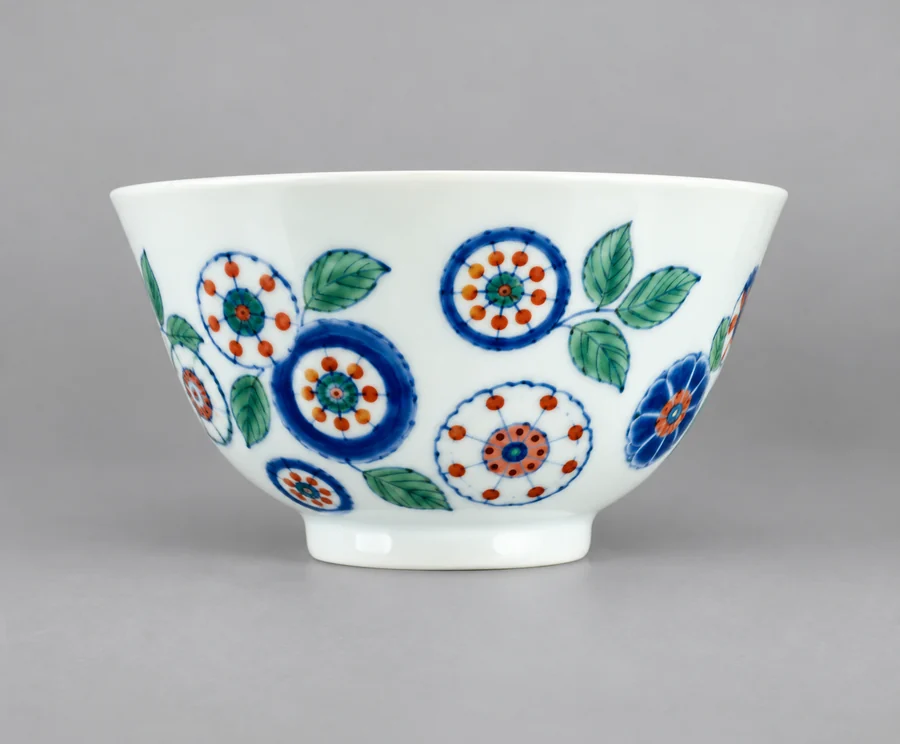
Instruction: "Make me a matching flower vase, product photography against a white wall." The pattern of the bowl is reused on a brand-new object.
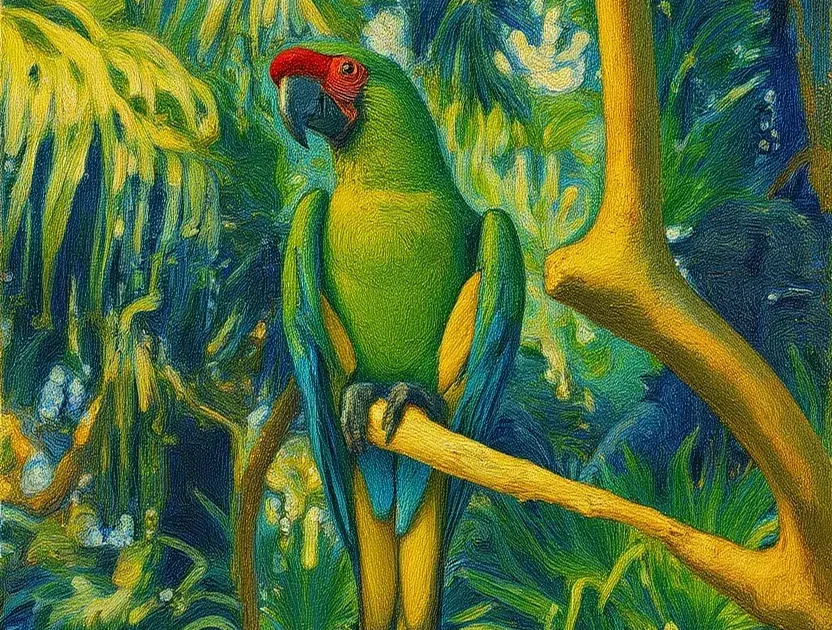
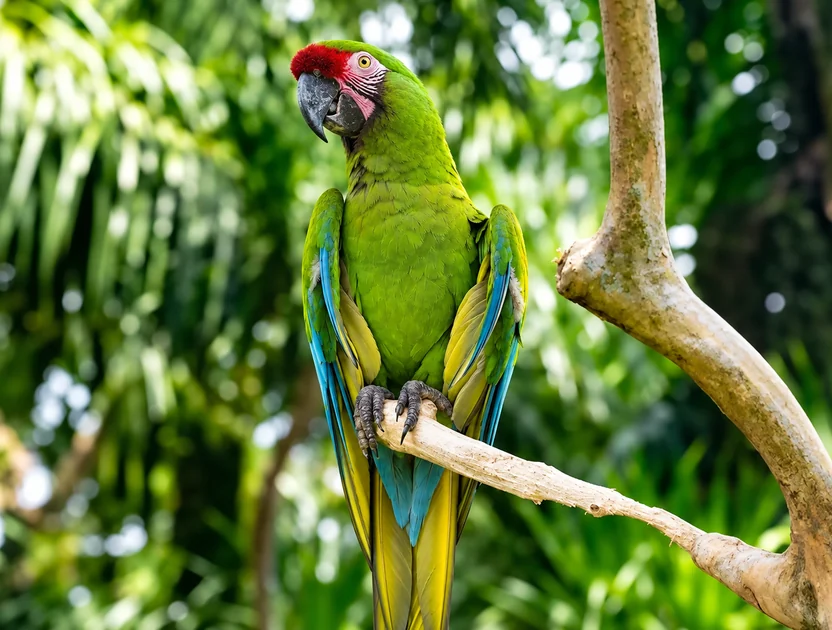
Instruction: "Remake this in Van Gogh style." The parrot, branch, and leaves stay where they were while the whole frame turns into thick, swirling brushwork.
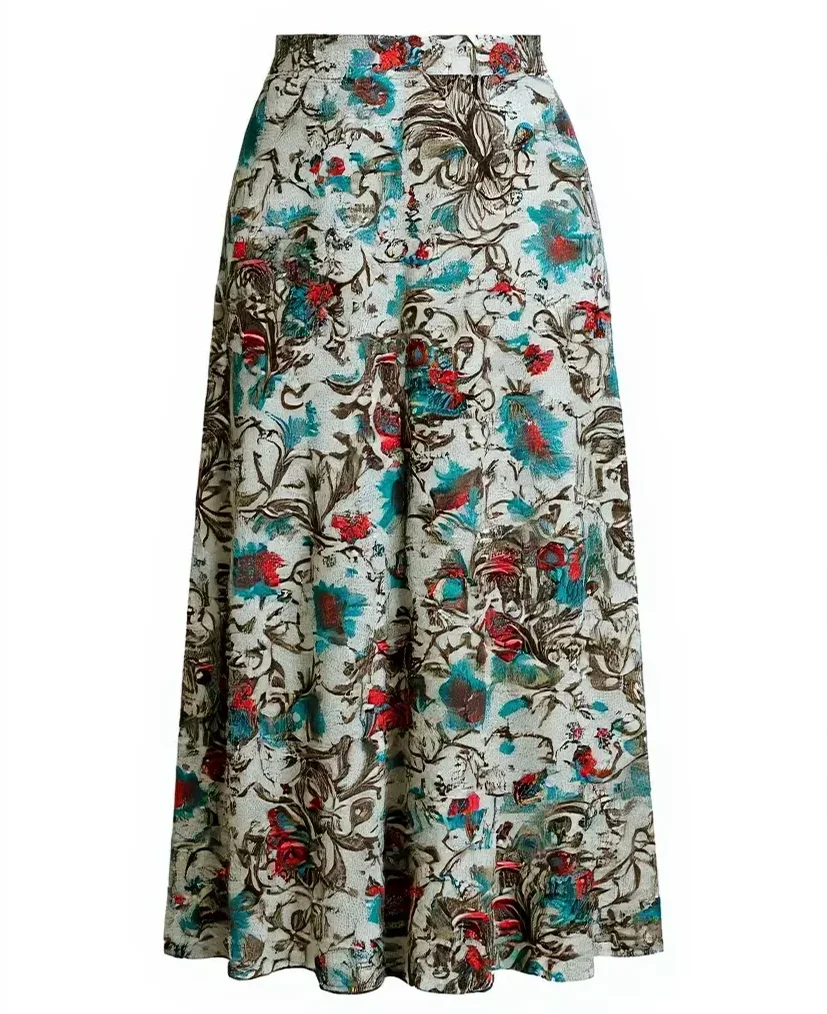

Instruction: "Extract only the skirt over a white background, product photography style." One outfit photo becomes a clean catalog image.
Three steps from photo to edit. No workflow setup or local GPU needed.
Choose the photo, product shot, or illustration you want to change. JPG, PNG, and WebP files up to 20 MB are supported.
Type one clear instruction, or start from a preset such as New Background or Edit Text. Say what should change and what must stay the same, then pick Kontext Pro or Max and an aspect ratio.
Apply the edit and compare it with the original. Need more? Use the result as the next input and add another instruction.
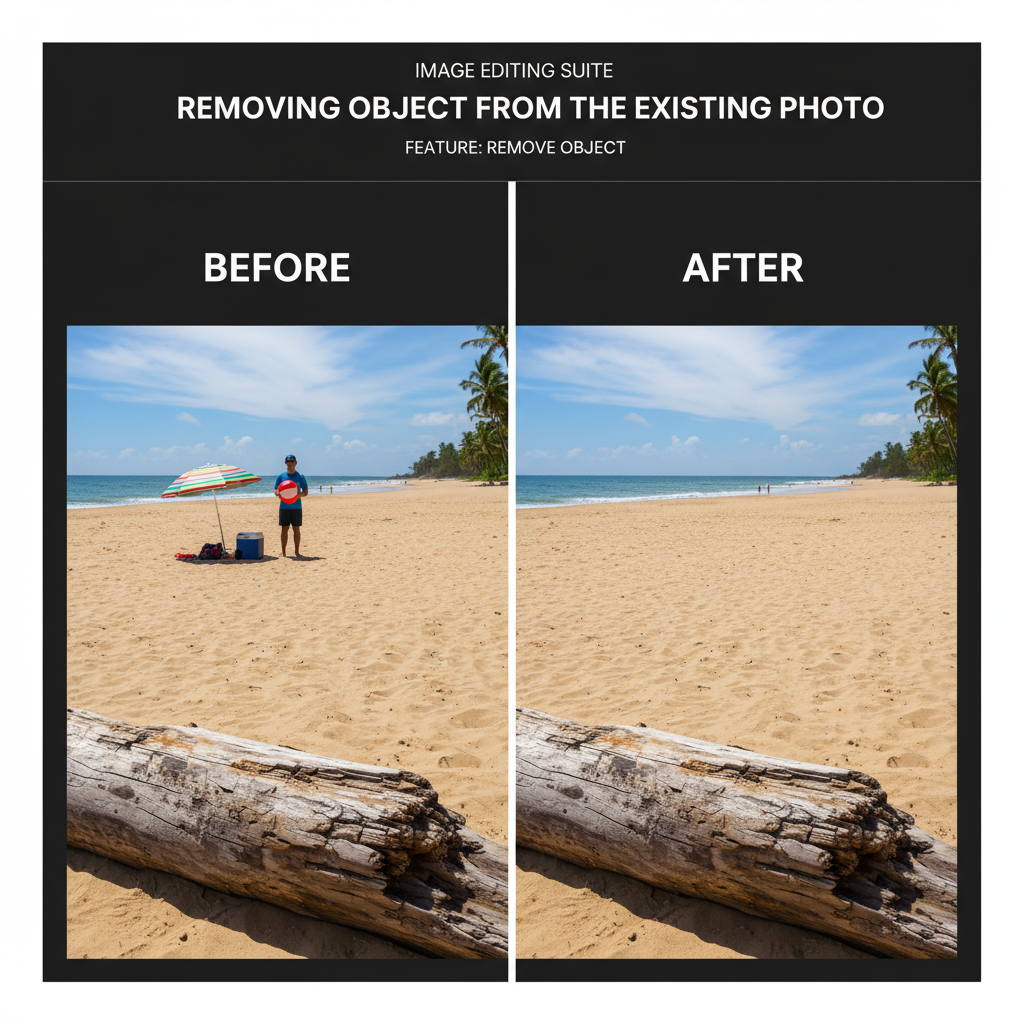
Ask for a small change, like turning a head, removing an object, or rewriting the words on a sign in the same font, and Kontext edits that region while the lighting, background, and identity stay put. Kontext Max is the stronger choice when lettering accuracy matters most.
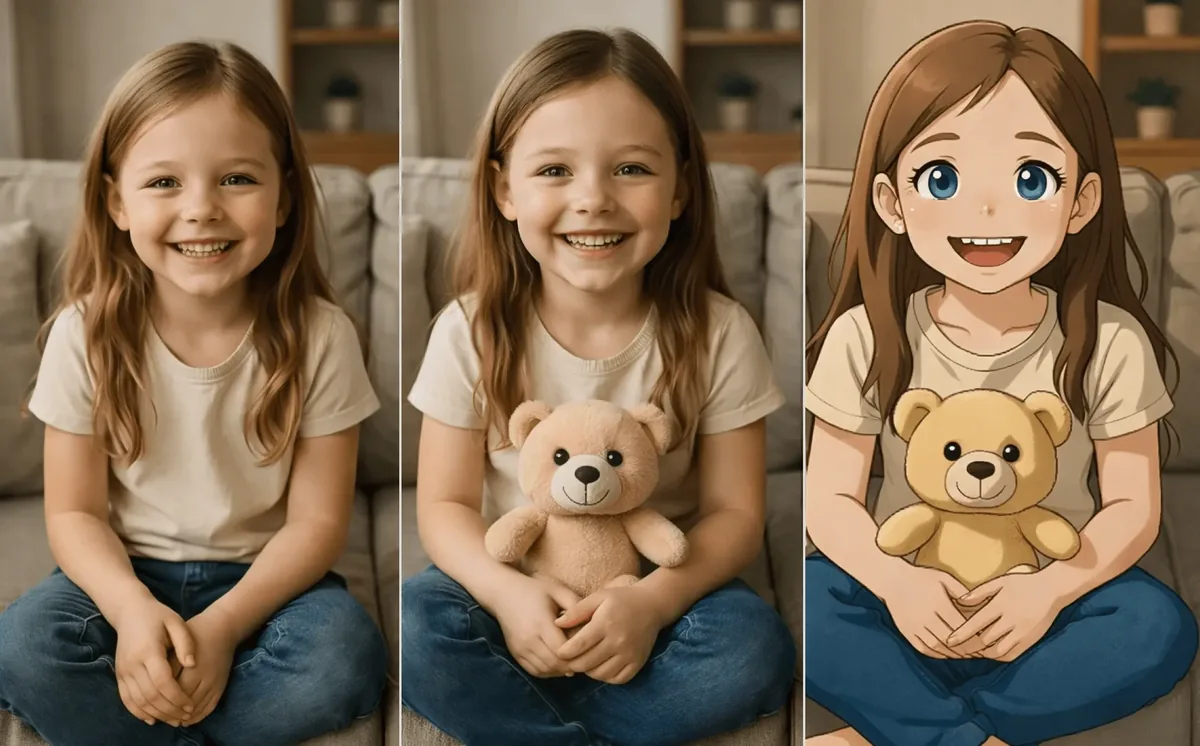
Edit step by step and the same face, hair, and outfit carry through each round: add a teddy bear, then switch to an anime look, and the character is still recognizable. Quality is best over a handful of rounds, so keep long chains short.

Recolor a top, change a fabric, or update a product variant with one sentence. The pose, skin, shadows, and background stay as they were, which makes FLUX Kontext AI handy for fashion and e-commerce mockups.
Use an image as a style reference: Kontext can carry a pattern, palette, or art style onto a brand-new object or scene, like turning a painted bowl into a matching vase for a product set.
Create clean product shots, color variants, and new backgrounds from existing photos.
Localize text on banners, swap scenes for campaigns, and iterate on creative without reshoots.
Keep a character consistent across scenes, poses, and styles for comics, storyboards, and concept art.
Remove distractions, change the weather or time of day, or restyle a favorite photo with one sentence.
Clear instructions give the most predictable edits.
Use a direct verb and concrete details: "change the jacket to red leather", not "make it better".
Add "keep the face, pose, and background unchanged" to protect what matters.
Write "the woman with short black hair" instead of "her" when there are several people.
Big transformations work better as a few small instructions applied one after another.
Typical ways people put FLUX Kontext to work.
Illustrative examples adapted from reference material, not verified reviews of EzImgMaker.
I needed the same model in five outfits for a lookbook. One photo, five instructions, and the face never drifted.
Changing the shop sign text used to mean a retouching ticket. Now I type the new words and the font still matches.
For storyboards I keep one character and just describe the next scene. Consistency is what sold me on Kontext.
Saying what must stay the same made a huge difference. My edits stopped changing the background by accident.
Common questions about FLUX.1 Kontext image editing.
FLUX.1 Kontext is a set of generative flow matching models by Black Forest Labs that can both create images from text and edit an existing image from a text instruction. Its strength is in-context editing: changing what you ask while keeping characters, objects, and style consistent.
The official name is FLUX.1 Kontext, spelled with a K. You will also see it written as FLUX Kontext, FluxKontext, Flux.Kontext, Flux Pro Kontext, or misspelled as Flux Context, and model lists sometimes use identifiers like flux-1-kontext-pro. They all refer to the same model family.
FLUX.1 Kontext Pro is built for fast, iterative editing. Kontext Max adds stronger prompt adherence and better typography. Kontext Dev is an open-weights 12B model for research and self-hosting under a non-commercial license. This editor offers Pro and Max.
Local edits such as removing or replacing objects, changing clothes or colors, and adjusting a pose; global edits such as new backgrounds, weather, time of day, or art styles; text edits on signs and packaging; and new scenes with the same character or product.
You can feed each result back in for another instruction. Quality and consistency hold up well over several rounds, but very long chains can introduce artifacts, so combine small changes where possible and restart from the original if the image starts to drift.
Black Forest Labs publishes Kontext Dev as open weights under a non-commercial license, while Kontext Pro and Max are paid models offered through APIs. On EzImgMaker, the cost of an edit is shown before you start.
That depends on the model version and the terms of the service you use. Kontext Dev weights are licensed for non-commercial use. Check the current terms before using results in commercial work, and make sure you own the rights to the image you edit.
No. EzImgMaker is an independent service that provides an editor for the FLUX.1 Kontext models. It is not affiliated with or endorsed by Black Forest Labs.
Only upload images you have the right to edit. Do not use instruction editing to create misleading images of real people, remove watermarks from others’ work, or produce content that violates someone’s rights.
Upload a photo, describe the change in one sentence, and compare the result with your original.
FLUX, FLUX.1, and FLUX.1 Kontext are trademarks of Black Forest Labs. EzImgMaker is an independent service and is not affiliated with, endorsed by, or sponsored by Black Forest Labs. Model names are used only to describe compatibility.