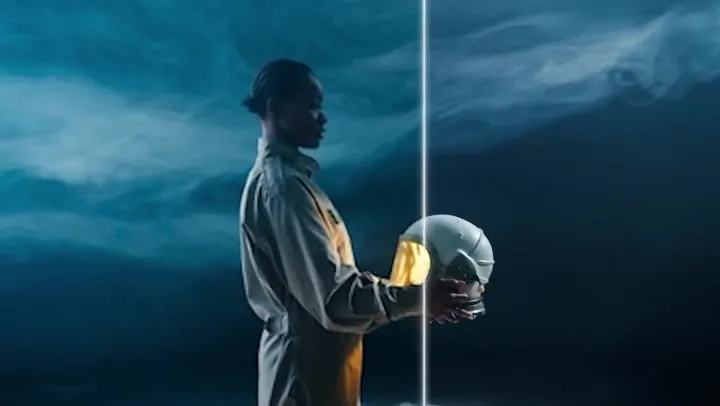
Crystal Apple ASMR
A macro close-up where the crunch and the shattering glass are generated with the picture.
Describe a scene or upload a start frame, and Google’s Veo 3.1 turns it into a realistic clip with dialogue, sound effects, and music generated in sync. Pick Quality, Fast, or Lite, choose widescreen or vertical, and render in 720p, 1080p, or 4K.
Use the first image (the open doors of an old wooden barn at sunrise) as the opening frame and the second image (a rider on horseback in a golden field) as the final frame. The camera glides forward through the barn doors and out into the field in one continuous move. Warm light, wind, distant hoofbeats.
Reference example. It is not a result generated from your upload.
Veo 3.1 is Google DeepMind’s video generation model and the upgrade to Veo 3. It turns a text prompt or one or two images into a short, realistic video, and it generates the soundtrack at the same time: dialogue with matching lip movement, sound effects tied to the action, and ambient sound or music.
Compared with Veo 3, Veo 3.1 follows prompts more closely and adds more ways to steer a shot: first and last frame control, reference images ("ingredients") for consistent characters and products, true 9:16 vertical output, and Extend for continuing a clip past 8 seconds. Here you can use the Veo 3.1 AI video generator in three tiers, Quality, Fast, and Lite, without any setup.
What each Veo 3.1 tier supports on EzImgMaker.
| Veo 3.1 Quality | Veo 3.1 Fast | Veo 3.1 Lite | |
|---|---|---|---|
| Best for | Final, highest-fidelity shots | Everyday creation and quick iteration | High-volume drafts at the lowest cost |
| Text to video | Yes | Yes | Yes |
| Image to video (start / start + end frame) | Yes | Yes | Yes |
| Reference to video (1–3 images) | No | Yes (8 s clips) | Yes (8 s clips) |
| Clip length | 4, 6, or 8 s | 4, 6, or 8 s | 4, 6, or 8 s |
| Aspect ratio | 16:9, 9:16, Auto | 16:9, 9:16, Auto | 16:9, 9:16, Auto |
| Resolution | 720p, 1080p, 4K | 720p, 1080p, 4K | 720p, 1080p, 4K |
| Native audio | Yes | Yes | Yes |
| Extend a generated clip | Yes | Yes | Yes |
4K costs more credits than 1080p. Google describes audio as experimental, so a few clips may come back silent, for example when a scene is flagged as sensitive.
How Google’s model compares with two other popular AI video generators you can use on EzImgMaker.
| Veo 3.1 | Seedance 2.0 | Kling 3.0 | |
|---|---|---|---|
| Made by | Google DeepMind | ByteDance | Kuaishou (Kling AI) |
| Clip length | 4–8 s, plus Extend | 4–15 s | 3–15 s |
| Highest resolution | 4K | 4K (standard model) | 4K |
| Aspect ratios | 16:9, 9:16 | 16:9, 9:16, 1:1, 4:3, 3:4, 21:9 | 16:9, 9:16, 1:1 |
| References | 1–3 images | Up to 9 images, 3 videos, 3 audio clips | Elements: images, a short video, a voice clip |
| Native audio | Yes | Yes | Yes |
| Stand-out strength | Realism, lip-synced dialogue, Extend | Copying motion and camera from video references | Multi-shot sequences up to 5 shots |
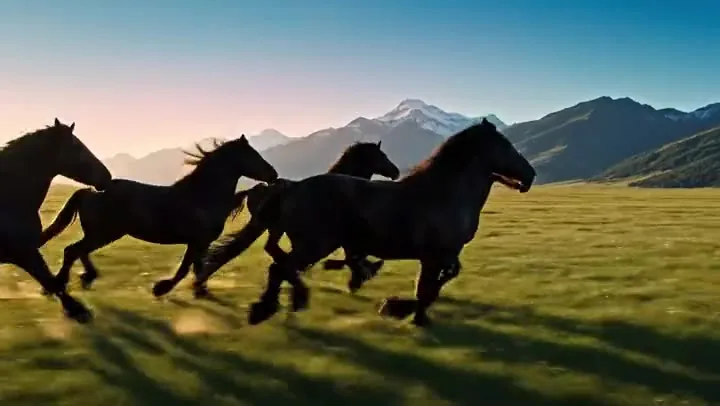
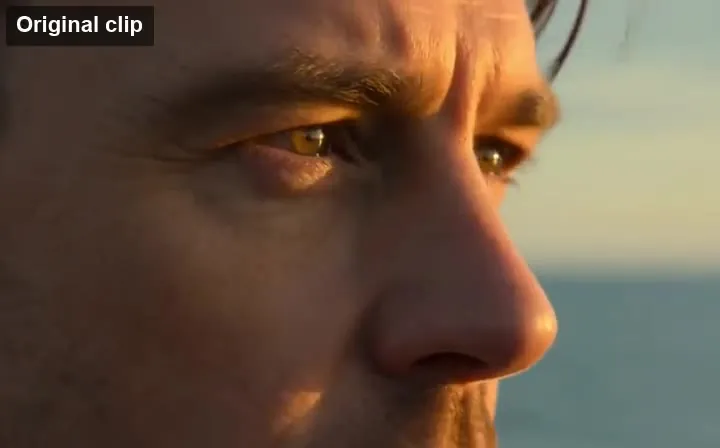
Placeholder clips with the prompts behind them. Use one as a starting point and swap in your own subject.
A macro close-up where the crunch and the shattering glass are generated with the picture.
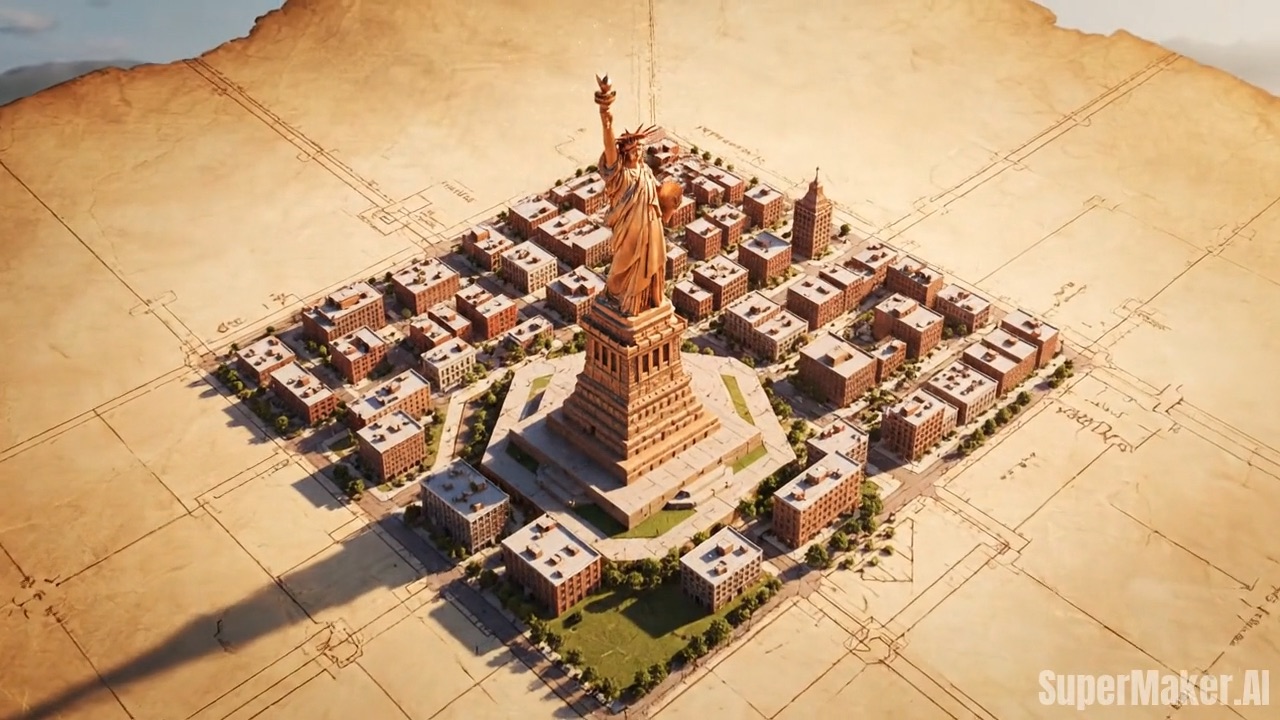
A stylized 3D creature that keeps its shape, colors, and personality through the whole shot.
Two stills in, one smooth transition out, with the camera move you describe.
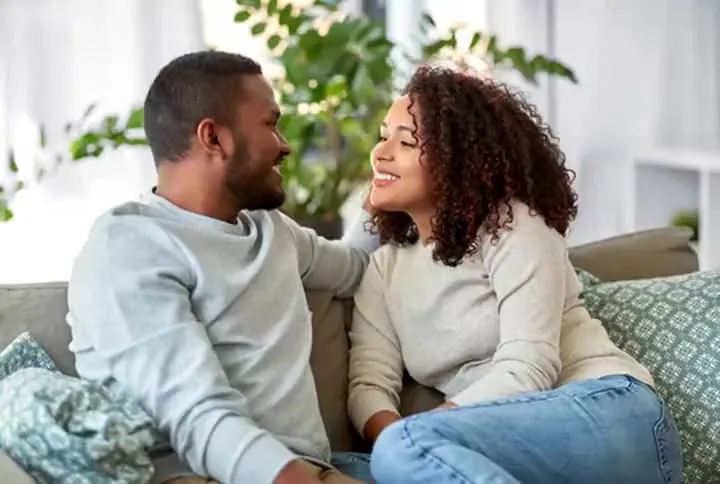
Up to three images keep a character, product, or style consistent across the clip.
Two characters, one spoken line, and courtside sound, all generated together.
Continue a Veo 3.1 clip so the motion and story carry on past 8 seconds.
No waitlist, app, or Google subscription needed. Three steps in your browser.
Pick Veo 3.1 Fast, Quality, or Lite, then Text to video, Image to video (start frame, optional end frame), or Reference to video (1–3 images on Fast or Lite).
Describe the subject, action, setting, camera, and sound. Put spoken lines in quotes and say who speaks them. Then set 16:9 or 9:16, the resolution, and 4, 6, or 8 seconds.
Create the clip and preview it with sound. Happy with it? Download it, or extend it to continue the scene beyond 8 seconds.
Upload one image to animate it, or two images to set exactly how the shot begins and ends. Veo 3.1 fills in the motion between them, which makes clean transitions, reveals, and before-and-after shots easy to direct.
Reference to video takes one to three images of a character, an object, or a look and keeps them consistent in the generated clip. It is available on Veo 3.1 Fast and Lite and renders 8-second clips.
Veo 3.1 videos ship with sound generated alongside the picture: speech with lip sync, foley, and background ambience or music. You do not need a separate voice-over or sound-design step for a quick social clip.
Each generation is 4 to 8 seconds, but a Veo 3.1 clip made here can be extended with a new prompt. The continuation picks up the motion, style, and audio of the original, so you can build longer sequences shot by shot.
Native 9:16 clips with sound for Shorts, Reels, and other vertical feeds.
Product reveals, ad concepts, and spokesperson-style clips without a film crew.
Previsualize scenes, test dialogue timing, and pitch ideas with moving, talking shots.
Short, realistic scenes that illustrate a concept, a place, or a historical moment.
Veo 3.1 rewards prompts written like a director’s note.
Start with the shot type ("medium close-up"), then who is on screen, what happens, and where.
Write lines in quotes and name the speaker: The woman in red says, "We made it."
List the effects and ambience you want, such as rain on glass or crowd murmur, or say "no music".
In 8 seconds, one clear move (push-in, orbit, tracking) works better than several.
Common questions about Google Veo 3.1.
Veo 3.1 is Google DeepMind’s AI video model. It creates 4 to 8 second videos from text or images, with native audio, start and end frame control, reference images, and an Extend option for longer scenes.
Quality gives the highest fidelity for final shots. Fast is cheaper and quicker while still looking strong, and it supports Reference to video. Lite is the most cost-effective option for drafts and high volume, and also supports Reference to video.
Each generation is 4, 6, or 8 seconds (Reference to video is always 8 seconds). To go longer, extend a clip you generated with Veo 3.1 here and keep adding scenes.
Veo 3.1 renders 16:9 landscape or 9:16 vertical video in 720p, 1080p, or 4K. Auto picks the ratio closest to your uploaded image. 4K uses more credits.
Veo 3.1 is a paid model because every clip is rendered on powerful cloud hardware. On EzImgMaker, new users get free credits to try it; after that, each video uses credits based on the tier, length, and resolution, and you see the cost before you generate.
No service can honestly offer unlimited Veo 3.1, since each video has a real compute cost. Instead of an "unlimited Veo 3.1" plan, EzImgMaker uses credit packs, and Veo 3.1 Lite or Fast keeps the cost per clip low for testing many ideas.
Use it right here: write a prompt or upload an image above, pick a tier, and generate. You do not need a waitlist, a separate app, or a Google AI plan.
The official name is Veo 3.1. It is often written as Veo3.1, Veo3 1, Veo 31, or mistyped as "video 3.1". They all mean the same Google model.
No. EzImgMaker is an independent service that provides access to Veo 3.1 through a third-party API provider. It is not affiliated with, endorsed by, or sponsored by Google or Google DeepMind.
Only images you own or have permission to use. Do not upload photos of other people without their consent, and do not create misleading videos of real people or content that breaks the law.
Describe a scene or upload a start frame, and this Veo 3.1 video generator returns a realistic clip with sound from Google’s model.
Google, Veo, and Google DeepMind are trademarks of Google LLC. EzImgMaker is an independent service and is not affiliated with, endorsed by, or sponsored by Google. Model names are used only to describe compatibility.