Empty Room to Furnished
Furniture appears piece by piece while the walls and camera stay locked, a classic before-and-after reveal.
Upload the image your video should start on and the image it should end on, describe how to get from one to the other, and the AI fills in every frame between them. Pick Seedance 2.0, Seedance 2.5, Veo 3.1, Kling 3.0, or Wan 3.0 and export in 720p or 1080p.
Start from the empty living room in the first frame and end on the furnished room in the last frame. Keep the walls, windows, ceiling lights, and camera exactly in place; the sofa, rug, coffee table, armchairs, and wall art appear one by one, smoothly and naturally.
Reference example. It is not a result generated from your upload.
First last frame to video is a way to make an AI video when you already know how it should begin and end. You upload two images, the first frame and the last frame, and the model generates all the frames in between: the camera move, the motion of people and objects, and the change from one scene to the other. People also call it first frame last frame AI, start and end frame AI video, or keyframe interpolation.
Regular image to video only fixes the opening shot and lets the model decide where the clip goes. With first and last frame AI you control the destination too, which is what makes before-and-after reveals, product transformations, day-to-night shifts, and smooth AI image transitions between two different pictures possible. This AI video generator first and last frame mode works with the models that support an end frame: Seedance 2.0, Seedance 2.5, Veo 3.1, Kling 3.0, and Wan 3.0.
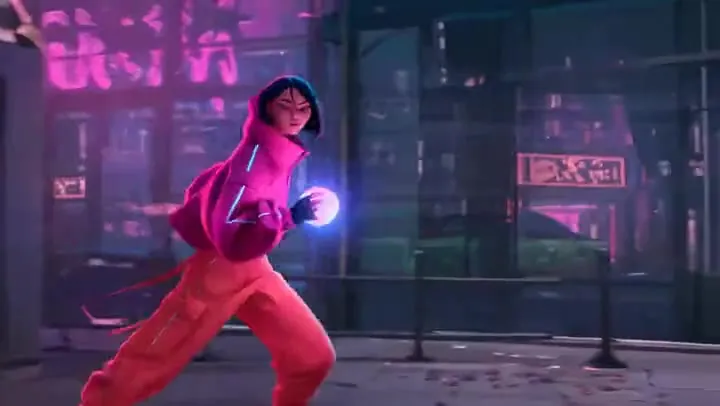
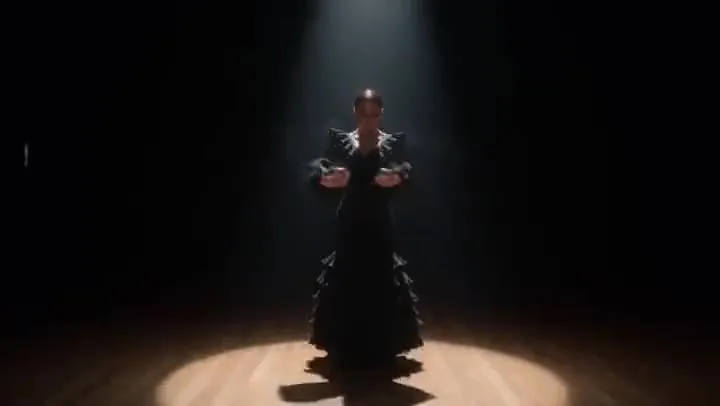
Each clip was made from two stills, its first and last frame, plus a short prompt. Tap “Try” to load a prompt, then upload your own two images.
Furniture appears piece by piece while the walls and camera stay locked, a classic before-and-after reveal.
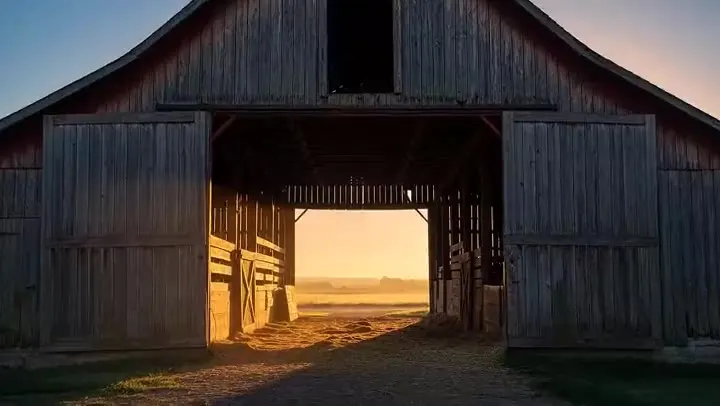
One continuous camera move links two different places: out through the barn and onto the rider.
The last frame decides the punchline: the lid pops and a character ends up exactly where you placed it.
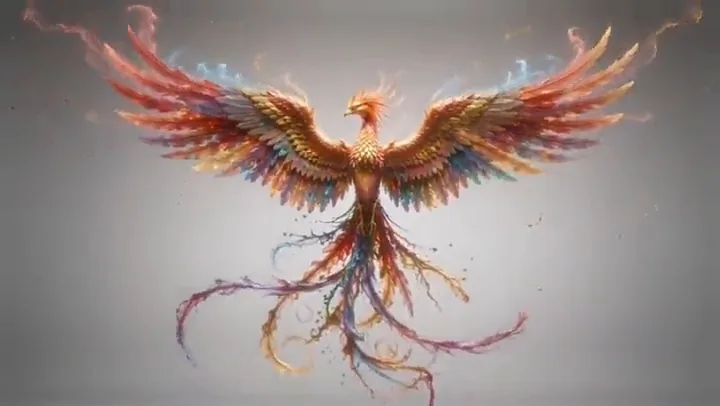
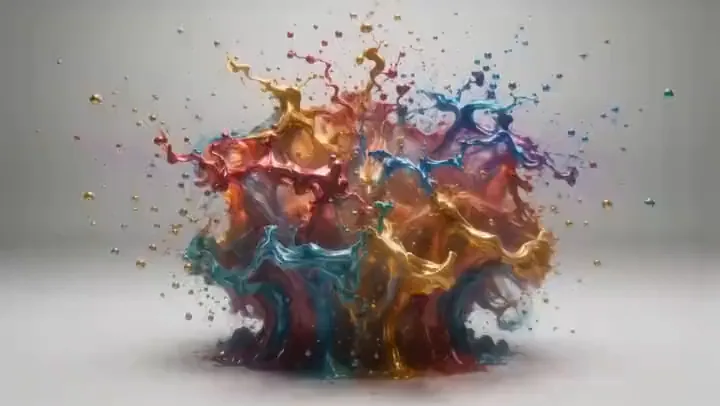
Abstract color reshapes into a clear subject, an art morph you can use for intros and logo reveals.
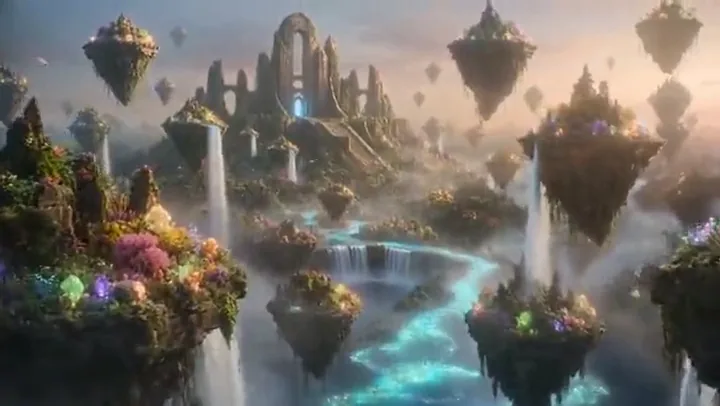
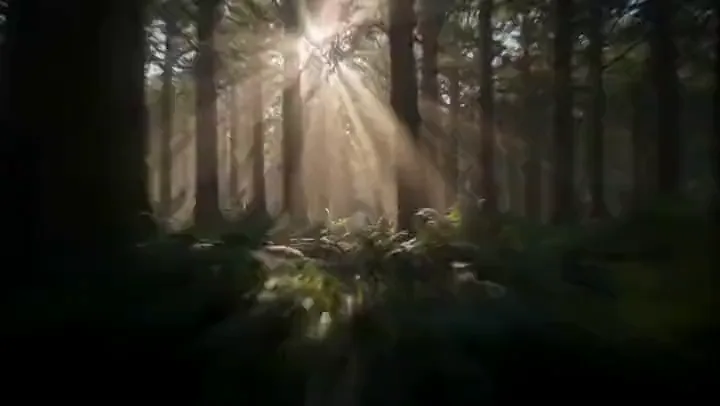
From a dark forest to a bright fantasy city, the transition between two worlds stays smooth and believable.
A coffee cup becomes a tiny glowing village: a playful AI photo transition video for social posts.
Four steps, no editing software or keyframing skills needed.
Add the image the video should open on (JPG, PNG, or WebP). A sharp image with a clear subject works best.
Add the image it should end on. Keep the same aspect ratio as the first frame, and ideally the same subject or camera position, for the smoothest motion.
Say what happens in between and how the camera moves: “the furniture appears piece by piece”, “the camera flies through the doors”.
Choose Seedance, Veo 3.1, Kling 3.0, or Wan 3.0, set the length, shape, resolution, and sound, then press Generate Transition and download the clip.
Every AI video generator start and end frame option on EzImgMaker, and what each one is good at.
| Model | Length options here | Resolution | Sound | Good at |
|---|---|---|---|---|
| Seedance 2.0 (default) | 5, 10, or 15 s | 720p or 1080p | On or off | Smooth, natural motion and fast action |
| Seedance 2.5 | 5, 10, or 30 s | 720p or 1080p | On or off | Long, gradual transitions up to 30 seconds |
| Veo 3.1 | 6 or 8 s | 720p or 1080p | Always on | Photoreal camera moves and lighting |
| Kling 3.0 | 5, 10, or 15 s | 720p or 1080p | On or off | People, faces, and character motion |
| Wan 3.0 | 5, 10, or 30 s | 720p or 1080p | On or off | Stylized and long transitions |
The Length setting picks each model’s short, medium, or longest option. Grok Imagine and Hailuo animate a start frame only, so they are on the Image to Video page instead.
Drag each slider to see the two images that went in; the video examples above show what came out.
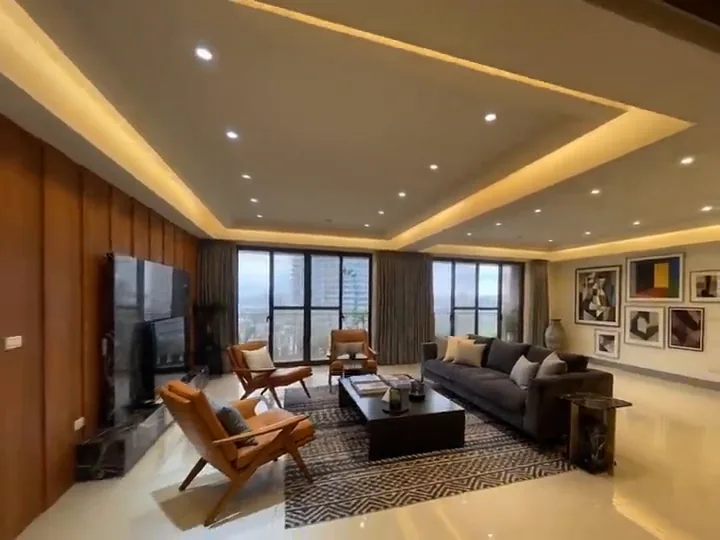
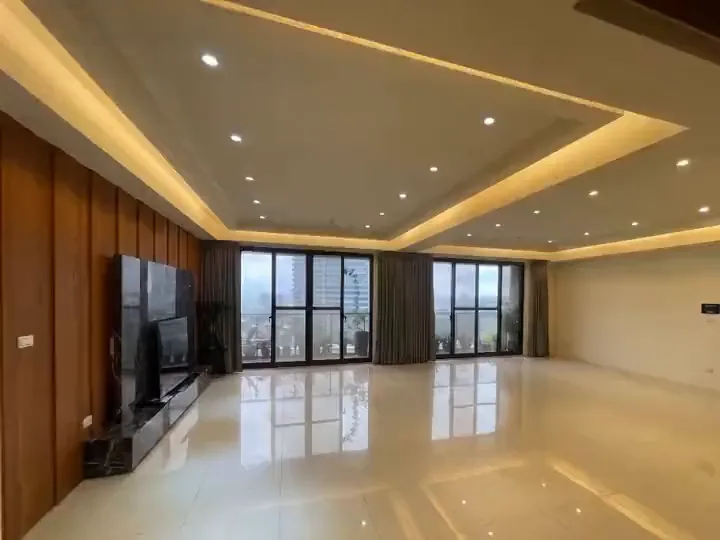
The last frame is not a suggestion: the model lands on your image, so the final shot of a room makeover, a product reveal, or a story beat is the one you designed. That makes clips easy to cut together or loop.
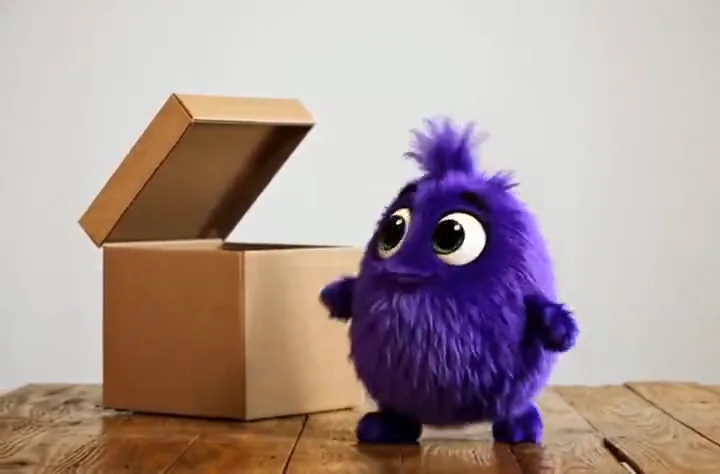
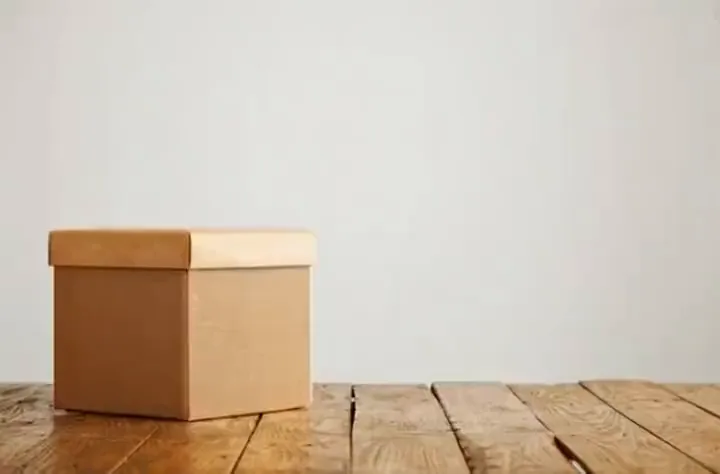
Give it two very different pictures and the AI invents the path between them: a box that opens, paint that becomes a bird, a forest that turns into a city. Describe the change in the prompt to steer how it happens.
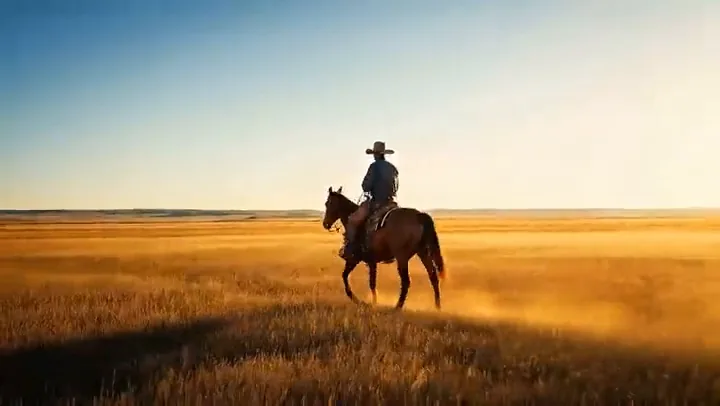
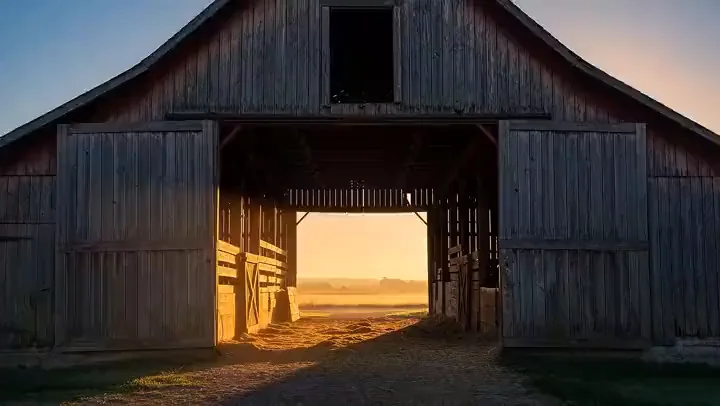
Use the first frame as where the camera starts and the last frame as where it arrives. Veo 3.1 and Seedance are especially good at continuous fly-throughs, push-ins, and reveals that feel filmed in one take.
Keep the same two frames and switch between Seedance 2.0, Seedance 2.5, Veo 3.1, Kling 3.0, and Wan 3.0 to compare motion styles, lengths up to 30 seconds, and native sound. Keep the take you like best.
Renovations, makeovers, cleanups, and edits shown as one satisfying clip.
Packaging opening, colors changing, or a product assembling itself for ads.
Link two photos with a smooth move instead of a hard cut or a fade.
Time-lapse style shifts between two shots of the same place.
Turn two storyboard keyframes into the shot that connects them.
Morph abstract shapes or a scene into your logo as the final frame.
Use two images with the same aspect ratio and similar resolution, or the motion may stretch or crop.
The same subject, camera angle, or lighting in both frames gives the model an anchor and a smoother result.
Edit a copy of your first frame (new furniture, new outfit, night sky) with an AI photo editor, then use it as the last frame.
The AI first frame last frame workflow works best when the prompt says what changes and in what order.
Small changes fit 5 seconds; a full transformation between two scenes looks better at 8 to 15 seconds.
Use the last frame of one clip as the first frame of the next to build a longer sequence.
Animate a single photo when you only need a start frame, with seven models to choose from.
Read the guideCreate the last frame by editing a copy of your first image with a text instruction.
Read the guideAnother model with a dedicated first and last frame transition mode.
Read the guideIt is an AI video mode where you upload two images, the first frame and the last frame, and the model generates the motion between them. The video starts on your first image and ends on your last image, with a smooth transition in between.
The last frame is the final image of a clip. In start and end frame AI video you supply it yourself, so the model has to finish the video on that exact picture instead of choosing its own ending.
On EzImgMaker: Seedance 2.0, Seedance 2.5, Veo 3.1, Kling 3.0, and Wan 3.0. PixVerse V6 also has its own transition mode on the PixVerse page. Grok Imagine and Hailuo use a start frame only.
New users get free credits to try it, so you can make your first transitions without paying. After that, each video uses credits from a credit pack; longer clips, 1080p, and sound use more, and the cost is shown before you generate.
Regular image to video fixes only the opening image and lets the model decide where the clip goes. First and last frame mode also fixes the ending, so you control both ends and the AI fills in the middle.
They should have the same aspect ratio, and ideally a similar resolution. Different shapes can cause stretching or cropping. The clip follows the shape of your photos unless you pick 16:9 or 9:16.
Yes. The model invents a path between them, such as a camera fly-through, a morph, or an object opening. The more the two frames differ, the more it helps to describe the transition in the prompt and choose a longer length.
From 5 seconds up to 15 seconds on Seedance 2.0 and Kling 3.0, up to 30 seconds on Seedance 2.5 and Wan 3.0, and 6 or 8 seconds on Veo 3.1.
Yes. Generate one clip, then use its last frame as the first frame of the next clip, with a new last frame. Joined together, the clips play as one continuous sequence.
JPG, PNG, or WebP images up to 10 MB that you own or have permission to use. Get consent before animating photos of other people, and do not create videos meant to impersonate, mislead, or harass anyone.
Upload a first frame and a last frame, describe the change, and let the AI make the transition.
EzImgMaker is an independent service and is not affiliated with, endorsed by, or sponsored by ByteDance, Google, Kuaishou, or Alibaba. Seedance, Veo, Kling, Wan, PixVerse, and other model names are trademarks of their respective owners.