Surreal Text-to-Video
Prompt: "A couple of doors open to the right one by one… with little people living inside." One sentence, a whole dollhouse scene.
Describe a scene or upload an image, and Grok Imagine from xAI turns it into a short video with matching sound. Choose Normal or Fun mode, set the length, resolution, and aspect ratio, and generate.
A couple of doors open to the right one by one randomly and stay open, to show the inside, each is either a living room, or a kitchen, or a bedroom or an office, with little people living inside.
Reference example. It is not a result generated from your upload.
Grok Imagine is the image and video generation model from xAI, the company behind the Grok assistant. It turns a text prompt, an image, or both into short clips with synchronized sound, so a Grok AI video arrives with ambient audio, sound effects, and even spoken lines without a separate dubbing step. You will also see it written as grok.imagine, or called the Grok AI video maker, the Grok Imagine video generator, or simply Grok video gen.
Can Grok generate videos? Yes: Grok Imagine handles both text-to-video and image-to-video, and the newer Grok Imagine Video 1.5 Preview adds faster generation, more realistic motion physics, and better lip sync. Grok Imagine also makes still images, which is why many people call it a Grok image and video generator. On EzImgMaker you can use the Grok video generator in a simple editor with no API key or app install.
What each Grok Imagine video model accepts and produces here.
| Spec | Grok Imagine | Grok Imagine Video 1.5 Preview |
|---|---|---|
| Inputs | Text, or an image + text (image-to-video) | Text, or an image + text (image-to-video) |
| Duration | 6–30 seconds | 1–15 seconds (8 s default) |
| Resolution | 480p, 720p, or 1080p | 480p, 720p, or 1080p |
| Aspect ratio | 16:9, 9:16, 1:1, 3:2, 2:3 | 16:9, 9:16, 1:1, 3:2, 2:3, or follow the image |
| Audio | Native sound generated with the video | Native sound, dialogue, and improved lip sync |
| Modes | Normal and Fun | Single mode with stronger prompt following |
| Prompt length | Up to 5,000 characters | Up to 4,096 characters |
| Image upload | JPG, PNG, or WebP up to 10 MB | JPG, PNG, or WebP up to 10 MB on this page |
| After generation | Extend by 6 or 10 seconds; upscale to 720p or 1080p | — |
Spicy mode is not offered on EzImgMaker. Specs follow the Grok Imagine versions available through our provider and may change as xAI updates the models.
How the Grok video AI compares with other popular video models.
| Model | Known for | Best for |
|---|---|---|
| Grok Imagine (xAI) | Fast generation, native audio, playful Fun mode | Social clips, memes, quick image-to-video |
| Veo 3.1 (Google DeepMind) | Cinematic realism and precise lip sync | Polished ads and film-style shots |
| Kling 3.0 (Kuaishou) | Motion and camera control, character consistency | Storytelling and animation with controlled movement |
| Seedance 2.0 (ByteDance) | Multi-shot stories from text, image, video, and audio references | Structured, reference-driven video projects |
Grok Imagine videos and the prompts behind them. Press "Try" to load an idea into the editor.
Prompt: "A couple of doors open to the right one by one… with little people living inside." One sentence, a whole dollhouse scene.
Prompt: "A man swims through the air as if it were water, gliding toward his bed…" Grok Imagine handles impossible motion with natural timing.
An illustrated office scene comes alive: a hand passes a coffee, the character says "thanks! Back to work" and walks off.
A cat wizard casts a glowing spell in an old library, a fun mode favorite for memes and shorts.
Chopping, simmering, and plating in warm anime colors, with sizzling sound baked in.
A backpacker crosses snow, salt flats, and savanna in one continuous shot.
Grok video creation in three steps, from idea to finished clip.
Describe the subject, action, camera movement, and sound you want. To animate a picture, upload a JPG, PNG, or WebP and use the prompt to describe the motion.
Pick Grok Imagine or Grok Imagine Video 1.5 Preview, Normal or Fun mode, a duration, a resolution from 480p to 1080p, and an aspect ratio for widescreen, vertical, or square posts.
Start the Grok imagine video generation, preview the clip with its audio, then download it or adjust the prompt and run it again.
Every Grok Imagine video is generated together with matching audio: footsteps, ambience, music-like beds, and sound effects that line up with the action. There is no separate audio pass to set up.
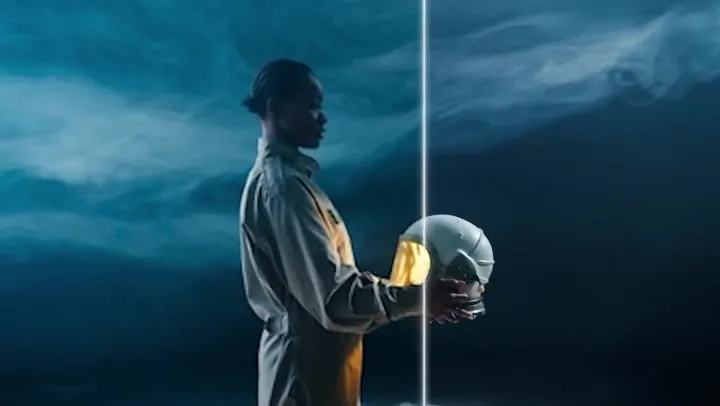
Upload a photo, illustration, or product shot and Grok Imagine animates it while keeping the composition, character, and style of the original. Put dialogue in quotes and the character speaks it.
Normal mode keeps motion balanced and realistic for everyday clips. Fun mode leans into exaggerated, playful movement that suits memes, pets, and fantasy characters.
Grok Imagine generates clips from 6 to 30 seconds at 480p, 720p, or 1080p, in widescreen, vertical, square, or classic 3:2 frames. Need more? Clips made here can be extended by 6 or 10 seconds or upscaled.
Turn an idea or a photo into a short, sound-on clip for Shorts, Reels, and X without filming.
Make product reveals and quick promo loops from a single product image.
Animate concept art, characters, and anime scenes to test motion and mood.
Sketch scenes, dialogue beats, and surreal ideas before committing to a longer production.
A good Grok Imagine video prompt reads like a short shot description.
Start with who or what is on screen and what happens: "A cat wizard raises a staff and casts a spell."
Name the shot: slow tracking shot, top-down, close-up, handheld, or hyperlapse.
Mention ambience and effects, like crackling fire or café chatter, so the native audio matches.
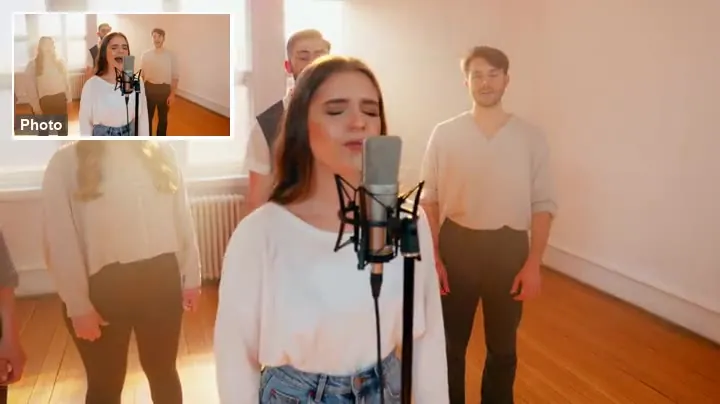
Put spoken lines in quotes and say who speaks them for better lip sync.
For image-to-video, describe motion rather than appearance; the upload already defines the style.
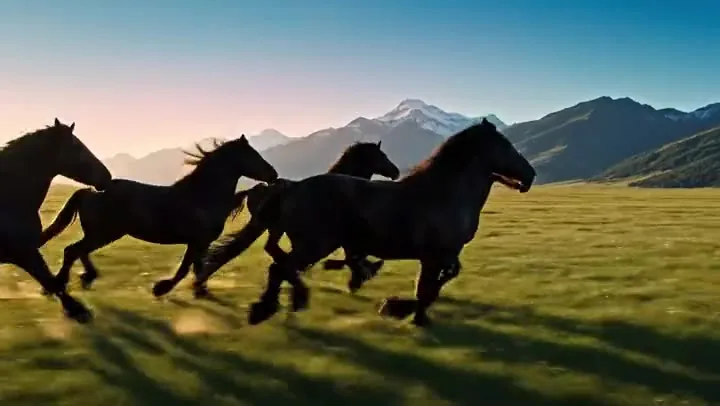
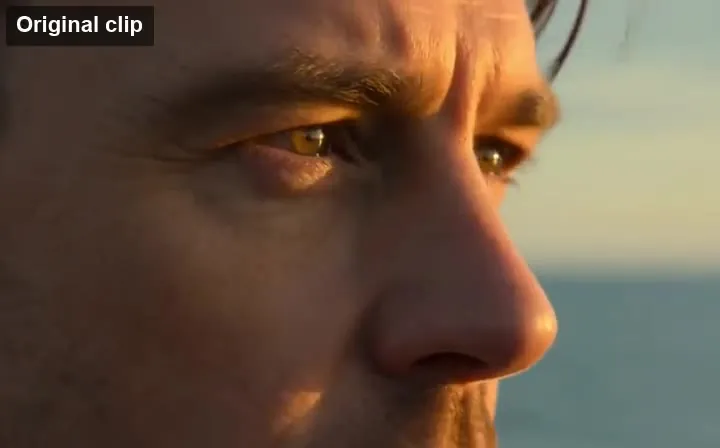
Golden hour, neon night, or soft studio light changes the whole feel of a Grok AI video.
Common questions about Grok Imagine and Grok AI videos.
Yes. Grok Imagine, xAI’s generation model, creates videos from a text prompt or from an image, with sound generated at the same time. This page gives you that Grok video AI in a browser editor.
Yes. Grok Imagine generates audio together with the video, including ambience, sound effects, and spoken lines you write in quotes. Grok Imagine Video 1.5 Preview improves speech clarity and lip sync.
Grok Imagine offers 6–30 second clips with Normal and Fun modes. Grok Imagine Video 1.5 Preview (model id grok-imagine-video-1.5-preview) focuses on faster generation, more realistic motion, stronger prompt following, and better audio sync, with clips from 1 to 15 seconds.
Grok Imagine generates 6 to 30 seconds per clip, and Grok Imagine Video 1.5 Preview up to 15 seconds. For a longer video, extend a clip made here by 6 or 10 seconds, or join several clips in an editor.
Yes. Grok Imagine also generates and edits still images, which is why it is often called a Grok image and video generator. This page focuses on video; you can upload any image, including one made with Grok, to animate it.
xAI’s apps include a Spicy mode for more provocative content, and Grok Imagine applies a content filter to every request. EzImgMaker offers Normal and Fun modes only and keeps content moderation on.
Video generation uses credits. New users get free credits to try Grok Imagine, and the cost for your chosen length and resolution is shown before you generate.
No. xAI offers Grok Imagine to developers through an API, but here you just type a prompt or upload an image in the editor; there is no key, code, or app to set up.
No. EzImgMaker is an independent service that provides access to Grok Imagine models. It is not affiliated with, endorsed by, or sponsored by xAI.
Only images you own or have permission to use. Do not animate photos of real people without their consent, create deceptive deepfakes, or upload images of minors.
Type a prompt or upload an image, pick your settings, and let Grok Imagine generate a clip with sound.
Grok and Grok Imagine are trademarks of xAI. EzImgMaker is an independent service and is not affiliated with, endorsed by, or sponsored by xAI. Model names are used only to describe compatibility. Example clips are placeholders from public model showcases and will be replaced with our own generations.