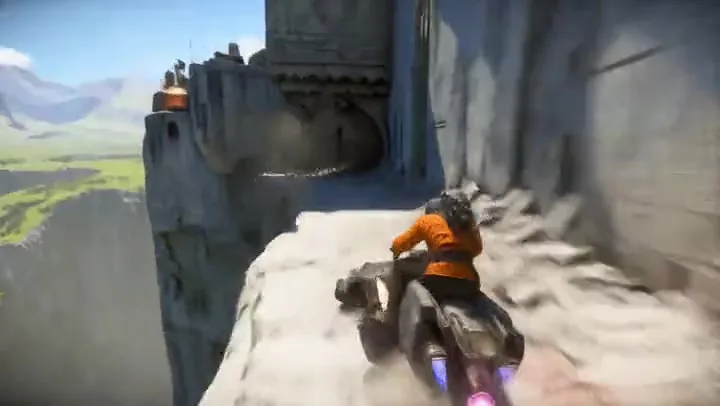
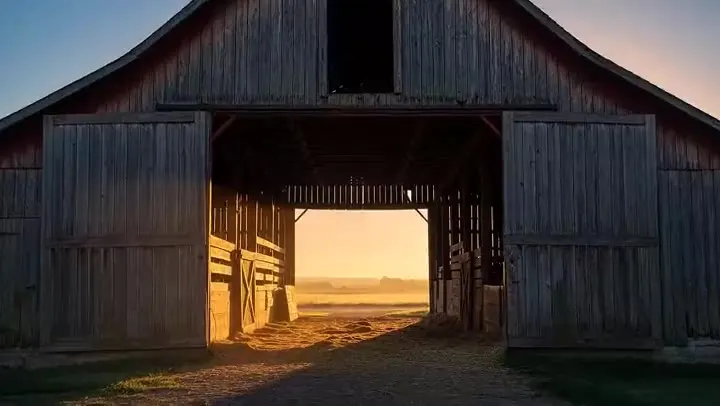
Stillness to Fury: Text to Video
A flamenco solo that starts with only the fingers moving while the camera pulls back to the full stage.
Write a prompt, animate a photo, morph one frame into another, cast your own characters with Fusion, or extend a clip you already have. PixVerse V6 renders 1 to 15 seconds in 360p up to 1080p, with optional multi-clip shots and synchronized sound.
A flamenco dancer stands completely still at center stage, spotlight on. For three seconds: nothing. Then her fingers begin — just the fingers — curling outward like smoke. The movement travels up her arms, into her shoulders, her chest expanding. By the time her foot stamps, the camera has already pulled back to reveal the full stage. One continuous breath becoming fury.
Reference example. It is not a result generated from your upload.
PixVerse is an AI video generation platform founded in 2023 that turns text and images into short, cinematic clips. Its flagship model, PixVerse V6, launched on March 30, 2026. According to PixVerse, V6 renders camera moves such as tracking shots and reveals more accurately, keeps facial expressions and body language consistent across cuts, handles physical interactions more realistically, and can generate a multi-shot short film with native audio from a single prompt.
This page gives you PixVerse V6 in five modes: text to video, image to video, a transition between a start frame and an end frame, Fusion with your own characters and background, and extending a video you upload. PixVerse AI clips run from 1 to 15 seconds in 360p, 540p, 720p, or 1080p, with optional sound. Nothing to install: it all runs in your browser.
What each PixVerse V6 mode accepts and outputs here.
| Text to video | Image to video | Transition | Fusion | Extend | |
|---|---|---|---|---|---|
| Input | Prompt only | 1 image | Start frame + end frame | 1–3 reference images (subjects and a background) | 1 video (MP4 or MOV, up to 50 MB) |
| Aspect ratio | 16:9, 9:16, 1:1, 4:3, 3:4, 3:2, 2:3, 21:9 | Follows the image | Follows the frames | 16:9, 9:16, 1:1, 4:3, 3:4, 3:2, 2:3, 21:9 | Follows the video |
| Length | 1–15 s | 1–15 s | 1–15 s | 1–15 s | 1–15 s of new footage |
| Resolution | 360p–1080p | 360p–1080p | 360p–1080p | 360p–1080p | 360p–1080p |
| Multi-clip | Yes | Yes | No | No | No |
| Sound | Optional | Optional | Optional | Optional | Optional |
Images can be JPG, PNG, or WebP up to 20 MB each. Prompts can be 3 to 5,000 characters. Higher resolution, longer clips, and sound take more credits; the cost is shown on the Generate button.
Looking for a PixVerse alternative? These models are all available on EzImgMaker, so you can compare them on the same idea without switching sites.
| PixVerse V6 | Kling 3.0 | Seedance 2.0 | Veo 3.1 | |
|---|---|---|---|---|
| Clip length | 1–15 s | 3–15 s | 4–15 s | 4, 6, or 8 s |
| Highest resolution | 1080p | 4K | 4K | 4K |
| Aspect ratios | 8 ratios, from 21:9 to 9:16 | 16:9, 9:16, 1:1 | 16:9, 9:16, 1:1, 4:3, 3:4, 21:9 | 16:9, 9:16 |
| Start + end frame | Yes (Transition) | Yes | Yes | Yes |
| Character / scene references | Up to 3 images here (Fusion) | Elements: images, a short video, a voice clip | Up to 9 images, 3 videos, 3 audio clips | 1–3 images |
| Extend a video you upload | Yes, +1–15 s | Not offered here | Not offered here | Veo-generated clips only |
| Native audio | Optional | Yes | Yes | Yes |
| Stand-out strength | Flexible lengths, transitions, and extending existing clips | Multi-shot sequences up to 5 shots | Copying motion and camera from video references | Realism and lip-synced dialogue |
Placeholder clips with the prompts behind them, one for each mode. Copy an idea and swap in your own subject.
A flamenco solo that starts with only the fingers moving while the camera pulls back to the full stage.
Two photos of the same room become one smooth before-and-after clip, furniture appearing piece by piece.
A single start frame turns into a high-speed first-person charge through a battlefield.
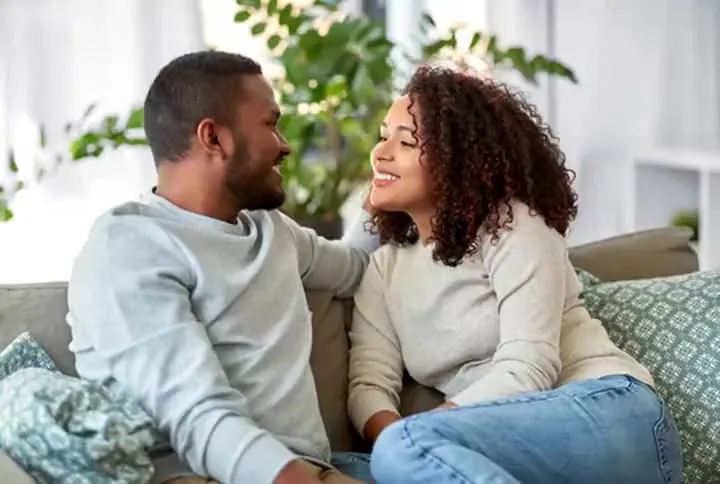
Separate reference photos of two women placed into one park scene, meeting for a hug.
A paint-splash phoenix keeps rising and spreading its wings as the clip continues.
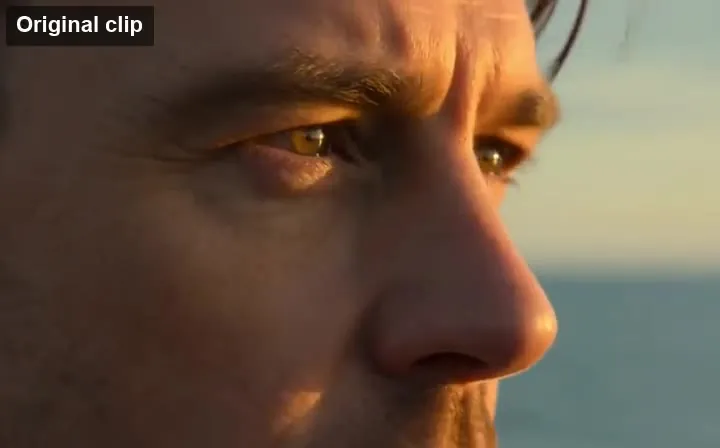
A macro push-in through a trembling droplet, with the bokeh shifting from amber to violet.
Three steps in your browser. No PixVerse app or desktop software needed.
Choose Text to video, Image to video, Transition, Fusion, or Extend video. Then write your prompt and, depending on the mode, upload a photo, a start and end frame, up to three reference images, or a clip to continue.
Choose any length from 1 to 15 seconds, a resolution from 360p for quick drafts to 1080p for the final cut, an aspect ratio for text or Fusion videos, and whether to add sound or multi-clip shots.
Create the PixVerse video, check the motion and timing, then download the MP4, or tweak one line of the prompt and run it again. Happy with a clip? Switch to Extend video to make it longer.
Describe a scene and PixVerse V6 renders it in any of eight aspect ratios, from 21:9 widescreen to 9:16 vertical. Turn on Multi-clip and the model cuts between several shots in one generation, which suits short ads and story beats. Turn on sound and the audio is generated together with the picture, so it lands in sync with the action.
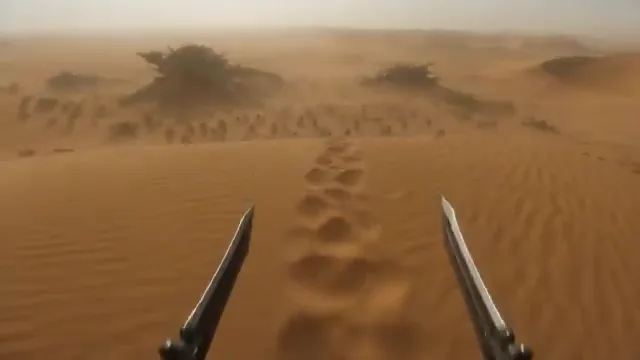
Upload a photo, product shot, or illustration and describe what should move. The clip opens on your image, keeps its aspect ratio, and adds motion and camera work for 1 to 15 seconds, with multi-clip and sound available here too.
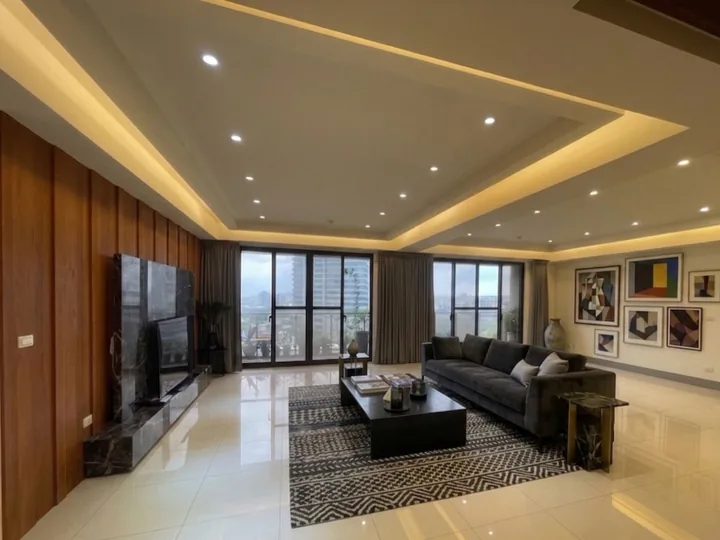
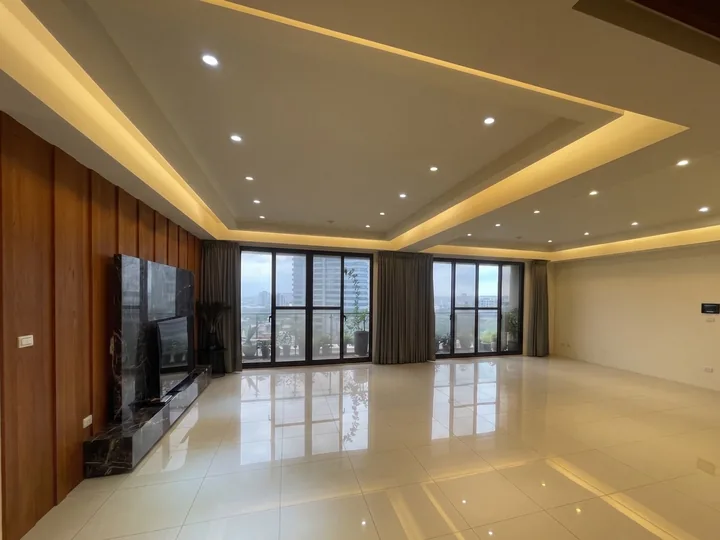
Give PixVerse a start frame and an end frame and it fills in the motion between them: an empty room that furnishes itself, an outfit change, a day-to-night shift, or a product reveal. Both frames are required, and the prompt tells the model how the change should happen.
Upload up to two subjects and a background, then call them by name in the prompt: @subject1, @subject2, and @background. PixVerse combines them into one scene, so the same person, pet, or product can appear in a setting you choose.
Upload an MP4 or MOV clip and describe what happens next. PixVerse V6 continues from the final frames for another 1 to 15 seconds, keeping the subject, lighting, and style, so a short clip can become a longer scene. For more options, see the dedicated AI video extender.
Vertical 9:16 clips, eye-catching transitions, and short loops for reels and shorts.
Product reveals, multi-clip ads with sound, and before-and-after transitions.
Turn an empty room photo and a staged photo into one smooth makeover video.
Previsualize scenes, recast characters with Fusion, and extend a shot that ends too soon.
Clear, specific prompts give the most reliable PixVerse AI video results.
Say what moves first, what follows, and how the camera reacts: "fingers move, then arms, then the camera pulls back."
With Multi-clip on, describe each shot as Cut 1, Cut 2, Cut 3 so the model knows where to change the angle.
In Fusion, always write @subject1, @subject2, and @background, and say what each one does in the scene.
For transitions, use two frames with the same aspect ratio and camera angle, and say what must not change.
Common questions about the PixVerse AI video generator.
It is a way to create videos with PixVerse V6, the latest model from the AI video platform PixVerse. You can generate 1 to 15 second clips from text, from a photo, from a start and end frame, from reference images with Fusion, or by extending a video you upload, in 360p up to 1080p with optional sound.
This page runs PixVerse V6, released in March 2026. Earlier releases such as PixVerse V4.5, PixVerse V5, PixVerse V5.5, and V5.6 are not offered here; V6 adds multi-clip shots with native audio and more accurate camera moves.
Any whole number of seconds from 1 to 15 per generation, in 360p, 540p, 720p, or 1080p. Extend video adds another 1 to 15 seconds to a clip, so you can build longer scenes step by step.
Transition needs two images, a start frame and an end frame, and animates the change between them. Fusion takes up to three reference images, two subjects and a background, that you call @subject1, @subject2, and @background in the prompt. Extend takes an existing video and continues it from the last frames.
Yes. Turn on Generate audio for sound synchronized with the picture, in any mode. Multi-clip, which cuts between several shots in one video, is available for Text to video and Image to video.
PixVerse V6 is a paid model because every clip needs real GPU time. On EzImgMaker, new users get free credits to try it; after that, each video uses credits based on length, resolution, and sound, and the cost is shown before you generate. 360p is the cheapest way to test an idea.
PixVerse runs its own website and mobile app, often searched as app.pixverse or pixverse.ia. You do not need either to use PixVerse V6 here: EzImgMaker runs in any modern browser on desktop or phone.
All of these mean the same product. The name is written PixVerse, one word with a capital V. People also search for Pix Verse, Pix Verse AI, PixVerseAI, or PixVerse IA (Spanish and Portuguese), and common misspellings include Pixeverse, Pixaverse, Pixiverse, and Picverse AI. PixelVerse AI is a different name that often gets mixed up with it.
No. EzImgMaker is an independent service that provides access to PixVerse V6 through a third-party API provider. It is not affiliated with, endorsed by, or sponsored by PixVerse.
Only photos and videos you own or have permission to use. Do not upload other people’s likeness without consent, and do not create misleading, infringing, or harmful videos of real people.
Type a scene, add a photo or two frames, and let PixVerse V6 animate it with sound.
PixVerse is a trademark of its owner. EzImgMaker is an independent service and is not affiliated with, endorsed by, or sponsored by PixVerse. Model names are used only to describe compatibility. Example clips are placeholders adapted from public reference material.