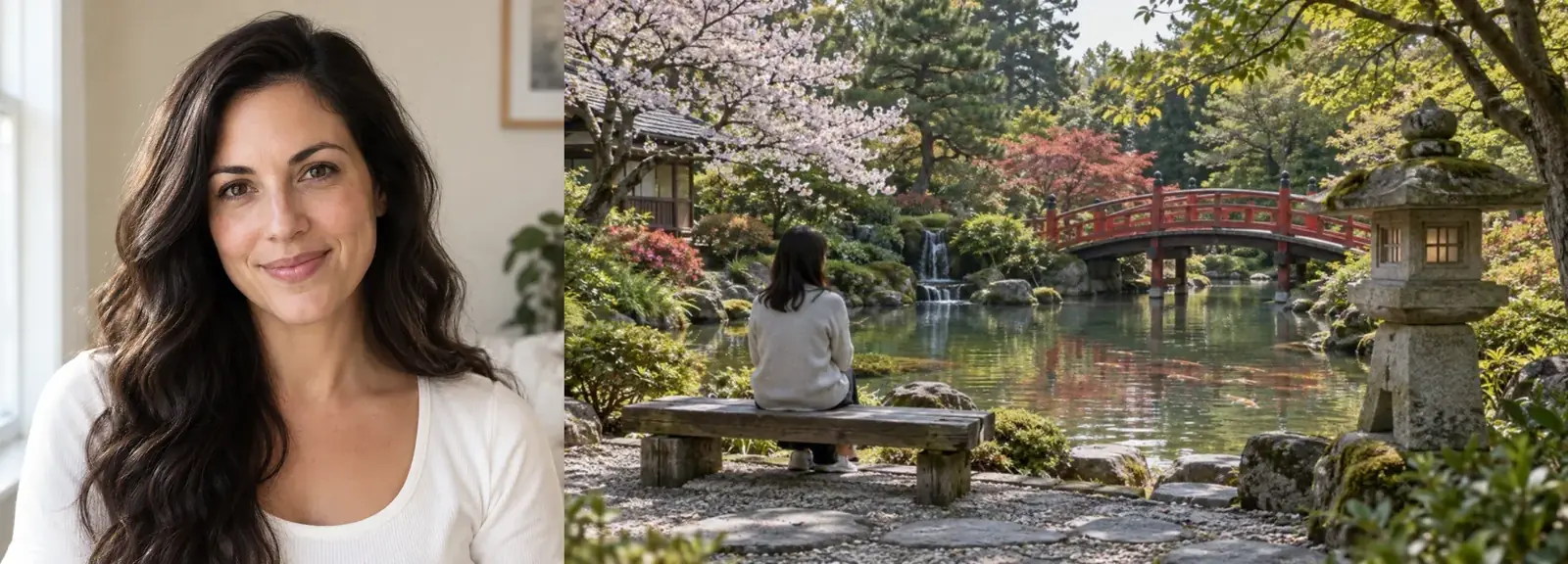
Side by Side
Combine 2 pics or more in one row. Perfect for comparisons, couples, and before-and-after shots.
Combine two or more images into one picture. Put photos side by side, stack them, or arrange a grid, match their heights, add spacing and a background, and download at full resolution. Nothing is uploaded.
Layout
Spacing & background
Runs in your browser. Your photo is never uploaded.
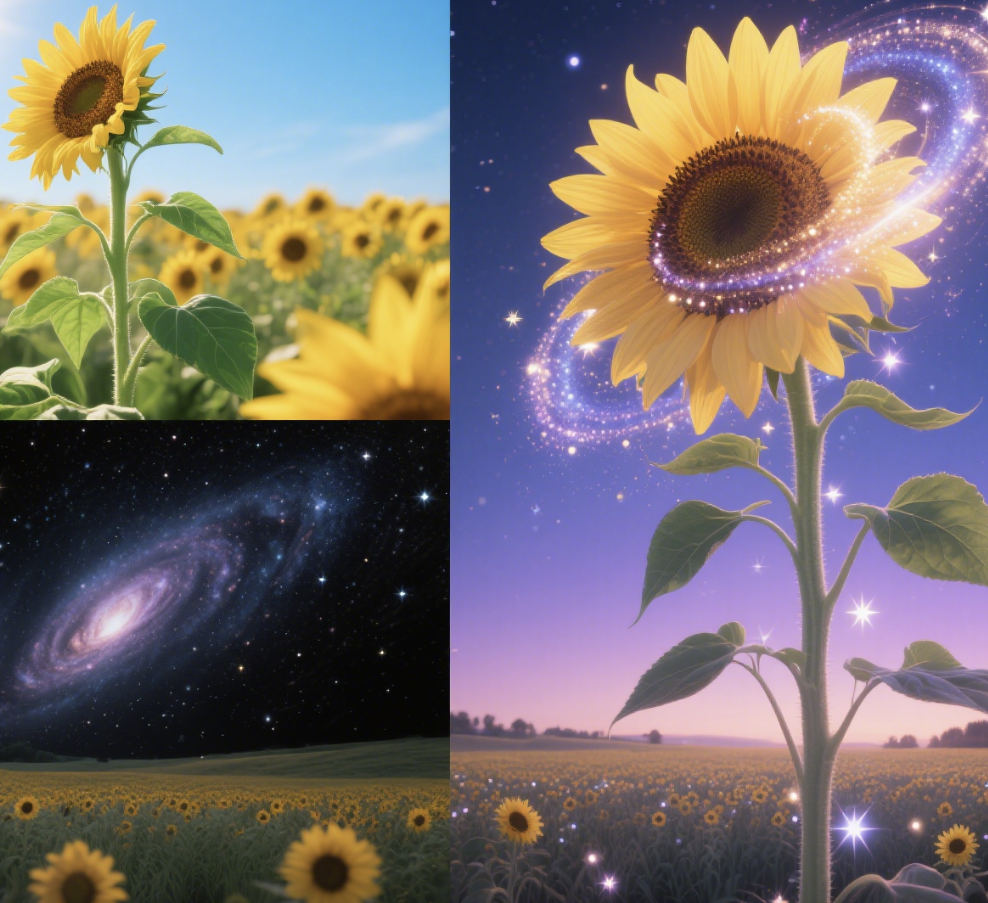
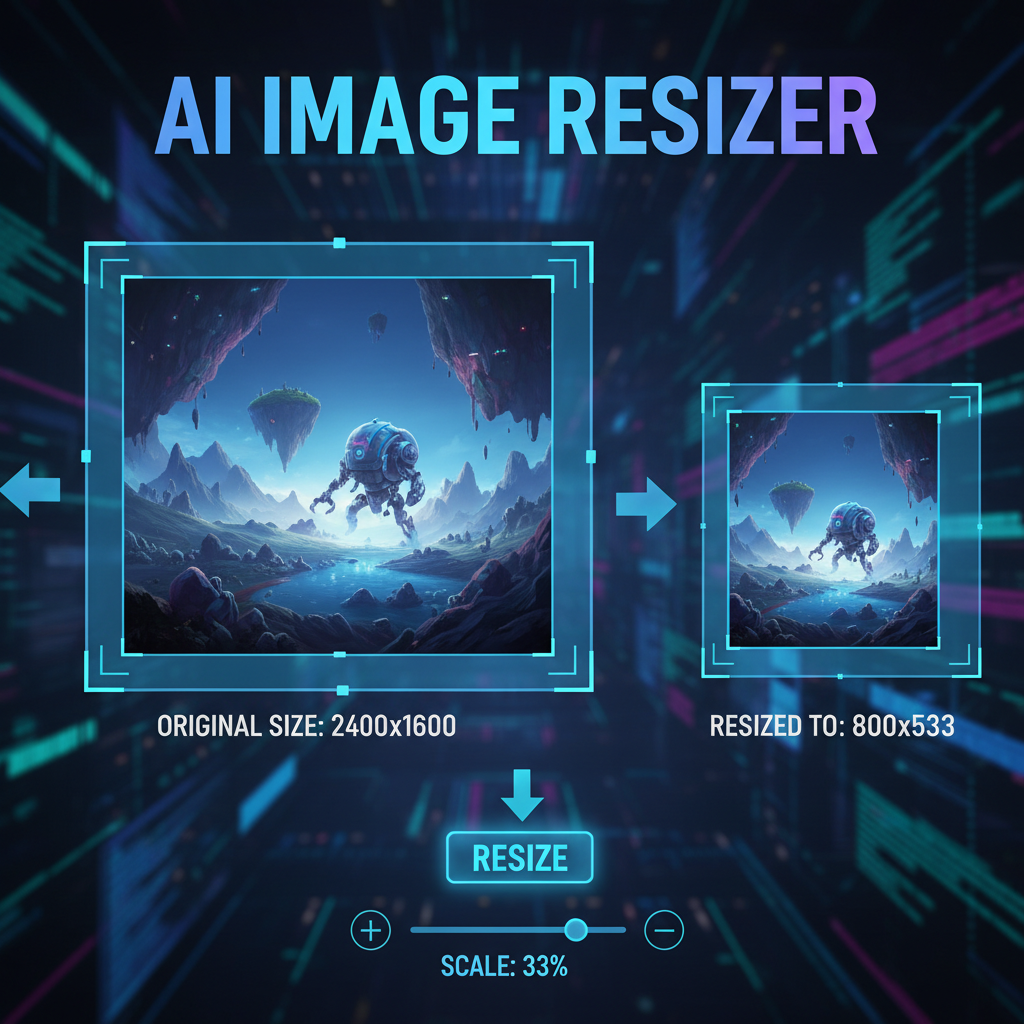
Reference example. It is not a result generated from your upload.
An image combiner joins two or more pictures into a single image file. This photo combiner places your photos side by side, stacks them top to bottom, or arranges them in a grid, so you can share a before-and-after, a set of product shots, or a few holiday snaps as one picture instead of many.
It works like a simple photo combine editor that runs in your browser: no app, no account, and no upload. Photos can be different sizes, because the picture combiner matches their heights (or widths) for you, and the photo merge is built from the original pixels, so the merged picture keeps its full resolution.
Pick a layout to combine pictures in a row, a column, or a grid, and the image combiner lines everything up for you.
Combine 2 pics or more in one row. Perfect for comparisons, couples, and before-and-after shots.
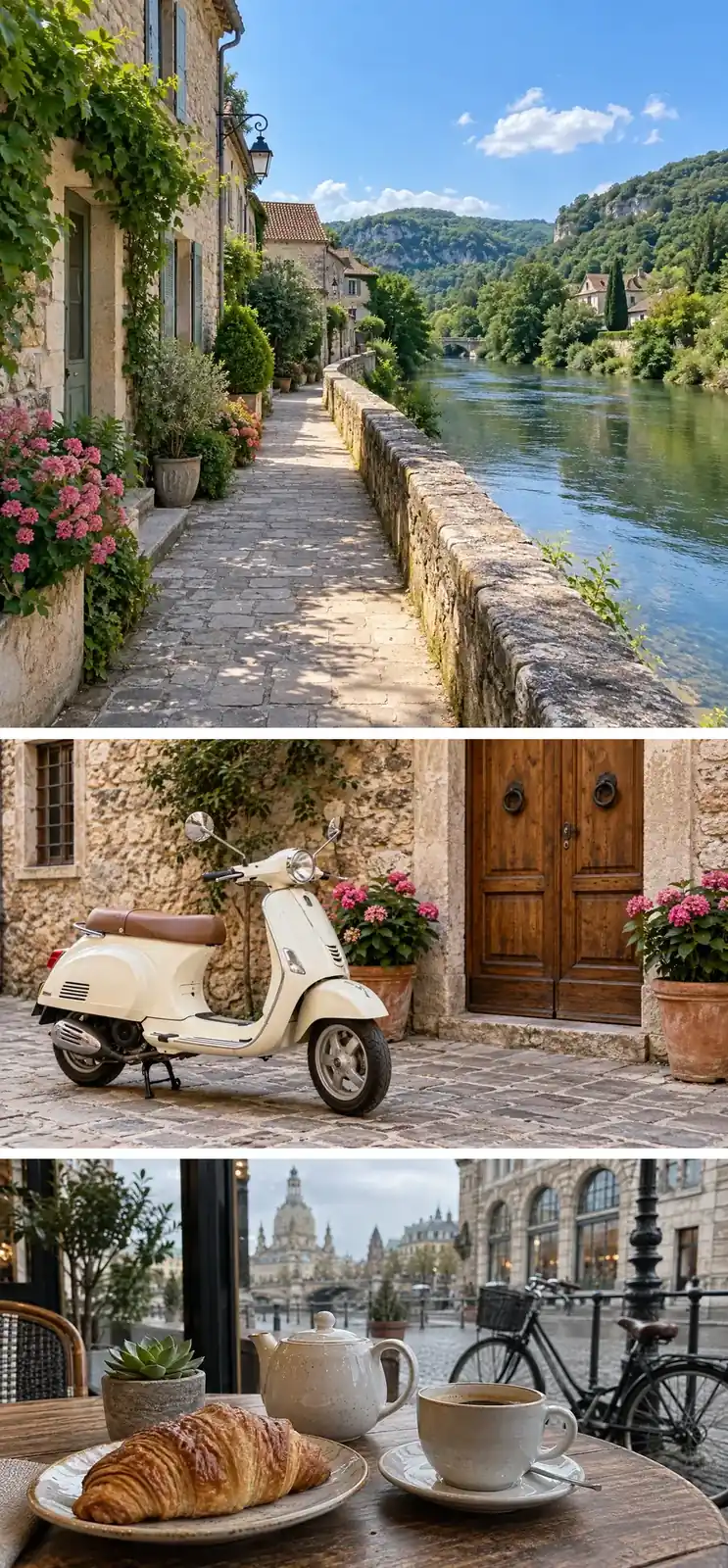
Merge photos vertically, one under the other: ideal for screenshots, recipes, and step-by-step guides.
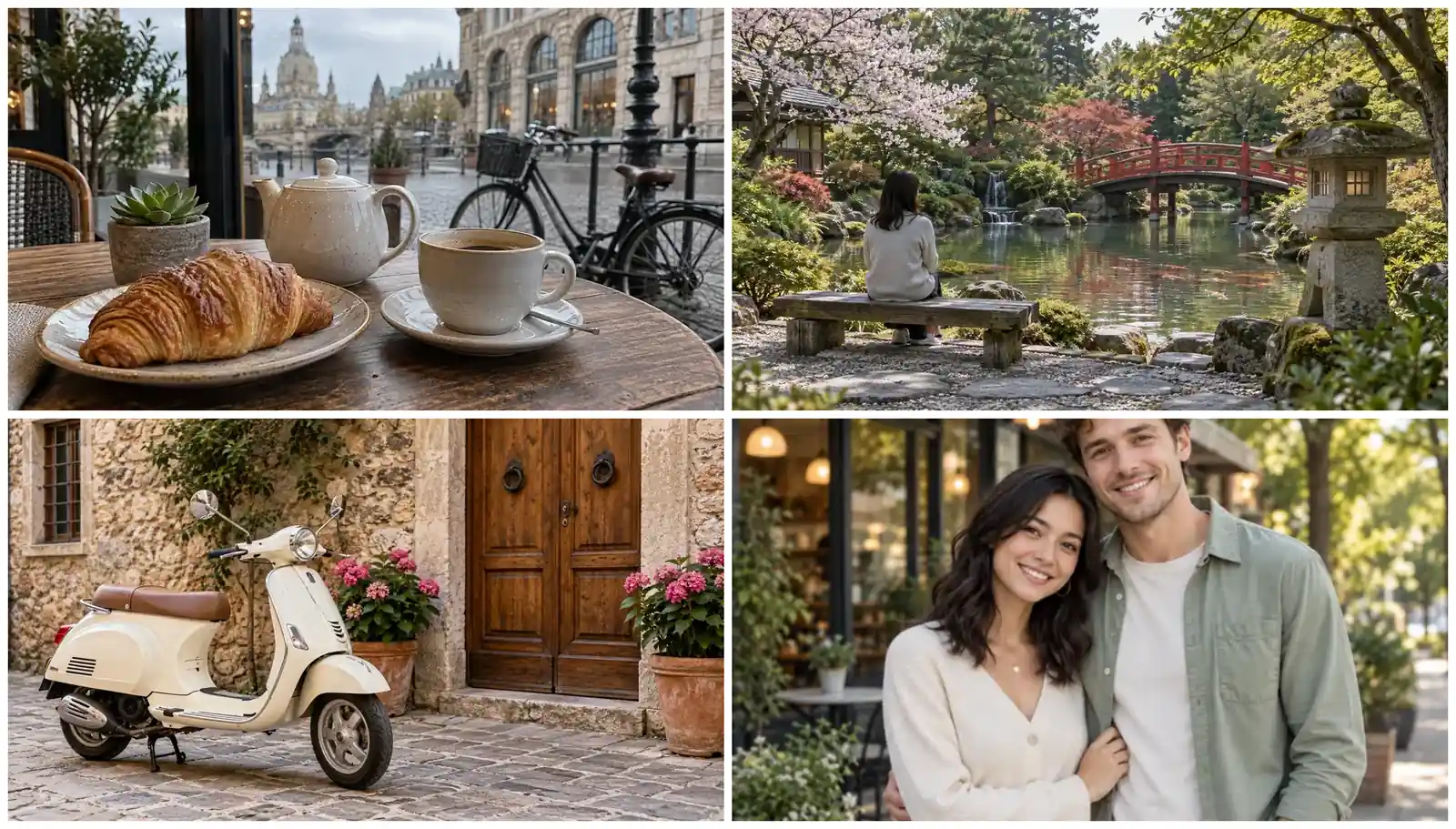
Combine multiple images into one tidy grid with automatic or custom columns.
How do I merge photos? This online photo merging tool takes three steps: upload, choose a layout, download.
Select several JPG, PNG, or WebP files at once, drag them in, or paste with Ctrl+V. Add up to 20 images and reorder them with the arrow buttons.
Pick Side by side, Stacked, or Grid. Keep Equal height on to resize photos to match, then set the spacing, an outer border, and the background color.
Save the merged picture as JPG, PNG, or WebP. The live preview shows the exact output size before you download.
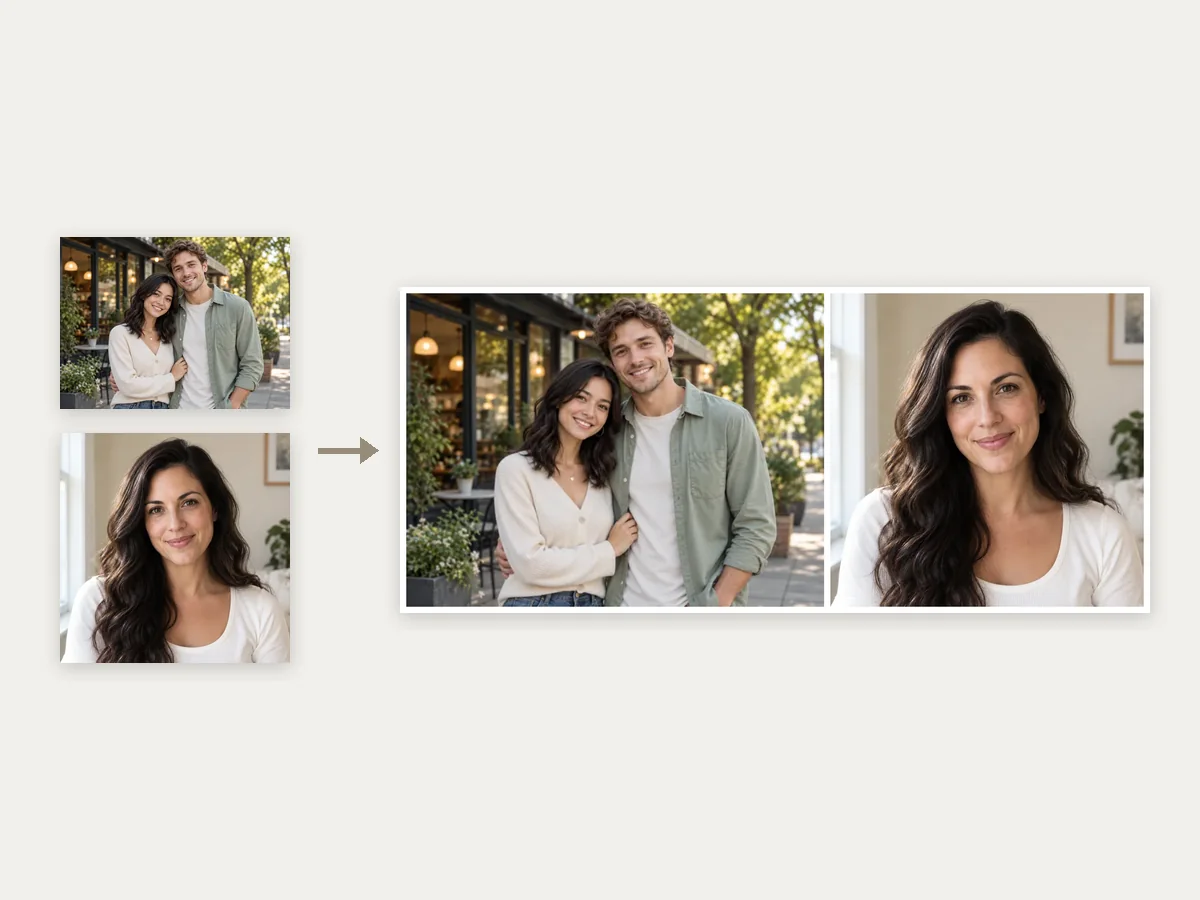
The most common job is also the fastest: add two photos and they appear side by side right away. Merge two photos into one (make two pics into one) for a couple shot, a product and its packaging, or a then-and-now comparison, with no cropping and no lining things up by hand.
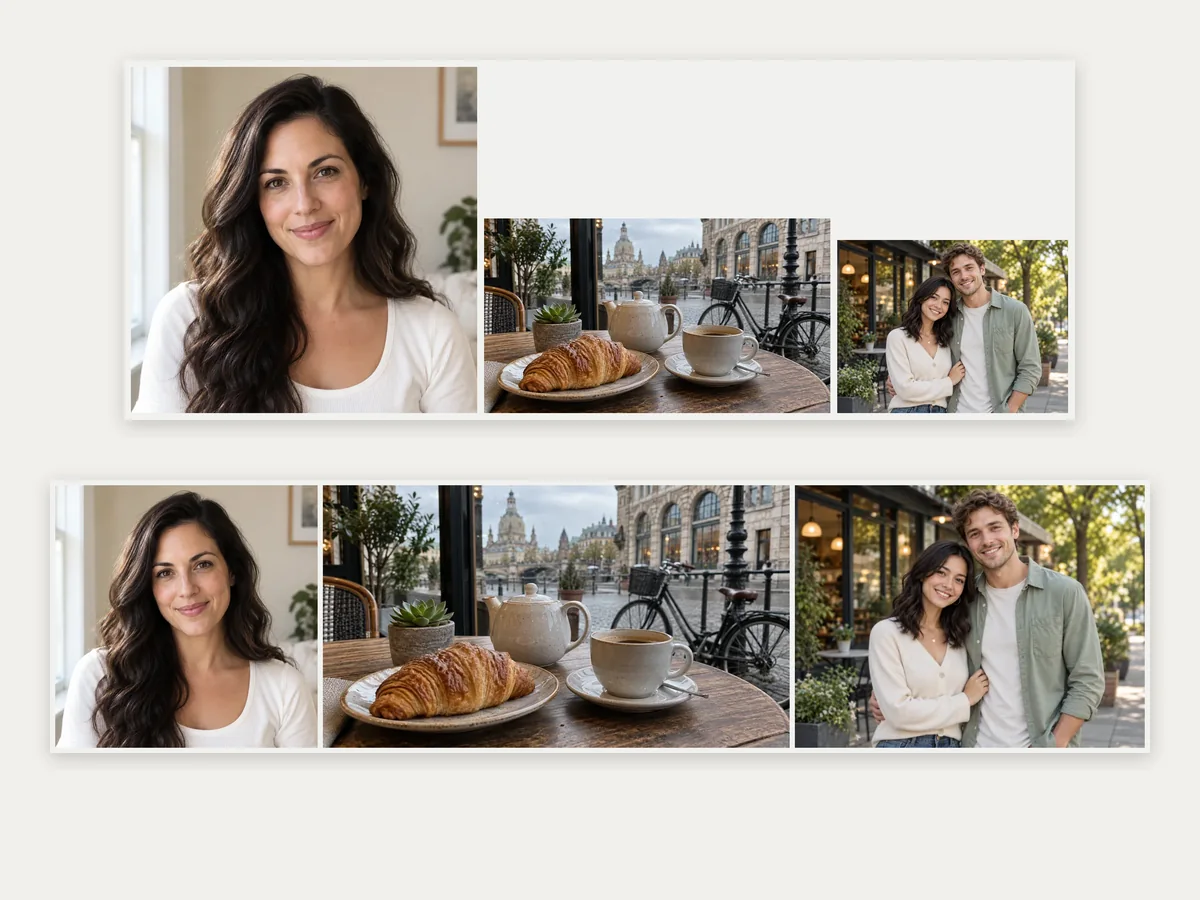
Photos from different cameras rarely share a size. Equal height scales each picture so the row lines up flush, while Equal width does the same for a stacked column. Turn it off to keep original sizes and align them to the top, middle, or bottom.
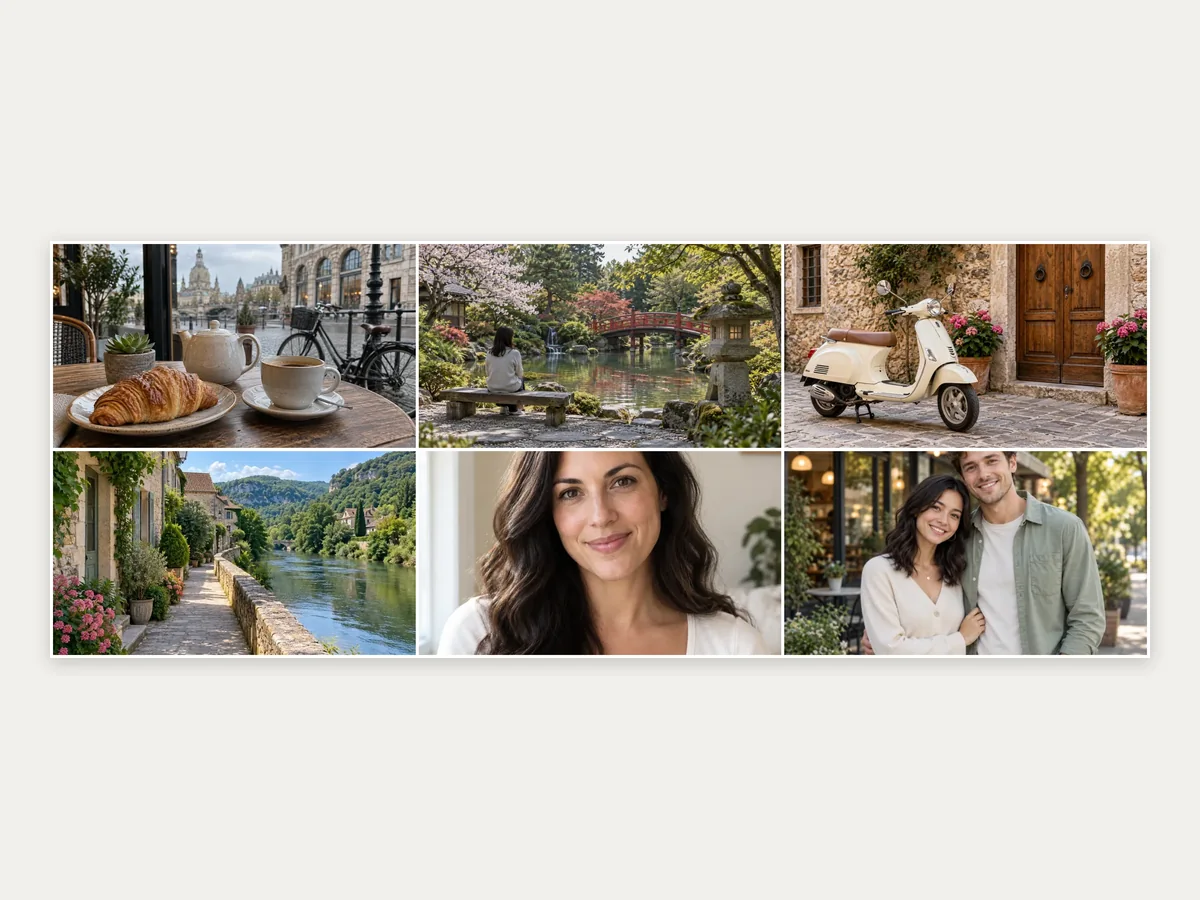
Combine 3 photos into one, or merge multiple photos at once: 6, 9, or 20. The grid picks a balanced number of columns automatically, or you choose 2 to 5. Fit whole photo keeps every image uncropped, while Fill crops them to a uniform look.
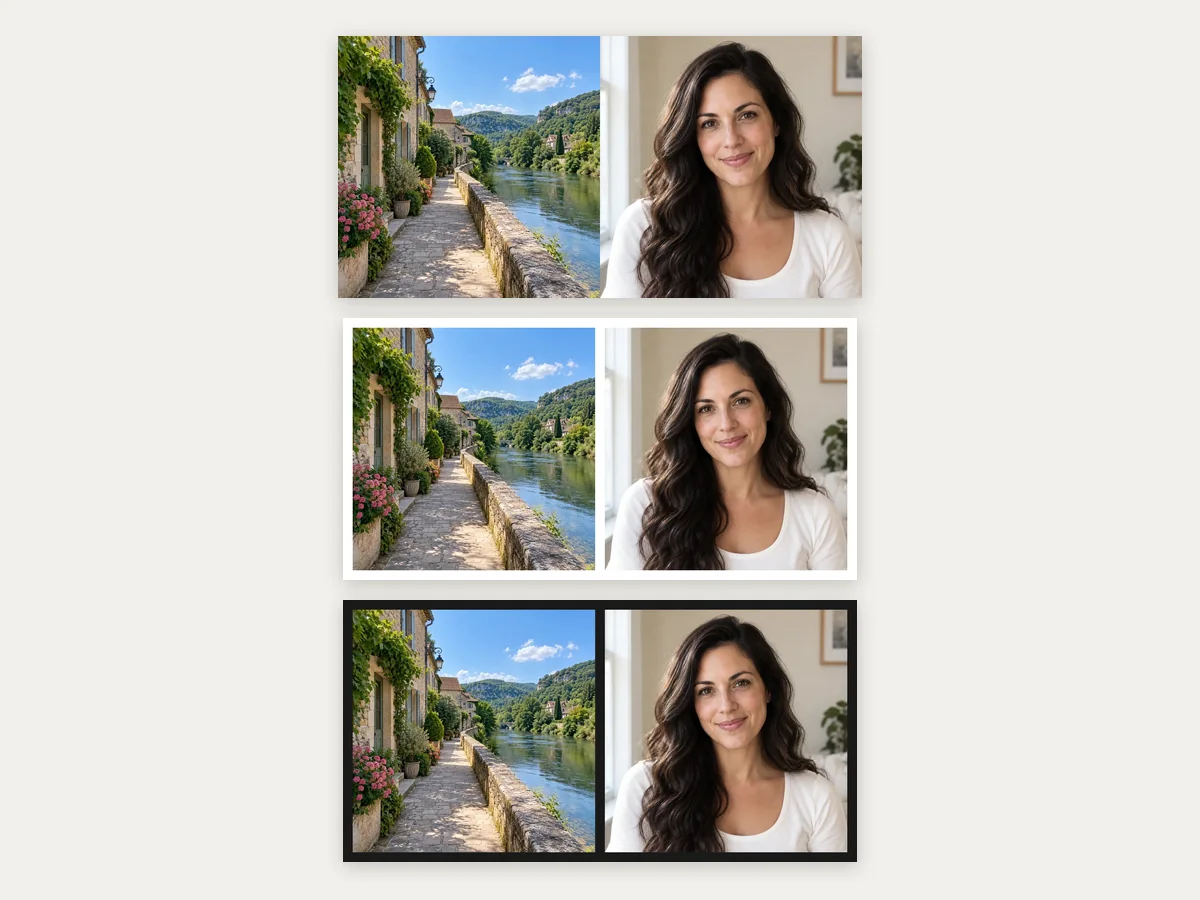
Stitch 2 images together with no gap, or add even spacing and an outer border in white, black, any custom color, or a transparent background for PNG and WebP. Spacing scales with your photos, so it looks the same on a phone snap or a 24-megapixel shot.
Everyday reasons to put pictures together in one file.
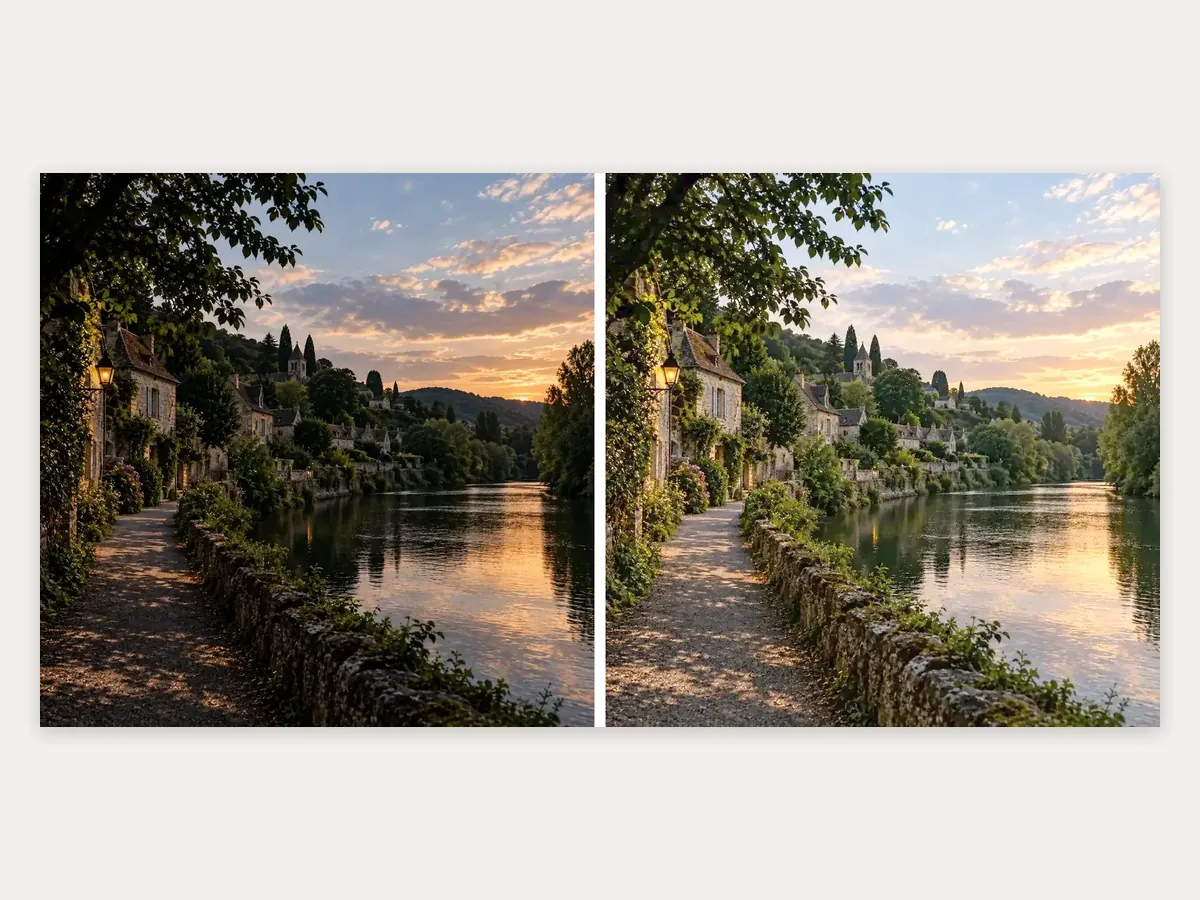
Edits, makeovers, renovations, and fitness progress read instantly when the two photos sit next to each other.
Join two pictures or more to show colors, angles, or a product with its packaging in one image for a marketplace listing or an ad.
Merge screenshots into one tall image to share a chat, a receipt, or a tutorial in order.
Combine pics from a trip, a party, or two friends’ cameras into one post that tells the whole story.
A few habits that keep every picture merge sharp and tidy.
Use the original photos rather than screenshots or chat copies, so the merged picture has as much detail as possible.
Photos with similar proportions line up best. In a grid, choose Fill for a uniform look or Fit to keep every edge.
White or black spacing frames photos cleanly; transparent gaps are best for PNG files placed on other designs.
PNG is lossless and keeps transparency, JPG keeps files small for sharing, and WebP balances both.
A pic merger for comparisons, listings, and screenshots.
Illustrative examples adapted from reference material, not verified reviews of EzImgMaker.
I post before-and-after shots of every room I paint. Two uploads, side by side, done, and the file stays full size for my portfolio.
My marketplace listings allow one main photo, so I merge pictures of the front, back, and label into a single image. The equal height option saves me so much fiddling.
For bug reports I stack screenshots top to bottom and paste them straight in. Ctrl+V into the page works, which I did not expect.
We took photos on three different phones at the reunion. The grid made them all look like they belonged together.
Questions about combining and merging photos online.
An image combiner is a tool that puts two or more pictures into one image, side by side, stacked, or in a grid. This one also handles photo merging details for you: matching sizes, even spacing, borders, and the background color.
Upload both images and they are placed side by side immediately. Switch to Stacked if you want one above the other, adjust spacing if you like, and click Download Image. A two photo combine takes only those steps, whether you merge two photos online for a post or for print, and combining two pictures never changes the originals on your device.
Yes, this page is one. Choose Side by side, keep Equal height on so both photos share the same height, and download the result. It works for any pair, from a selfie and a landscape to two screenshots.
Choose Stacked. With Equal width on, both pictures are scaled to the same width and placed one under the other. This is also how to stitch two photos together into a long image for phones and chats; choose Side by side to stitch 2 pictures together horizontally.
Yes. You can combine multiple images into one, up to 20 at a time, in a row, a column, or a grid. The grid picks a balanced number of columns automatically, or you can set 2 to 5 columns yourself.
Yes. This free image combiner runs in your browser, so you can merge images online free or combine images online free with no sign-up and no watermark. It is a photo combiner free online for everyone, and combining pictures as often as you like costs nothing.
Whether you are merging two photos or twenty, no recompression happens in the layout itself: the combined image is drawn from your original pixels. Equal height or width resamples photos to a shared edge, and very large results (over about 40 megapixels, or 16 on iPhone) are scaled down to fit the browser’s limits. Choose PNG for lossless output.
Yes. Pick the transparent background swatch and download as PNG or WebP; the spacing and border stay see-through. JPG cannot store transparency, so it uses white instead.
No. This tool places photos next to each other without changing them. To blend two photos into one new scene, such as two people in the same shot, use an AI merge tool instead.
No. All combining happens on your own device, and closing the tab removes everything. Only combine photos you have the right to use and share.
Upload two or more pictures, choose side by side, stacked, or grid, and download one combined image at full resolution.