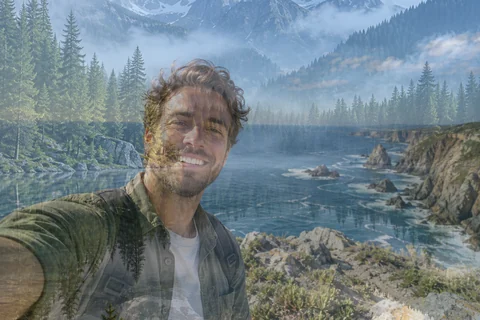
Normal at 50%
A see-through mix of both photos.
Blend 2 photos together with a soft gradient fade, a double exposure, or any of 16 blend modes. Drag the top image into place, resize it, set the opacity, and download the result. Free, and nothing is uploaded.
Blend recipes
Fine-tune
Runs in your browser. Your photo is never uploaded.
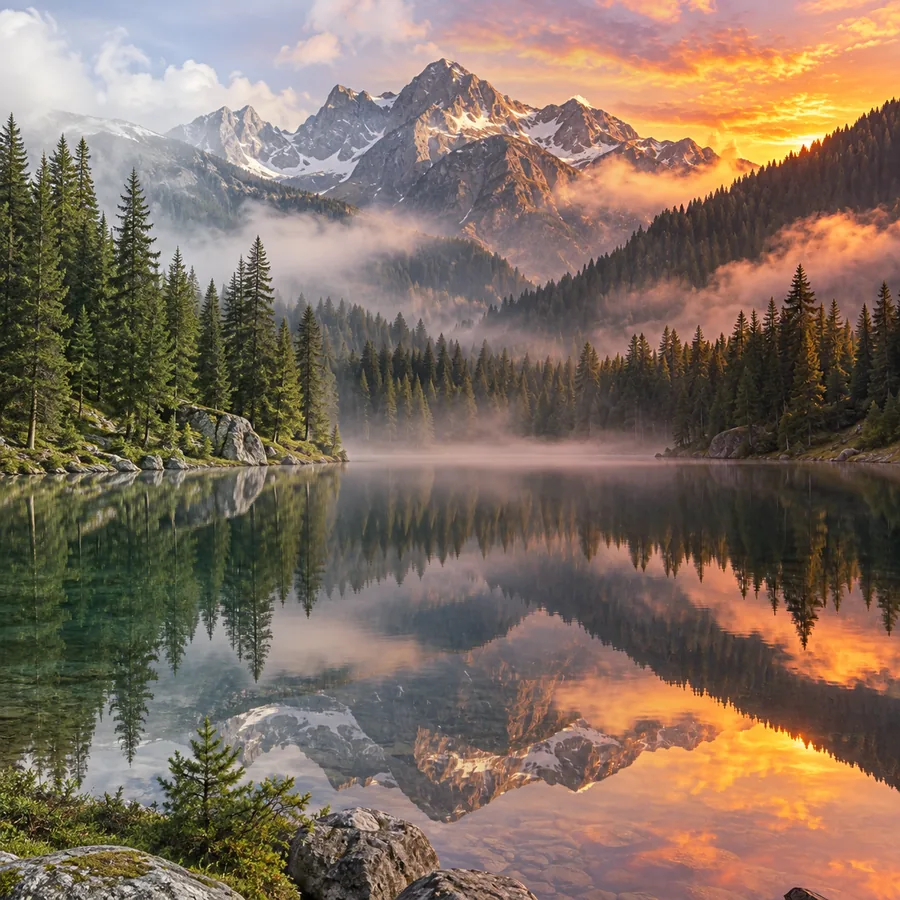
Reference example. It is not a result generated from your upload.
An image blender lays one photo over another and mixes them, so you can blend two pictures together into a single image: a portrait that dissolves into a landscape, a daytime street that fades into sunset, or a texture that adds grain to a flat photo. Image blending is how double exposures, light-leak effects, and many poster and album-cover looks are made.
This photo blender runs in your browser. Upload two images, pick one of 16 blend modes, set the opacity, add a gradient mask for a smooth transition, and drag the top image where you want it. It is free blending with no login, no upload, and no credits, and the result keeps the size of your first image. Use it as an image blender online or a picture blender online to blend photos online without installing anything, and create blended imagery for posts, posters, and invitations.
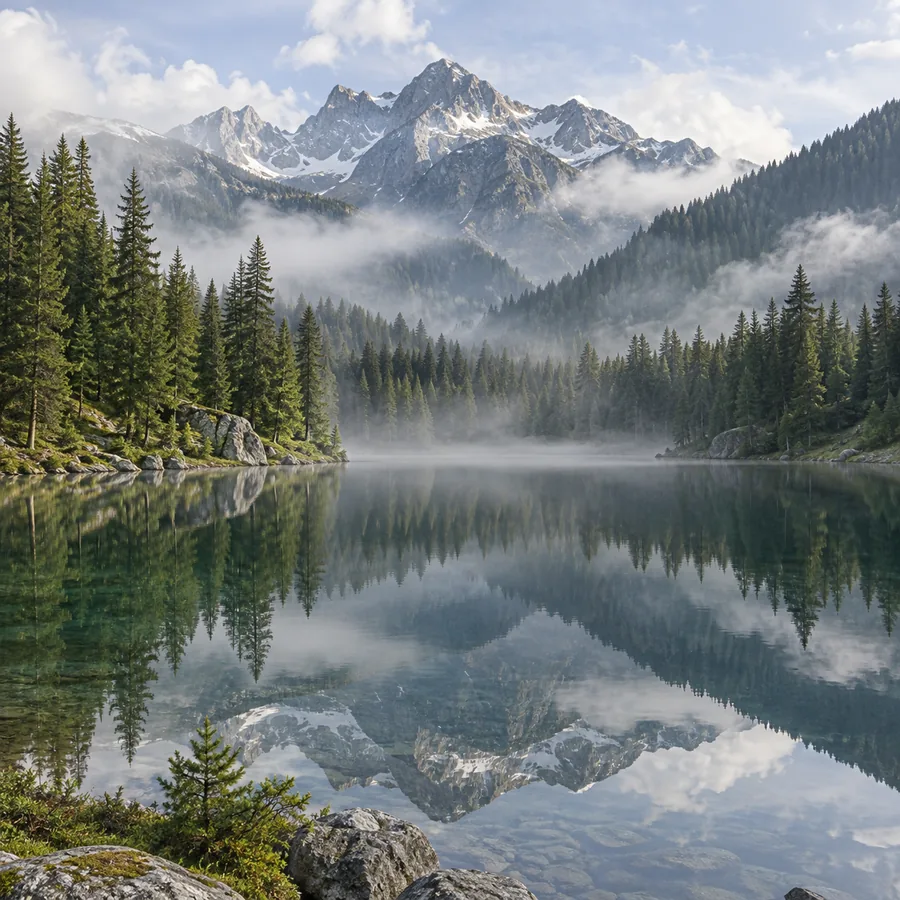
The same seaside selfie (image 1) and riverside town (image 2) with eight of the 16 blend modes. Pick a card to start from that look.
A see-through mix of both photos.
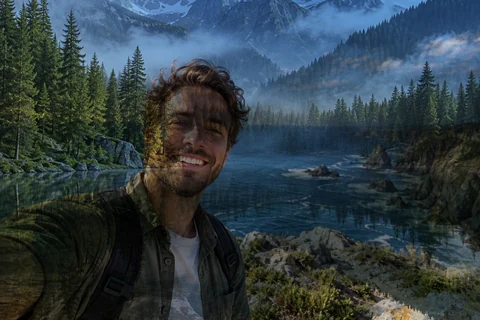
Keeps the darks of both photos; good for textures and paper.
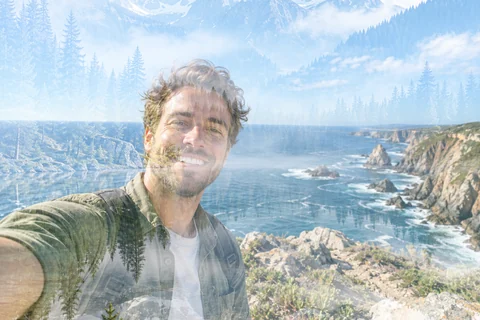
Keeps the lights; the base of double exposures and light leaks.
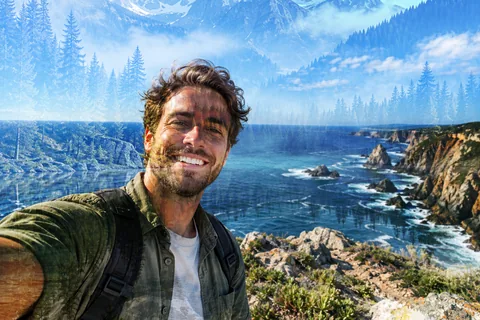
Adds contrast and color from the top image.
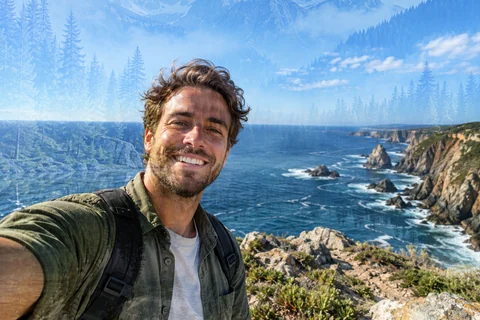
A gentle overlay that tints without harsh contrast.
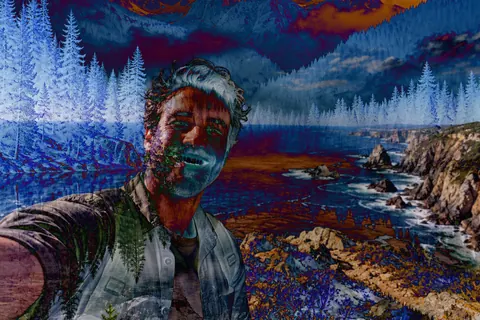
Inverts where the photos differ, for bold, psychedelic art.
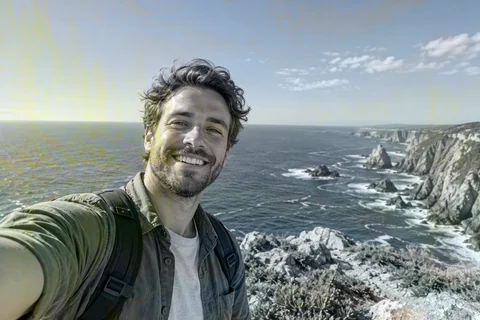
Paints image 2’s colors onto image 1’s light and shadow.
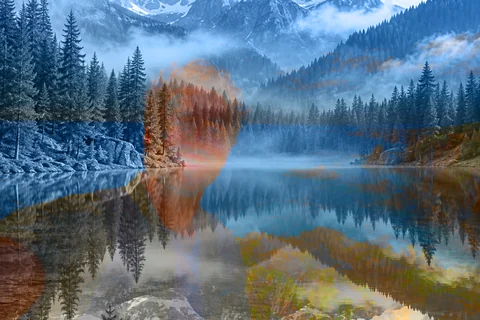
Image 2’s light and shadow with image 1’s colors.
How to blend two pictures together: blend images online in four steps, on a computer or a phone.
Choose the background photo. It sets the size and shape of the result.
Add the photo to blend on top. It fills the frame; drag the preview to move it and use Layer size to scale it.
Start from Soft fade, Double exposure, or Light leak, or set the blend mode, opacity, and gradient mask yourself.
Save it as a JPG, PNG, or WebP at the full size of image 1, ready to post or print.
A blend tool with the controls of a layer editor, in a single page.
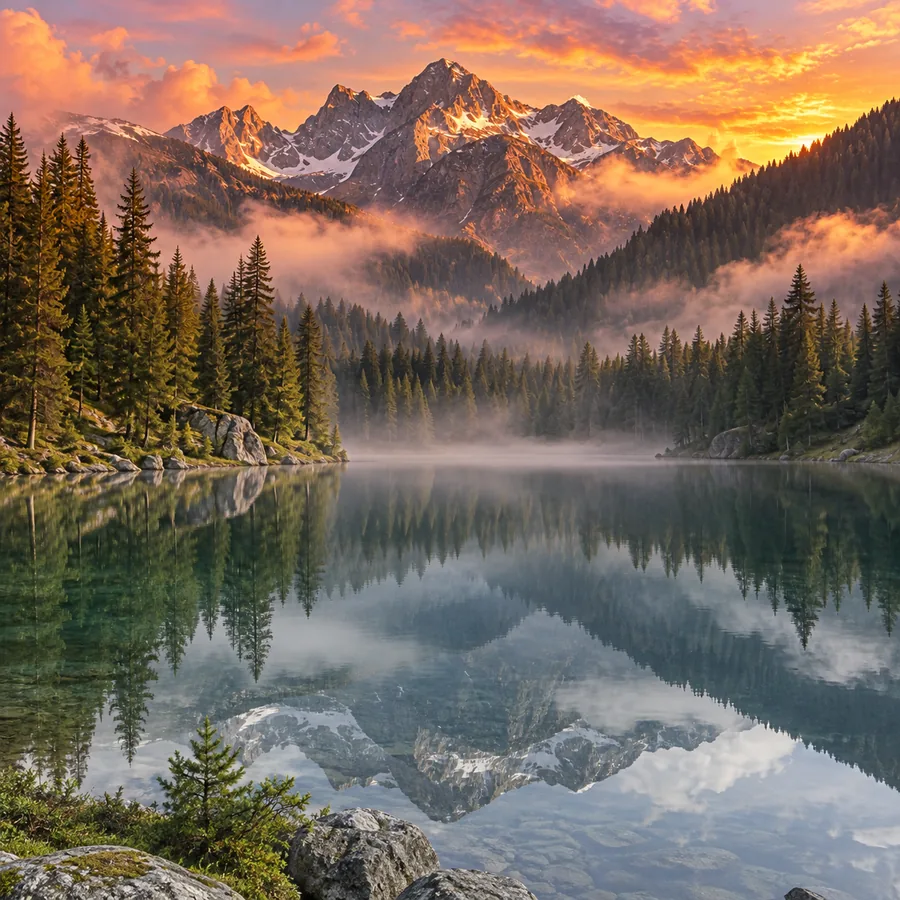
Turn on Gradient mask to fade image 2 in from any side, from the center, or from the edges. Set where the transition sits and how soft it is, from a hard split to a long, invisible blend. That is how to blend pictures so the seam disappears, like this daytime town under a sunset sky.
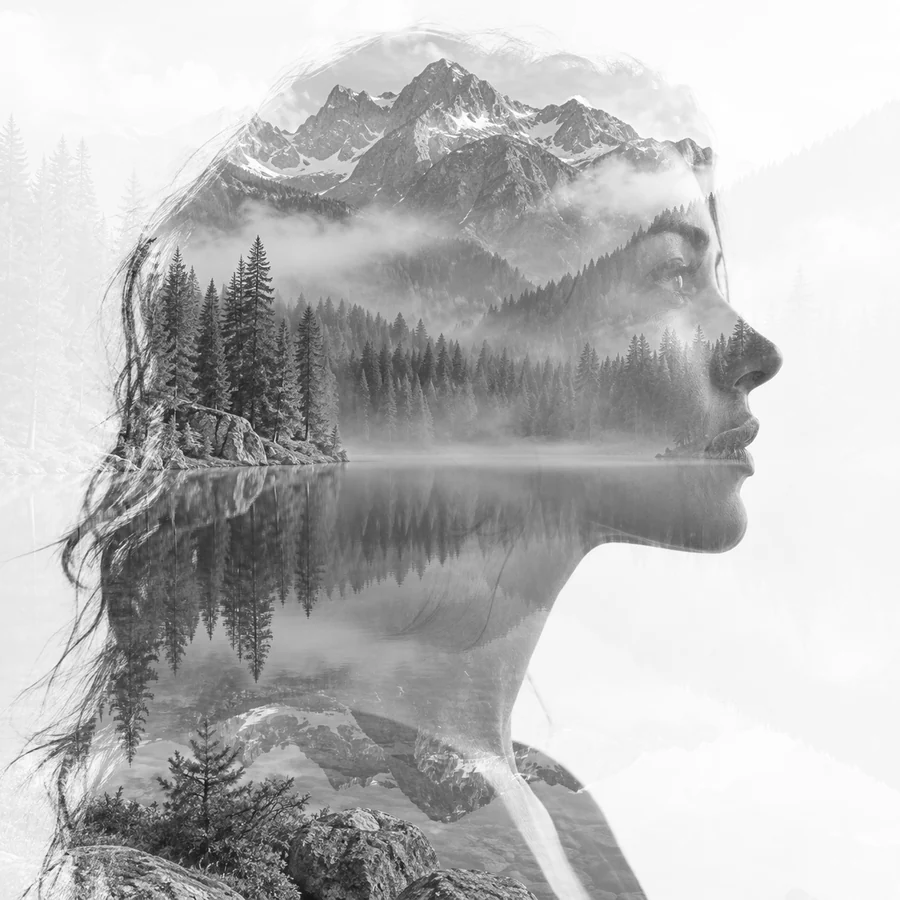
Lighten or Screen keeps the brightest parts of both photos, so a landscape fills the darker areas of a portrait. Add the Black & white finish for the classic double exposure look, then drag and resize the landscape until it frames the face.
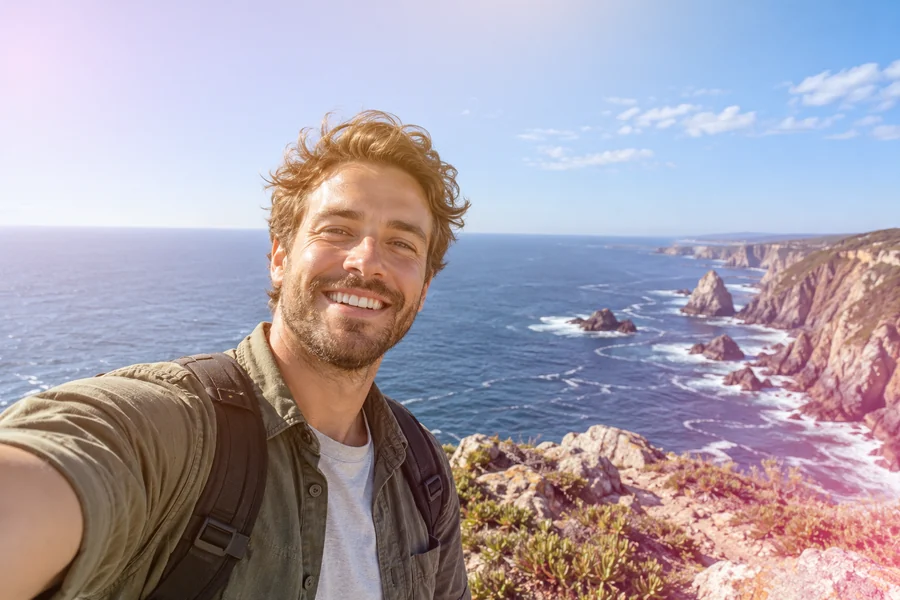
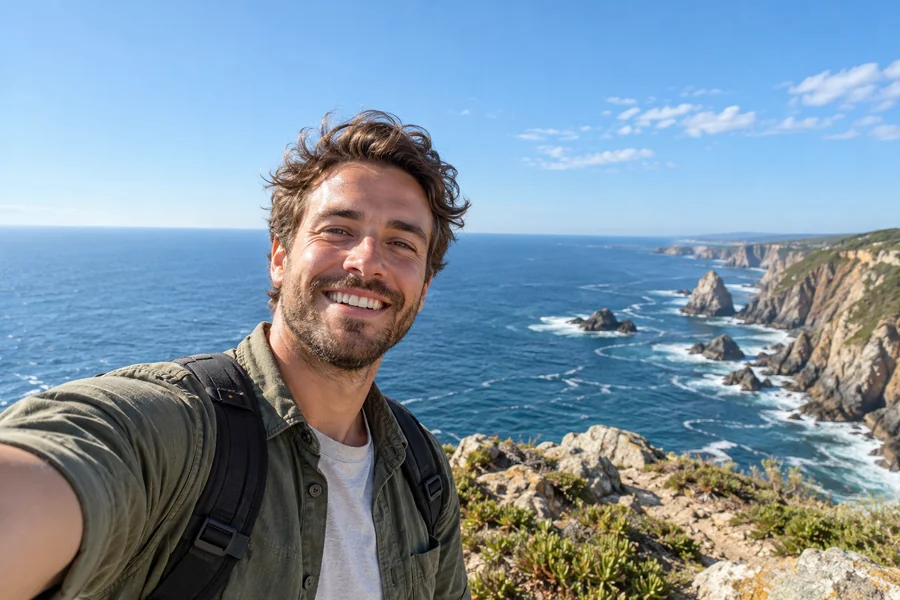
Screen adds glow from light leaks, bokeh, and fireworks; Multiply adds paper, grunge, and fabric textures; Overlay and Soft light add contrast and color. Hue, Saturation, Color, and Luminosity mix color and tone separately, the same modes you know from desktop editors.
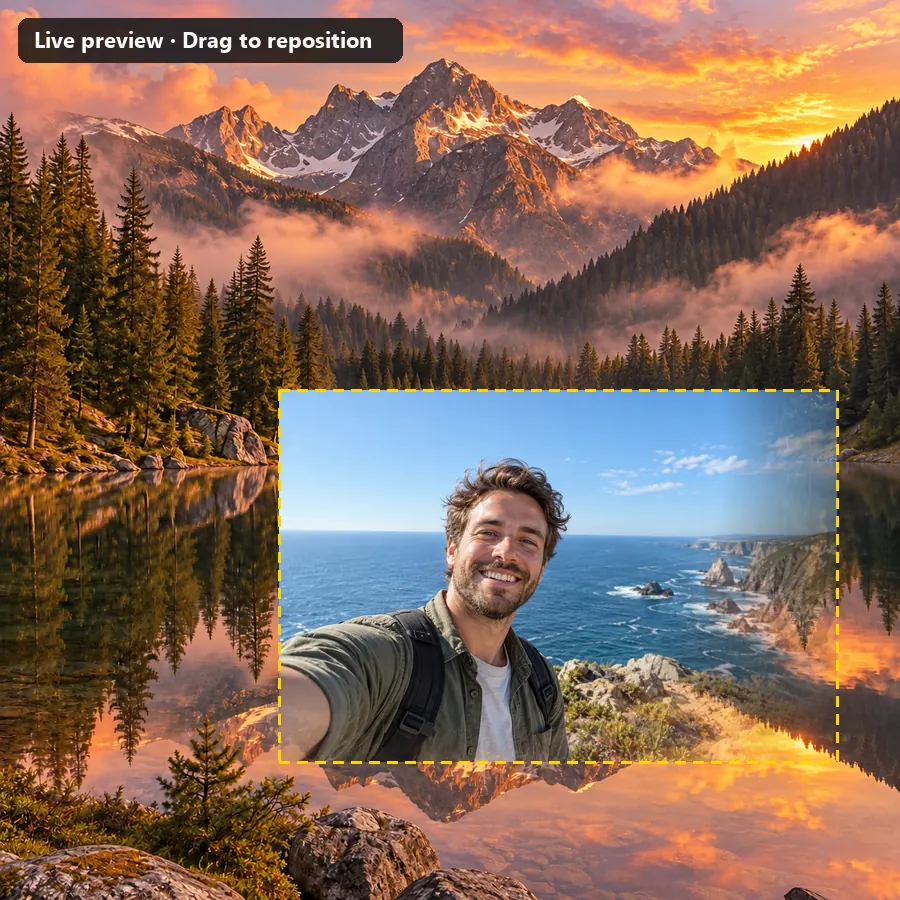
Drag the live preview to position the top image, change Layer size from 20% to 300%, or choose Fit inside to place a smaller picture in the frame, shown with a dashed outline. Swap which photo is on top in one click. It all runs in your browser, so it is free and private.
Ways to blend pictures online for posts, posters, and gifts.
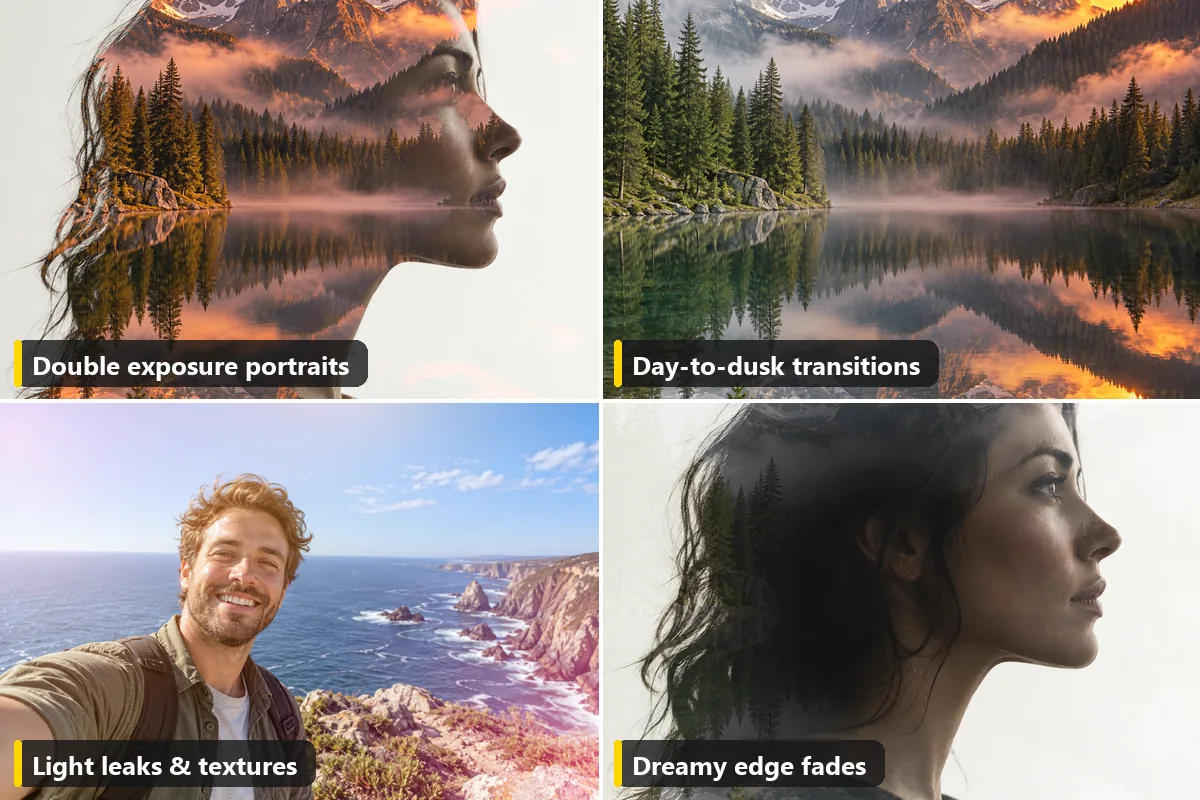
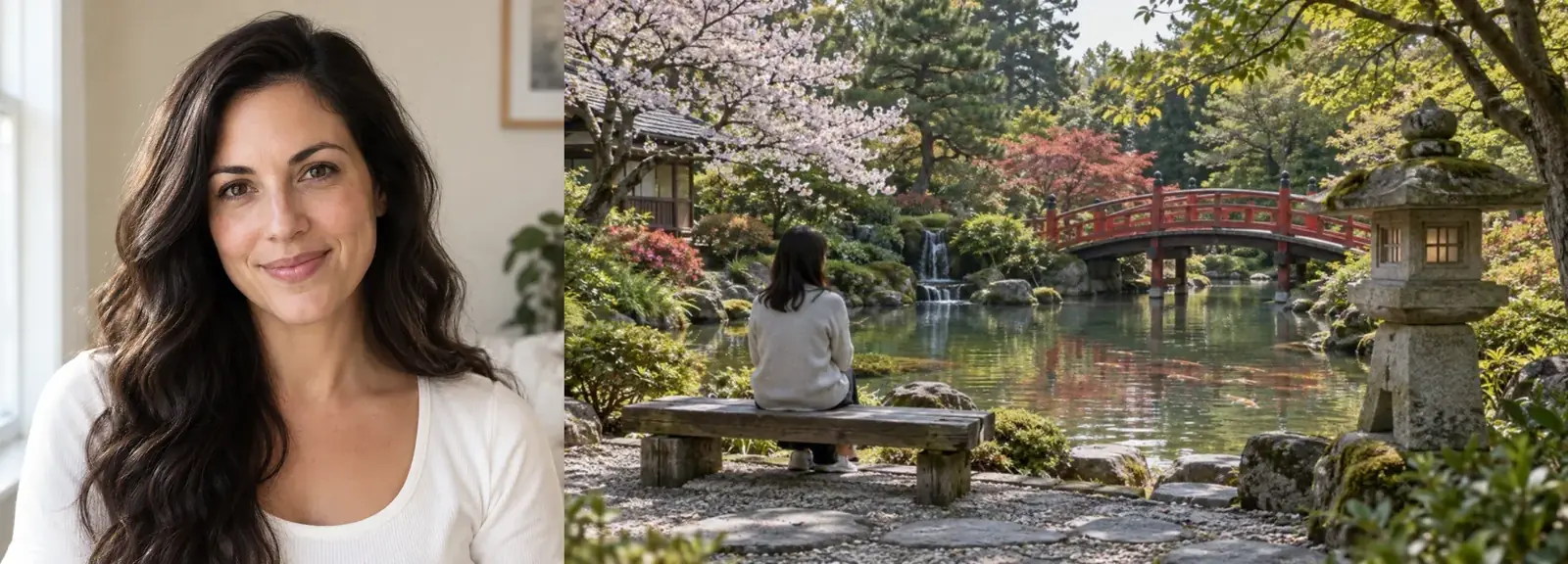
Merge a portrait with a forest, city, or skyline for album covers and profile art.
Fade the same view from day to dusk for travel posts and before-and-after stories.
Add film light leaks, paper, or grain so flat photos get a vintage feel.
Blend photos together with a background for event posters, book covers, and invitations.
Blend two pics together, an old family photo and a new one, or a portrait and a meaningful place, into one keepsake.
Fade a product into a lifestyle scene or lay a brand texture over it for ads and banners.
Simple habits that make blends look intentional, and how to blend 2 pictures together in desktop editors.
For double exposures, a portrait against a plain, light background blends most cleanly with a landscape.
Photos with similar light direction and color temperature blend more naturally; the Warm and Cool finishes help match them.
A fade softness of 50–80% hides the join between two scenes; 0–10% gives a deliberate split screen.
There you stack two layers, set the blend mode and opacity, and paint a gradient layer mask. Here those are the Blend mode, Opacity, and Gradient mask controls.
Other ways to put photos together, each with its own tool.
Put two or more pictures side by side, stacked, or in a grid without blending them.
Combine imagesLet AI blend two images into one new scene, such as a person placed into another photo.
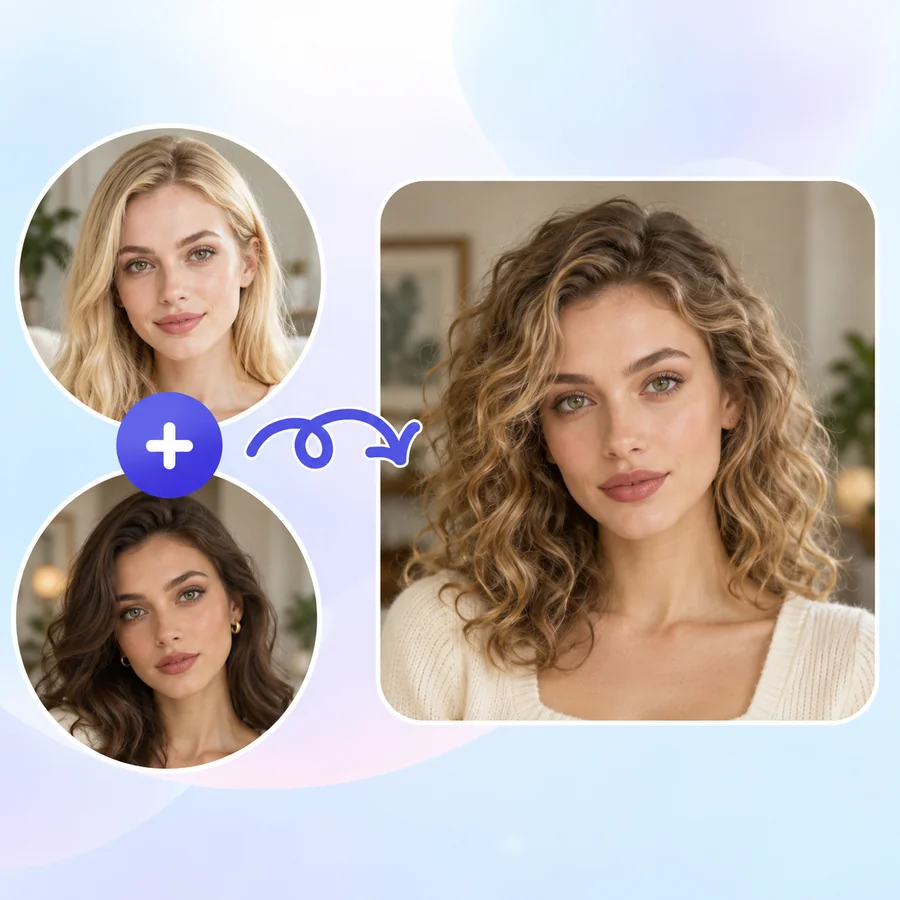
Combine with AIBlend two faces into one realistic face with AI.
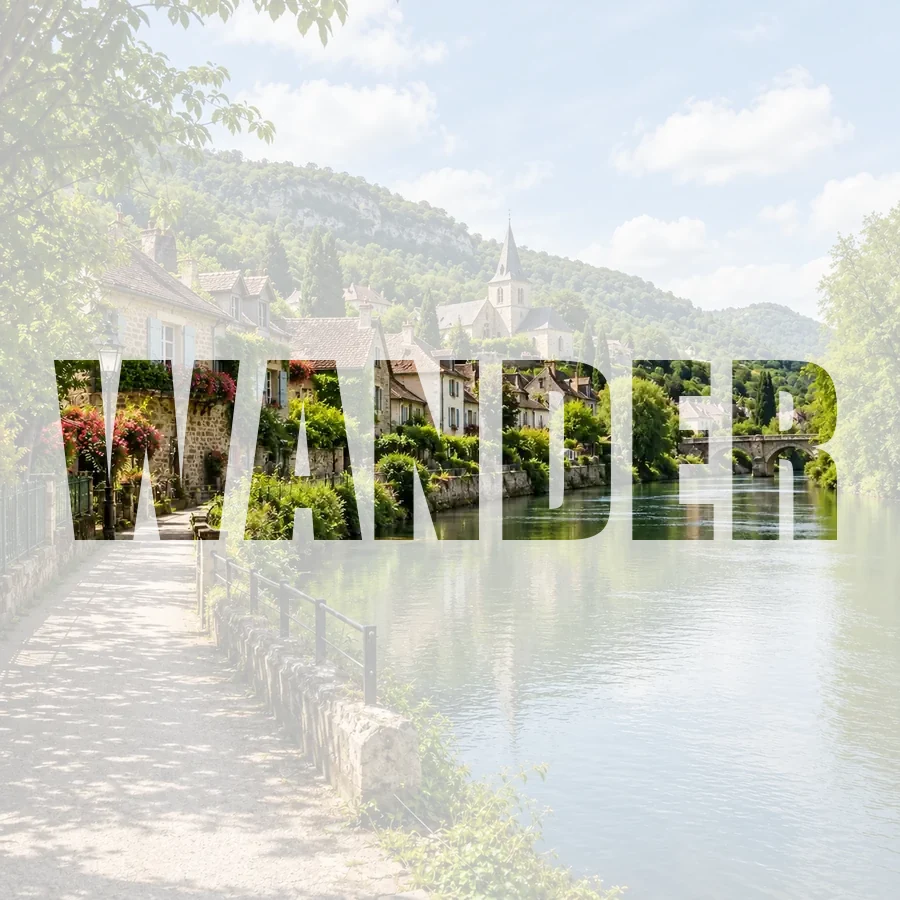
Morph facesFill big letters with a photo for posters, titles, and covers.
Make text artHow blending works, which mode to use, and what you get.
Upload the background as image 1 and the photo to mix in as image 2, then pick a recipe or choose a blend mode and opacity. For a smooth transition turn on Gradient mask, and drag the preview to place the top photo. Download when it looks right.
Use this page. It does what a Photoshop layer, blend mode, and gradient layer mask do, right in your browser, on a computer or a phone. Upload both photos, start from Soft fade or another recipe, adjust, and download.
Turn Gradient mask on, pick the direction (left, right, top, bottom, center, or edges), move Fade position to where the two photos should meet, and raise Fade softness to 50–80% for a seamless join. Keep the blend mode on Normal for a clean crossfade.
Normal with lower opacity for a simple mix, Screen or Lighten for double exposures and light leaks, Multiply for textures and paper, Overlay or Soft light for contrast and color, and Color or Luminosity to take color or tone from one photo only.
Use a portrait as image 1 and a landscape as image 2, click Double exposure (Lighten) or B&W double exposure (Screen with Black & white), then drag and resize the landscape so it fills the hair and shoulders. A portrait on a plain light background works best.
No. Blending here is classic compositing math done by your browser, so the result is predictable and nothing is invented. If you want AI to blend two images into a new scene, use the AI Image Combiner instead.
Yes, it is free, with no sign-up, and your photos never leave your device, so it works as a quick online photo blend for private pictures too. Only blend photos you own or have permission to use, and do not use blends to mislead people.
No. This pic blender online works in any modern browser on Windows, Mac, iPhone, and Android, so there is nothing to install.
You blend 2 images together at a time. To add a third, download the result, upload it as image 1, and add the next photo as image 2. Repeat as often as you like.
The result has the size and shape of image 1 (up to 8000 px on the longest side), and you can download it as JPG, PNG, or WebP. Image 2 is scaled to fit the frame, so it can be any size.
Upload two images, pick a blend recipe or mode, fade and position the layer, and download. Free and private, in your browser.