Complete a Group Photo
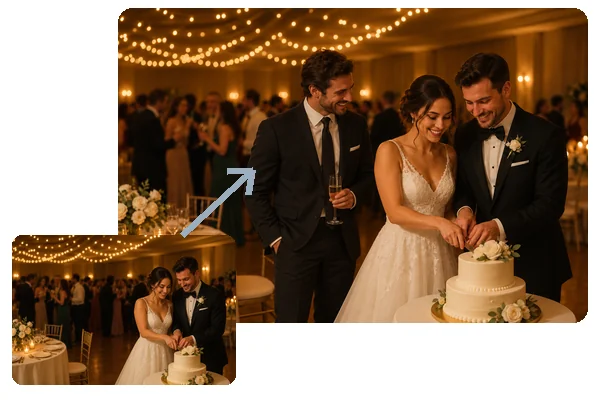
Someone stepped away during the cake cutting? Add the missing guest so the wedding photo has everyone in it.
Upload the photo and a picture of the person you want to add. The AI places them in the scene, matches height, light, and color, and blends edges and shadows so everyone looks like they were there.
Common edits
Fine-tune
Your photo stays in this browser during this UI preview.
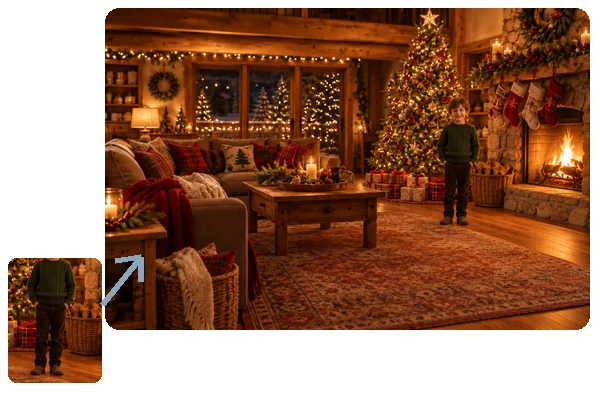
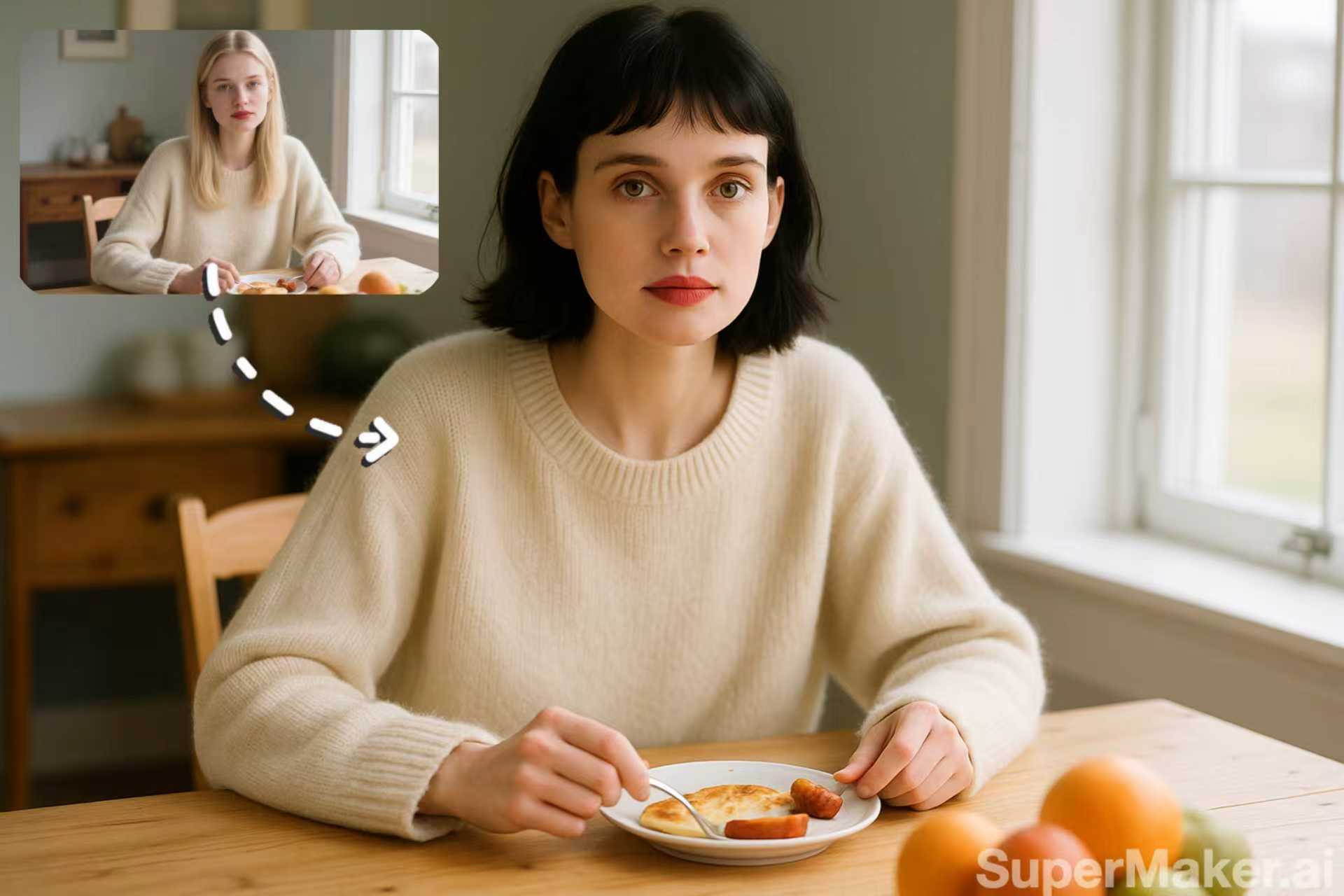
Reference example. It is not a result generated from your upload.
To add a person to a photo means inserting someone from one picture into another so they look like part of the original moment. Doing it by hand takes careful cutouts, resizing, color matching, and painted shadows. This add person to photo AI does that work for you: upload the scene, upload the person, choose where they should stand, and it blends them in with matching light, scale, and perspective.
People use AI to add someone to a photo after they missed the group shot, to bring long-distance family into one picture, or to build a scene for a card or a poster. You can add people to photos one at a time until the group is complete, and describe exactly where each person should go.
Common edits, from completing a group shot to putting two separate portraits in one scene.
Someone stepped away during the cake cutting? Add the missing guest so the wedding photo has everyone in it.
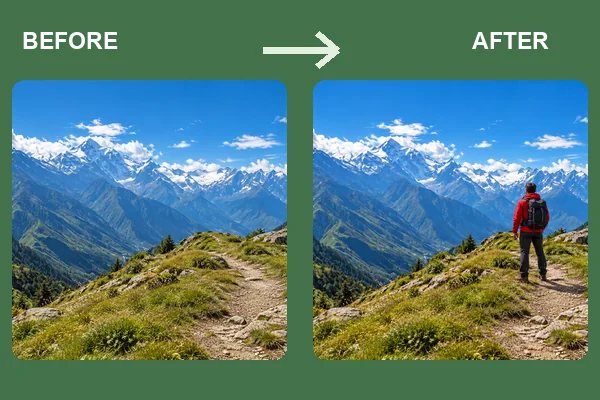
Turn an empty landscape into a travel memory by placing a friend or yourself on the trail.
Put a child or grandparent who could not make it into the holiday living-room photo.
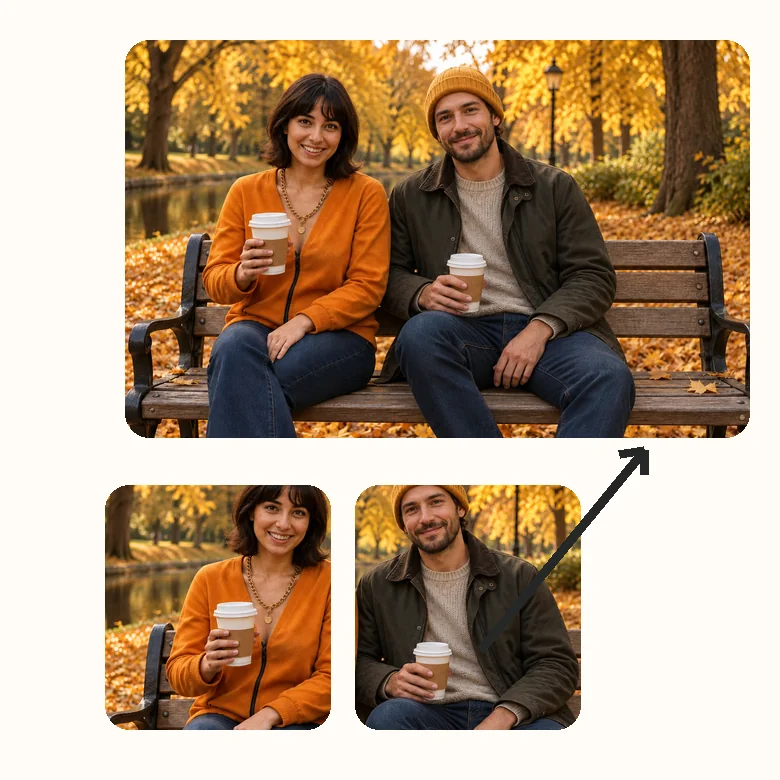
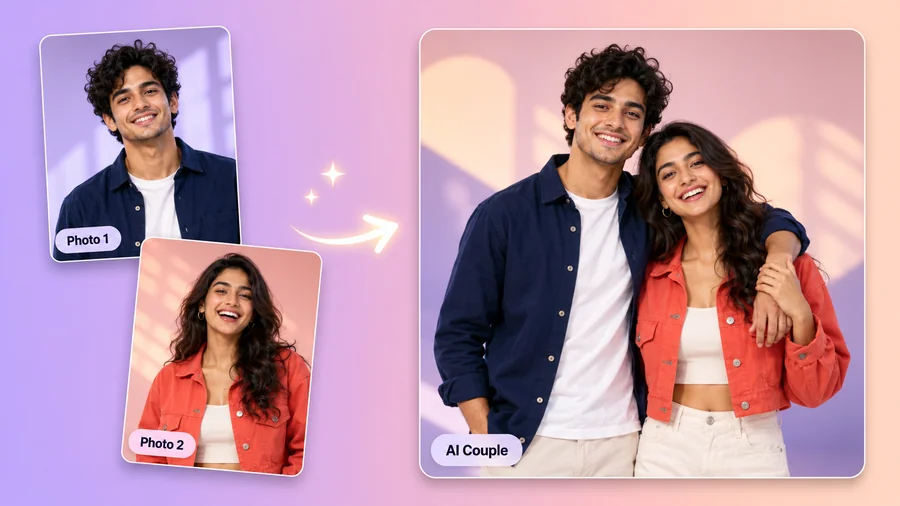
Combine two separate headshots into a relaxed photo of both people together.
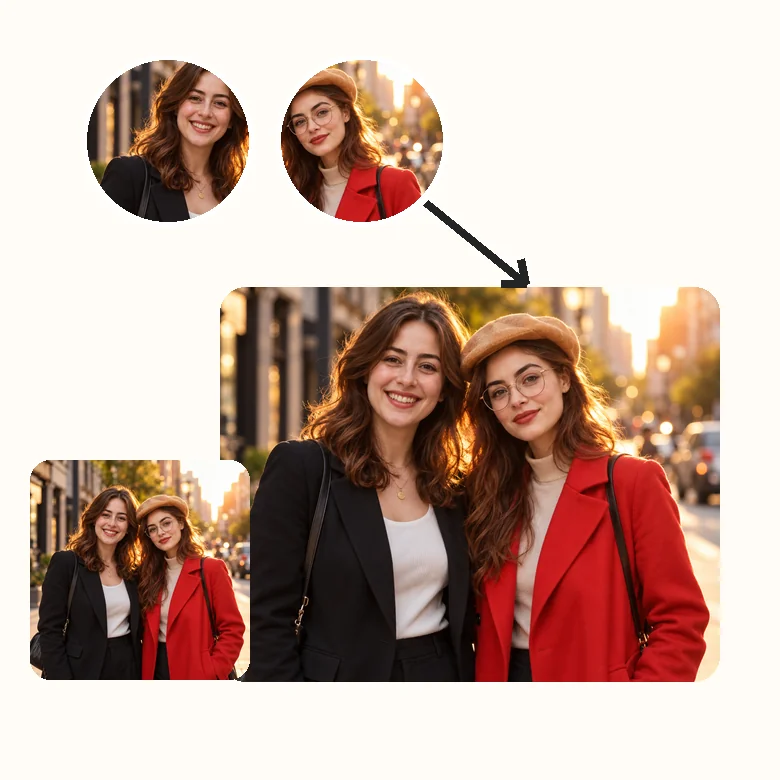
Bring two friends from different photos into the same street scene, side by side.
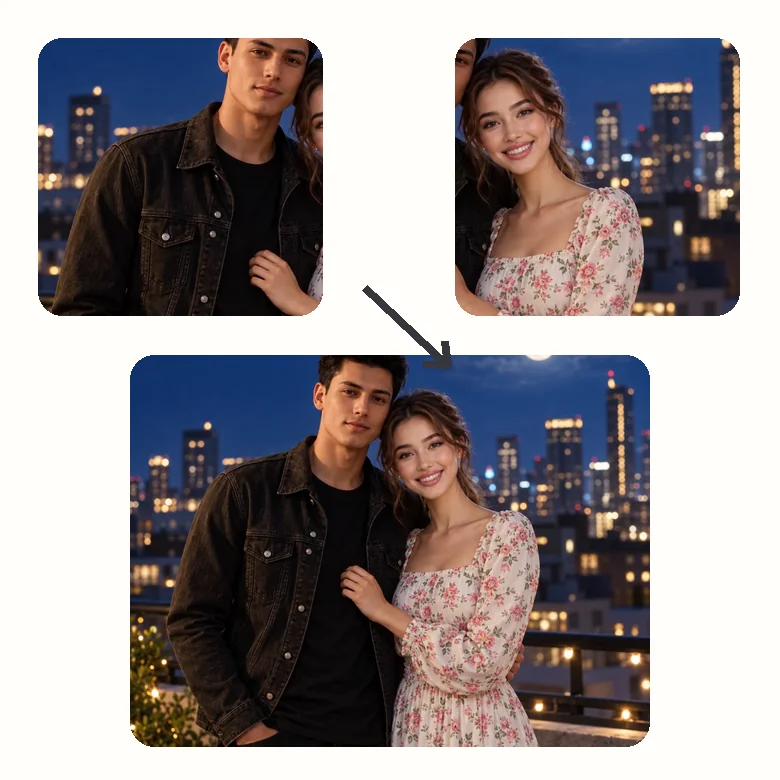
Partners or relatives in different cities can appear in one photo for an anniversary or a card.
Add a person to a picture without layers, masks, or editing skills.
Add the main photo first, then a clear photo of the person to add. JPG, PNG, and WebP files up to 10 MB work, and a cut-out PNG of the person is fine too.
Pick a spot (left, center, right, back row, or let the AI choose) and a pose. Use the text box for details such as "standing behind Mom with a hand on her shoulder".
Generate the photo, check the height, light, and shadows, and try another placement if the person should stand somewhere else.
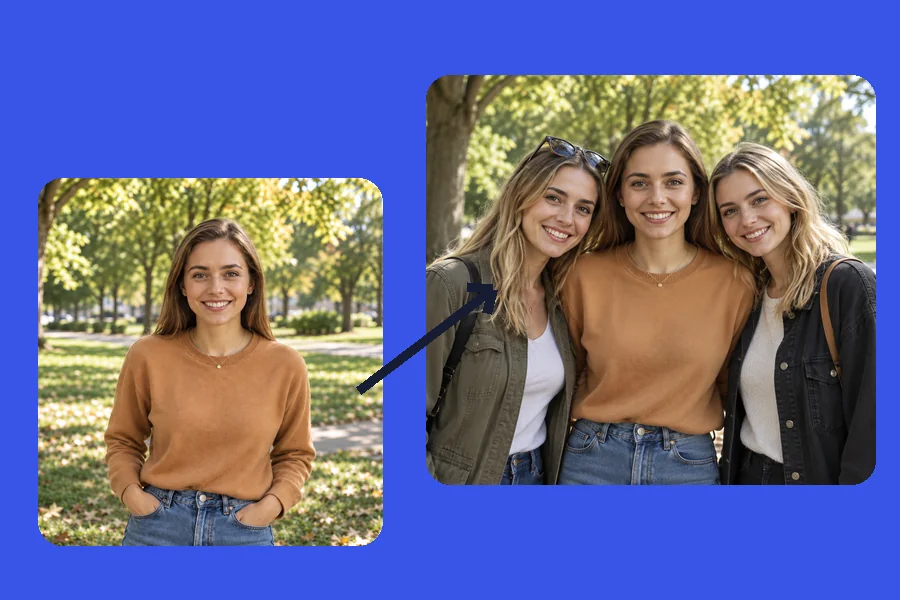
A pasted cutout gives itself away with the wrong size, a different color cast, or no shadow. The AI reads the scene and adjusts the added person to the same height, light direction, and white balance, then adds contact shadows so they stand on the same ground.
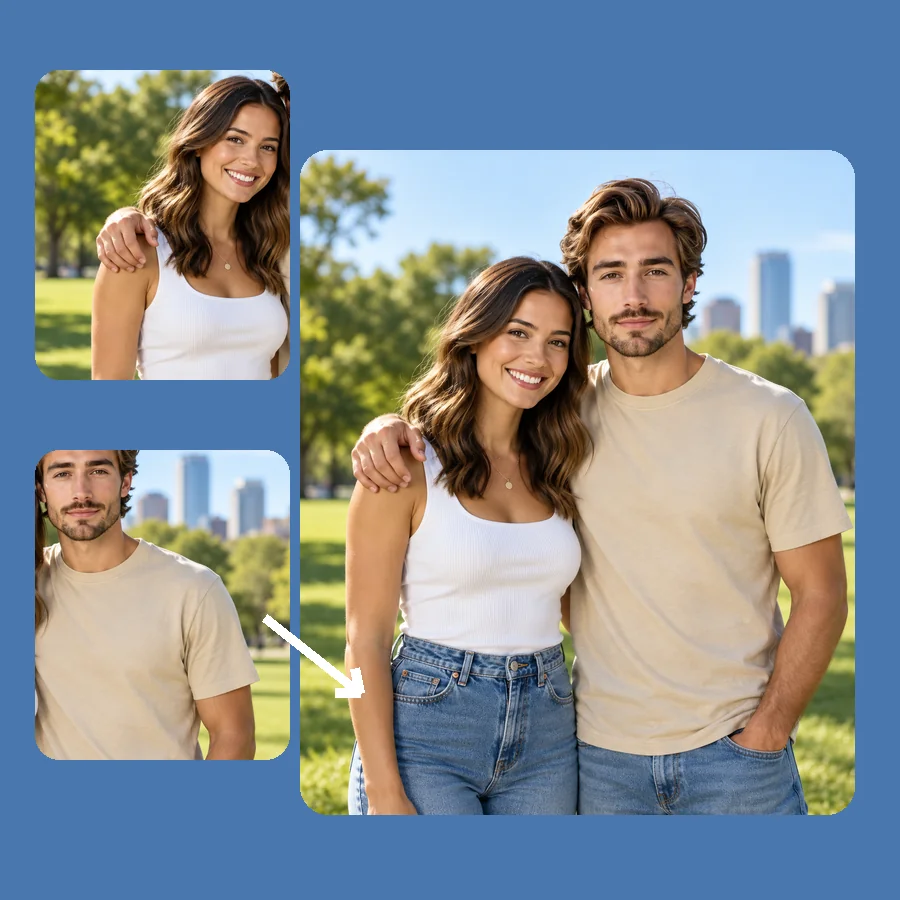
Start from two ordinary portraits taken on different days. The AI combines them into one image with a shared background and pose, while keeping each face exactly as it was.
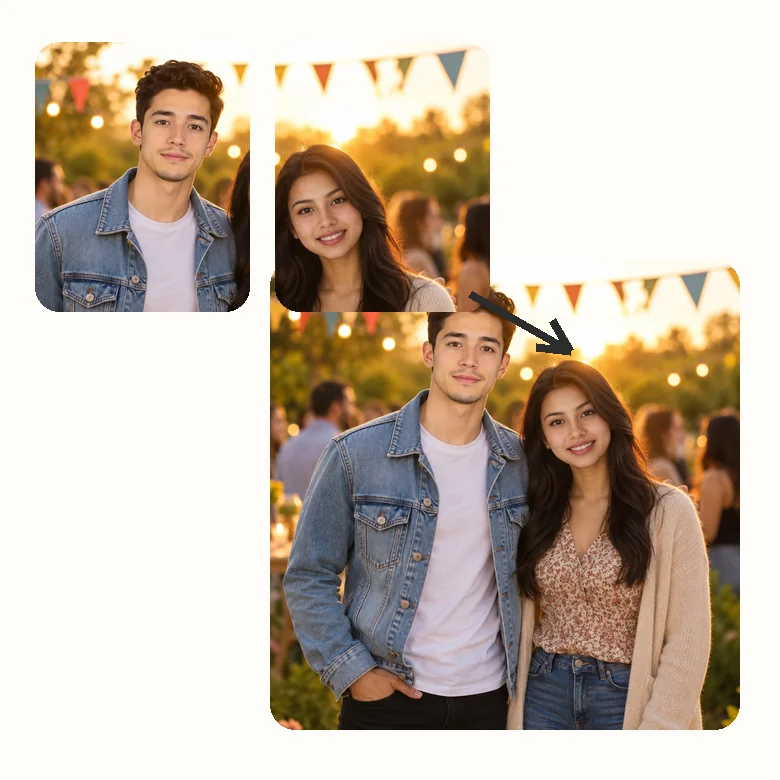
Weddings, graduations, reunions, office parties: when the best shot is missing someone, add them in. Let the AI add people to photo after photo, one at a time, using the result as the new base each time.
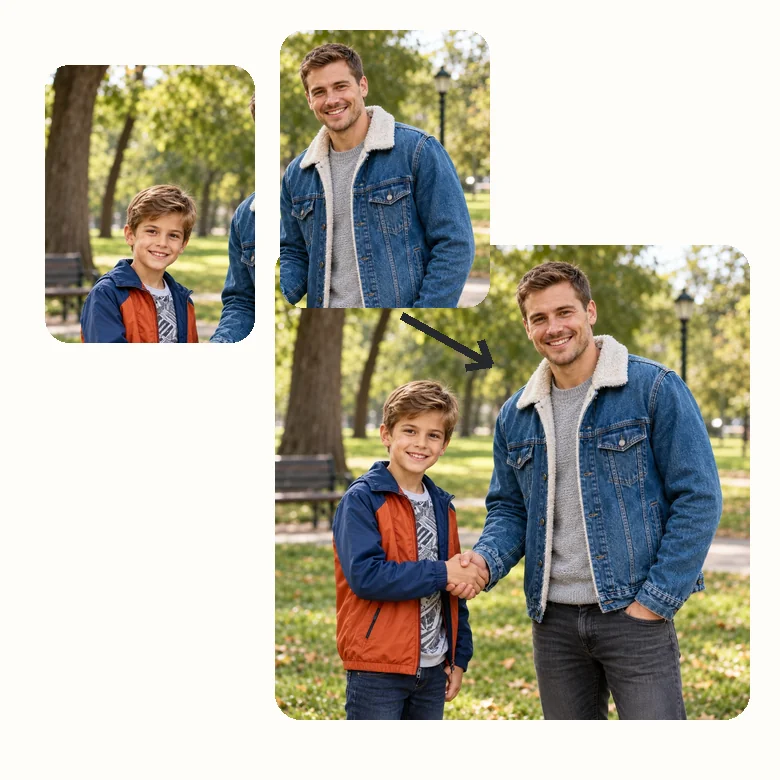
Put a grandparent into this year’s family photo, reunite old friends, or stand next to your younger self. Use AI to add people to photos respectfully, and always with the family’s blessing.
The most common reasons people add a person to a picture.
Add the friend who took the picture, or the colleague who arrived late, so the group photo is complete.
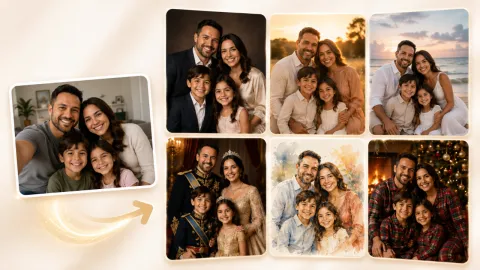
Create a family portrait or a holiday card when relatives live in different places or schedules never line up.
Make an anniversary or birthday picture for people who could not be in the same place at the same time.
Place a model into a product, office, or lifestyle scene to test a layout before booking a full shoot.
The source photos decide how believable the final picture looks.
A sharp photo that shows the person from head to at least the waist gives the AI the most to work with.
Pick a person photo with similar lighting, for example daylight for outdoor scenes and warm light for evening rooms.
Scenes with an open spot next to the group make it easier to add someone without crowding or covering faces.
Only add people who agree to it, and do not use edited photos to mislead anyone about who was there.
Typical ways people use person-adding edits.
Illustrative examples adapted from reference material, not verified reviews of EzImgMaker.
I always take the trip photos, so I am never in them. Adding myself to the summit shot finally gave us a picture of the whole group.
My business partner missed the team photo at our conference. We added him from a headshot and the lighting matched the room.
Our son was studying abroad over the holidays. We put him next to the tree for the family card and Grandma loved it.
For an invitation I combined two portraits into one photo of the couple. Describing the pose in the text box made the difference.
Answers to common questions about adding people to photos with AI.
Upload the photo you want to edit, then upload a clear picture of the person. Choose where they should appear and a pose, optionally describe the details, and generate. The AI places the person, matches their size and lighting to the scene, and blends the edges.
Use a photo of the missing person taken in similar light, ideally showing them from head to waist or full body. Choose a spot with some free space, such as the end of a row, and pick "Match the group" so their pose fits the others.
Yes, when the inputs are good. The AI adjusts scale, perspective, color, and shadows so the added person fits the scene. Very different lighting, tiny or blurry source photos, and crowded scenes are the main reasons a result looks less natural.
Add one person at a time. Generate the first edit, use the result as your new main photo, then add the next person. This gives you more control over where each person stands and keeps faces sharp.
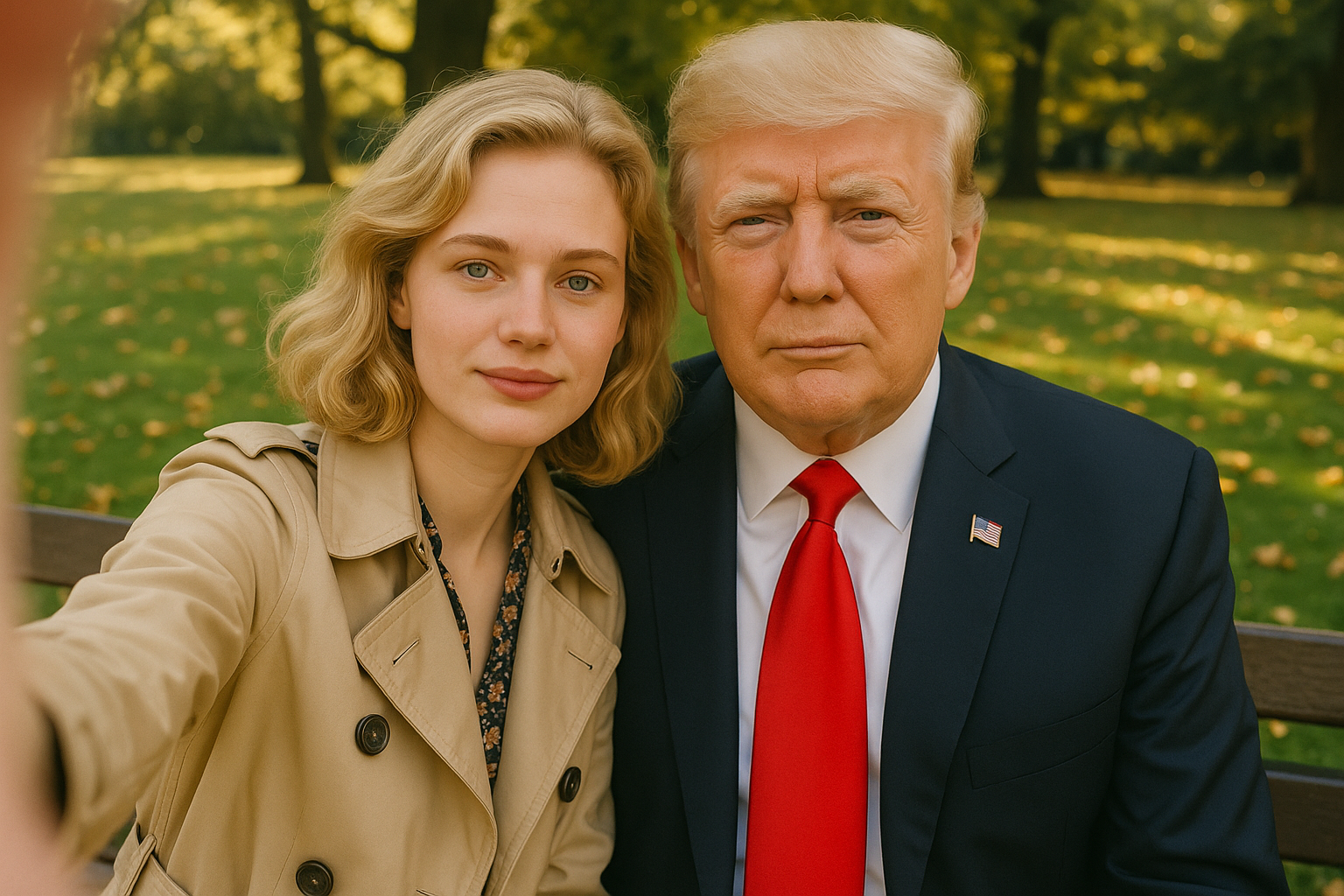
Yes. Upload one photo as the main picture and the other as the person to add, or describe a shared scene in the text box, for example "both of us sitting on a park bench in autumn". Each face stays as it was in the source photo.
Many people use it to include a late grandparent or parent in a family photo. Please do it respectfully and with the agreement of close family, and keep the original photos as well.
A sharp main photo with space for another person, and a well-lit photo of the person with a simple background. Similar camera angle and lighting in both photos give the most believable result.
Only upload photos you own or have permission to use, and get consent from the people you add. Do not create images that put someone in a place or situation they were not in to mislead, harass, or impersonate them.
No. The goal is to add a person, not to edit everyone else. Faces and the rest of the scene are kept, and the added person keeps their own face from the photo you upload.
Upload a picture and a photo of the person, and add them to the scene with AI.