
Old Age Filter
Turn a current portrait into a believable senior version with natural wrinkles, gray hair, and mature skin. It works as an old man filter or old person filter for any clear portrait.
What will I look like when I'm older? Upload a selfie and the AI age filter turns it into a realistic older or younger version, from baby to senior.
Your photo stays in this browser during this UI preview.
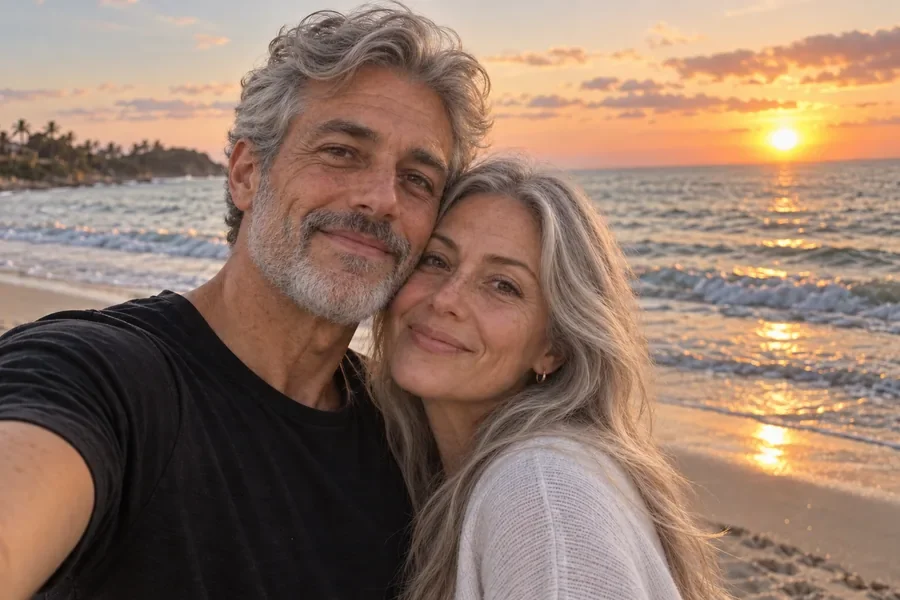
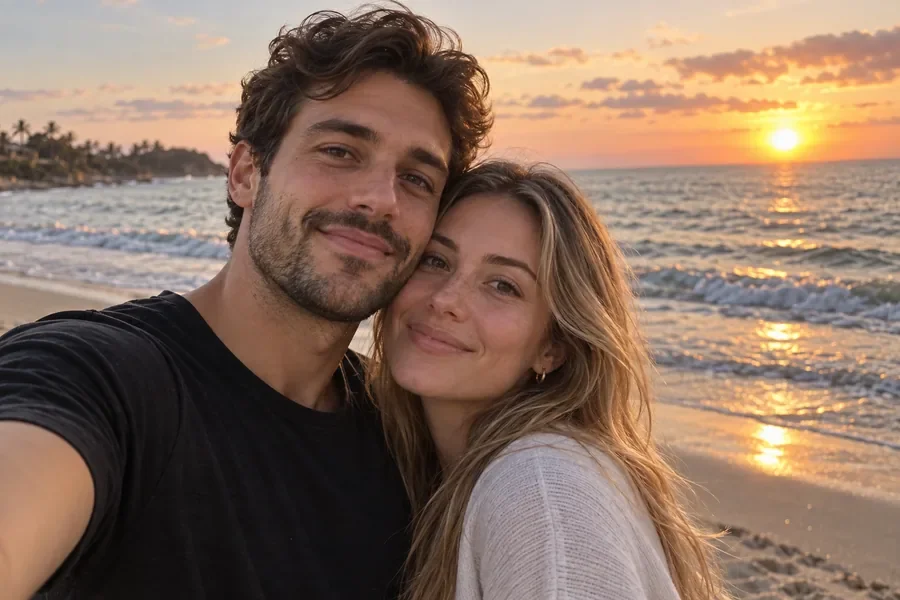
Reference example. It is not a result generated from your upload.
An AI age filter, also called an aging filter or age changer, is a photo effect that shows how a face could look at a different stage of life. Instead of painting on wrinkles or gray hair by hand, you upload one portrait and the AI ager generates an older or younger version while keeping the person recognizable.
It is the easiest way to answer "what will I look like when I'm older?" or "what will I look like in 20 years?". You can also run the age progression backward to make yourself look younger. Treat every age progression photo as a fun preview, not a scientific forecast of how you will actually age.
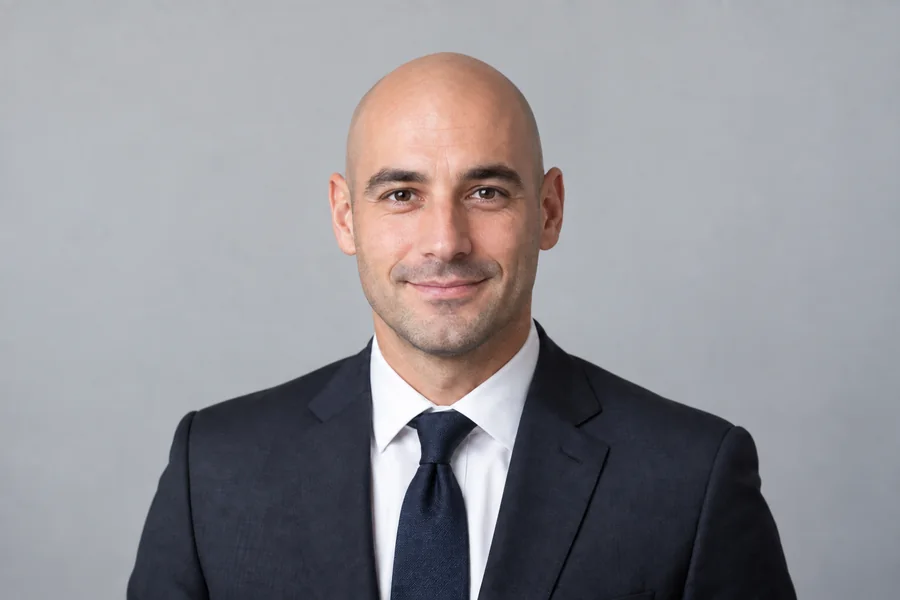
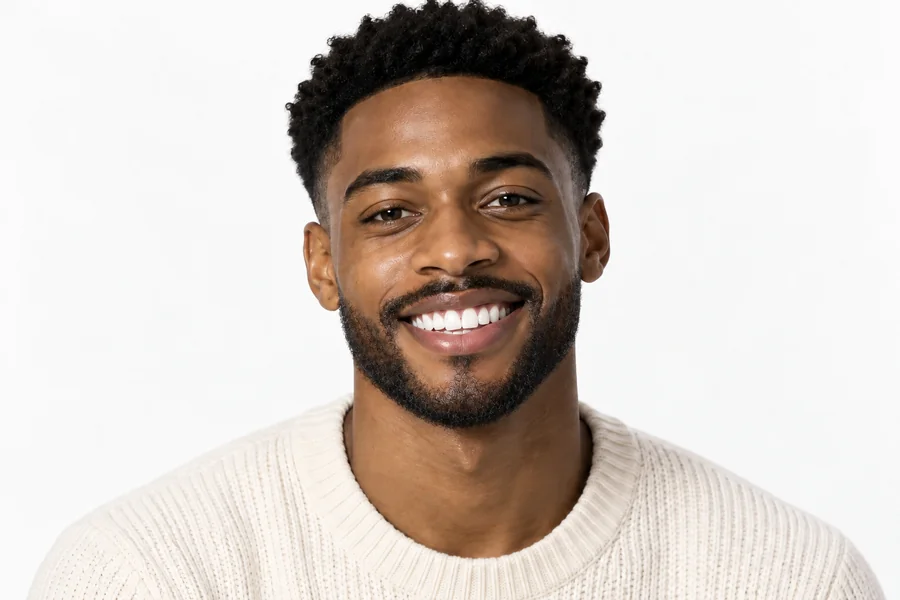
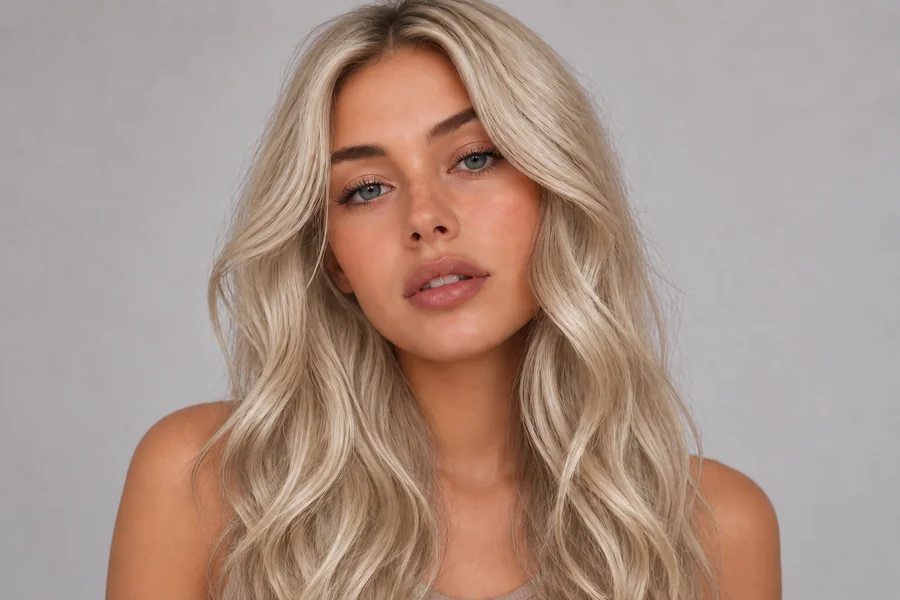
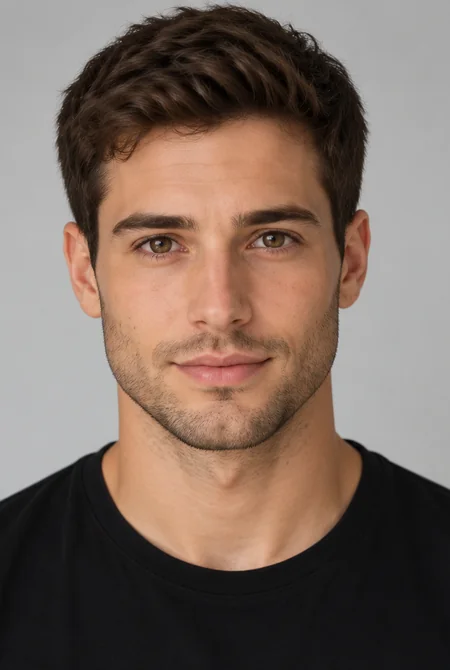
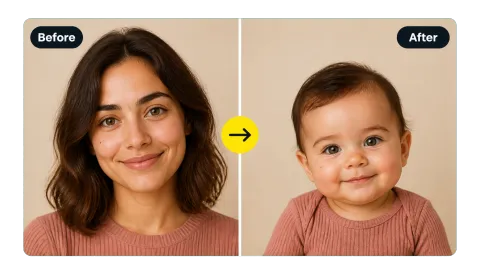
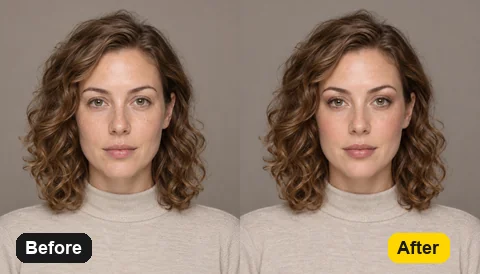
Preview several aging styles from the same portrait. Drag each image to compare the original with the transformed version.
Turn a current portrait into a believable senior version with natural wrinkles, gray hair, and mature skin. It works as an old man filter or old person filter for any clear portrait.
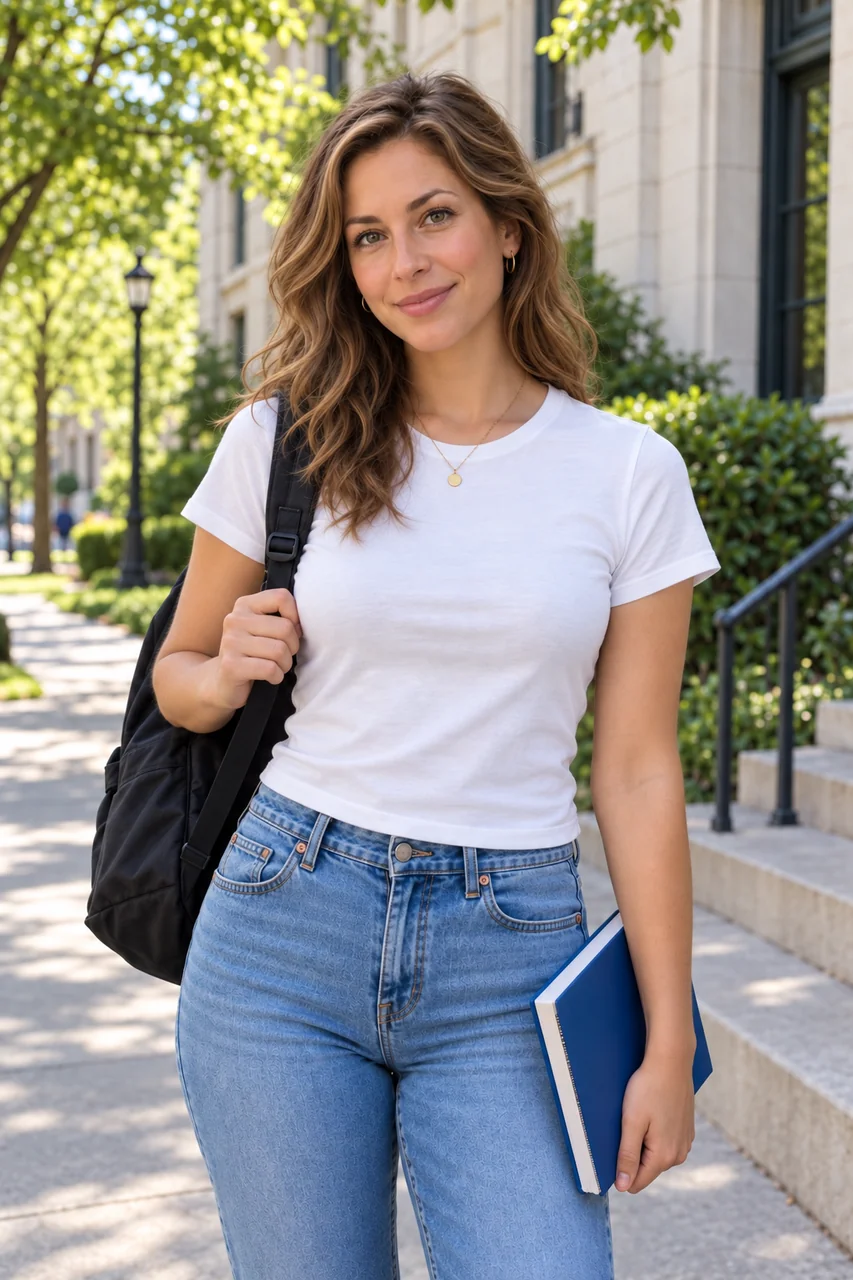
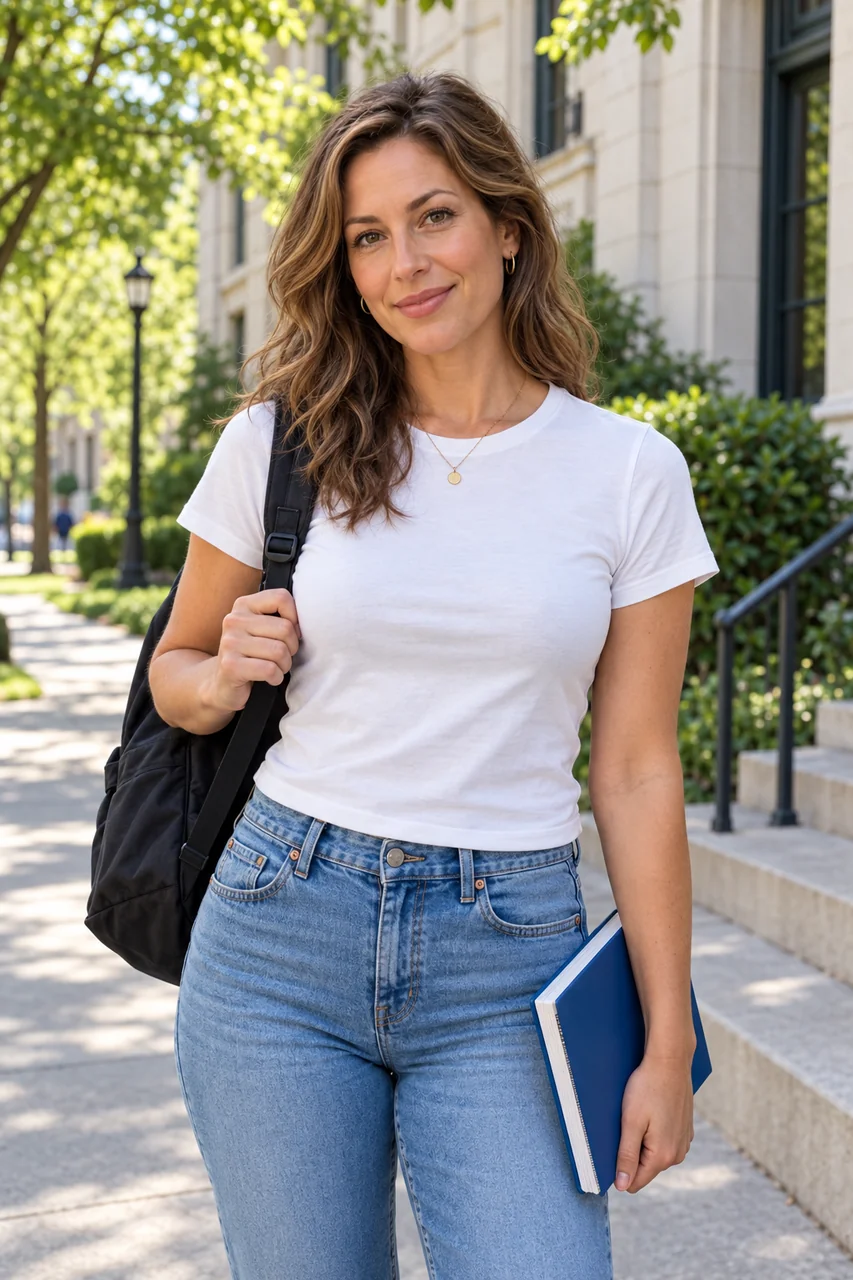
Make me look younger: rewind an adult portrait to a teenage or college-age look while keeping the face recognizable. Great for nostalgic edits and profile experiments.
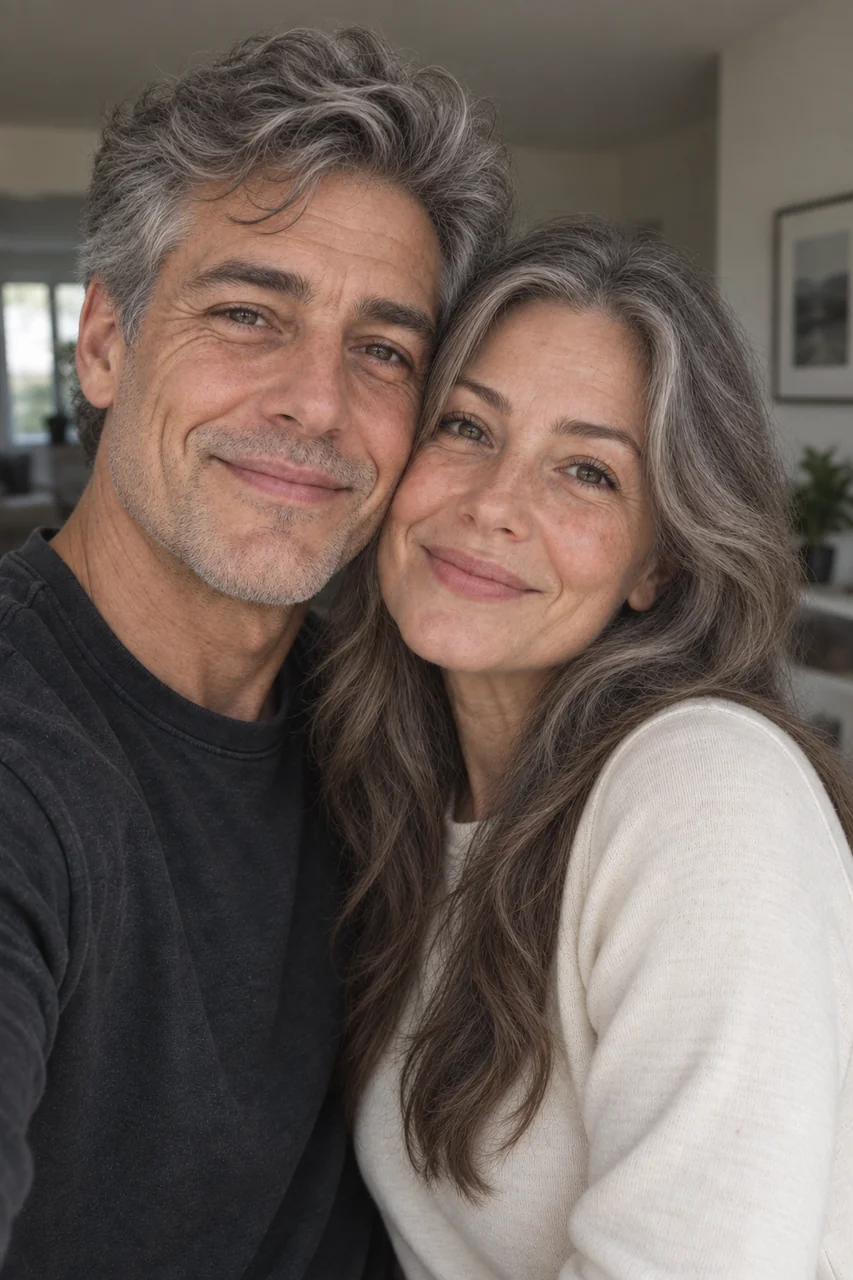
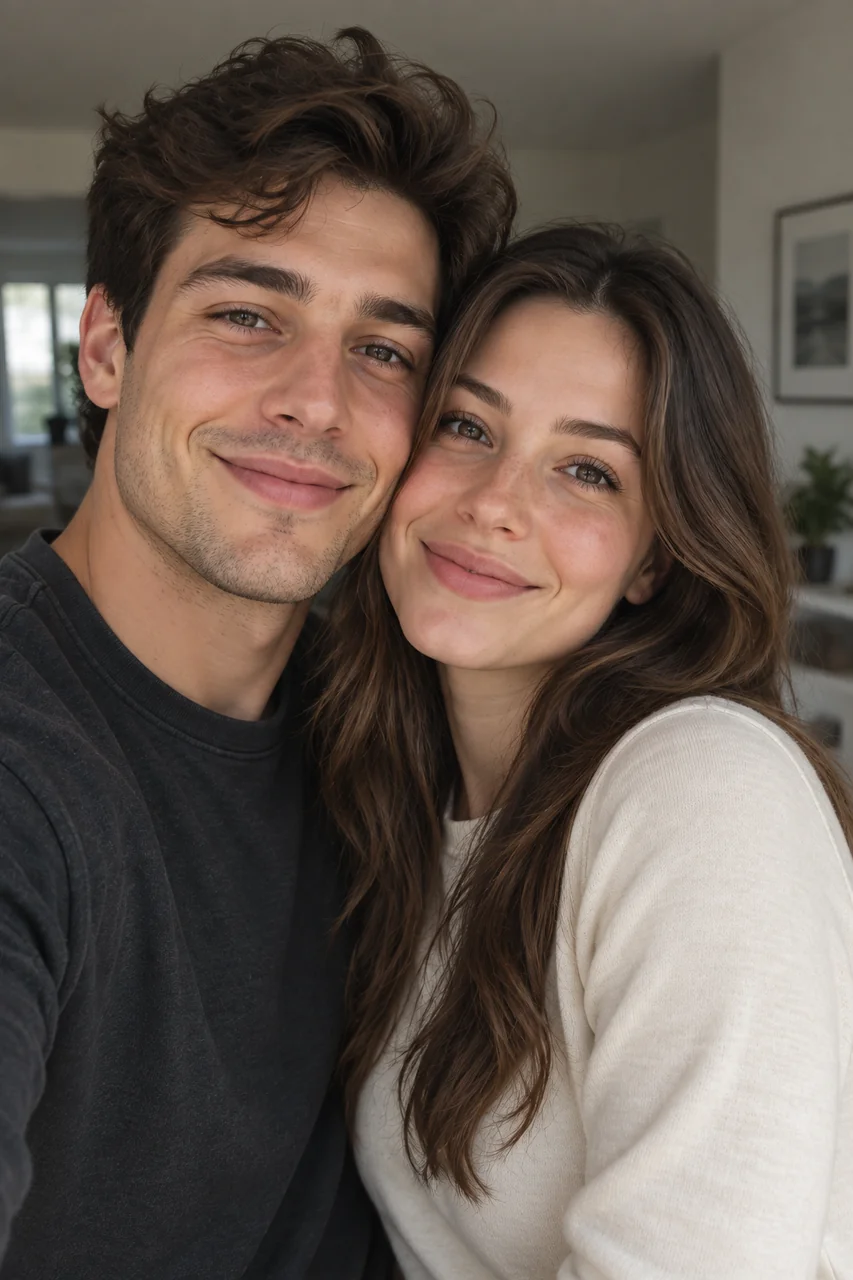
Show the transformation at a glance with a clean current-versus-future aging photo, ready for social posts, thumbnails, and birthday edits.

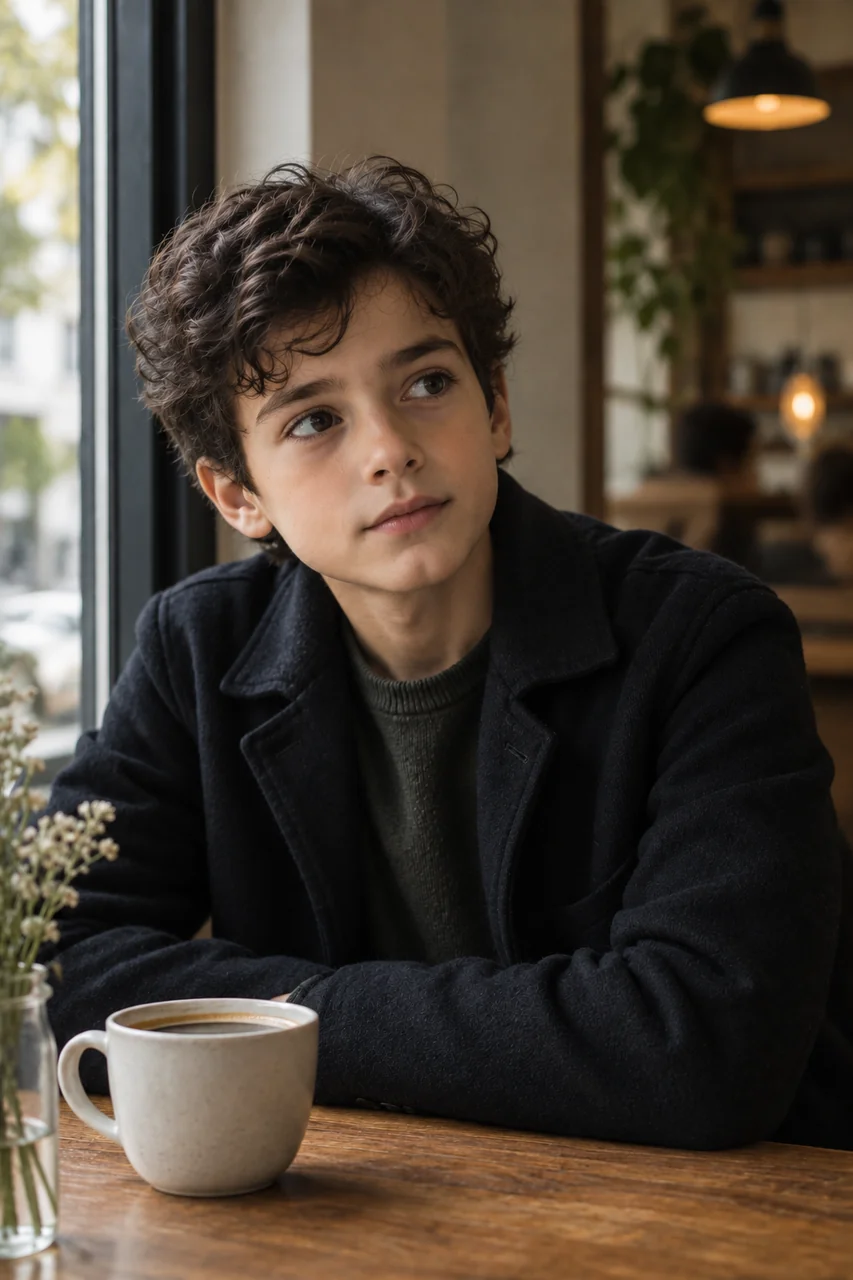
Curious what you will look like when you grow up? Start from a younger photo and preview the adult version. Writers and game designers also use it to plan characters across life stages.
Create an age progression photo in three simple steps. No age progression app to install and no editing skills required.
Choose a front-facing photo with good lighting and a visible face. JPG, PNG, and WebP files up to 10 MB are supported.
Select Female or Male, then choose a life stage: Baby, Child, Teen, Adult, Middle-Aged, or Senior. Prefer something specific? Describe it in Custom.
Generate the aged photo, compare it with your original, and try another age if you want a softer or stronger change.
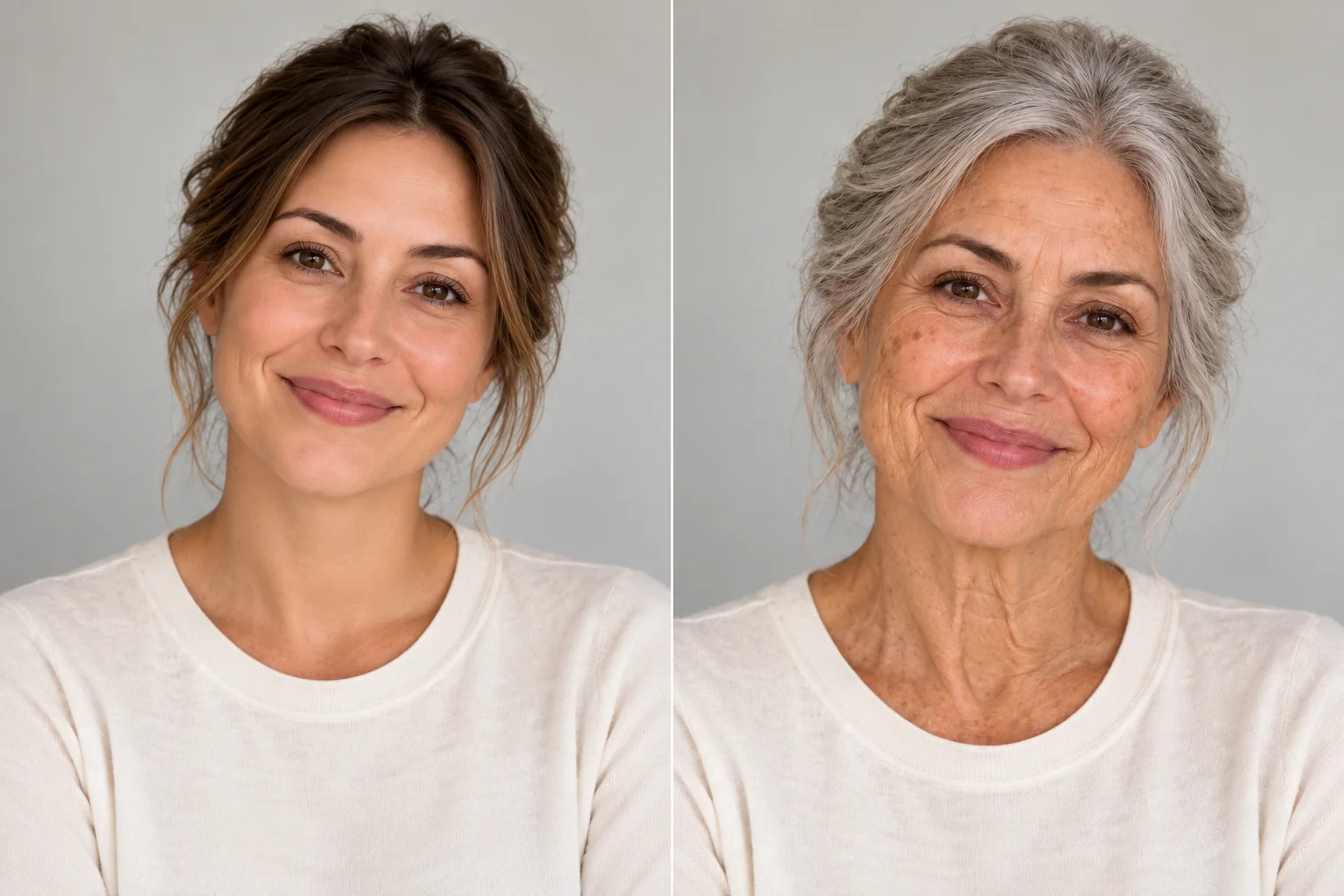
This photo aging tool changes age-related details such as skin texture, fine lines, facial volume, and hair tone while keeping facial structure, eye color, and expression stable. The result still looks like you, just at a different stage of life.
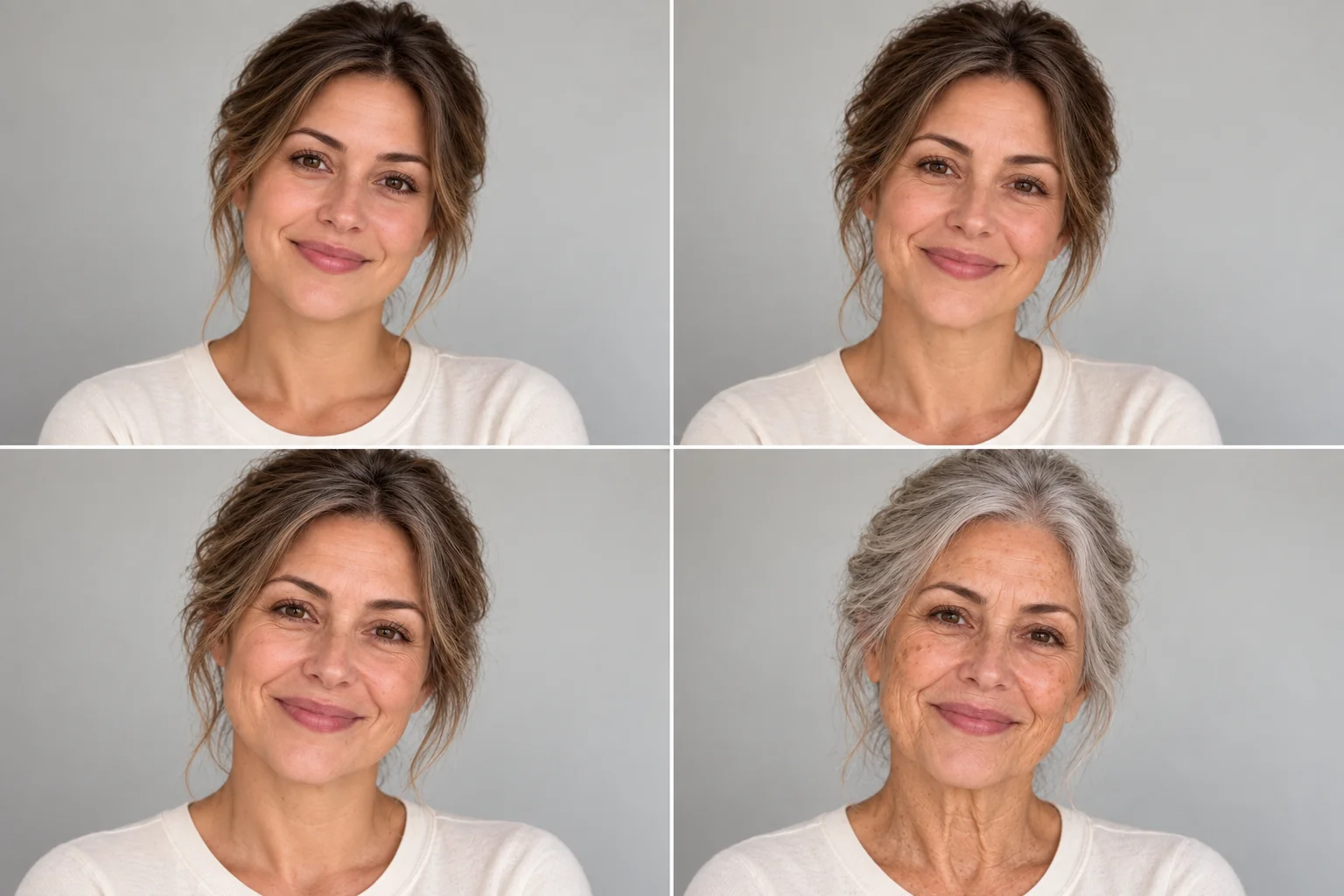
Go beyond a simple old filter. This AI age generator switches between six life stages, so one selfie can become a baby version, a childhood look, your teenage years, or a future senior self.
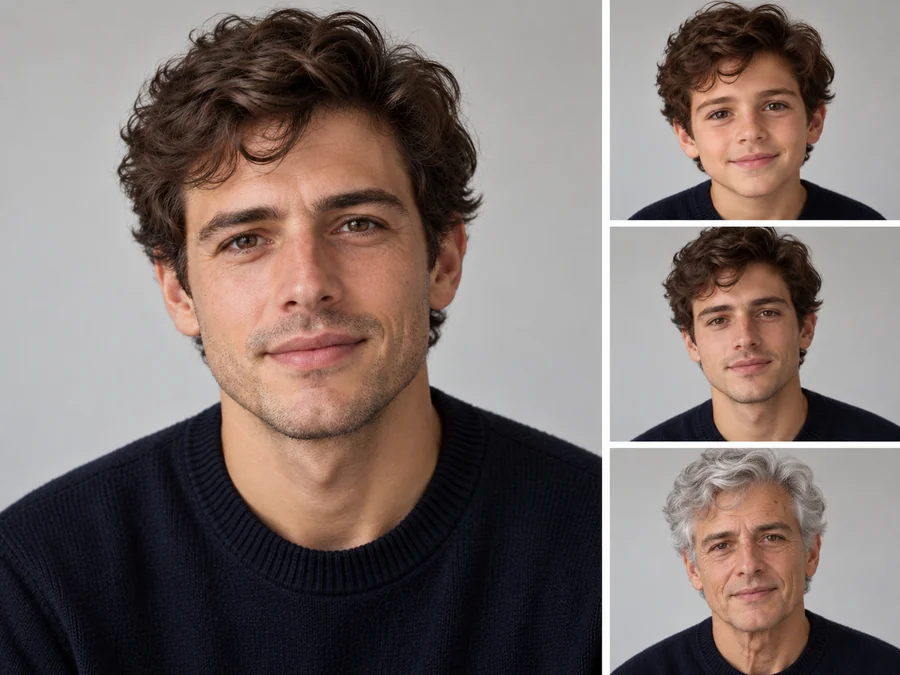
Wrinkles, smile lines, age spots, thinning or gray hair, and natural skin changes are rebuilt into the portrait instead of being pasted on as an overlay, so your photo aged with AI still looks natural.

Wondering what you will look like in 10 years, or at a milestone like your 40th birthday or retirement at 65? Use the Custom option to describe the exact age and details you want to see.
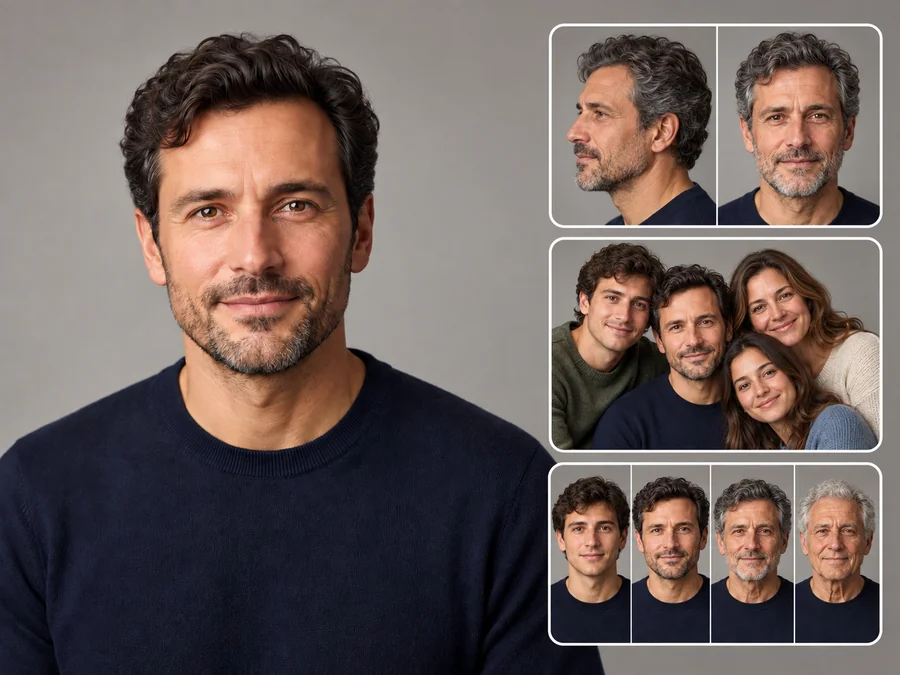
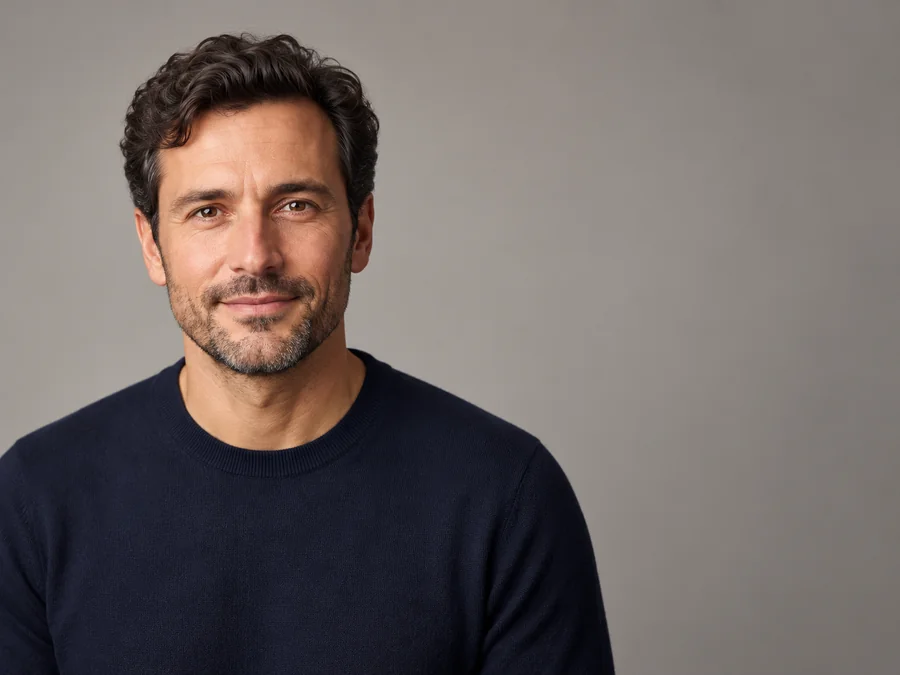
Asking yourself "what will I look like in the future?" Create a realistic older-me photo for personal curiosity, birthday posts, or a fun look ahead.
Age progression AI can also run backward. Turn an adult portrait into a teen or childhood look for nostalgic edits and profile experiments.
Post a before-and-after comparison on TikTok, Instagram, or YouTube and join aging challenges with a clear, shareable transformation.
Writers, role-play creators, and game designers can preview a character across younger, adult, and senior years in minutes.
The source photo has the biggest impact on how natural the result looks.
Front-facing or slightly angled selfies give the AI the most facial detail to preserve.
Soft, natural light without harsh shadows helps keep skin texture and features accurate.
Beauty filters, sunglasses, and heavy makeup can hide the details the aging filter needs.
A single-person portrait usually works better than a crowded group photo.
Common ways creators use age filter results.
Illustrative examples adapted from reference material, not verified reviews of EzImgMaker.
I made a future-self photo for a birthday post. It still looked like me, and the older details made the comparison fun.
The younger-version preview gave me a character backstory reference without hours of manual retouching.
I tried the age preview first, then tested a new hairstyle on the same portrait with other face tools.
The before-and-after layout made the transformation easy to share with friends. A clear front-facing photo worked best.
Answers to common questions about aging filters and age progression photos.
An AI age filter, also called an aging filter, age changer, or age progression tool, transforms a portrait into an older or younger version. It analyzes the face and adds or removes age-related signs such as wrinkles, gray hair, skin spots, and changes in facial volume while keeping the person recognizable.
Upload a clear selfie, choose Middle-Aged or Senior, and generate a preview. Compare a few versions to get a fun idea of your future look. Remember that the result is an illustration, not a forecast.
Choose Custom and describe the target, for example "the same person 10 years older" or "the same person at 50". For bigger jumps, the Middle-Aged and Senior presets show how you might look in 20 or 30 years.
Age progression AI detects the visible facial features in your photo and generates a new image with age-appropriate changes for the life stage you choose. It reconstructs skin texture and hair instead of placing a flat overlay on top of the photo.
Results can look realistic, but they are a creative estimate rather than a prediction. How people actually age depends on genetics, lifestyle, sun exposure, and many other factors, so treat the photo as entertainment and visual reference.
Yes. Choose Teen, Child, or Baby to create a younger-looking version, or describe a specific younger age in Custom. The filter smooths skin, reduces lines, and adjusts facial proportions for the selected age.
No. This online age filter runs in your browser on phone or desktop, so you get the same kind of result as an aging app without downloading or installing anything.
A sharp, front-facing portrait with even lighting and one visible face works best. Avoid blurry photos, strong shadows, heavy beauty filters, sunglasses, and crowded group shots.
Only upload photos you have permission to edit. A child portrait can be used to imagine "what will I look like when I grow up", but treat the result as a creative estimate and never use it to mislead anyone about a real person’s identity or age.
Yes, before-and-after aging photos are great for social posts, birthday edits, and future-self challenges. Do not present the image as a real photo of someone or use it to deceive others.
Upload a portrait and preview your future or younger self with the AI age filter.