Explainer With Clean Equations
Text to video: a professor teaches sin²(x) + cos²(x) = 1 and the chalkboard maths stays readable as he turns to the camera.
Gemini Omni by Google turns a prompt into video, follows your reference images for characters and places, and edits or extends a clip you upload. Choose Gemini Omni or the lighter Omni Flash 1.1, then 4 to 10 seconds in 16:9 or 9:16, up to 4K.
A middle-aged professor with glasses stands at a green chalkboard full of equations, explaining the trigonometric identity sin²(x) + cos²(x) = 1, turning to face the camera as he teaches.
Reference example. It is not a result generated from your upload.
Gemini Omni is Google’s multimodal AI video model, and many people simply call it the Google Omni video model. Instead of separate tools for each job, one Gemini Omni model handles text to video, Gemini Omni image to video from reference images of characters, scenes, or styles, and Gemini Omni video to video: you upload a clip and describe an edit, such as swapping an object or changing the time of day, or ask it to continue the shot. That makes it a Google Omni video generator and a Gemini Omni video editor in one.
Gemini Omni Flash 1.1 (also written Gemini Omni 1.1 Flash) is the lighter version. It takes the same prompts, references, and source clips, so Gemini Omni Flash text to video, reference to video, and video to video all work, and it adds a start and end frame mode plus a 360p draft setting next to 720p, 1080p, and 4K. On EzImgMaker you can use the Gemini Omni video generator online, with no app, download, or Gemini Omni API key: pick a model and a mode in the workspace above and generate.
Gemini Omni examples and the prompts behind them, from text to video to real-video edits. Press a button to load a similar idea into the workspace.
Text to video: a professor teaches sin²(x) + cos²(x) = 1 and the chalkboard maths stays readable as he turns to the camera.
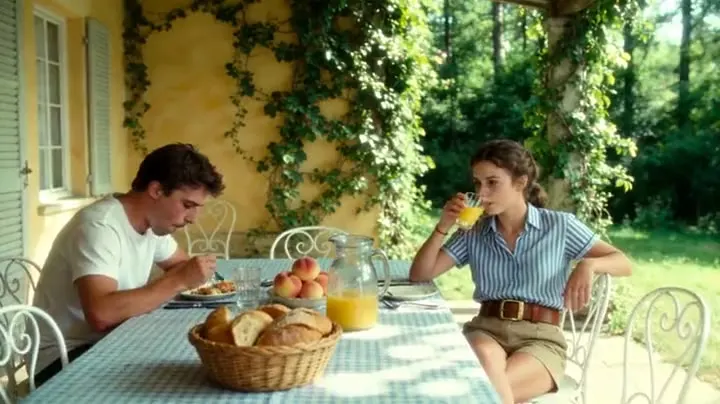
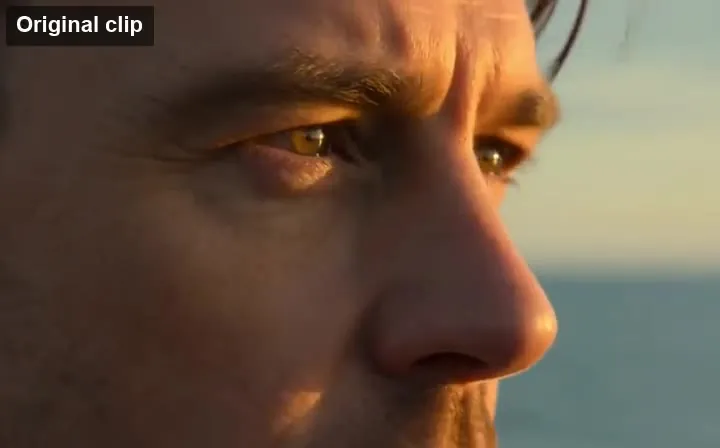
Gemini Omni video editing starts with footage like this: a lunch scene with bowls of pasta on the table.
One prompt replaced the dish while the camera move, lighting, plating, and table stayed the same.
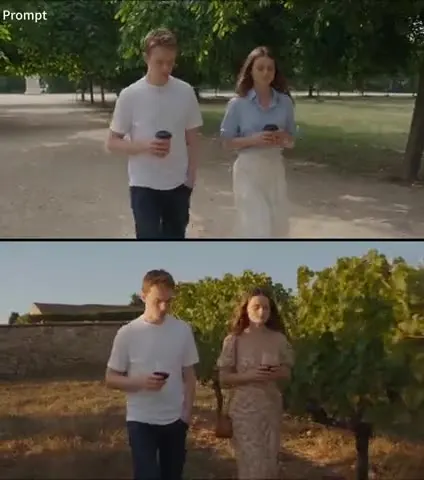
Top: the original daytime footage. Bottom: fireworks added and the clock moved to midnight, with the same camera path.
The fighters’ movement comes from a reference clip; the starry sky, dust, and orbiting camera come from the prompt.
One continuous zoom from brushstrokes to pigment grains to molecules, with labels that stay legible at every scale.
A quick Gemini Omni tutorial: three steps in your browser, from idea or footage to a finished clip.
Choose Gemini Omni or Omni Flash 1.1, then Text, References (up to four images you call @Image1 to @Image4), Start & end frame (Flash 1.1), or Edit a video to upload a clip of up to 30 seconds.
For a new clip, write the subject, action, setting, and camera move. For an edit, say what should change and what must stay the same, or ask Gemini Omni to continue the clip from its last moment.
Pick 4, 6, 8, or 10 seconds (edits set their own length), 16:9 or 9:16, and 720p, 1080p, or 4K. The cost appears on the Generate button before you start; then download the MP4.
Upload a clip and describe the change: replace an object, turn day into New Year’s Eve, restyle the scene, or continue the shot past its last frame. This kind of Gemini video editing keeps the camera path and everything you did not mention. It reads up to the first 10 seconds of a clip of up to 30 seconds and decides the length of the result.
Add up to four reference images for a character, a location, a product, or a visual style, then refer to them in the prompt as @Image1, @Image2, and so on. Giving each image one clear job keeps faces, outfits, and places consistent across the clip.
Omni Flash 1.1 is the lighter tier for drafts and high-volume work: it uses fewer credits per clip and adds a 360p setting. It is also the model with a start and end frame mode, so you can open on one image, land on another, and let Gemini Omni Flash image to video fill in the motion.
Every Gemini Omni clip is 4, 6, 8, or 10 seconds long in widescreen 16:9 or vertical 9:16. Draft in 720p (or 360p on Flash 1.1) and render the keeper in 1080p or 4K for a sharp finish on big screens.
Three Google video models you can use on EzImgMaker, side by side.
| Gemini Omni | Omni Flash 1.1 | Veo 3.1 | |
|---|---|---|---|
| Best for | Edits and reference-driven clips | Lower-cost drafts and frame-to-frame shots | Polished, realistic shots with dialogue |
| Text to video | Yes | Yes | Yes |
| Start & end frame | No | Yes | Yes |
| Reference images | Up to 4 here | Up to 4 here | 1–3 images |
| Edit or extend your own video | Yes (first 10 s of a clip up to 30 s) | Yes (first 10 s of a clip up to 30 s) | No (extends clips it made) |
| Clip length | 4, 6, 8, or 10 s | 4, 6, 8, or 10 s | 4, 6, or 8 s |
| Resolution | 720p, 1080p, 4K | 360p, 720p, 1080p, 4K | 720p, 1080p, 4K |
| Aspect ratio | 16:9, 9:16 | 16:9, 9:16 | 16:9, 9:16, Auto |
Gemini Omni Flash vs Veo 3.1: both take a start and end frame, but only Flash also edits your own footage. Start and end frames cannot be combined with reference images or a source video in one generation, and in Edit a video the model sets the output length.
Teachers and trainers turn a lesson script into short clips with equations and labels on screen.
Clean studio reveals, macro details, and 9:16 cut-downs for social ads from one prompt.
Swap a prop, change the time of day, or restyle a shot you already filmed.
Use reference images of characters and locations to block out scenes before a shoot.
Drone-style flyovers, golden-hour exteriors, and slow interior push-ins up to 4K.
Vertical 9:16 clips for hooks, mood pieces, and quick visual gags.
Gemini Omni tips and a short Gemini Omni video prompt guide: subject + action + setting + camera + what must stay the same.
Write "replace the mug with a glass of juice; keep the person, camera, and lighting identical" so only one thing changes.
"@Image1 is the character, @Image2 is the street" works better than uploading images and hoping they blend.
Slow push-in, orbit, tracking shot, or drone rise: pick one so a 4 to 10 second clip stays smooth.
Test ideas on Omni Flash 1.1 at 360p or 720p, then render the version you like in 1080p or 4K.
Compare Gemini Omni with other video generators on EzImgMaker.
Google’s cinematic video model with dialogue, start and end frames, and Extend.
Read the guideGemini Omni vs Seedance 2.5: pick Seedance for 30-second takes guided by many reference files.
Read the guideMulti-shot scenes with sound and strong motion control.
Read the guideAlibaba’s film-style model with sound and lip-synced speech.
Read the guideEvery video model in one place: pick the right one for each shot.
Read the guideTurn a photo or artwork into a moving clip.
Read the guideCommon questions about Gemini Omni and Gemini Omni Flash 1.1.
Gemini Omni is a multimodal AI video model by Google. It makes 4 to 10 second clips from a text prompt or from reference images, and it can edit or extend a video you upload based on a written instruction. Gemini Omni Flash 1.1 is its lighter, lower-cost version.
Gemini Omni is free to try on EzImgMaker: new accounts get free credits when you sign up. After that, Gemini Omni pricing is per clip, based on the model, length, and resolution, and the exact Gemini Omni cost is shown on the Generate button before you start. The Gemini Omni Flash price per clip is lower than Gemini Omni’s.
The Gemini Omni max length is 10 seconds per clip: choose 4, 6, 8, or 10, and the Google Omni video length is the same on Omni Flash 1.1. When you edit or extend a video, Gemini Omni reads up to the first 10 seconds of your clip and decides the length of the result itself, so the duration setting is hidden in that mode.
Gemini Omni resolution options are 720p, 1080p, and 4K. Omni Flash 1.1 adds a 360p option for quick, low-cost drafts. 4K costs more credits than 1080p, so many people draft in 720p first.
Yes, it works as a Gemini Omni video editor. Choose Edit a video, upload an MP4 or MOV of up to 30 seconds and 100 MB, and describe the change, such as replacing an object, changing the time of day, or continuing the shot. Only upload footage you own or have permission to use.
Both take text, reference images, and a source video. Omni Flash 1.1 uses fewer credits, adds a 360p setting, and is the only one of the two with a start and end frame mode. Gemini Omni is the full model for your final, highest-quality renders.
Gemini Omni or Veo? Use Gemini Omni when you want to edit or continue your own footage, or guide a clip with up to four reference images. Use Veo 3.1 for polished, realistic shots with spoken dialogue, or to extend clips it generated. Both offer 16:9 and 9:16 and up to 4K.
Yes. In References mode you can add up to four Gemini Omni reference images for characters, scenes, products, or styles and mention them in the prompt as @Image1 to @Image4. Reference images cannot be combined with a start and end frame in the same generation.
Gemini Omni and Omni Flash 1.1 generate in 16:9 (landscape, for YouTube and websites) or 9:16 (vertical, for YouTube Shorts, Reels, and TikTok-style feeds).
No. EzImgMaker is an independent site and is not affiliated with, endorsed by, or sponsored by Google. We provide access to Gemini Omni and Omni Flash 1.1 through a third-party API provider; the model names are used only to describe compatibility.
Write a prompt, add reference images, or upload a clip to edit, and let Gemini Omni do the rest.
Google, Gemini, and Gemini Omni are trademarks of Google LLC. EzImgMaker is an independent site and is not affiliated with, endorsed by, or sponsored by Google. Model names are used only to describe compatibility.