Change the Background
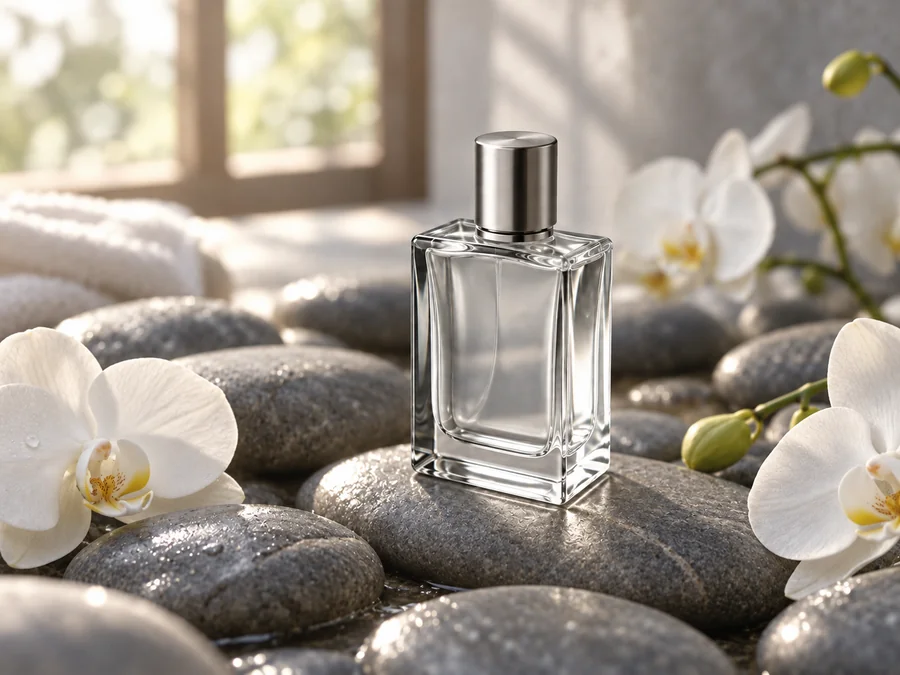
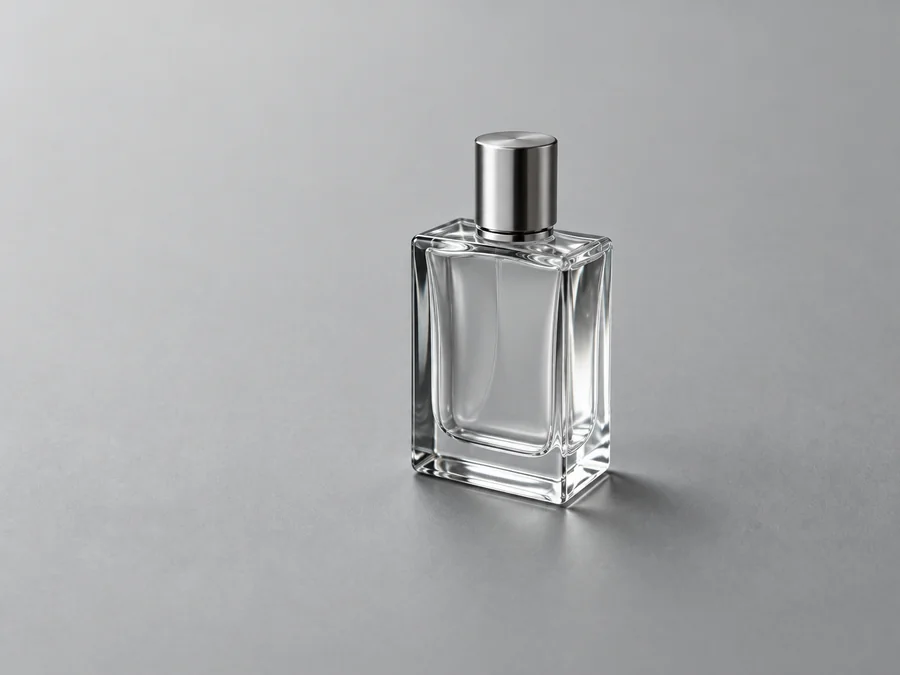
Instruction: "Place the perfume bottle on spa stones with white orchids and soft window light." The bottle, its reflections, and the label area stay untouched.
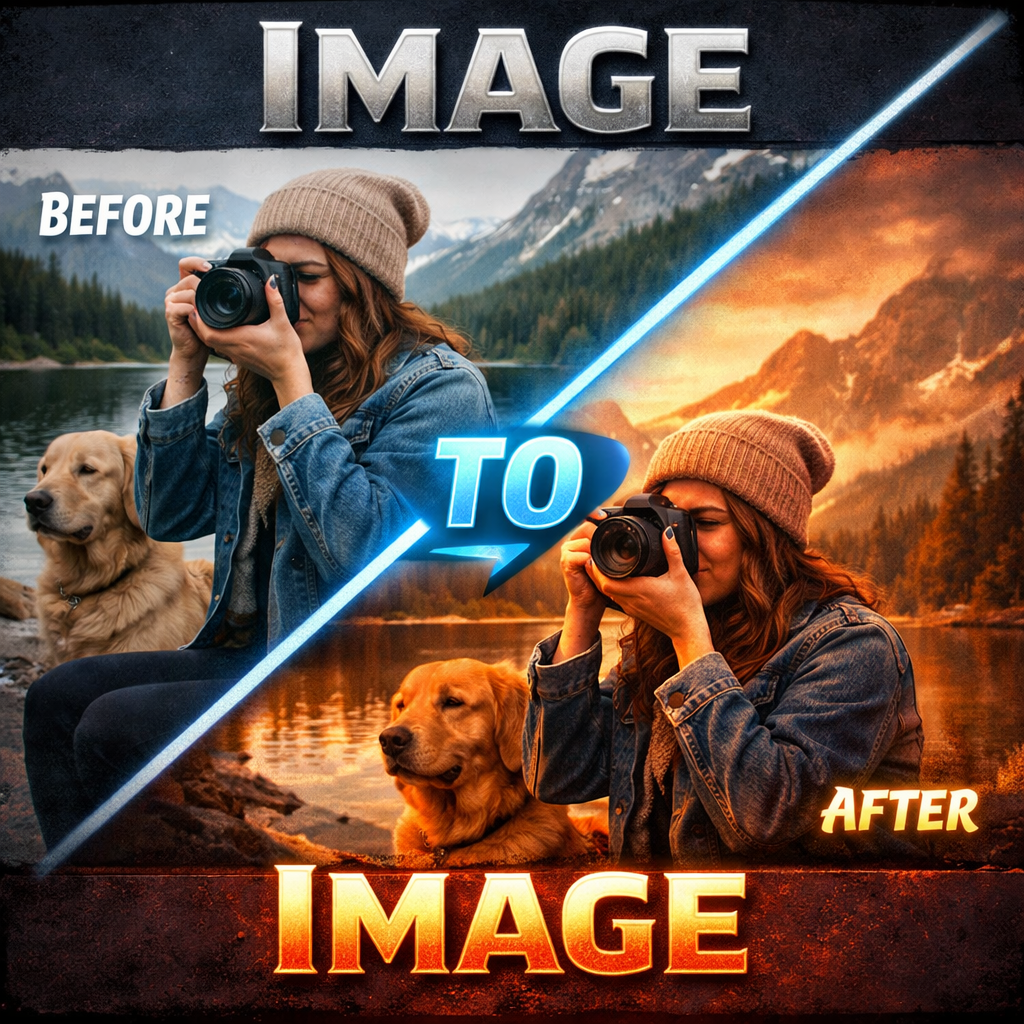
Upload a photo and describe the edit in plain words, like you would in a chat: change the background, relight the scene, swap an outfit, or turn it into an illustration. The AI follows your instruction and keeps everything else as it was.
Prompt ideas
Fine-tune
Your photo stays in this browser during this UI preview.
Reference example. It is not a result generated from your upload.
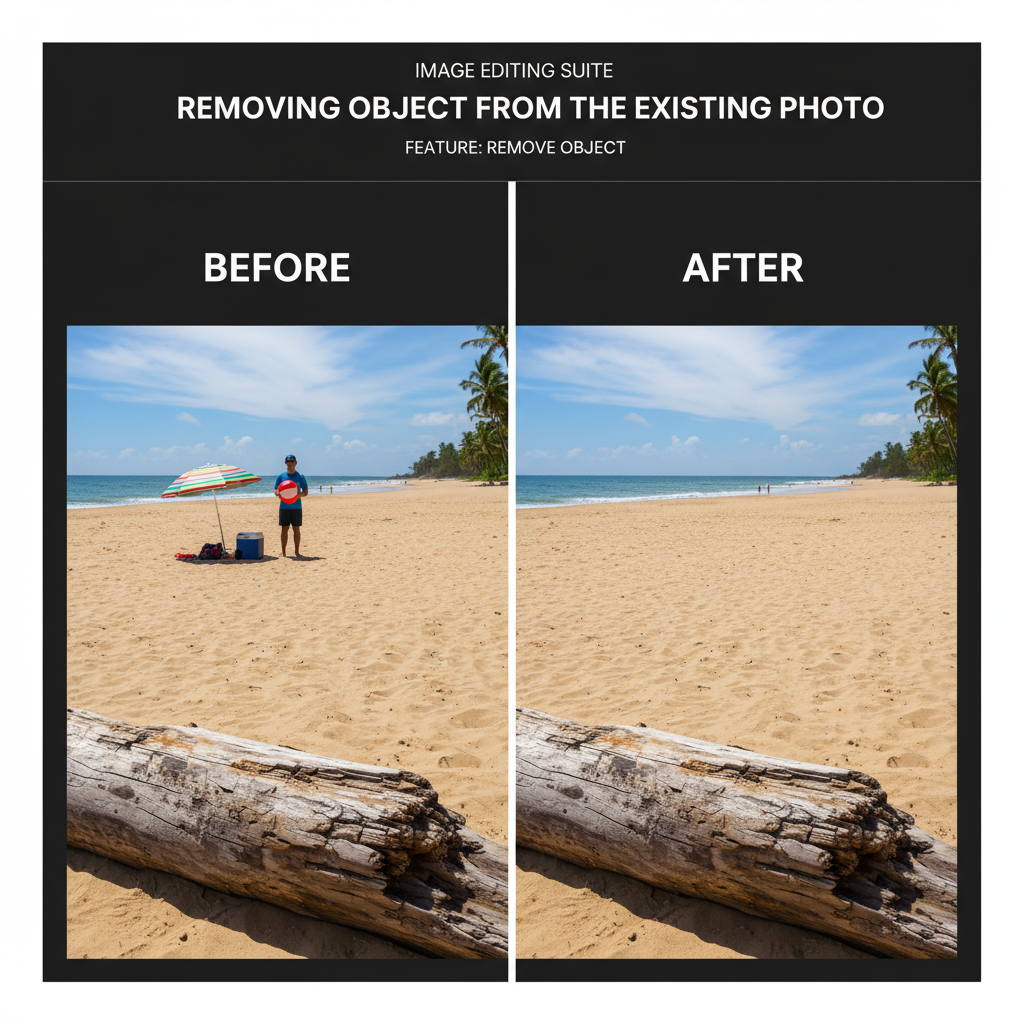
A ChatGPT photo editor is an image editor you control with words instead of tools. Rather than selecting layers, painting masks, or dragging sliders, you upload a picture and write what should change, for example "replace the background with a beach at sunset" or "remove the bag from the table". The AI understands the instruction, edits only what you asked for, and leaves the rest of the photo alone.
This page gives you that ChatGPT-style image editing in a dedicated workspace: one upload, one instruction box, ready-made prompt ideas, and before-and-after examples. It works as a ChatGPT image editor for backgrounds, lighting, outfits, objects, text, and art styles. It is an independent tool and is not made by or affiliated with OpenAI.
Each edit was made from a single plain-language instruction. Drag to compare.
Instruction: "Place the perfume bottle on spa stones with white orchids and soft window light." The bottle, its reflections, and the label area stay untouched.
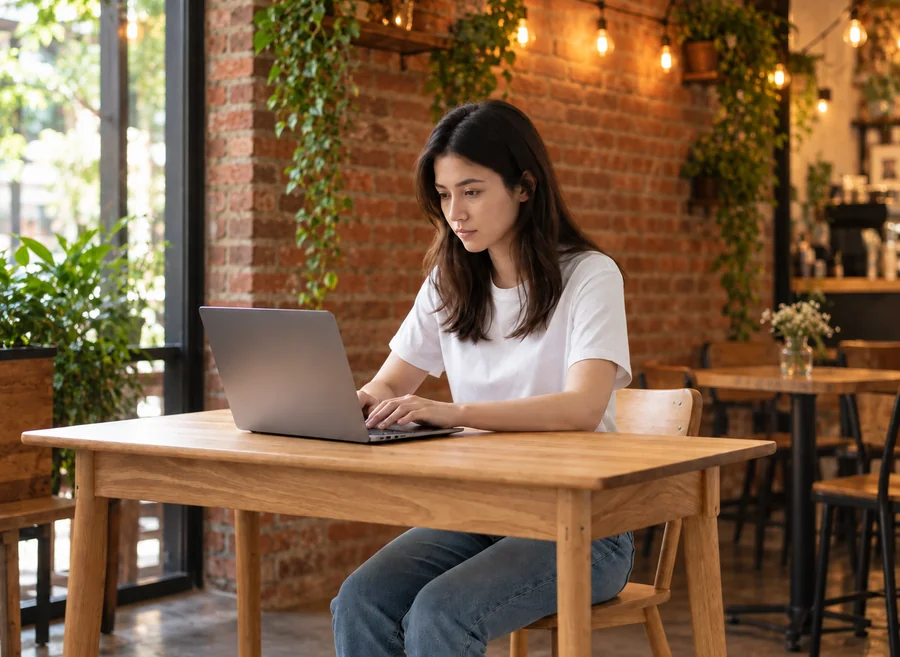
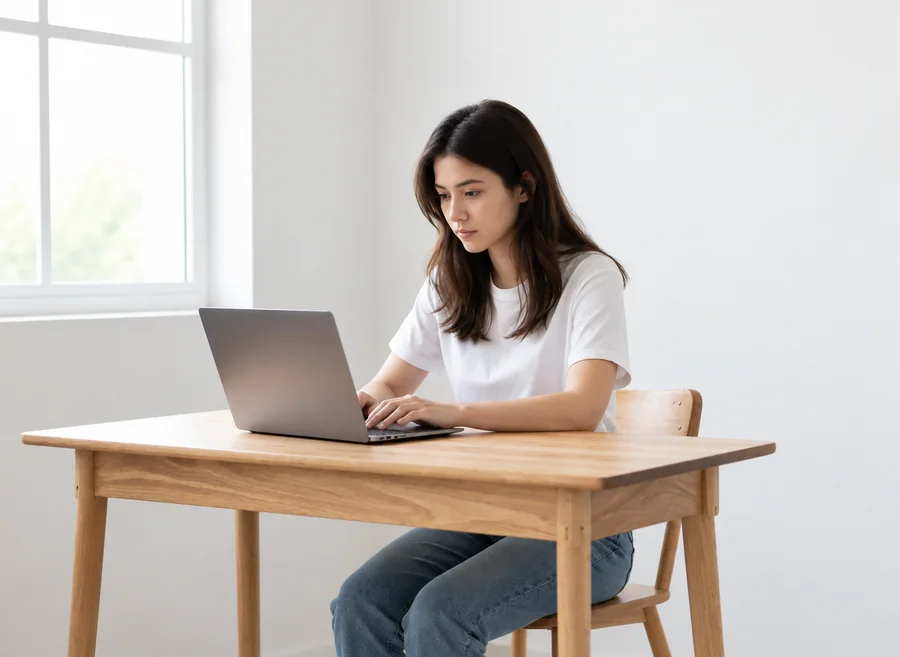
Instruction: "Move her to a cozy café with a brick wall, hanging plants, and warm string lights." The person, laptop, and desk keep their exact position.
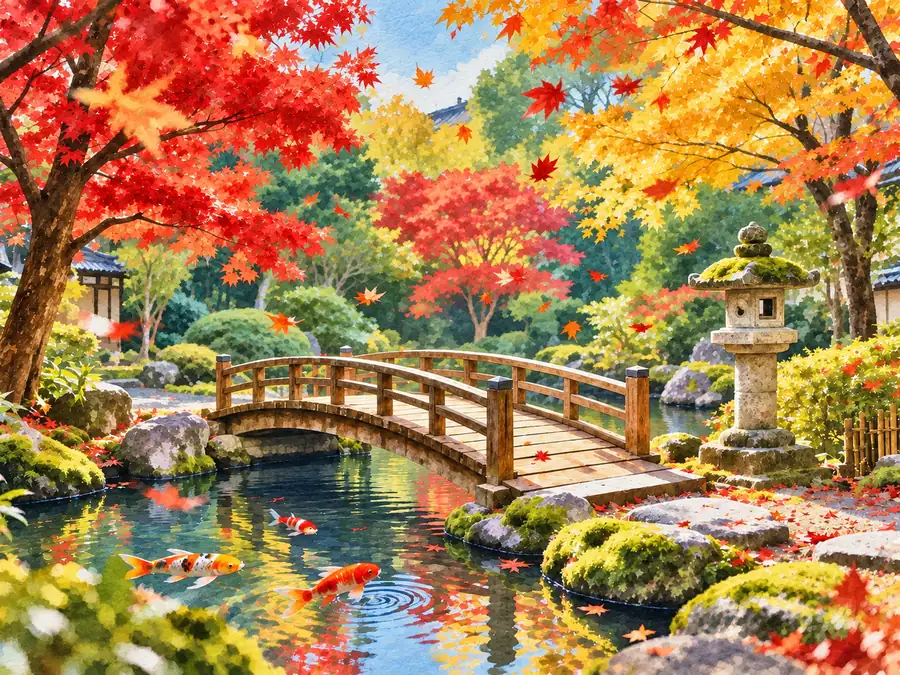
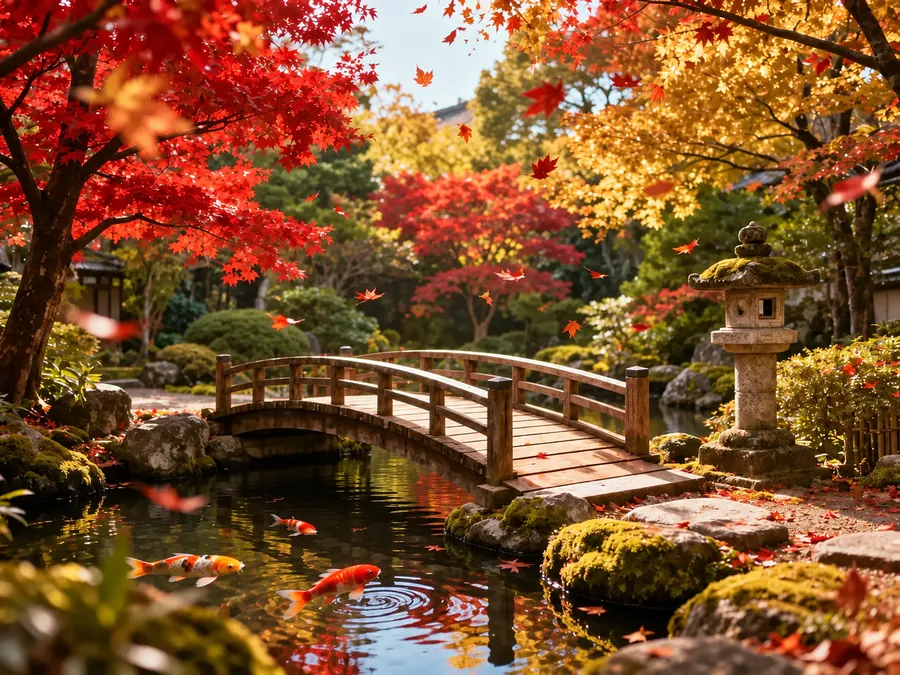
Instruction: "Redraw this garden as a bright hand-painted illustration with drifting leaves." The bridge, lantern, and pond stay where they were.
Popular instruction edits for portraits and scenes. Load a prompt idea, then adjust the wording.
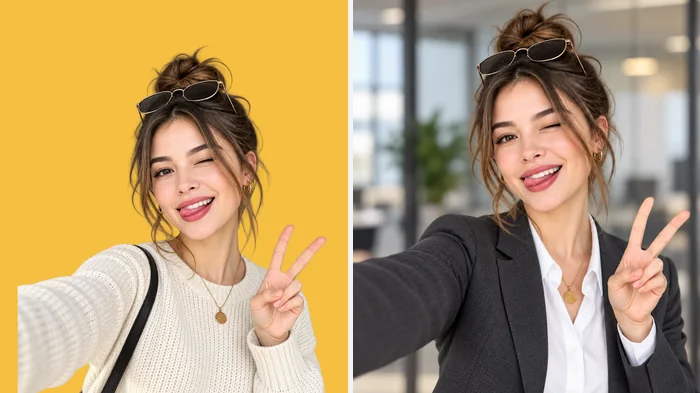
"Charcoal blazer over a white blouse, modern office background, soft front light, keep the face identical."
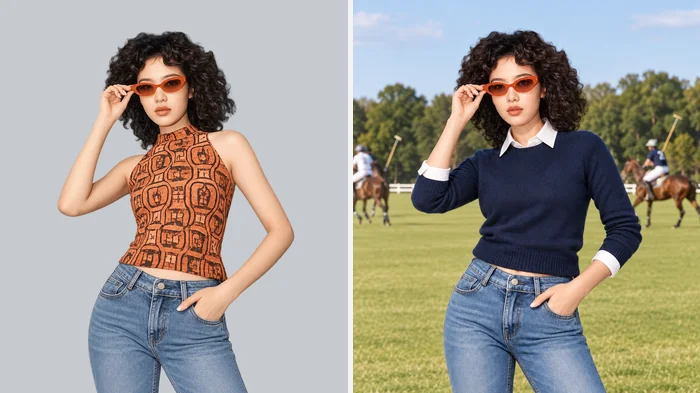
"Navy sweater over a white shirt, polo field background, light from the right."
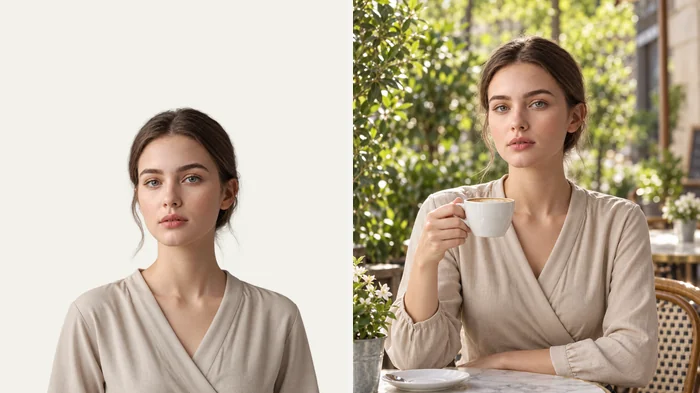
"Seated at an outdoor café table holding a cup, soft daylight, blurred street behind."
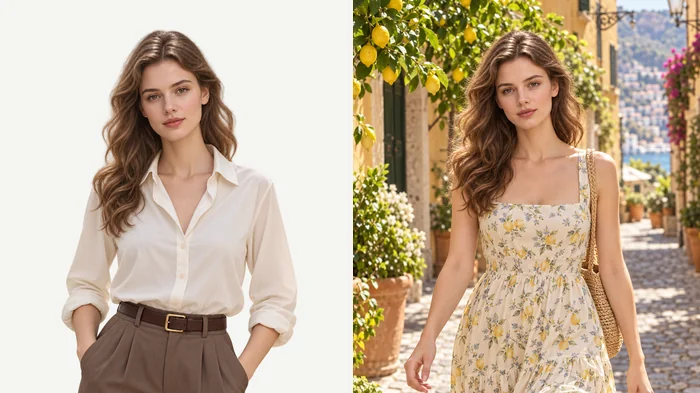
"Floral midi dress, Mediterranean street with lemon trees and pastel buildings, warm sun."
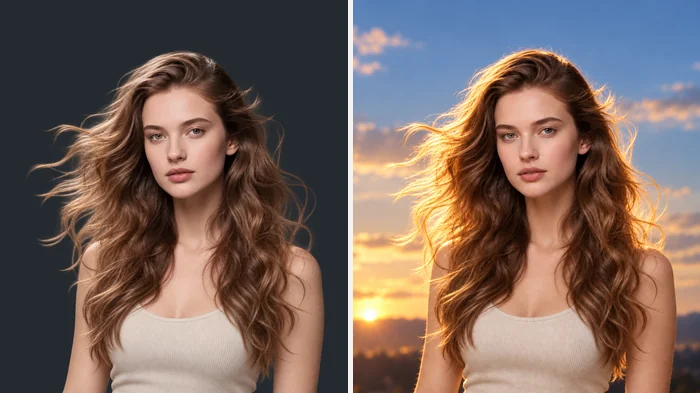
"Soft key light from the top left, golden backlight, blurred city bokeh, keep the expression."
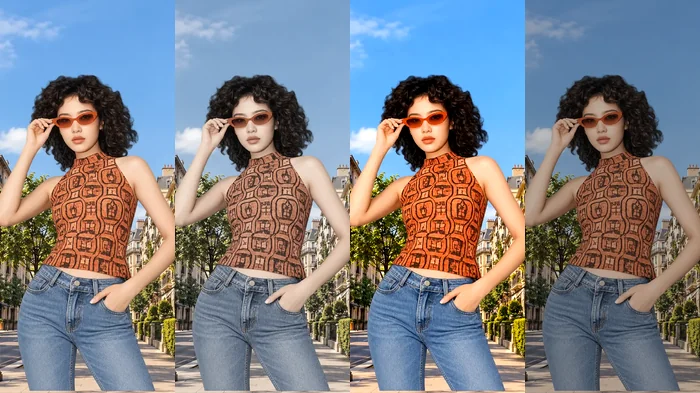
"Same photo with a teal-and-orange grade", then "warm sunset tones", then "cool blue evening".
The same idea as asking for chat GPT photo edits, in three steps.
Add a JPG, PNG, or WebP up to 20 MB: a portrait, a product shot, a room, or a landscape.
Type what should change and what should stay, or start from a prompt idea such as Change Background or Professional Headshot. Choose an output shape if you need one.
Review the result, then edit again with a follow-up instruction, for example "make the light a bit warmer" or "move the text lower".
No selections, layers, or brushes. Write "put her in a café with a brick wall" and the editor works out what is foreground and background, rebuilds the scene, and keeps the subject in place, the way ChatGPT photo editing works in a chat.
Ask for a new outfit, background, or light and say what must not change. The AI keeps faces, hands, product shapes, and logos stable, so a professional headshot still looks like you.
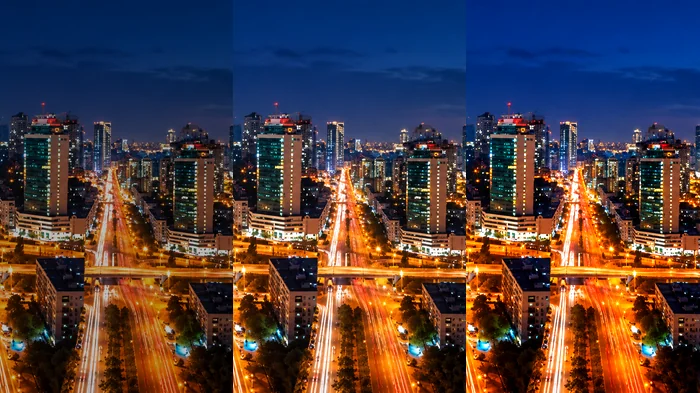
Good edits often take two or three rounds. Start with "add light trails to the city at night", then "make the sky darker", then "add a few stars". Each instruction builds on the last result.
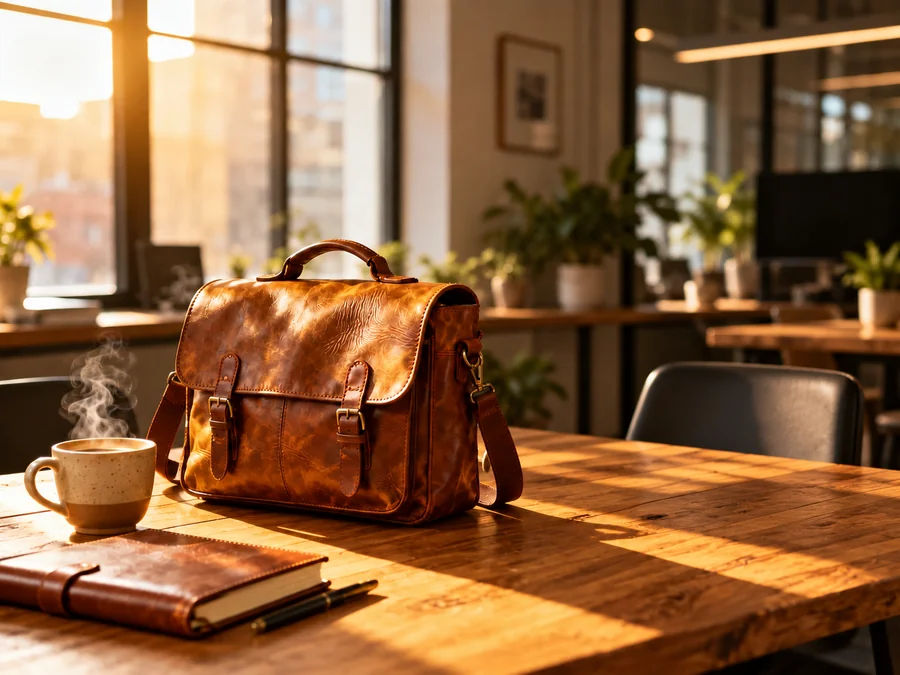
Turn a plain product photo into a styled scene for a shop, an ad, or a social post: a leather bag on a sunny desk, a bottle on spa stones, a mug by a window. Describe the props and the mood and keep the product untouched.
Common jobs for a ChatGPT picture editor and other instruction-based image editing.
Clean up a selfie into a professional or creative profile photo without a studio.
Place products in styled scenes, remove clutter, and create seasonal variations of the same shot.
Change locations, lighting, and moods, or add short text, for posts, banners, and thumbnails.
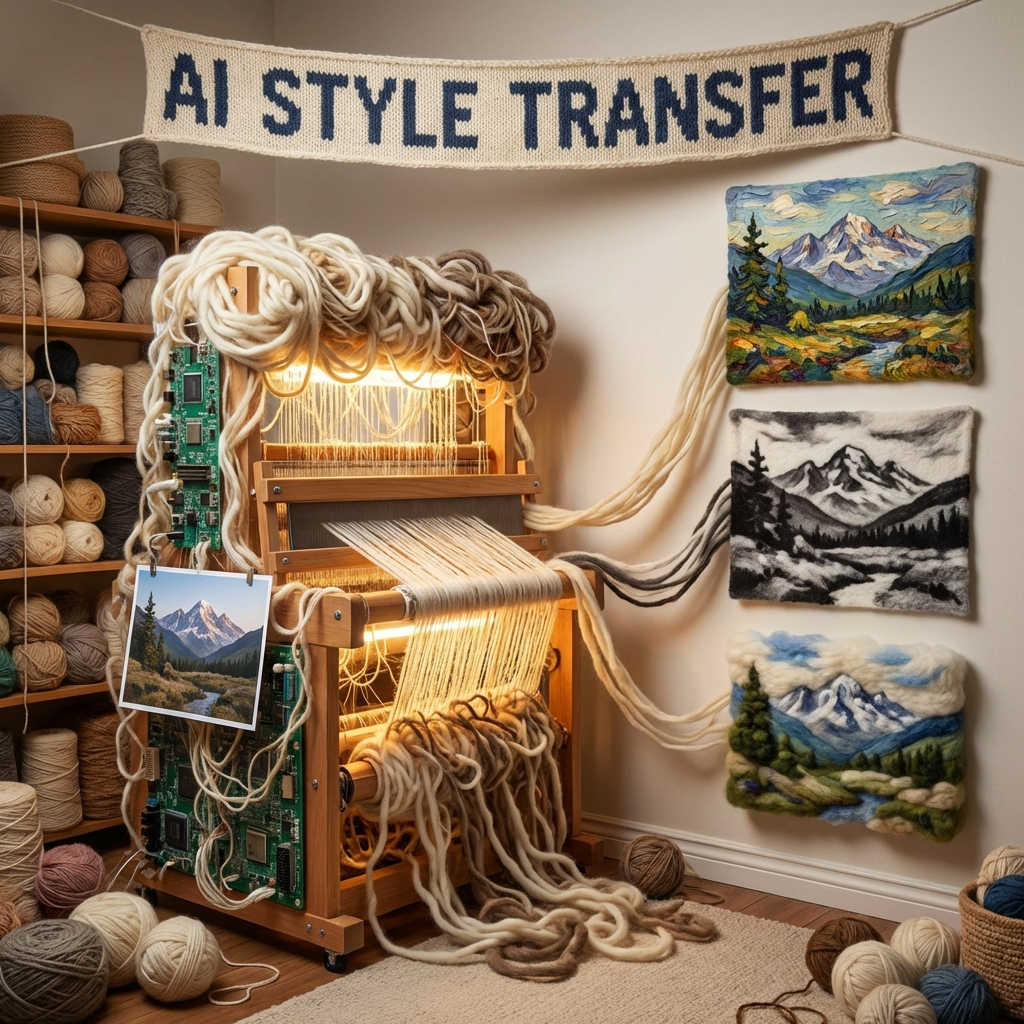
Turn photos into illustrations, posters, or story art, and try several styles from one picture.
How you phrase the instruction has the biggest effect on the result.
Name the object, color, place, and light: "a navy wool coat" works better than "a nicer coat".
Add "keep the face, pose, and composition unchanged" to protect the parts you like.
Big rewrites are harder to control. Make one change, check it, then add the next.
Use photos you have rights to, and never create misleading images of real people.
Typical edits made by describing the change.
Illustrative examples adapted from reference material, not verified reviews of EzImgMaker.
I describe the scene I want for each product and get a styled shot without a photo studio. Saying "keep the label unchanged" made a big difference.
My LinkedIn photo was a cropped vacation selfie. One instruction gave me a blazer and an office background, and it still looks like me.
I tweak thumbnails with follow-up prompts: brighter, warmer, move the text. It feels like editing in a chat.
Turning my travel photos into illustrations for a zine took minutes per page instead of hours of drawing over them.
Answers to common questions about editing photos with text instructions.
It is an AI photo editor you control with written instructions, the way you would ask for an edit in ChatGPT. Whether you call it a Chat GPT picture editor, a Chat GPT images editor, a GPT chat photo editor, or a GPT AI photo editor, the idea is the same: upload a photo, describe the change, and get an edited image.
No. EzImgMaker is an independent tool and is not affiliated with, endorsed by, or sponsored by OpenAI. "ChatGPT" is mentioned only to describe the instruction-based editing style. Inside ChatGPT itself you can also edit images in a conversation.
Yes, ChatGPT can edit images inside a chat. This editor focuses on the same kind of instruction editing with a dedicated upload area, prompt ideas for common edits, output shape options, and before-and-after examples, so you do not have to start every prompt from scratch.
Background changes, relighting, outfit and color changes, removing objects, adding short text, and style changes such as illustration or film looks. Very precise layout work or exact text in small sizes can need a few attempts.
Yes. Put the exact words in quotes and describe the style and position, for example: add the text "Grand Opening" in bold white letters at the top. Short phrases render more reliably than long sentences.
The editor is designed to preserve identity. Add "keep the face unchanged" to your instruction and avoid asking for changes to facial features unless you want them. Clear, well-lit photos give the most consistent results.
Say what to change, what to keep, and the look you want: subject, setting, light, and style. Example: "Replace the background with a snowy cabin at dusk, warm window light, keep the person and pose unchanged."
JPG, PNG, and WebP images up to 20 MB. You can keep the original shape or choose 1:1, 2:3, or 3:2 for the result.
Only edit photos you own or have permission to use. Do not create sexual or degrading images, fake evidence, or misleading images of real people, and do not remove watermarks from other people’s work.
Upload a picture, type the change, and let the ChatGPT photo editor do the rest.
EzImgMaker is an independent product and is not affiliated with, endorsed by, or sponsored by OpenAI. ChatGPT and GPT are trademarks of OpenAI and are mentioned only to describe the type of instruction-based photo editing this tool offers.