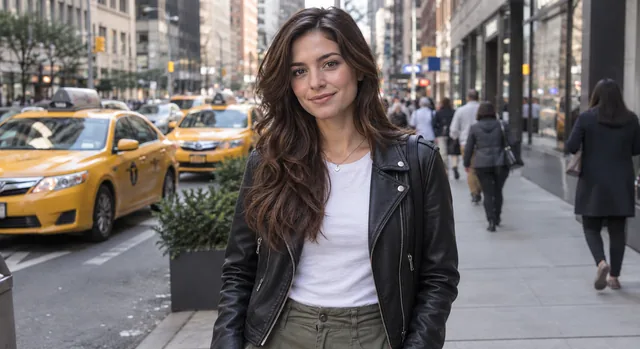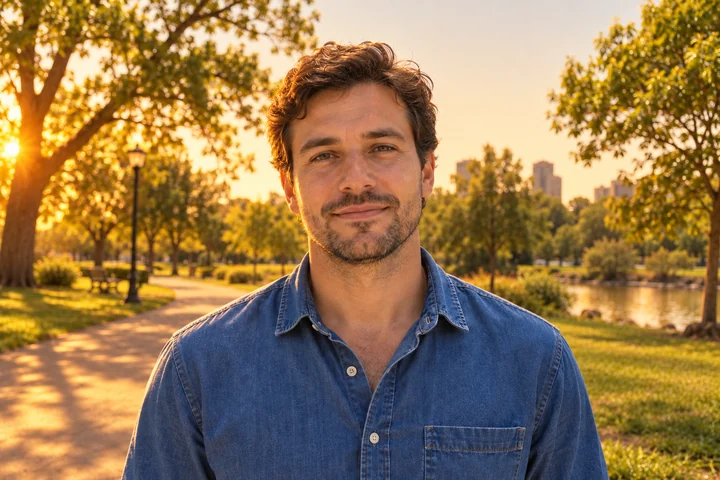

Flat Noon Light to Golden Hour
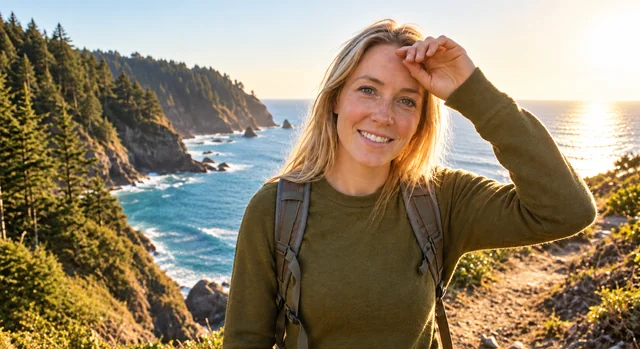
Warm low sun from one side and a soft glow on the face turn a flat park portrait into an evening shot.
Upload a photo and describe the light you want, or tap a fix: rescue a backlit shot, brighten a dark face, soften harsh midday sun, remove face shadows, tame flash, or relight it with golden hour, studio, or dramatic side light. People and scenes stay the same; only the light changes.
Lighting fixes
Fine-tune
Reference example. It is not a result generated from your upload.
Bad light ruins good moments: a friend lost in shadow against a bright window, harsh noon sun carving dark circles under everyone’s eyes, a flash that flattens faces and blacks out the room. To fix lighting the old way you would mask, dodge, and burn for an hour. AI relighting does it from a sentence: describe the light you want, or tap a fix, and the AI lighting editor rebuilds the light in the photo.
Unlike a brightness slider, this lighting AI understands faces and scenes. It can add soft front fill to a backlit face, move the light to the left or right, warm it into golden hour, or turn a flat shot into dramatic side light, while the people, background, and framing stay the same. Use it as a lighting fixer for everyday photos or as a creative relighter for portraits, rooms, and products.
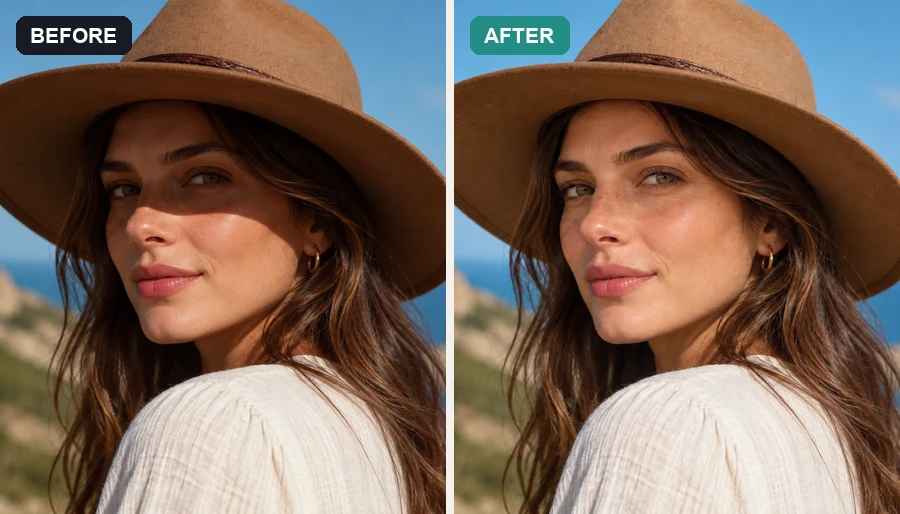
Drag each slider to see how the AI lighting tool changes the light and keeps everything else.
Warm low sun from one side and a soft glow on the face turn a flat park portrait into an evening shot.
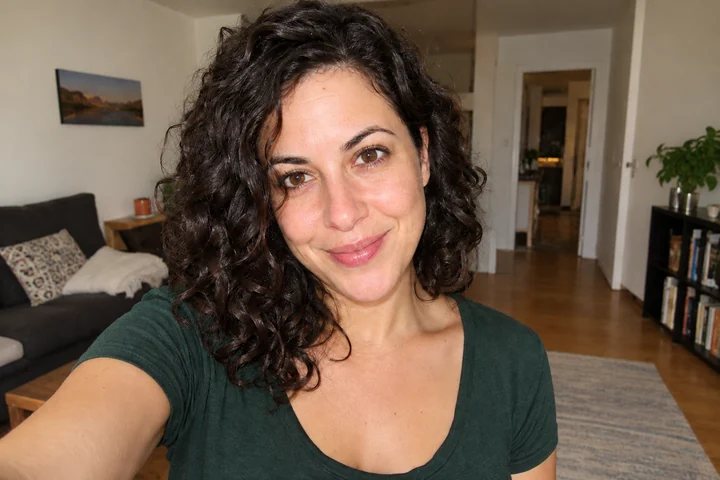
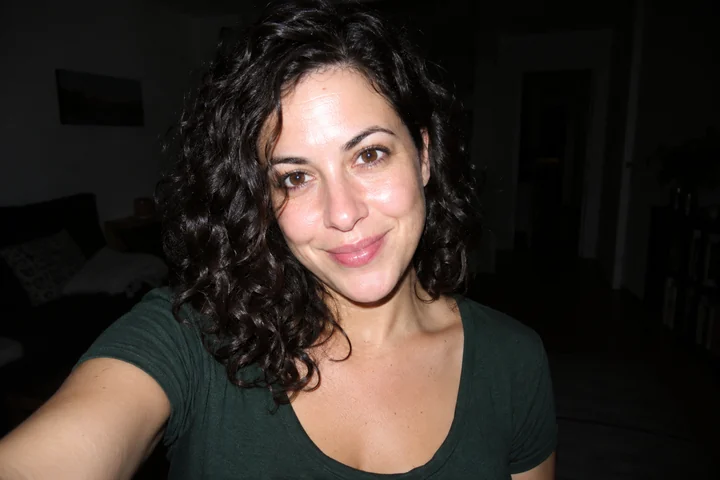
Flash glare and the black background give way to soft, even light that shows the room.
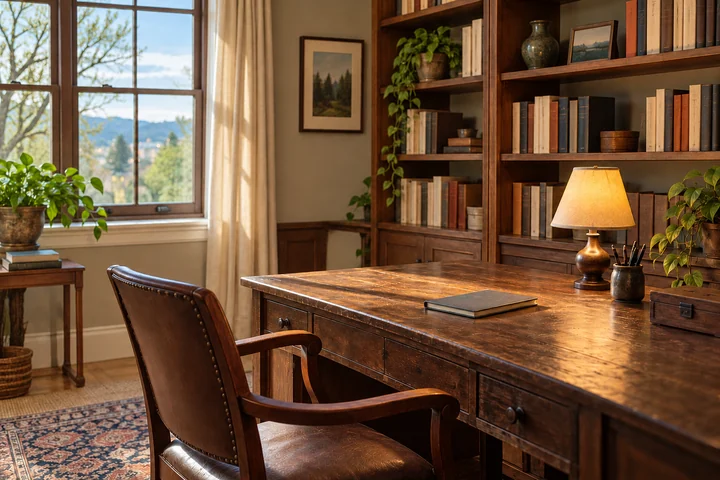
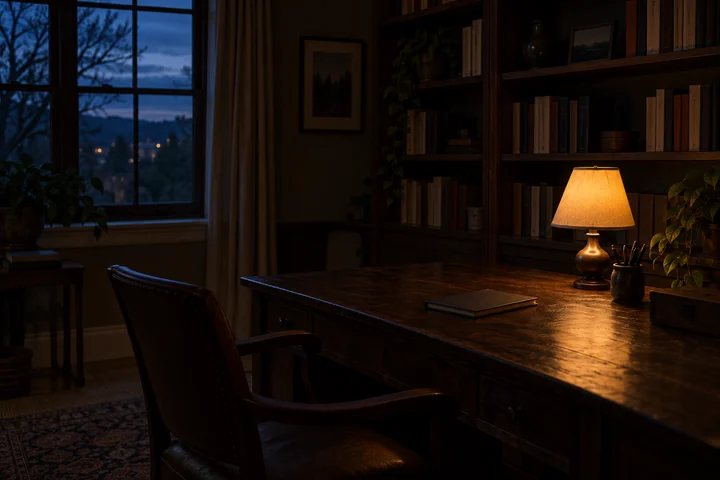
A dim home office brightened as if the window light were stronger, with the lamp glow kept.
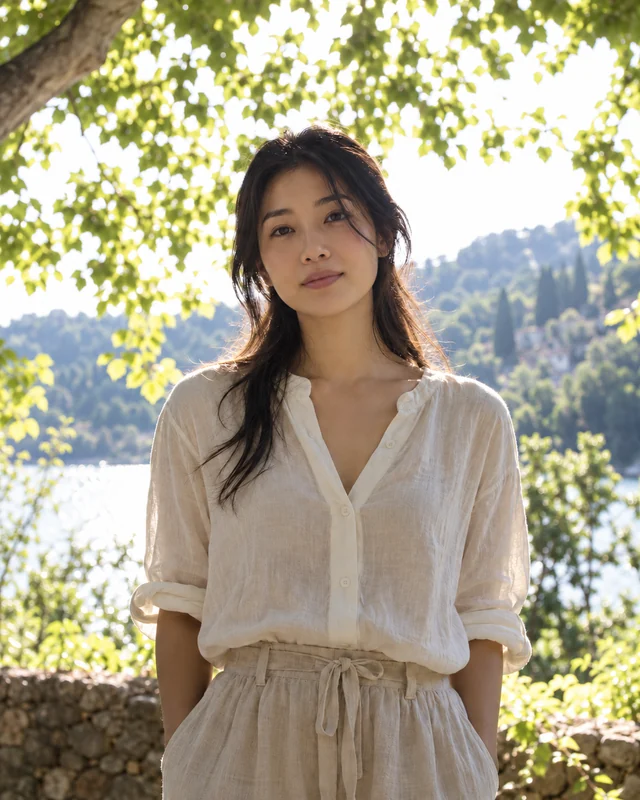
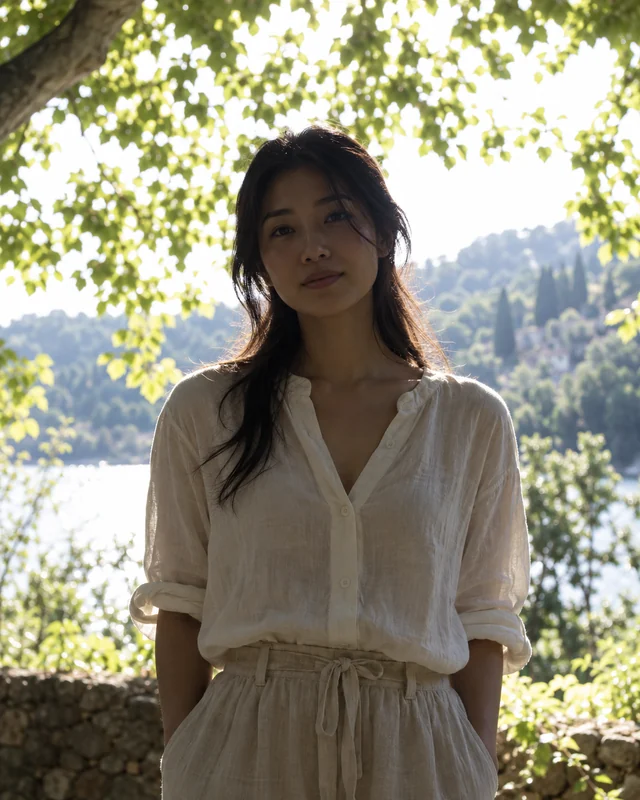
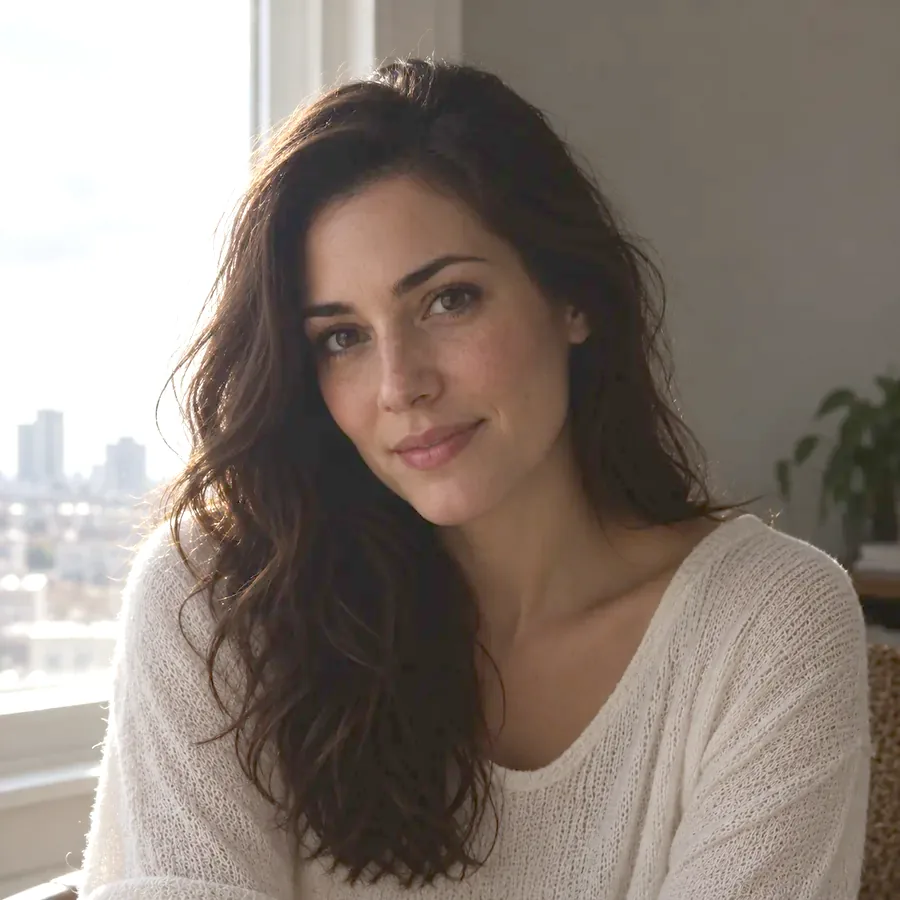
Soft fill light reveals the face and eyes while the bright window behind stays bright.
Change lighting or adjust lighting in three steps. No masks, layers, or editing skills needed.
Portraits, selfies, group shots, rooms, products, or landscapes. JPG, PNG, or WebP up to 20 MB.
Tap a lighting fix, or write what you want, then adjust the light direction, color, and strength.
Drag the slider to compare with the original, then download, or adjust the lighting again with a new instruction.
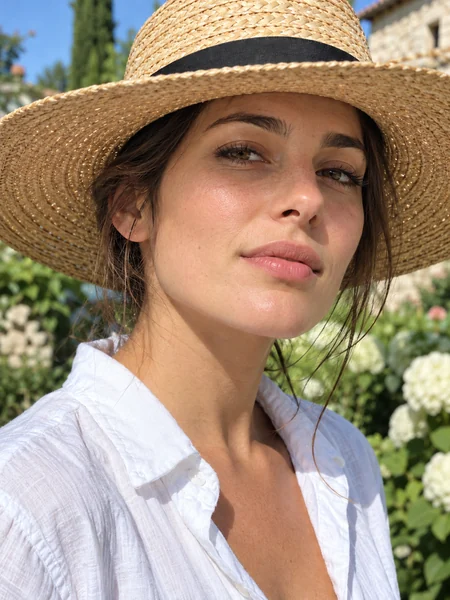
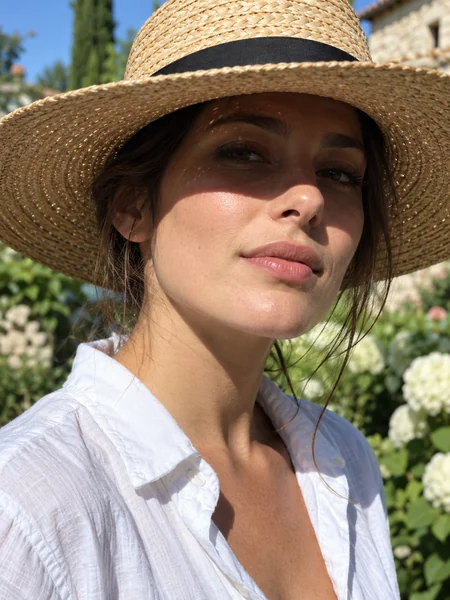
Windows, sunsets, and bright skies leave faces in shadow. The lighting fixer adds soft fill light to the person, opens up the eyes, and keeps the background from blowing out, which a plain brightness slider cannot do.
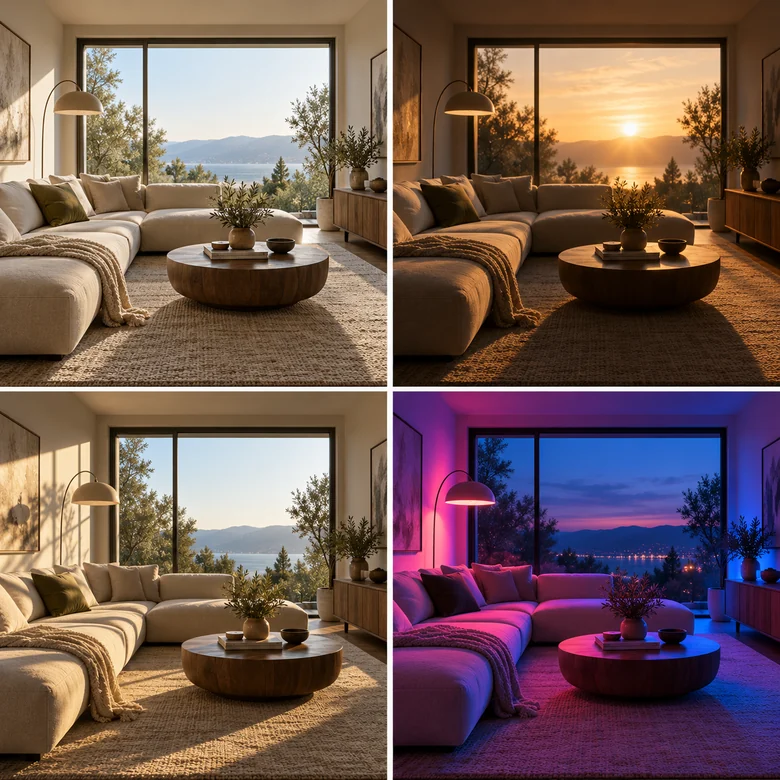
Choose where the light comes from (front, left, right, back, or top) and its color (neutral, warm, golden hour, cool, or neon). It is like moving a studio light after the shoot: a true AI relight.
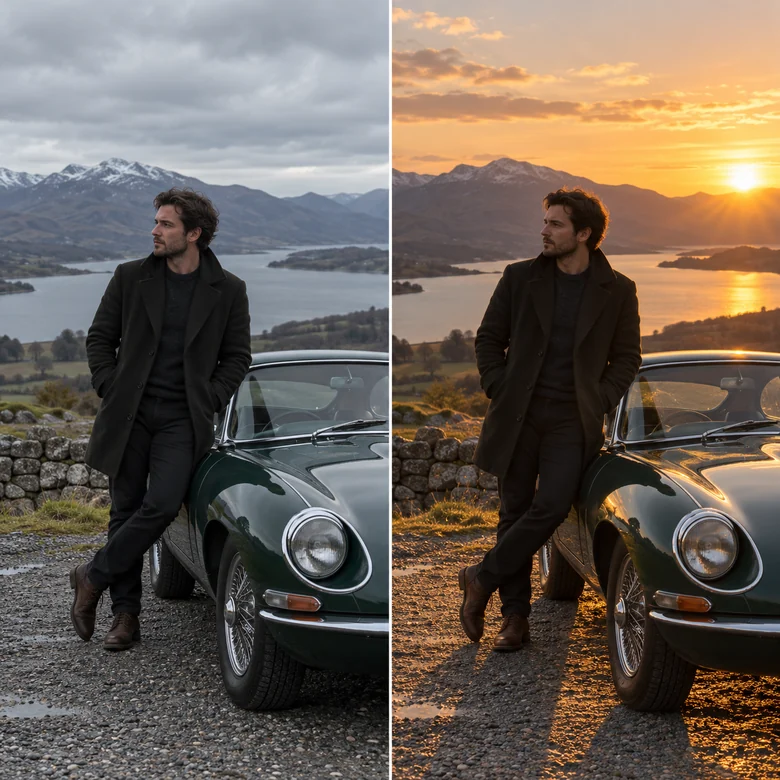
Turn a midday snapshot into a sunset portrait, give a headshot studio lighting, or add moody cinematic contrast. AI lighting presets give you a starting point you can refine in your own words.
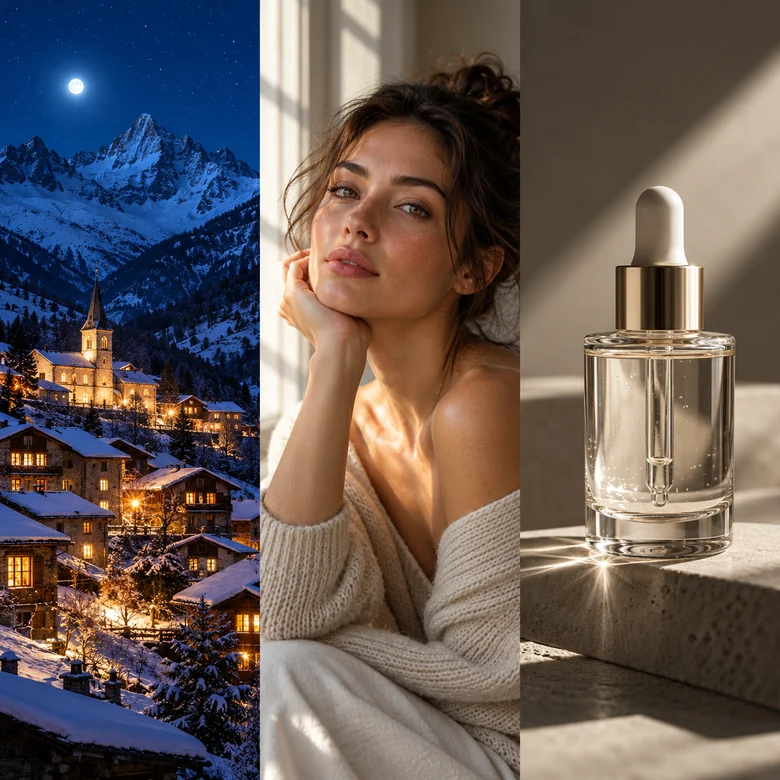
Preview a room with warm evening lamps or bright daylight, give product shots clean even light, or switch a landscape from day to night. Interior designers even use it as quick AI lighting design software for mood boards.
Find your problem, tap the matching fix, then use the shooting tip next time.
| Problem | Fix to use | Shooting tip |
|---|---|---|
| Face dark against a bright window or sky | Fix Backlit Photo | Turn so the light falls on the face, or tap the face to expose for it. |
| Whole face too dark | Brighten Dark Face | Move closer to a window or a lamp. |
| Hard shadows under eyes at noon | Soften Harsh Sunlight | Step into open shade. |
| Hat or hair shadow on the face | Remove Face Shadows | Tilt the brim up or use a white reflector. |
| Shiny skin and black background from flash | Fix Harsh Flash | Turn off flash and use the room light. |
| Flat, boring light | Golden Hour Glow or Studio Soft Light | Shoot in the hour before sunset. |
| Yellow or green indoor color cast | Describe it: “neutral daylight color” | Switch off mixed light sources. |
Save backlit vacation shots and party photos where faces came out dark.
Give a phone portrait soft, flattering studio-style light.
Brighten dim rooms or preview warm evening lighting.
Even out shadows and add clean, bright light for listings and menus.
Add dramatic or neon light that matches a video’s mood.
Fix flash-heavy reception shots and mixed indoor lighting.
Clear instructions give the most natural light.
“My face is dark against the window” works better than “make it better”.
Mention a side, like “warm light from the left”, or use the Light direction control.
Use Natural strength first; switch to Dramatic only for a creative look.
Relighting works best on in-focus photos; very blurry or noisy shots stay blurry.
Free in-browser sliders for brightness, exposure, and contrast.
Open toolRemove hand, phone, and object shadows from photos and documents.
Open toolSharpen, denoise, and restore detail after fixing the light.
Open toolRecover shadows and highlights with natural, dramatic, or real estate HDR looks.
Open toolAnswers about AI relighting and fixing lighting in photos.
Upload the photo, tap a fix such as Fix Backlit Photo or Brighten Dark Face, or describe the problem in your own words, then generate. Compare with the original and adjust the light direction, color, or strength if needed.
AI relighting changes the light in an existing photo, including its brightness, direction, softness, shadows, and color, as if the scene had been lit differently when it was taken. It goes further than exposure sliders because it understands faces, depth, and objects.
Yes. That is exactly what Fix Backlit Photo and Brighten Dark Face do: they add light to the person while keeping a bright sky or window under control.
Yes. Choose Front, Left, Right, Back / Rim, or Top in Light direction, or write it in the instruction, like “soft light from the left”. Auto keeps the photo’s existing direction.
It should not. The relighter is told to change only the light and to keep identity, expression, skin tone, clothing, background, and composition the same. If something else changes, try Subtle strength or a more specific instruction.
For simple exposure, use the free Image Brightener. To adjust the lighting in ways a slider cannot, such as one-sided shadows, backlight, flash glare, or a new light color, use AI relighting.
Yes. Describe the light you want, for example “even, bright studio light with soft shadows” for products or “warm evening lamp light” for a room.
No. If you came looking for an AE relight plugin for After Effects, note that this AI lighting tool works on still photos, not video clips.
It is free to try: new accounts get free credits when they sign up, and each generation uses a few credits. Simple brightness fixes are free in the browser with the Image Brightener.
Use photos you took or have permission to edit, and do not use relighting to mislead anyone about when or where a photo was taken.
Upload a photo and let AI relighting brighten faces, soften shadows, or add the light you want.