Remove Blemishes and Acne
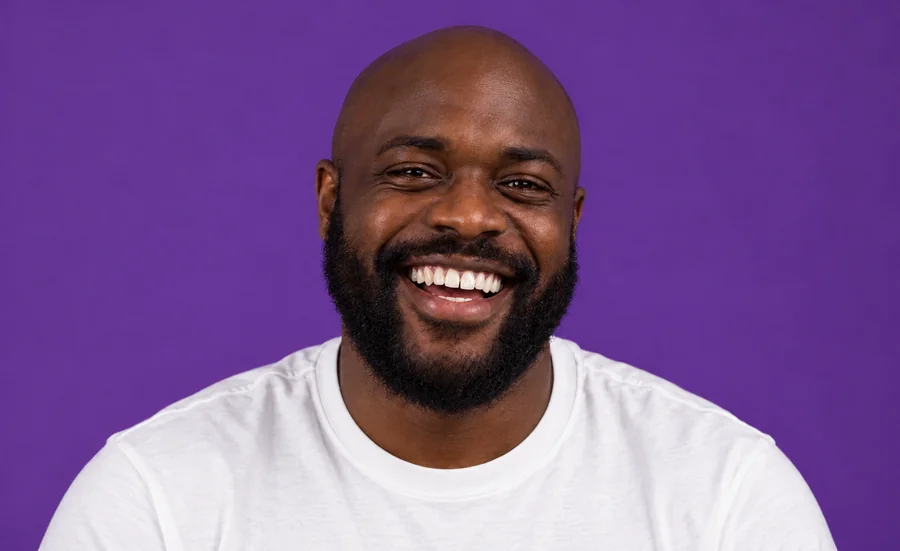
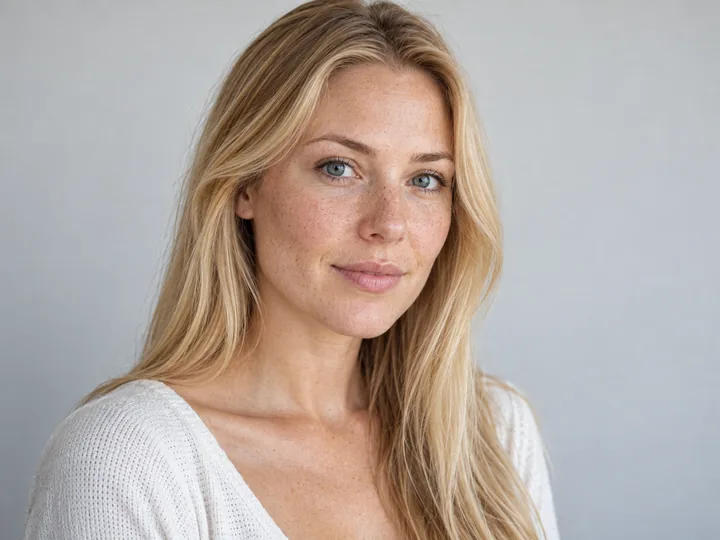
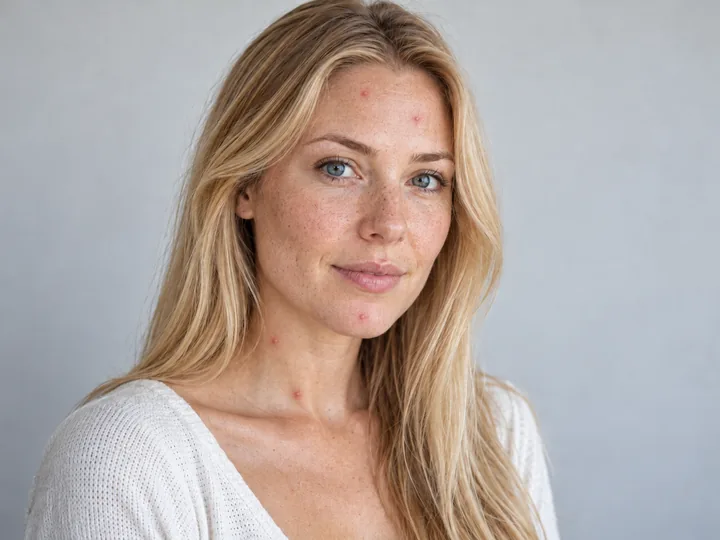
Pimples on the forehead and neck are cleared, while the skin keeps its pores and the natural sheen on the cheeks. This is face retouch at its most common.
Upload a photo and say what to fix: a blemish, oily shine, under-eye bags, a stray hair, a passerby or dust on a ring. Mark the spot if you like. The AI edits only that and keeps your face, skin texture and framing, for a natural result you can compare before you download.
Retouch ideas
Fine-tune
Reference example. It is not a result generated from your upload.
AI photo retouching lets you retouch pics without layers, healing brushes or frequency separation. Describe the fix in plain words, such as “remove the pimples on my chin” or “clean the dust off this ring”, and the AI retouch changes that detail while the rest of the photo stays as it was. One tool handles the classic AI photo touch up jobs for portraits (blemishes, shine, under-eye bags, stray hairs, teeth) and the cleanup that product, jewelry and travel photos need.
EzImgMaker is an online image retoucher and AI photo beauty retouching website built around one rule: keep it real. Pores, freckles, moles and the shape of your face stay; only the temporary flaws go. Choose Natural, Balanced or Polished to set how strong the retouch is, brush over a spot when you want precision, and compare before and after. There is no photo repair app to install.
Six everyday retouch jobs and the retouch idea behind each one. Drag the sliders to compare.
Pimples on the forehead and neck are cleared, while the skin keeps its pores and the natural sheen on the cheeks. This is face retouch at its most common.
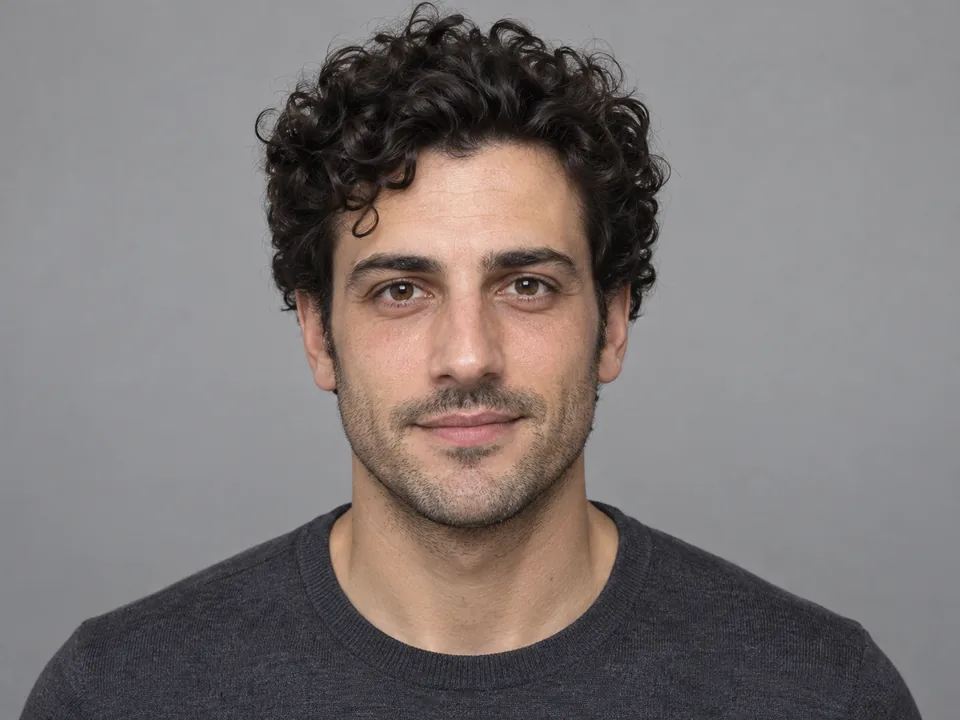
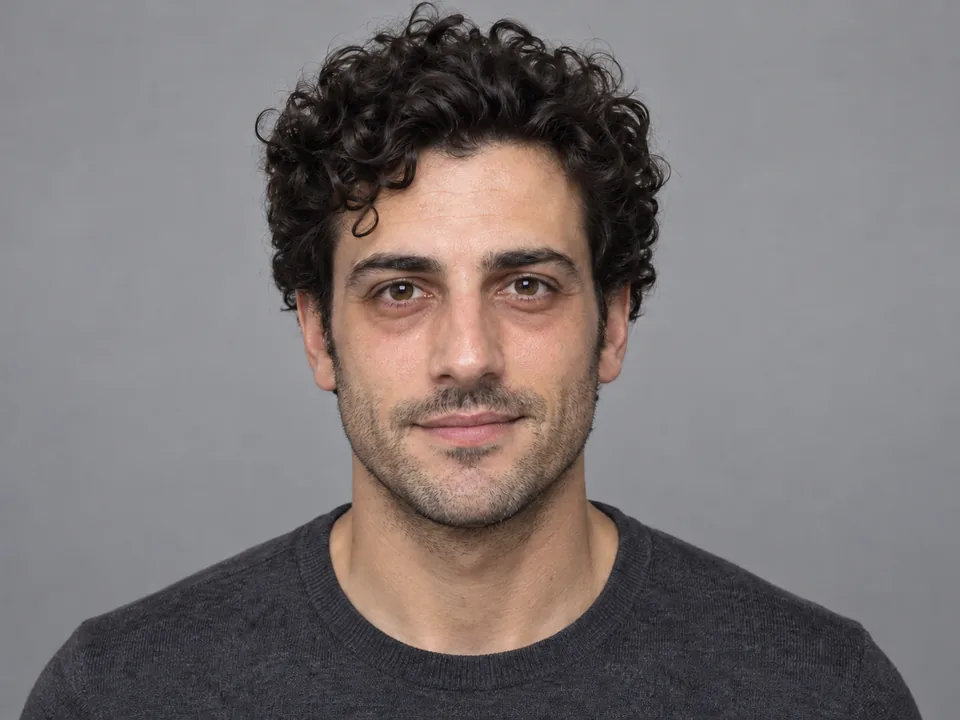
Dark circles and redness are softened so he looks rested, while the stubble, brows and curls stay exactly as they were.
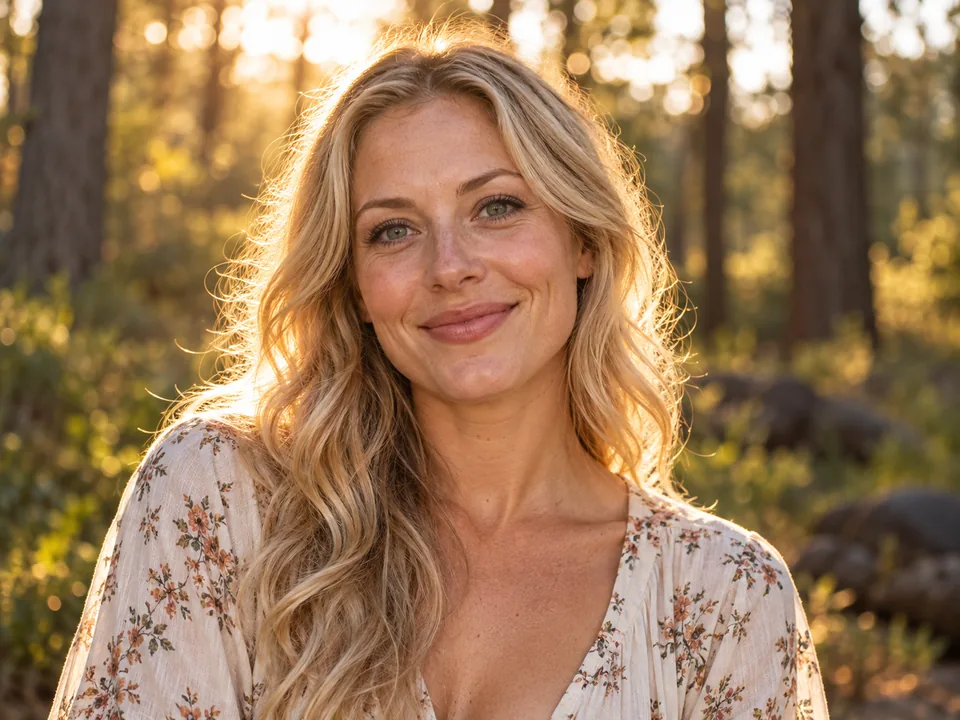
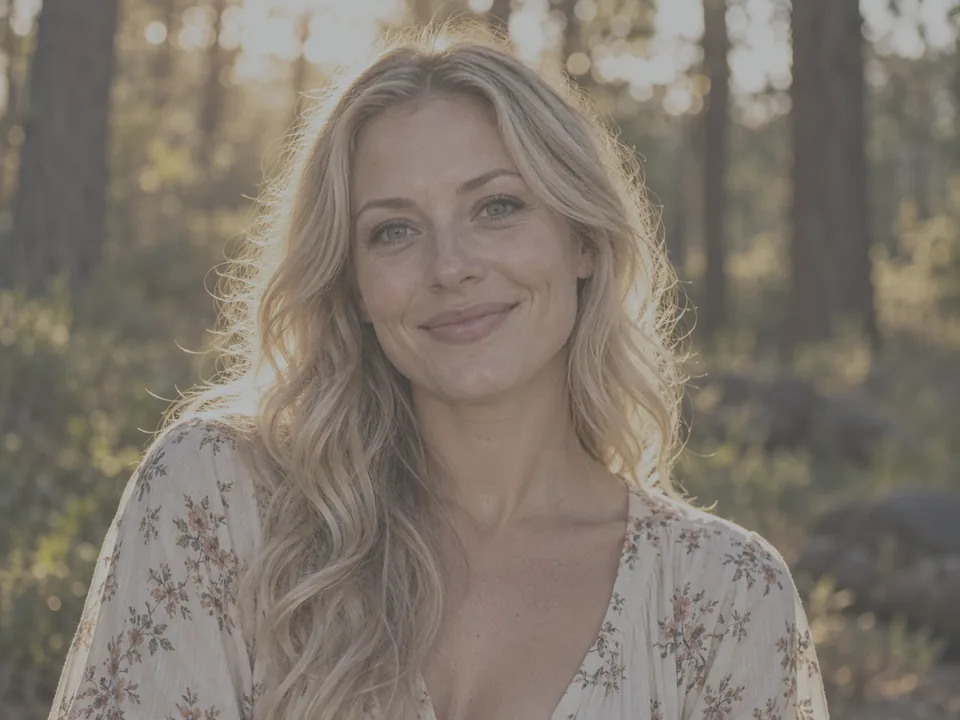
A flat, hazy portrait gets clearer light, warmer skin tones and crisper eyes, with no change to her face or the golden-hour background.
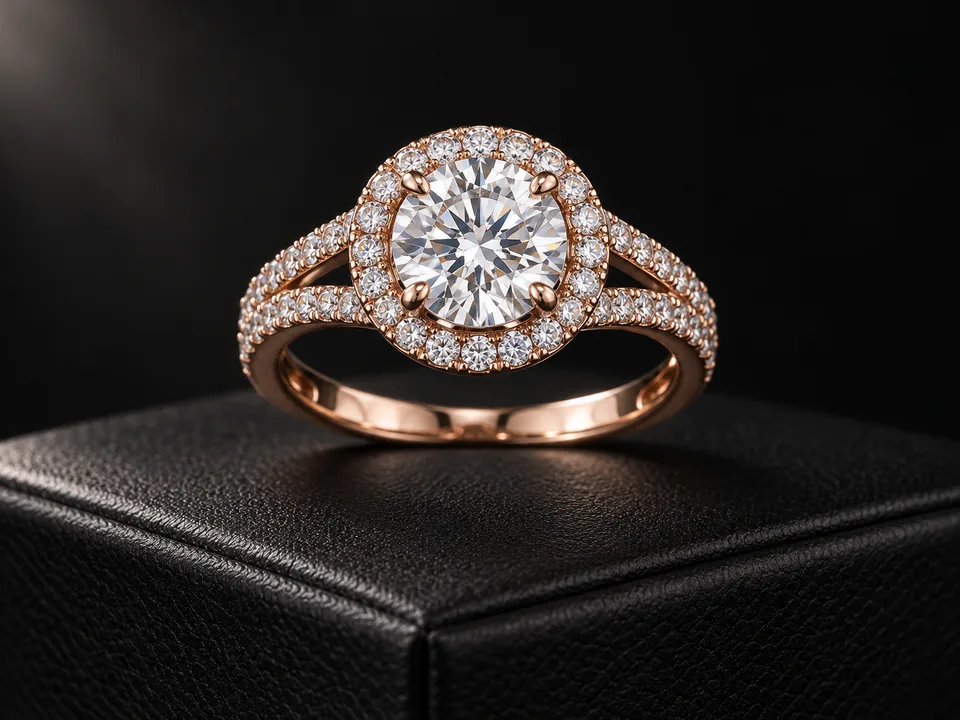
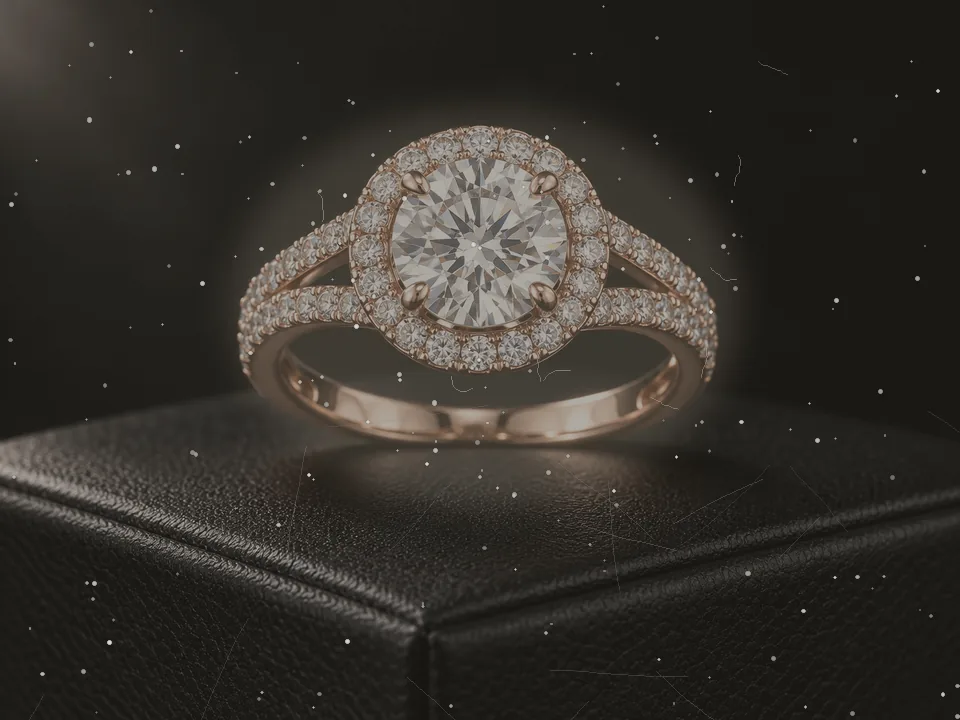
Dust, lint and a milky haze are cleaned off the ring. The center diamond gets its facets back and the rose-gold halo keeps its true color.
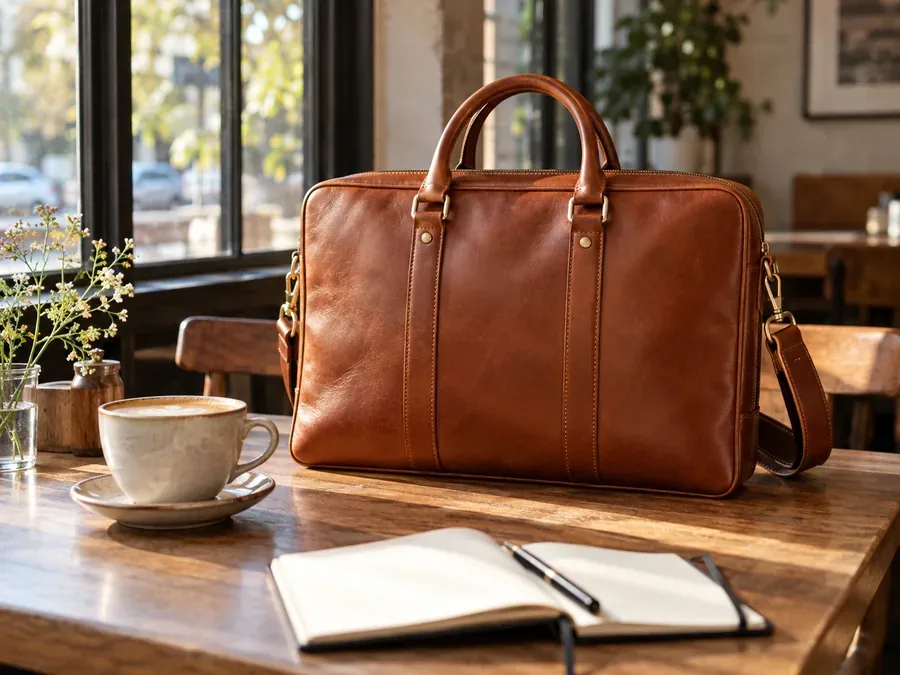
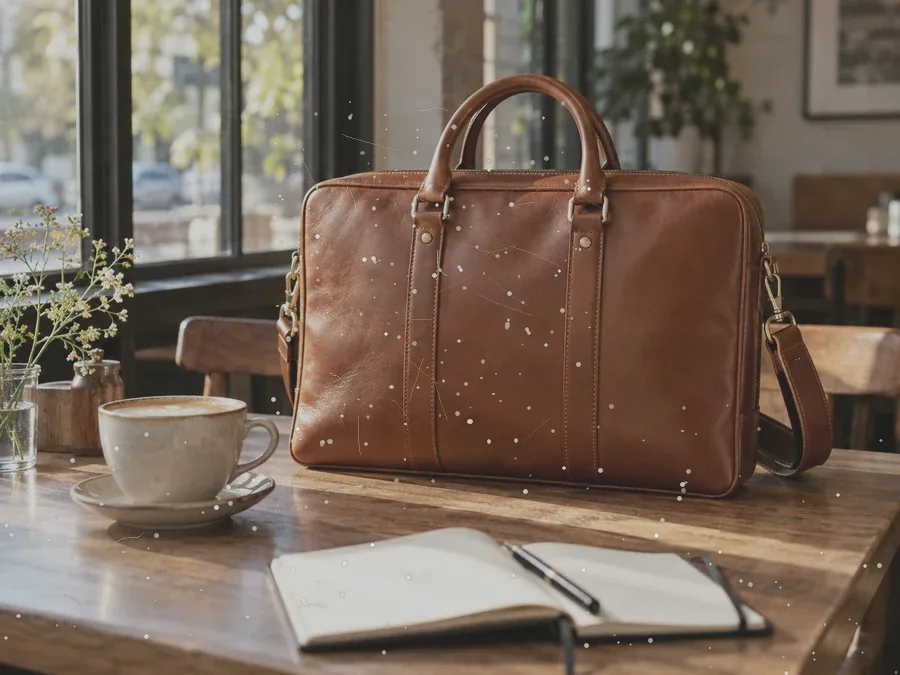
Scuffs, dust and a gray cast are removed from a leather bag shot, so the grain, stitching and hardware read clearly in a listing.
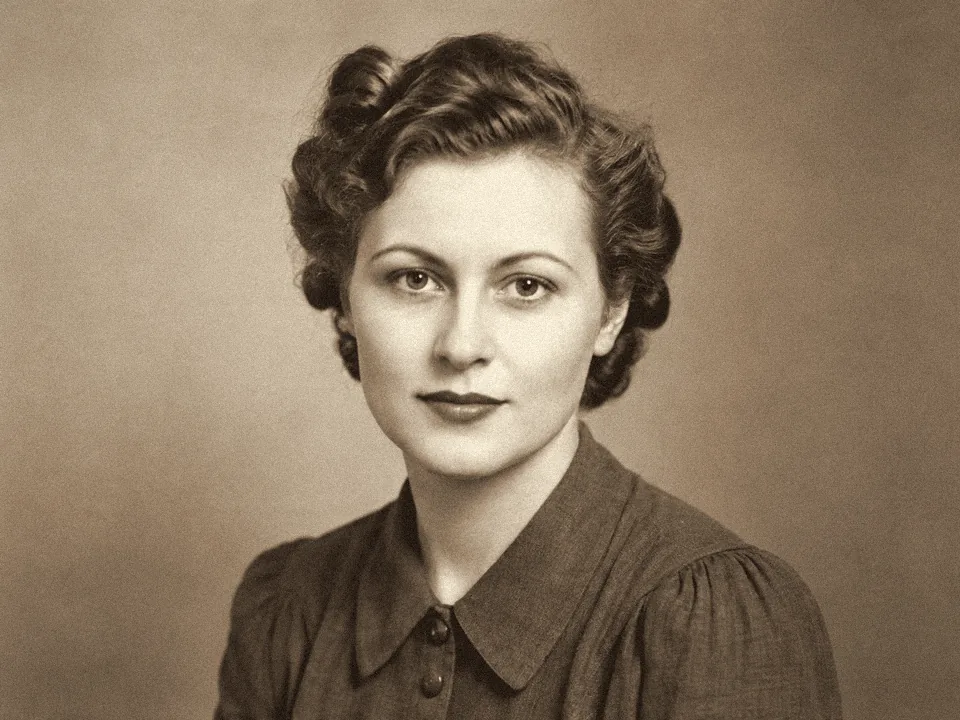
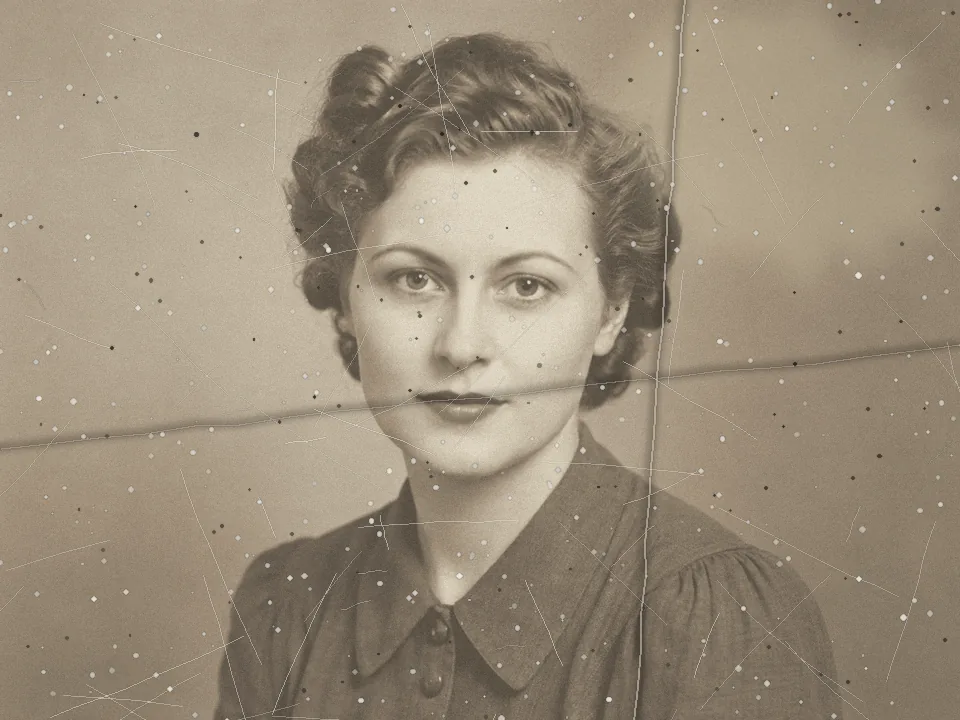
Scratches, dust, creases and a water stain are lifted from a sepia portrait, and the print keeps its original tone.
How do you touch up photographs without editing skills? Upload, describe the fix, compare.
Add a JPG, PNG or WebP up to 20 MB: a selfie, a headshot, a group shot, a face for retouching, a product or a piece of jewelry. The original camera file gives the best detail.
Pick a retouch idea such as Remove Blemishes or Jewelry Retouch, or type your own request. Brush over a spot if only that area should change, then choose Natural, Balanced or Polished.
Click Retouch Photo, drag the slider to compare before and after, and download the result. Not quite right? Adjust the wording or the strength and run it again.
Prefer manual editing? Here is the short version for the tools most people already have, and when AI saves time.
Use the Spot Healing Brush on an empty layer with Sample All Layers for blemishes and stray hairs, the Remove tool or Content-Aware Fill for passersby, and frequency separation to even out skin tone without losing texture. Powerful, but it takes practice.
Use the Healing tool for spots and small distractions, then a Face Skin mask with a little negative Texture for gentle smoothing and an eye mask for brightening. Great for batches of portraits; it cannot rebuild a busy background.
Many phone gallery apps include an eraser or retouch brush for small spots, and the Photos app on a Mac has a Retouch tool. Asked for the best photo retouching software for Mac? Photos for quick spots, Photoshop or Lightroom for full control, an online retoucher when you would rather describe the fix.
When a fix needs new pixels (a passerby removed, a scratch rebuilt, a facet on a stone redrawn), AI retouching tools save the most time. Describe it here and refine from the result.
Each option has its place. This is how they compare for portraits, products and jewelry.
| AI retouch (this tool) | Manual editing | Professional retouching service | |
|---|---|---|---|
| Best for | Everyday portraits, listings, drafts and quick fixes | Full control over every pixel | Hero shots, catalogs, ads and high end jewelry retouching |
| Skill needed | None: describe the fix in words | Healing, masking and frequency separation | None for you; a specialist does the work |
| Turnaround | One run, then tweak and repeat | Minutes to hours per photo | Usually one to a few business days |
| Cost | Credits per photo, free to try | Software subscription plus your time | Priced per image or per project |
| Watch out for | Check fine details such as stones, text and hands | Over-smoothing and visible clone marks | Briefing, revisions and lead time |
Many sellers combine them: AI retouch for drafts and everyday listings, and a jewelry retouching company or photo studio for the few hero images that need compositing or stone work.
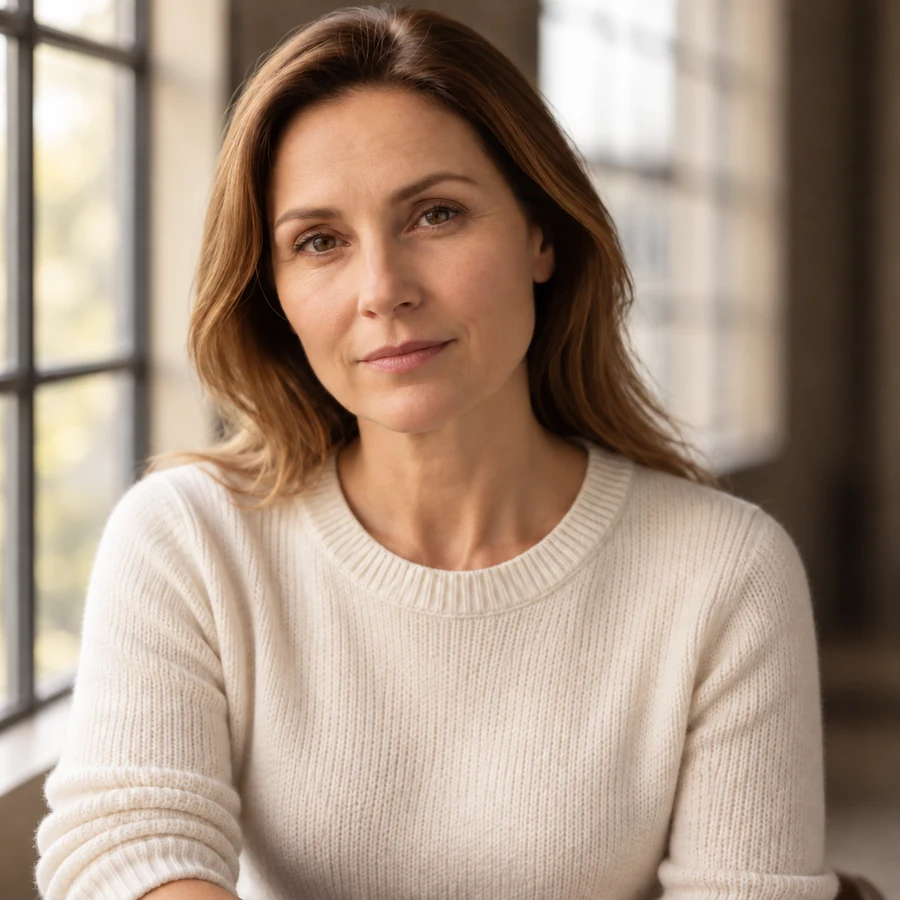
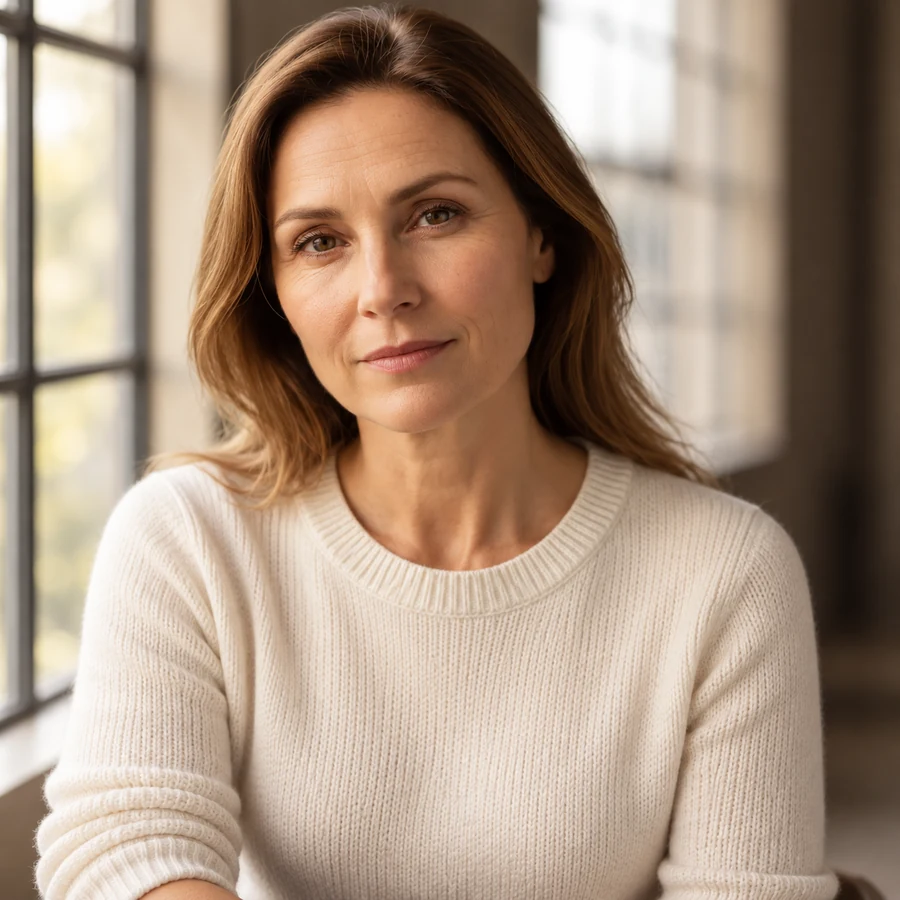
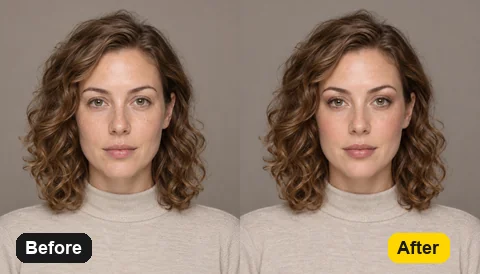
Many beauty apps smooth everything. This AI retouching works the other way: it lifts blemishes, redness and harsh lines but keeps pores, freckles, moles and fine texture, and it never reshapes a nose, jaw or eyes. Natural is the default strength for a reason: friends should still recognize the face.
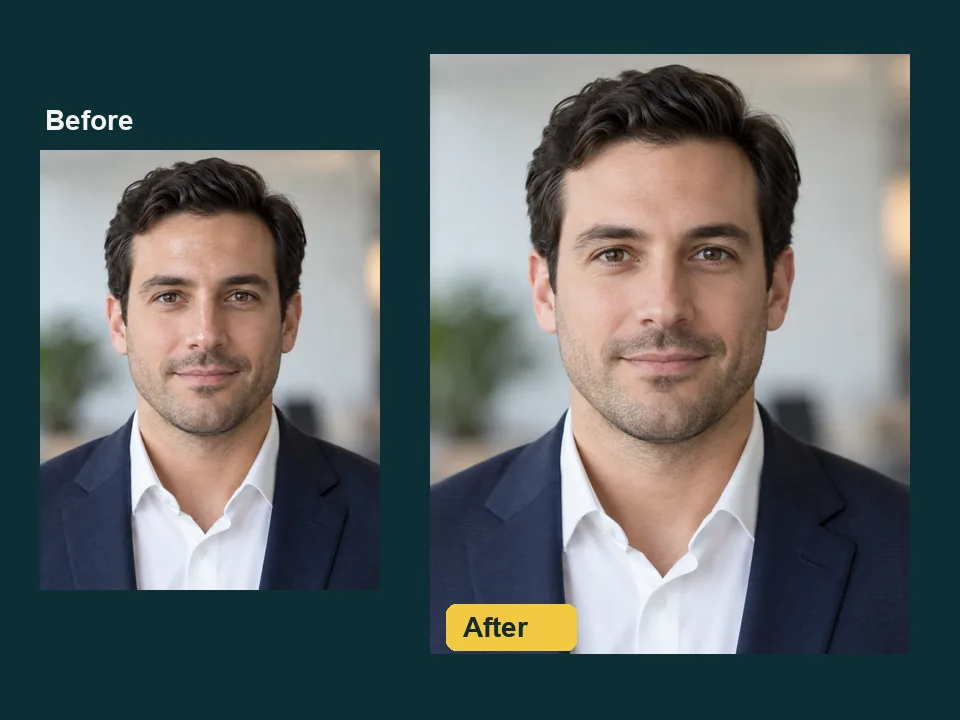
An oily T-zone or a flash hot spot is the first thing people notice in a headshot. One retouch idea mattes the forehead, nose and cheeks while keeping a soft, healthy glow, the catchlights in the eyes and the light of the scene. For reflections on glasses, use the glare remover instead.
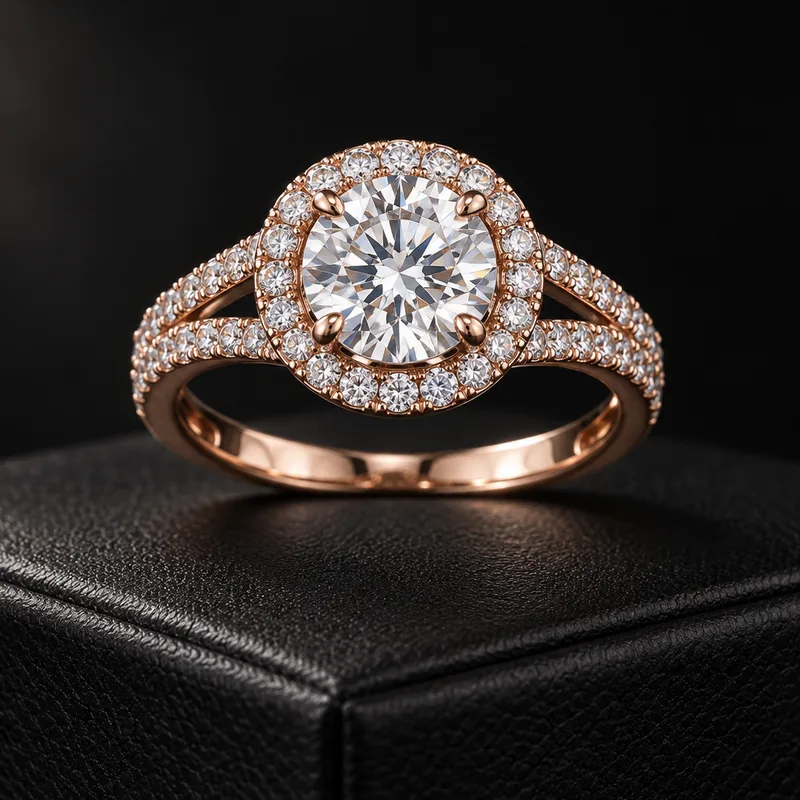
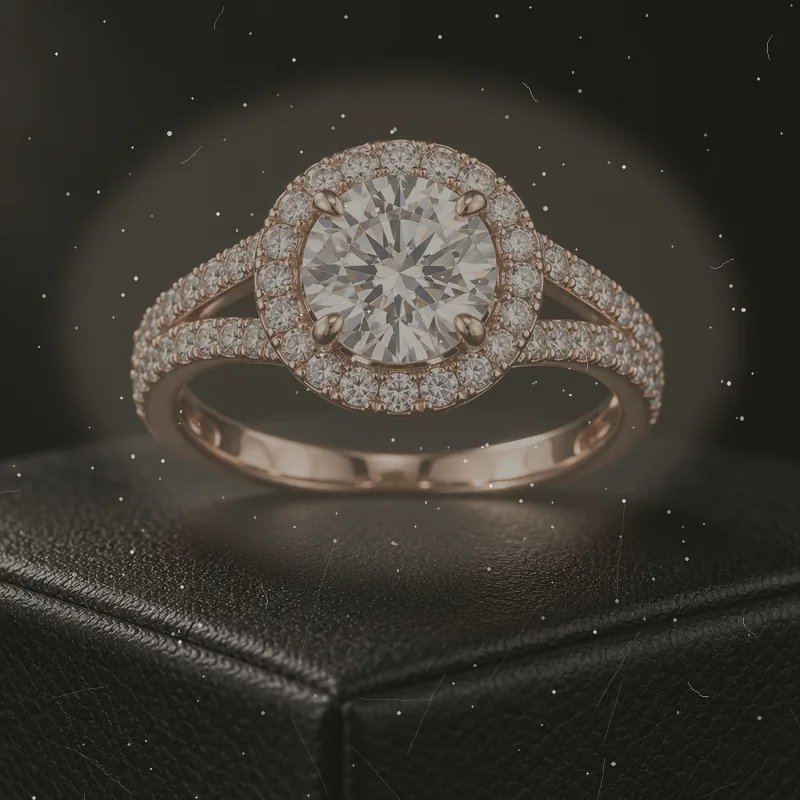
Jewelry image retouching (jewellery image retouching in British English) is mostly cleanup: dust, lint, fingerprints, hairline scratches and dull metal. Jewelry Retouch removes them, sharpens facets for a natural sparkle and keeps the true color of gold, silver, rose gold or platinum, along with the exact design and stone count. It suits listings, social posts and catalog drafts.
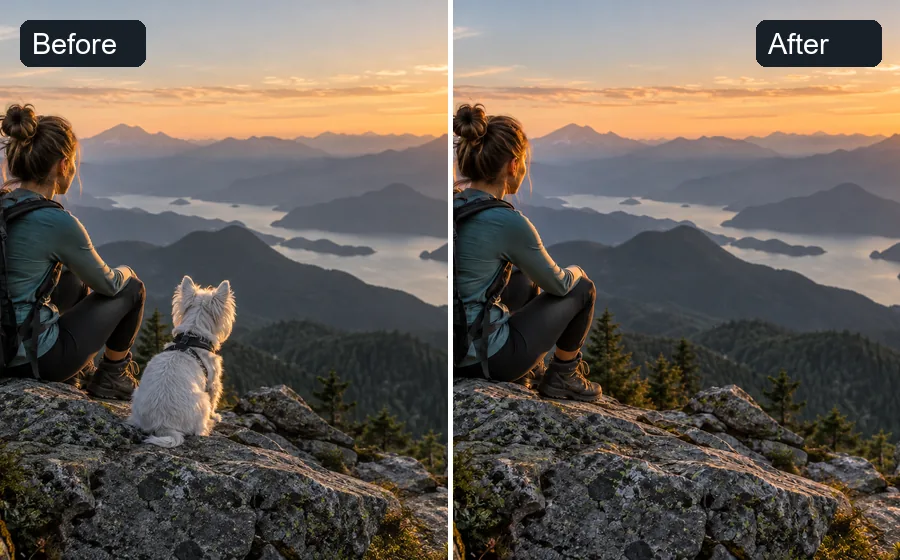
Brush over a stranger, a stray dog, a trash can or a cable and describe the fix. The AI rebuilds what was behind them, so travel shots, wedding photos and house exteriors stay clean without cropping. For bigger changes, such as a new background, the AI photo editor is the better fit.
Anyone with a good photo that needs one small fix, from selfies to catalog drafts.
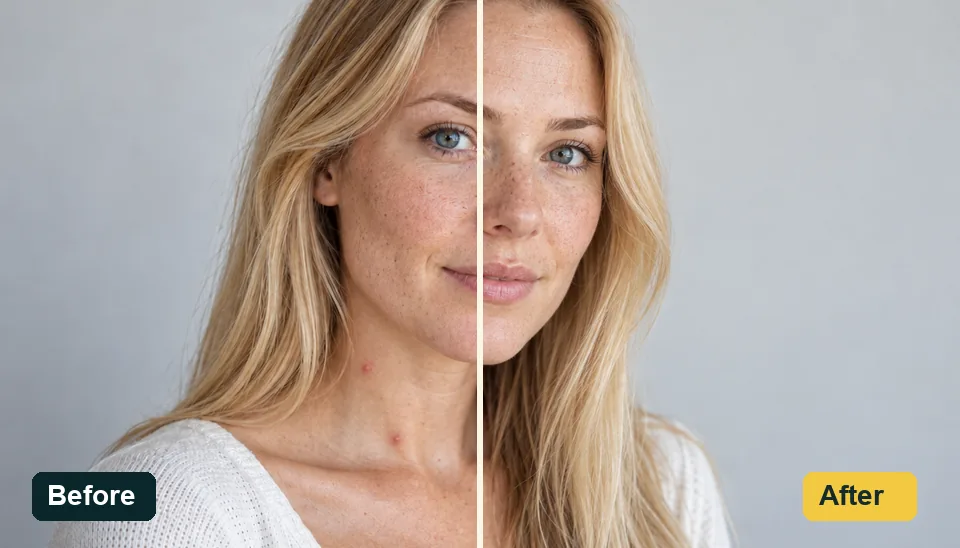
Face touch up for a breakout, a shiny nose or tired eyes: an AI photo touchup that still looks like you on a good day.
Clean, even skin and a tidy look without the over-retouched finish that people notice right away.
Retouch guests, remove a photobomber and fix the light in reception shots; the AI wedding photo editor goes further with veils and backgrounds.
Jewellery photo retouching for marketplaces and social posts: clean metal, crisp stones and consistent color across a whole collection.
Furniture image retouching and product cleanup: remove dust, scuffs and stains, fix color casts and keep materials true to life.
Retouch old photos: lift scratches, creases and stains from scanned prints before you reprint or share them.
Small habits that keep every touch up image believable.
Begin on Natural strength and step up only if needed. Most retouching looks fake because it goes one step too far.
The retouch AI follows your words, so “remove the two pimples on my chin” beats “make me look better”. Say what to keep, too: “keep my freckles”.
For one blemish, a stray hair or a dust speck on a ring, brush over it so nothing else in the photo changes.
Screenshots and chat-app copies lose the skin and metal detail the AI needs. Use the camera file when you can.
Skip requests that reshape a face or body. Good retouching fixes temporary flaws; it does not change who someone is.
Zoom in on eyes, hairlines, stones and text before you post or print, and run it again if a detail drifted.
Guides and tools for the edits that often come next.
Copy-ready retouch and edit prompts with before and after examples, ready to paste into the instruction box.
Read the PromptsRetouch wedding portraits, remove guests from the background and even out colors across a whole wedding set.
Edit Wedding PhotosReal estate image retouching for listings: blue skies, brighter rooms, decluttering and virtual staging.
Edit Listing PhotosCut out a retouched product or portrait and place it on white or a transparent background.
Remove a BackgroundSharpen and upscale a retouched photo for print or a large screen; it also works as an AI portrait enhancer for soft faces.
Enhance a PhotoFor any other edit, such as a new background, outfit, light or style, with your choice of AI model.
Open the AI Photo EditorWhat the retoucher changes, what it keeps, and what it costs.
It is not meant to. The retoucher is told to keep your face shape, features, expression, age, skin tone, hair and body as they are and to fix only what you ask, such as a pimple, shine or a stray hair. Start on Natural and compare at full size; if a detail drifted, mark the area and run it again with clearer wording.
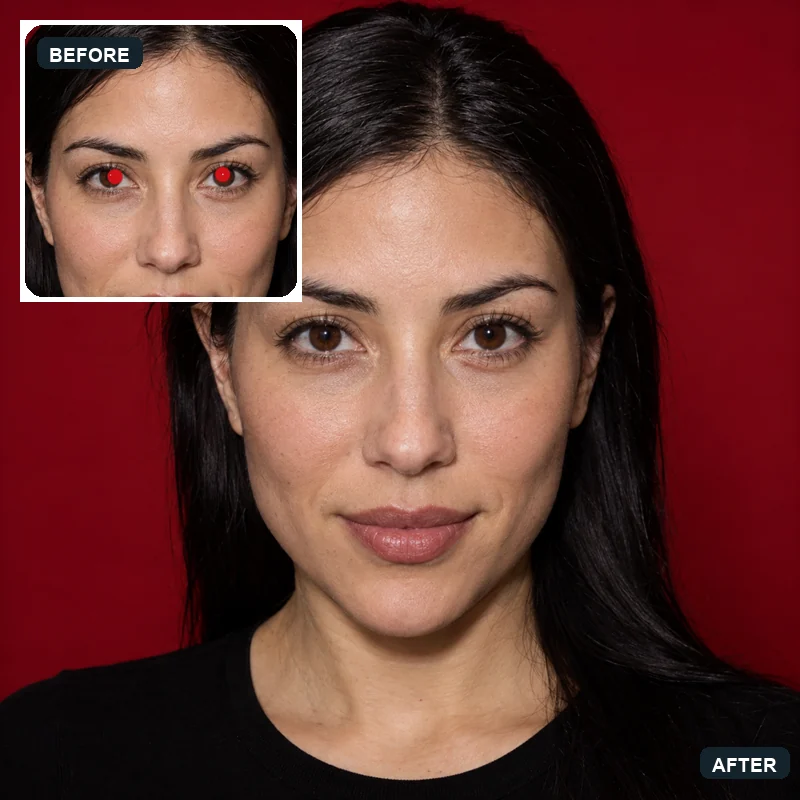
Use it to touch up face details (blemishes, acne, redness, under-eye bags, oily shine, stray hairs, yellow teeth), remove passersby and clutter, fix color casts and dull light, clean dust and scratches off jewelry and products, and repair old photos. For red eyes, glare on glasses and wrinkled clothes, the dedicated tools linked on this page do a more focused job.
This one is free to try: new accounts get free credits when they sign up, so you can retouch a few photos and judge the results yourself. After that, each retouch uses credits from your balance.
For many jobs it can; for some, not yet. AI retouch is a fast first pass for marketplace listings, social posts and catalog drafts: it cleans dust and scratches, sharpens facets and keeps the metal color. High end jewelry retouching for hero shots and printed catalogs (compositing several exposures, recoloring metal into other finishes, replacing or rebuilding stones) is still worth a specialist; UK studios often call it high end jewellery retouch. Many brands prep drafts here before they outsource jewelry photo retouching services for the final images. EzImgMaker is a self-serve tool, not a jewelry retouching company, and it does not sell jewelry image retouching services.
A beauty filter applies the same smoothing, slimming and enlarging to every face. This tool makes the specific fix you describe and keeps texture and proportions, so the result reads as a good photo rather than a filtered one. It does not slim, reshape or resize faces or bodies.
Yes. Pick Remove Passersby or type something like “remove the man in the red jacket”, and brush over the person for the most precise result. The AI rebuilds the scene behind them. Large crowds or people overlapping your subject are harder, so check edges such as hair and hands.
Yes. Say who to retouch (“the woman on the left”, “remove the shine on everyone”) or brush over the faces you want changed, and everyone else stays untouched. Group shots with many small faces work best from a high-resolution original.
Yes. Restore an Old Photo lifts scratches, dust, creases, spots and stains and recovers faded contrast while keeping the original black-and-white or sepia tone. Old photo retouching is reconstruction, so fine details in badly damaged areas may differ slightly from the original; compare before you reprint.
No. It is a photo retouch online tool that runs in the browser on desktop and mobile, so you upload, retouch and download from the same page.
Only photos you took, photos of yourself, or images you have permission to edit, in JPG, PNG or WebP up to 20 MB. Do not use retouching to mislead people, and disclose heavy retouching where rules require it, for example in some ads.
Upload a picture, describe the fix, and get a natural AI photo retouch you can compare and download.
Retouched images are AI edits. Only edit photos you own or have permission to use, and follow advertising and platform rules on disclosing retouched images.