Upload Your Wedding Photo
Add a JPG, PNG or WebP up to 20 MB: a professional shot, a guest’s phone photo or a scan of a printed picture.
Upload a wedding photo, tap a quick edit or describe the change, and the AI retouches skin, removes guests and clutter, swaps the background, rescues dark shots or adds a color grade, while the couple, their faces and the dress stay true to the day.
Quick wedding edits
Fine-tune
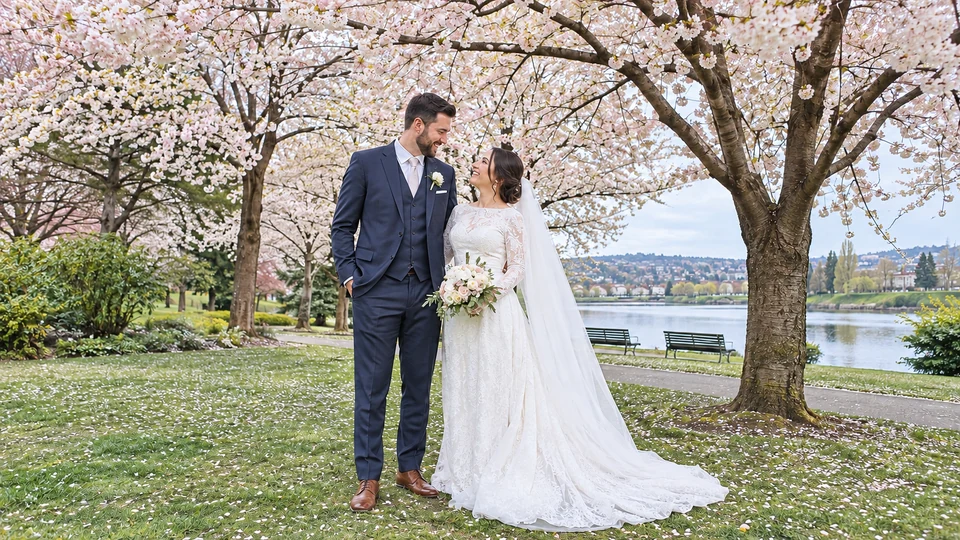
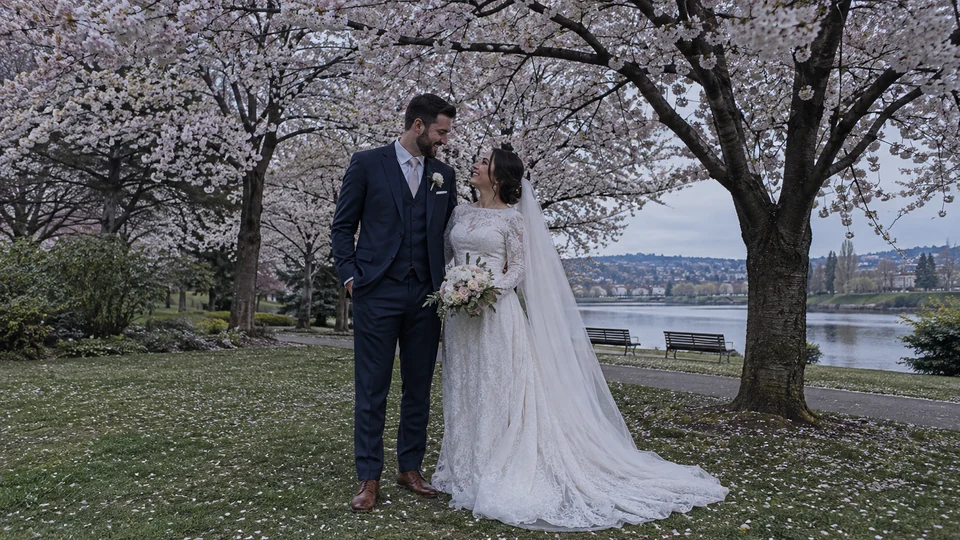
Reference example. It is not a result generated from your upload.
An AI wedding photo editor fixes and transforms wedding pictures from a plain-language instruction. Instead of masking, cloning and grading by hand, you upload a photo and type what you want, such as “remove the guests behind us”, “smooth my dress” or “make it light and airy”, and the AI handles the wedding photo editing while the couple, their faces and the moment stay the same.
This wedding AI covers the edits couples ask for most: natural skin retouching, removing photobombers and exit signs, replacing a gray sky or a cluttered venue, brightening dark reception shots, adding a veil, and finishing with a color grade or black and white. Photographers use it as a fast photo editor for wedding pictures between culling and delivery, couples use it on phone photos from guests, and anyone can create a wedding photo with AI from a simple couple photo. It is free to try with the free credits new accounts get when they sign up.
How to edit wedding photo files in four steps, from a phone snapshot to a print-ready picture.
Add a JPG, PNG or WebP up to 20 MB: a professional shot, a guest’s phone photo or a scan of a printed picture.
Tap Natural Skin Retouch, Remove Guests, Floral Arch Background or another quick edit, or type your own instruction. One clear change per edit works best.
Keep it As shot or apply Light & Airy, Warm Film, Golden Hour, Moody or Black & White, and set the shape for a 4×6 or 8×10 print, a square post or a slideshow.
Press Edit Wedding Photo, compare the result with your original, and keep editing the result until it is perfect.
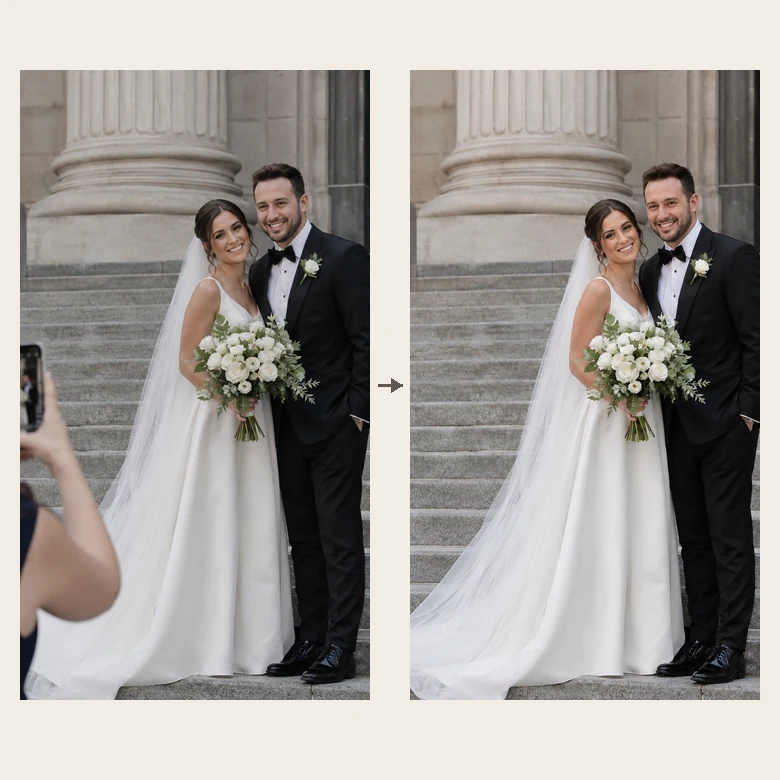
A guest’s phone in the aisle, a photographer on the stairs, an exit sign over the altar: describe what should go and the wedding photo editor removes it and rebuilds the background, leaving only the couple. No clone stamp and no layers: the most requested wedding pic edit takes one sentence.
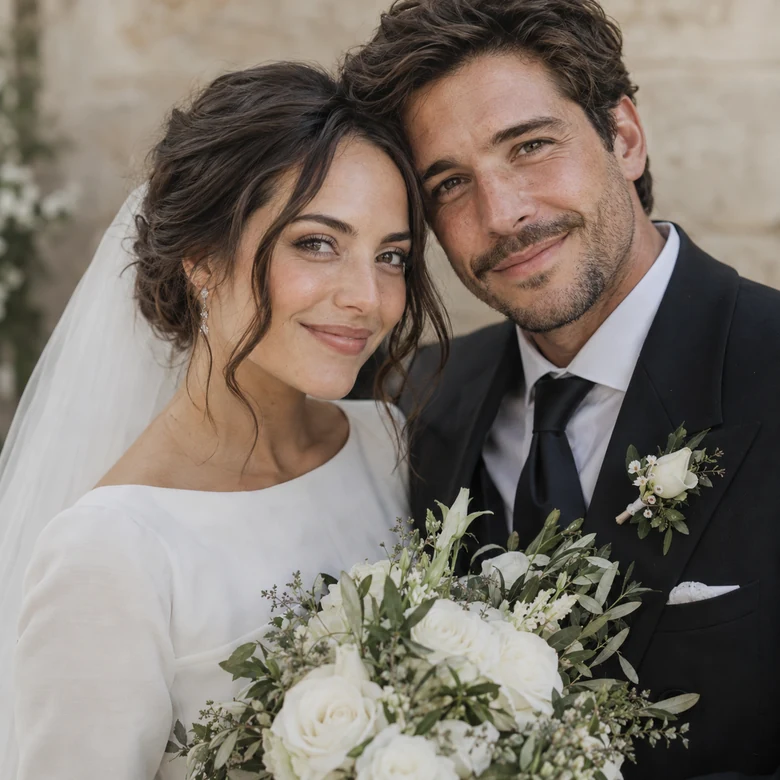
Smooth blemishes, under-eye shadows and shine, tidy flyaway hair and smooth a creased dress or suit, while real skin texture and every feature stay. It is wedding pic editing that looks like a great day, not a filter.
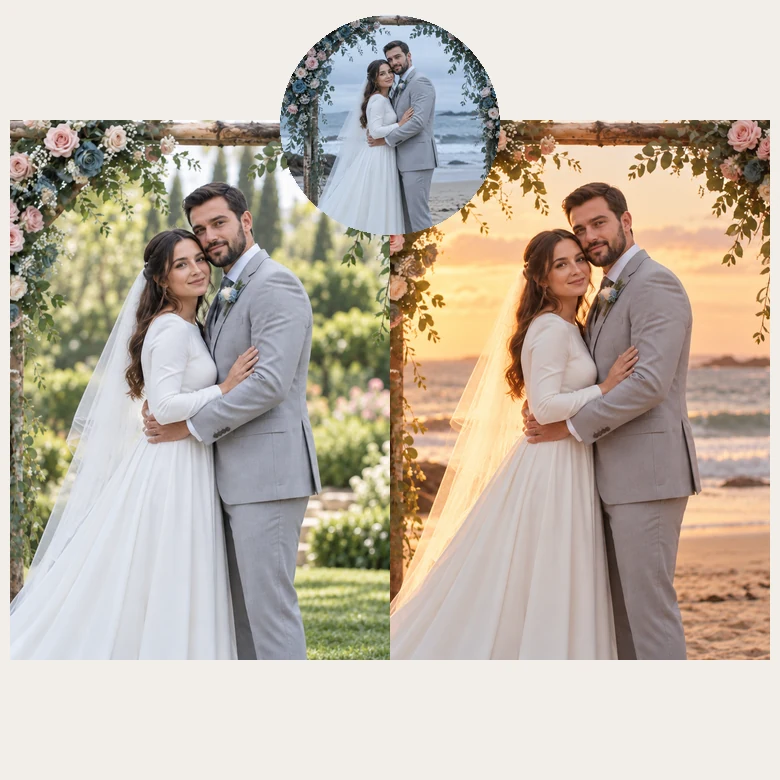
Rain on the day, a parking lot behind the arch, a flat gray sky? Replace it with a beach sunset, a floral arch, a garden or a ballroom. Backgrounds are the trickiest part of wedding pictures editing, so the AI matches light, shadows and perspective to the couple. Great for pre-wedding and engagement photos too.
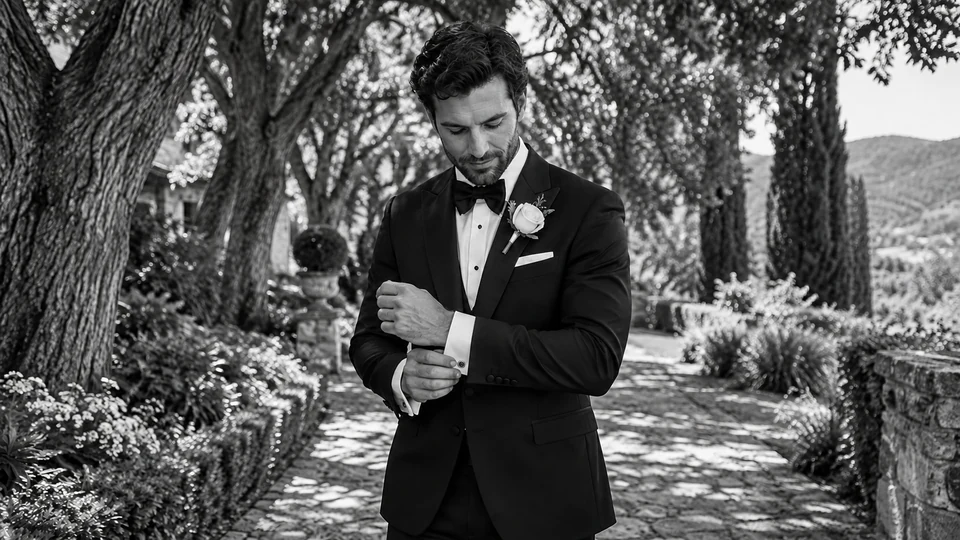
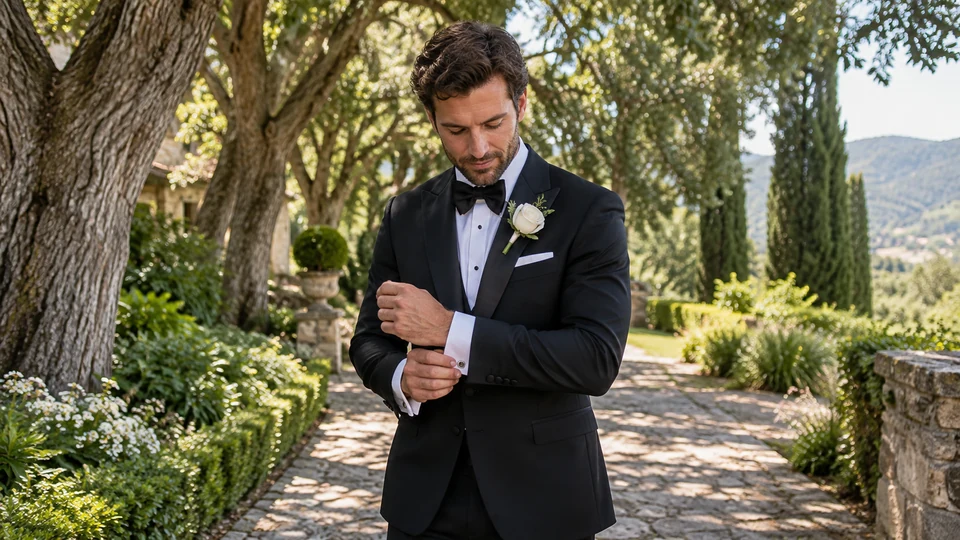
Finish any edit with one Color & mood choice: Light & Airy for bright galleries, Warm Film for a nostalgic feel, Golden Hour, Moody, or a rich black-and-white conversion with deep contrast. The same grade on every photo keeps an album consistent.
The classic wedding photography editing workflow, and how each step looks in desktop wedding photo editing software versus this AI wedding photo editor.
| Step | In desktop editing software | With the AI wedding photo editor |
|---|---|---|
| 1. Cull | Flag keepers, reject blinks and blur | Pick the photos worth fixing, then upload them one by one |
| 2. Exposure & white balance | Exposure, highlight, shadow and temperature sliders | Tap Brighten Dark Photo or type “fix the white balance” |
| 3. Skin & dress retouch | Spot healing, frequency separation, liquify | Natural Skin Retouch and Smooth Dress & Suit quick edits |
| 4. Remove distractions | Clone stamp or content-aware fill, layer by layer | “Remove the guests behind us” or Remove Clutter |
| 5. Color grade | Apply and fine-tune a preset across the gallery | Light & Airy, Warm Film, Golden Hour, Moody or Black & White |
| 6. Crop & export | Crop to print ratios, sharpen and export | Set 2:3 or 4:5 for prints, then download |
Professional wedding photo editing for a full gallery still benefits from batch software; the AI editor shines on hero shots, tricky fixes and guest photos that need more than sliders.
From couples to professionals, anyone with wedding picture editing to do or a new wedding photo to create.
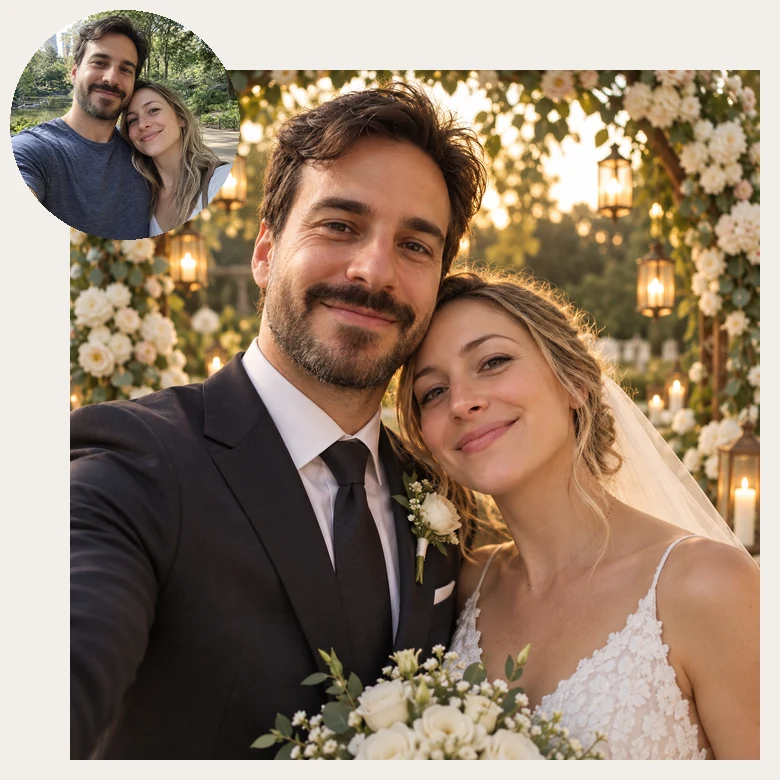
Edit wedding pictures that friends took on their phones: brighten them, fix the color and remove strangers.
Speed up the hero shots with quick distraction removal and retouching between culling and delivery.
Swap backgrounds and grades to plan the look of save-the-dates and engagement posts.
Clean, consistent edits and print-ready shapes for albums, frames and cards.
Refresh older wedding photos, or create AI wedding photos for an anniversary surprise.
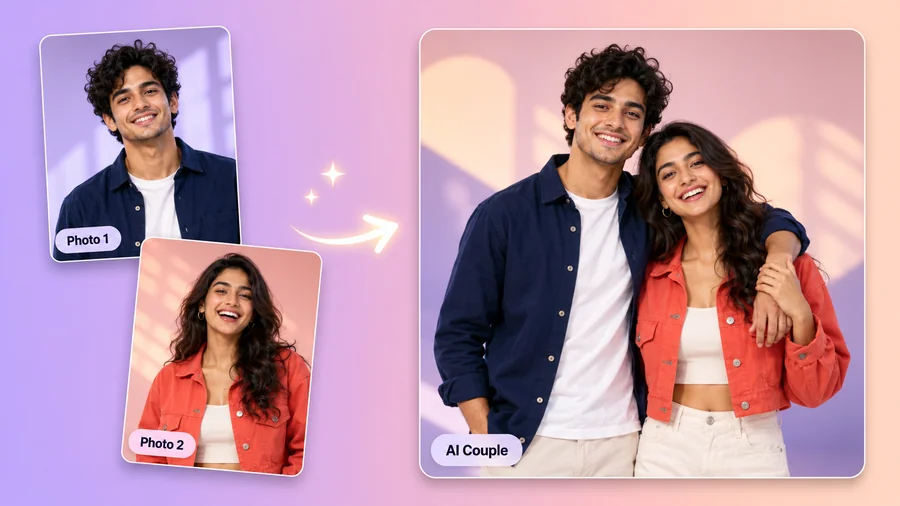
The AI wedding photo generator side turns a simple couple photo into a wedding portrait, for fun or for planning.
Paste any of these into the edit box. Each one also works as a ChatGPT wedding photo prompt in chat-based image editors.
| Goal | Prompt to paste |
|---|---|
| Clean background | Remove all the guests and objects behind us and fill the background naturally; keep us exactly as we are. |
| Soft retouch | Retouch our skin naturally, soften under-eye shadows and shine, and keep real skin texture and our features. |
| Dream venue | Place us under a white rose arch in a sunlit garden and match the light on our faces and clothes. |
| Evening glow | Add warm string lights and a soft golden glow behind us, like an evening reception. |
| Fix the dress | Smooth the wrinkles in the wedding dress and spread the train neatly on the floor without changing the design. |
| Portrait from a couple photo | Turn this photo of us into a wedding portrait: white lace gown, black tuxedo, elegant ballroom, same faces. |
Name what to change, what to keep (“keep our faces and pose”) and the light or mood, in one or two sentences.
Small habits that make wedding photos editing faster and the results cleaner.
Use the original from the photographer or the phone, not a screenshot or a messaging-app copy.
Remove guests first, then retouch, then grade: small stacked edits beat one long instruction.
“The bride on the left” or “the man in the gray suit” keeps group-photo edits on target.
Use the same Color & mood option on every photo so the album reads as one story.
When removing something, say what should be there instead: “more garden” or “an empty aisle”.
Only edit photos you took or may edit, and keep edits honest when sharing with guests.
Cut out, enhance, retouch and print your wedding pictures.
Cut the couple out for invitations, signs and save-the-date designs.
Open toolSmooth creases in dresses, suits and tablecloths with a dedicated tool.
Open toolBrighten smiles naturally before the album goes to print.
Open toolSharpen and upscale soft or old wedding photos before you edit them.
Open toolPixel sizes and cropping tips for 4×6 wedding prints.
Read guideGet the crop right for 8×10 frames and album pages.
Read guideAnswers to common questions about editing and creating wedding photos with AI.
Upload the photo, tap a quick edit or type the change you want, choose a Color & mood and an output shape, then press Edit Wedding Photo. This AI wedding editor shows the result next to your original, and you can keep editing the result for further changes. The table above shows the same steps in desktop software.
It is free to try: new accounts get free credits when they sign up, enough for several edits. After that each edit uses credits, and the cost is shown on the Edit button before you start.
Yes. Type “remove the guests behind us” or name the person, such as “the man in the blue shirt on the right”, and the AI removes them and fills in the background. Large crowds in front of the couple are harder, so remove them in a few steps.
It is told to keep every face, expression and skin tone exactly as they are and to retouch naturally. If a result drifts, run it again or make the instruction more specific, for example “only remove the sign, change nothing else”.
Yes. Tap Add a Veil, or describe the change, such as “make the sleeves lace” or “change the bouquet to white peonies”. To try completely different outfits, the AI Clothes Changer has outfit presets and garment uploads.
Yes. Use the Turn Into Wedding Portrait quick edit or describe the scene: the AI wedding photos generator side of the tool dresses you in wedding attire and places you in the venue you describe, keeping your faces. These are creative AI wedding photos, so label them as such when you share them.
The prompts in the table above work here and in chat-based image editors. Name what to change, what to keep (“keep our faces and pose”) and the light or mood, in one or two sentences.
Many wedding photo editors use an AI editor for the hard fixes, such as removing people, replacing skies and rescuing dark shots, and for hero images, while batch grading stays in their usual wedding photo editing software.
Sharp, full-resolution photos with visible faces. Very small, heavily compressed or blurry images limit what any wedding photo editor online can do, so sharpen them first with the Image Enhancer.
Only edit photos you took or have permission to edit, and do not use edits to misrepresent what happened or to embarrass anyone in the picture.
Upload a photo, describe the edit, and let the AI wedding photo editor do the rest.