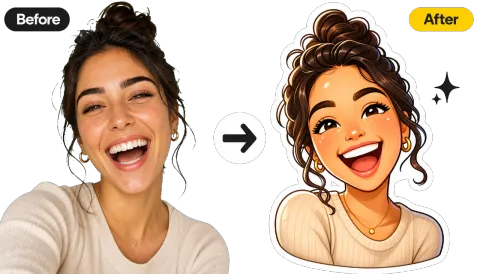
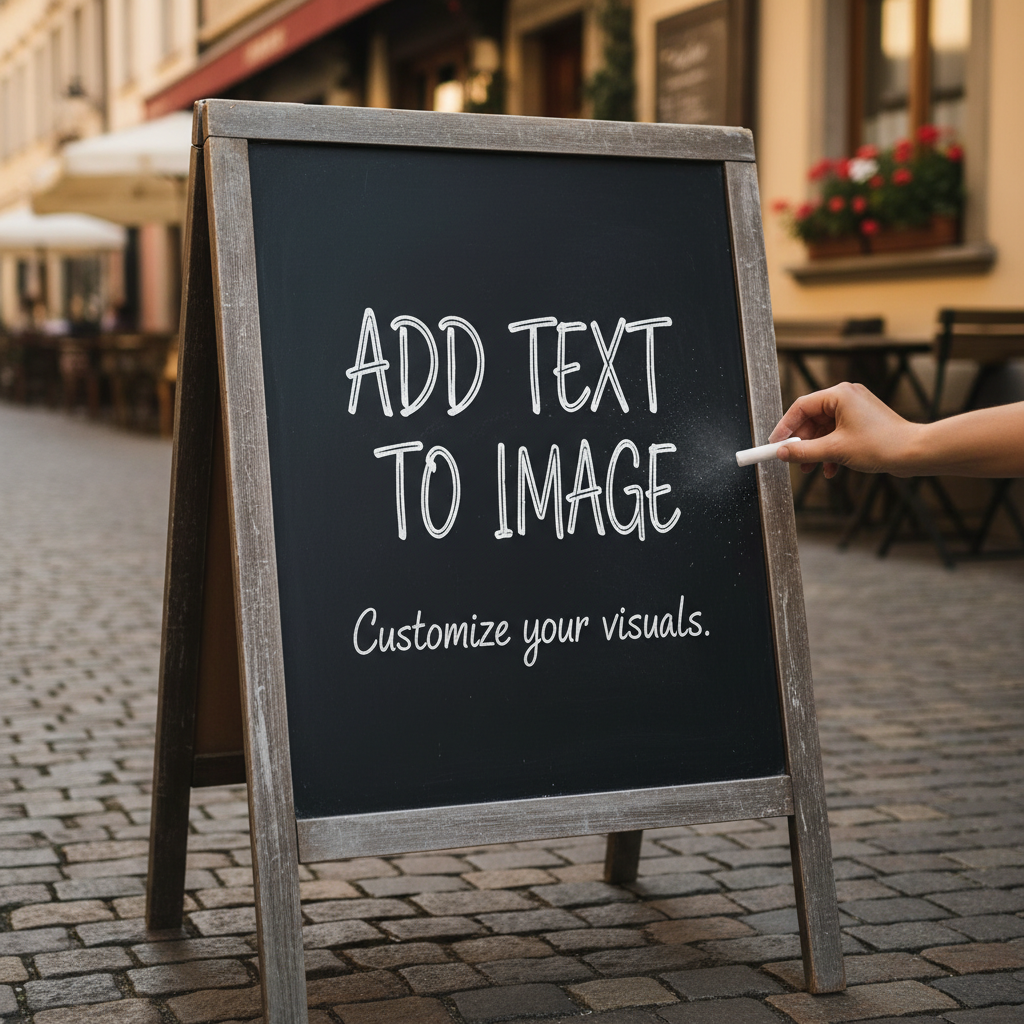
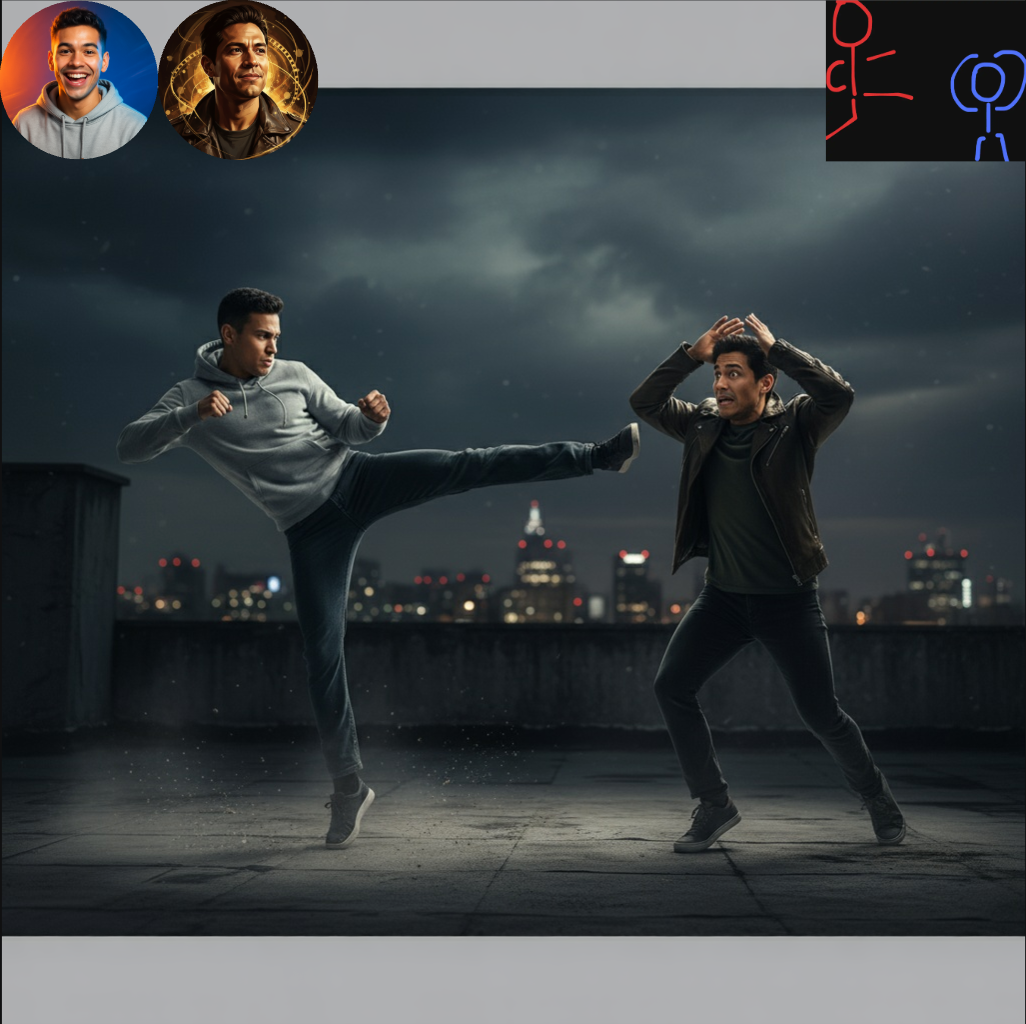
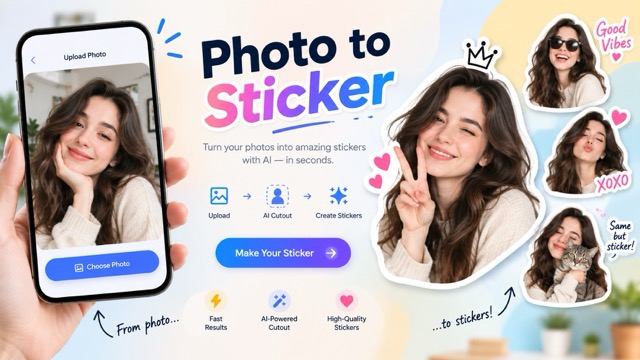
Upload a Photo
Choose a JPG, PNG, or WebP up to 20 MB. No photo? Open a blank canvas and make a picture with emojis from scratch.
Upload a picture, tap an emoji, and drag it into place. Resize, rotate, flip, or delete each emoji, cover faces, or decorate a selfie, then download the photo at full resolution. Free, and your photo never leaves the browser.
Pick an emoji
On the photo · 0
Upload a photo first, then click any emoji to put it on the picture.
Runs in your browser. Your photo is never uploaded.
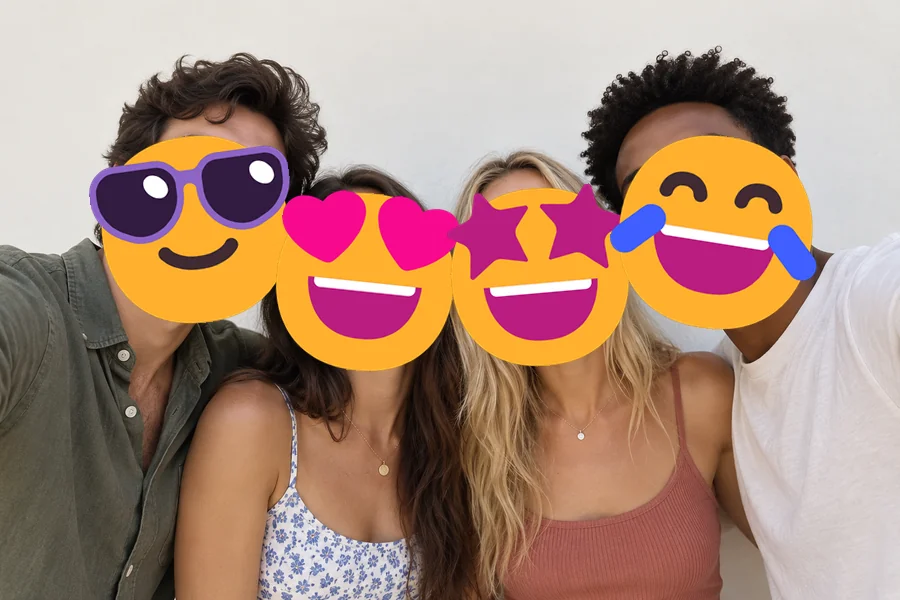
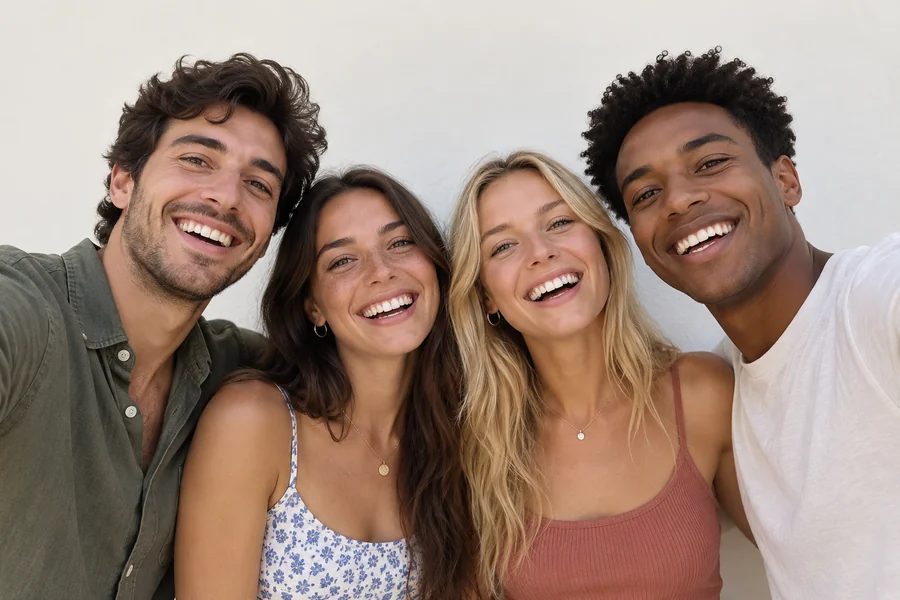
Reference example. It is not a result generated from your upload.
An emoji on a picture can say what a caption cannot: hearts on a couple photo, fire next to a new outfit, or a grinning face that hides someone who did not want to be online. If you have been wondering how to add emojis to photos without installing anything, this emoji photo editor works right in your browser, with more than 120 emoji in six categories and a box to paste any other emoji your keyboard offers.
Every emoji in photo layers stays editable until you download: drag it, resize and rotate it with the corner handle or a two-finger pinch, flip it, change its opacity, or delete it. The picture is processed on your own device, it is never uploaded, and the download keeps the original resolution.
How to add emoji to pictures in your browser, on a computer or a phone.
Choose a JPG, PNG, or WebP up to 20 MB. No photo? Open a blank canvas and make a picture with emojis from scratch.
Click any emoji in the panel, or type or paste one, and it lands on the photo. Drag it into place, use the yellow corner handle to resize and rotate, and the red × to delete.
Save the picture as PNG or JPG at its original size, ready for a story, a group chat, or a card.
Sharing a group shot but not everyone wants to be seen? Put an emoji on a picture over each face and size it to cover completely. It is the quickest privacy fix for kids, friends, and strangers in the background, and the emoji is baked into the downloaded file.
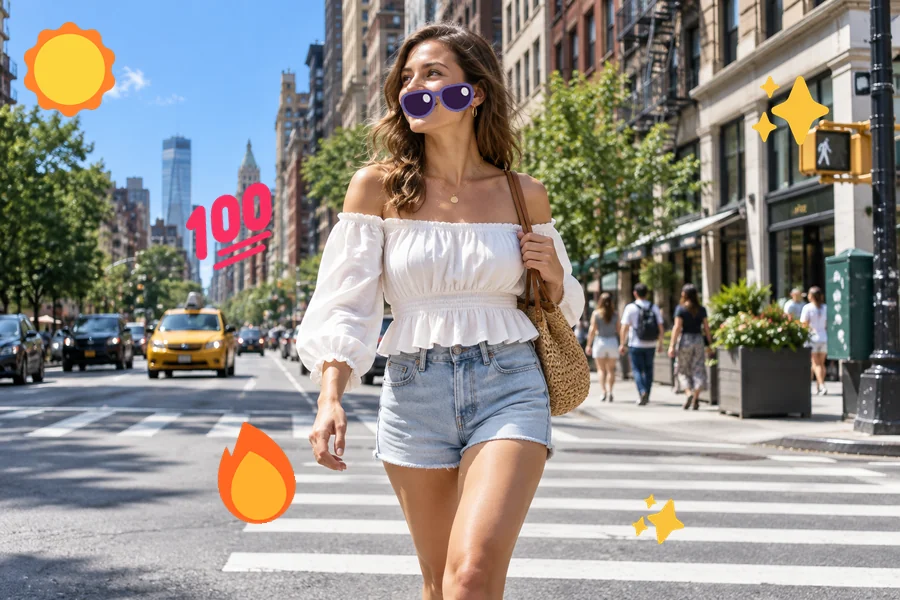
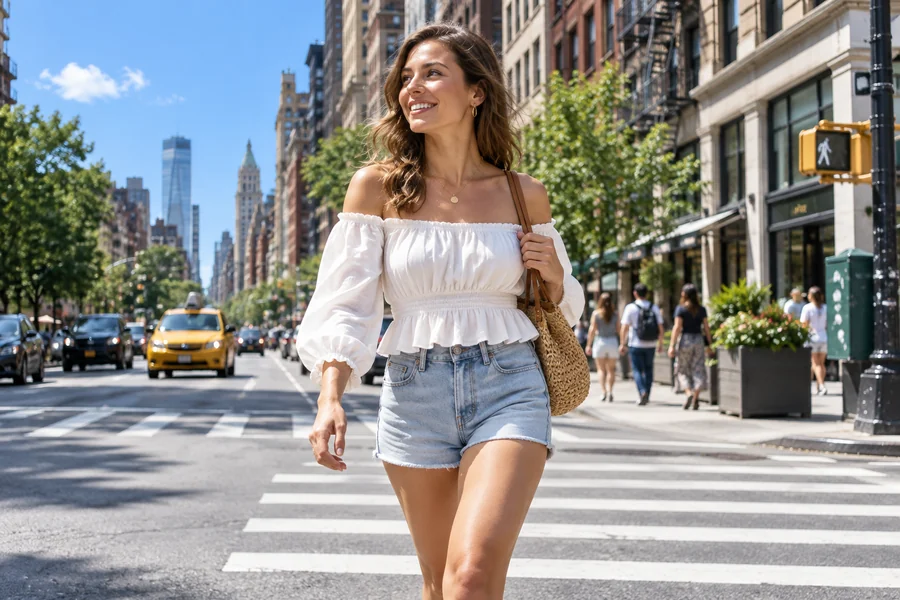
Each emoji is its own layer. Drag it anywhere, pull the corner to make it bigger and tilt it at the same time, pinch with two fingers on a phone, or use the Size, Rotate, and Opacity sliders for exact values. Duplicate, flip, or bring an emoji to the front with one click.
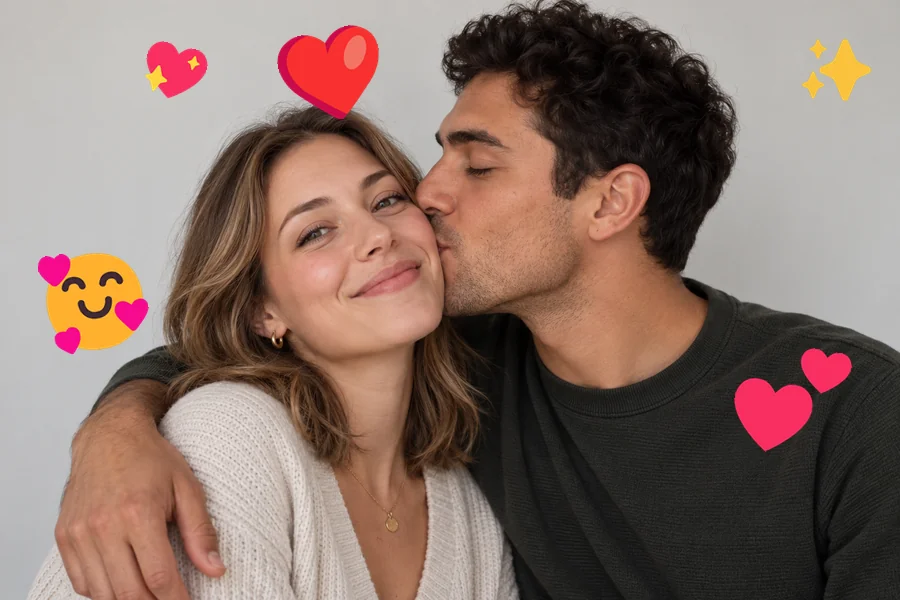
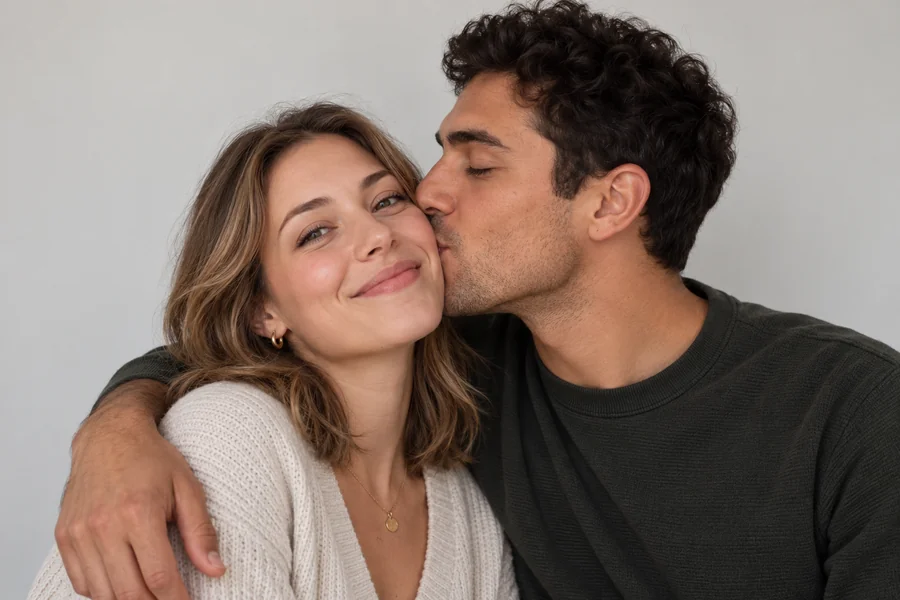
Hearts and kisses for anniversaries, party poppers and cake for birthdays, trees and snowmen for the holidays. Browse Faces, Love, Party, Hands & Hats, Animals & Nature, and Food & Travel, or paste any emoji your device supports.

Skip the photo and start on a blank 1600 × 1200 canvas. Stack waves, palm trees, suns, and clouds into a little emoji scene for a wallpaper, an invite, or a classroom worksheet. It is free, needs no sign-up, and runs entirely in your browser.
Where an emoji on a picture does the most work.
Add reactions, sparkles, and fire to selfies and outfit shots before you post them.
Cover faces, name tags, or license plates with an emoji instead of a blur.
Turn a photo into a birthday, holiday, or thank-you card with themed emoji.
Drop a laughing or shocked face onto a picture to make the joke land.
Small details that make emoji look placed, not pasted.
When hiding a face, size the emoji slightly larger than the head so no edge peeks out.
Rotate an emoji to follow the angle of a head or an object; a few degrees looks natural.
Lower opacity on background sparkles or hearts so the photo stays the focus.
Place emoji near, not on top of, the subject unless covering is the point.
A few ways people use an emoji photo editor.
Illustrative examples adapted from reference material, not verified reviews of EzImgMaker.
I post class trip photos for parents, and some families opt out. A smiley over each of those faces takes a minute and nobody has to be cropped out.
Our group chat runs on reaction photos, and someone always asks how do you put emojis on photos like that. Now I send them this page. Pasting any emoji, not only the ones in the panel, is the best part.
I add sparkles and fire to outfit shots for my shop’s story. My staff kept asking how to put emojis on pics without an app, so now we all use this. Opacity at 70% keeps it tasteful.
Made our anniversary card with hearts all around our photo, right on my phone. Pinch to resize works great.
Common questions about putting emoji on pictures.
Upload the photo, click an emoji in the panel, and it appears in the middle of the picture. Drag it to the right spot, pull the yellow corner to resize or rotate it, then click Download Image. That is all it takes to add emoji to photo files here, and you can add as many as you like. The same steps show how to add an emoji to a picture, a screenshot, or a scanned card.
Open this page in your phone’s browser, upload a picture from the camera roll, tap an emoji, and drag it with one finger. Pinch with two fingers to resize and rotate it. It works the same way on every device, with no app to install.
Here is how to put emojis on a picture so a face is fully hidden: add a face emoji, drag it over the head, and enlarge it until the whole face is covered. Tilt it to match the head angle. The emoji is merged into the downloaded image, so the face underneath cannot be revealed from the file.
Use the “Type or paste any emoji” box. Type an emoji with your device’s emoji keyboard (Windows + . on Windows, Control + Command + Space on Mac) or paste one, and click Add.
Yes. Tap any emoji on the photo to select it, then drag the yellow corner handle, pinch with two fingers, or use the Size, Rotate, and Opacity sliders. Delete it with the red × or the Delete button. With the photo focused, arrow keys move it, + and − resize, and [ ] rotate.
Click “No photo? Make a picture with emojis on a blank canvas” under the upload box. You get a white 1600 × 1200 canvas to fill with any emoji, then download it like a photo.
Upload any saved picture or screenshot as a JPG, PNG, or WebP. Pictures from messaging apps work too: save them to your device first, then add emoji and download a new copy.
It is free, needs no sign-up, and adds no watermark, because everything runs in your browser; your picture never leaves your device. Please only edit photos you own or have permission to use, and respect the privacy of people in them.
Emoji are drawn with your system’s emoji font, so Windows, Apple, and Android each have their own style. What you see in the preview is exactly what is saved in your download.
No. The photo is redrawn at its original size with the emoji on top. Very large images (over about 16 megapixels) are scaled down slightly so phones can save them. PNG keeps the best quality; JPG makes a smaller file.
Upload a picture, place your emoji, and download the result in full resolution.