
Paper Photo to Transparent PNG
A signature photographed on cream paper with uneven light becomes clean blue ink on a transparent background, ready for any document.
Photograph or scan your handwritten signature and the AI separates the ink from the paper, removing shadows, texture, and lines, so you get a crisp signature on a transparent or white background.
Quick outputs
Fine-tune
Your photo stays in this browser during this UI preview.
Reference example. It is not a result generated from your upload.
A signature background remover takes a photo or scan of your handwritten signature and keeps only the ink. The paper color, uneven lighting, phone shadows, and notebook lines are cleared, and the strokes are saved on a transparent background, so the signature can sit on any document without a white or gray box around it.
When you remove background from signature images with AI, thin strokes and natural pen pressure are kept instead of being thinned out or blown away by a simple brightness threshold. The result is a transparent PNG signature you can insert into Word, PDF forms, email signatures, invoices, or artwork.
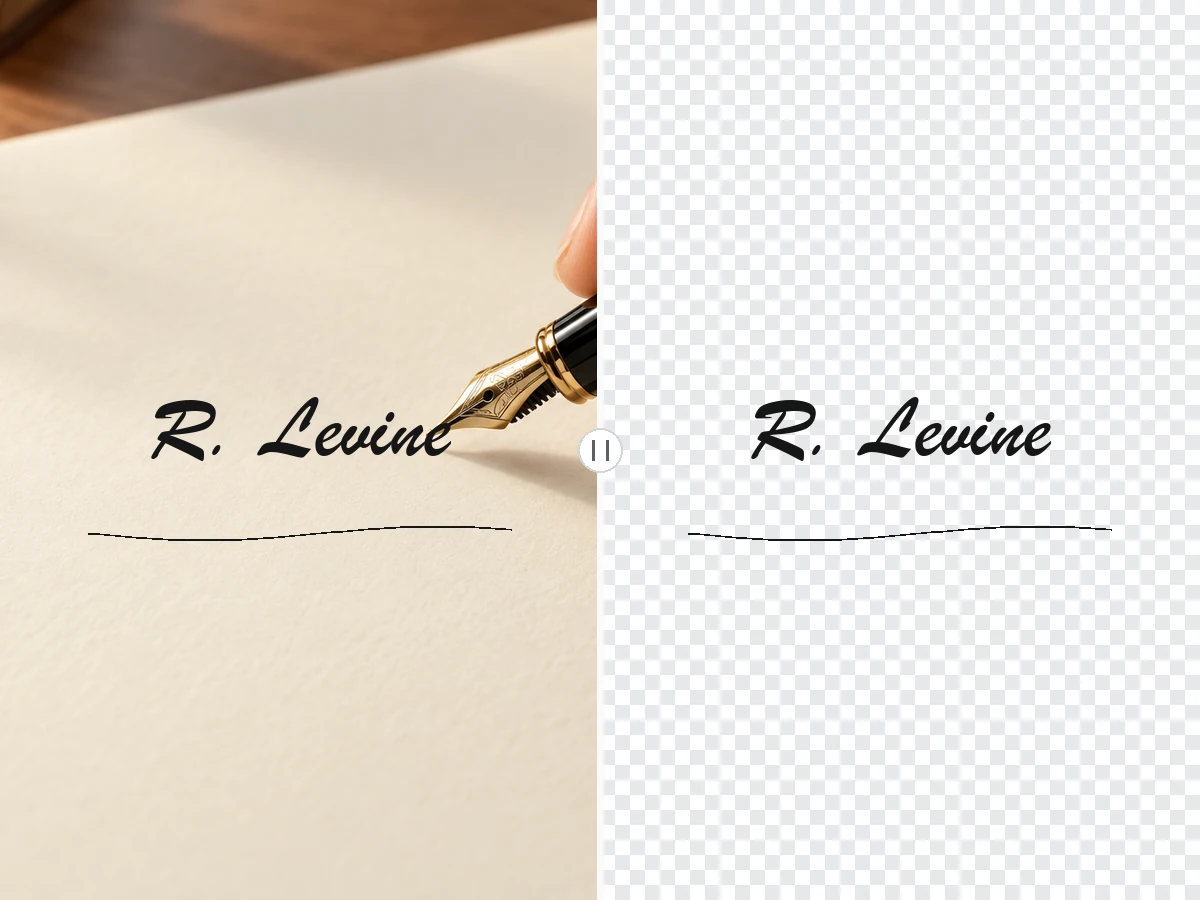
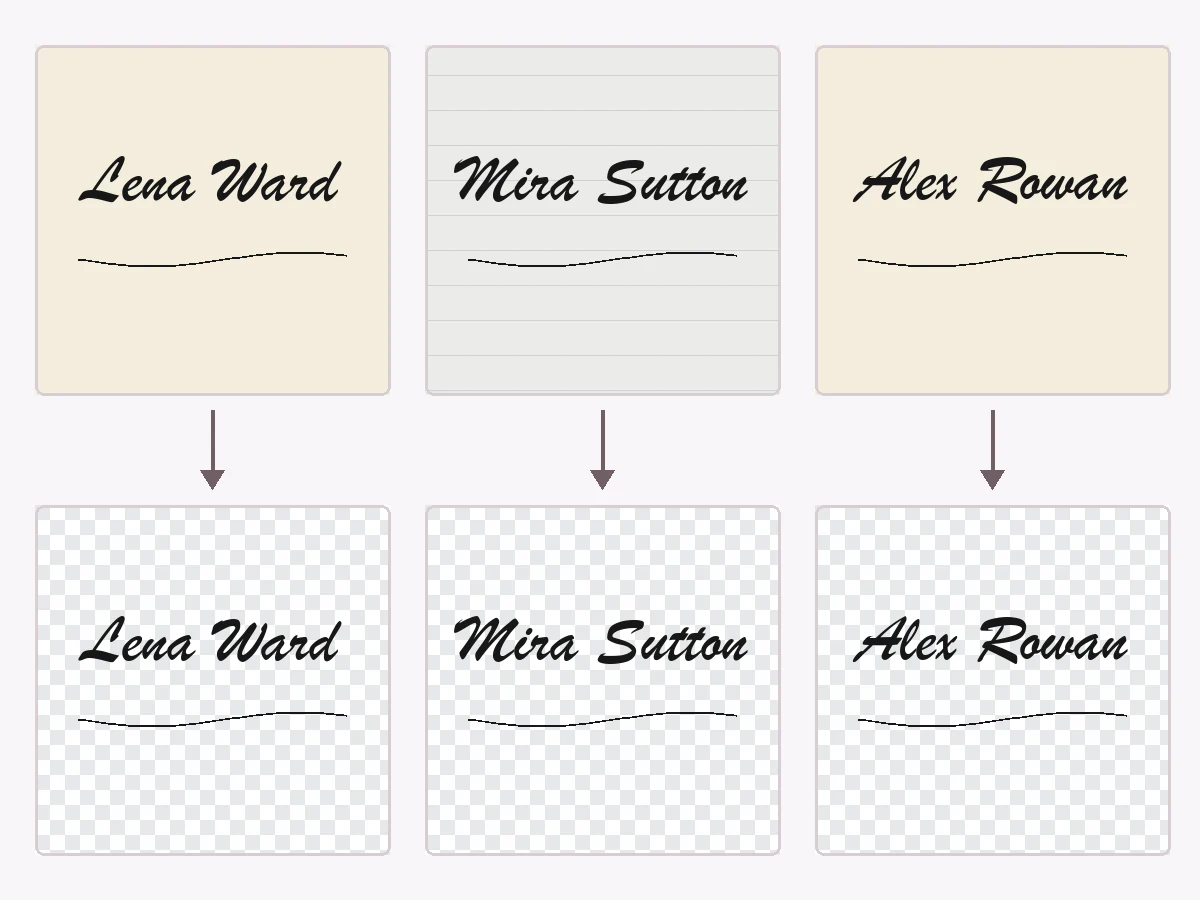
Drag each image to compare the original photo with the cleaned signature.
A signature photographed on cream paper with uneven light becomes clean blue ink on a transparent background, ready for any document.

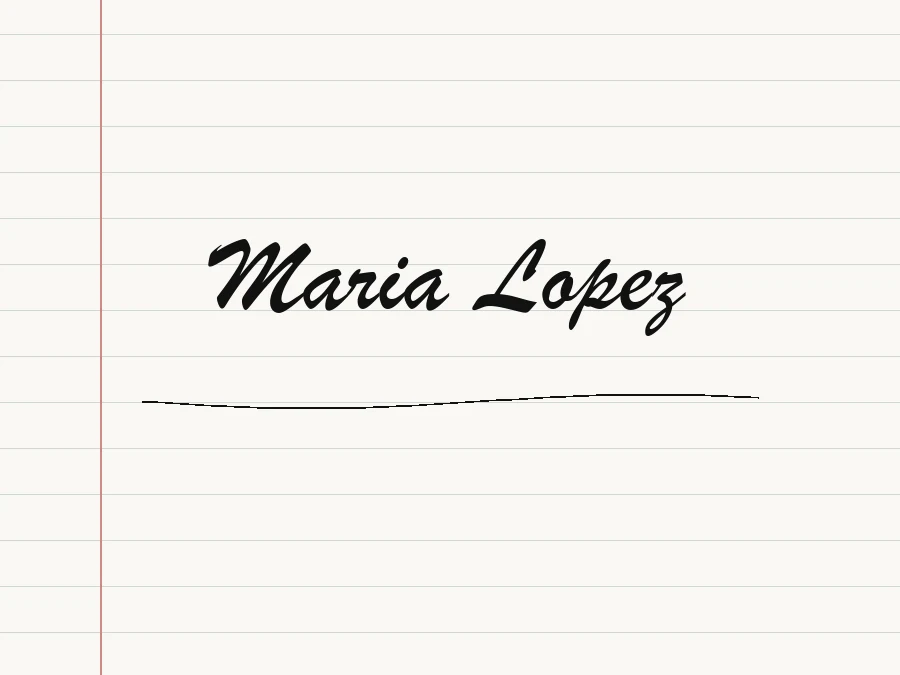
Ruled lines, a margin line, and a soft shadow are removed, leaving solid black ink on pure white for printing and scanning.
Remove signature background in three steps, with no erasing or selection tools.
Sign on plain white paper, take a straight-on photo or scan it, and upload the JPG, PNG, or WebP file (up to 10 MB).
Pick Transparent PNG, Black Ink on White, or Blue Ink for Documents. Use Strong cleanup for lined paper or shadows, and choose a tight crop or the original size.
The AI separates the ink from the paper. Check the strokes, then download the signature and place it in your document.
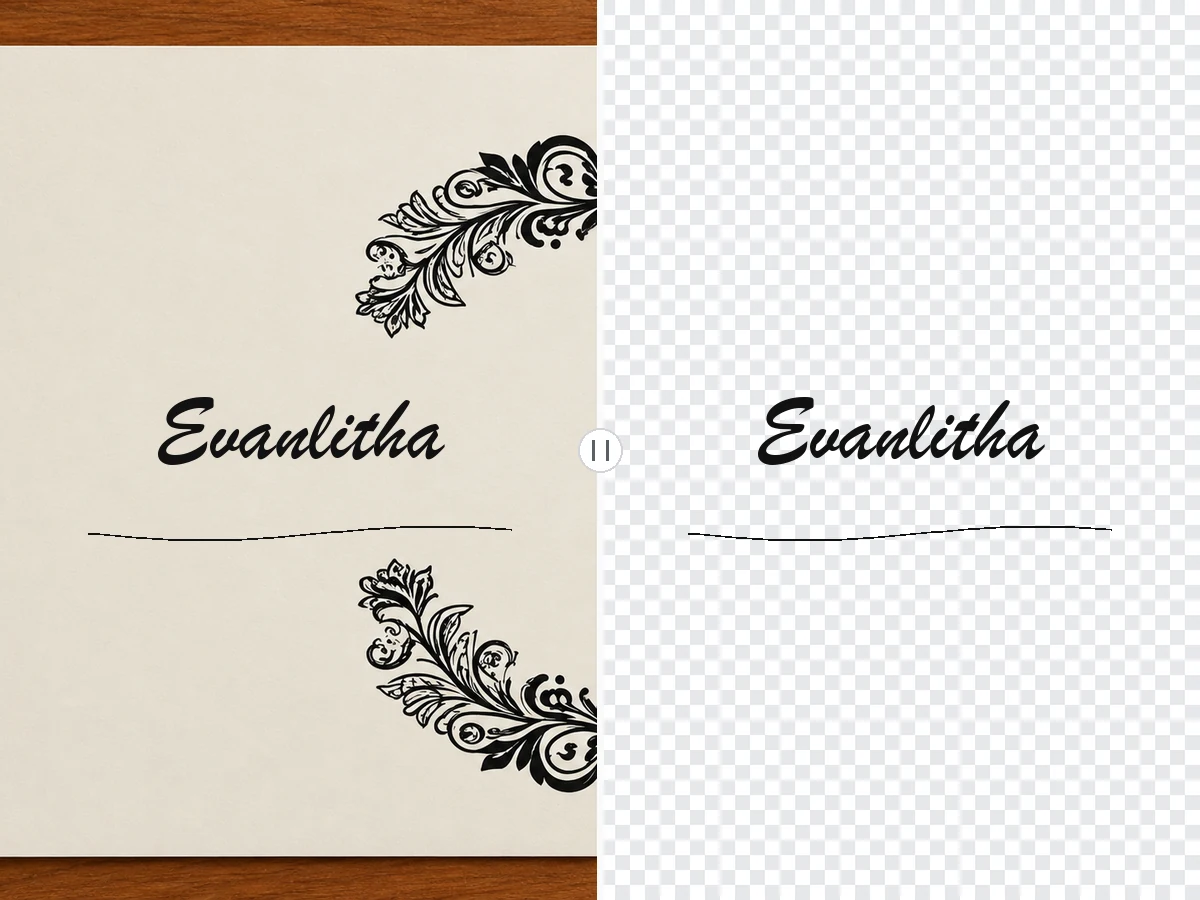
No white box, no gray haze around the strokes. The transparent signature drops onto letters, PDF forms, contracts, invoices, and email footers and blends with whatever is underneath.
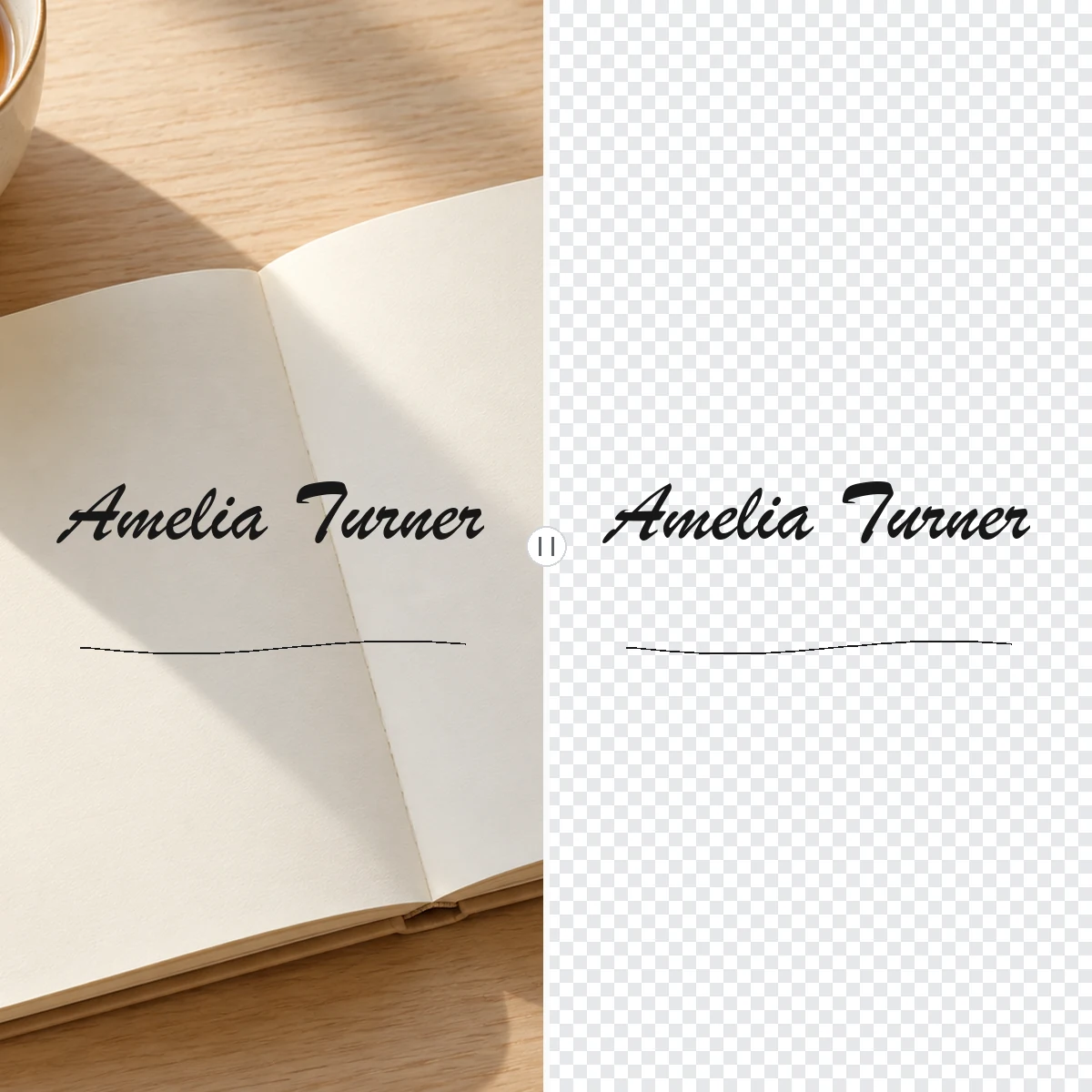
Phone photos of signatures are rarely clean. The AI ignores paper grain, the shadow of your hand or phone, and light notebook lines, so you can remove white background for signature photos taken almost anywhere.
A basic threshold either leaves gray paper behind or erases faint tails and connecting lines. This signature background remover keeps the light flicks and the thick-to-thin rhythm of your pen so the signature still looks handwritten.
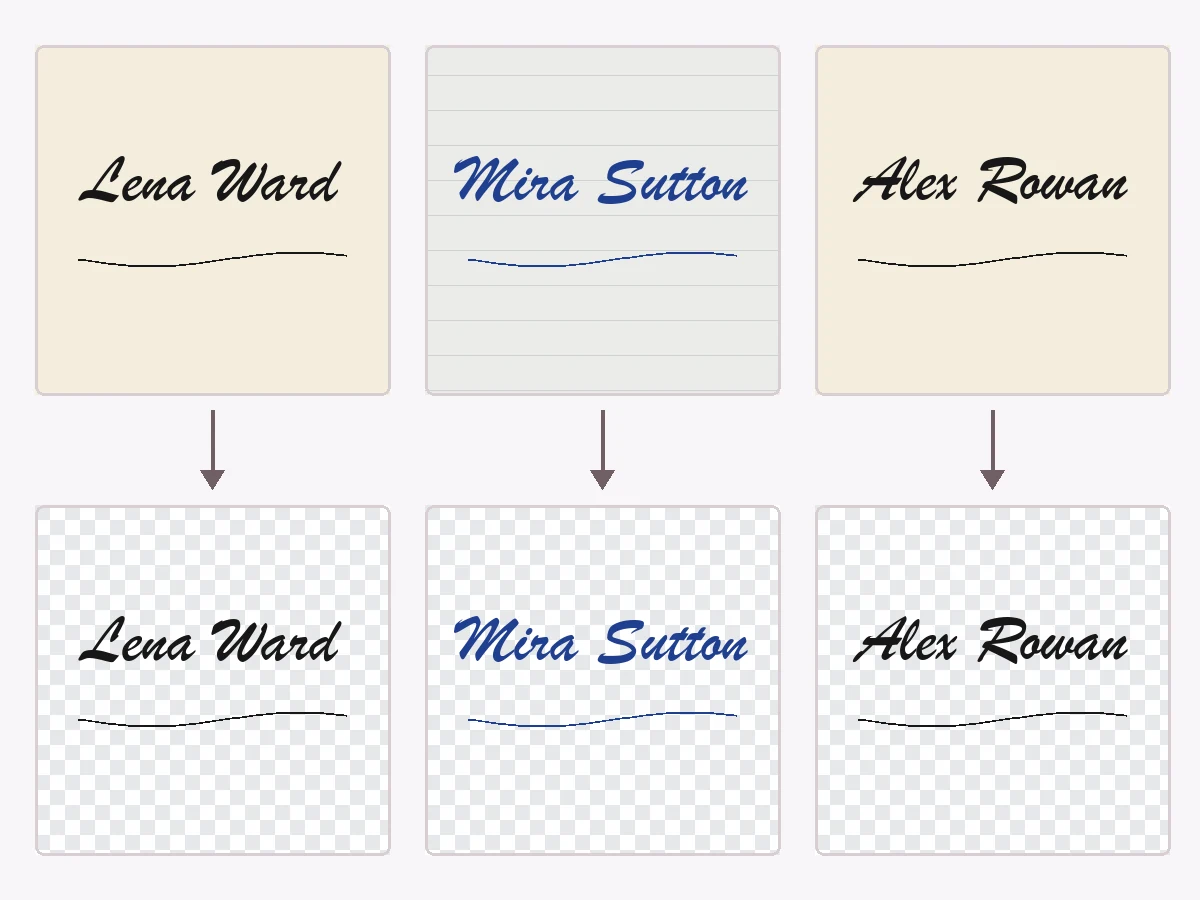
Keep the original ink color, or recolor the signature to solid black or document blue so it matches forms and stays legible when printed or scanned again.
Insert the PNG above your typed name in letters, offer documents, and reports.
Place the signature as an image on PDF forms, quotes, invoices, and delivery notes.
Add a small handwritten signature to your email footer without a white rectangle behind it.
Sign digital artwork, prints, and photos with your real signature as a transparent overlay.
A good capture makes the cleanest signature.
A black or dark blue pen on plain white paper gives the strongest contrast.
Avoid your own shadow and glare; daylight near a window works well.
Photograph from directly above and fill the frame so strokes stay sharp and undistorted.
A bigger signature keeps more detail when you scale it down in a document.
Everyday paperwork that gets easier with a clean signature file.
Illustrative examples adapted from reference material, not verified reviews of EzImgMaker.
I photographed my signature on a sticky note at my desk. The shadow and the yellow paper were gone, and the PNG sat perfectly above my name in the PDF.
Our invoices used a scanned signature with a gray box around it. The transparent version finally looks like it was signed on the page.
I sign my digital prints with my real signature. Removing the background kept the thin tail of the last letter that other tools erased.
Switching the ink to black made my signature readable on faxed and re-scanned forms. Simple, and no editing software needed.
Common questions about making a signature transparent.
Upload a photo or scan of your signature, choose Transparent PNG or another output, and start. The AI keeps the ink strokes and removes the paper, shadows, and lines around them, then you download the clean signature.
Keep Output background set to Transparent and download the PNG. PNG keeps transparency, so the signature shows only the ink when you place it on a document.
Yes. A scanned signature on white works especially well: the white is removed and the strokes are kept on transparency, or recolored to solid black if you prefer.
Light ruled lines, margin lines, paper texture, and soft shadows are removed. Choose Strong cleanup for difficult photos. Lines that cross the signature in the same dark color as the ink may need a cleaner re-shoot.
Yes. Faint tails, dots, and connecting strokes are kept as part of the signature. If your pen was very light, choose Black ink to strengthen the strokes for printing.
In Word, use Insert > Pictures and set the image to In Front of Text so you can place it over the signature line. In PDF editors, add it as an image or signature stamp. Because the PNG is transparent, no white box appears.
Transparent signatures are saved as PNG. If you choose a white background, the signature is a flat image that works anywhere, including forms that do not accept transparency.
Not necessarily. A picture of your handwritten signature is convenient for letters and invoices, but some contracts require a certified electronic signature service. Check what the recipient or the law requires.
No. Only upload your own signature or one you are explicitly authorized to use. Using another person’s signature without permission can be forgery.
Upload a photo of your signature and remove the background in one step.