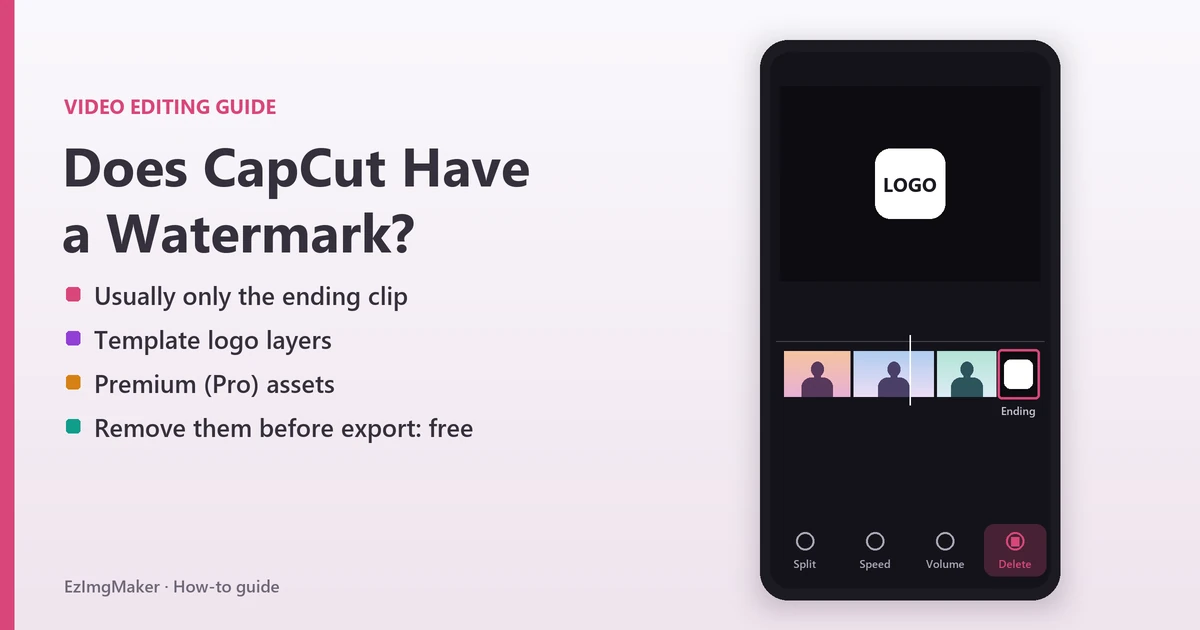
Short answer: does CapCut have a watermark? Not on a regular export of your own footage. When a CapCut watermark shows up, it almost always comes from one of three things: the default ending clip with the CapCut logo, a branded layer inside a template, or a premium (Pro) asset you used on the free plan. Delete the ending clip, remove any branded layers, swap premium assets for free ones, and your next export is clean. All of that is free.
Searches like “remove watermark from video CapCut” and “how to remove watermarks in CapCut” almost always mean that ending logo, and the fastest CapCut watermark remove method is simply deleting it before you export.
Below you will find exactly where the watermark comes from, step-by-step instructions for CapCut mobile, CapCut PC and CapCut Online, how to clean up a template, what CapCut Pro changes, and what to do if you already exported a video with the logo. Everything here is a legitimate, supported method; this guide does not cover cracked apps or removing other creators’ watermarks.
Does CapCut Have a Watermark?
CapCut’s own help center (articles dated March 2026) is clear: the export itself does not stamp a watermark on your video. The logo people see comes from content inside the project. That is good news, because anything inside the project can be deleted before you export.
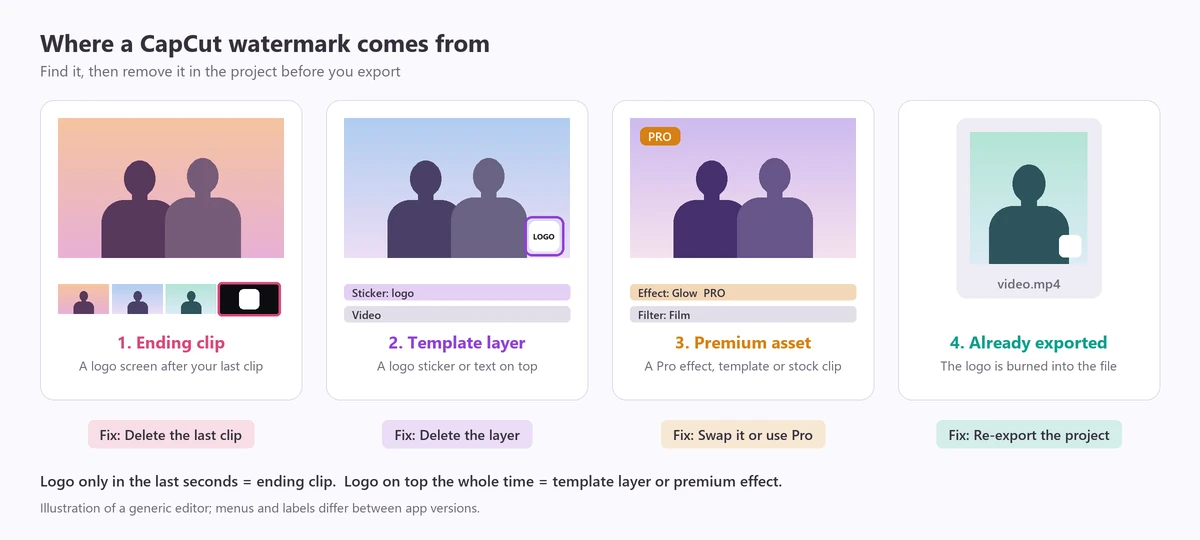
| Where the CapCut watermark comes from | What you see | How to remove it | Cost |
|---|---|---|---|
| Default ending clip (outro) | A 2 to 3 second logo screen at the very end | Delete the last clip on the timeline | Free |
| Template outro or logo layer | Logo at the end, or a small logo or text on top of the video | Delete the outro, remove branded stickers or text layers | Free |
| Premium template, effect or stock clip | A watermark or an export prompt when Pro items are used | Replace them with free assets, or subscribe to CapCut Pro | Free or Pro |
| Stock asset that needs attribution | A credit or brand mark on one clip | Replace the stock clip with your own footage | Free |
| A file you already exported | The logo is burned into the video | Re-export from the project, or trim or crop the file | Free |
If the logo only appears in the last few seconds, it is the ending clip. If it sits on top of the video the whole time, look for a template layer or a premium effect.
How to Remove the CapCut Watermark on Mobile (iPhone and Android)
The CapCut app adds the ending clip to many projects and to most templates. Here is how to remove watermark from CapCut projects on a phone; it takes a few taps:
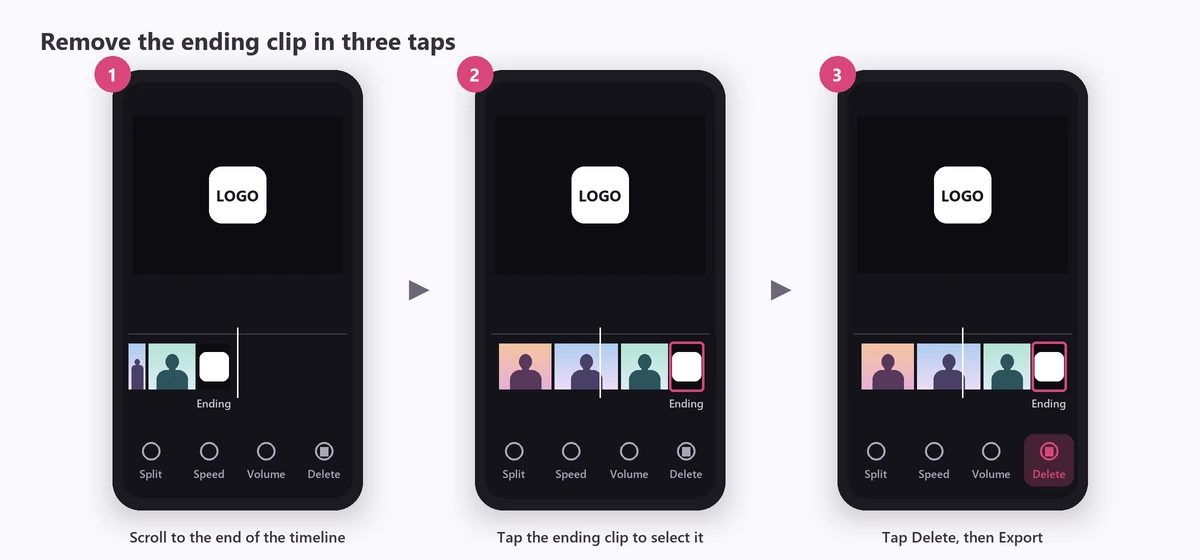
- Open your project in the CapCut app (not the exported file).
- Swipe the timeline to the very end. The ending clip is a short segment after your last video clip, usually showing the CapCut logo.
- Tap the ending clip so it is selected.
- Tap Delete in the bottom toolbar.
- Check the other tracks (text, stickers, overlays) for any logo layer and delete it too.
- Play the end of the video to make sure nothing branded is left, then tap Export.
Stop it from coming back: in many versions of the app you can open Settings from the home screen (the gear icon) and switch off the default ending option, usually labeled “Add default ending.” Menu labels change between versions, so if you cannot find it, deleting the clip per project works just as well.
How to Remove the CapCut Watermark on PC (CapCut Desktop)
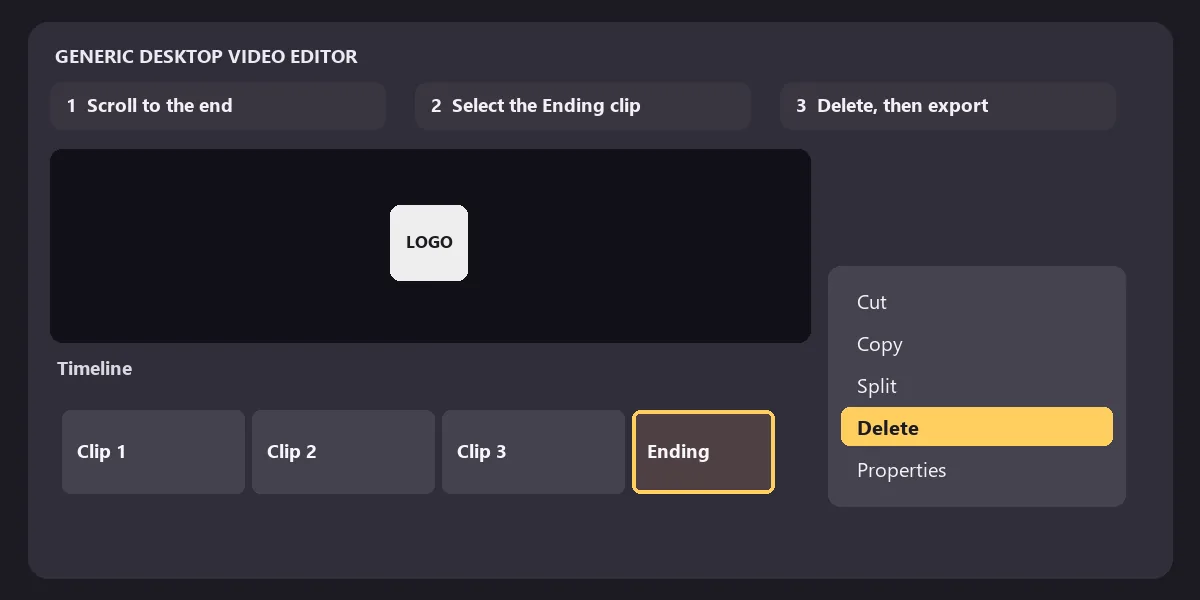
- Open the project in the CapCut desktop app.
- Scroll the timeline to the last clip and click the branded outro.
- Press Delete (or right-click and choose Delete).
- Review every track for hidden overlays, text or stickers with a logo, and replace template placeholders with your own media.
- Export again. Choose your resolution and frame rate as usual; the new file has no watermark.
How to Remove the Watermark in CapCut Online (Web)
This is also how to remove CapCut watermark online free of charge, with no extra tool:
- Open the project in CapCut Online after you apply a template.
- Scroll to the end of the timeline and click the CapCut-branded ending clip.
- Delete the clip, then check for extra overlay layers with logos.
- Preview the video and click Export.
How to Remove the Watermark From a CapCut Template
Templates are where most people meet the CapCut watermark, because many of them ship with an outro and some include branded layers or premium effects. Use this checklist before you export a template video:
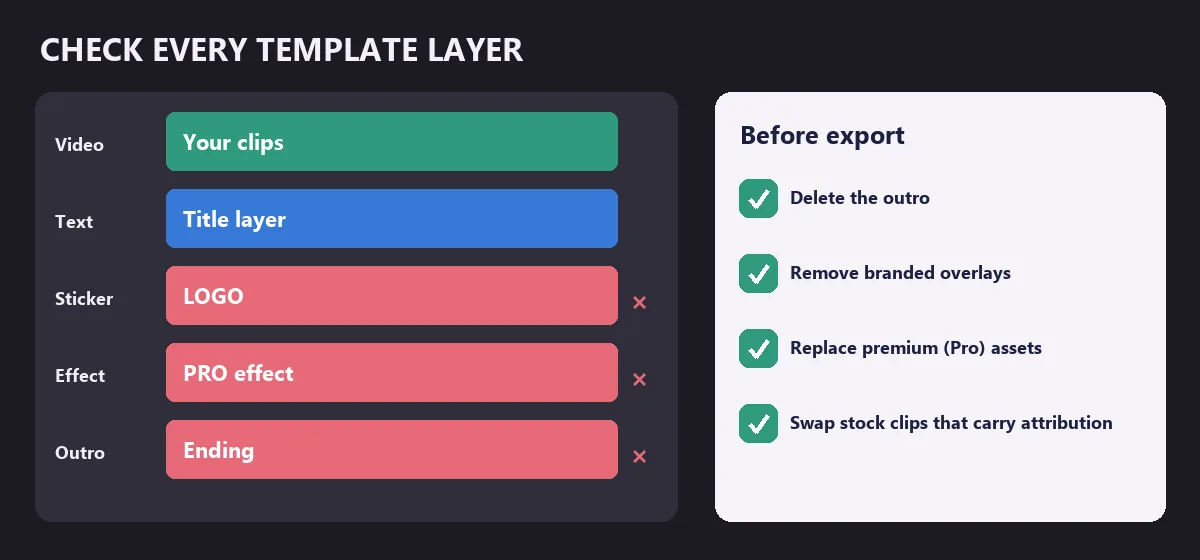
- Delete the outro at the end of the timeline (mobile, PC or web, as above).
- Remove branded overlays: stickers, text boxes or effects that contain a logo.
- Replace premium assets marked as Pro with free effects, transitions or filters.
- Swap stock clips that carry attribution for your own footage.
- Skip template downloaders. CapCut’s help center notes that third-party “CapCut template downloaders” are unnecessary and may lower quality or pose security risks; exporting from CapCut after removing the branded parts is the safe route.
Prefer to avoid template branding altogether? Start a blank project with your own clips, music, text and effects. CapCut says editing in the standard interface is the most reliable way to export without any watermark.
When CapCut Pro Removes the Watermark
Some advanced templates, effects and stock elements are premium. If you use them on the free plan, CapCut either asks you to subscribe or exports them with a watermark attached. You have two options:
- Replace the premium items with free alternatives from CapCut’s library. The watermark tied to them disappears.
- Subscribe to CapCut Pro, which unlocks premium assets and lets you export without the watermark attached to those features. Prices and plans vary by country and platform, so check the app for the current offer.
You never need Pro just to remove the ordinary ending clip. That part is free on every plan.
Can CapCut Remove Watermark From Video? The CapCut AI Watermark Remover
Yes, for your own footage. CapCut’s desktop editor includes an AI remove feature: select a clip, go to Video > Basic > AI remove, brush over the mark, and click Remove. This is the CapCut AI watermark remover people search for, and CapCut states that the feature is intended only for personal or authorized material and does not support removing watermarks from copyrighted or paid content. Availability can depend on your app version, region and plan.
So when people ask “can CapCut remove a watermark,” the honest answer is: it can clean marks from clips you own or are allowed to edit, such as your own logo on old footage, a date stamp or a stray caption. It is not a tool for stripping someone else’s watermark off their video.
Already Exported a Video With the CapCut Watermark?
Once a video is exported, the logo is part of the image. Deleting clips in a different project will not change that file. In order of quality:
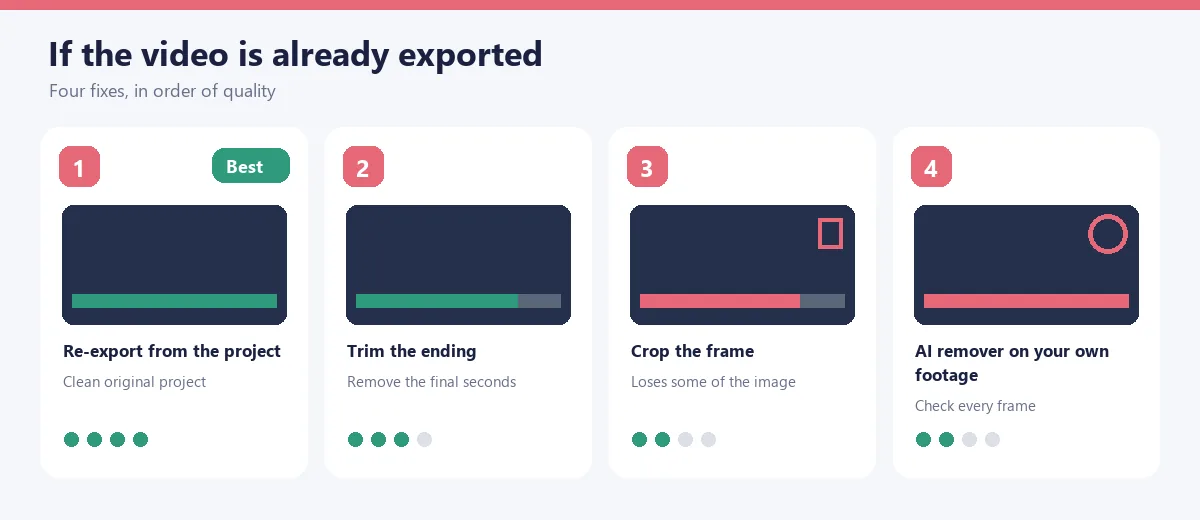
- Re-export from the original project. Open it, delete the ending clip and any branded layers, and export again. This gives a perfect result.
- Trim the ending. If the logo is only in the outro, trim the last few seconds off the exported file in any editor, including CapCut itself.
- Crop the frame. If a small mark sits in a corner, cropping slightly can remove it, at the cost of some framing and resolution.
- Use an AI remover on footage you own. CapCut’s AI remove or another inpainting tool can fill in the area. Check every frame: fast motion behind the mark is the hardest case.
For still images, the job is easier. If you need a clean thumbnail, cover image or screenshot from your own video, an image watermark remover can erase a logo, date stamp or caption from a single frame:


Working with marks inside video clips you own? See the video watermark remover page for what it currently supports, and the AI video enhancer if the re-exported clip looks soft. If the re-exported clip still looks soft, our Topaz Video AI settings guide covers sharpening and upscaling, and our Media.io review compares another online video watermark remover.
What Not to Do
- Do not install “CapCut Pro unlocked” or modded apps. They break CapCut’s terms, can be pulled at any time and are a common way to spread malware.
- Do not remove other creators’ watermarks or handles to repost their videos. That can infringe copyright and violates the rules of most platforms.
- Do not rely on random template downloaders. CapCut itself warns they can reduce quality or pose security risks.
The supported methods above remove the CapCut watermark from your own work in a minute, so there is no reason to take the risk.
Frequently Asked Questions
Does CapCut have a watermark?
Not on a normal export of your own clips. According to CapCut’s help center (March 2026), the CapCut watermark usually comes from a default ending clip with the CapCut logo, a branded layer inside a template, or a premium asset used without a subscription. Delete the ending clip and those elements before you export and the video is saved without a watermark.
How do I remove the CapCut watermark for free?
Scroll to the end of the timeline, tap or click the short clip with the CapCut logo and delete it, then check the other tracks for logo stickers or text and export again. This works on CapCut mobile, CapCut PC and CapCut Online, and it costs nothing. Watermarks tied to Pro templates or effects go away when you replace those assets with free ones or subscribe to CapCut Pro.
How do I stop CapCut from adding the ending clip?
In many versions of the mobile app you can open Settings from the home screen and switch off the option that adds a default ending (it is usually labeled “Add default ending”). Labels move between versions, so if you cannot find it, just delete the ending clip from each project before exporting.
Why does my CapCut template video have a watermark?
Most templates include a short branded outro, and some also contain logo overlays, stickers or premium effects. Open the template project, delete the ending clip, check every layer for branding, replace any premium assets, then export. CapCut says third-party template downloaders are unnecessary and can lower quality or pose security risks.
Does CapCut have a watermark remover?
CapCut’s desktop editor has an AI remove feature (Video > Basic > AI remove) that lets you brush over a mark in a clip and erase it. CapCut says it is meant only for personal or authorized material and does not support removing watermarks from copyrighted or paid content. Availability depends on your version and plan.
Can CapCut remove a watermark from a video I already exported?
The CapCut watermark in a file you already exported is part of the pixels, so deleting clips will not help. The cleanest fix is to reopen the original project, delete the ending clip and export again. If the project is gone, you can trim the ending off, crop, or use an AI remover on footage you own.
Does CapCut Pro remove the watermark?
CapCut Pro unlocks premium templates, effects and stock elements, and CapCut says Pro lets you export videos without the watermark attached to those features. You do not need Pro to remove the regular ending clip; deleting it is free.
Is it legal to remove the CapCut watermark?
Removing the CapCut ending or template branding from your own edits is a normal, supported step: CapCut’s own help pages explain how to do it. What you should not do is remove watermarks, creator handles or logos from other people’s videos to repost them, or use modified “Pro unlocked” apps, which break CapCut’s terms and can carry malware.
Related Guides and Tools
- Watermark remover: erase logos, text and stamps from images and still frames.
- Video watermark remover: what is supported for video.
- Remove text from picture: captions, dates and price tags on images.
- AI video generator: make a fresh clip from a prompt instead of reusing footage.