
Short answer: the best video upscaler is the one that fits where your footage lives. To upscale a short clip right now, with no install and no graphics card, use an online tool such as the EzImgMaker Video Upscaler. For professional restoration on a powerful computer, Topaz Video is the most complete video upscaling software. If you want the best free video upscaler, Video2X ("video 2x") is open source; if you already edit in DaVinci Resolve, the Studio version's Super Scale works right on your timeline. CapCut, HitPaw VikPea, and AVCLabs Video Enhancer AI round out the list.
Below we compare 7 AI video upscaling tools and video enhancement tools by what they do, who they suit, where they run, and what they cost, then explain how to choose, which AI models matter in 2026, and how to upscale a video online in three steps.


Best AI Video Upscaling Software at a Glance
| Tool | Best for | Platform | Price from (as of Oct 2026) | Highlight |
|---|---|---|---|---|
| EzImgMaker Video Upscaler | Quick upscales of short clips, no install | Web browser on any device | Free credits when you sign up, then credit packs | 2× or 4× upscale, plus an enhancer, unblur and HD converter |
| Topaz Video | Professional upscaling and restoration | Windows, macOS (Apple silicon) | US$299/year or US$59/month | Dozens of specialized models, frame interpolation, cloud rendering |
| Video2X | Free local upscaling, especially anime | Windows, Linux | Free (open source) | Real-ESRGAN, Real-CUGAN, Anime4K and RIFE in one tool |
| DaVinci Resolve Studio | Editors already working in Resolve | Windows, macOS, Linux | US$295 one-time (Studio) | Super Scale 2×, 3× or 4× inside your edit |
| CapCut | Social media creators | Desktop, web, mobile | Free version; some features need Pro | Enhance quality inside a free editor |
| HitPaw VikPea | One-click desktop enhancement | Windows, macOS, mobile, online | Subscription or perpetual license | Task-specific models, output up to 8K |
| AVCLabs Video Enhancer AI | Restoring old footage on desktop | Windows, macOS | US$39.95/month or US$299.99 one-time | Upscale, deinterlace, colorize, up to 8K and 120 fps |
How we put this list together: features, platforms, and prices come from each company's official website and documentation in October 2026. We did not run lab benchmarks, and we do not publish scores or speed tests, because results depend heavily on your footage and your hardware. Prices change often (several of these companies run frequent promotions), so check the official site before you buy.
Video Upscaler vs Video Enhancement Software
The two terms get mixed up, and choosing the wrong one is the most common reason an "AI upscale" disappoints:
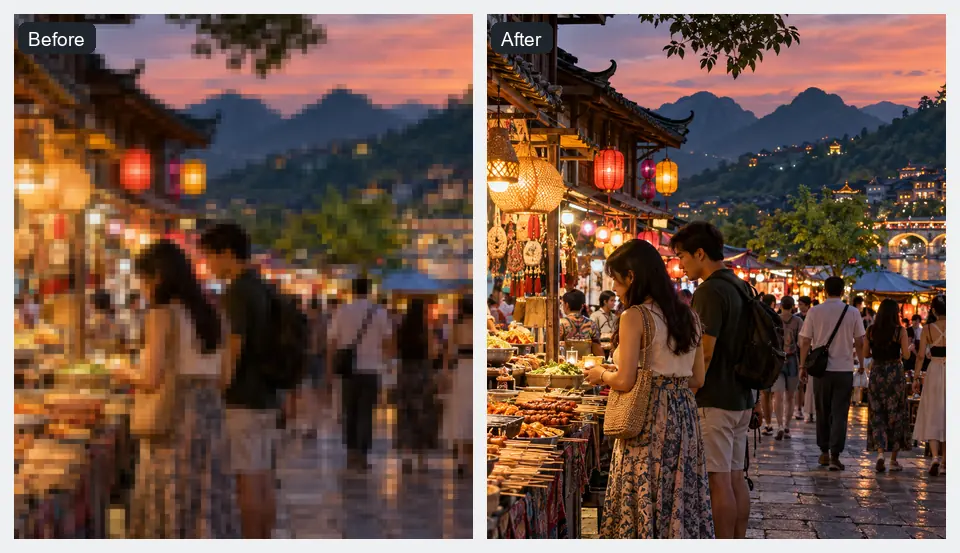
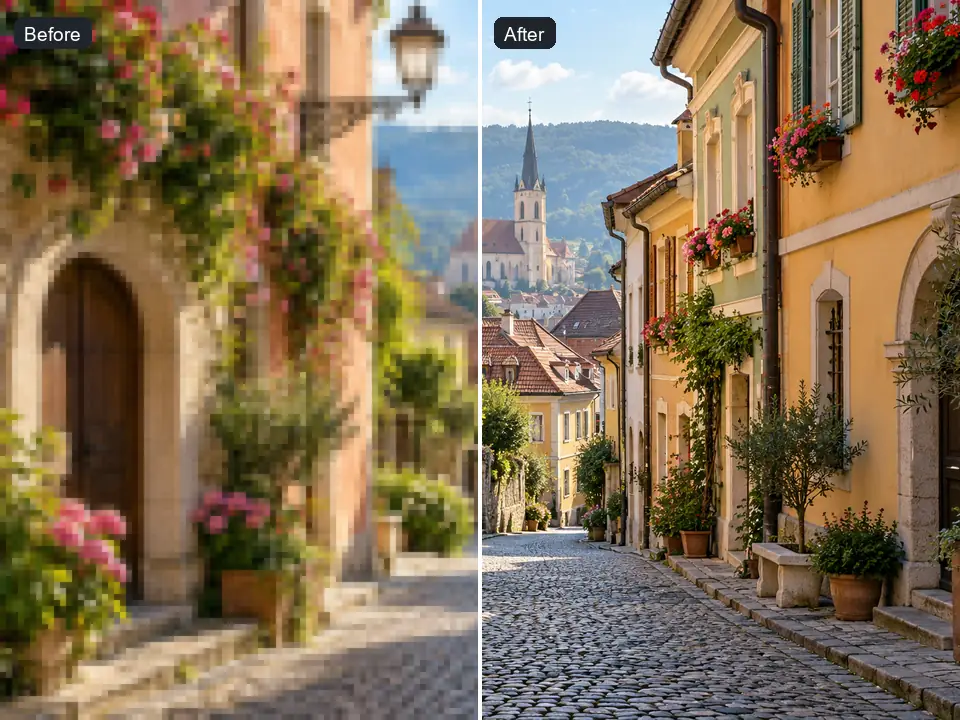
- A video upscaler increases resolution. A 2× upscale turns 960 × 540 into 1920 × 1080, or 1080p into 4K. AI upscalers predict the missing detail instead of stretching pixels.
- Video enhancement software improves the picture at any size: it reduces blur, noise, and compression blocks, and may fix color, low light, or shaky footage.
Most modern tools do both, but they lean one way. If your clip is sharp but small, upscale it. If it is blurry, grainy, or blocky, enhance it first (or use a tool that does both in one pass). So the best AI video enhancer for you depends on the problem in the footage, not only on the resolution. For what the numbers mean, see our guides to 1080p vs 4K and HD vs 4K.

1. EzImgMaker Video Upscaler (Online)
What it is. A set of browser-based AI video tools that run on our servers, so you upload a clip and download the result without installing a video enhancer program or owning a graphics card. The main tools:
- The Video Upscaler enlarges a clip 2× (540p to 1080p, 1080p to 4K) or 4× (480p and smaller), with presets for phone clips, old SD video, 1080p to 4K, and AI-generated clips.
- The Video Enhancer cleans up soft, noisy, or compressed footage, either at the original size (1×) or enhanced and upscaled 2× or 4×.
- Unblur Video sharpens blurry phone clips, soft HD footage, and pixelated downloads.
- The HD Video Converter is set up around HD targets: 540p to 1080p, 720p to 1440p, or 1080p to 4K.
Strengths. Nothing to install or configure, it works on any computer, tablet, or phone with a browser, and the presets choose a sensible factor for you. Downloads are clean MP4 files. It is a handy way to upscale AI-generated clips: many AI video generators export at 720p or 1080p.
Limits. Each clip can be up to 50 MB and 30 seconds (MP4 or MOV), so it is built for short clips, social posts, and scenes, not feature-length films. There is no frame interpolation, batch queue, or per-model tuning, and 3× is not offered.
Price. Free to try with the credits you get when you sign up; after that you buy credit packs only when you need them.
Best for. Creators, marketers, and anyone with a short clip to fix today who does not want to learn desktop software.
2. Topaz Video (Formerly Topaz Video AI)
What it is. Desktop video upscaling software from Topaz Labs, and the best-known name in professional video enhancement software. Topaz renamed the app in 2025: the perpetual-license Topaz Video AI was discontinued, and the current Topaz Video is subscription-only (Topaz stopped selling perpetual licenses on 3 October 2025).
Strengths. The widest model lineup in this list: Proteus for general cleanup, Iris for faces and heavily compressed footage, Nyx for noise, Gaia and Theia for CG and detail, Dione for deinterlacing, Apollo and Chronos for frame interpolation, and diffusion-based Starlight models for severely degraded clips. You can fine-tune every slider, preview before rendering, and send heavy jobs to cloud rendering. It runs as a standalone app on Windows and macOS, and Topaz also sells a browser version, Topaz for Web – Video.
Limits. It is the most expensive option here, the many models and sliders take time to learn, and local rendering needs a strong graphics card (the current version does not support Intel Macs). If you are new to it, our guide to the best Topaz Video AI settings walks through the models and sliders for blocky, noisy, and old footage.
Price (as of October 2026). Topaz Video Personal costs US$299 a year or US$59 month to month; Topaz Video Pro, with full commercial use, is US$699 a year; and the Topaz Studio bundle (Video, Photo, Gigapixel, and the web apps) is US$399 a year. Topaz often discounts these, so check topazlabs.com/pricing.
Best for. Professionals, archivists, and serious hobbyists restoring long or valuable footage on their own hardware.
3. Video2X (Video 2x): Best Free Open-Source Video Upscaler
What it is. Video2X is a free, open-source video super-resolution and frame interpolation framework, first created in 2018 and released under the AGPL-3.0 license. Version 6 is a complete rewrite in C and C++. As a Video2X upscaler it runs four engines on your graphics card: Real-ESRGAN and Real-CUGAN (AI super-resolution), Anime4K v4 (fast upscaling shaders through libplacebo), and RIFE (frame interpolation for smoother motion).
Strengths. It costs nothing, has no watermark or clip-length limit, works offline, and gives you a choice of well-known open models. It is especially popular for anime and cartoons, where Real-CUGAN and Anime4K shine. A desktop interface, Video2X Qt6 (the video2x-qt6 project), makes it usable without the command line, and there is a Google Colab notebook for people without a suitable GPU.
Limits. It runs on Windows and Linux (macOS only through Docker or Podman container images), and it needs a GPU that supports Vulkan plus a CPU with AVX2. Speed depends entirely on your hardware. The anime-trained models are the main draw; for live-action footage, test the general models on a short section first.
Price. Free. The project accepts donations but has no paid tier.
Best for. Anime fans, tinkerers, and anyone who wants free video upscaling software or free video enhancer software for PC and is happy to experiment.
Video2X Tutorial: How to Upscale a Video With Video2X
This short Video2X tutorial covers the desktop app on Windows. Check the official documentation at docs.video2x.org for the details of your version.
- Check your hardware. Your graphics card must support Vulkan (the project lists NVIDIA Kepler, AMD GCN 1.0, and Intel HD Graphics 4000 or newer as the minimum), and your CPU must support AVX2.
- Install Video2X. For the Video2X download, get the Windows installer from the Releases page of the official Video2X GitHub repository (k4yt3x/video2x). Linux users can use the AppImage or the AUR packages. Avoid third-party download sites.
- Add your video. Open the app and add one or more clips to the queue.
- Choose a processor and a scale. For a video2x upscale, pick Real-ESRGAN or Real-CUGAN and set the scaling factor (2× for 1080p to 4K, 4× for small SD clips). Choose libplacebo with an Anime4K shader for fast anime upscaling, or RIFE if you want smoother motion instead of more pixels.
- Start and check the result. Run a short test clip first (cut a 10-second section in any editor), compare it with the original, then process the full video. Raise the encoder quality if the output looks blocky.
If you prefer the terminal, these two examples come from the Video2X documentation: a 4× Real-ESRGAN video 2x upscale with the anime video model, and a libplacebo upscale to 4K with an Anime4K shader. Copy one and change the file names.
video2x -i input.mp4 -o output.mp4 -p realesrgan -s 4 --realesrgan-model realesr-animevideov3
video2x -i input.mp4 -o output.mp4 -w 3840 -h 2160 -p libplacebo --libplacebo-shader anime4k-v4-a+a
4. DaVinci Resolve Studio Super Scale
What it is. DaVinci Resolve is Blackmagic Design's professional editing, color, audio, and effects application. The free version runs on Windows, macOS, and Linux; the paid DaVinci Resolve Studio adds the DaVinci Neural Engine features, including Super Scale, which Blackmagic describes as "high quality image uprezzing so you can create 4K and 8K images from HD sources."
Strengths. You upscale clips right inside your edit, alongside Resolve's color grading and noise reduction, and you pay once instead of subscribing.
Limits. Super Scale is not in the free version, it has fewer footage-specific models than dedicated upscalers, and it is processor-intensive, so long timelines can render slowly.
Price (as of October 2026). DaVinci Resolve is free; DaVinci Resolve Studio is a one-time purchase at a US$295 list price (Blackmagic was showing a discount when we checked).
Best for. Editors and colorists who already work in Resolve and need to mix HD and 4K footage on one timeline.
Best AI Super Scale Settings in DaVinci Resolve
People searching for the best AI Super Scale in DaVinci Resolve usually want a starting recipe. These are sensible starting points, not official presets; preview and adjust for your footage.
- Set the timeline resolution first. In Project Settings, set the timeline to your target, for example 3840 × 2160 for 4K.
- Open Super Scale. Right-click the clip in the Media Pool, choose Clip Attributes, and open the Video tab (recent versions also show Super Scale in the Inspector).
- Pick the smallest factor you need. 2× takes 1080p to 4K; save 3× and 4× for 720p and SD sources.
- Start sharpness and noise reduction at Medium. Raise noise reduction for compressed or grainy footage; lower sharpness if faces start to look crunchy.
- Render cache, then judge. Super Scale is heavy, so cache or optimize the clip and check it at full resolution before export, and export at a high bitrate.
5. CapCut
What it is. A free video editor for desktop, web, and mobile, popular with TikTok, Reels, and Shorts creators. CapCut's guides describe an Enhance quality option in the desktop editor (under Video, then Basic) that can target HD, UHD, or 4K, and a video quality option in the mobile app.
Strengths. If you already cut your videos in CapCut, enhancing inside the same project is convenient, and the editor itself is free. Our guide on the CapCut watermark explains how to export clean videos.
Limits. The upscaling controls are simple, and CapCut's own pages give mixed answers on whether exporting an enhanced video needs a paid Pro membership, so check in the app before you rely on a free 4K export. Pricing for CapCut Pro varies by region.
Best for. Social media creators who want a quick quality bump without leaving their editor.
6. HitPaw VikPea
What it is. Desktop AI video enhancement software that was called HitPaw Video Enhancer until it was renamed HitPaw VikPea on 29 October 2024. It runs on Windows and on macOS 13 or later (Apple silicon), and HitPaw also lists mobile apps and an online version.
Strengths. One-click, task-specific models: portrait, general restoration, video quality repair, low-light enhancement, color enhancement, frame interpolation, stabilization, SDR to HDR, and colorizing. HitPaw says it can upscale to 4K and 8K.
Limits. The free version lets you preview the enhancement; exporting requires a paid license. Prices differ between Windows and Mac and change with promotions.
Price (as of October 2026). Monthly and yearly subscriptions or a perpetual license; check hitpaw.com for the current price on your platform.
Best for. People who want a desktop app with ready-made models for common problems and prefer not to tune settings.
7. AVCLabs Video Enhancer AI
What it is. Desktop video enhancement software for Windows 10 and 11 (64-bit) and macOS 12 or later.
Strengths. A broad restoration toolkit: upscaling from SD or HD to 4K or 8K, denoising, face enhancement, deinterlacing, colorizing black-and-white footage, frame interpolation up to 60 or 120 fps, and stabilization, plus blur and object removal tools. It is a good match for digitized family tapes and other old footage.
Limits. Desktop only, and rendering speed depends on your hardware. The official page does not spell out the free trial's export limits, so check them before you process a long project.
Price (as of October 2026). US$39.95 a month, US$119.95 a year, or US$299.99 for a perpetual license, according to the official product page.
Best for. Restoring old home videos on a desktop computer, especially interlaced or black-and-white footage.
How to Choose a Video Upscaler
Work through these five questions and the right tool usually picks itself.
1. What resolution do you need? Multiply your source by the upscale factor. Pick the smallest factor that reaches your target; going further adds time and file size, not detail. Looking for the best 4K upscaler? For clean 1080p footage, every tool here reaches 4K at 2×; the real differences show on older, smaller, or damaged sources.
| Your source | Use | Result | Good for |
|---|---|---|---|
| 480p (854 × 480) | 4× | about 3416 × 1920 | Old SD and DVD footage for modern screens |
| 540p (960 × 540) | 2× | 1920 × 1080 (1080p) | Small social clips |
| 720p (1280 × 720) | 2× | 2560 × 1440 (1440p) | AI-generated clips, older phone video |
| 1080p (1920 × 1080) | 2× | 3840 × 2160 (4K) | 4K timelines, TVs, projectors |
2. What kind of footage is it? Anime and cartoons do best with anime-trained models (Real-CUGAN, Anime4K, or an anime preset). Footage with people up close benefits from face-aware models. Blurry, noisy, or blocky clips need enhancement, not just more pixels; see what each artifact looks like before you pick.
3. Local or online? Desktop software (Topaz Video, Video2X, Resolve, HitPaw, AVCLabs) keeps files on your computer and usually has no clip-length limit, but it needs a capable GPU and you wait for your own machine. Online tools need no hardware and work on any device, but they cap file size and length (ours: 50 MB and 30 seconds per clip) and you upload the video.
4. How fast do you need it? Locally, speed depends on your graphics card, the model, the resolution, and the length; a feature-length film on a mid-range GPU can take a very long time. For a few short clips, an online tool or cloud rendering is usually the quicker route.
5. How do you want to pay? Free and open source (Video2X), a free editor with paid extras (CapCut), a one-time license (Resolve Studio, and perpetual options from HitPaw and AVCLabs), a subscription (Topaz), or pay-as-you-go credits (EzImgMaker).
Best AI Models for Video Upscaling and Processing 2026
Many apps are built on the same model families. Knowing them helps you compare tools and read their settings.
| Model | What it does | Good for | Where you find it |
|---|---|---|---|
| Real-ESRGAN | AI super-resolution, 2× to 4× | General and anime upscaling; realesr-animevideov3 is tuned for anime video | Video2X and many other apps |
| Real-CUGAN | AI super-resolution trained on anime | Anime, cartoons, line art | Video2X |
| Anime4K | Fast GLSL upscaling shaders | Quick anime upscaling and real-time playback | Video2X (libplacebo), media players such as mpv |
| RIFE | Frame interpolation | Smoother motion and slow motion (adds frames, not pixels) | Video2X |
| Topaz Proteus, Iris, Nyx | Enhancement and upscaling models | Live-action cleanup, faces (Iris), noise (Nyx) | Topaz Video |
| Topaz Starlight | Diffusion-based restoration | Severely degraded, very low-resolution footage | Topaz Video, often via cloud rendering |
| Super Scale (DaVinci Neural Engine) | Built-in AI upscaling, 2× to 4× | Mixing HD and 4K footage in an edit | DaVinci Resolve Studio |
Two broad approaches now exist side by side: faithful upscalers that sharpen what is already in the frame (Real-ESRGAN, Proteus, Super Scale) and generative or diffusion models that invent plausible new detail (Starlight and other "creative" upscalers). Generative models can rescue footage that faithful ones cannot, but they can also change faces, text, and small objects, so always compare the result with the original.
The AI Video Upscaling Software Market in 2026
A few trends shape the AI video upscaling software market this year, and they affect which tool is the better buy:
- Subscriptions are replacing one-time licenses. Topaz Labs ended perpetual licenses in October 2025. HitPaw, AVCLabs, and Blackmagic (for Resolve Studio) still sell one-time licenses as of October 2026.
- Rendering is moving to the cloud. Browser tools like ours, Topaz for Web, and cloud rendering inside desktop apps mean you no longer need a high-end GPU to upscale video.
- Generative upscaling is arriving. Diffusion-based models restore footage that older models could not, at the cost of more processing and a higher risk of invented detail.
- Editors are building it in. Super Scale in Resolve Studio and Enhance quality in CapCut put basic upscaling inside the editing app.
- AI-generated video is a new source. Clips from text-to-video and image-to-video models often come out at 720p or 1080p and get upscaled before publishing.
How to Upscale a Video Online in 3 Steps
Here is the quickest way to upscale a video online with EzImgMaker. It works on Windows, macOS, Chromebooks, and phones, with nothing to install.
- Upload your clip. Open the Video Upscaler and add an MP4 or MOV up to 50 MB and 30 seconds. Trim long videos to the part you need first; shorter clips use fewer credits.
- Choose 2× or 4×. Pick a preset (Phone or Social Clip, Old SD Video, 1080p to 4K, AI-Generated Clip) or set the factor yourself: 2× for 540p to 1080p sources, 4× for 480p and smaller.
- Upscale and download. Start the upscale, compare the result with the original, and download the MP4.
If the clip is blurry or grainy rather than small, run it through the Video Enhancer or Unblur Video instead. If you simply need an HD file, the HD Video Converter has presets for each source size. For single frames, thumbnails, or stills, use the image upscaler, or the anime upscaler for anime art.
Tips for Better Results With Any Upscaler
- Start from the best copy you have. Upscale the original camera or export file, not a re-downloaded or re-uploaded copy that has been compressed again.
- Fix the problem, then add pixels. Deinterlace, denoise, or unblur first if needed; upscaling a defect makes it bigger.
- Test a short section. Compare 5 to 10 seconds, ideally a fast or dark part, before processing the whole clip.
- Export at a high bitrate. A low bitrate brings back the blocks you just removed.
- Add titles and captions afterwards, so text renders sharply at the final resolution.
Frequently Asked Questions
What is the best video upscaler?
It depends on where you work. For a short clip you want to upscale online without installing anything, use the EzImgMaker Video Upscaler (2× or 4×, free credits when you sign up). For professional restoration on a strong computer, Topaz Video has the widest choice of models. For a free local option, Video2X is open source. If you already edit in DaVinci Resolve, its Studio version has Super Scale built in.
What is the best free video enhancer?
For a completely free tool, Video2X is open source and costs nothing, but it runs on your own computer and needs a Vulkan-capable graphics card. CapCut has a free version with an Enhance quality option, though CapCut’s own guides differ on whether exporting enhanced video needs a Pro plan. Online tools such as EzImgMaker are free to try with sign-up credits, then use credit packs.
What is the best video upscaling software for PC?
On a Windows PC the main options are Topaz Video (subscription), Video2X (free, open source), DaVinci Resolve Studio with Super Scale (one-time purchase), HitPaw VikPea and AVCLabs Video Enhancer AI (subscription or perpetual license). If you are looking for free video enhancer software for PC, start with Video2X, or use an online upscaler that needs no install.
Is AI video upscaling worth it?
Usually, if the footage is reasonably clean and you need it bigger: 1080p clips for a 4K timeline, AI-generated clips exported at 720p, or old SD videos for a modern TV. AI upscaling rebuilds edges and texture instead of stretching pixels. It is less useful for footage that is badly out of focus, heavily compressed, or shot in very low light, where an enhancer or unblur tool should come first.
Can AI upscale a video from 1080p to 4K?
Yes. A 2× upscale turns a 1920 × 1080 video into 3840 × 2160, which is 4K UHD. Every tool in this list can do it. Use 2× rather than 4× for 1080p sources, and export at a high bitrate so compression does not undo the new detail.
What is Video2X and is it free?
Video2X (often searched as “video 2x”) is a free, open-source video upscaler and frame interpolation tool released under the AGPL-3.0 license. Version 6 is a complete rewrite in C and C++, and it runs Real-ESRGAN, Real-CUGAN, Anime4K and RIFE on your graphics card. It supports Windows and Linux; download it only from the official GitHub releases page.
Is Super Scale available in the free version of DaVinci Resolve?
No. Super Scale is part of DaVinci Resolve Studio, the paid version, which Blackmagic Design sells as a one-time purchase (US$295 list price as of October 2026). The free DaVinci Resolve can still place a low-resolution clip on a 4K timeline, but it uses ordinary scaling instead of the AI Super Scale.
What is the difference between a video upscaler and a video enhancer?
A video upscaler makes the frame bigger, for example 1080p to 4K. Video enhancement software improves how the footage looks at any size: it removes blur, noise and compression artifacts and can fix color or low light. Many tools combine both, such as the EzImgMaker Video Enhancer, which can enhance at the original size or enhance and upscale 2× or 4×.
What are the best AI models for video upscaling in 2026?
Common choices are Real-ESRGAN and Real-CUGAN (free, strong on anime and illustration), Anime4K shaders for fast anime upscaling, Topaz’s video models such as Proteus, Iris and the diffusion-based Starlight series for live-action restoration, and the Neural Engine behind Super Scale in DaVinci Resolve Studio. RIFE is a frame interpolation model: it adds frames for smoother motion rather than resolution.
Can I upscale a video online without installing software?
Yes. The EzImgMaker Video Upscaler runs in your browser on our servers: upload an MP4 or MOV up to 50 MB and 30 seconds, choose 2× or 4×, and download the upscaled MP4. There is no software to install and no graphics card needed on your side. Only upload videos you recorded or have the right to edit.
Related Guides
- Topaz Gigapixel AI review and alternatives: the best photo upscalers, free and paid.
- Best Topaz Video AI settings: models and sliders for blocky, noisy, and old footage.
- 1080p vs 4K: when 4K is a visible upgrade.
- HD vs 4K: HD, Full HD, QHD, and 4K explained.
- What is 4K resolution?: the pixel sizes behind 4K upscaling.
Topaz Labs, Topaz Video, Video2X, DaVinci Resolve, Blackmagic Design, CapCut, HitPaw, VikPea, AVCLabs, and the other product names mentioned are trademarks of their respective owners. EzImgMaker is not affiliated with them. Features and prices were taken from each company's official website and documentation in October 2026 and may change; check the official sites for current information. Images in this article are EzImgMaker examples, not screenshots or output of the tools reviewed.