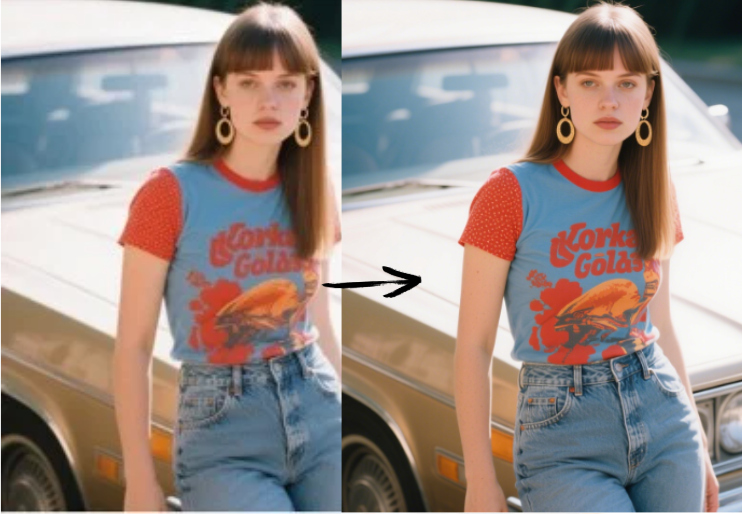
Upload the Blurry Video
Add an MP4, MOV, or MKV clip up to 50 MB and 60 seconds: a phone recording, an old camcorder transfer, a screen recording, or a pixelated download.
Upload a blurry or pixelated clip and the AI video unblur model rebuilds edges, faces, and texture frame by frame, so your footage looks sharp without manual editing.
Fine-tune
Your video stays in this browser during this UI preview.
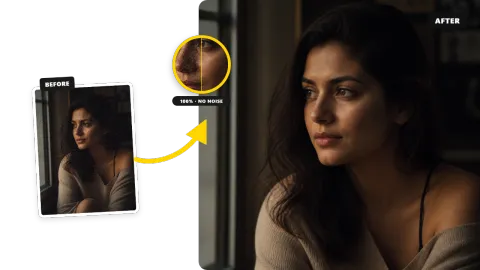
Reference example. It is not a result generated from your upload.
To unblur video is to recover the edges and detail that a soft clip has lost. Blurry video usually comes from three things: a camera that missed focus or shook during the shot, a resolution too low for the screen it is watched on, or heavy compression after the clip was shared, downloaded, or re-uploaded. Classic sharpen filters only raise contrast along edges, which adds halos and noise without bringing detail back.
An AI video unblur model works differently. It was trained on pairs of blurry and sharp footage, so it can predict what eyelashes, hair, text, fur, and fabric should look like and redraw them on every frame while keeping motion consistent. The result is a video clearer than the original, ready to post, edit, or keep, without learning color grading or masking. It doubles as a video cleaner too: compression blocks and grain are removed in the same pass as the blur.
No editing software, no sharpening sliders to guess.
Add an MP4, MOV, or MKV clip up to 50 MB and 60 seconds: a phone recording, an old camcorder transfer, a screen recording, or a pixelated download.
Choose a preset or set the output resolution yourself: Same size to clean up soft HD footage, 2× for typical phone clips, 4× for old or very small videos.
The AI removes blur from the video frame by frame. Play the result next to the original, then download the clear video as MP4.
One AI video sharpener for the most common causes of blurred video.
Faces are the first thing viewers notice in a blurry video. The model restores eyes, brows, hair strands, and skin texture so people look natural instead of smeared or over-sharpened, which makes it a practical blurry video enhancer for vlogs, interviews, and family clips.
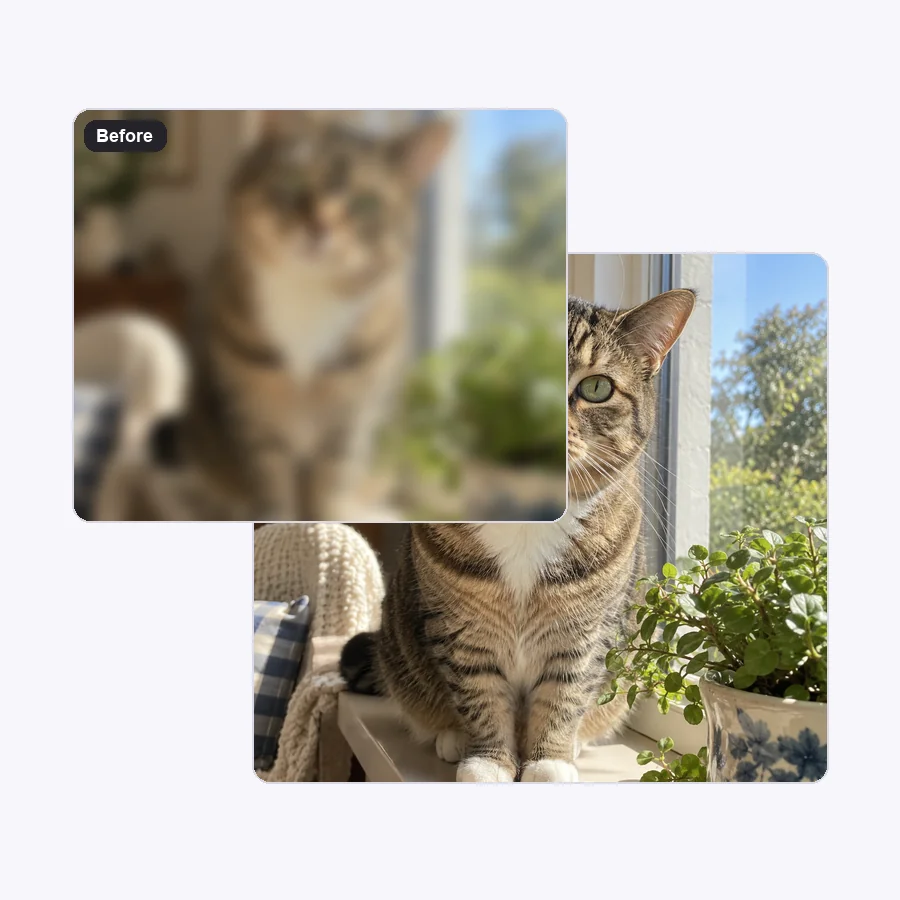
Soft focus wipes out the small details that make footage feel real. The AI rebuilds fur, grass, fabric weave, and background texture so a blurry clip of a pet or a product reads as crisp, clear video quality again.
Running pets, sports, and handheld shots smear detail across frames. The model keeps edges stable from frame to frame, so you can fix a blurry video of fast action without the flicker that frame-by-frame sharpening creates.
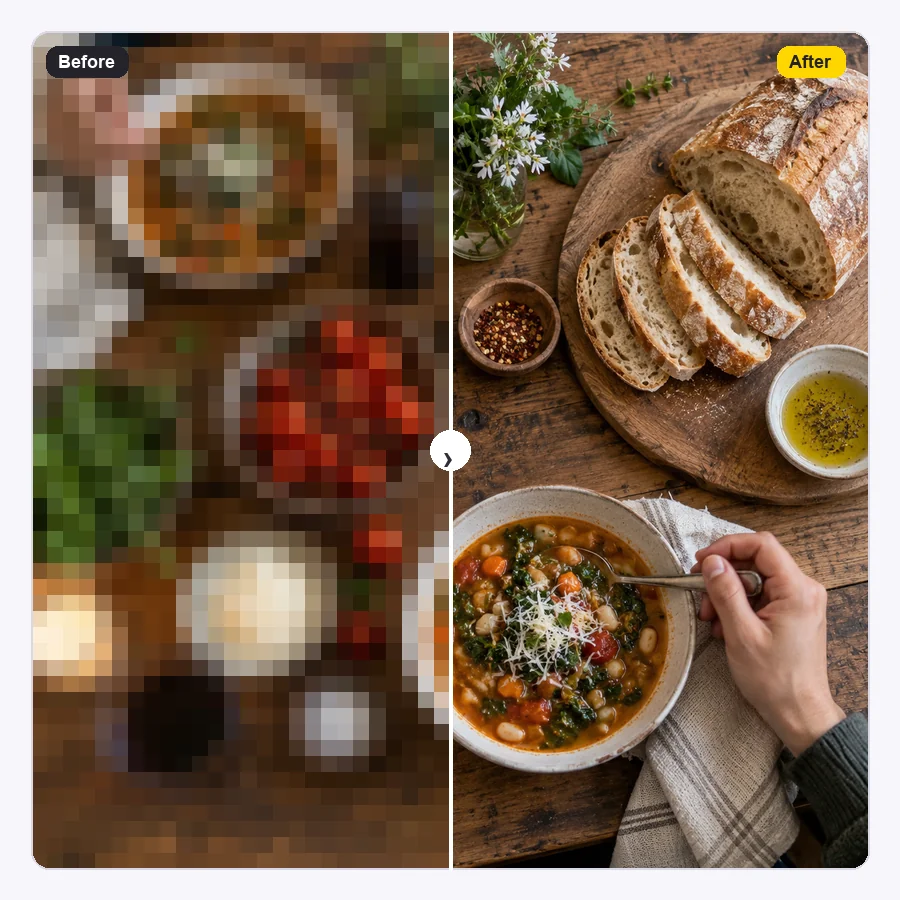
Clips saved from chats or old sites are often blocky as well as blurry. Choose 4× to unpixelate video, smooth compression blocks, and enlarge the frame at the same time, so small files hold up on a laptop or TV.
Set expectations before you upload. The model rebuilds plausible detail; it cannot recover what was never captured.
| Blur type | Typical cause | Best setting | What to expect |
|---|---|---|---|
| Soft focus | Camera focused on the background, cheap lens, dirty lens | Same size (1×) or 2× | Clear improvement on faces, text, and edges |
| Low resolution | 240p–480p recordings, old phones, camcorder transfers | 4× | Sharper, larger frames that fill modern screens |
| Compression blur and pixels | Re-shared, downloaded, or screen-recorded clips | 2× or 4× | Blocks and smearing cleaned; detail looks natural |
| Light motion blur | Handheld shots, pets, street scenes, sports | 2× | Edges steadier and crisper across frames |
| Heavy motion or censor blur | Long exposure streaks, deliberate blur over faces or plates | Not recommended | Detail is gone; AI would invent it, so results are not reliable |
Deliberately blurred areas (faces, license plates, private details) cannot be "revealed" — the information was removed, not hidden.
Common clips people unblur to make videos clearer before posting, editing, or archiving.
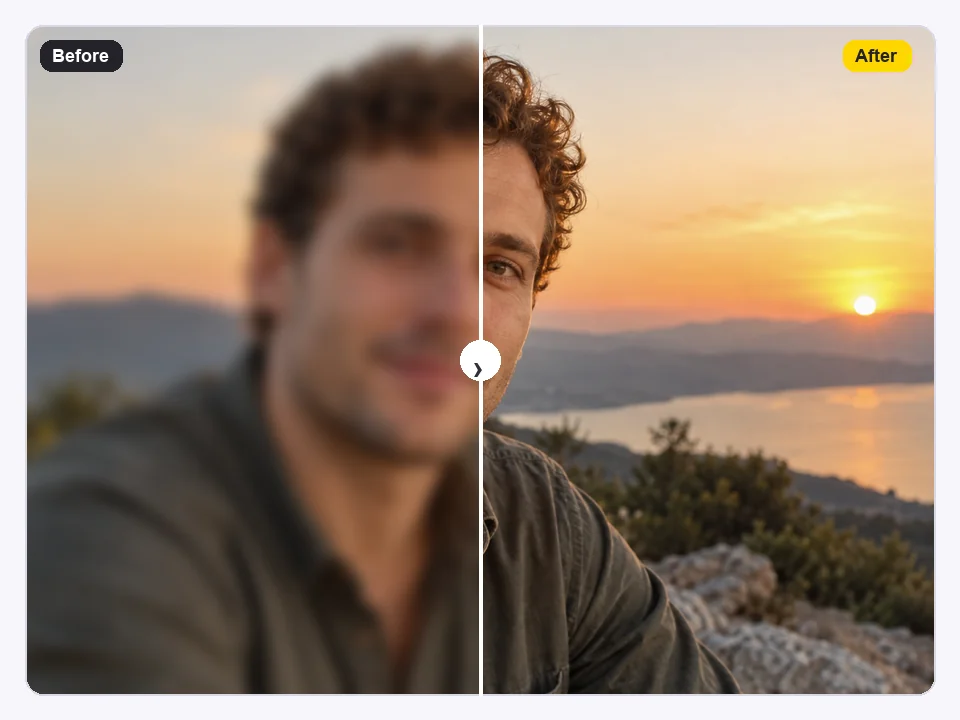
Rescue a clip where autofocus hunted or the lens was smudged, and make video clearer before it goes on your channel.
Camcorder and DVD transfers are soft at modern sizes. Unblur videos of weddings, birthdays, and trips so they look good on a TV.
Sharpen video of labels, screens, and hands-on demos so viewers can read details without pausing and squinting.
Clean up blurry videos that lost quality after being sent through chat apps or downloaded at low resolution.
AI can rescue a blurry clip, but a sharp source always gives the best result.
Use the clip from your camera roll, not a version re-saved from a chat app. Every re-compression removes detail.
Low light forces slow shutter speeds and noise, two of the biggest reasons a video is blurry.
A fingerprint on the lens makes video soft and hazy. Wipe it, then tap your subject to lock focus.
Brace your elbows or use a tripod. Less shake means less motion blur for the AI to fix.
Typical jobs for an AI video clearer.
Illustrative examples adapted from reference material, not verified reviews of EzImgMaker.
My autofocus locked on the wall behind me for half a vlog. Unblurring it at 2× saved me from reshooting the whole segment.
Our camcorder tapes were digitized years ago and look mushy on the TV. At 4× the faces finally read clearly.
Screen-recorded tutorials always came out soft. Running them through the unblur tool made the menu text readable again.
The table helped me be realistic: light motion blur cleaned up well, but a long-exposure streak stayed a streak.
How to unblur a video, what works, and what to expect.
Upload the clip, pick the preset that matches your blur (phone clip, soft HD footage, old video, or pixelated download) or choose the output resolution yourself, then start. The AI processes every frame and you download a sharper MP4. That is how to unblur video clips without keyframes, masks, or sharpening sliders.
Start from the highest-quality copy you have, then let the AI rebuild detail and remove blur. If the clip is also small, choose 2× or 4× so it gets larger and clearer at the same time. If you are wondering how to make video clearer without any editing skills, the presets choose sensible settings for you.
Choose Same size (1×). The resolution stays the same while the model cleans soft focus, compression smear, and noise. This is the right choice for 1080p clips that look hazy rather than small.
For soft, low-resolution, or compressed clips, an AI model trained on real footage gives far better results than an editor’s sharpen filter, which only adds edge contrast. Look for a tool that works frame by frame, keeps faces natural, and lets you choose the output size, which is how this one works.
Upload the original file from your camera roll and choose Blurry Phone Clip (2×). Phone clips are usually soft because of missed focus, a smudged lens, or low light; the AI sharpens edges and faces and outputs a larger, clearer file.
Choose Pixelated Download (4×). The model smooths compression blocks while enlarging the frame, so it can unpixelate video and remove blur in one pass. Very small sources (below 240p) improve, but cannot match footage shot in HD.
Apps and sites re-compress video to save bandwidth, which removes fine detail and adds blocks. If your video is blurry only after sharing, upload the original file here instead of the shared copy.
No. Pixelated faces, blurred license plates, and similar censoring remove the information on purpose. Any “unblurred” result would be invented detail, not the real content, so this tool is not meant for that.
MP4, MOV, and MKV clips up to 50 MB and 60 seconds. New users get free credits to try it; after that, each video uses credits from a credit pack.
Only upload videos you recorded or have the right to edit. Making a clip clearer does not change who owns it or give you permission to republish someone else’s footage.
Upload a blurry clip and get a sharper, clearer video you can post, edit, or keep.