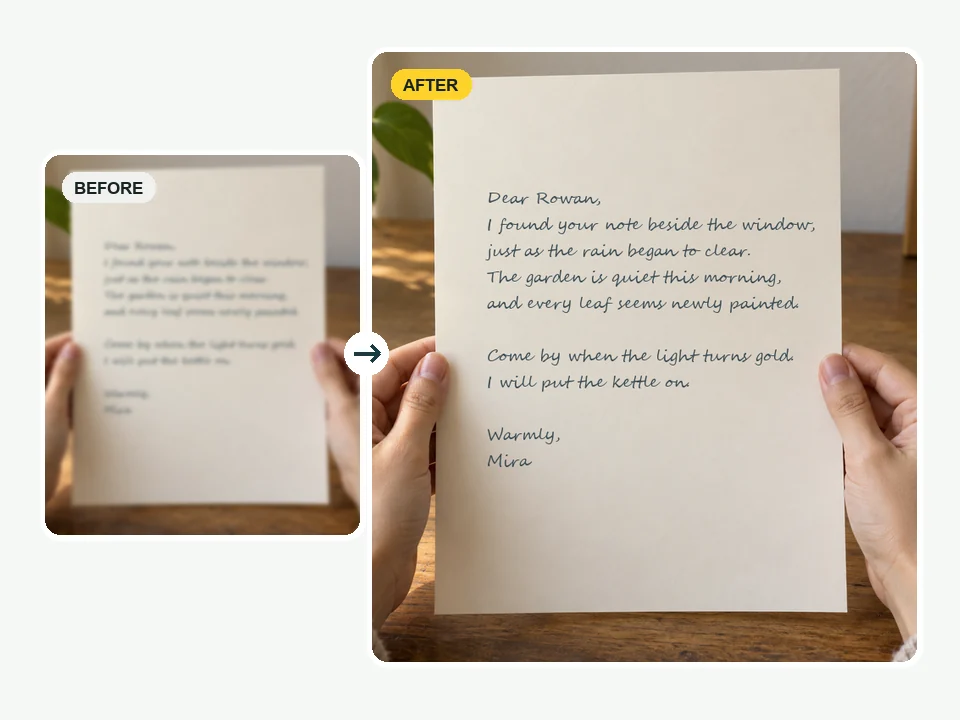
Handwritten Letters
Faint pen strokes and loops come back clear without flattening the paper.
Upload a photo with blurry text, from a shaky receipt to blurry notes or a compressed screenshot. The AI text enhancer rebuilds each letter so the words are sharp and readable.
Text type
Fine-tune
Your photo stays in this browser during this UI preview.
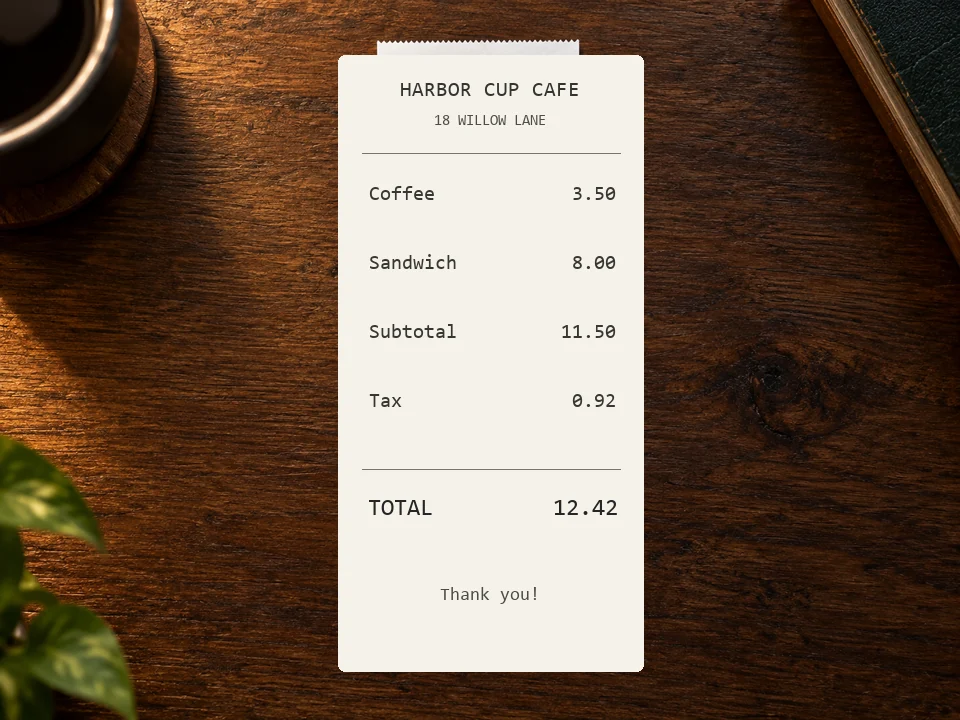
Reference example. It is not a result generated from your upload.
A text deblur tool, also called an image text enhancer or text unblurrer, sharpens the writing inside a photo or screenshot. Text is the first thing to suffer when a camera misses focus, a hand shakes, or an image is shrunk and re-shared: thin strokes melt together, digits blur into each other, and fine print disappears.
This AI text enhancer works at the scale of individual characters. It rebuilds stroke edges, counters, and serifs while keeping the original font, size, spacing, and layout, and it leaves paper texture, stamps, photos, and colors around the text as they were. It returns an image, not an OCR transcript, so you read exactly what was photographed.
Handwriting, printed cards, packaging, and signs: unblur text images of every kind with one image text enhancer.
Faint pen strokes and loops come back clear without flattening the paper.
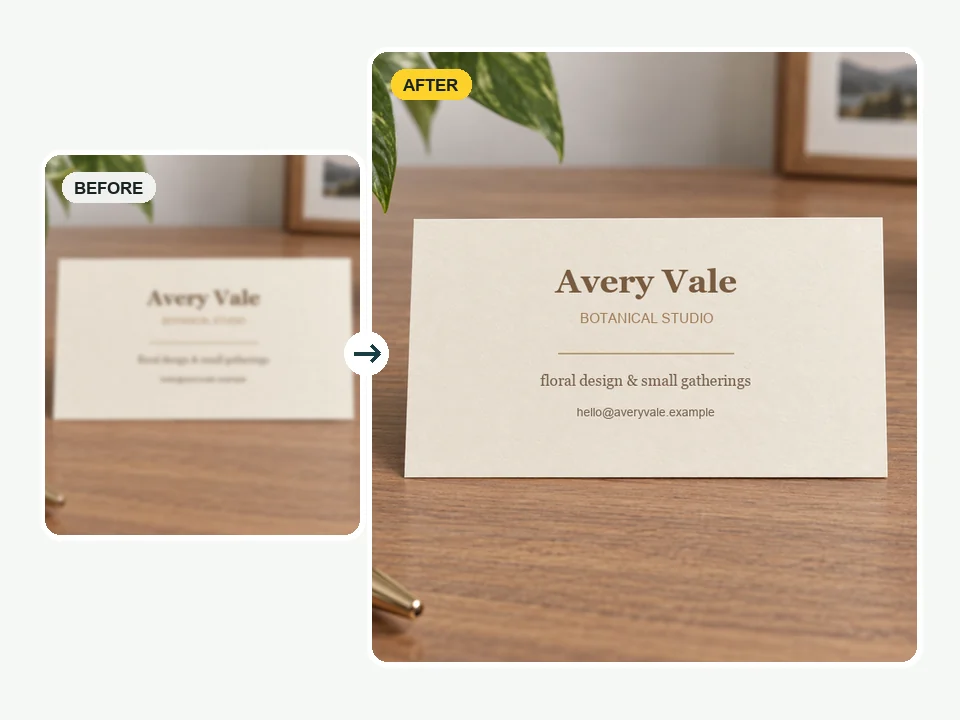
Small embossed or foil type on cards becomes legible for your contacts list.
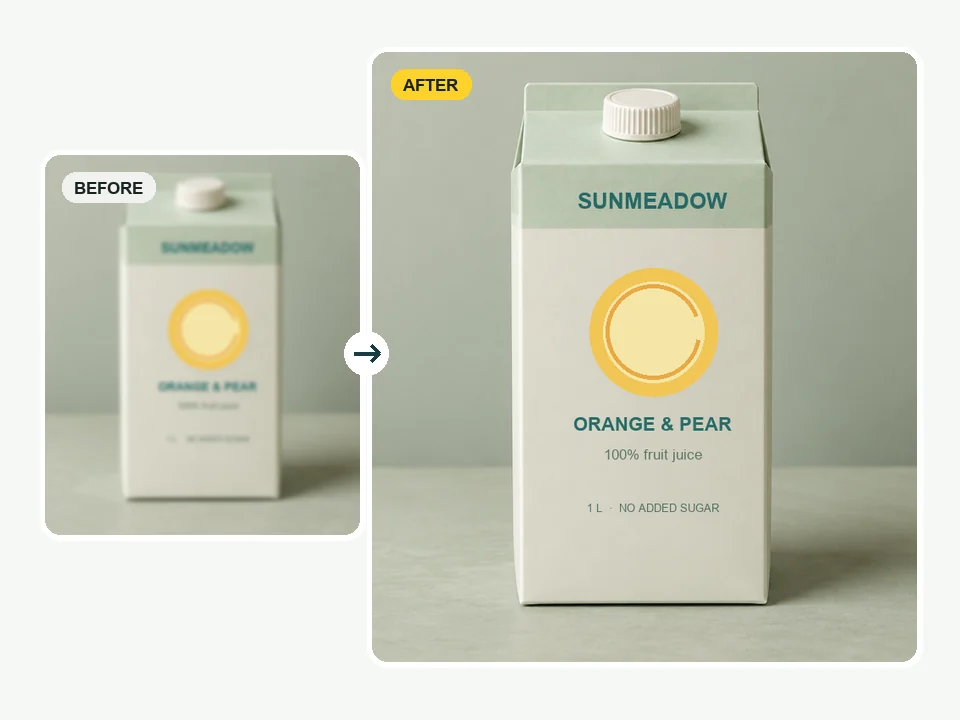
Ingredient lists and packaging copy read clearly in listing photos.
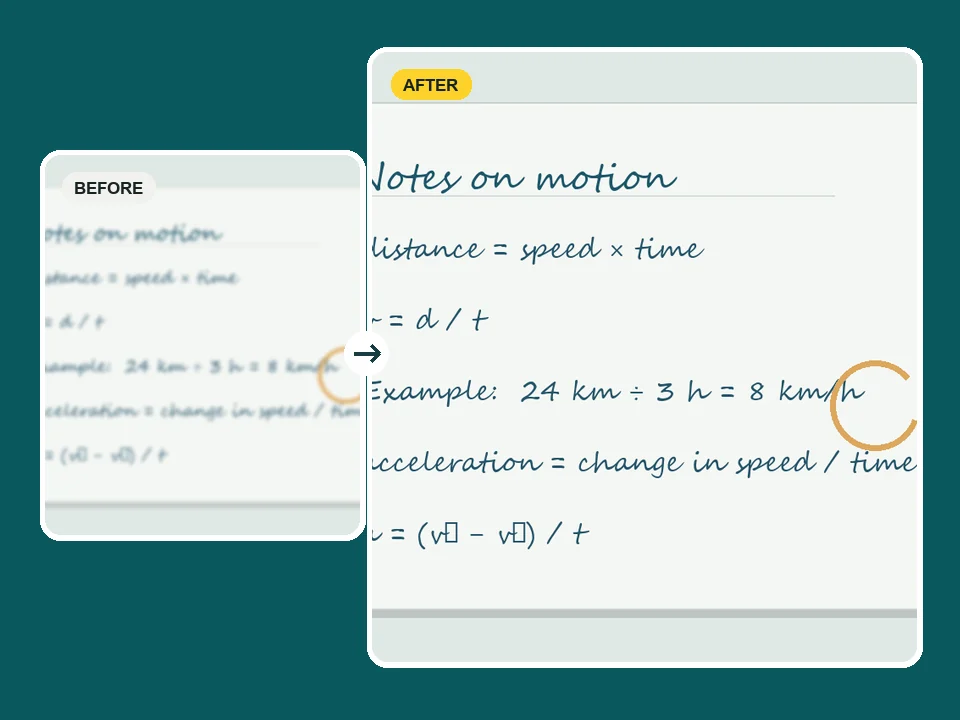
Shop signs, labels, and lecture formulas shot from a distance are readable again.
Three steps. No sharpening sliders, masks, or retyping.
Add a JPG, PNG, or WebP up to 10 MB: a photographed receipt or contract, a compressed screenshot, a street sign, or a page of blurry notes.
Pick Document, Screenshot, Handwriting, or Sign & label (or Auto detect), tell the AI whether the shot is out of focus, shaken, or low resolution, and choose the output size.
Run the text deblur, compare before and after with the slider, and download the sharpened image at up to 4× resolution.
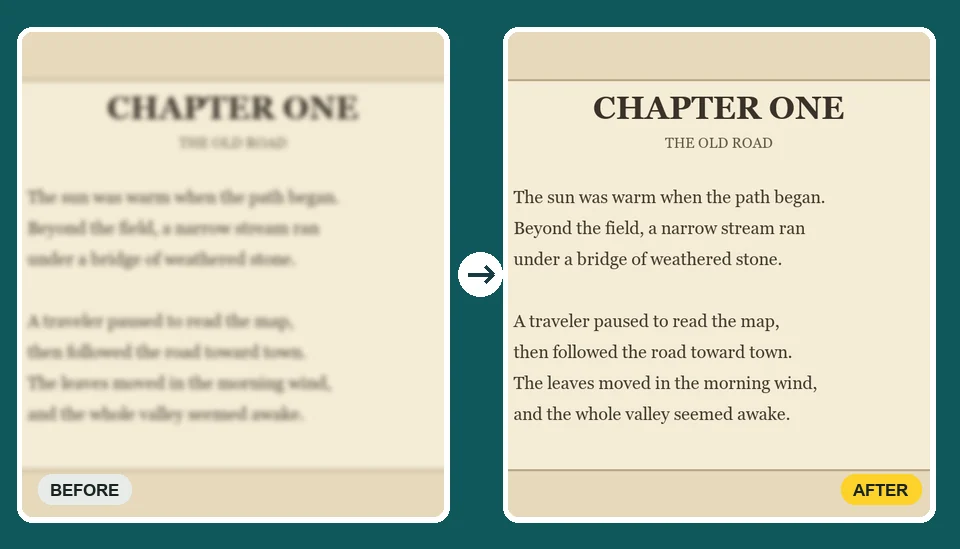
Spelling, digits, punctuation, and line breaks stay exactly as photographed. The text deblurrer sharpens strokes it can see and leaves anything truly unreadable soft rather than inventing a letter, which matters for amounts, dates, and reference numbers.
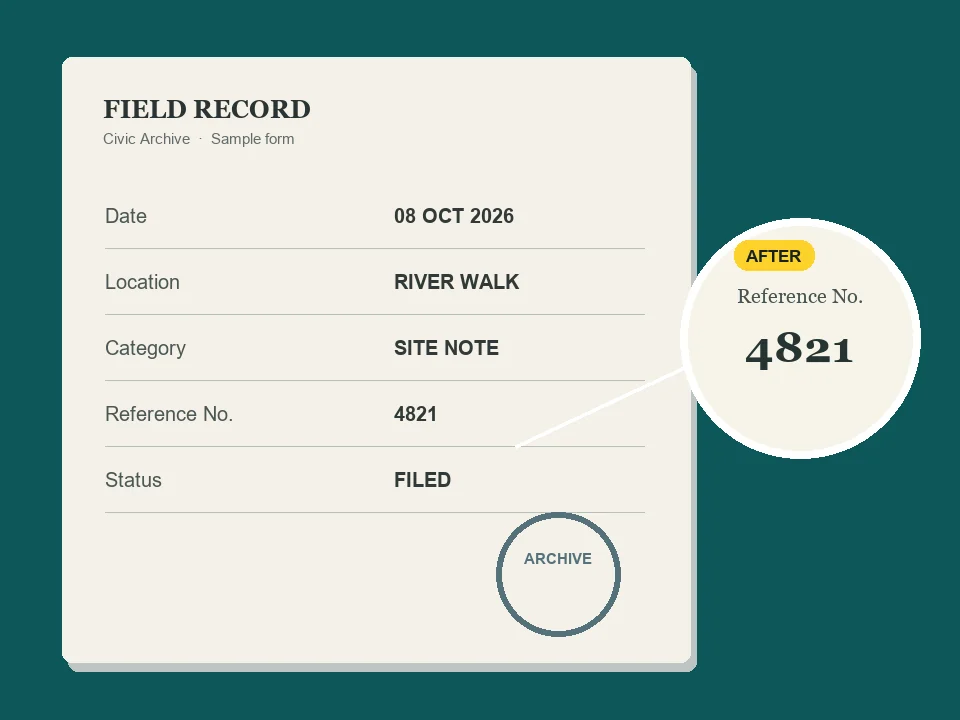
Footnotes, serial numbers, stamps, and hairline serifs are where blur hurts most. As a text quality enhancer, it works character by character instead of sharpening the whole frame, so fine print comes back without halos.
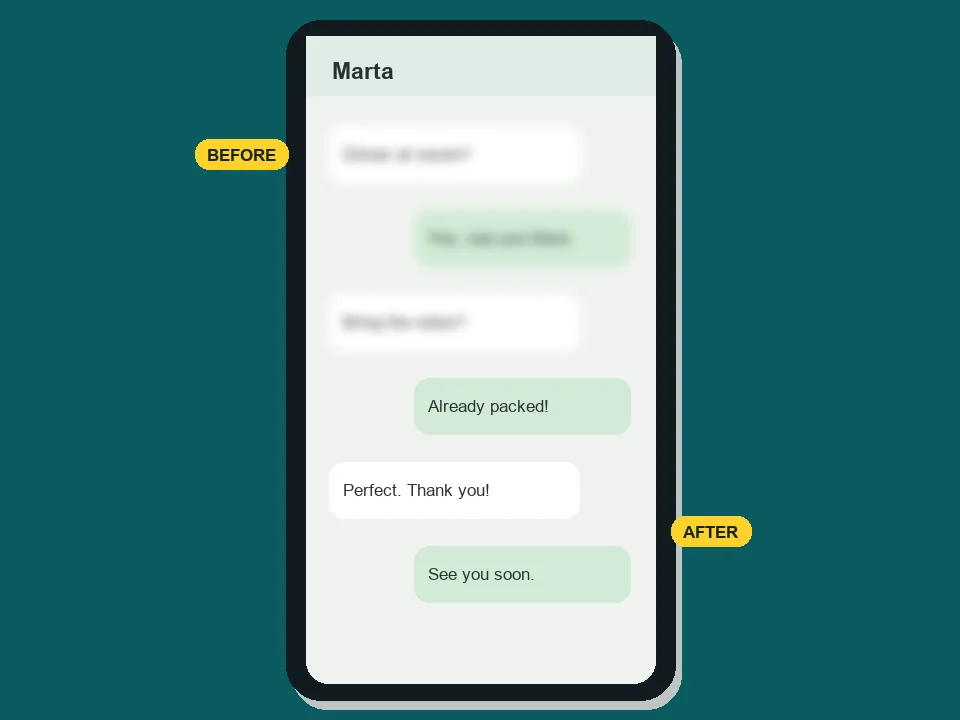
Chat threads, error dialogs, and dashboards lose their font edges every time they are forwarded. Choose Screenshot and the AI rebuilds the interface type so a support ticket, bug report, or shared receipt is readable at the size it was captured.
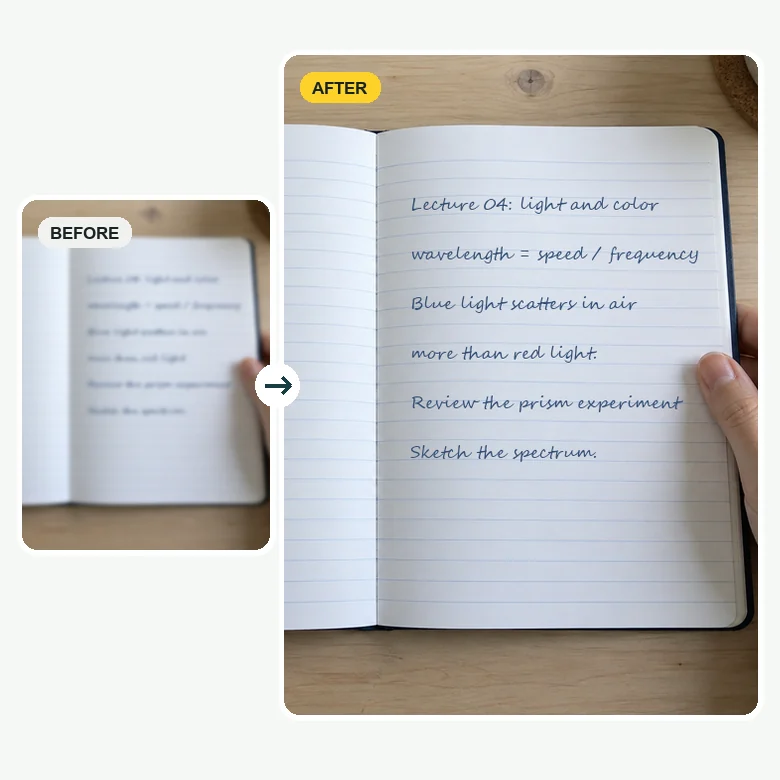
A shaky photo of the whiteboard or a friend’s blurry notes from the back row is hard to study from. Choose Handwriting and the strokes come back sharp enough to copy equations and definitions, while the lined paper stays natural.
The blurry text image you need to read is usually one you cannot retake, which is exactly where a text image enhancer helps.
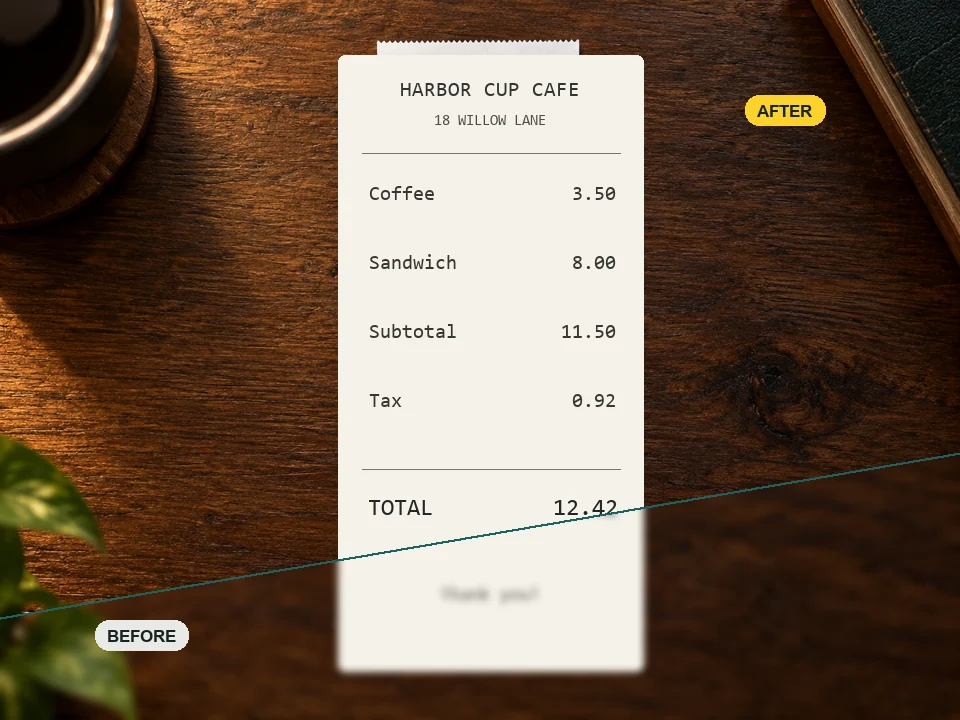
Recover totals, dates, and clause numbers from rushed phone photos for expenses and records.
Unblur words in chat captures, slides, and dashboards that were compressed on the way to you.
Turn blurry notes, textbook photos, and whiteboard shots into pages you can actually study from.
Read packaging, shop signs, and old printed material for listings, research, or design archives.
A few habits that help any text enhancer AI give you a cleaner result.
Upload the photo itself, not a screenshot of it or a copy a chat app has compressed again.
Cropping close to the writing gives the AI more pixels per letter and a sharper result.
Text hidden under strong glare or deep shadow cannot be sharpened. Retake or remove the glare first.
Out of focus, motion shake, and low resolution look alike but need different repairs.
Case files, expense reports, lecture halls, and archives.
Illustrative examples adapted from reference material, not verified reviews of EzImgMaker.
Clients photograph agreements on a kitchen counter. Now the clause numbers and dates come back solid, and nothing is retyped behind my back.
Field reports arrive as screenshots forwarded three times. One pass and the serial numbers are readable, so I can log them without calling the site.
I shoot the whiteboard from the back of a 200-seat hall. My blurry notes are finally sharp enough to copy the equations out.
I catalogue old signage and packaging. The lettering comes back without the paper texture being smoothed away.
Accuracy, formats, and what the sharpened result looks like.
Upload the image, choose the text source and blur type (or leave Auto detect on), pick an output size, and run Deblur Text. Compare the result with the slider and download it. It works in any modern browser on desktop or phone.
It is designed not to. The AI text enhancer reproduces the characters already in the image and keeps spelling, digits, and punctuation. If a character is truly beyond recovery it stays soft instead of being replaced by a guess, so always double-check critical numbers.
Yes. Choose Handwriting for notes, letters, and whiteboards. Results depend on how much of each stroke the camera captured; very faint pencil or heavy motion blur may only improve partly.
A general photo enhancer improves the whole picture. A text deblurrer focuses on lettering: it sharpens strokes and edges while leaving paper grain, lighting, and colors alone, so the result still looks like the original photo, just readable.
They all describe the same job. Text unblurrer is the more common spelling, text unblurer is a frequent variant, and text deblur or deblur text is the technical phrasing. Any of them means making blurred words readable.
No. Extensions for unblurring writing usually only reveal text a website has hidden on purpose. This tool works on real photos and screenshots where the writing itself is blurry, with nothing to install.
No. It returns a sharpened image, not OCR text. If you need copyable text, run the sharpened image through an OCR app afterwards; recognition is usually far more reliable once the letters are crisp.
Yes. Export or screenshot the PDF page as a JPG or PNG, upload it, and choose Document. It then works as a document enhancer for scanned pages; use the 2× or 4× output if the original scan was small.
JPG, PNG, and WebP images up to 10 MB. Cropping close to the text before uploading usually gives a sharper result.
Only upload images you own or have the right to process. Do not use the tool to read documents, IDs, or private messages that belong to someone else, or to reveal text that was blurred on purpose to protect privacy.
Upload the image and deblur text so every word and number is sharp again.