
Posters and Flyers
A 1200 × 900 design enlarged 4× to 4800 × 3600: the easy way to make an image bigger for a poster without blurry type.
Upload a photo and the AI image enlarger makes it 2× or 4× bigger in pixels, so it prints sharp, fills a poster or survives a close crop. Nothing in the picture changes except its size and the crispness of its edges.
Enlarge for
Fine-tune

Reference example. It is not a result generated from your upload.
A photo enlarger used to be a darkroom machine that projected a negative onto paper to make a bigger print. Today the job is digital: an image enlarger adds pixels so a picture can be printed or viewed larger without turning soft. Stretching a photo in a basic editor only spreads the same pixels further apart, which is why a quick pic enlargement looks blurry or blocky.
This AI image enlarger predicts the missing detail instead. Choose 2× to make a photo bigger for screens and small prints, or 4× for posters and close crops. It is faithful: faces, text and colors stay the same, so it works as a picture enlarger for family photos, products and artwork alike.
Real enlargements at 2× and 4×, shown at the same size so you can see the detail. Drag each slider to compare.
A 1200 × 900 design enlarged 4× to 4800 × 3600: the easy way to make an image bigger for a poster without blurry type.
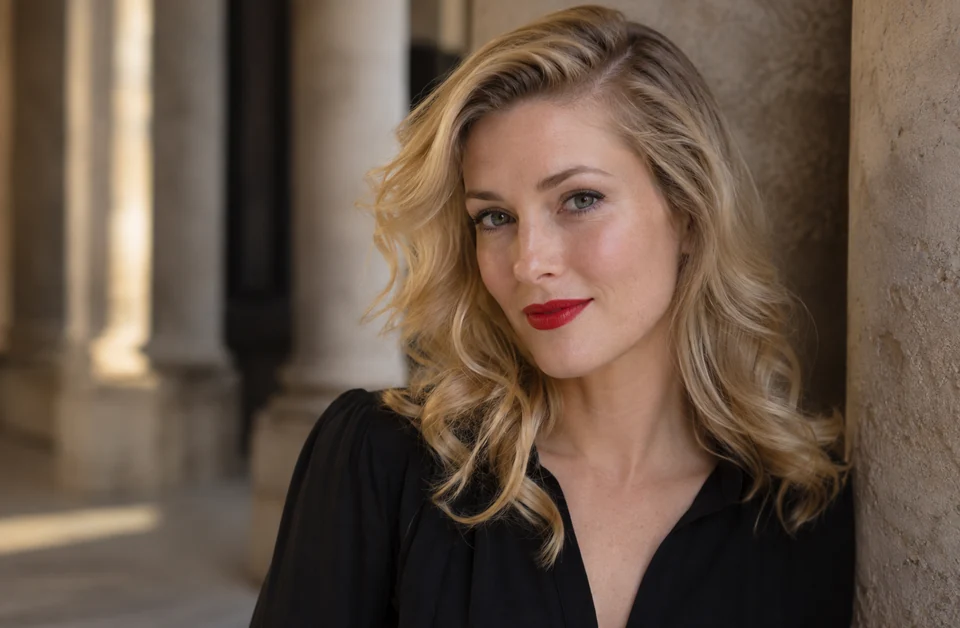
A pixelated vintage portrait becomes a smooth photo you can frame, with the same face and the same pose.
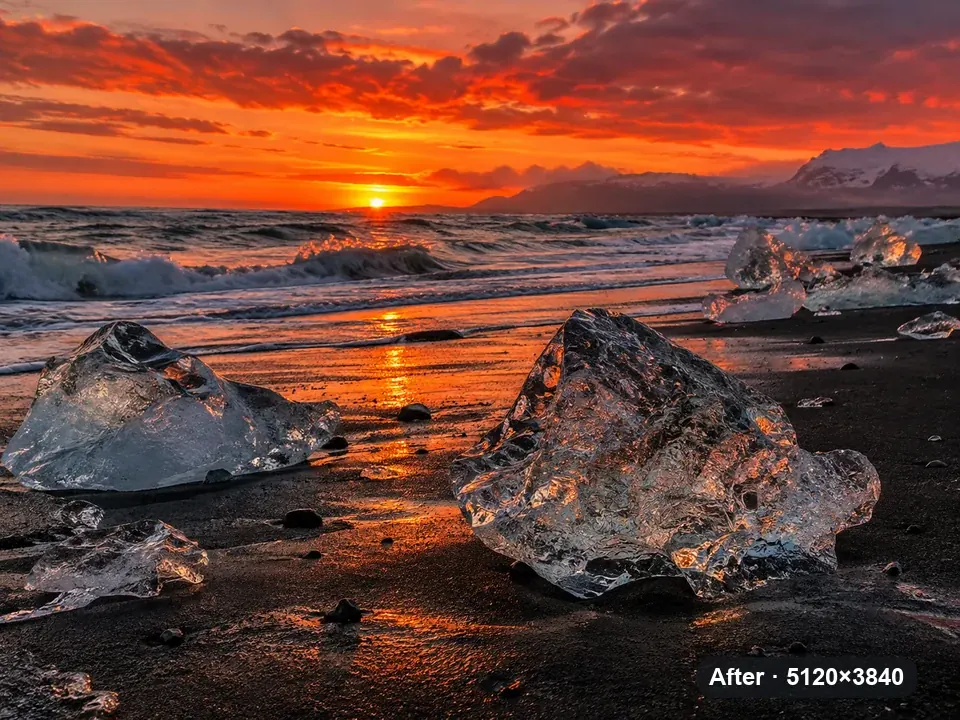
A 1280 × 960 sunset grows to 5120 × 3840, enough for a large canvas, with ice and waves still crisp.
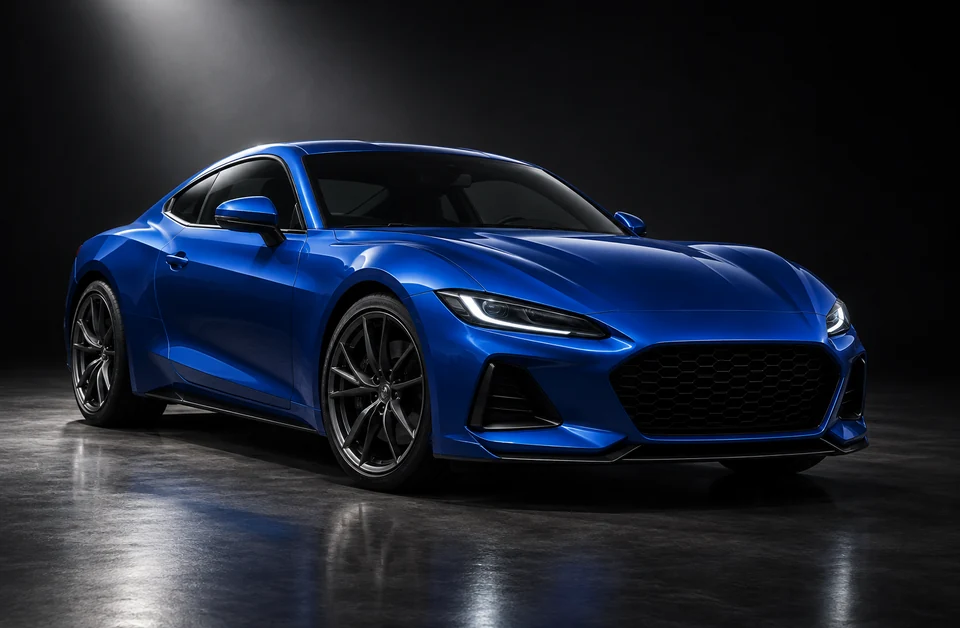

Paint, headlights and wheels stay sharp when buyers zoom in on a listing photo.
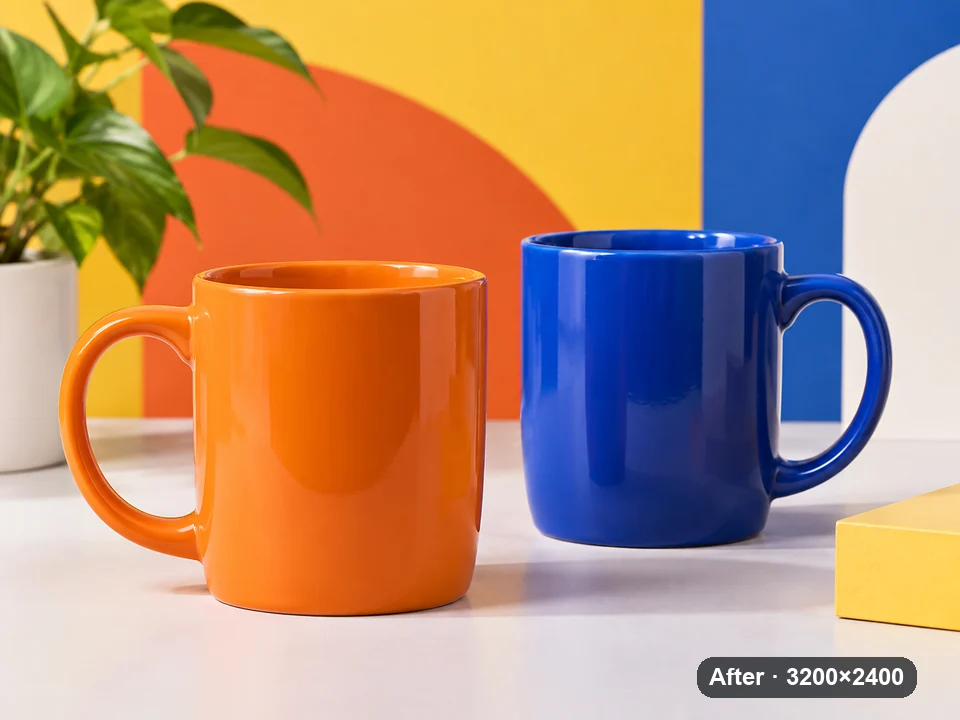
An 800 × 600 product shot enlarged to 3200 × 2400 keeps the printed text on each mug readable.
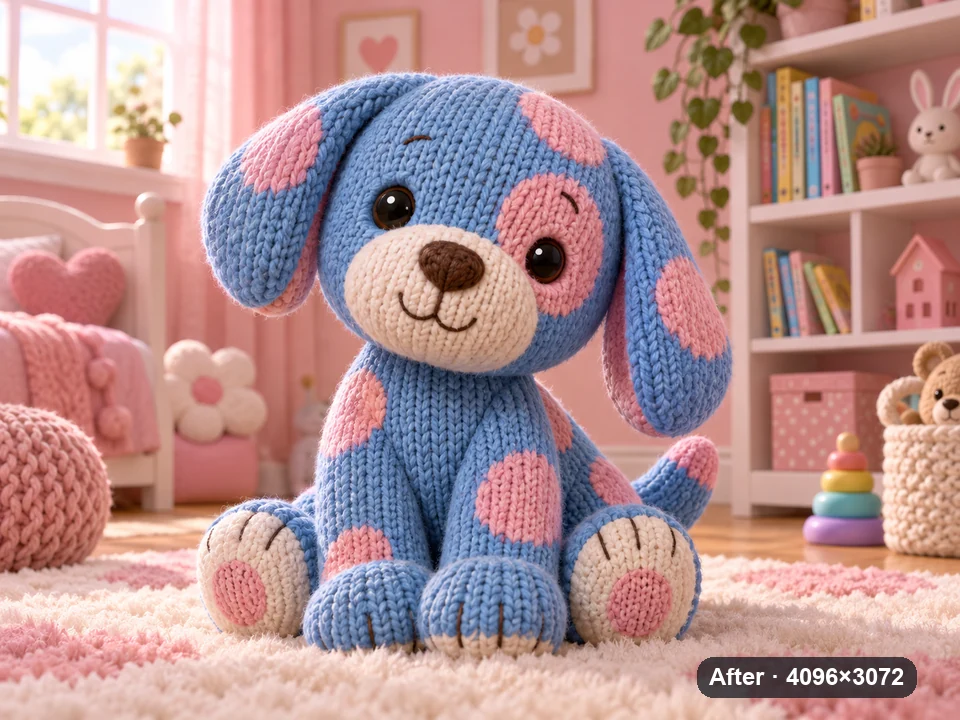
A 1024 × 768 render becomes 4096 × 3072 with clean knit texture, ready for print or a wallpaper.
How do I enlarge a picture to print? Three steps, no software:
Add a JPG, PNG or WebP up to 10 MB. Use the original file from your camera or phone, not a screenshot of it.
Check the size table below. If your photo has at least half the pixels the print needs, 2× is enough; if it has a quarter, choose 4×. The presets (8×10 Frame, 16×20 Poster…) pick for you.
Click Enlarge Photo, zoom in on the result to check the detail, then download it and send it to your print lab.
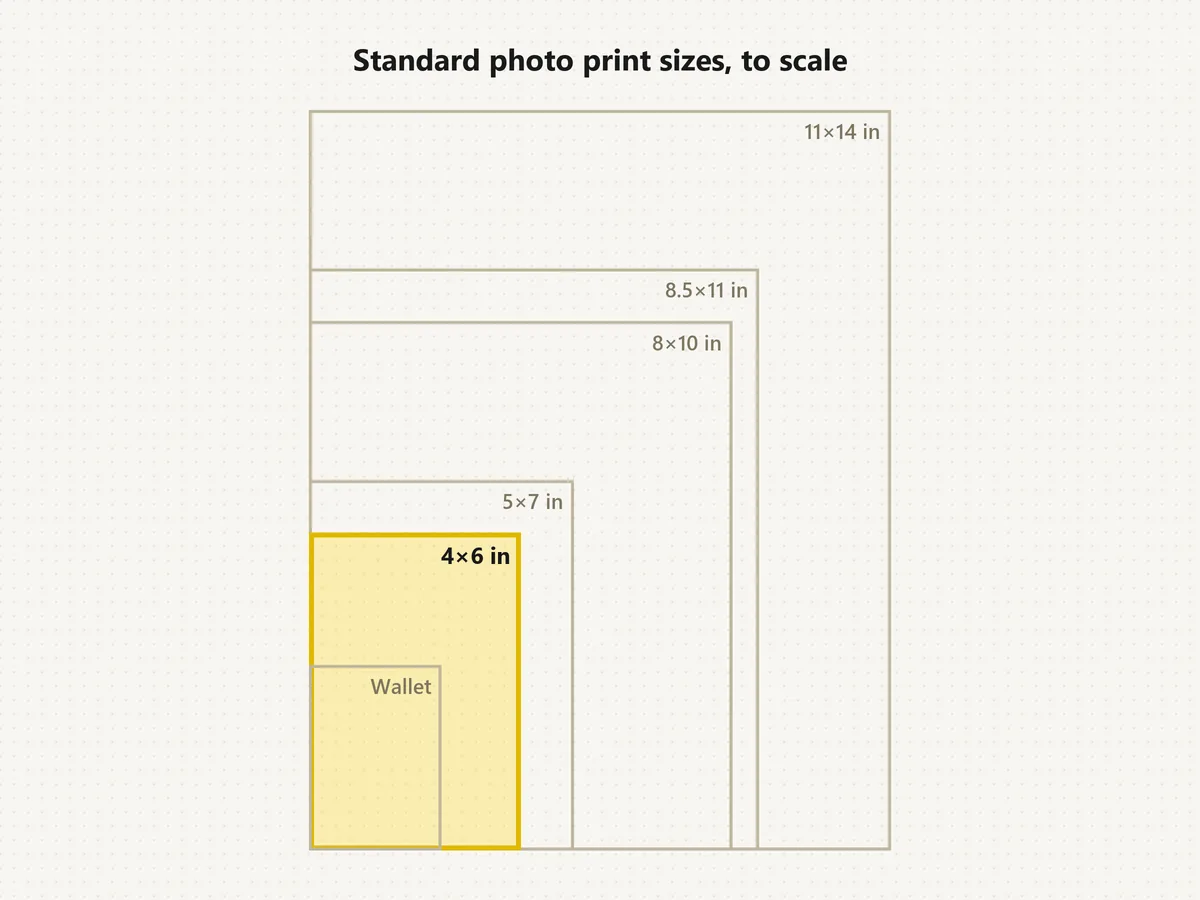
Common photograph enlargement sizes, the pixels each one needs at 300 DPI, and the smallest photo that gets there with 2× or 4×. Posters seen from a few feet away still look good at 150 DPI, which halves every number.
| Print size | Inches / cm | Pixels at 300 DPI | Start from (2×) | Start from (4×) |
|---|---|---|---|---|
| 4×6 photo | 4 × 6 in · 10.2 × 15.2 cm | 1200 × 1800 | 600 × 900 | 300 × 450 |
| 5×7 photo | 5 × 7 in · 12.7 × 17.8 cm | 1500 × 2100 | 750 × 1050 | 375 × 525 |
| 8×10 photo | 8 × 10 in · 20.3 × 25.4 cm | 2400 × 3000 | 1200 × 1500 | 600 × 750 |
| 11×14 print | 11 × 14 in · 27.9 × 35.6 cm | 3300 × 4200 | 1650 × 2100 | 825 × 1050 |
| 16×20 poster | 16 × 20 in · 40.6 × 50.8 cm | 4800 × 6000 | 2400 × 3000 | 1200 × 1500 |
| 18×24 poster | 18 × 24 in · 45.7 × 61 cm | 5400 × 7200 | 2700 × 3600 | 1350 × 1800 |
| 24×36 poster | 24 × 36 in · 61 × 91.4 cm | 7200 × 10800 | 3600 × 5400 | 1800 × 2700 |
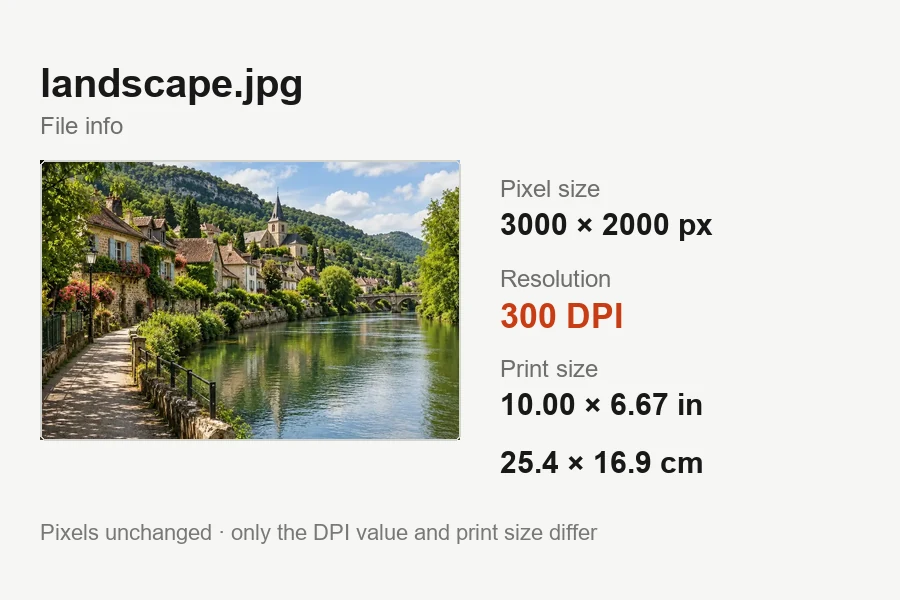
Crop the photo to the print’s shape first (8×10 and 16×20 are 4:5; 4×6 and 24×36 are 2:3). If your lab asks for 300 DPI in the file, set it afterwards with the Increase DPI tool; that changes no pixels.
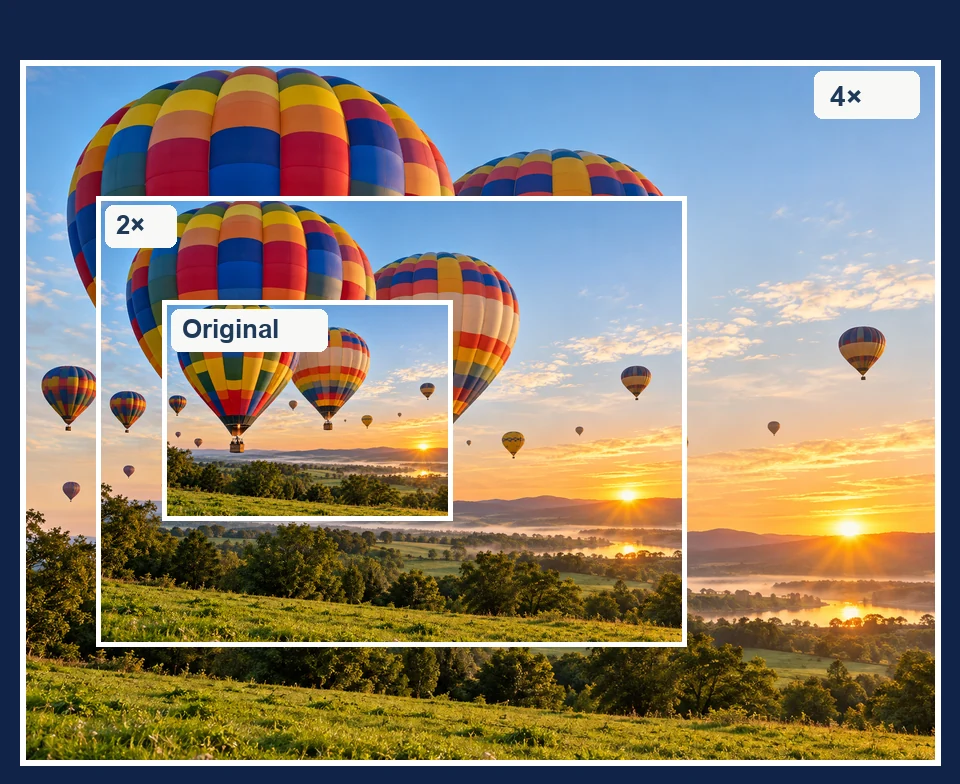
Two clear steps instead of guesswork: 2× doubles the width and height (four times the pixels) and 4× quadruples them (sixteen times the pixels). Either way the AI rebuilds edges as it goes, so you can enlarge photo files without the blur of a plain resize.
Use 4× to blow up an image for a 16×20 or 18×24 poster, a canvas or a banner. Enlarge picture print files here, check the pixels against the size table, and order the print knowing it will not come back soft.
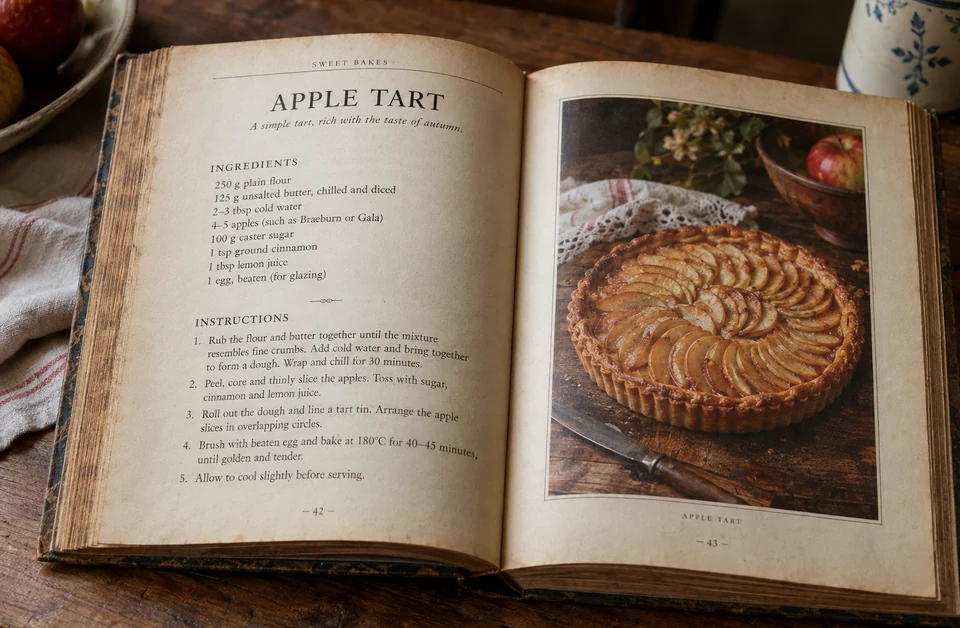
Crop the part you care about (a face in a group shot, a distant sign, a line of text) and enlarge it 4×. Image zoom in a browser or gallery app only magnifies the pixels you have; this way you zoom image details for real and get a zoom in image you can print or share.
Grow image dimensions for marketplace listings, slideshows and websites. Make photo larger once, and paint, trim, labels and textures stay sharp when someone zooms in on a big screen.
Here is how to enlarge an image to print at poster size, with this tool first and the usual editors after it.
Multiply each side in inches by 300, or by 150 for a poster viewed from a few feet away. A 16×20 poster needs 4800 × 6000 pixels at 300 DPI, or 2400 × 3000 at 150 DPI.
Upload the photo, choose 16×20 Poster (4×), and download the enlarged file. A 1200 × 1500 photo comes back as 4800 × 6000.
Crop to the poster’s ratio (4:5 for 16×20, 3:4 for 18×24, 2:3 for 24×36), then set 300 DPI in the file if your print shop asks for it.
In Photoshop, open Image > Image Size, tick Resample, choose Preserve Details 2.0 and type the poster width in inches at 300 pixels per inch. In GIMP, use Image > Scale Image with NoHalo or LoHalo interpolation. Both handle moderate enlargements well; for 3–4× jumps, compare their result with an AI enlargement.
Phone photo editors crop and zoom but do not add pixels, and a poster design tool shows your photo at whatever resolution you upload. Enlarge the photo first, then build the poster around the bigger file.
Zooming and enlarging sound alike but do different things. Here is how to get a sharp close-up.
A photo zoomer, browser image zoom or phone pinch only magnifies the pixels already there, so the photo turns blocky. Enlarging adds pixels, so you can zoom in on photos and keep the edges smooth.
To zoom in on a picture, crop the area you want and enlarge only that crop 4×. It is the cleanest way to zoom in on images of distant signs, faces in a crowd or small print.
Use it as a photo zoom online: enlarge image online on any phone or laptop, then zoom in pictures on the result as far as you like. Zoom picture online with nothing to install.
Image zoom out, showing more of the scene around the subject, is a different job. For a photo zoom out effect, use the image expander to zoom picture out and fill in new background around your photo.
Pick the tool that fits the picture: bigger, sharper, 4K, or wider.
Upscale images, logos and PNG graphics 2×, 4× or to 4K.
Open toolMake a picture 4K quality for wallpapers, TVs and monitors.
Open toolRaise resolution or restore detail at 2K or 4K when the photo is soft as well as small.
Open toolFix motion blur and missed focus before you enlarge.
Open toolRestore blurry, noisy or faded photos, then print them big.
Open toolZoom out instead: extend the scene around a photo to a new shape.
Open toolSet 300 DPI for your print lab without touching the pixels.
Open toolEnlarge anime art and manga with crisp line art.
Open toolKnow the pixels before you order the print.
Every common print size with the pixels it needs, plus a crop-and-print tool.
Open the Size ToolInches, centimeters and pixels for 16x20 prints and posters, and which photos crop well to it.
Read the guideThe classic frame size explained, with exact pixel dimensions.
Read the guideHow many pixels 4K has and how big a 4K image prints.
Read the guidePixel counts and screen sizes compared, and when the extra resolution shows.
Read the guideEnlarging for print, zooming in, and what the photo enlarger can and cannot do.
A photo enlarger makes a picture bigger. In the darkroom it projected a negative onto larger paper; online it adds pixels to a digital photo. An AI photo enlarger predicts the missing detail, so the bigger picture stays sharp instead of stretched.
Find the pixels your print needs (inches × 300), upload the photo, choose 2× or 4× so it reaches that size, then download and send the enlarged file to your lab or printer. For an 8×10 that is 2400 × 3000 pixels; for a 16×20, 4800 × 6000.
A 16x20 poster size is 16 × 20 inches (40.6 × 50.8 cm), a 4:5 shape. At 300 DPI it needs 4800 × 6000 pixels; at 150 DPI, fine for a poster seen from a few feet away, 2400 × 3000. A 1200 × 1500 photo reaches 300 DPI with 4×. The 16 x 20 poster size guide linked above covers framing and cropping.
Hover-zoom browser extensions are handy for previewing thumbnails at full size, but like any image zoom they can only show the pixels a website serves. To zoom in on an image and keep it sharp, save the largest version, enlarge it 4× here, then zoom as far as you like.
Yes, at 2× and 4× the AI keeps edges crisp, which a plain resize cannot. Gallery apps zoom in images by magnifying pixels, and photo zoom in a browser does the same, so they blur. What no tool can do is recover detail that was never captured: a face only a few pixels wide stays soft.
It is the same idea in different words: both add pixels with AI. This page is set up for prints, posters and zooming in; the AI image upscaler adds a Logo / Text preset, and the 4K image upscaler targets 3840-pixel screens.
Desktop editors such as Photoshop (Preserve Details 2.0) and GIMP work well for moderate enlargements, and AI enlargers give cleaner edges at 2–4×. A browser photo enlargement program like this one needs no install or graphics card, so it is quick to compare against whatever you use now.
Save the emoji or icon as a PNG, or take a screenshot of it, upload the file and choose 4×. Small icons have very few pixels, so expect clean, smooth edges rather than new detail.
It is free to try: new accounts get free credits when they sign up. After that, each enlargement uses credits from your balance, and bigger results cost more than smaller ones.
JPG, PNG and WebP images up to 10 MB that you took or have permission to edit. Enlarging someone else’s photo does not give you the right to print, sell or share it.
Upload a picture and get a sharper version 2× or 4× bigger, ready for print, posters or a close crop.