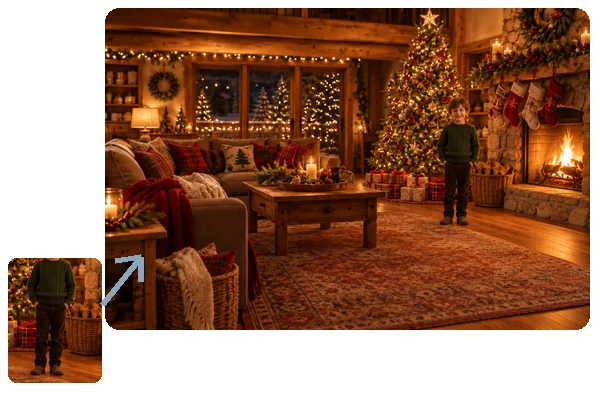
Upload Your Photo
Add a JPG, PNG or WebP up to 10 MB. Photos with a simple, continuous background (sky, sand, walls, grass) expand the most convincingly.
Upload a photo, pick a new aspect ratio and, if you like, describe what belongs in the new space. The AI keeps your original picture untouched in the frame and paints new scenery around it with the same light, perspective and grain, so a tight square crop becomes a 16:9 banner, a 9:16 story or a full-body shot.
Common sizes
Fine-tune
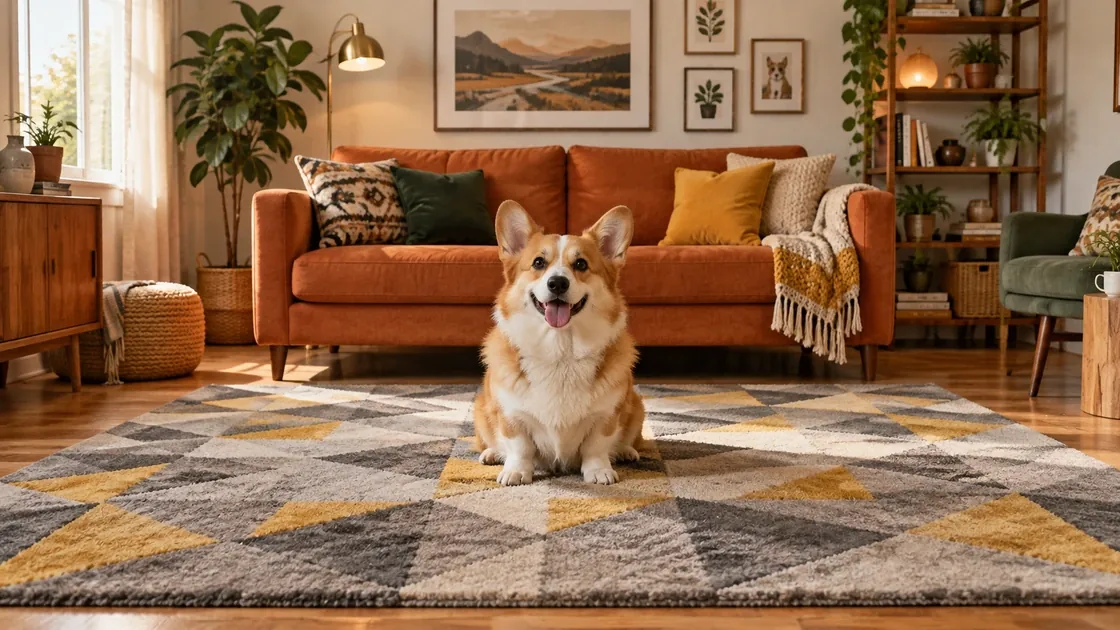
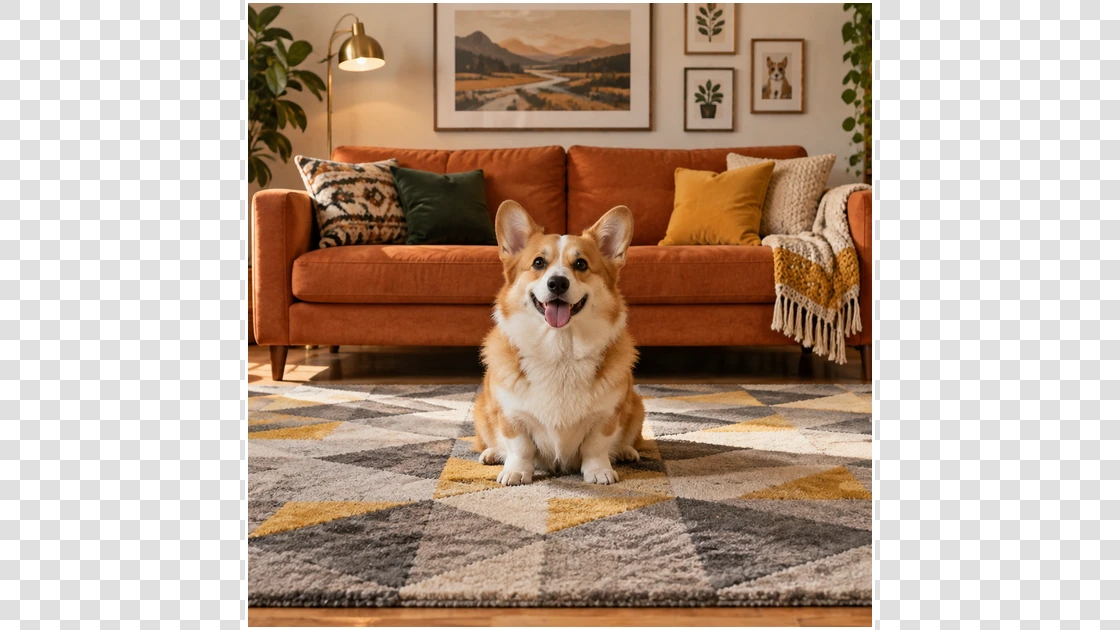
Reference example. It is not a result generated from your upload.
An image expander, also called an image extender, photo extender or uncrop tool, makes a picture bigger by adding new scenery around it instead of stretching the pixels you already have. AI outpainting (outpaint for short) studies the edges of your photo, such as the horizon, the floor, the light and the textures, and paints what most plausibly lay just outside the frame. Your original stays exactly where it was; only the new border area is generated, whether you call it uncropping, outpainting or letting AI extend image edges.
That is how you expand a picture from a square into a 16:9 YouTube thumbnail, turn a landscape shot into a 9:16 story, or make a waist-up portrait a full-body photo. It also works as a zoom out image tool for a photo already taken, giving cramped shots breathing room and space for text. Need more pixels rather than more scene? Use the photo enlarger or the image upscaler: an expander changes the framing, an enlarger changes the resolution.
The same three steps show how to zoom out a photo or expand image borders, on Windows, Mac or a phone, with nothing to install.
Add a JPG, PNG or WebP up to 10 MB. Photos with a simple, continuous background (sky, sand, walls, grass) expand the most convincingly.
Pick 16:9, 9:16, 1:1, 4:3, 3:4, 4:5 or 21:9, or tap a preset such as Story & Reel, Zoom Out or Make It Full Body. Optionally describe what should fill the new space, for example “more beach and sky”.
Click Expand Image and let the AI expand image borders: your original stays in the frame, the rest is outpainted, and you download the expanded image at the new aspect ratio.
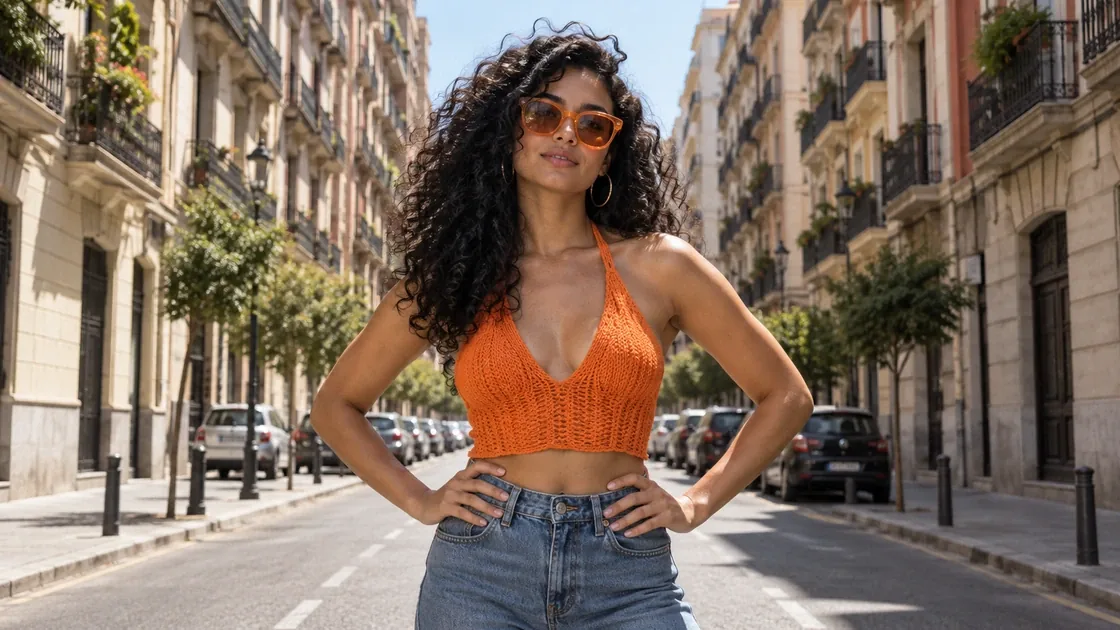
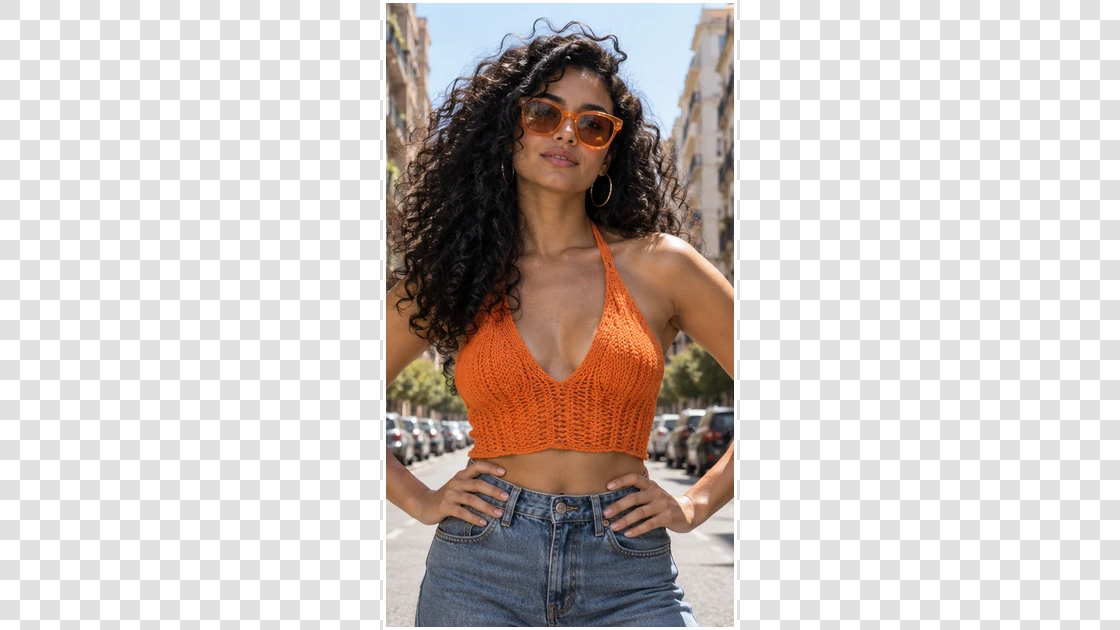
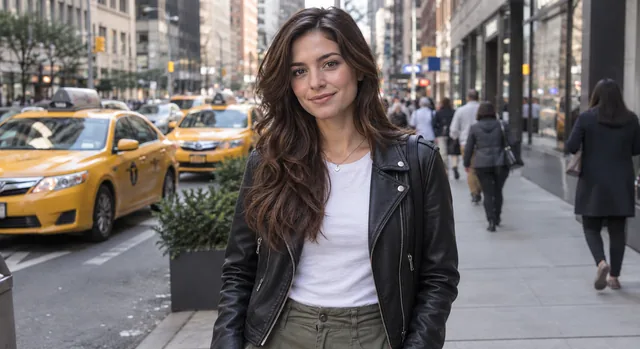
Cropping a vertical phone shot to 16:9 throws away the top and bottom. Expanding keeps every pixel and adds the street, buildings and sky on both sides instead. That makes the expander an AI aspect ratio changer for thumbnails, slides and desktop wallpapers, and it works the other way round too, from 16:9 to 9:16 for stories.
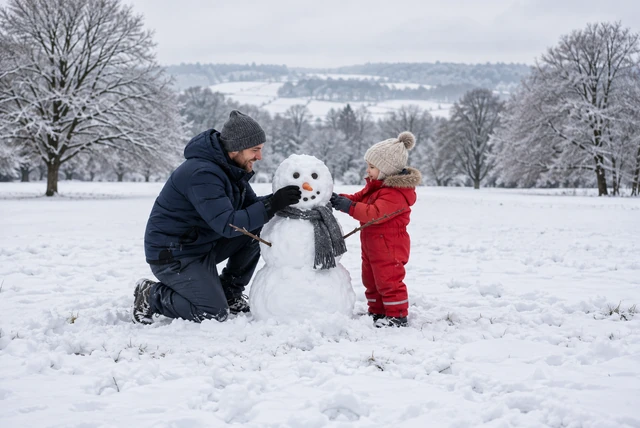
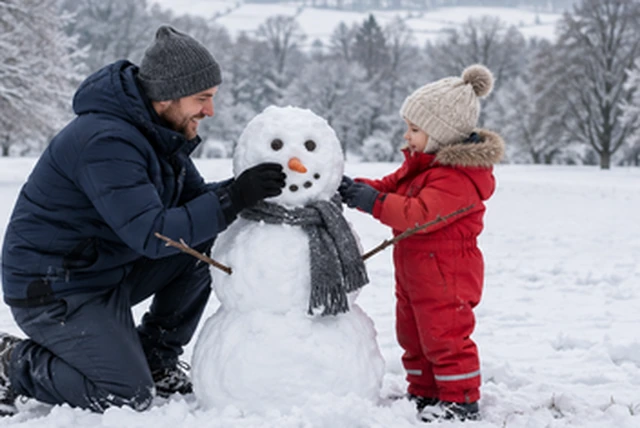
Wondering how to zoom out of a picture you can no longer retake? Uncropping rebuilds the space around the subject: here the whole snowy field around a father and child building a snowman. It works like a zoom out photo editor (or zoom out picture editor), so you can zoom out an image to fit a card, a print or a post.
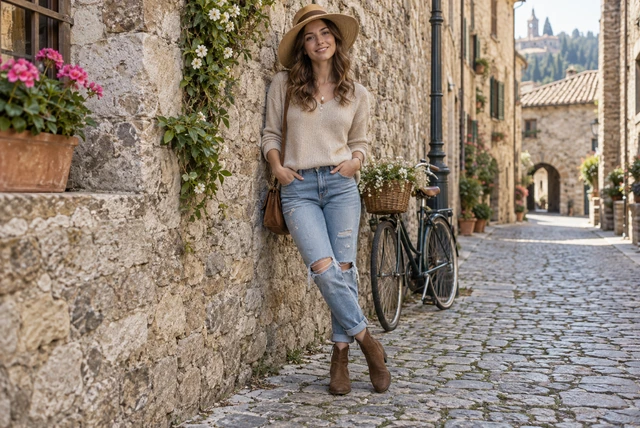
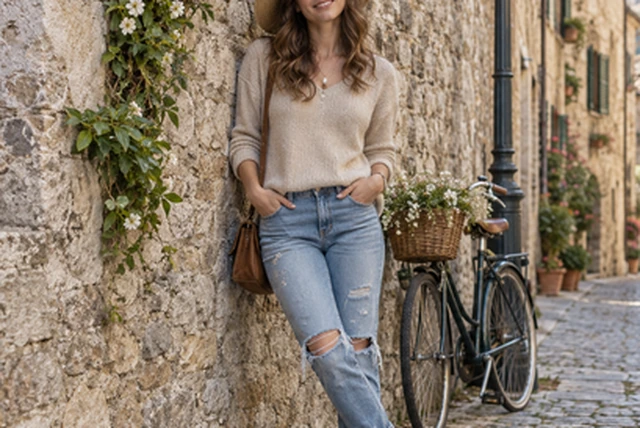
Make this picture a full body picture: extend a waist-up or knee-up photo downward and the AI adds legs, shoes and the ground they stand on, matching the outfit and the light. Describe the shoes or trousers if you have something specific in mind. Full body photos come out best when the original already shows the hips.
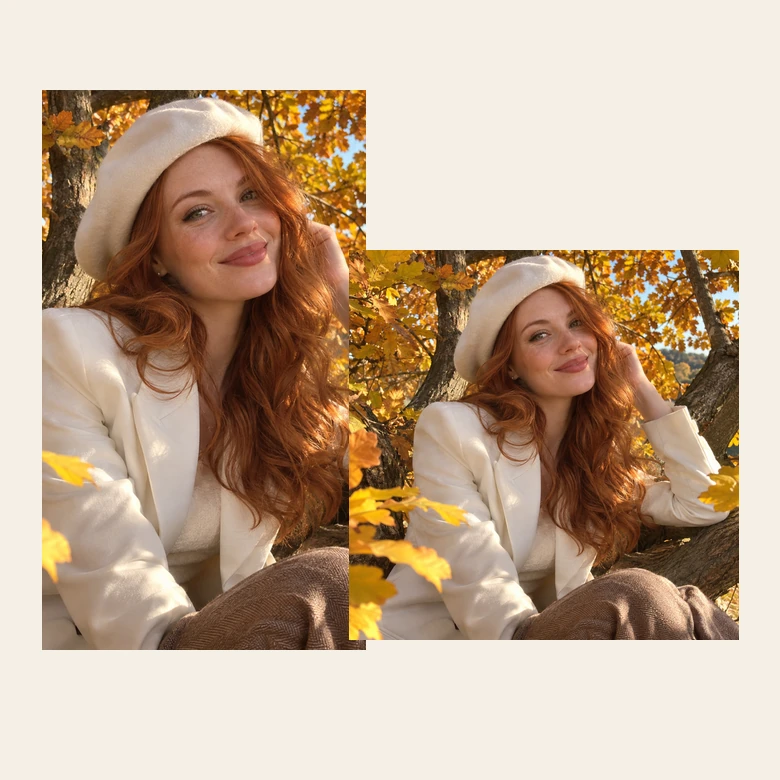
Post one photo everywhere without awkward crops: 1:1 for feeds and profile pictures, 4:5 for portrait posts, 9:16 as a story expander for Stories and Reels, 16:9 for YouTube and 21:9 for website banners. Expand photo framing for each place it goes, from the same picture.
Common target shapes for an expanded image and where each one fits.
| Ratio | Shape | Where it fits | Typical size |
|---|---|---|---|
| 16:9 | Landscape | YouTube videos and thumbnails, desktop wallpapers, slides, TVs | 1920 × 1080 |
| 9:16 | Tall portrait | Stories, Reels, Shorts, phone wallpapers | 1080 × 1920 |
| 1:1 | Square | Feed posts, profile pictures, marketplace thumbnails | 1080 × 1080 |
| 4:5 | Portrait | Portrait feed posts and ads | 1080 × 1350 |
| 4:3 | Landscape | Phone camera photos, tablets, classic prints | 1600 × 1200 |
| 3:4 | Portrait | Portrait prints, product pages, posters | 1200 × 1600 |
| 21:9 | Ultrawide | Website hero banners, ultrawide monitors, cinematic headers | 2560 × 1080 |
The expanded file is a web-size image in the chosen shape. For print or a 4K wallpaper, run it through the image upscaler afterwards.
Anywhere a photo has to fit a frame it was not shot for, the expand photo AI fills the gap.
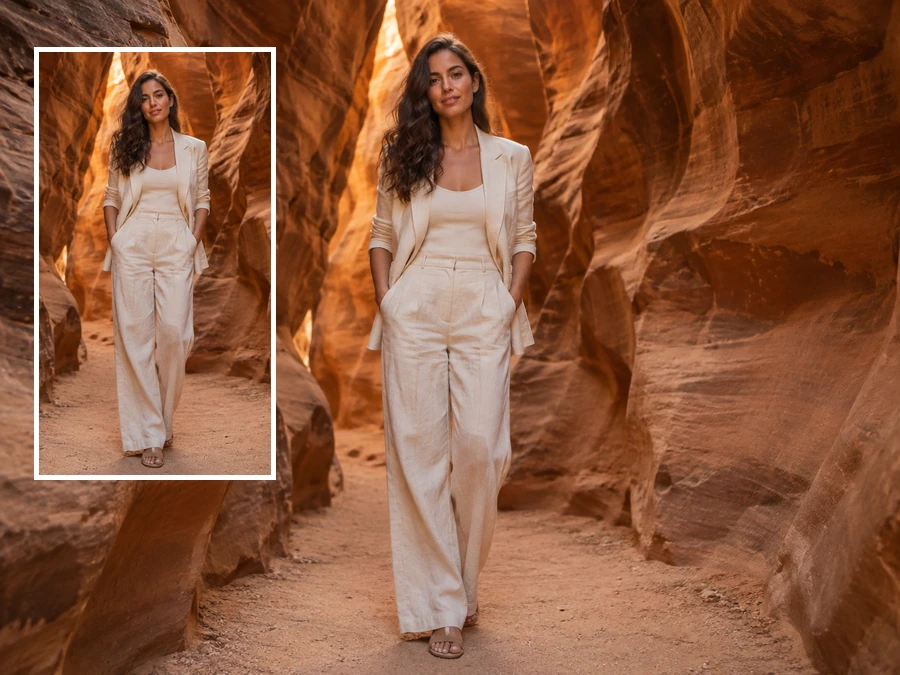
Expand pics into a feed post, a story and a thumbnail. As a story extender, going from 16:9 to 9:16 saves a reshoot.
Widen product or team photos into 21:9 hero banners with room for a headline and buttons.
Add even space around a product for text and badges, or extend a white studio background so every listing matches.
Rescue crops that cut off feet, hands or the top of a building, and rebalance the composition after the shoot.
Make a picture fill a bigger screen: 16:9 for slides and monitors, 9:16 for a phone lock screen.
Uncrop AI images, extend AI art and illustrations to reveal more of the world; name the art style in the scene box to keep it consistent.
Small choices that make the new edges hard to spot.
Full-resolution photos give the AI clean edges to continue. Screenshots and chat-app copies blur the seam.
A few words such as “more ocean and a wooden pier on the left” steer the new area; leave it empty and the expand image AI continues what it sees.
Photo expanding works best with sky, sand, grass and studio walls, which continue naturally. Crowds, text or a face right at the edge are harder to extend.
From 9:16 straight to 21:9 is a lot of new scene. Expand to 1:1 first, then to 16:9, then to 21:9 for the cleanest result.
Three different ways to make an image bigger, plus tools for what comes next.
Same picture, more pixels: enlarge a photo for printing without adding any new scenery.
Open toolUpscale an expanded image 2× or 4× so the new, wider picture stays sharp.
Open toolTurn a 16:9 expansion into a 3840-pixel wallpaper or presentation background.
Open toolFit a 21:9 or 16:9 expansion to the 2560 × 1440 channel banner and its safe area.
Open toolRecolor an object in the expanded scene, from a car to a sofa, without touching the rest.
Open toolThe opposite job: remove the background around a subject and keep a transparent PNG.
Open toolAnswers about outpainting, uncropping and zooming out.
Outpainting AI generates new image content outside the original borders, the opposite of inpainting, which fills a hole inside the picture. Image outpainting (AI image expansion) is what lets an image expander widen a scene, uncrop a photo or turn a square into 16:9 while the original pixels stay as they were.
Not with the camera: the area outside the frame was never recorded. AI outpainting can generate it, though, and that is how to zoom out a picture after the fact. Upload it, choose the same or a wider ratio, tap Zoom Out or type “zoom out” in the scene box, and download. A picture zoom out like this keeps the subject exactly as shot; pinching to zoom out on a picture in your phone gallery only shows the frame you already have. In Photoshop the crop tool’s Generative Expand does something similar (drag the canvas wider, then click Generate), and Canva has a Magic Expand option.
Expand it to the shape of the screen instead of stretching it: 16:9 for monitors, TVs and slides, 9:16 for a phone lock screen, 21:9 for an ultrawide display. The AI adds matching scenery at the sides so nothing gets squashed. For a sharper large wallpaper, upscale the result afterwards.
No. When you zoom out on photo files or change their ratio, the original picture stays in the frame unchanged, with the same faces, colors and details; only the new space around it is generated. Look closely at the seams on busy backgrounds, and run it again with a short scene description if something there looks off.
No. A photo enlarger or image upscaler keeps the same picture and adds pixels, so it gets sharper and bigger at the same framing. An image expander keeps the pixels and adds scene around them, so the framing changes. Many people do both: expand first, then upscale.
You don’t need to install a Windows program: this extend image AI, or AI extender, runs in Edge, Chrome or Firefox on any Windows PC, and on Mac and phones too. It can extend a photo both horizontally and vertically: pick 16:9 or 21:9 to widen it, 9:16 or 3:4 to make it taller.
Yes. Tap Make It Full Body, or choose 9:16 and describe the outfit below the frame, for example “black trousers and white sneakers”. The AI extends the photo downward and draws legs, shoes and ground that match. It works best when the original shows the person at least to the hips.
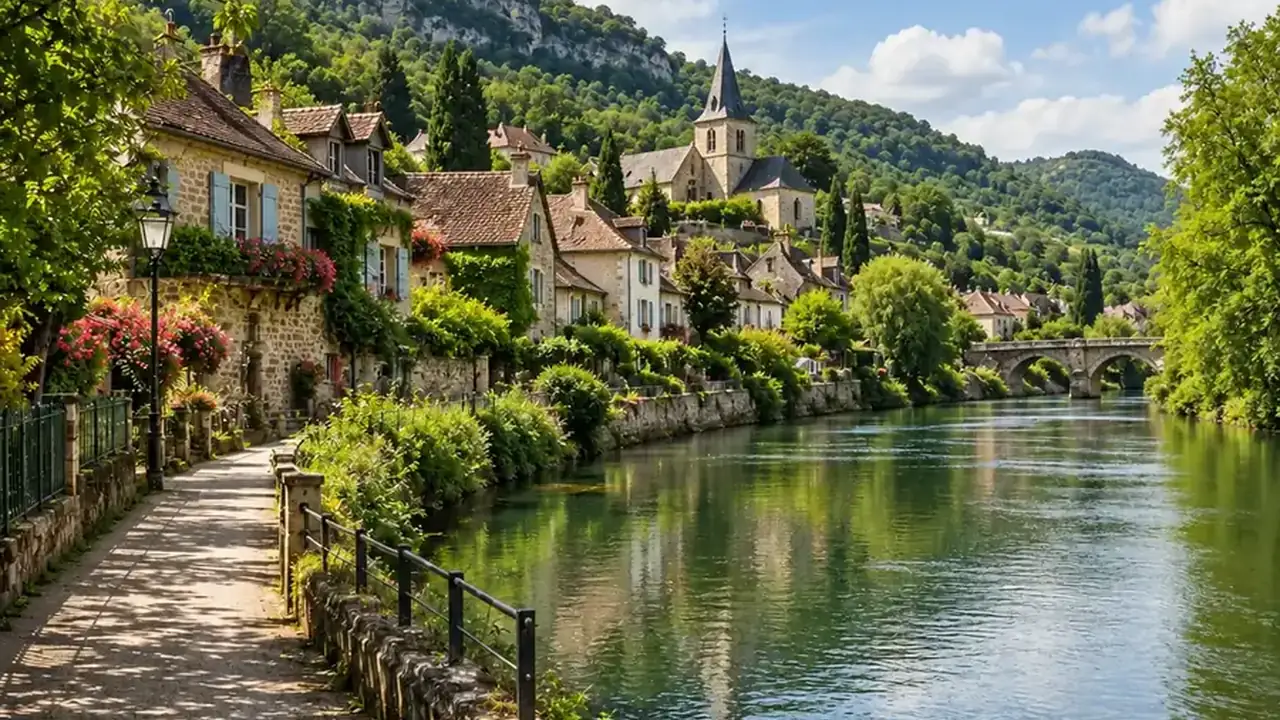
This one does it in the browser: upload the 16:9 picture, choose 9:16 and the AI adds sky above and ground below so the whole landscape fits a story or phone wallpaper. The reverse, 9:16 to 16:9, adds scenery on the left and right.
Yes. New accounts get free credits when they sign up, so you can try AI outpainting free on several photos. After that, each expansion uses credits from your balance.
Only upload photos you own or have permission to edit, and don’t use expanded scenes to mislead, for example to invent where a news photo was taken or who stood next to someone. Generated surroundings are new content, not a record of what was really there.
Upload a photo, pick a new aspect ratio and let the AI outpaint the rest. Free to try with sign-up credits.