Banding and Blocks in the Sky
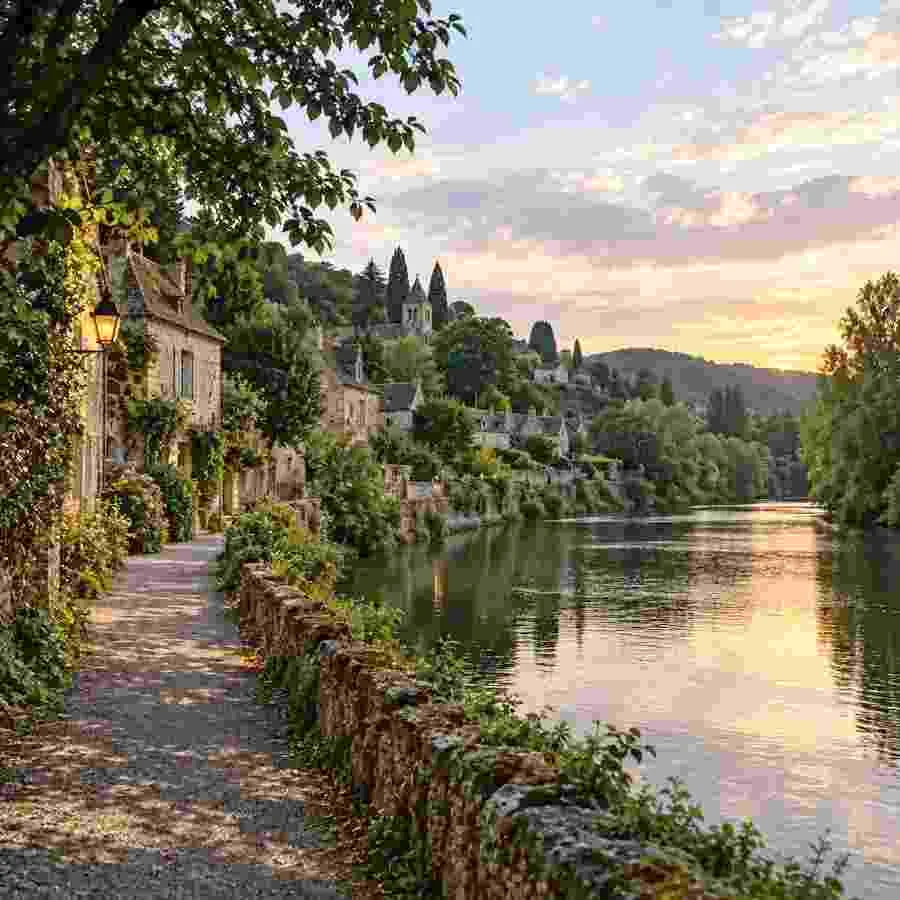
Gradients such as skies and studio backdrops break into visible steps and squares at low quality. Cleanup restores a smooth sky and keeps the foliage detailed.
Upload a compressed picture and AI JPEG artifact removal clears the 8×8 blocks, banding, halos, and color smears, then rebuilds edges and texture so the photo looks clean again.
Quick fixes
Fine-tune
Your photo stays in this browser during this UI preview.


Reference example. It is not a result generated from your upload.
JPEG artifacts are the visible damage left by lossy compression: square 8×8 blocks, steps of banding across skies, ringing halos and “mosquito” speckles around edges and text, and color that smears past its borders. Every low-quality export, screenshot, and re-upload to a chat app throws away a little more detail and makes them worse.
This image artifact remover uses AI to recognize those compression patterns and rebuild the image underneath: smooth gradients, clean edges, and believable texture. JPEG artifact removal cannot bring back the exact pixels that compression discarded, but it can make a damaged photo look clean, natural, and usable again.
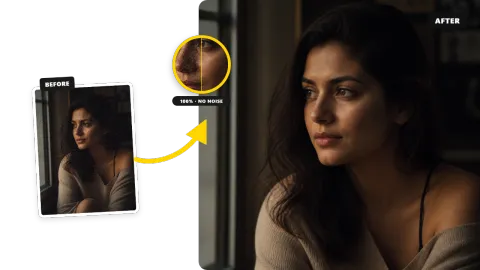
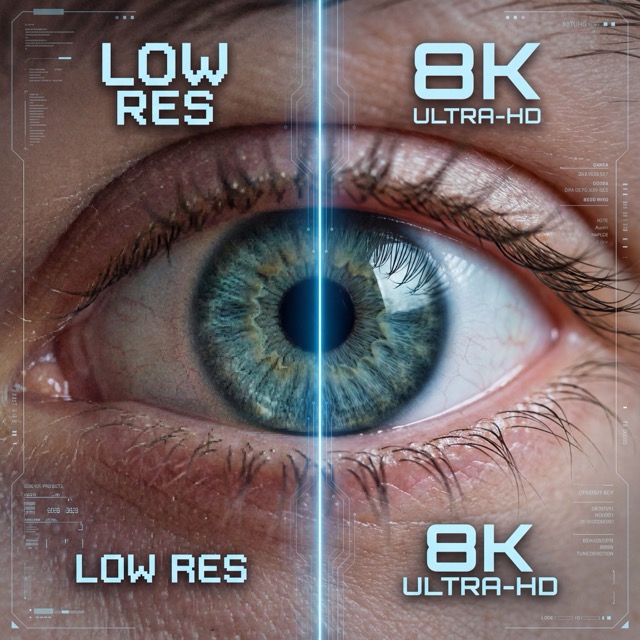
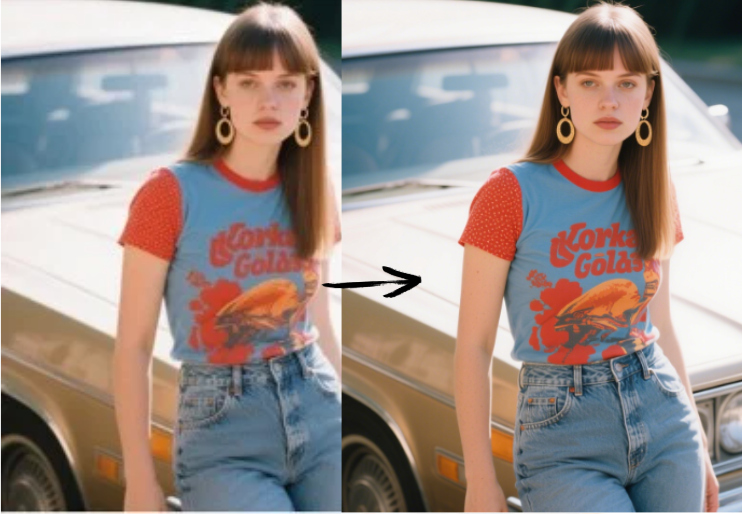
Three common kinds of compression damage, before and after cleanup. Drag each slider to compare.
Gradients such as skies and studio backdrops break into visible steps and squares at low quality. Cleanup restores a smooth sky and keeps the foliage detailed.
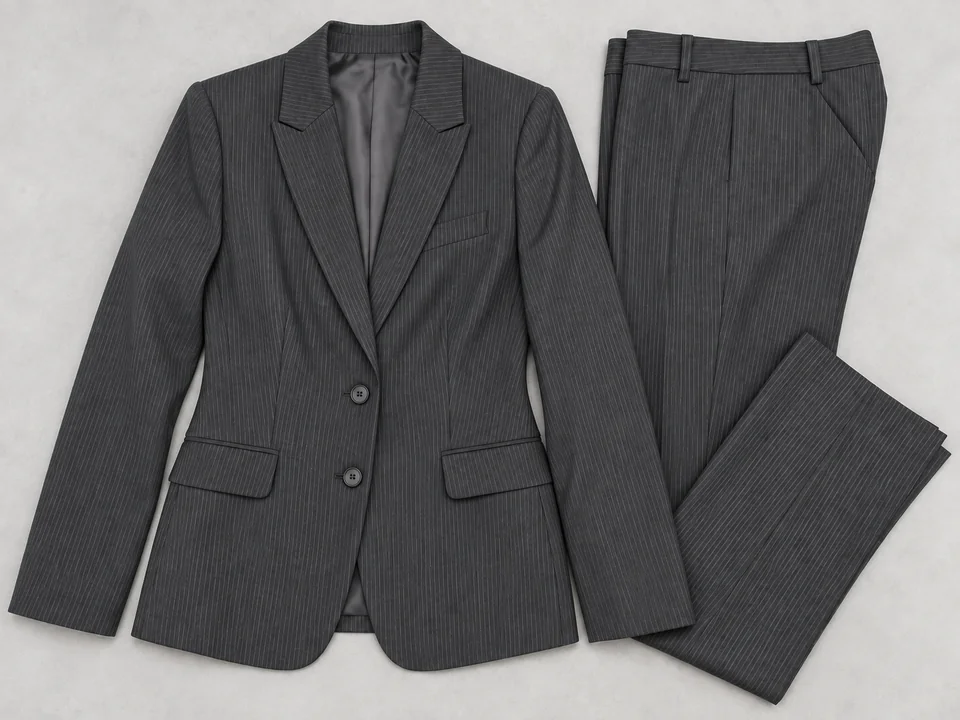
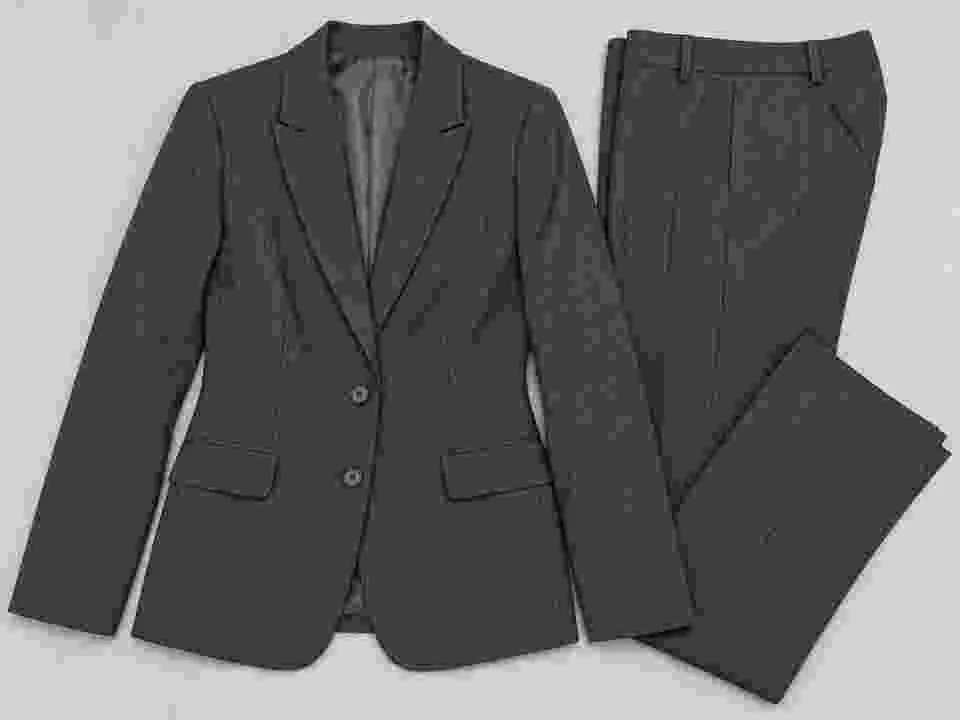
Pinstripes and weaves are the first details JPEG throws away, turning a suit into a gray smudge. The AI rebuilds the stripes and removes the block grid.


Re-saved renders and AI art pick up speckled noise and blotchy color in dark backgrounds. Cleanup leaves smooth shadows and crisp highlights.
No filters to stack and no manual masking.
Add a JPG, PNG, or WebP up to 10 MB: an old web image, a screenshot, a photo saved from a chat, or a product shot that came back blurry and blocky.
Leave Auto detect on or choose Blocks, Banding, Halos & noise, or Light artifacts. Set the cleanup strength and, if you plan to print or enlarge, a 2× or 4× output.
Run the cleanup, inspect edges, text, skin, and skies with the before/after slider, and save the result as a fresh, high-quality file.
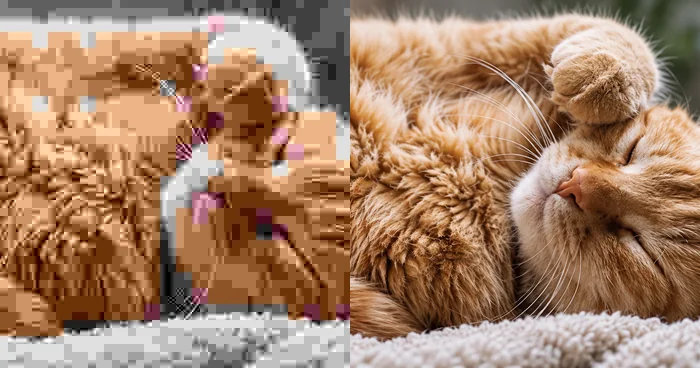
Blockiness follows the 8×8 JPEG grid; mosquito noise shimmers around high-contrast edges. Instead of blurring both away, the AI treats each pattern differently so whiskers, hair, and lettering keep their edges.
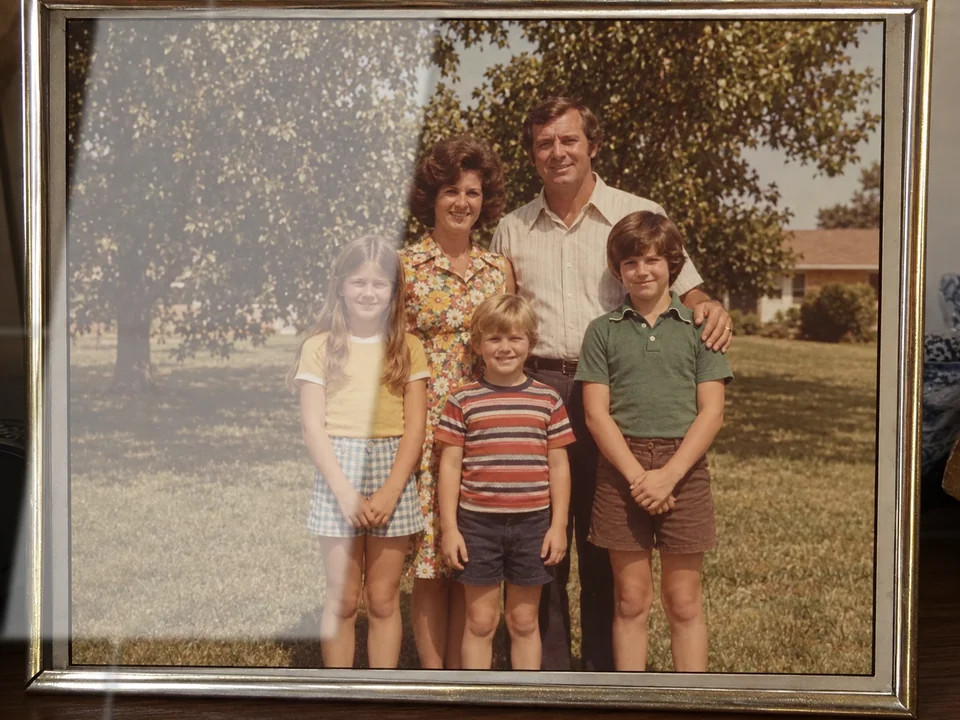
Not every artifact comes from compression. Reflections on glass, glare streaks, and blown-out halos around bright areas are light artifacts. Choose Light artifacts and the AI recovers the detail hidden under the shine.


Heavy cleanup can smear skin into wax. Balanced mode removes compression softness and blotches while keeping pores, eyelashes, and hair strands, so portraits still look like real photos.
Marketplace uploads, supplier images, and old catalog files are often compressed to death. Clean the artifacts first, then add a 2× or 4× output so labels and packaging stay crisp after enlargement.
Typical images that arrive already damaged.
Apps recompress every upload. Clean the copy you saved before you post, print, or edit it again.
Early-2000s web photos were saved at tiny sizes and low quality. Restore them for slideshows, reunions, and archives.
Remove blocks and halos from supplier images before you crop, enlarge, or place them on a white background.
Enlarging a compressed file magnifies every block. Clean first, then upscale, for a print that holds up.
Once the image is clean, keep it that way.
Each JPEG save discards more data. Edit from the original and export once at the end.
Below about 80 the block grid starts to show in skies and skin. Higher quality costs little extra file size.
Logos, screenshots, and charts get halos as JPEG. PNG keeps hard edges perfectly clean.
Send the original rather than a screenshot or a forwarded chat copy whenever you can.
Everyday files that needed a cleanup.
Illustrative examples adapted from reference material, not verified reviews of EzImgMaker.
Our supplier only sends tiny, crunchy JPEGs. Cleaning them before I enlarge them made the labels readable on the product page.
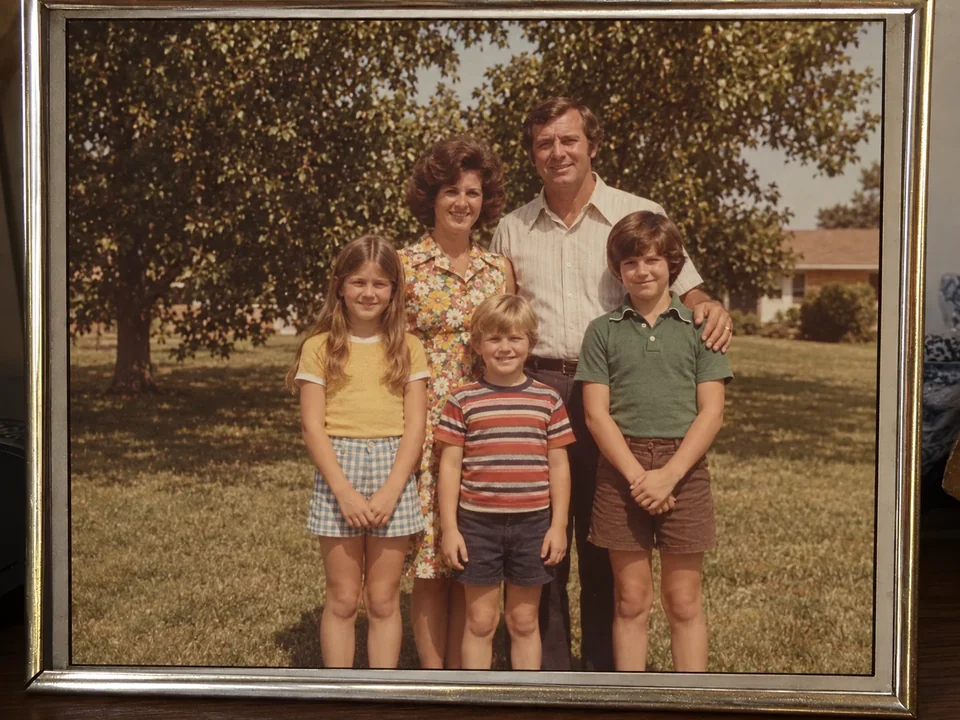
The only copy of my dad’s retirement photo was a forwarded chat image. The blocks around his face are gone and it printed fine at 5×7.
I restore old forum screenshots and banners for a fan archive. Banding in the gradients was the worst part; now it is smooth.
Balanced mode keeps the texture in skin and fabric. Strong is great for flat graphics with big blocky skies.
Common questions about compression artifacts and how to clean them.
JPEG compression splits the image into 8×8 blocks and discards fine detail and subtle color it thinks you will not notice. At low quality, or after repeated saving, the losses become visible as blocks, banding, halos around edges, and smeared color.
Upload the image, leave Auto detect on or pick the artifact type, choose a cleanup strength, and run the tool. Compare the result at full size, then download it. For best results, start from the least compressed copy you have.
Not exactly. Compression permanently discards information, so the AI reconstructs plausible detail rather than the original pixels. The cleaner the source, the more faithful the result.
Yes. Choose Light artifacts for reflections on glass, glare streaks, and bright halos. For strong lens flare or a large reflection covering a face, a dedicated glare remover may give a better result.
No, it does the opposite. A JPEG artifact generator deliberately adds blocks and noise for a retro or “deep-fried” look; this image artifact remover takes them out. If you want the crunchy effect, use a low-quality image maker instead.
Both are correct. Artefact is the British spelling, so searches like artefact jpg or artefact jpeg mean the same compression damage this tool removes.
Yes. Upscaling magnifies blocks and halos along with everything else. Clean the artifacts first, or choose the 2× or 4× output here so both steps happen together.
Start with Balanced. If skin, hair, or fabric looks too smooth, switch to Light; if blocks remain in flat areas such as skies, switch to Strong.
JPG, PNG, and WebP images up to 10 MB. A PNG screenshot of a compressed JPEG works too, because the artifacts are still visible in the pixels.
Only upload images you own or have the right to edit. Removing compression artifacts from someone else’s photo does not give you permission to reuse it.
Upload a blocky or banded image and remove JPEG artifacts while keeping real detail.