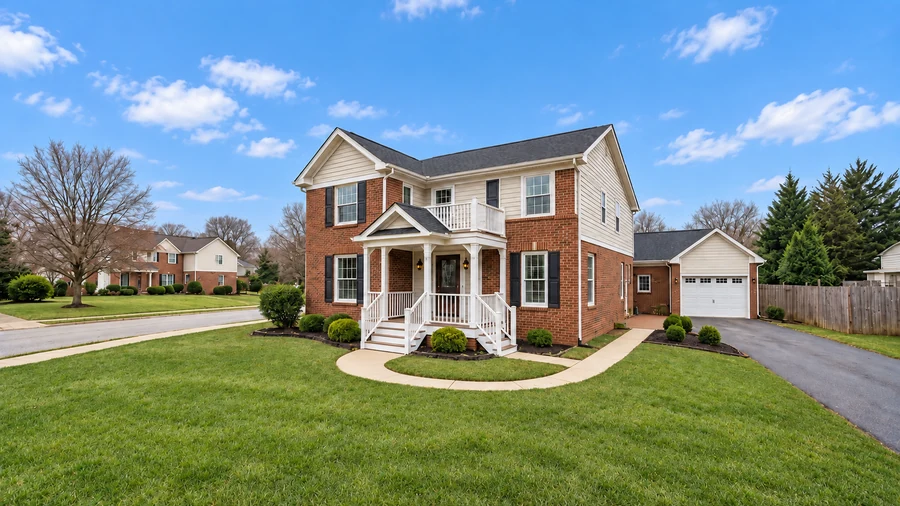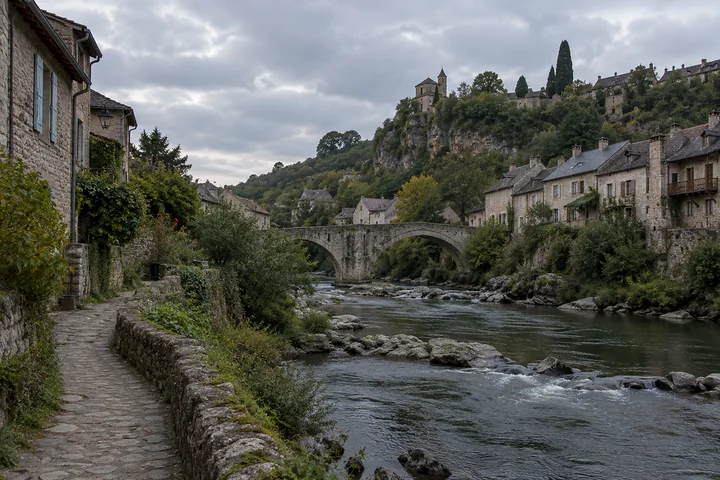

Blue Sky with Clouds
Soft white clouds and clear daylight for a gray-day photo.
Upload any outdoor photo and pick a new sky: blue sky with clouds, golden sunset, day to dusk, starry night, Milky Way, storm clouds, or aurora. The AI replaces only the sky and relights the scene to match, so buildings, people, and the foreground stay as they were.
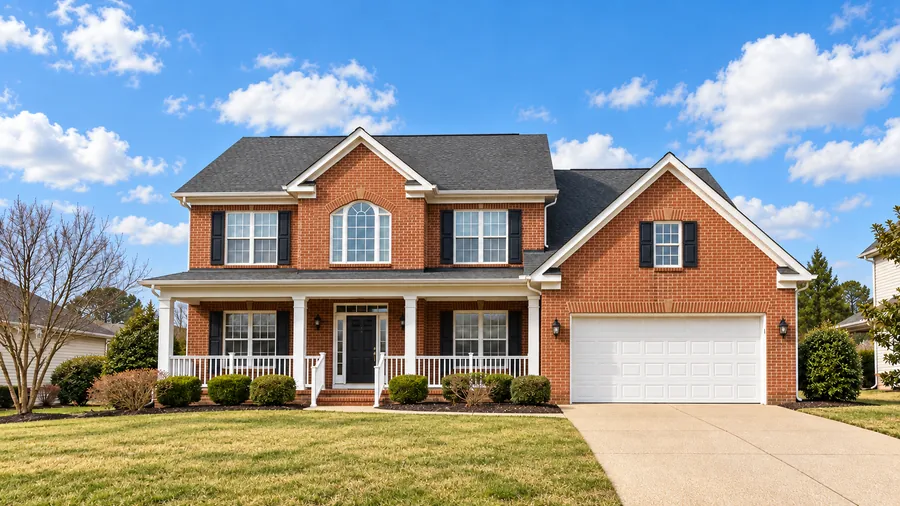
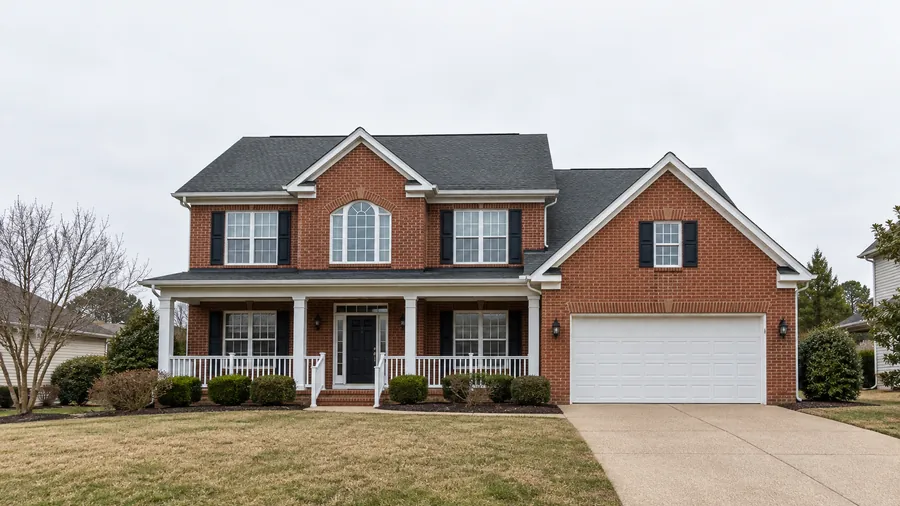
Reference example. It is not a result generated from your upload.
AI sky replacement swaps the sky in a photo for a better one and relights the rest of the picture to match. Upload a shot with a flat white, gray, or blown-out sky, choose a sky such as blue sky with clouds, golden sunset, or starry night, and the sky editor finds the skyline, including the gaps between leaves and around rooftops, and puts the new sky in. Buildings, people, trees, and water stay where they are, but their light, color, and reflections change with the sky, so the result reads as a real photo rather than a pasted background.
The same tool handles a nighttime edit and a day to dusk edit: turn a daytime photo into a twilight shot with glowing windows, or into a clear night under stars and the Milky Way. Unlike a sky AI image generator that invents a whole new picture, it keeps your photo and changes only the sky and the light, which is what real estate agents, travel photographers, and anyone with a dull-weather photo actually need.
Day skies, sunsets, night skies, and moody weather, each with the light on the scene changed to match. Pick one to load it in the workspace.
Soft white clouds and clear daylight for a gray-day photo.
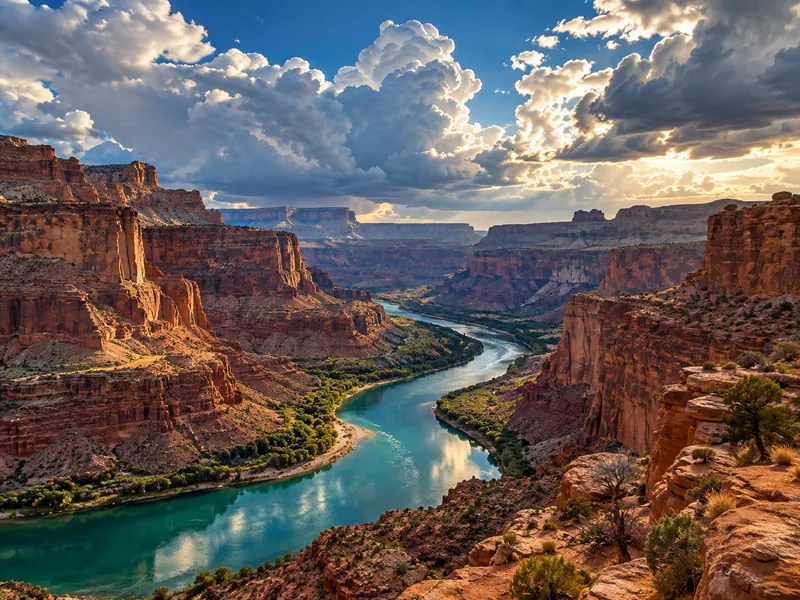
Towering sunlit clouds that add depth to a landscape.
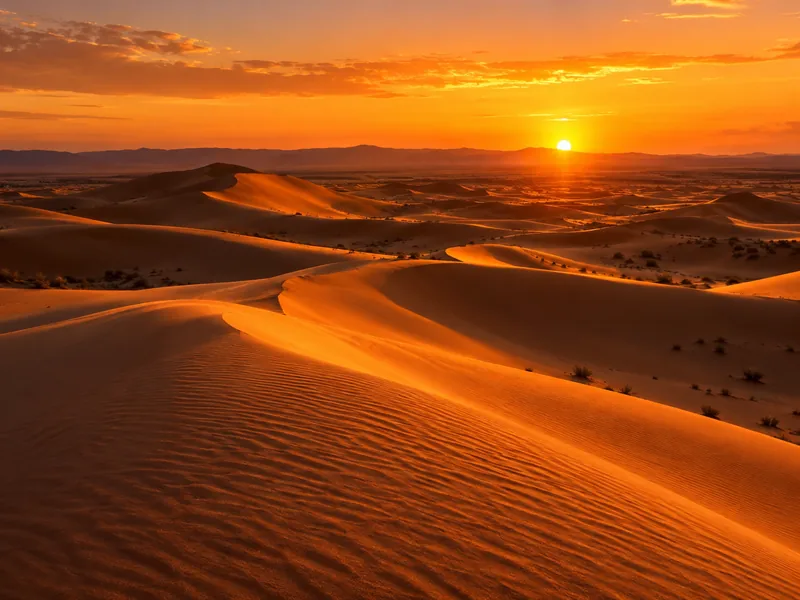
A low sun and warm light across the whole scene.
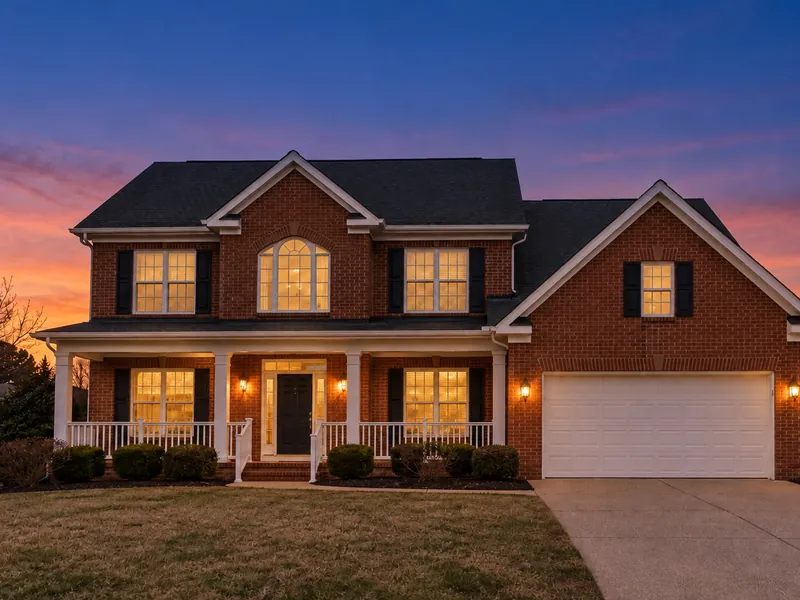
A twilight sky with warm light in every window.
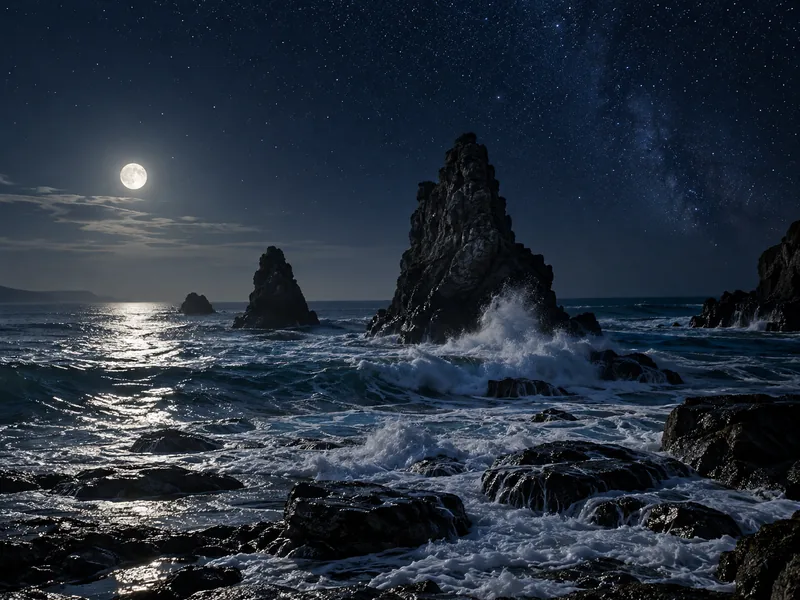
A clear night full of stars and a soft moonlit glow.
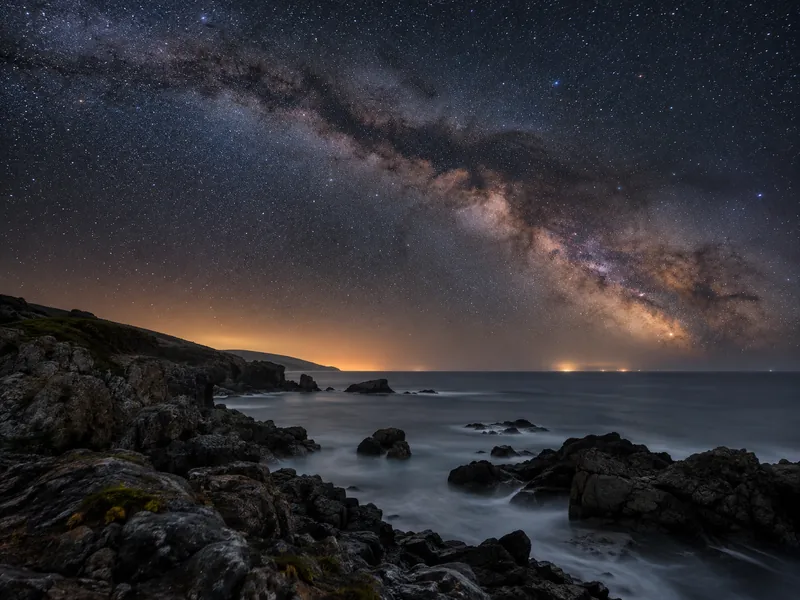
The Milky Way arching overhead like a long-exposure shot.
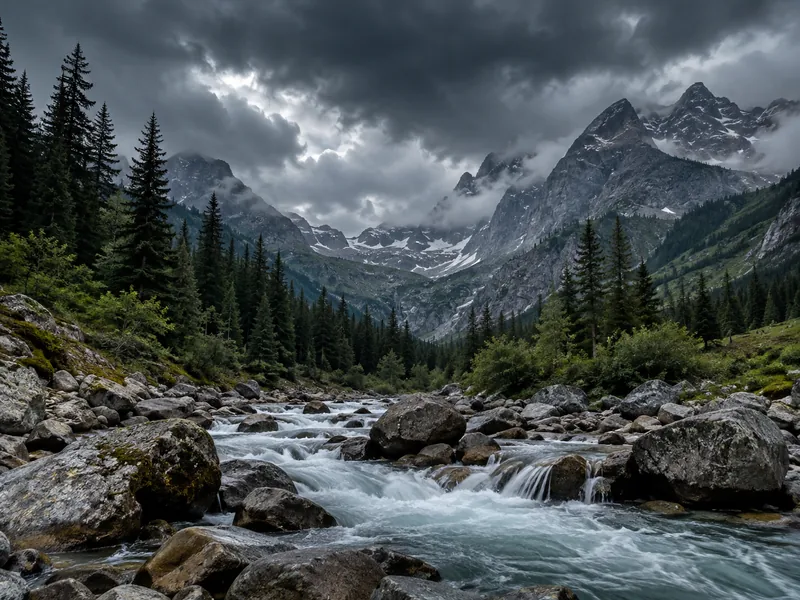
Dark, moody clouds and cool light for drama.
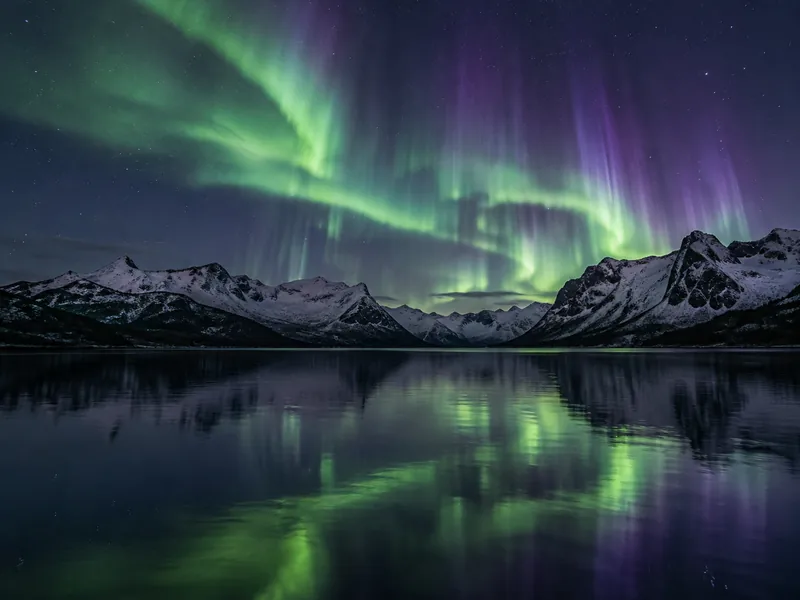
Green and violet northern lights over the horizon.
Three steps, no masking and no layers.
Choose an outdoor photo with some sky in it: a house, a street, a landscape, a travel shot, or a portrait. JPG, PNG, and WebP files up to 10 MB are supported.
Open Day Skies, Dusk & Night, or Mood and pick a sky. Want something specific? Describe it in the note, for example "soft pink clouds just after sunset".
The sky editor swaps the sky and relights the scene. Compare the result with your original, try another sky on the same photo, or animate it into a short clip.

Cutting out a sky by hand means fiddly masks around trees, wires, and hair. The AI sky editor finds the skyline on its own, keeps the edges clean, and blends the new sky into the horizon, so busy treelines and rooftops still look natural.
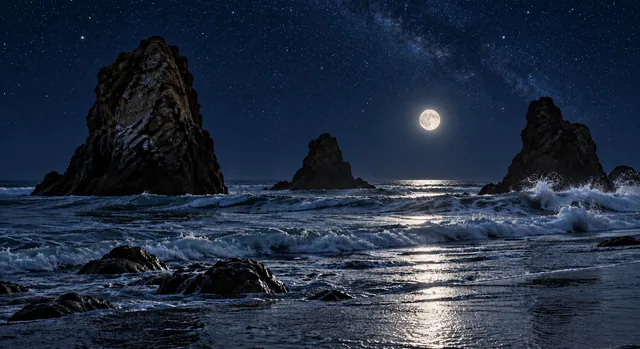
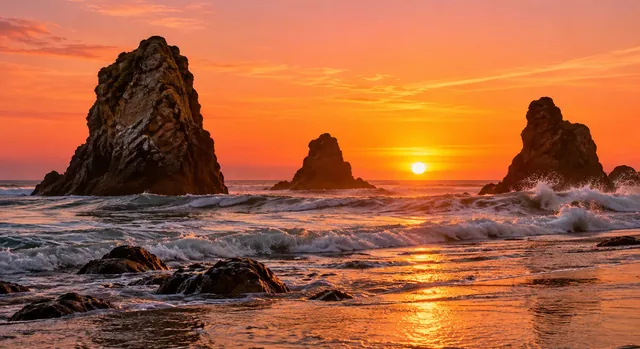
A real nighttime edit is more than darkening a photo. The AI swaps in a night sky full of stars, cools the light, adds a soft moonlit glow, and switches on lights that already exist, such as windows and street lamps. It is a photo night effect that still looks like a photograph, and the night sky AI presets go from a starry night to a full Milky Way.
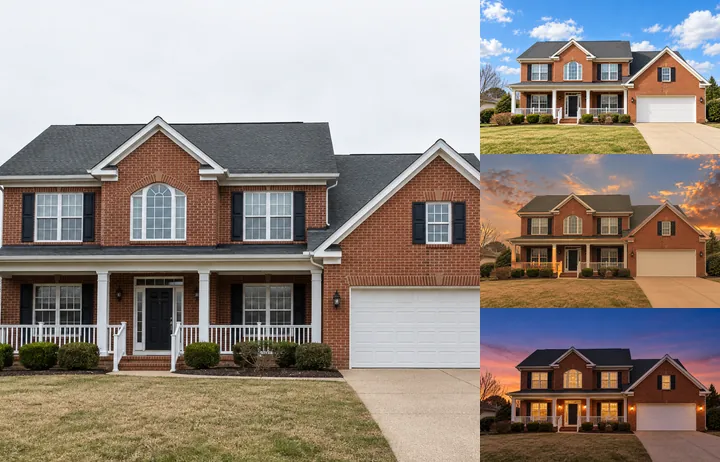
Twilight exteriors make listings stand out, but shooting one means waiting for a short window after sunset. The day to dusk preset turns a daytime exterior into a twilight shot: a blue-to-amber sky, warm light in every existing window and porch lamp, and evening light on the facade, while the building itself is not changed.
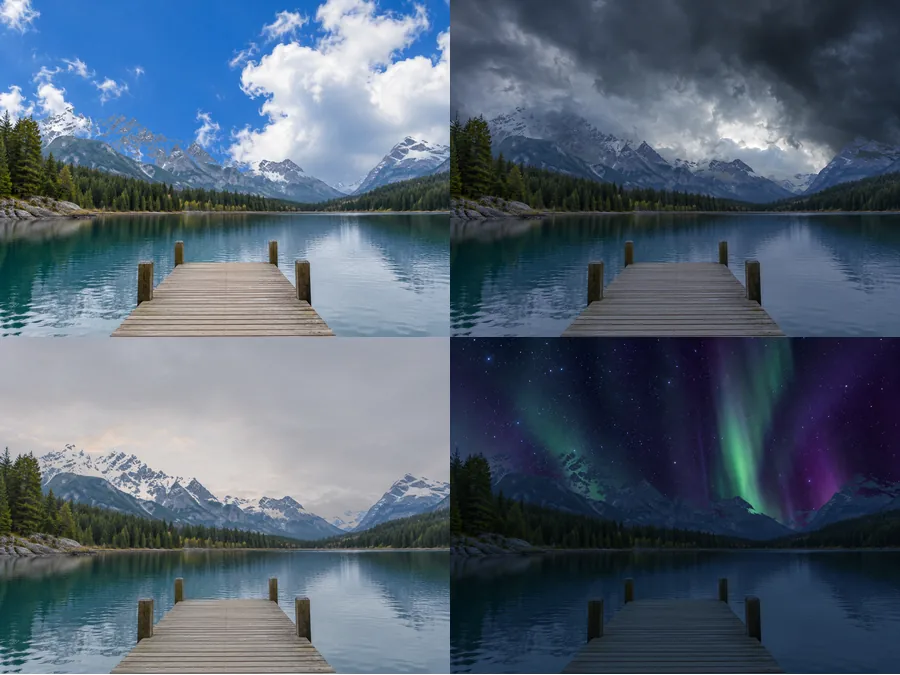
A plain white sky is the most common reason a photo feels flat. Instead of pasting a cloud overlay the way an add clouds to photo app does, the add clouds to photo AI presets build a whole sky, from soft cumulus to storm clouds, morning fog, a rainbow, or green northern lights, and adjust the light on the ground to the weather you picked.
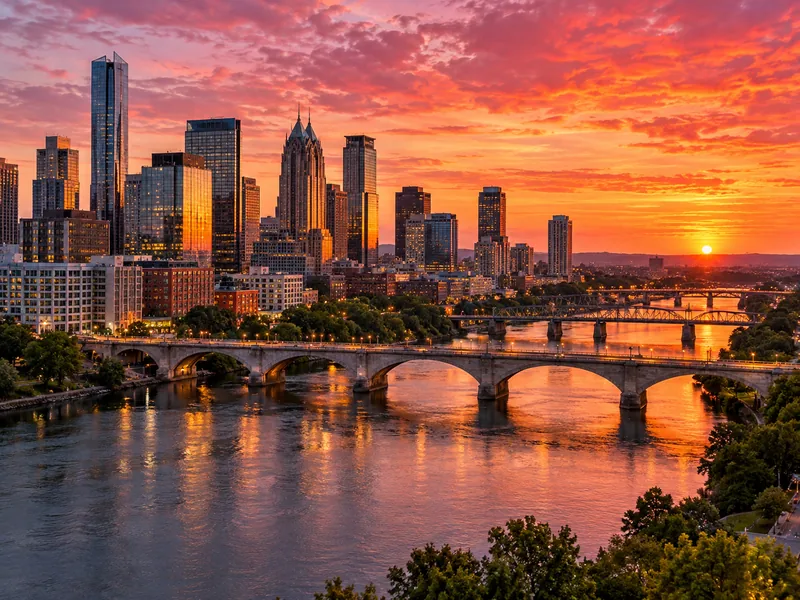
Swap gray skies for blue on exteriors, or make a twilight hero shot with day to dusk.
Rescue the landmark photo you took on the one cloudy day of the trip.
Add clouds, a sunset, or the Milky Way when the weather didn’t cooperate.
Give an outdoor portrait a golden-hour sky without moving the couple or the guests.
Make a scroll-stopping version of a photo with a pink sky, an aurora, or storm clouds.
Present a building or a garden under the sky and light that shows it best.
A few choices before you upload make the new sky blend in better.
Photos with a clear skyline give the AI room for clouds, stars, or a sunset.
Big light changes work best on simple scenes; for busy midday shots, start with a day sky.
A level horizon and sharp edges around rooftops and trees give the cleanest blend.
Use the note for specifics such as "keep the porch lights off" or "sun just above the hills".
Fix the light, change the season, finish a listing photo, or turn your new sky into a video.
Declutter rooms, brighten interiors, and stage empty spaces for a listing.
Edit a Listing PhotoBring out detail in shadows and highlights for a punchy landscape or interior.
Add an HDR EffectRelight a dark, flat, or backlit photo while keeping the sky you have.
Fix the LightingTurn the same scene into a winter landscape with falling and settled snow.
Add SnowCreate a brand-new landscape or scenery image from a text prompt.
Generate a LandscapePut a car under a new sky, in a studio, or on a mountain road.
Edit a Car PhotoTurn your new sky into a short clip with drifting clouds and camera motion.
Make a VideoDescribe any other change in plain words, from removing objects to new colors.
Open the Photo EditorReplacing skies, day to dusk, nighttime edits, real estate, video, and downloads.
Upload a photo, pick a sky from Day Skies, Dusk & Night, or Mood, and press Generate. The AI finds the sky, replaces it, and relights the scene to match, so there is no masking or layer work. Try a few skies on the same photo and keep your favorite.
It is free to try: you get free credits when you sign up, and each sky replacement uses the credits shown on the Generate button. It runs in your browser, so there is no add clouds to photo app or desktop software to install.
A day to dusk edit turns a photo taken in daylight into a twilight shot: the sky shifts to deep blue and warm amber, lights that already exist in the windows and outdoor lamps are switched on, and the facade gets soft evening light. Real estate photographers use it because a twilight exterior stands out in a listing and is hard to shoot on schedule.
Yes. Pick Starry Night or Milky Way for a nighttime edit. The AI swaps in a dark sky with stars, cools and lowers the light, adds a soft moonlit glow, and turns on existing lights such as windows and street lamps, so it looks like a photo taken at night rather than a darkened daytime one.
Pick Blue Sky with Clouds for soft white clouds, Dramatic Clouds for towering sunlit ones, or Storm Clouds for a moody look. Instead of laying a cloud overlay on top of your photo, the AI builds a full sky and adjusts the light on the ground to match the weather you picked.
Yes. Only the sky is replaced. Buildings, people, trees, cars, water, and everything in the foreground keep their shape and position, with nothing added or removed. What changes is their lighting and color, so they match the new sky.
Yes. Blue Sky with Clouds fixes gray-day exteriors and Day to Dusk makes a twilight hero shot, while the house itself is not edited. Check your local listing rules, since many markets ask agents to disclose virtually enhanced photos. For interiors, staging, and decluttering, use AI Real Estate Photo Editing.
Yes. When your new sky is ready, press Animate on the result, or open Image to Video, and describe the motion, for example "clouds drifting across the sky, slow push-in". You get a short timelapse-style clip of your scene. Each video is a separate generation.
Yes. The sky editor works in the browser on iPhone and Android phones, with nothing to install. Upload from your camera roll, pick a sky, and save the result to your phone.
You get a PNG in the same shape as your upload, at about 1K–2K pixels on the long side. For prints or large screens, enlarge it with the Image Upscaler afterwards.
Upload a photo with a dull sky, pick a sunset, a starry night, or day to dusk, and get the same scene with the light to match.