Autumn Forest to Snowy Trail
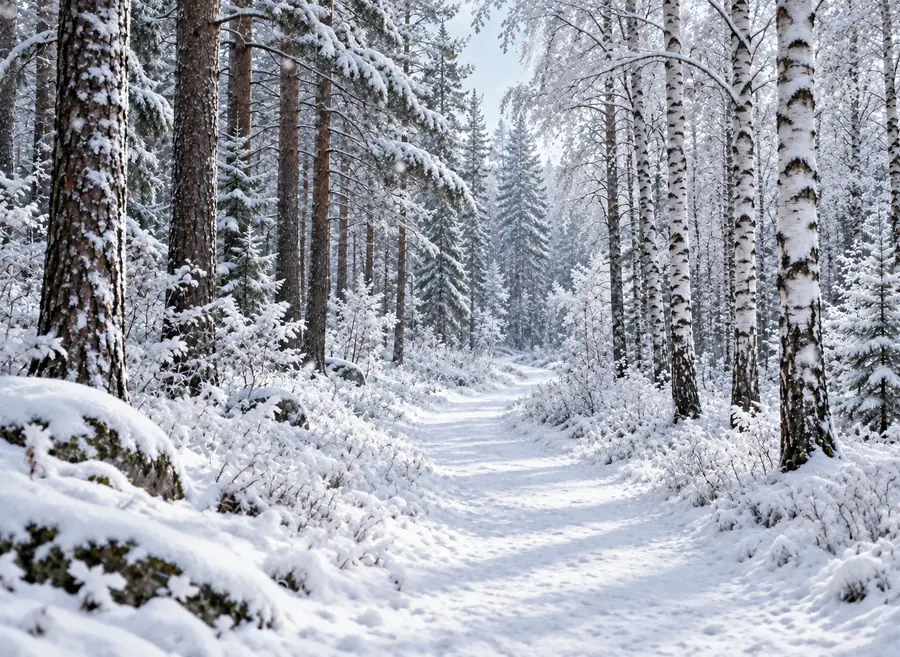
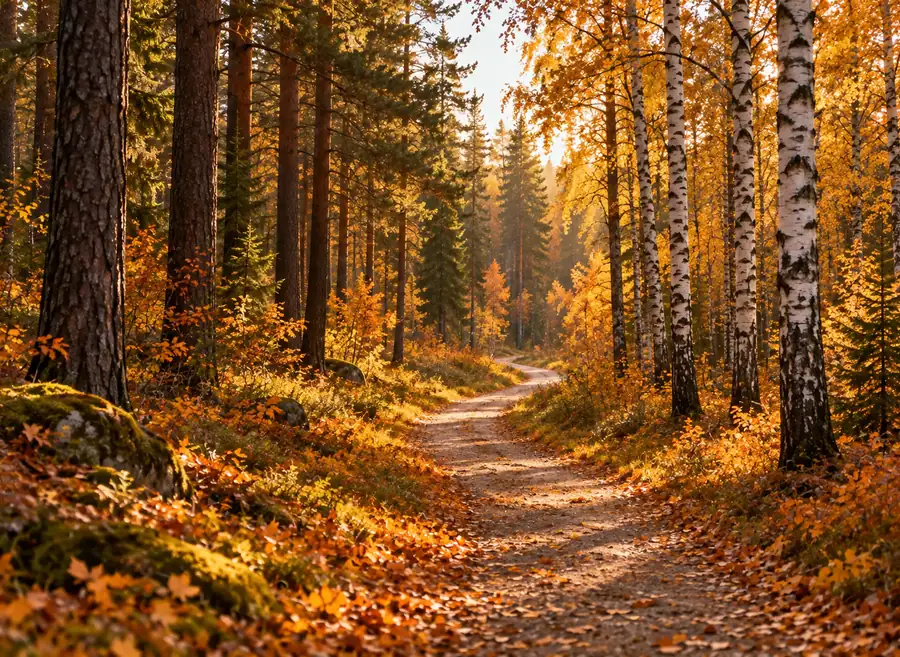
Golden leaves turn into a fresh snowfall. Snow sticks to the trail, the trunks, and the pine needles while the path keeps its shape.
Turn any season into winter. Upload a landscape, a house, a product shot, or a portrait, choose falling snow, a snow-covered scene, or a snowstorm, and the AI adds snow that follows the depth and light of your photo.
Snow looks
Fine-tune
Your photo stays in this browser during this UI preview.
Reference example. It is not a result generated from your upload.
Adding snow to a photo means turning an ordinary picture into a winter scene: snowflakes in the air, white on the ground, frost on branches and roofs. A classic snow filter just lays a pattern of white dots over the picture. This snow AI works differently: it reads the depth, surfaces, and light in your photo, so snow settles on ledges and leaves, falls in front of and behind your subject, and the colors cool down the way they do on a real winter day.
Use it as a snowfall editor for travel shots taken in summer, a snow editor for property and product photos before the holidays, or an AI winter photo maker for portraits. Choose how much snow on image you want, from a few flurries to a full blizzard, and compare it with your original.
Drag each image to compare the original with the snowy version.
Golden leaves turn into a fresh snowfall. Snow sticks to the trail, the trunks, and the pine needles while the path keeps its shape.
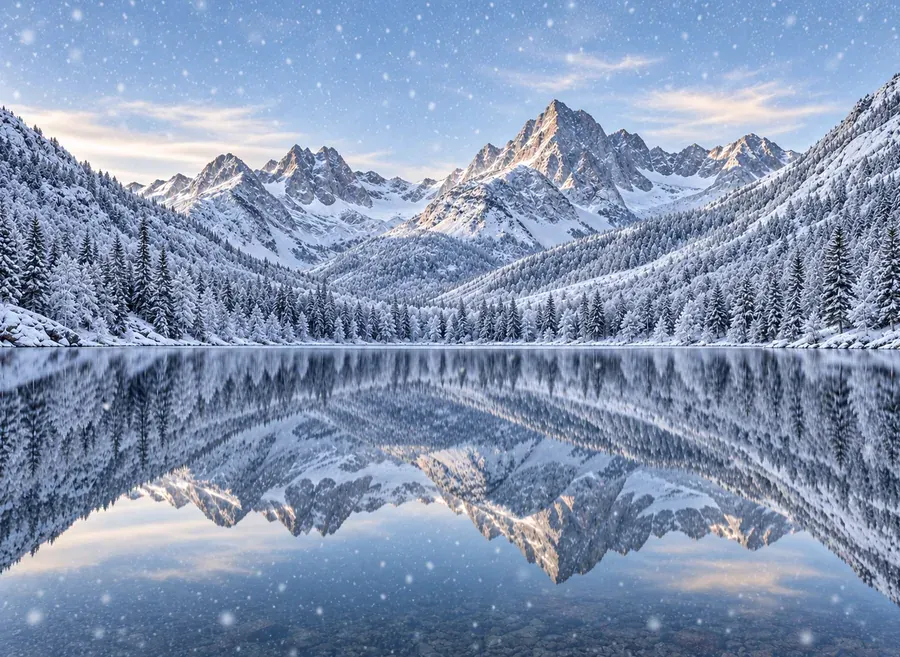
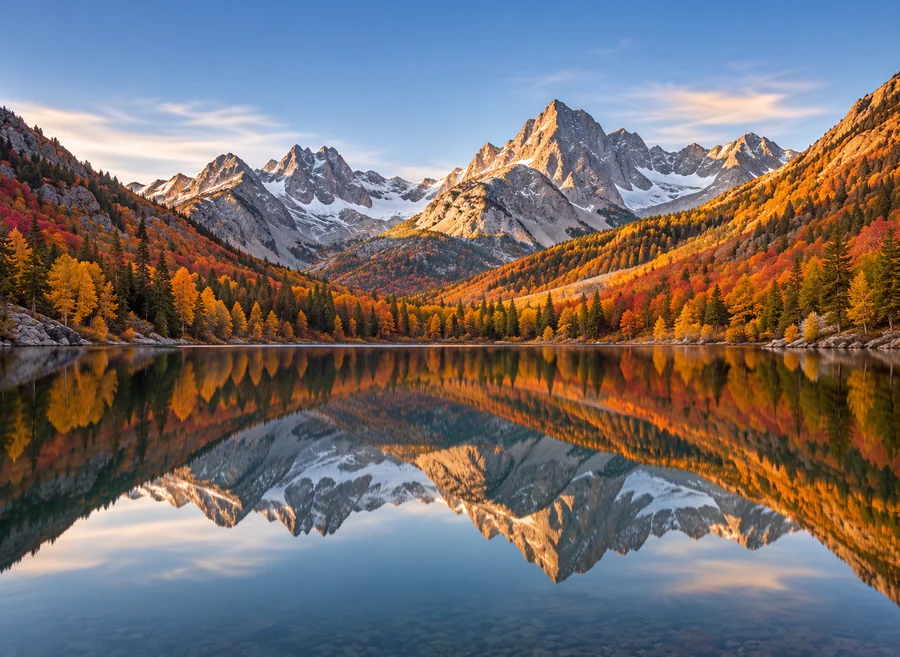
Dust the peaks and slopes with snow and add light flakes in the air. The reflection on the lake updates to match.
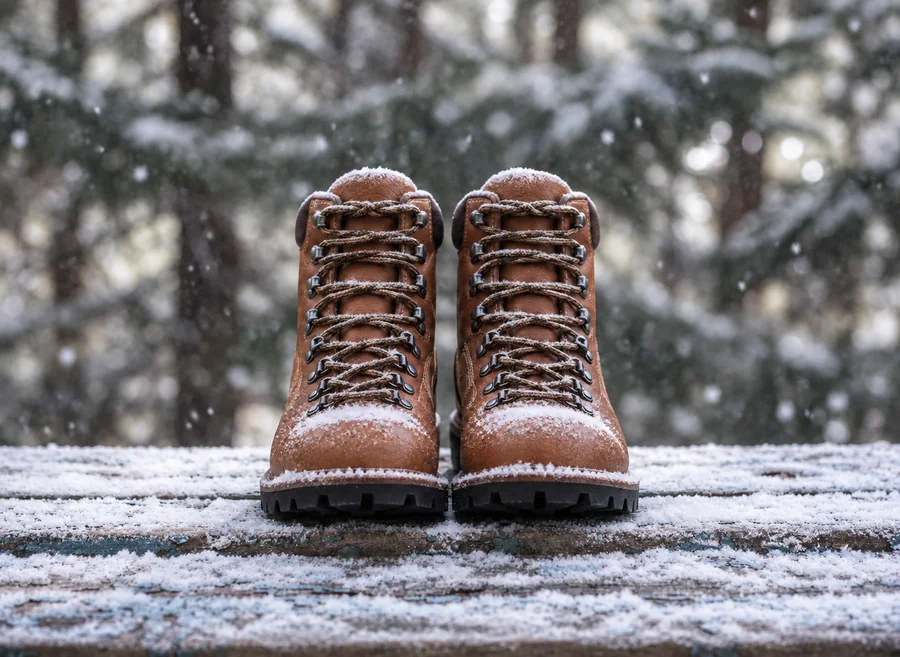
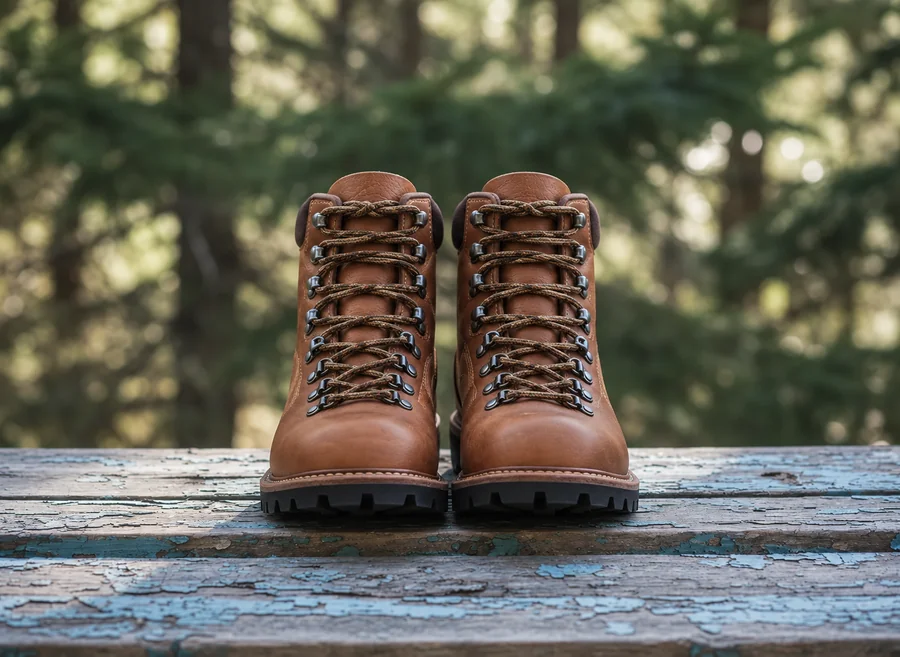
Add snowflakes to photo backdrops for a seasonal campaign. The product stays crisp; the snow lands around it and on the wooden surface.
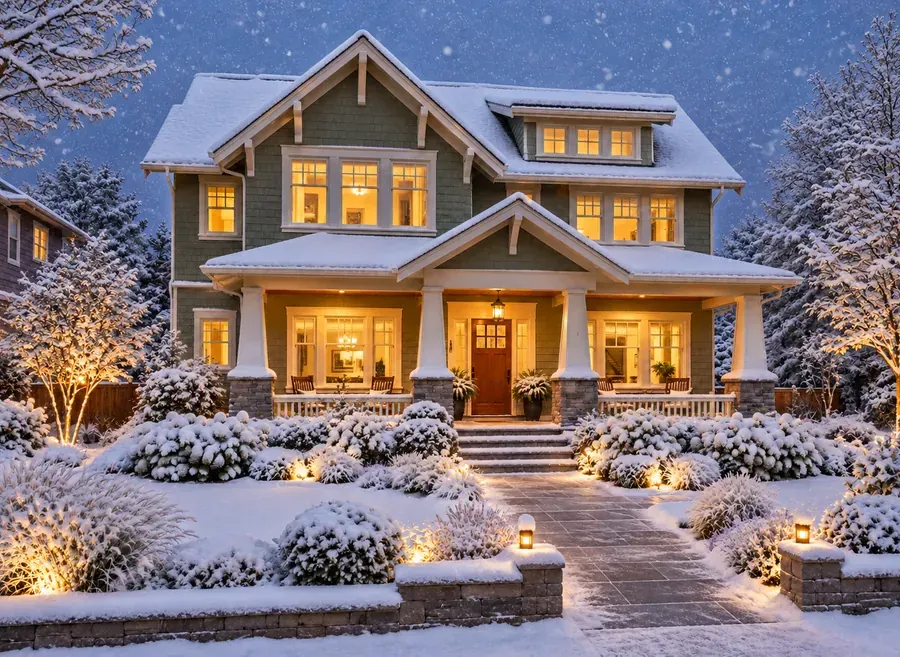
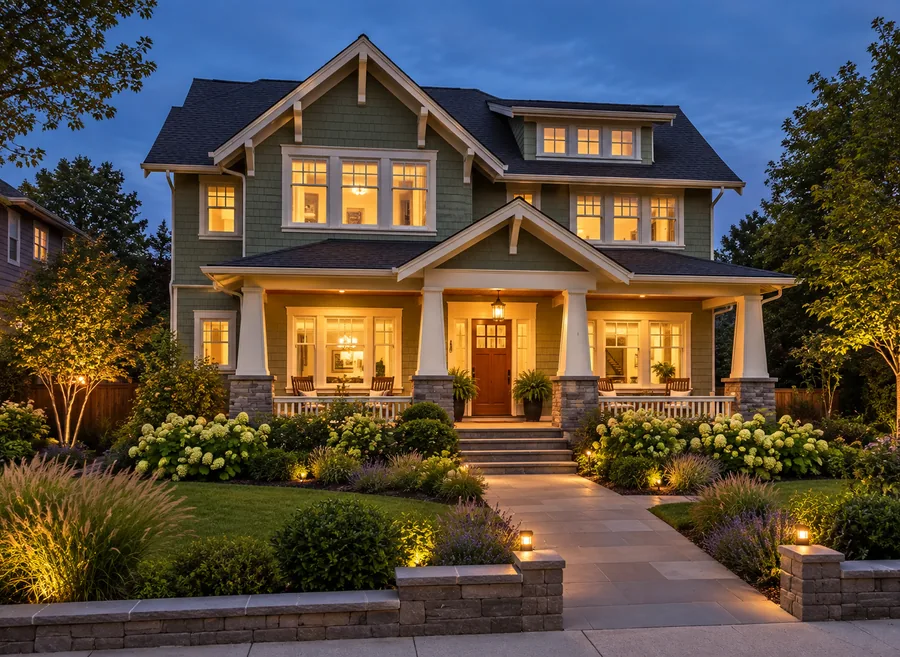
Show a home in a cozy winter setting: snow on the roof, the garden, and the walkway, with warm light still glowing in the windows.
Add snow to picture files in three steps, with no layers or brushes.
Choose a JPG, PNG, or WebP up to 10 MB. Landscapes, streets, buildings, product shots, and portraits all work.
Pick a look such as Gentle Flurries or Blizzard, or set the photo type, the snow effect, and the amount yourself. Add details in the text box if you like.
Generate the winter version, drag the slider to compare it with the original, and adjust the amount until it feels right.
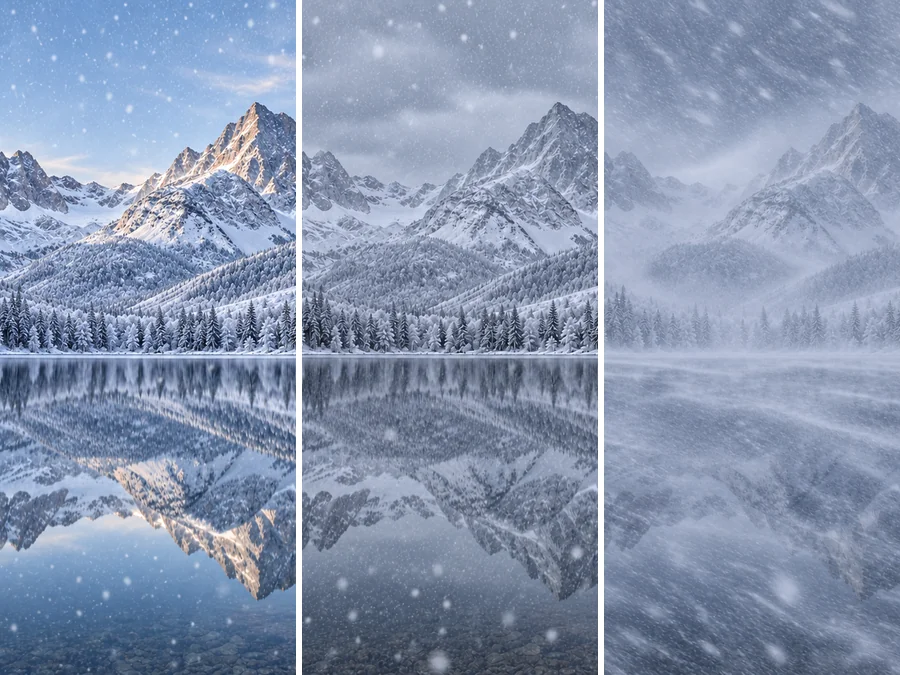
Not every winter photo needs a storm. Light adds a few drifting flakes, Medium gives a balanced snowfall, and Heavy creates a dramatic blizzard with dense, swirling snow, so you control exactly how wintry the picture feels.
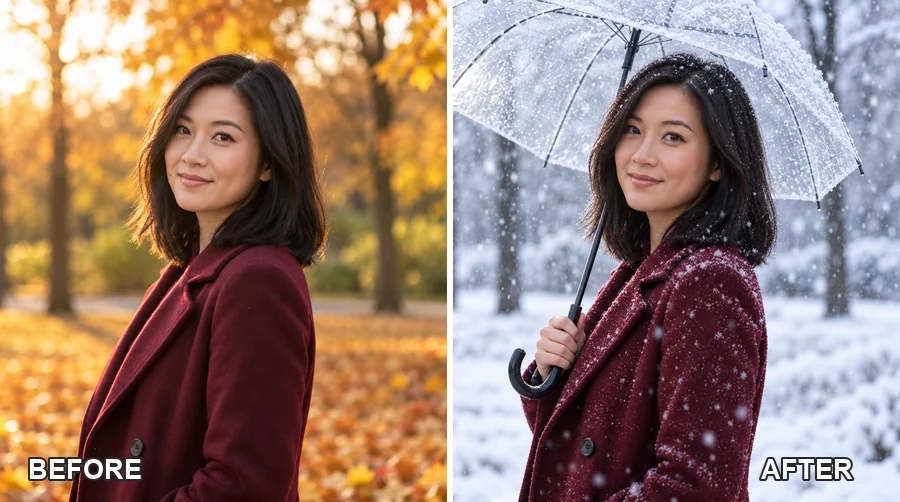
Choose People / Portrait and the snowfall AI keeps faces natural while it turns the background into winter, adds flakes in the air, and can add winter touches like a snowy umbrella or frosty light.
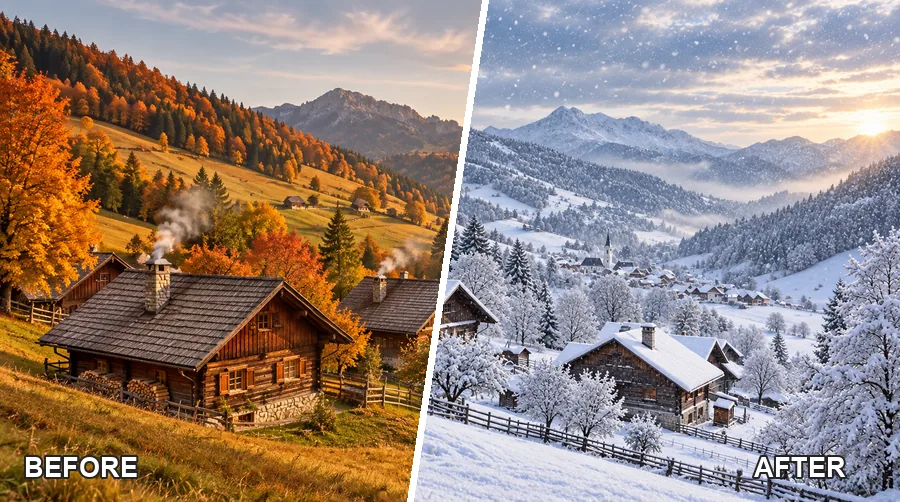
Distant hills get a soft haze, nearby roofs get thick snow, and flakes are larger in the foreground. Because the snow is generated into the scene, it looks like the photo was taken on a winter day, not like a snowfall filter laid on top.
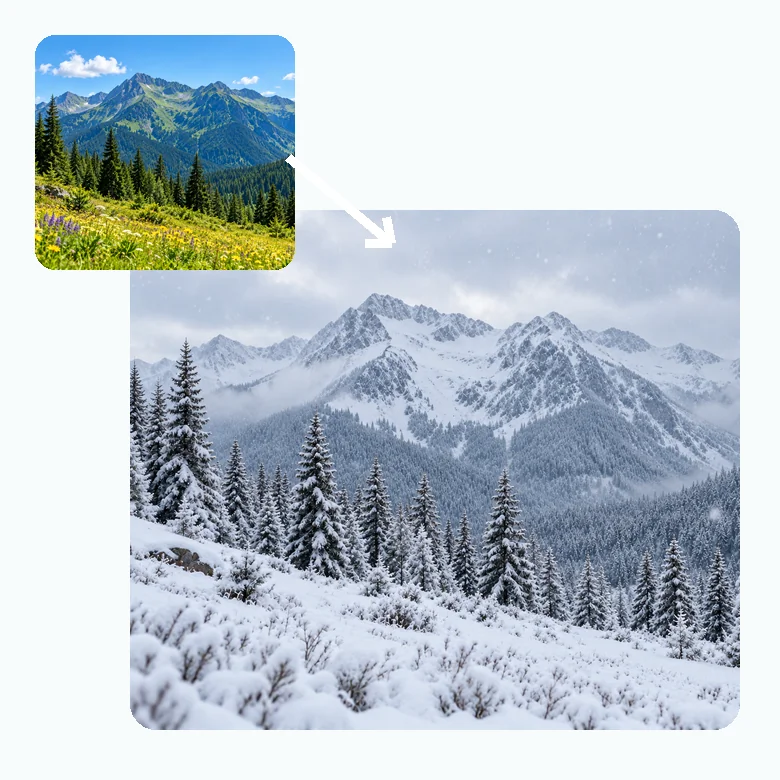
Travel and nature photographers can create a winter version of any place without waiting for the season. Green meadows become snowfields and mountains get a fresh white cap.
From the AI snow trend on social media to seasonal business content.
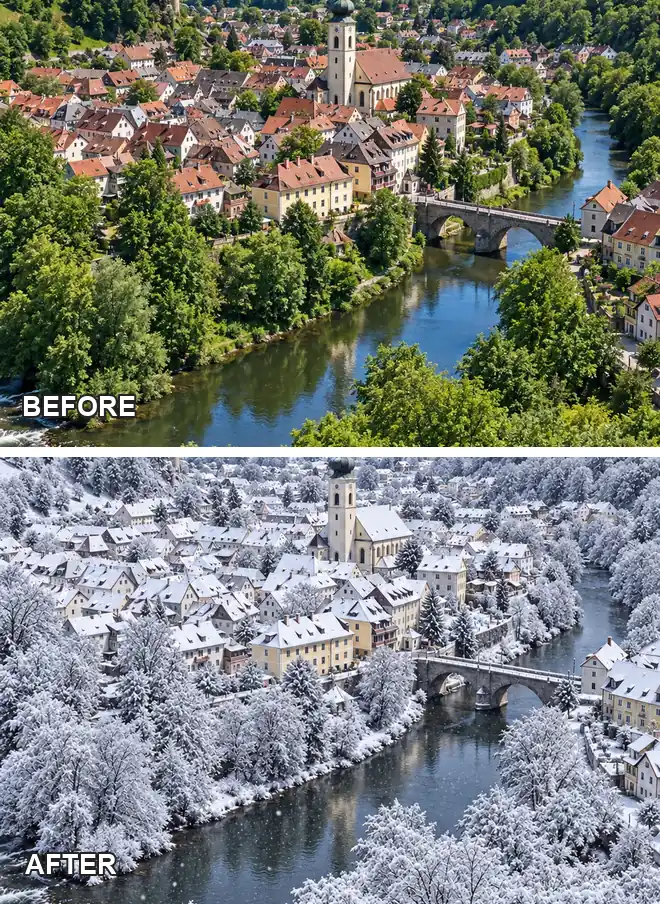
Join the AI winter trend with a snowy version of a summer selfie or a then-and-now post of your favorite view.
Show how a property looks in winter, or keep seasonal listings consistent when the photos were taken months ago.
Give product shots, banners, and newsletters a winter backdrop for seasonal campaigns without a new shoot.
Turn a favorite trip photo into a winter greeting card or a cozy wallpaper for the colder months.
A few choices that make the winter AI result believable.
Roofs, trees, fields, and paths give snow places to settle. Very tight close-ups have less room for it.
Overcast or evening photos turn into convincing winter scenes; harsh midday sun can look less natural with heavy snow.
Use Light for portraits and products so the subject stays clear; save Heavy for landscapes and dramatic shots.
Ask for specifics such as "snow only on the ground" or "large flakes near the camera" in the text box.
Typical winter edits made from photos taken in other seasons.
Illustrative examples adapted from reference material, not verified reviews of EzImgMaker.
I shoot most of my mountain photos in autumn. A light snowfall version gave my winter newsletter a fresh cover without another trip.
Our listing photos were from July but the house went on the market in December. The snowy exterior felt much more inviting.
We added snow around our boots for the holiday campaign. The product stayed sharp and the snow on the wood looked real.
I turned an autumn portrait into a snowy one for my profile picture. Medium snow kept my face clear and the background looked magical.
Answers to common questions about adding snow and winter effects to pictures.
Upload your photo, choose a snow look or set the photo type, effect, and amount, then generate. The AI adds snowfall and snow cover that match the scene, and you can compare the result with the original using the slider.
Choose Falling Snow with a Light or Medium amount, and select People / Portrait or Product so the subject stays clear. You can also write "keep the face clear of snowflakes" or "flakes only in the background" in the text box.
A snow filter overlays the same flakes on every photo. AI snow is generated for your specific picture: it settles on surfaces, appears at different depths, and shifts the colors and light toward winter, so the result looks like a real winter photo.
Yes. Choose People / Portrait or the Snowy Portrait look. The AI keeps faces natural and focuses the snowfall on the background and the air around the person.
Yes. Light adds a gentle dusting and a few flakes, Medium gives a balanced snowfall, and Heavy creates a snowstorm. Snow-Covered focuses on snow on the ground and objects, while Frost & Fog adds a cold, misty winter look.
The AI snow trend, also called the AI winter trend, is sharing a snowy winter version of an everyday photo, often next to the original. Upload any photo, add snow, and post the before-and-after.
No. There is no snow app filter to install; the editor runs in your browser on phone and desktop, so you can add snow to photo files from your camera roll directly.
Outdoor scenes with roofs, trees, ground, or roads work best, as do product shots on a surface. Sharp, well-exposed photos give the AI more detail to work with. JPG, PNG, and WebP files up to 10 MB are supported.
You can use them for seasonal visuals, but be transparent where it matters: in property listings or product pages, do not use added snow to hide defects or misrepresent conditions. Only upload photos you have the right to edit.
Upload a picture, choose the snow, and see your photo as a winter scene.