Add Your Images
Drop a folder’s worth of photos onto the bulk picture resizer, paste them, or click to select up to 100 files (40 MB each). Each image shows its size and a thumbnail; click any one to preview it.
Drop in up to 100 JPG, PNG, WebP, or HEIC photos and resize them all with one setting: a width, height, longest side, percent, or an exact size with crop or white padding. Keep each format or convert to JPG, PNG, or WebP, then download everything as one ZIP. It all runs in your browser.
Popular bulk presets
Resize settings
Height: automatic
Every image becomes 1080 px wide; each height follows the photo's own shape.
Output
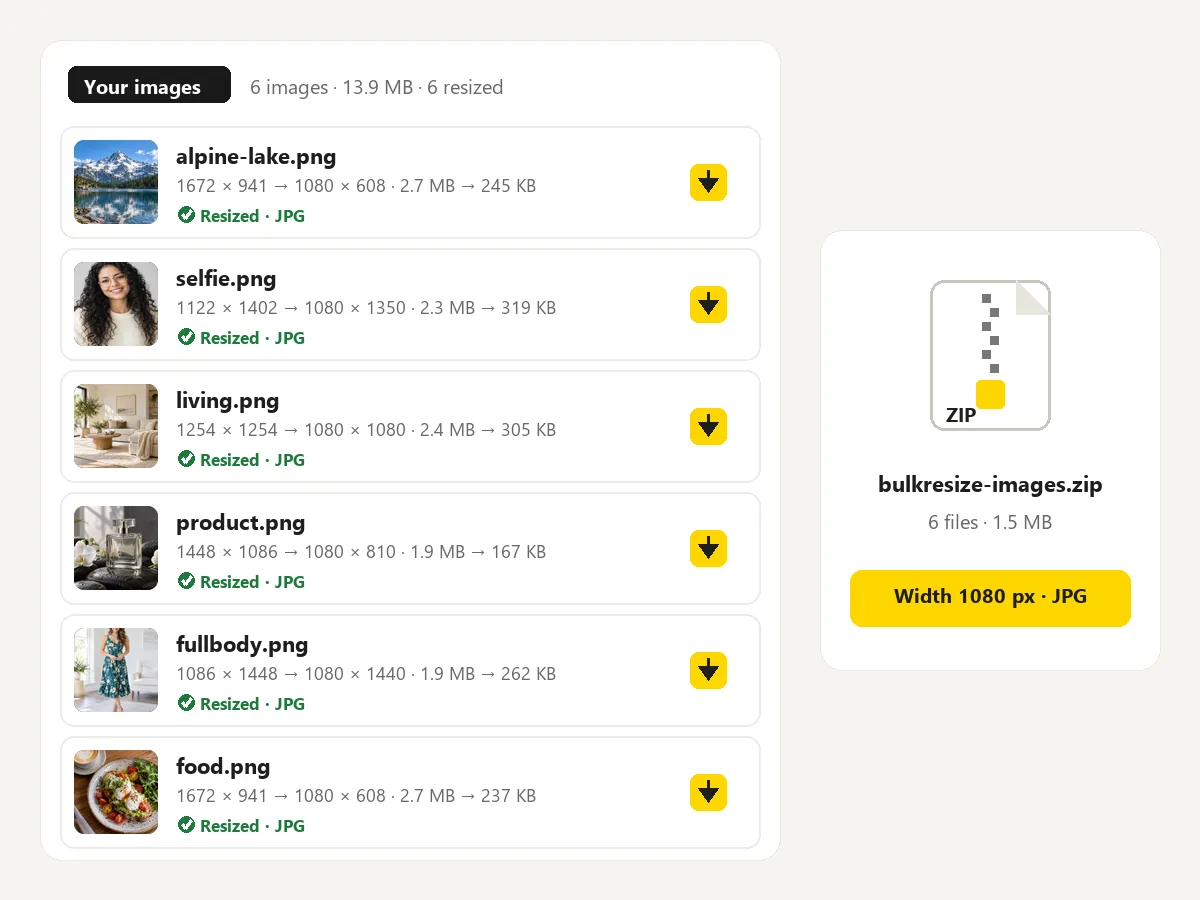
Reference example. It is not a result generated from your upload.
A bulk image resizer (also called a batch photo resizer or mass photo resizer) changes the size of many pictures in one pass instead of one at a time. You choose a single rule, such as 1080 px wide, a longest side of 1600 px, 50%, or an exact 2048 × 2048 square, and every photo in the batch follows it. It is how online stores prepare product photos, how bloggers keep pages fast, and how anyone shrinks a folder of phone pictures before emailing or uploading them.
This bulk photo resizer does it in your browser. Add up to 100 JPG, PNG, WebP, GIF, BMP, or HEIC images, preview the result, then resize in bulk and download a single ZIP. Photos are processed on your own device one after another, so nothing is uploaded, there is nothing to install, and it is free with no sign-up. It also works as a bulk image cropper and bulk crop tool: pick an exact size with Crop to fill to crop bulk images to the same shape.
Resize multiple images at once: batch resize photos in three steps, from a handful to a full folder.
Drop a folder’s worth of photos onto the bulk picture resizer, paste them, or click to select up to 100 files (40 MB each). Each image shows its size and a thumbnail; click any one to preview it.
Pick a preset or set Width, Height, Longest side, Percent, or Exact size. For an exact size, choose Fit with padding, Crop to fill (bulk crop), or Stretch. Then keep each file’s format or convert them all to JPG, PNG, or WebP.
Press Resize & Download ZIP. A progress bar shows each image as it is done, and the batch arrives as one ZIP, bulkresize-images.zip, with names like photo-resized.jpg. Single files can be downloaded from the list too.
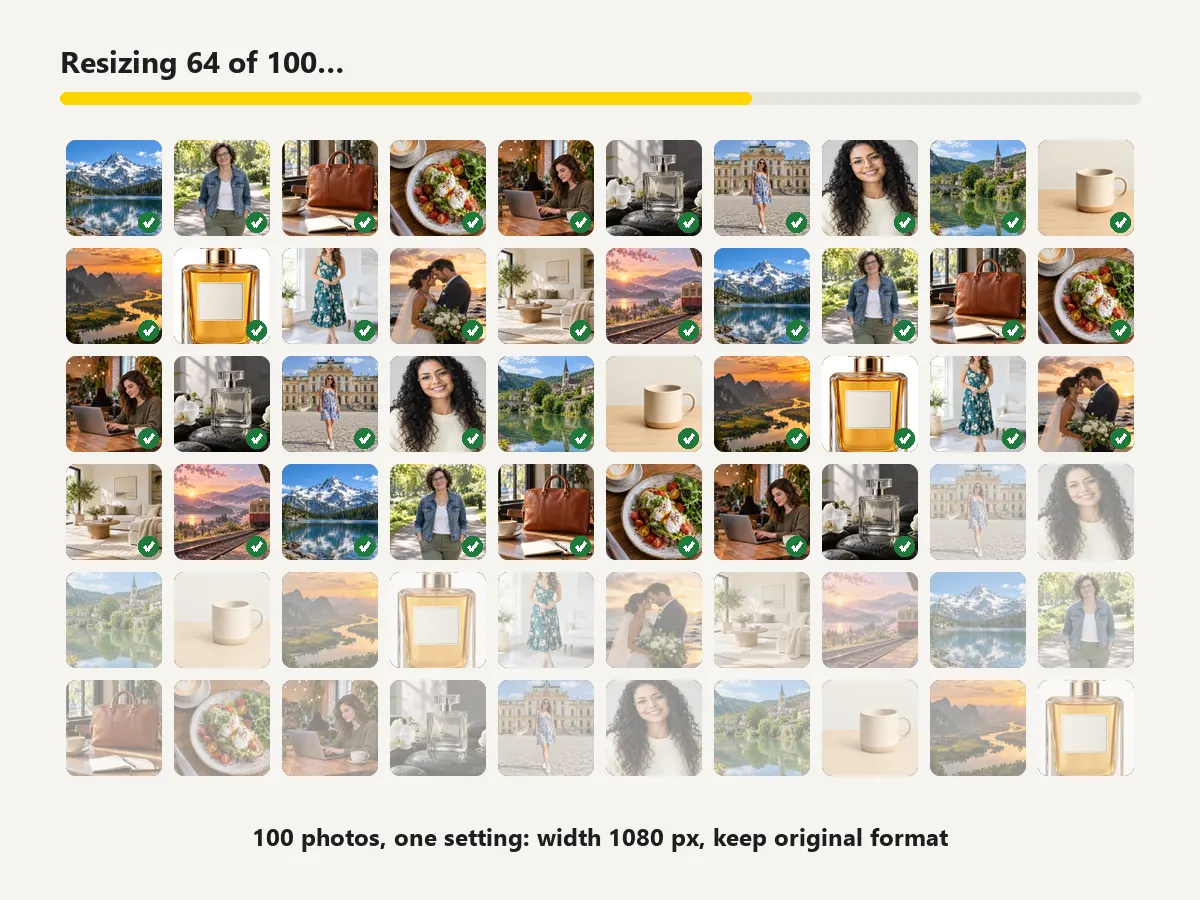
Bulk resizing of photos used to mean desktop software. Here you mass resize images without repeating yourself: add up to 100 photos, set the size once, and the queue works through them on your device, one at a time so even phones keep up. Press again without changing anything and finished images are reused, not resized twice.
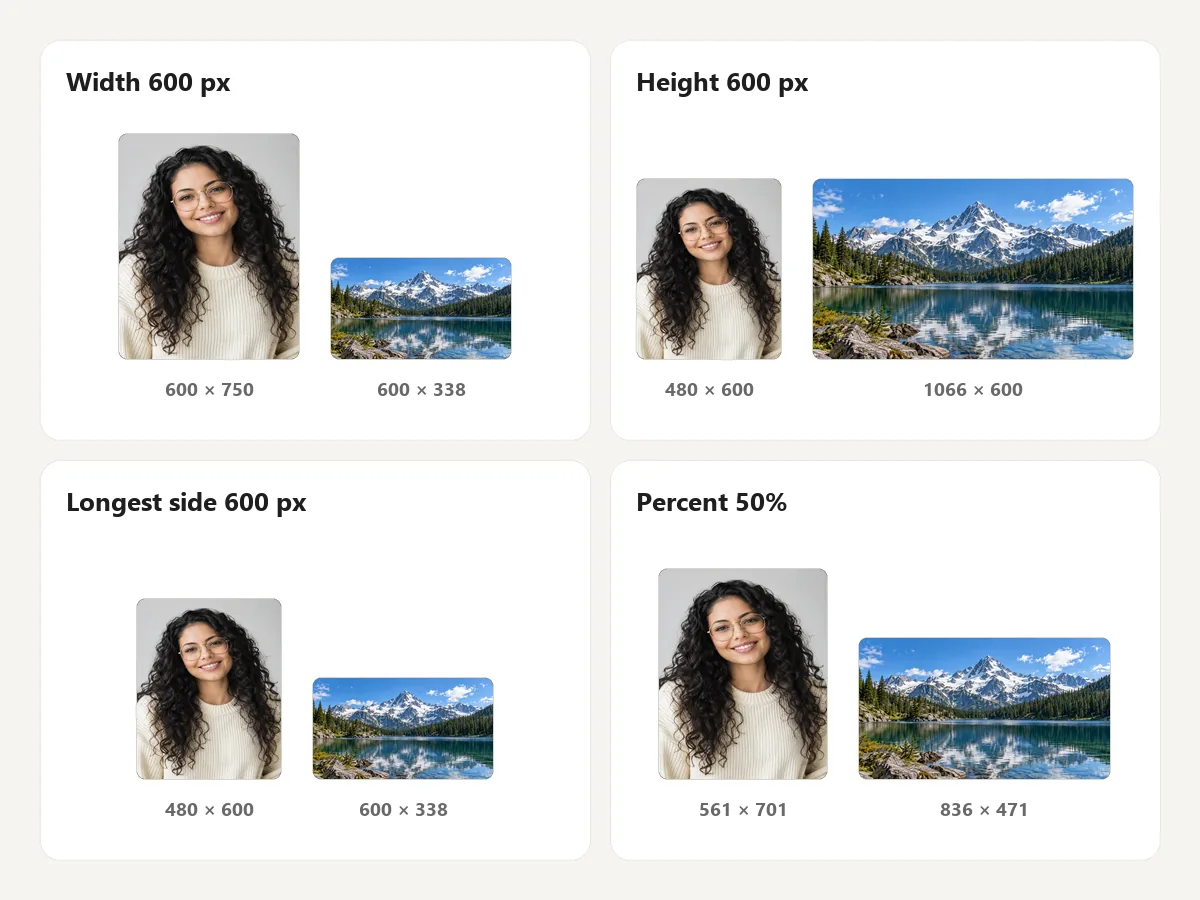
One multiple image resizer, five rules. Set a width and the height follows each photo’s shape, or the reverse. Longest side resizes portrait and landscape shots to the same maximum, 50% halves everything, and Exact size makes every image identical with padding or a crop. Turn on Don’t enlarge to leave small images as they are.
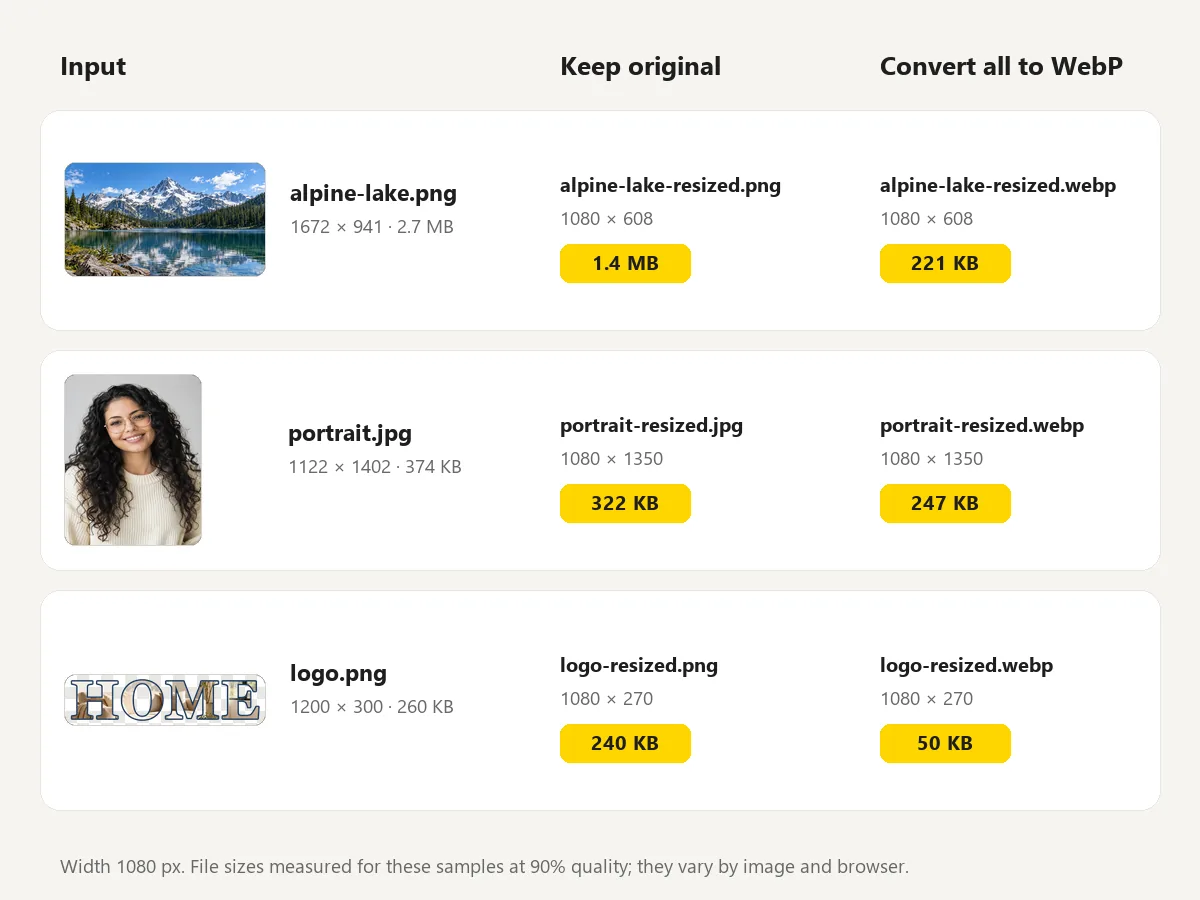
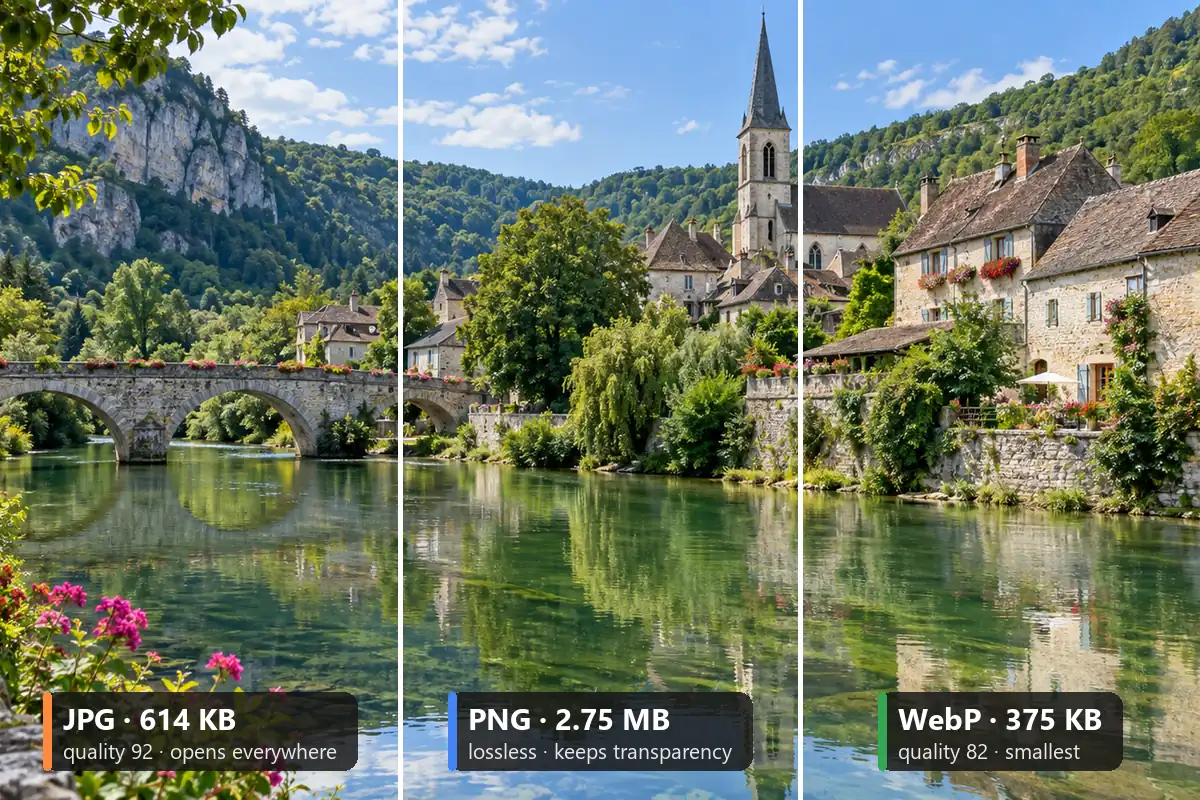
One image batch resize can mix formats. Keep original saves JPG as JPG, PNG as PNG, and WebP as WebP, and turns HEIC into JPG. Or convert the whole batch: JPG for small photo files, PNG for lossless graphics with transparency, WebP for the lightest web images. A quality slider sets the JPG and WebP compression.
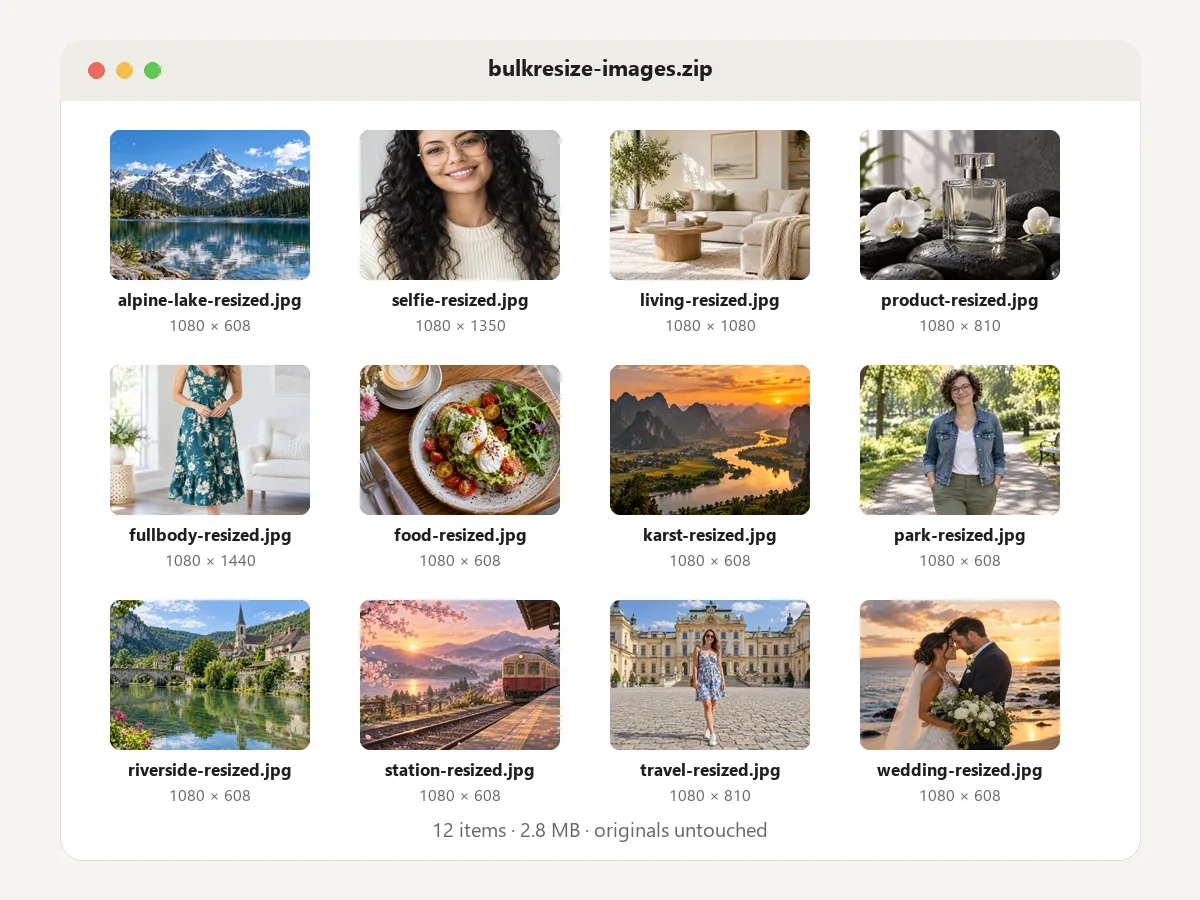
With the image resizer bulk download, one click saves the whole batch as a ZIP with clear names (photo-resized.jpg, duplicates numbered), so nothing overwrites your originals. Need just one? Every row has its own download button. Camera data such as GPS location is not copied into the new files.
Batch crop images or pad them: real outputs of the exact-size presets, applied to the same mixed set of photos.
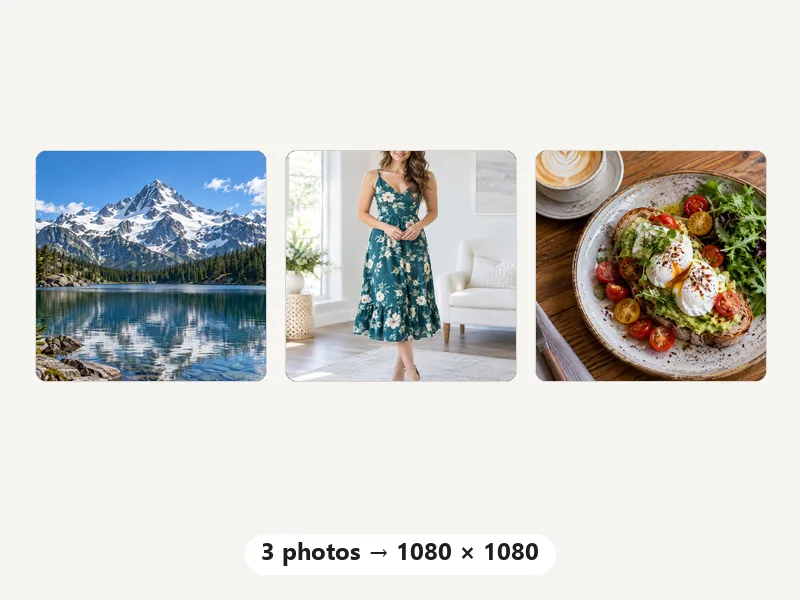
Mass crop images for grids and profile feeds.
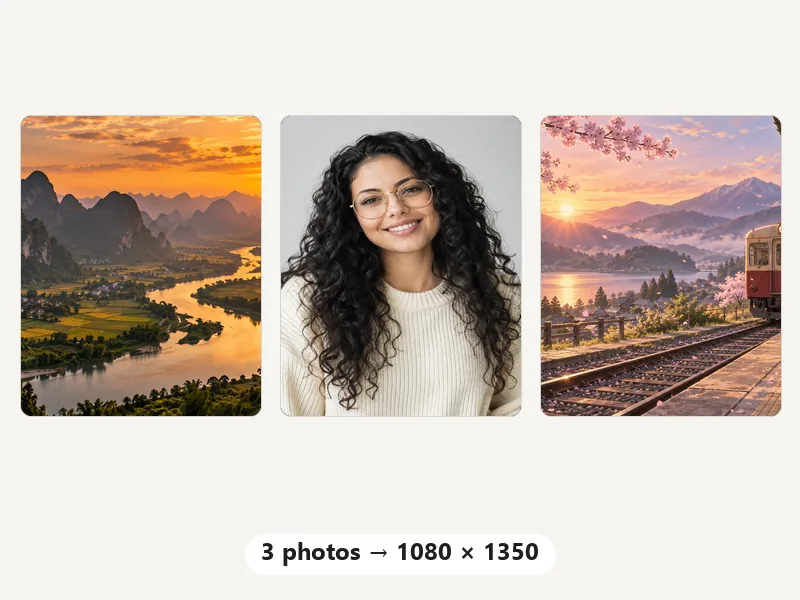
Batch crop pictures to 4:5 for feed posts.
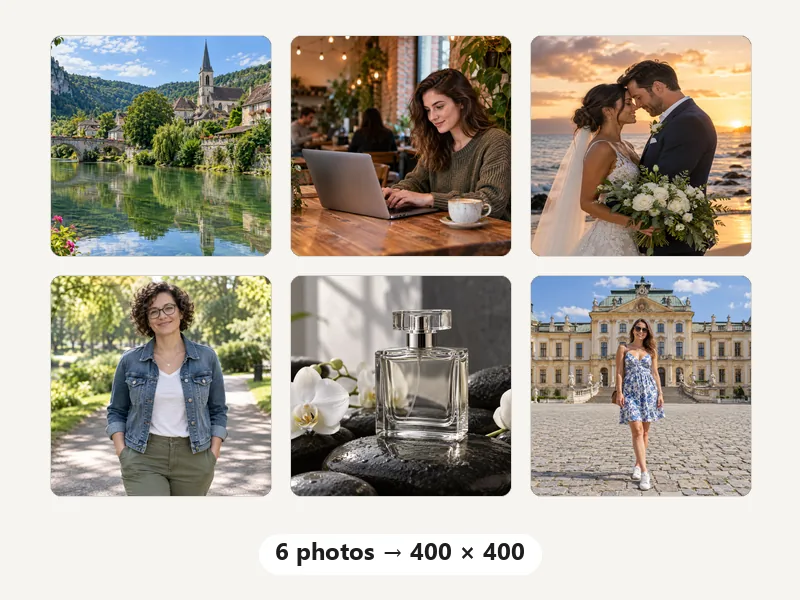
Multiple crop for catalogs and galleries.
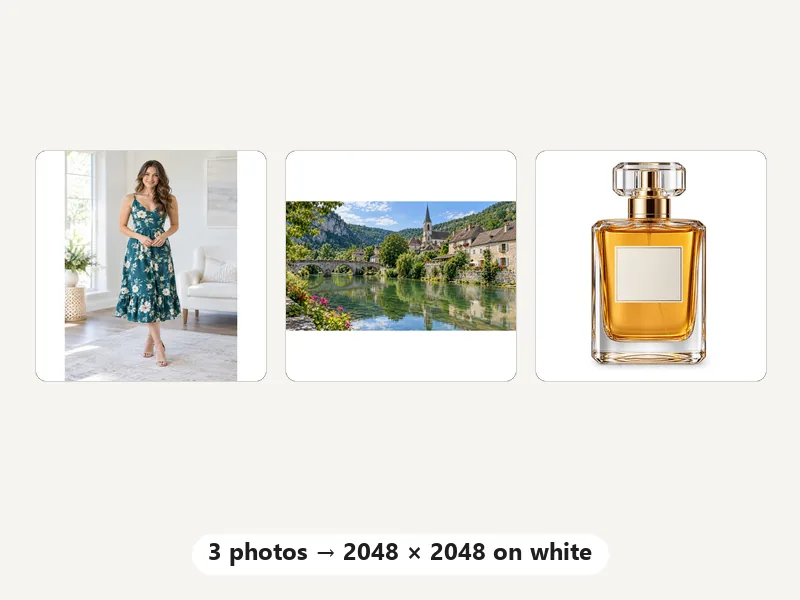
No crop at all: the whole photo, same square.
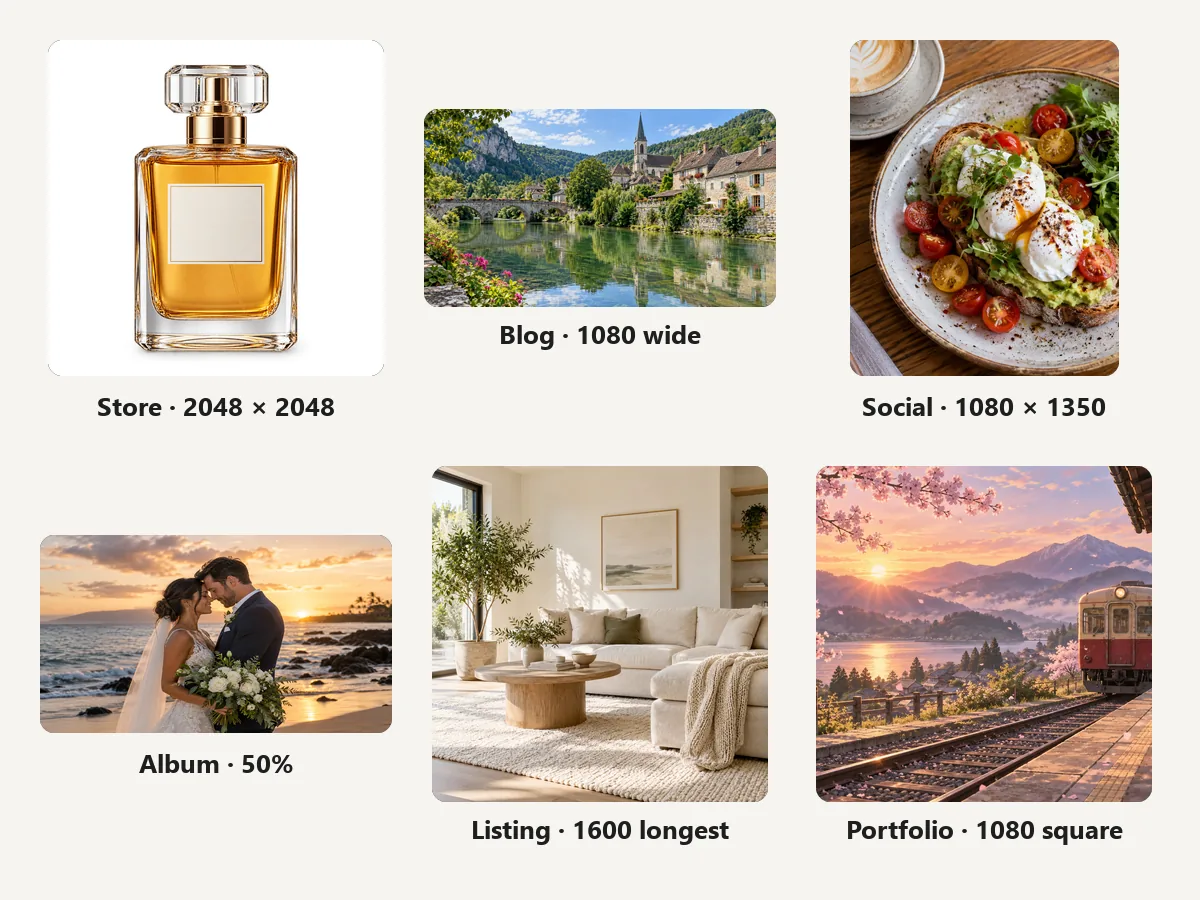
What each one-click preset of this batch picture resizer does, and where it fits.
| Preset | Setting | Good for |
|---|---|---|
| 1080 px wide | Width 1080, height follows each photo | Social posts, blogs, newsletters |
| Full HD 1920 px wide | Width 1920, height follows | Website banners, slides, screens |
| Longest side 1600 px | Longest edge 1600, portrait or landscape | Albums, real estate listings, email |
| 50% | Half the width and height | Shrinking phone photos (4032 × 3024 → 2016 × 1512) |
| Instagram 1080×1350 | Exact size, crop to fill | Portrait feed posts |
| Square crop 1080×1080 | Exact size, crop to fill | Square posts and grids |
| Product 2048×2048 on white | Exact size, whole photo with white padding | Shopify and marketplace listings |
| Thumbnails 400×400 | Exact size, crop to fill | Catalog and gallery thumbnails |
Every preset can be adjusted afterwards: change the numbers, crop position, padding color, or output format before you press Resize.
Anyone with more photos than patience for one-by-one editing.
Turn a new collection into matching 2048 × 2048 product images on white in one batch.
Bulk resize images online to 1080 or 1920 px wide so pages load fast without visible quality loss.
Batch crop photos to 1080 × 1350 or 1080 × 1080 for a week of posts at once.
Resize batch photos from a trip by 50% before emailing them or uploading them to a shared album.
Batch resize pictures of every room to a 1600 px longest side so listing sites accept them and show them evenly.
Give every project image the same width, or bulk crop photos to one square, so the portfolio grid looks deliberate.
Get a consistent batch on the first try.
Width mode makes portrait photos very tall. Longest side caps both shapes at the same size, so the batch looks even.
Tick Don’t enlarge so small images stay sharp instead of being stretched; for real enlargement use the Image Upscaler.
JPG for photos, PNG for logos and transparency, WebP for the smallest web files. Keep original is the safe default for any image resize bulk job.
Click a few rows to preview the crop or padding on different shapes, then run the whole batch.
Resize transparent PNGs by pixels or percent and keep the background clear.
Open toolCompress photos to a target KB without changing their pixel size.
Open toolConvert JPG, PNG, WebP, and more between formats in your browser.
Open toolFree to try: a batch AI photo editor that removes backgrounds from many photos at once.
Open toolEvery Shopify size from one product photo, padded on white so cards line up.
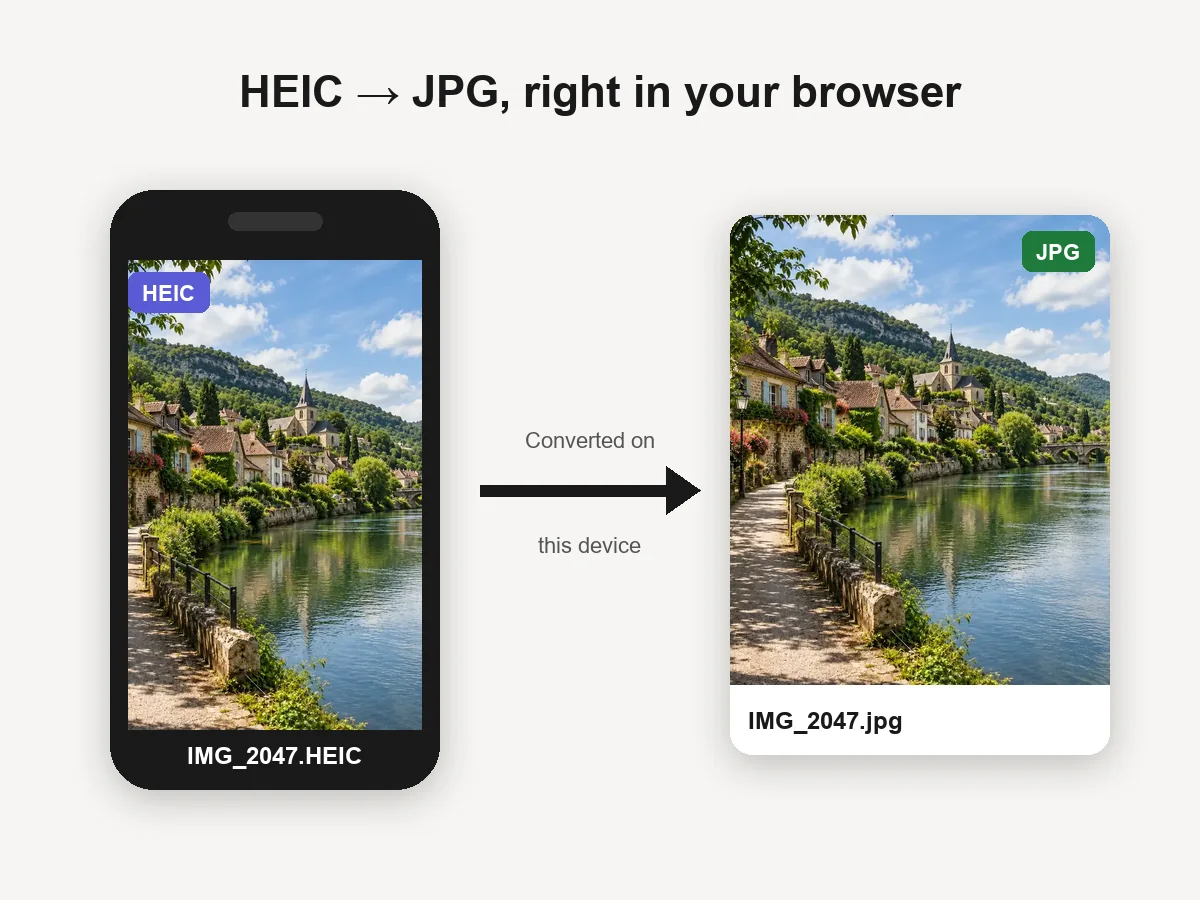
Open toolBatch convert iPhone HEIC photos to JPG or PNG without resizing them.
Open toolLimits, formats, quality, and privacy.
Add all the photos above (drag a selection or click to pick several), choose one rule such as 1080 px wide or Longest side 1600 px, and press Resize & Download ZIP. Every image gets the same rule and the batch downloads as one ZIP. Use it as an image resizer in bulk for whole folders or for a single photo.
The image resizer batch limit is 100 images, each up to 40 MB. When a batch is done, clear the list and start the next one. Processing runs one image at a time on your device, so very large photos take a little longer on older phones.
Yes. It is a free bulk image resizer, and a free mass image resizer for big folders too, with no sign-up, no watermark, and no app to install. Because the work happens in your browser, it does not use credits.
No. Every photo is decoded, resized, and zipped inside your browser tab and never leaves your device. The resized files also leave out camera data such as GPS location.
Yes. Width, Height, Longest side, and Percent always keep each photo’s own aspect ratio. Exact size makes every image the same shape; choose Fit with padding to keep the whole photo, Crop to fill to bulk crop it, or lock the ratio to the selected image.
Yes. Batch resize image files and convert them in the same pass: keep original, or save the whole batch as JPG, PNG, or WebP. HEIC photos are saved as JPG when you keep the original format, since browsers cannot write HEIC.
Making photos smaller keeps them sharp; large reductions are done in smooth halving steps. Quality changes only if you enlarge (pixels are stretched) or pick a low JPG / WebP quality. The default 90% is hard to tell from the original.
Yes. This image bulk resizer works in Safari or Chrome on iPhone or Android: tap Add Images, select photos from your library (HEIC included), and the ZIP saves to Files or Downloads.
Press Resize & Download ZIP: when the progress bar finishes, one ZIP with every resized image downloads. A batch of one downloads as a single file, and each row also has its own download button.
For most pages, 1080 to 1920 px wide is plenty: 1080 for blog and social images, 1920 for full-width banners. Use Longest side 1600 for mixed orientations, save as JPG or WebP at around 80–90% quality, and compress further with Reduce Image Size if needed.
Run an image resizer batch free of charge: add up to 100 photos, pick one size, and download them all as a ZIP.