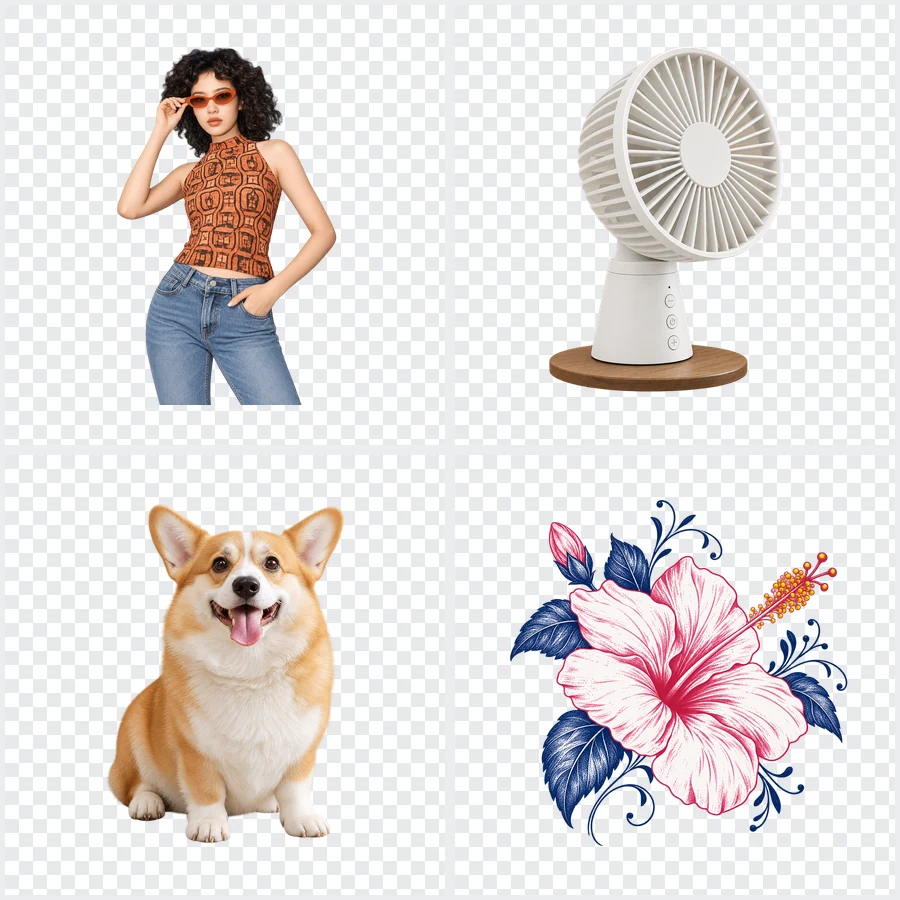
Upload a Product Photo
Add a JPG, PNG, or WebP up to 20 MB. Photos on a white or plain background, and transparent cut-outs, give the cleanest padded squares. Nothing is uploaded.
Make every product photo the same shape: a 2048 × 2048 square on white (or any color) with nothing cropped off, plus 1600 × 2000 portrait products, 1024 × 1024 collection images, 1800 × 1000 slideshow and blog images, a 2800 × 1000 wide banner, a 450 × 250 logo, and a 32 × 32 favicon. Download one size or all of them.
One-click Shopify sizes
Fine-tune
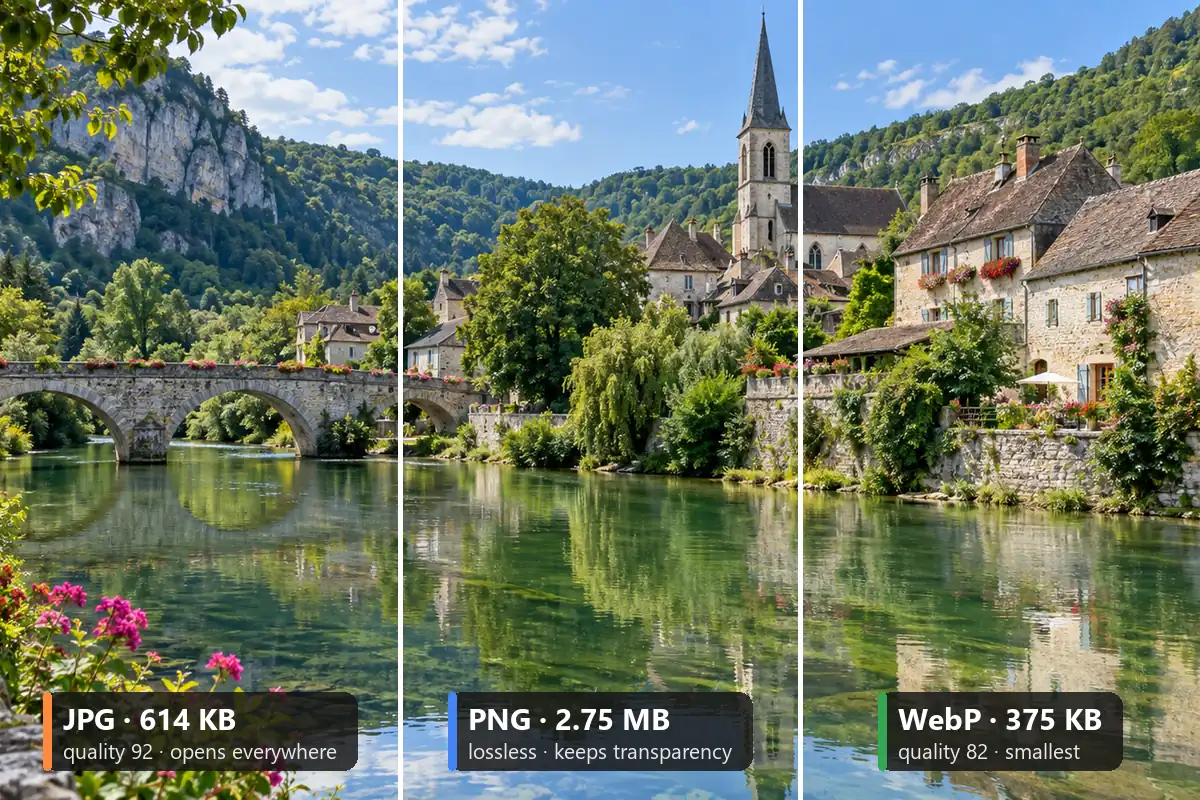
Reference example. It is not a result generated from your upload.
Shopify recommends 2048 × 2048 pixels for square product images, which stay sharp when shoppers zoom and on large screens. Shopify accepts images up to 20 MB (as of 2026), so size is rarely the problem; shape is. When one photo is tall, the next wide, and the third square, your collection grid and product cards come out ragged, with uneven gaps and cropped tops.
This Shopify image resizer fixes that in your browser. It fits each photo into the same square (or 4:5 portrait) with white padding instead of cutting off the product, or crops banners and blog images to fill. One upload handles every image resize Shopify stores need: product, collection, slideshow, wide banner, blog, logo, and favicon. Think of it as a Shopify online image resizer that opens in any browser. It is free, needs no account, and no Shopify image resizer app has to be installed in your store.
Shopify image dimensions for each slot; most banner sizes depend on your theme, so these are the common starting points.
| Image | Size (px) | Ratio | Notes |
|---|---|---|---|
| Product image (square) | 2048 × 2048 | 1:1 | Shopify’s recommended square size; zoom stays sharp |
| Portrait product image | 1600 × 2000 | 4:5 | Fashion and tall items; set the theme ratio to Portrait |
| Collection image | 1024 × 1024 | 1:1 | Collection cards and lists |
| Slideshow / hero banner | 1800 × 1000 | 9:5 | Common theme size; keep text in the center |
| Wide banner | 2800 × 1000 | 2.8:1 | Full-width image banners on large screens |
| Blog post image | 1800 × 1000 | 9:5 | Article header and blog cards |
| Logo | 450 × 250 | 9:5 | PNG; themes set the display width |
| Favicon | 32 × 32 | 1:1 | Browser tab icon from the theme settings |
| File size limit | Up to 20 MB | — | JPG, PNG, WebP and other formats are accepted |
Product size and file limit as listed in Shopify’s help pages as of October 2026; banner, blog, and logo sizes vary by theme, so check the hints in your theme editor.
A Shopify resize images workflow in three steps: resize image for Shopify product pages, collections, and banners.
Add a JPG, PNG, or WebP up to 20 MB. Photos on a white or plain background, and transparent cut-outs, give the cleanest padded squares. Nothing is uploaded.
Choose Product 2048×2048 on white, Portrait product, Collection, Slideshow, Wide banner, Blog, Logo, Favicon, or a custom size. Keep Fit with padding for products; switch to Crop to fill for banners, then drag to frame.
Save JPG for photos, PNG for logos, or WebP for small files. In the Shopify admin, open the product and drop the file into Media. Download All Shopify Sizes saves every preset at once.
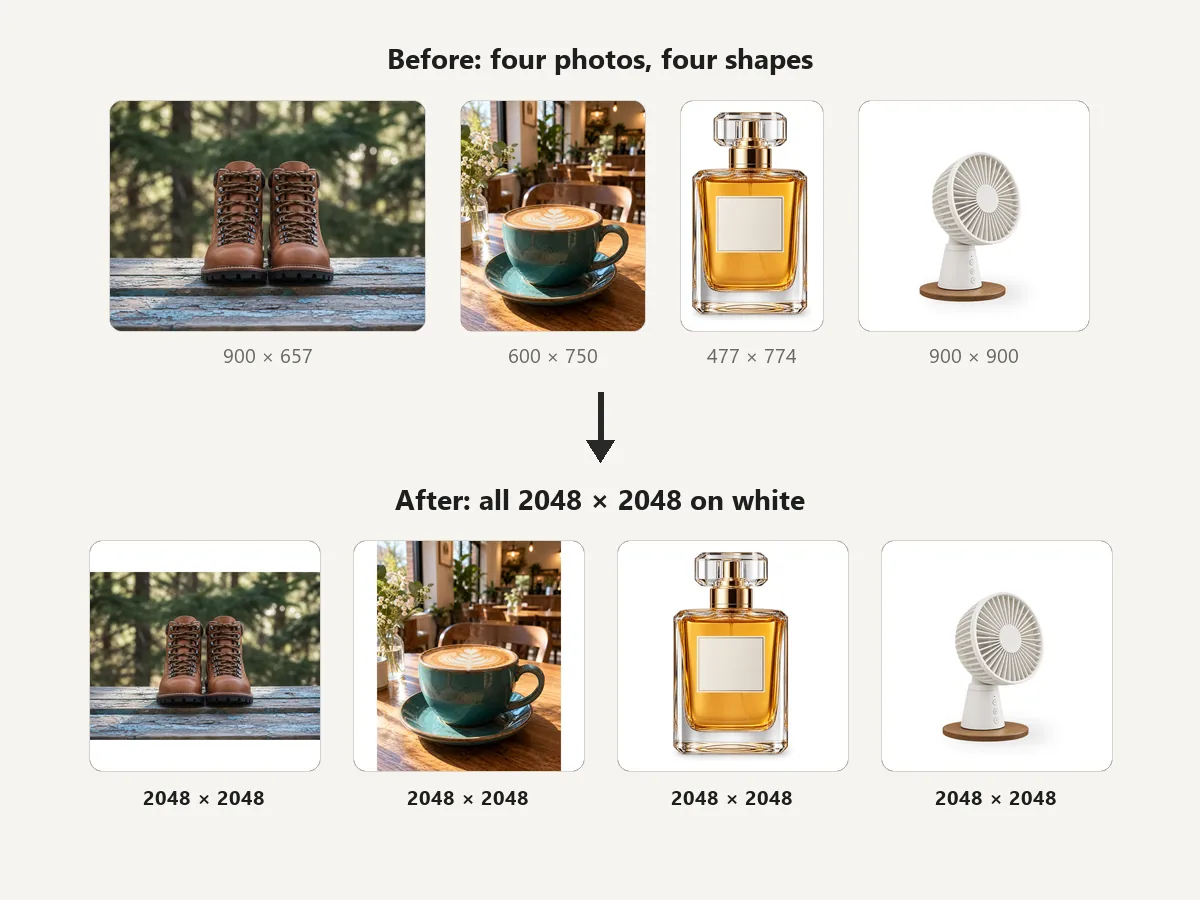
Shopify themes show product cards in a grid, and mixed shapes make it look unfinished. Run each photo through the same preset (2048 × 2048 square or 1600 × 2000 portrait) and every card lines up, with the product centered at the same size. It is the quickest way to resize Shopify images bought from different suppliers.
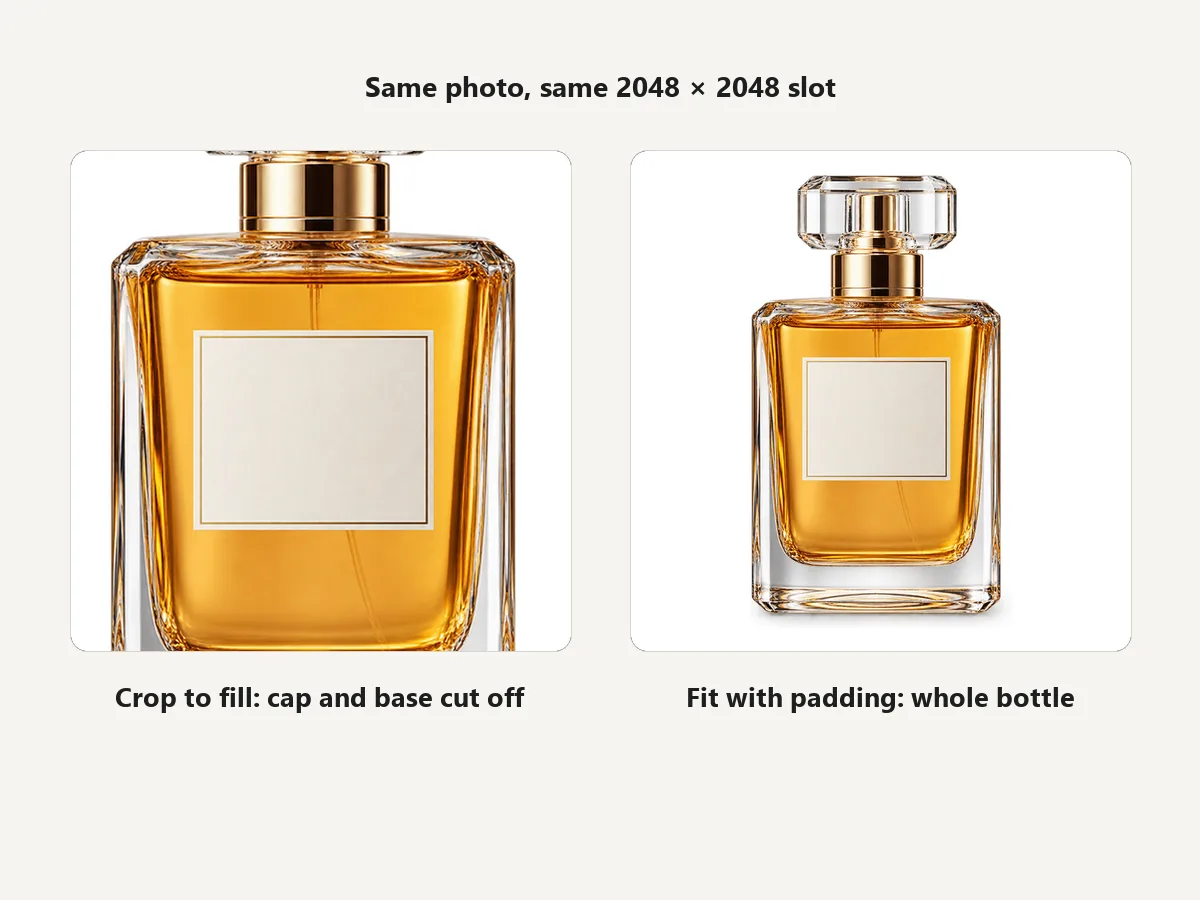
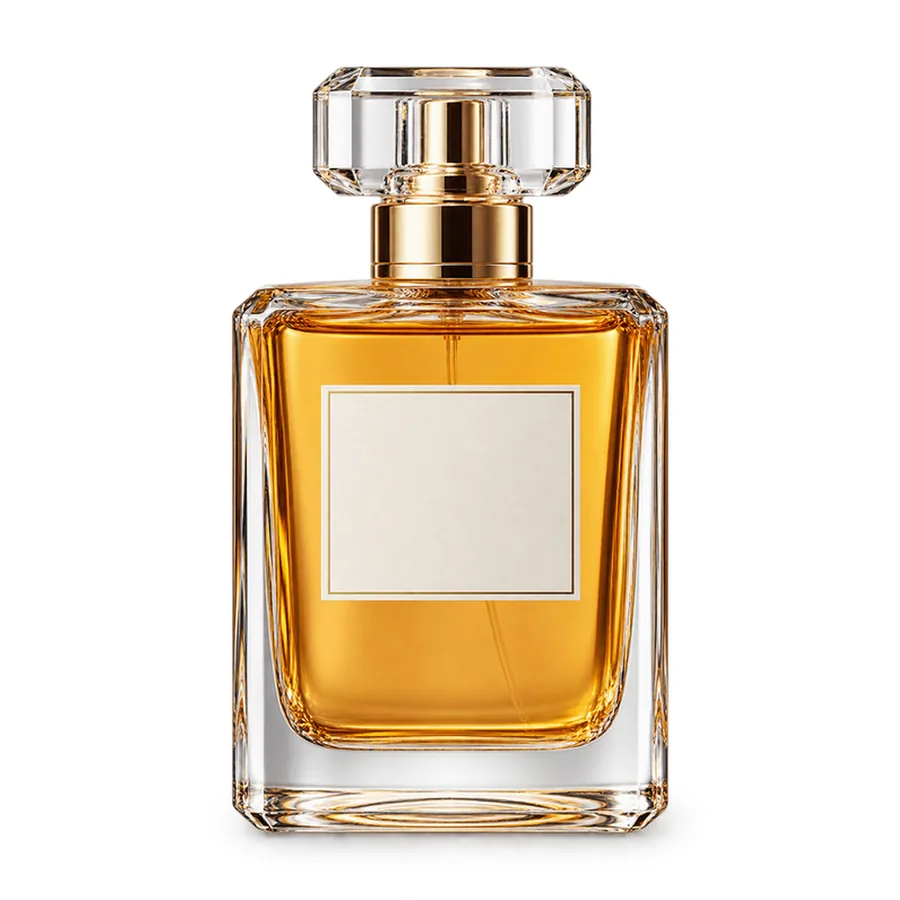
Cropping a tall bottle to a square cuts off the cap or the base. Fit with padding keeps the whole product and adds white, light gray, beige, blue, or black space around it. Zoom in a little to trim margins evenly; nothing is ever stretched.
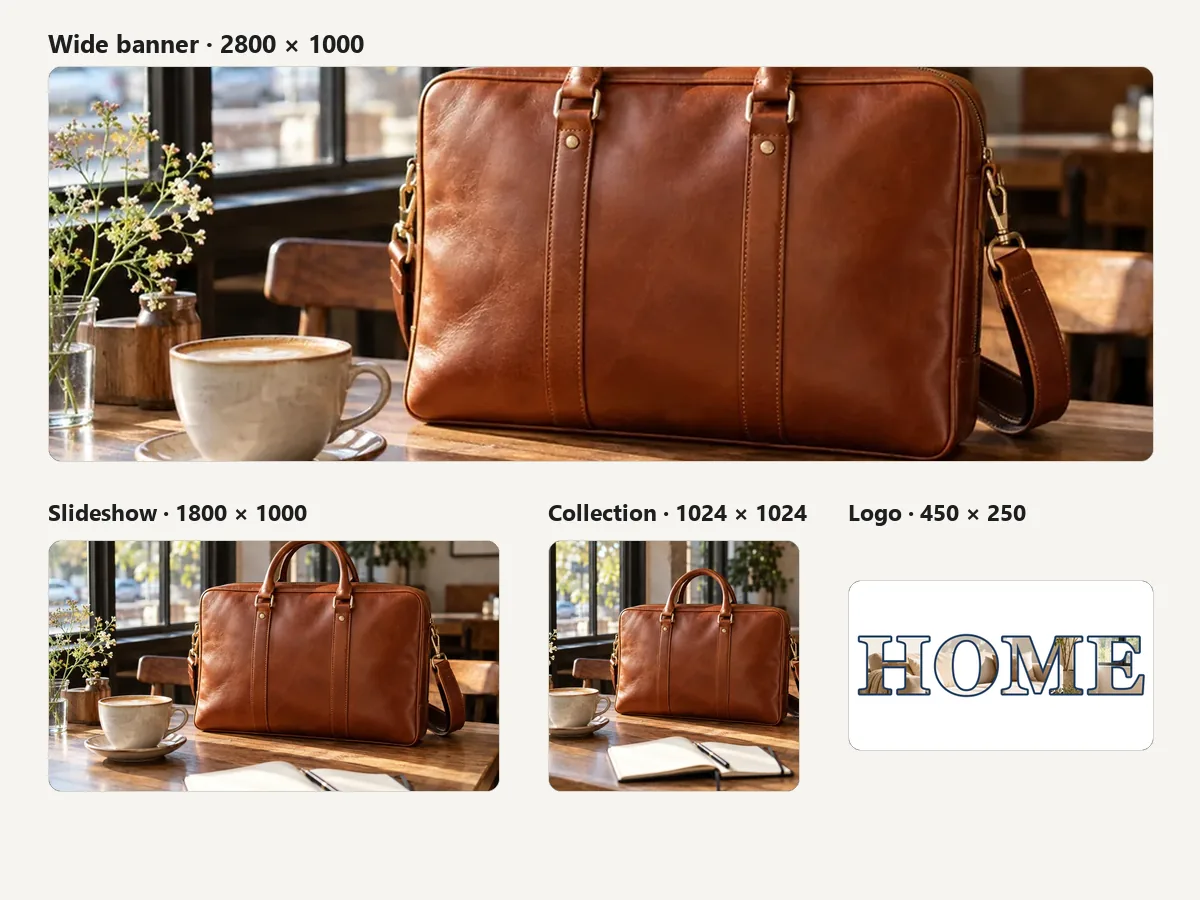
The Shopify banner size depends on the theme, but 1800 × 1000 slideshows and 2800 × 1000 wide banners cover most of them; collection images are 1024 × 1024, logos 450 × 250, and the favicon 32 × 32. Crop to fill, drag the subject into the middle, and download every Shopify image size from one photo.
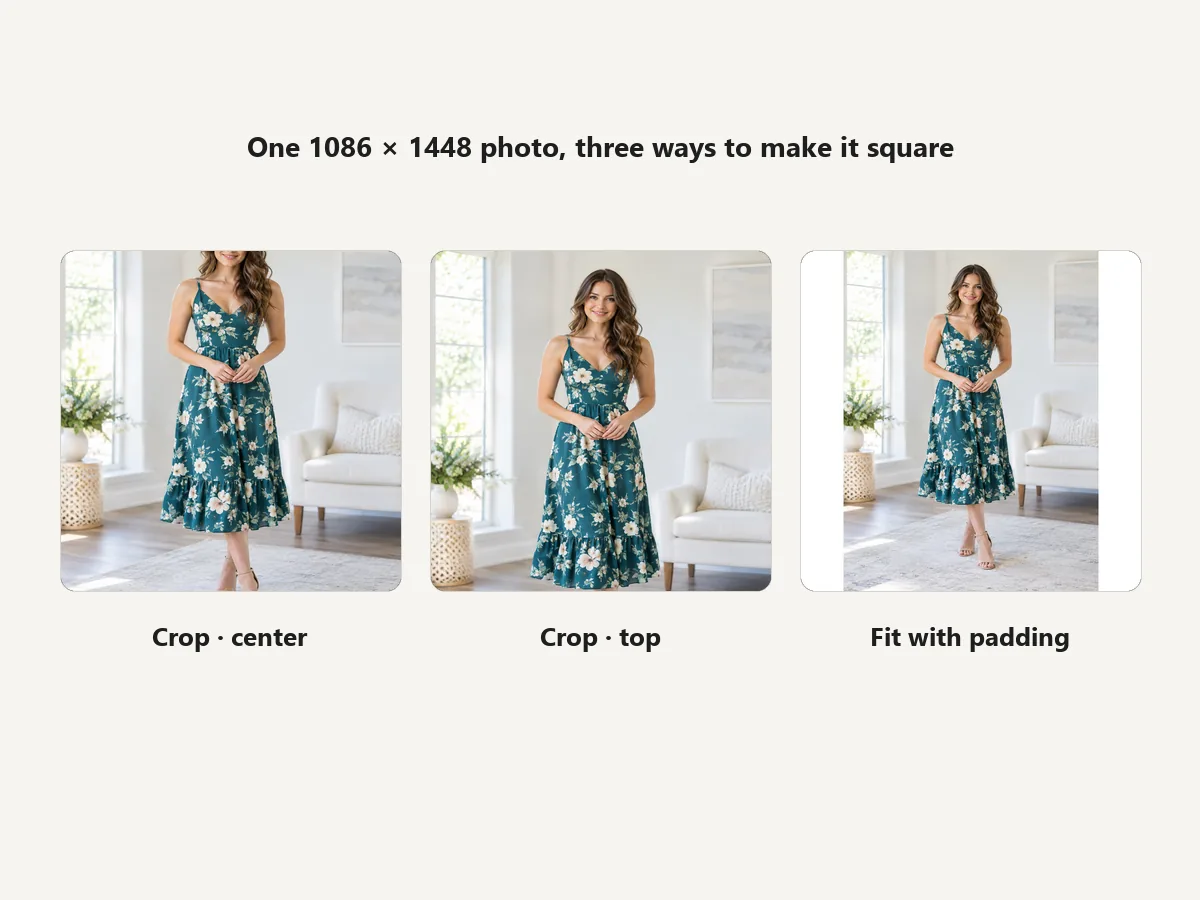
To crop images in Shopify, open the product in the admin, select the image in Media, and use the image editor to crop or rotate it; the tools you see depend on your admin version. That edits one photo at a time and only crops. Here you can pad instead of crop, apply the same size to every photo, and keep your originals untouched.
Drag each slider: left is what a square crop keeps, right is the same photo padded to the square with this resizer.
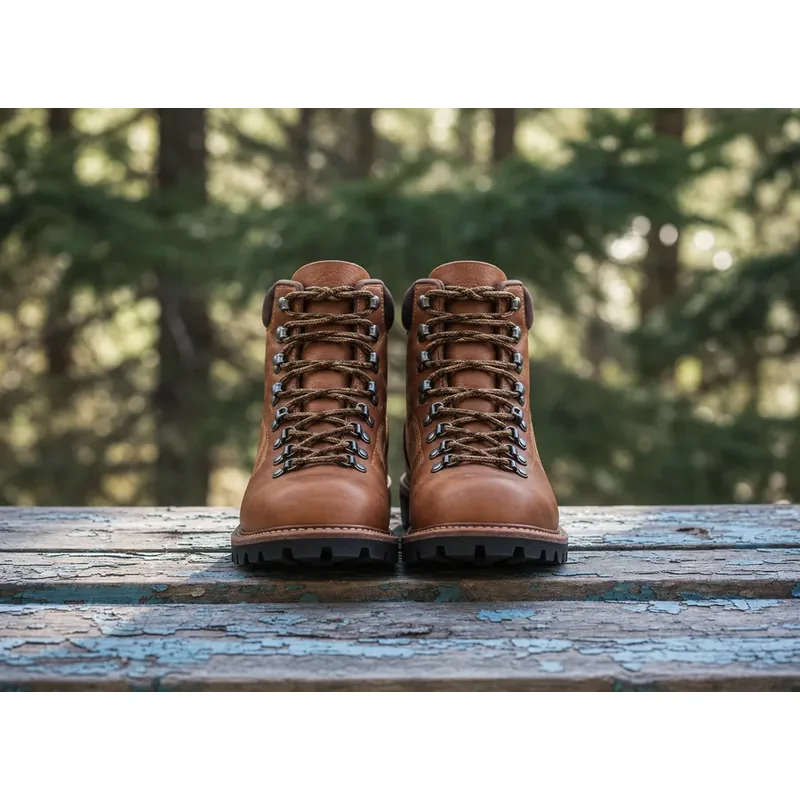
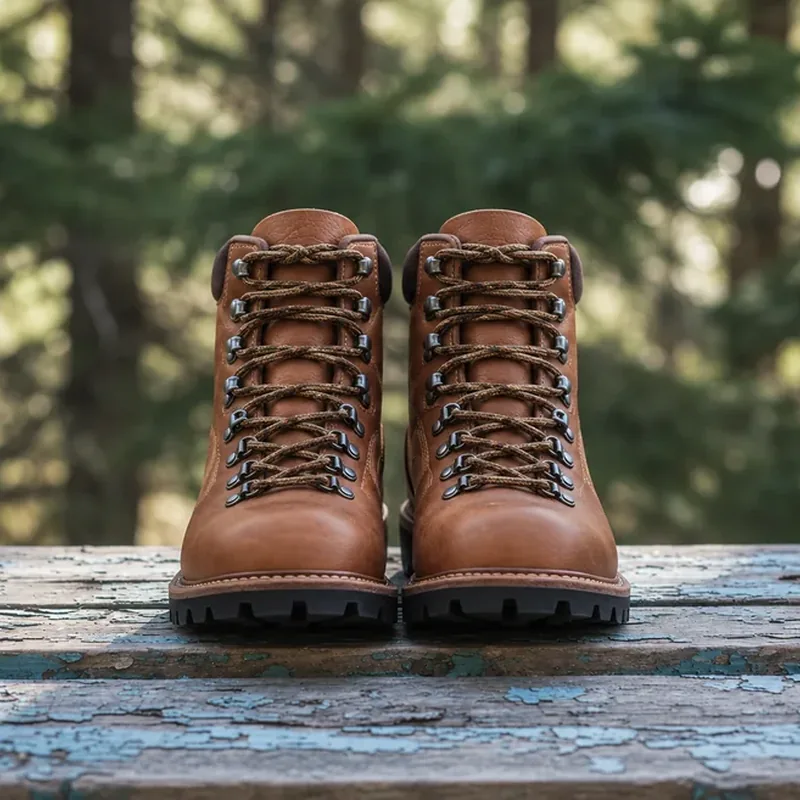
A square crop trims the sides; padding keeps both boots and adds white above and below.
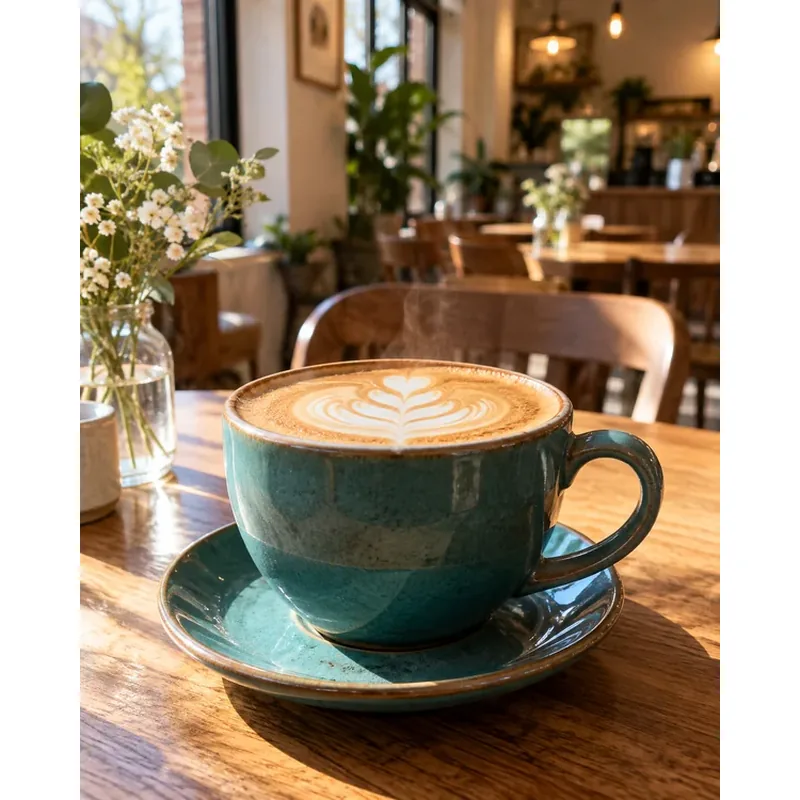

Cropping trims the top and bottom of the scene; padding keeps the whole cup and table.


A square crop loses the head and hem; for apparel use padding or the 4:5 portrait size.
Store owners, designers, and marketers who want a tidy storefront without an app.
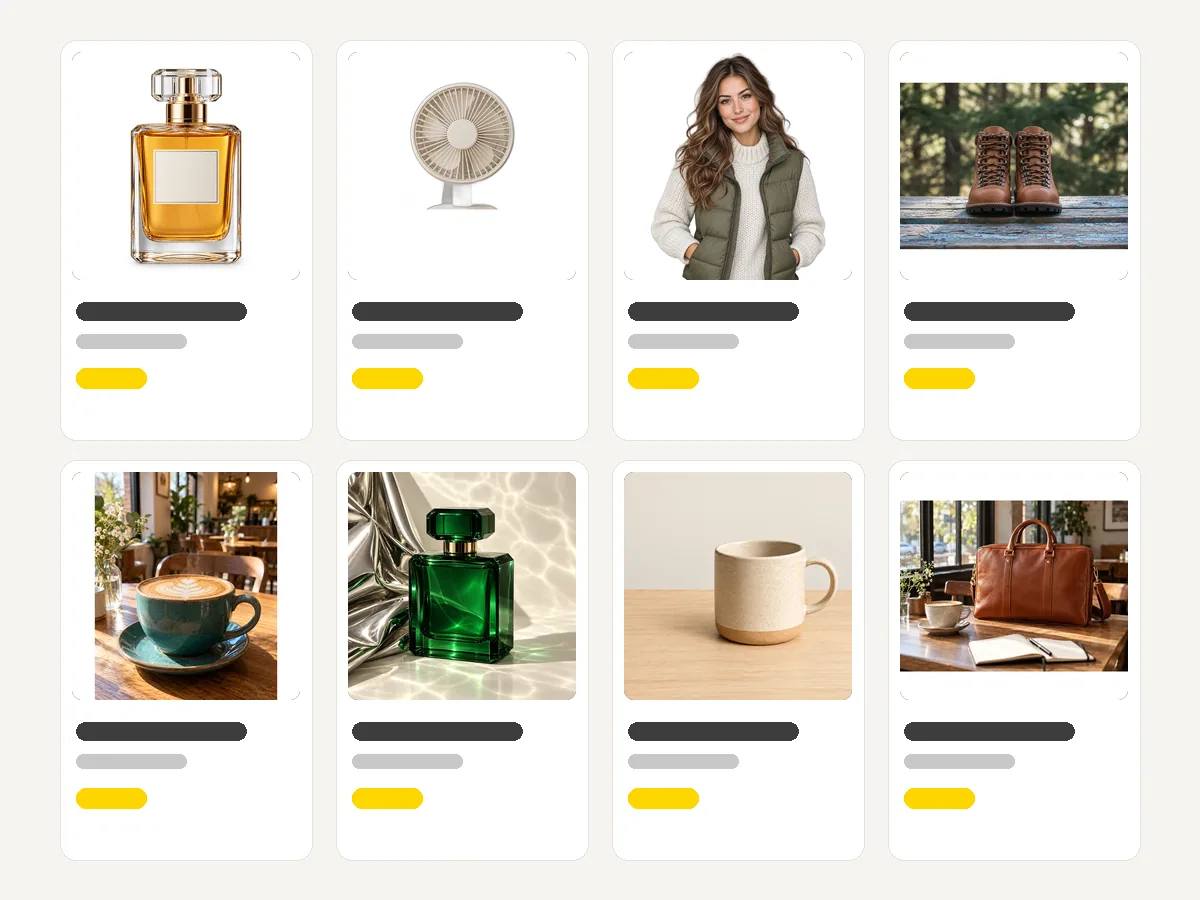
Resize product image Shopify uploads to one size before launch so the first collection pages look polished.
Turn mixed supplier photos into matching squares on white without reshooting anything, the simplest way to make Shopify resize photos consistently.
Use 1600 × 2000 portrait images so outfits stay full length, and set the theme ratio to Portrait.
Crop sale and holiday photos to slideshow and wide banner sizes from one file.
Make 1800 × 1000 blog headers that match the store’s banners.
Fit a logo to 450 × 250 on your header color and make the 32 × 32 favicon in the same place.
Small changes that make a store look consistent and load fast.
White padding blends best with white or transparent photos. Remove a busy background first with the AI Background Remover.
Supplier images under 1000 px look soft at 2048 × 2048. Enlarge them with the Image Upscaler before resizing.
In the theme editor, set product cards to Square or Portrait to match the size you upload, so Shopify does not crop again.
This is a resizer, not a Shopify image compressor or Shopify image optimizer. For lighter files, save WebP or run images through Reduce Image Size.
The bulk image resizer Shopify catalogs need: up to 100 product photos at once to 2048 × 2048, downloaded as a ZIP.
Open toolFree to try: cut products out of busy backgrounds before padding them on white.
Open toolConvert HEIC, PNG, and JPG product photos to WebP or JPG in your browser.
Open toolFree to try: enlarge small supplier photos so they stay sharp at 2048 px.
Open toolCompress product images to a target KB without changing their dimensions.
Open toolResize transparent PNG logos and cut-outs by pixels or percent.
Open toolSizes, ratios, cropping, and file limits.
Shopify recommends 2048 × 2048 pixels for square product images. Use the same size and ratio for every product so cards line up. Choose Product image 2048×2048 on white above to resize image Shopify uploads to that size without cropping.
Square (1:1) is the safest choice for most stores. Fashion stores often use 4:5 portrait (1600 × 2000) to show full outfits. Pick one, set the same ratio in your theme’s product card settings, and resize every photo to it.
In the Shopify admin, open the product, select the image under Media, and use the image editor to crop or rotate it, if your admin offers it. To get the same size on every photo without cutting anything off, resize here with Fit with padding and upload the result.
It depends on the theme and section. 1800 × 1000 suits most slideshows and image banners, and 2800 × 1000 fills wide, full-width banners on large screens. Keep text and products in the center, because many themes crop banner edges on phones.
A PNG around 450 × 250 pixels works in most themes; the theme editor sets how wide it is shown. Use the Logo 450×250 preset with PNG output and pick the padding color that matches your header. To keep a logo’s transparent background, resize it with Resize PNG instead.
Your photos have different shapes, so the theme crops or letterboxes each one differently, and Shopify resizing images for each card does not change their shape. Resize them all to the same square or portrait size with padding, and the Shopify image dimensions match across the store.
Yes. It is free with no sign-up and no watermark, and unlike Shopify tools image resizer apps there is nothing to install: no Shopify image resizer app or plugin is needed. Photos are processed in your browser and never uploaded.
Scaling a large photo down keeps it sharp, and padding never stretches the product. Enlarging a small supplier photo to 2048 px makes it soft; run it through the Image Upscaler first. JPG at high quality is a good balance for product photos.
Shopify accepts product images up to 20 MB (as of 2026). Files from this resizer are usually far smaller; for faster pages, save as WebP or compress with Reduce Image Size.
This page handles one photo at a time with every size in one click. For a whole catalog, the Bulk Image Resizer applies the 2048 × 2048 padded square to up to 100 photos and downloads a ZIP, a free bulk image resizer for Shopify listings.
Upload a photo, pick a Shopify size, keep it padded on white, and download.
Shopify is a trademark of Shopify Inc. EzImgMaker is an independent tool and is not affiliated with or endorsed by Shopify. Sizes follow Shopify’s help pages and common theme settings as of October 2026 and may change. Sample products are fictional and unbranded.