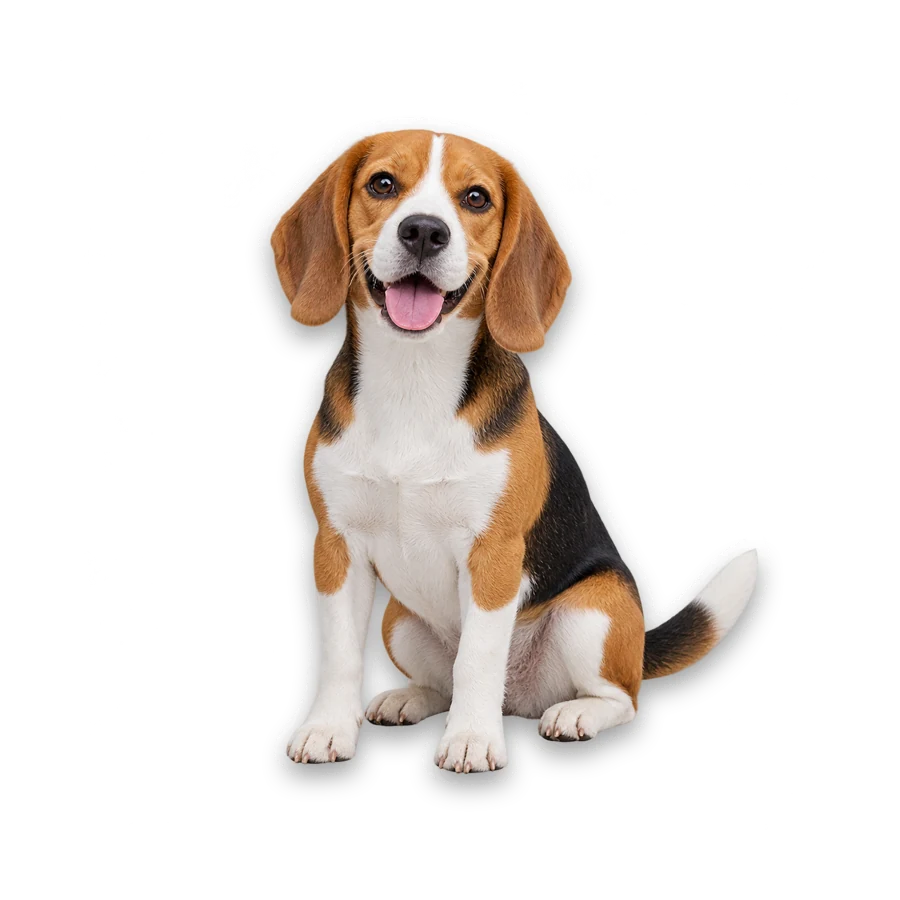

Sticker with a white outline
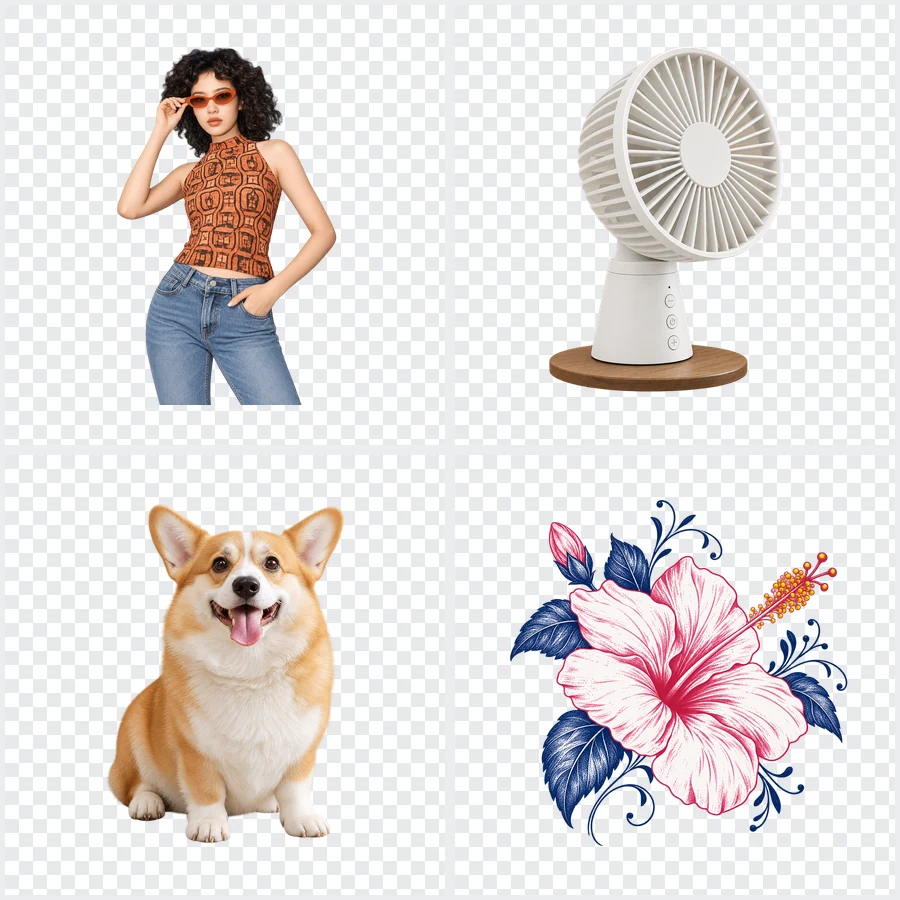
A wide white outline and a soft shadow on a transparent canvas turn the beagle into a sticker cut out that stays readable on chats, slides and dark pages.
Upload a photo and AI cuts out the subject once. Then add a sticker outline, soft shadow, color or transparent background and fine-tune it live in your browser at no extra cost.
1Upload & remove background
Free to try. After removal, all adjustments below are free in your browser.
2Adjust
Free · live previewReference example. It is not a result generated from your upload.
Cutting images by hand with a lasso is slow, especially around hair and fur. This image cut out tool lets AI find the main subject and cut around image edges for you, so a portrait, pet, product or drawing becomes a transparent cutout image you can reuse.
After the AI cutout, every change runs in your browser for free: add a white sticker outline, drop a soft or ground shadow, put the cutout photo on a color or your own background, pad it into a 1:1, 4:5 or 16:9 canvas, and download a PNG or JPG.
A wide white outline and a soft shadow on a transparent canvas turn the beagle into a sticker cut out that stays readable on chats, slides and dark pages.
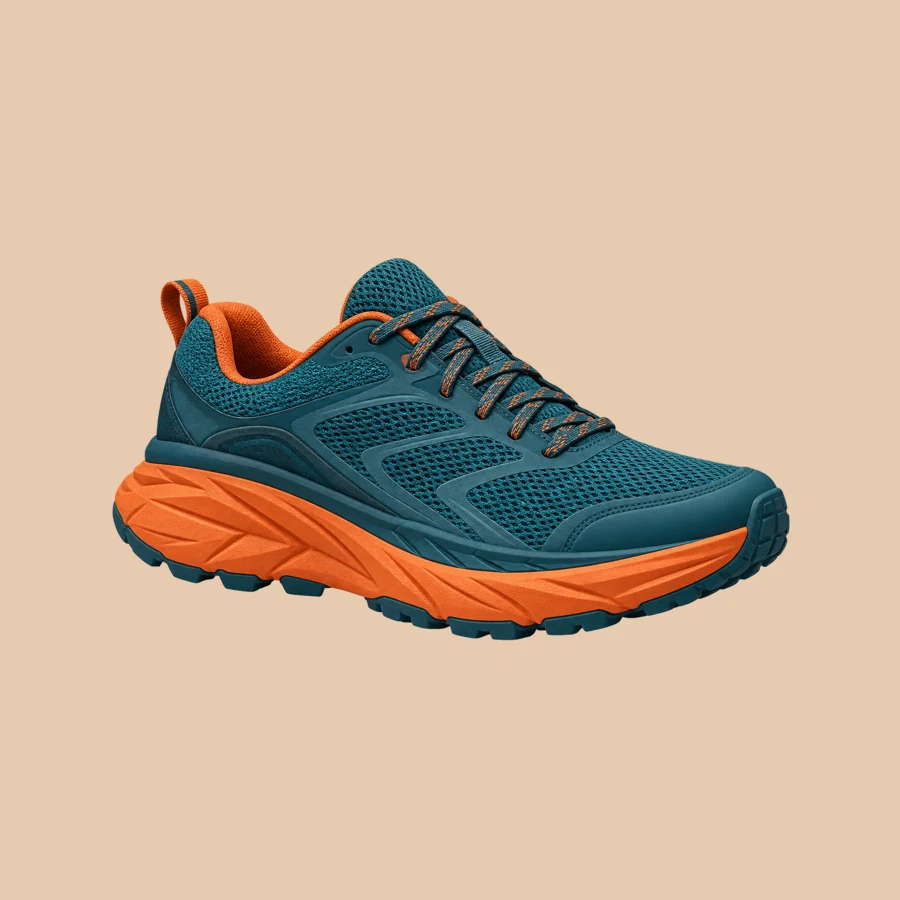
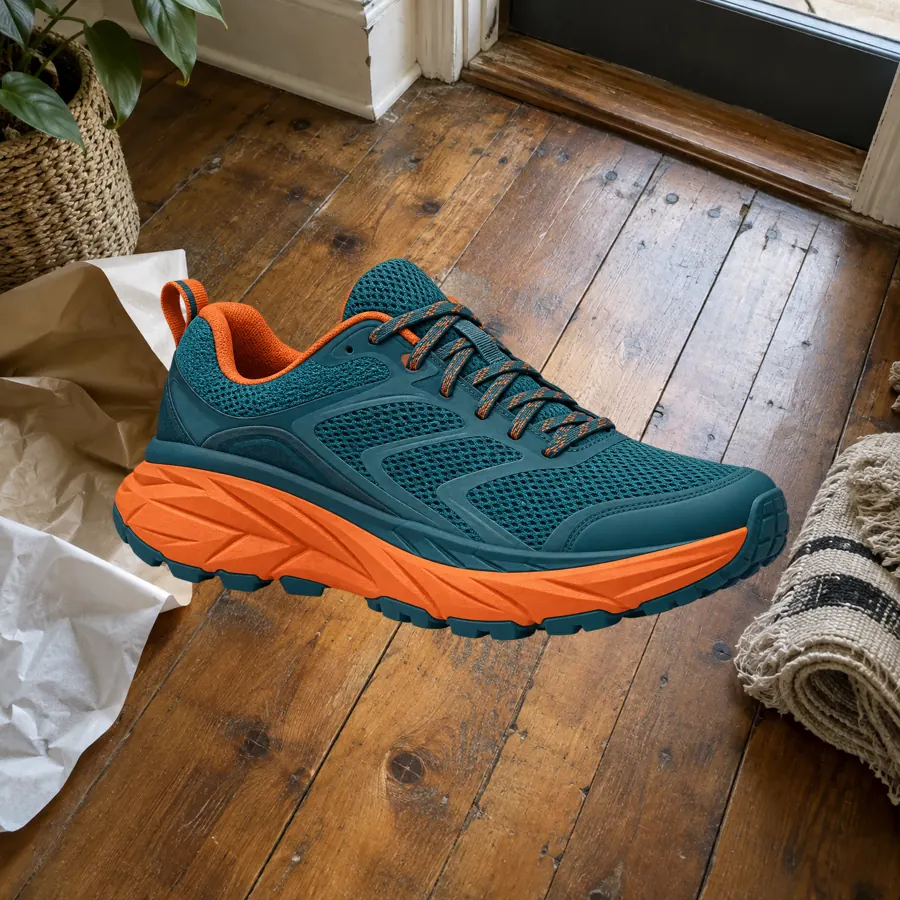
A trail shoe trimmed to its edges and centered on tan. Pick any shade with the color picker to match a product card, profile card or banner.


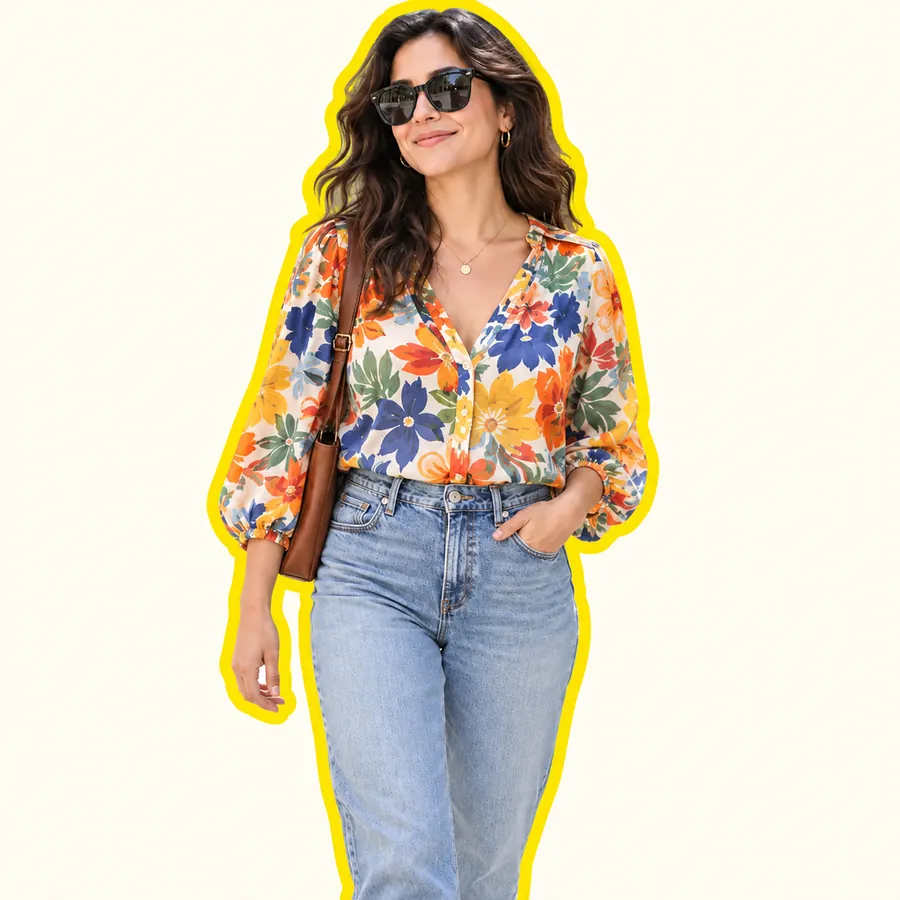
A clean cutout with a transparent background, shown here on a checkerboard. Drop it onto documents, newsletters and presentation slides and the page color shows through around the hair.

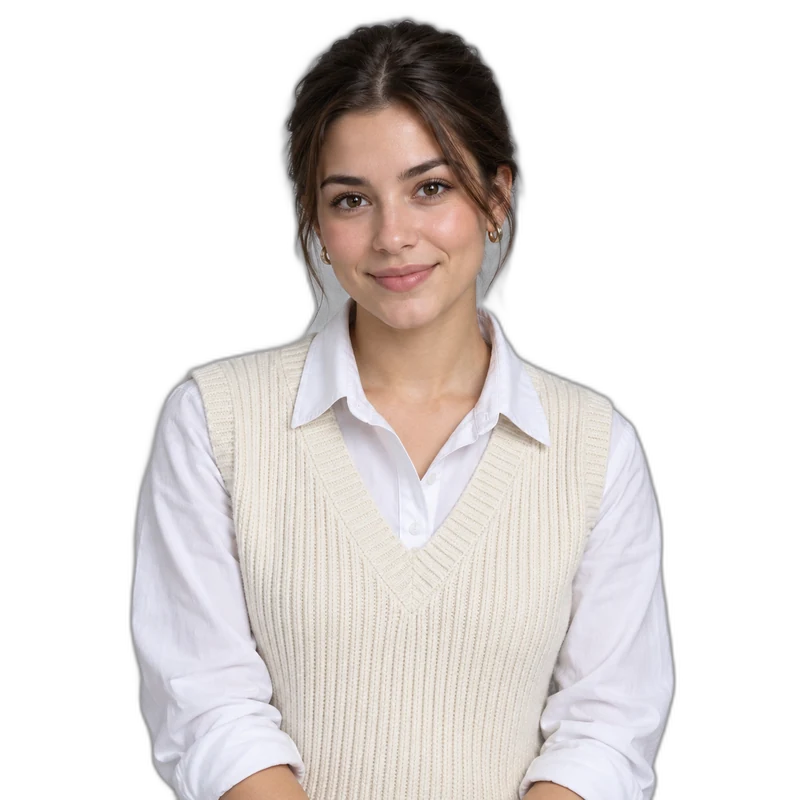
A head-and-shoulders photo cut out with the hair outline kept. Reuse it for profile pictures, team pages and slide decks.
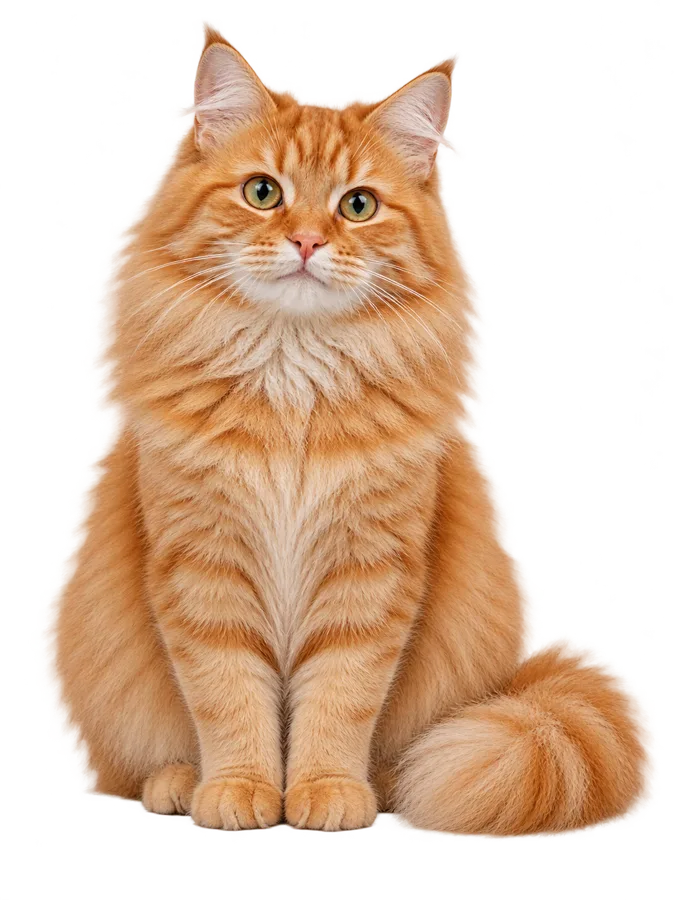
A ginger cat cut out with whiskers, paws and tail. Fur is the hardest edge for any cutout, so check it on both light and dark colors.
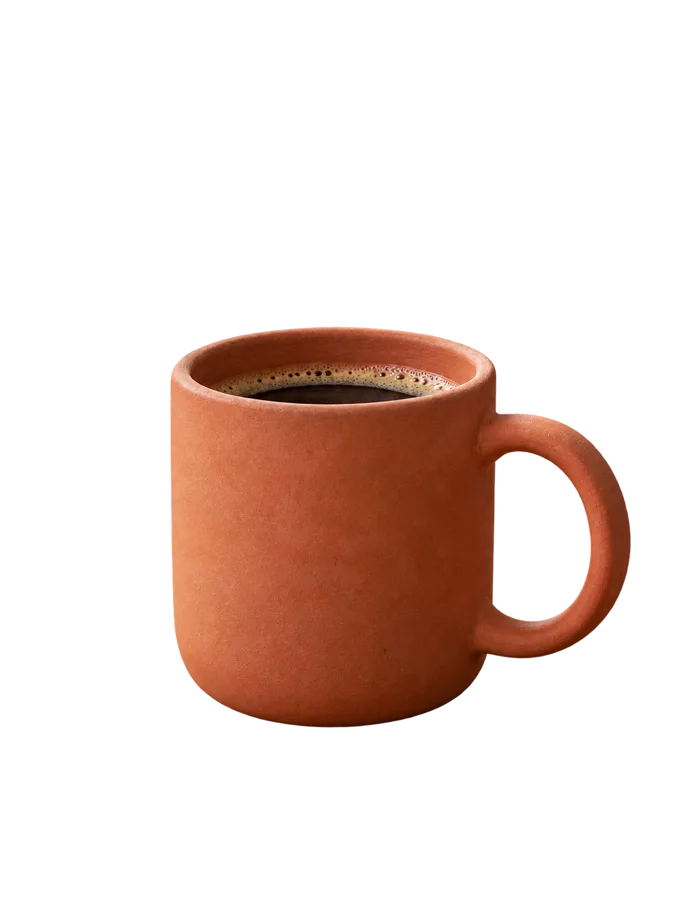
A terracotta mug lifted off a cluttered desk, ready to drop onto a white listing background or a colored banner.
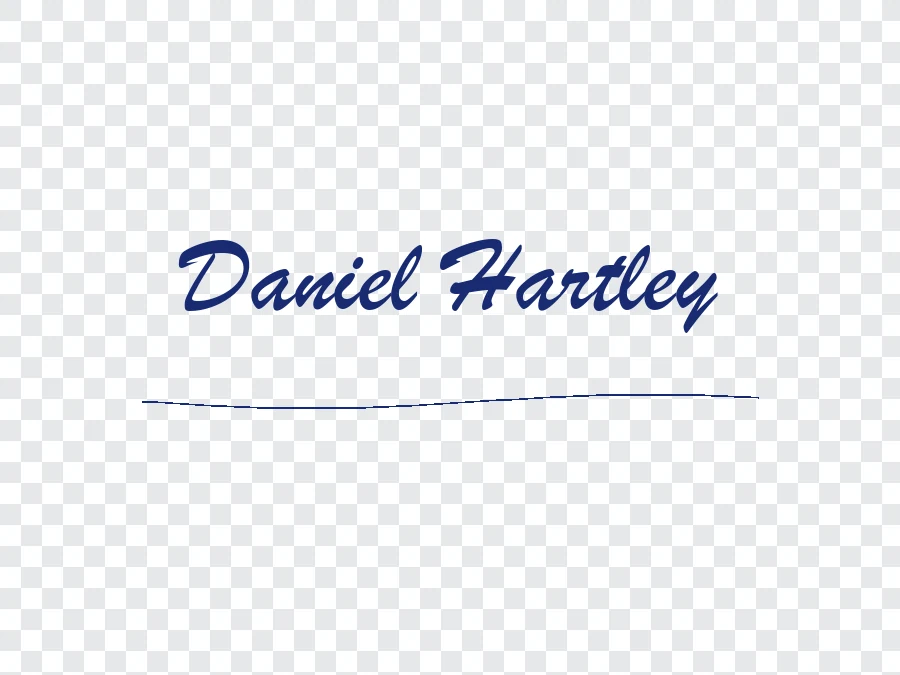
A handwritten signature lifted off the paper as a transparent drawing cutout. Sketches, cutout logos and hand-lettered titles work the same way.
Add a JPG, PNG or WebP up to 5 MB and 256 to 4096 px per side, with the whole subject in frame. Clear contrast between subject and background gives the cleanest cut.
Press Remove Background once. Your AI cut out image keeps the main subject (a person, pet, product or drawing) and turns everything around it transparent.
Tap Sticker cutout or Cutout on color, or set outline width and color, edge feather, shadow and padding yourself. Drag the comparison slider to check edges against the original.
PNG keeps transparency; JPG saves a flat file with a solid background. The Canvas menu sets original size, 1:1, 4:5, 16:9 or a custom width and height.
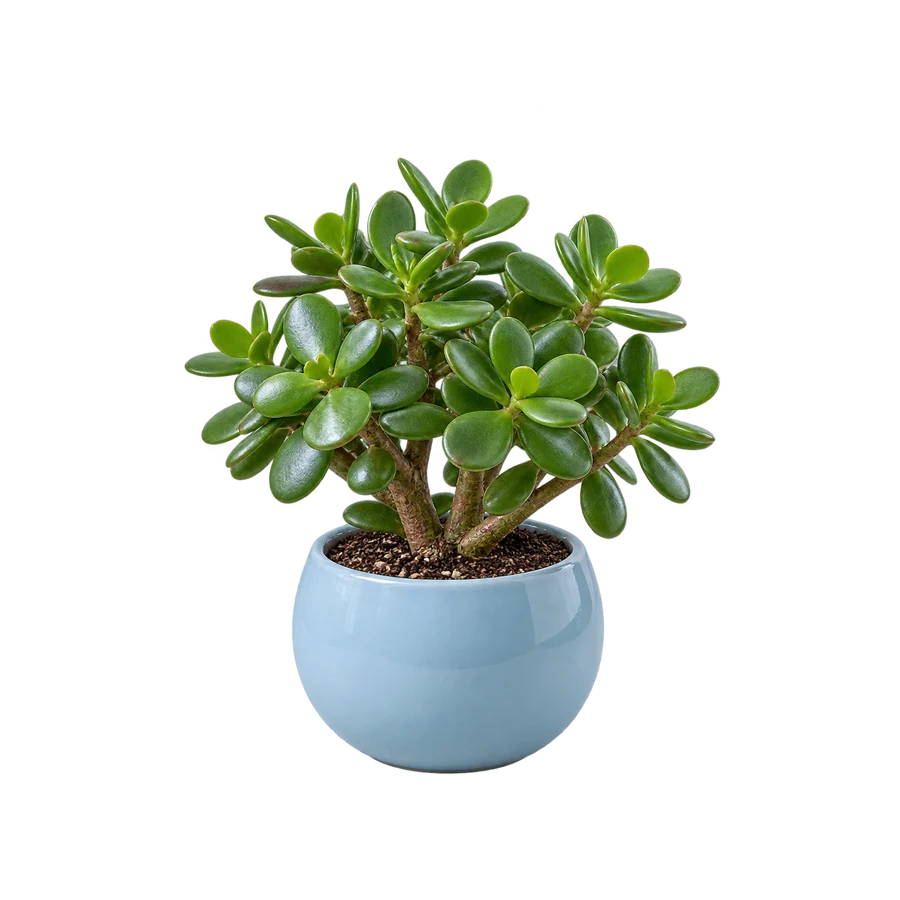
Use the photo cutter on a product, a plant or a portrait, then keep it transparent or swap the image cutout background for a solid color or a scene you upload. One cutout photo can serve a product page, a slide and a social post.
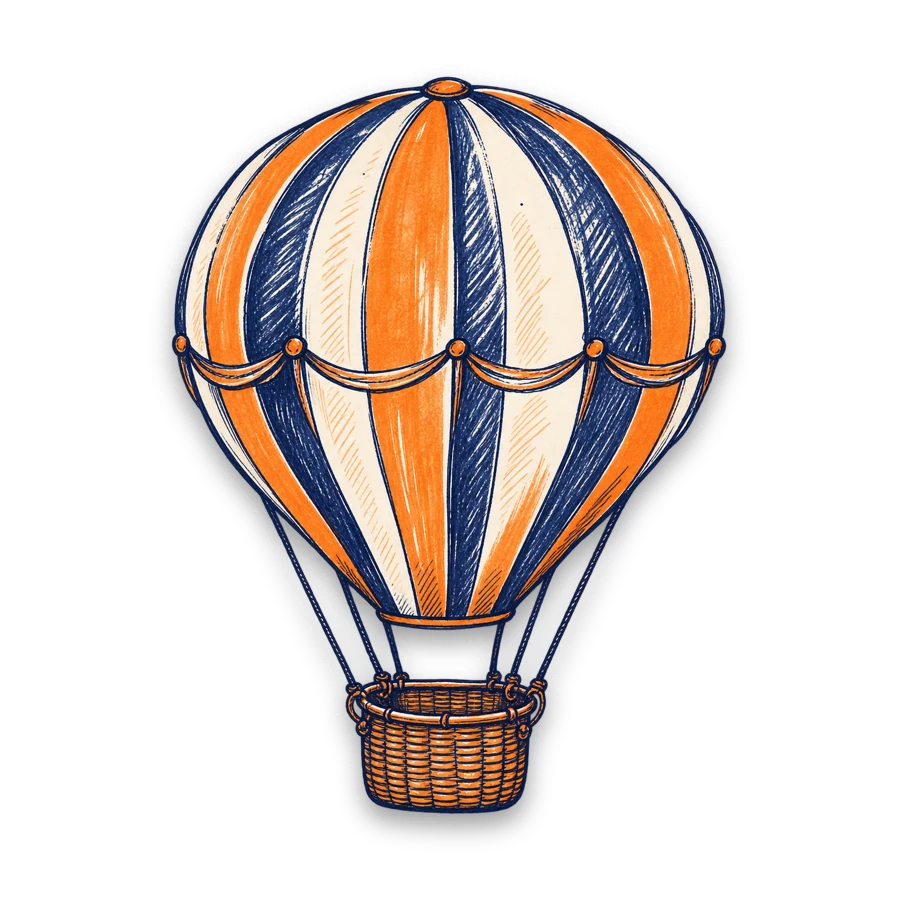
Photograph a sketch or logo on plain paper and the AI lifts the lines off the page. Give the cutout drawing a thin outline in a contrasting color and it becomes a cutout icon that stays readable on light and dark cards.
There is no pen tool to trace: the AI decides where to cut around image subjects, including thin antennas, fingers, fur and leaf tips. It always keeps the whole main subject, so crop the photo first if you want only part of it.
Cut pictures one at a time into transparent PNGs and arrange them in a photo collage. For a cardboard cutout from photo artwork, start from your largest original and confirm the print size with the print shop.
A dark subject against a light wall, or the reverse, makes it easier for the AI to cut around picture edges. Busy patterns behind hair make the boundary harder to find.
Edge feather softens the boundary by up to 4 px. Keep it at 0 for products and add a touch for hair and fur.
If a thin fringe of the old background remains, a white or colored outline covers it and gives the cutout a deliberate sticker style.
Shadows and outlines need room. Add some padding so neither touches the edge of the canvas when you export.
Remove the background from any photo and save a plain transparent PNG.
Read the guideClear a white or solid background around logos, graphics and product shots.
Read the guideLet AI place your subject in a new scene such as a beach, office or studio.
Read the guidePut your cutout on exact #FFFFFF white for product and marketplace photos.
Read the guideKeep the subject sharp and blur the original scene behind it.
Read the guideUpload the photo, press Remove Background and wait for the AI cutout. Keep Background on transparent and download a PNG, or add an outline, shadow or color first if you want a finished sticker or card.
The AI keeps the main subject, which is usually the largest and clearest object. If the picture holds several items and you want only one, crop around it before uploading, then run the cutout on the cropped file.
Crop the photo tightly around the head and shoulders, then run Remove Background. The cutout face keeps the hair, neck and any clothing inside your crop, because the AI cuts out whole subjects rather than tracing a face outline. To cut out faces from a group photo, crop and process each person separately.
No. There is no lasso, pen or shape tool, so you cannot cut out shape from image areas such as a circle or star, or choose the cut out area by hand. The AI selects the whole main subject; to cut shapes out of pictures, open the downloaded PNG in a design app.
Cut out the subject, tap Sticker cutout for a white outline and soft shadow, then raise Outline width for a thicker border or change Outline color. Download a PNG so the sticker cut out keeps its transparent edges.
Cut out pictures one by one and download each as a transparent PNG with a little padding. Arrange them in a collage or design app; because every picture cut out has transparent edges, the pieces can overlap without white boxes.
This tool prepares the artwork, not the cardboard. Download a transparent PNG from the largest photo you have (up to 4096 px per side) and send it to a print shop that makes a cardboard cutout from photo files; ask them how large that image can be printed.
Pick PNG for anything you will layer, such as stickers, collages, slides and icons, because it keeps the transparent background. JPG has no transparency and saves transparent areas as white, so use it once the cutout picture already sits on a color or uploaded background.
Only cut out photos you took or have permission to edit, and ask the people pictured before turning them into stickers or collages. The same applies to artwork, drawings and logos: upload them only if you own them or the owner agrees.
The AI cutout is Free to try. Once the subject is cut out, outlines, shadows, colors, padding, canvas sizes and downloads all run in your browser for free; only a new Remove Background run starts another AI generation.
Upload a photo, let AI cut out the subject, then style the outline, shadow and background before you download.