Sora Watermark Remover Remove Sora Watermark from Videos You Created
Generated a clip in Sora or Sora 2 and only the bouncing watermark is in the way? Upload your own video, let the AI follow the moving logo and @username through every frame, and keep the full vertical or widescreen shot.
Fine-tune
Mark to remove
How does it move?
Anything else to clean? (optional)
Output resolution
Audio
Your video stays in this browser during this UI preview.
Example
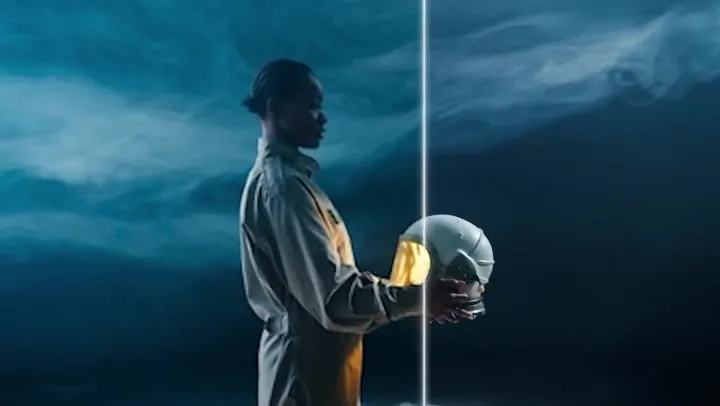
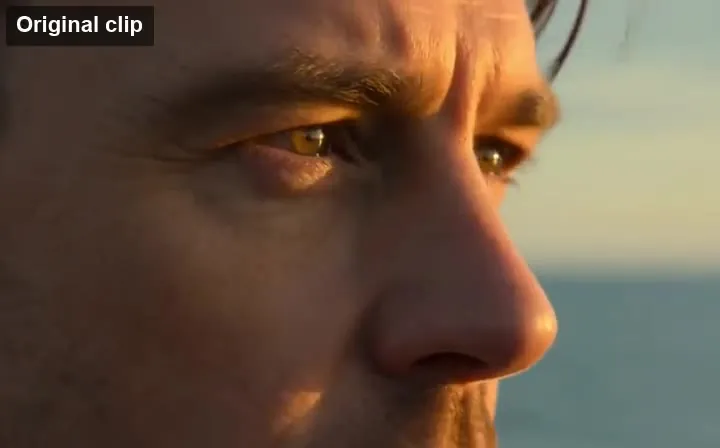
Reference example. It is not a result generated from your upload.
What Is a Sora Watermark Remover?
Videos downloaded from Sora carry a visible Sora watermark: a small logo with the Sora name, usually together with the creator’s @username, that jumps to a new spot every few seconds. Because it moves and is semi-transparent, a static crop or blur cannot hide it. A Sora watermark remover tracks the mark through the whole clip and rebuilds the background behind it, frame by frame.
EzImgMaker is a Sora video watermark remover for clips you generated yourself. Upload the file, keep the default "Sora watermark (moving)" setting, and the AI erases the logo and handle while the rest of the frame, the motion, and the audio stay as Sora made them. It removes the visible mark only; the clip is still AI-generated and should be labeled that way where you post it.
How to Remove Sora Watermark in 3 Steps
Remove Sora watermark online without masking frames in an editor.
01
Download Your Sora Clip
Save the video you generated from Sora as an MP4; if you cannot download Sora without watermark on your plan, that is fine. After your Sora 2 video download, upload the file here: up to 60 seconds and 100 MB, vertical or widescreen.
02
Keep "Sora Watermark (Moving)"
Auto-detect finds the bouncing logo and @username. Switch to "@username only" or "Other logo or text" if your clip carries a different mark, and add a note if it crosses a face.
03
Remove, Preview, Download
Click Remove Sora Watermark and play the result through, watching each spot where the mark used to land. Download the clean clip in 1080p or 720p.
Why Use This Sora Logo Remover
A watermark remover Sora creators can use on their own drafts, built around how the Sora mark behaves.
Follows the Bouncing Watermark
The Sora mark changes position several times in a clip, so the AI tracks every jump instead of patching one corner. Each spot is filled from the frames before and after it, which keeps rushing water, skies, and crowds from flickering.
Rebuilds Faces, Hair, and Skin
When the logo lands on a face or a jacket, a blur leaves a smudge viewers notice at once. The AI continues the hair, skin tone, and lighting under the mark, so a portrait shot stays usable as a Sora video logo remover result.
Keeps the Full 9:16 or 16:9 Frame
Cropping a vertical Sora clip to dodge the watermark cuts off the subject and breaks the framing you prompted for. Removing the mark in place keeps the original aspect ratio, ready for Reels, Shorts, or your edit timeline.
Works on Sora 2 and Earlier Sora Exports
Use it to remove Sora 2 watermark marks from new app downloads or to clean older Sora exports. It doubles as a Sora watermark eraser for the @username line and any caption you added yourself.
Who Uses a Sora Watermark Cleaner
People who generated a clip in Sora and need a clean copy of their own work.
Storyboards and Pitches
Drop your Sora shots into a mood film or client pitch without a logo hopping around every scene. Tell the audience the shots are AI-generated.
Editing Several Generations Together
When you cut multiple Sora takes into one sequence, a mark that jumps in each clip looks messy. Clean them first, then add your own titles.
Posting on Other Platforms
Share your own Sora video on another channel without the @username overlay, and use that platform’s AI-content label.
Portfolios and Concept Reels
Show the prompt work behind a concept reel with a clean frame, and credit the tool you used in the description.
Tips for a Cleaner Sora Watermark Removal
The moving mark is the hard part. These habits help.
Upload the Original Download
Screen recordings and re-shared copies blur the edges of the mark. The file saved from Sora gives the cleanest fill.
Flag Tricky Moments
If the mark crosses a face, text, or fast motion, note the second it happens so the AI pays extra attention there.
Check Every Jump
Play the result and watch each position the logo used to occupy, not just the first frame.
Keep It Honest
Only clean videos you generated, respect anyone else’s cameo permissions, and keep labeling the clip as AI-made.
Typical ways people clean their own Sora generations.
Illustrative examples adapted from reference material, not verified reviews of EzImgMaker.
I cut six Sora shots into a 30-second concept film. With the bouncing logo gone from each one, the sequence finally felt like one piece, and the credits say it is AI-made.
The mark kept landing on my character’s face. The cleaned frames kept her expression intact instead of leaving a blurry patch.
Cropping my vertical clips to avoid the watermark ruined the framing. Removing it in place kept the full 9:16 shot.
For client storyboards I clean the drafts I generated and note "AI concept" on every slide. Much easier to present.
Sora Watermark Remover FAQ
Answers about removing the visible Sora watermark from videos you generated.
Upload the clip you downloaded from Sora, keep "Sora watermark (moving)" and "Auto-detect", and click Remove Sora Watermark. The AI follows the logo and @username through each jump and rebuilds the background. Play the result before downloading.
Whether Sora removes the watermark on download depends on the Sora product and plan you use, and OpenAI can change that at any time. If your plan does not let you download Sora video without watermark, save it as usual and upload it here to clean your own clip.
Check OpenAI’s current Sora terms and plan details, which decide when downloads include the visible watermark and what you may do with your videos. EzImgMaker is a separate tool for cleaning the visible mark on clips you generated.
You should not. Other users’ Sora videos, and any cameo of another person, belong to them. Only download and clean videos you generated yourself, and never use the tool to repost someone else’s Sora video as your own.
Some sites offer a Sora watermark remover link box that fetches a public share URL. EzImgMaker works on the file instead: download your own video from Sora, then upload it. That way only videos you have access to are processed.
The watermark helps viewers recognize AI-generated video. Removing it from your own clip for editing is a different thing from using a clean copy to mislead people. Follow OpenAI’s terms and the rules of the platform where you post, label AI content where required, and never use cleaned clips to impersonate someone or pass AI video off as real footage.
No. The tool only rebuilds the visible logo and username. It does not try to remove or fake provenance signals such as content credentials, and the video remains detectable as AI-generated through the methods its maker supports.
Only the areas the mark passed over are rebuilt. You can export in 1080p or 720p with the original audio. Marks over fast motion or fine text are the hardest, so compare the result with your original.
No. It runs in your browser on desktop or mobile. Whether you call it a Sora water mark remover, a Sora watermark eraser, or a Sora watermark cleaner, the steps are the same: upload, remove, download.
New users get free credits to try it. Longer or additional clips use credits from a credit pack.
Remove the Sora Watermark from Your Clip
Upload a Sora or Sora 2 video you generated and get the full frame back without the moving logo.
Sora is a trademark of OpenAI. EzImgMaker is an independent tool and is not affiliated with or endorsed by OpenAI. Remove watermarks only from videos you generated or have permission to edit, keep disclosing AI-generated content, and do not use cleaned videos to mislead or impersonate anyone.