Clear Eyeglasses
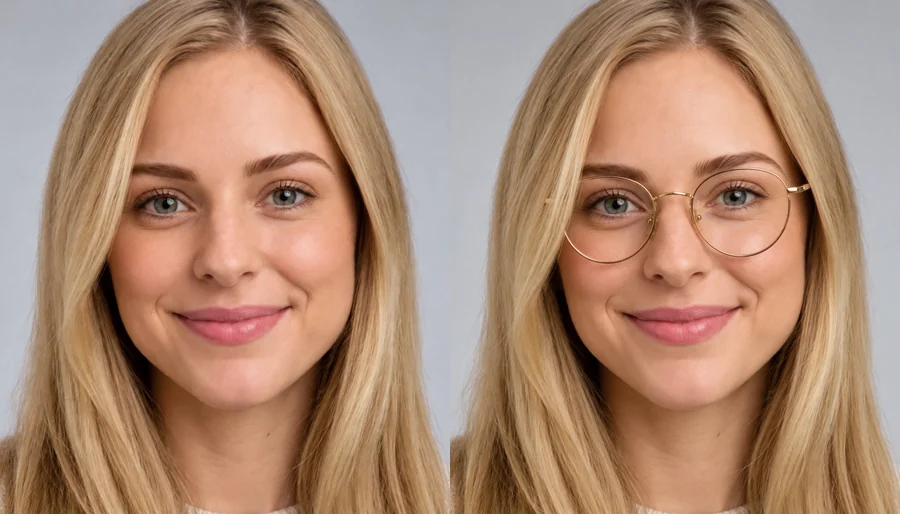
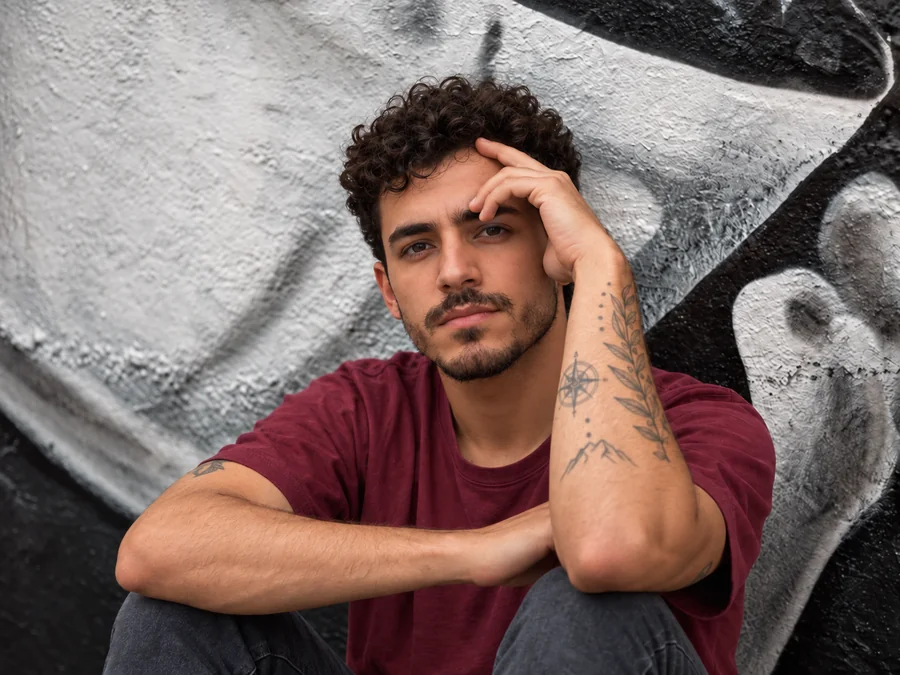
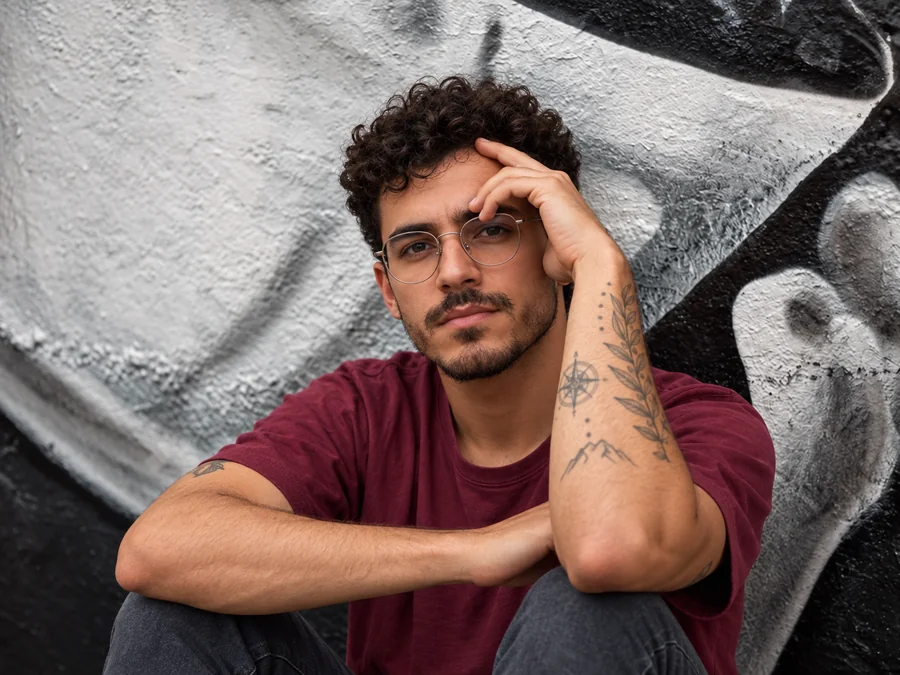
Thin metal or clear frames disappear along with lens glare, while the eyes, brows, and tattooed arm stay exactly as they were.
Upload a portrait and the AI glasses remover takes off eyeglasses, thick frames, or sunglasses, then rebuilds the eyes, brows, and skin underneath so the face still looks like you.
Common removals
Fine-tune
Your photo stays in this browser during this UI preview.


Reference example. It is not a result generated from your upload.
An AI glasses remover is a photo tool that takes off glasses digitally. Instead of cloning skin over the frames by hand, it detects the rims, lenses, nose pads, and the shadows they cast, removes them, and rebuilds what was hidden underneath: eyes, eyelids, brows, and the skin around the nose and temples.
Removing glasses is harder than it looks, because lenses also bend light. Strong prescriptions make eyes look smaller or larger, and sunglasses hide the eyes completely. A good glasses removal keeps the person recognizable by matching the rebuilt area to the visible face, the lighting, and the original expression.
Drag each slider to compare the portrait with glasses and the glasses-free result.
Thin metal or clear frames disappear along with lens glare, while the eyes, brows, and tattooed arm stay exactly as they were.
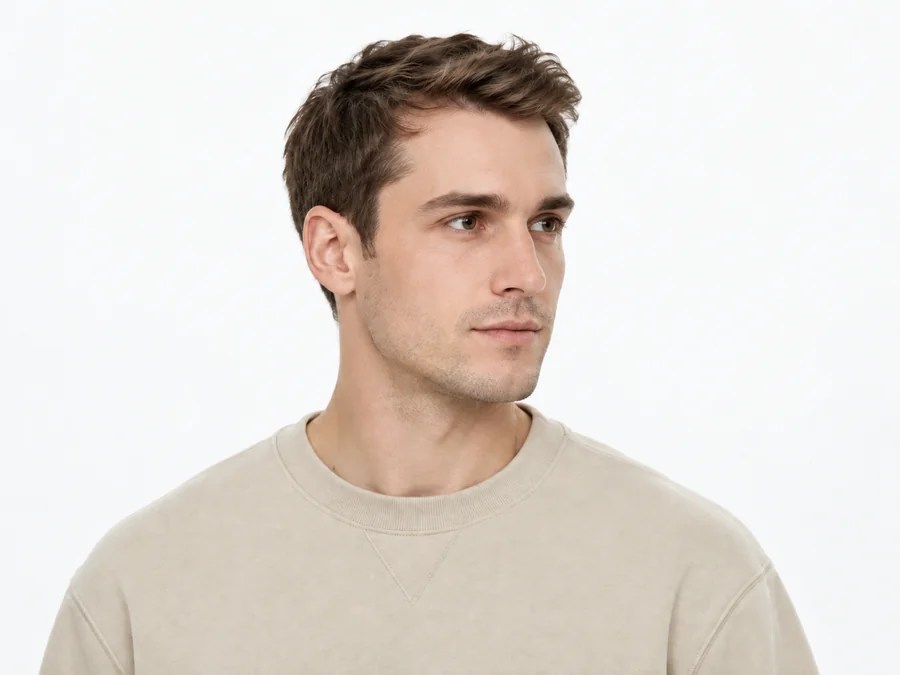
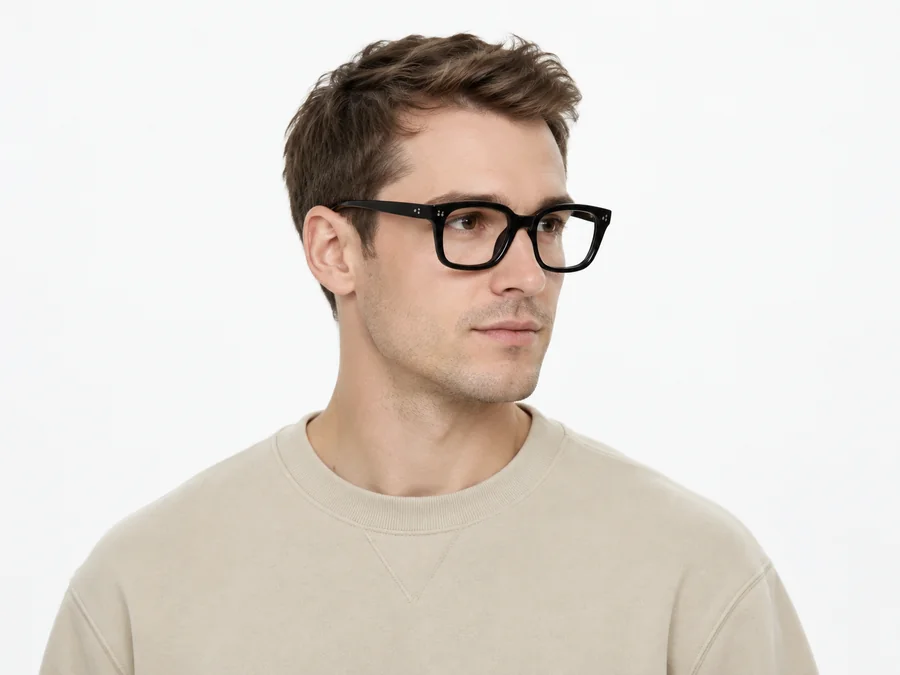
Heavy acetate frames cover eyebrows and cast dark shadows. The remover takes off the glasses and restores brows and lids that were behind the rims.


Removing sunglasses means inventing eyes the camera never saw. The AI builds them from the face shape, skin tone, and expression, and you can describe eye color for a closer match.


Strong lenses shrink or magnify the eyes. After removing the glasses, the eyes return to a natural size that matches the rest of the face.
Remove the glasses from any portrait in three steps, with no brush or masking needed.
Choose a JPG, PNG, or WebP up to 10 MB. Front-facing or slightly angled portraits with the face in focus work best.
Leave Auto-detect on or choose Eyeglasses, Thick frames, or Sunglasses. Decide whether to clean up nose-pad marks, and add eye details if the lenses were dark.
Start the glasses remover, drag the before/after slider to check the eyes and brows, and try again with more eye detail if needed.
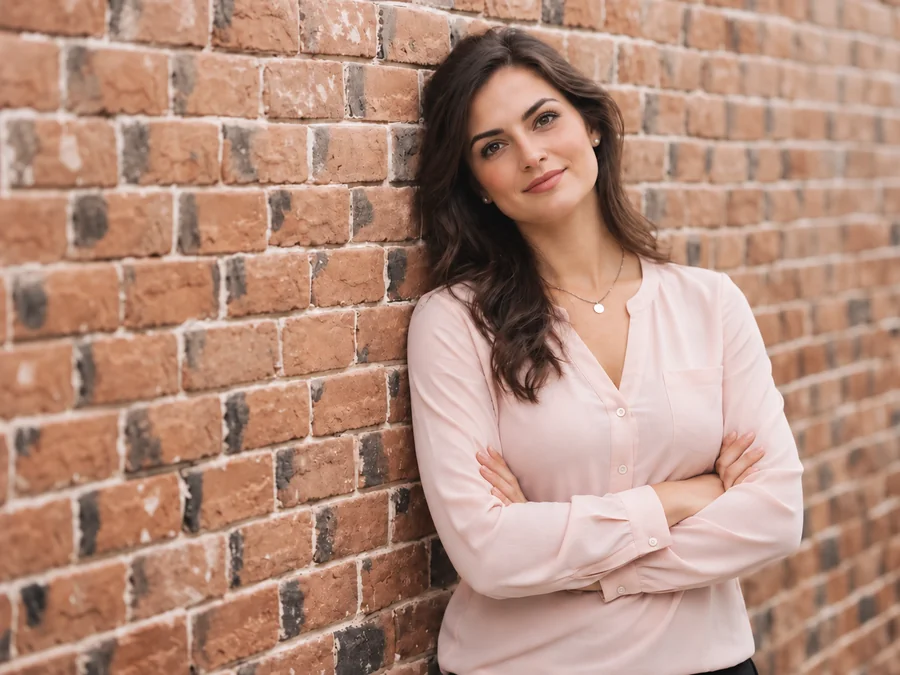

Many remove glasses AI tools smudge the eye area into soft skin. This one rebuilds sharp lashes, catchlights, eyelid creases, and skin texture that match the lighting of the photo, so the result reads as a real portrait taken without glasses.
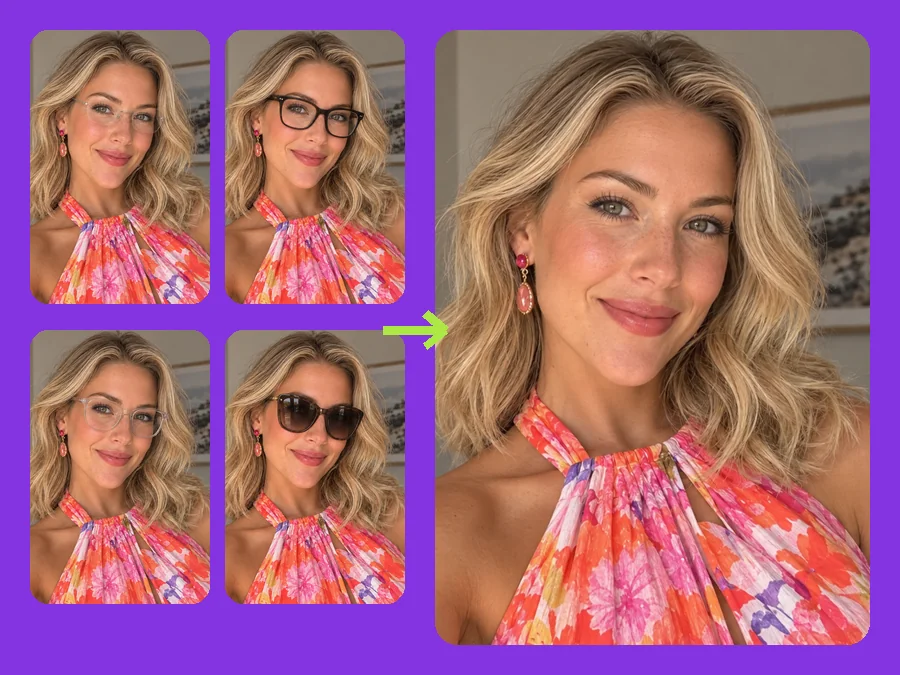
Frameless, thick, transparent, tinted, or mirrored: pick the type or let the AI detect it. The whole frame goes, including the bridge, temple arms, and lens reflections, not just the lenses.
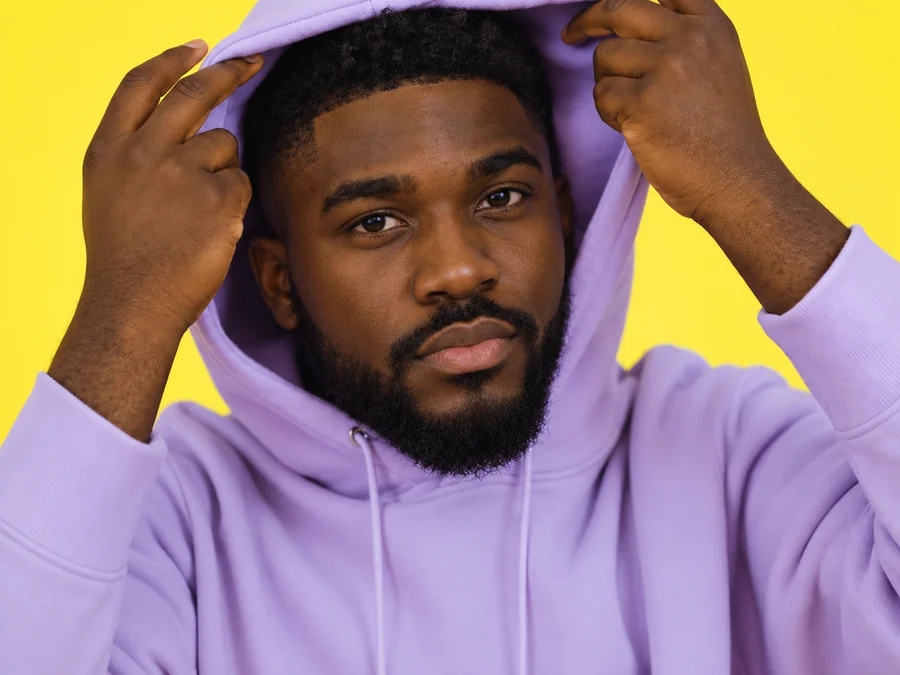
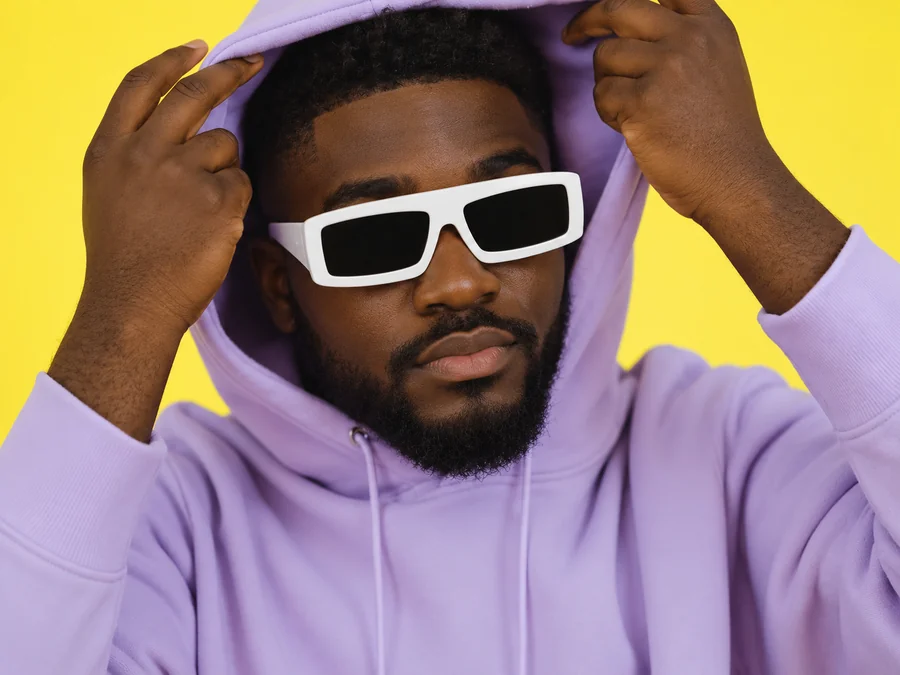
Even oversized white or black sunglasses can be removed. Add a short description of eye color and gaze, and the rebuilt eyes stay consistent with the face, hood, and lighting in the shot.
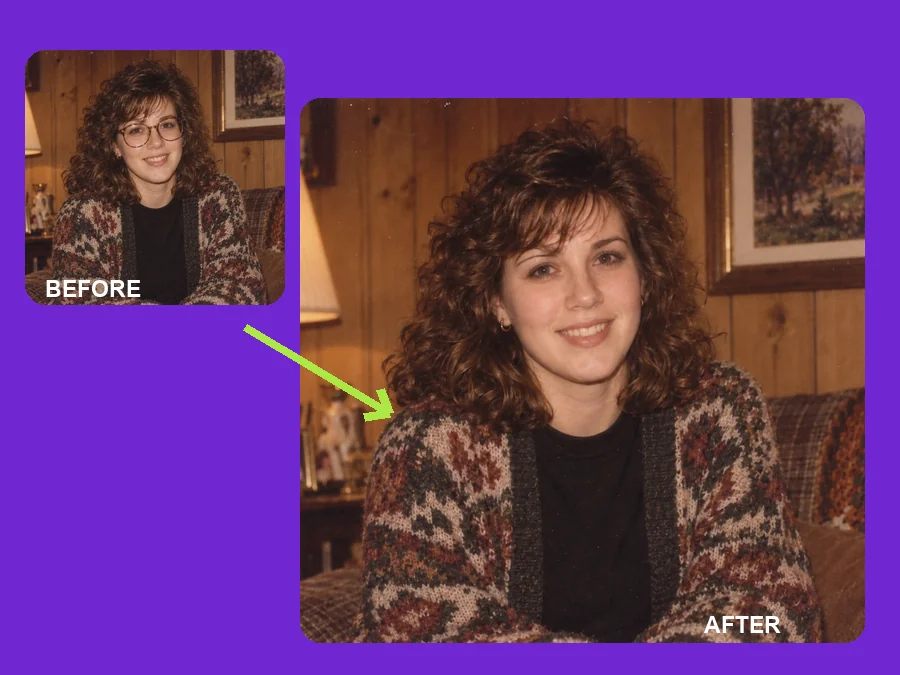
Glasses glare or heavy frames on a school photo or family portrait? Remove the glasses while keeping the original expression, hairstyle, and setting, then share the restored picture with family.
The photos people most often edit with a glasses remover.
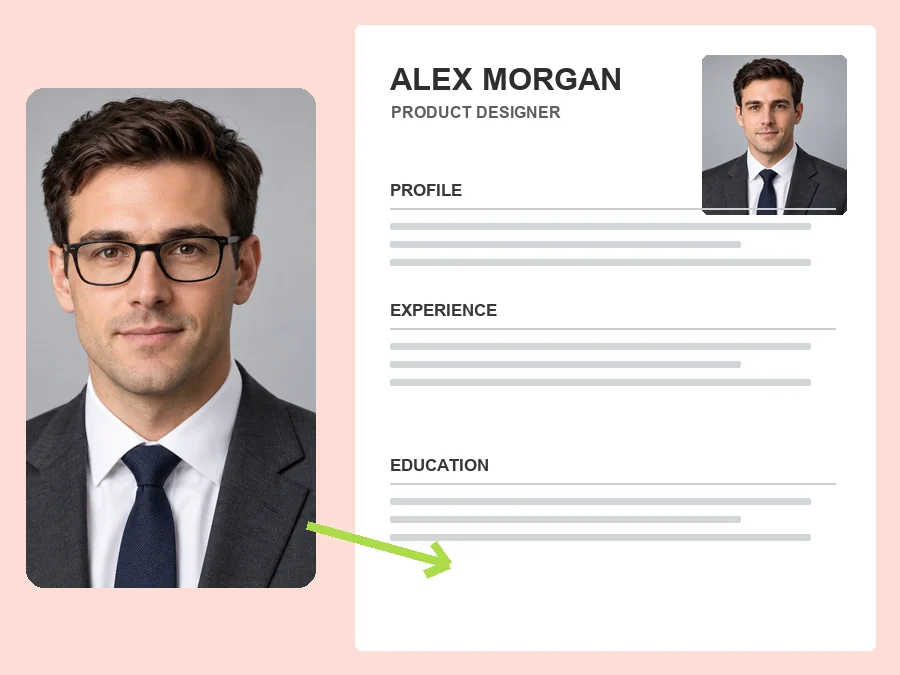
Reuse a photo you already love for dating apps, social profiles, or video covers, with the eyes and expression easier to read.
Create a glasses-free version of a professional headshot for a portfolio, team page, or résumé without booking a new shoot.
Clean up frames and reflections on group shots and vintage portraits that can never be retaken.
Curious how you would look with contact lenses? Take off your glasses in a photo first and see the difference.
The original photo decides how natural the glasses-free result looks.
Front or three-quarter views give the AI both eyes to work from. Full side profiles are harder.
Higher resolution keeps lashes and skin texture crisp after the frames are removed.
Lens reflections that cover the eyes leave less to rebuild. Clear lenses work better than mirrored ones.
For sunglasses, add eye color and gaze direction in the optional field for a closer match.
Common reasons people remove glasses from photos.
Illustrative examples adapted from reference material, not verified reviews of EzImgMaker.
My favorite headshot had a big reflection across one lens. The glasses-free version kept my expression and finally looks like me on the team page.
I wanted to see myself without glasses before trying contacts. The eyes looked like mine, not a generic pair pasted in.
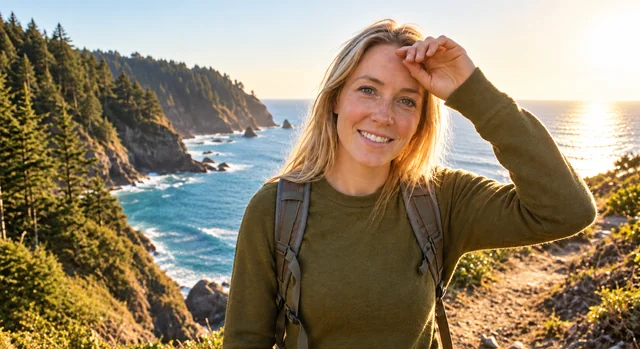
Removing sunglasses from a vacation photo worked better once I typed in my eye color. The second try was spot on.
An old family portrait had my grandfather in thick frames. Taking them off brought back the face we all remember.
Answers to common questions about removing glasses with AI.
Upload a portrait, choose the glasses type or leave Auto-detect on, and start. The AI glasses remover takes off the frames and lenses, rebuilds the eyes and skin, and shows a before/after comparison.
With clear lenses, the AI can see your eyes through the glass and keeps their shape and color. With sunglasses the eyes are hidden, so they are recreated from your face; describing eye color helps keep them close to yours.
Yes. Choose Sunglasses, then optionally add eye color and gaze direction. You can remove sunglasses from a photo even when the lenses are dark or mirrored.
Use an AI glasses remover instead of cloning by hand. It finds the frames automatically, so there is no brush work, masking, or layers. Upload, remove the glasses, and compare.
Set Nose-pad marks and frame shadows to Remove and they are cleaned up with the frames. Choose Keep if you want the photo to look like the glasses were only just taken off.
Yes. Leave Apply to on Every face, or pick Main face only if just one person should lose their glasses. Larger, sharper faces give better results.
No. Official documents need an unedited photo of how you really look, and many countries already require glasses to be taken off for the picture. Retake the photo without glasses instead.
This tool removes the whole frame. To keep the glasses and only fix reflections, use a glare remover from the related tools.
Only upload photos you own or have permission to edit, and get consent from the people in them. Do not use edited portraits to impersonate anyone or to mislead others about how a real person looks.
Upload a photo and remove glasses, thick frames, or sunglasses while keeping your face natural.