Watermark Text
Tiled watermark words cleared from a product close-up.
Upload a video, choose the kind of text to erase (on-screen titles, captions, watermark text, or date stamps), and the AI removes it on every frame and fills in the background. The soundtrack and timing stay exactly as they were.
Fine-tune
Your video stays in this browser during this UI preview.
Reference example. It is not a result generated from your upload.
A video text remover finds words that are part of the picture, such as titles, captions, labels, watermark text, and date stamps, and paints them out frame by frame. Instead of cropping, blurring, or covering the text with a sticker, the AI rebuilds the scene behind every letter so the clip looks as if the text was never there.
This online text remover from video is built for footage you own: an old export with a typo in the title, a clip you want to repost without last year’s promo text, or a master that needs new copy. Choose what to remove, point to where it is, and download the cleaned video with its original audio.
Play the clips to see on-screen text removed while the motion continues.
Tiled watermark words cleared from a product close-up.
Title at the top, @handle and date stamp at the bottom.
Every word removed; sky, trees, and path filled back in.
Remove words from video in three steps, no masking or keyframes.
Add an MP4 or MOV video from 3 to 60 seconds, up to 100 MB. Phone clips, screen recordings, and edited exports all work.
Pick All text, Titles and labels, Captions, Watermark text, or Dates and timestamps, then say where it appears. Describe specific words if you only want to delete some of them.
Play the cleaned clip, check the areas where text used to be, and download it at 720p or 1080p. The audio and timing are untouched.
Remove text in video footage without the usual blur patches.

Blurring leaves a smudge and cropping loses the edges of the shot. The AI fills the space behind each word with matching texture and light, so you remove text from a video and keep the full frame.
Text stays fixed while the camera pans, people walk past, and leaves blow behind it. The AI follows the motion across frames, so removing text from video does not leave a frozen patch or flicker.
Use it as a word remover from video for any type of overlay: a title with a typo, an old @handle, a lower-third label, social captions, or a camcorder date stamp. Remove only the writing you choose and keep the rest.
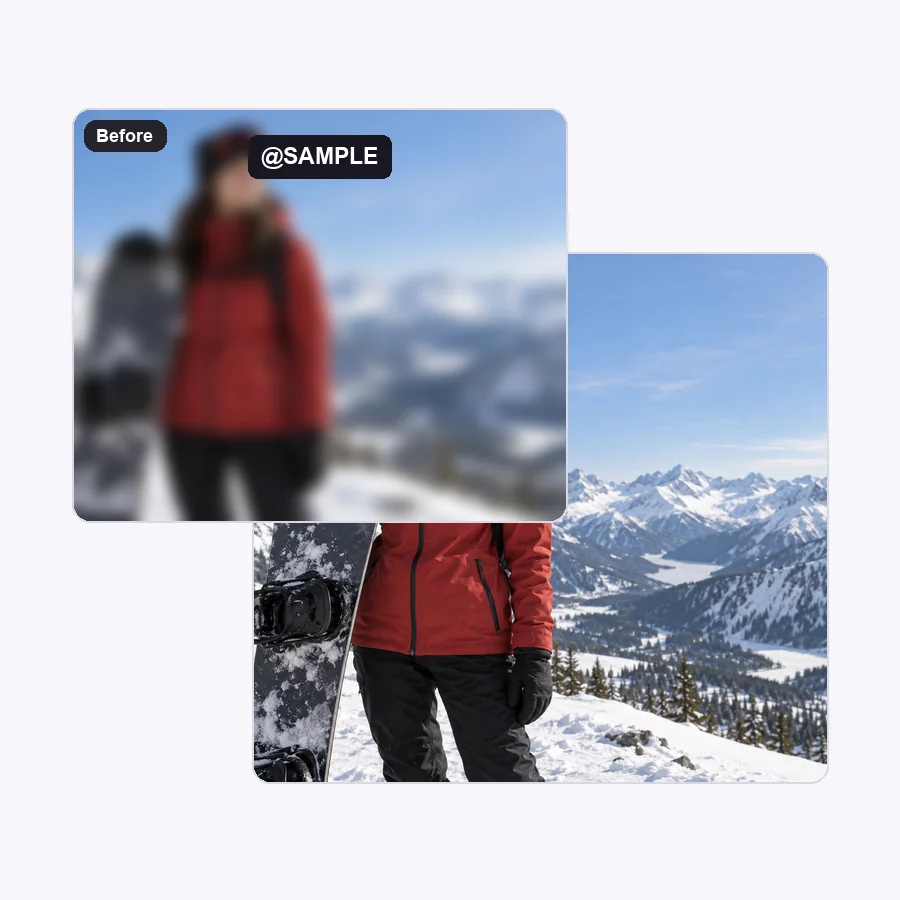
Text often crosses the busiest part of a shot. The AI text remover from video rebuilds snow, hair, fabric, and sky behind the letters so the patch blends with the surrounding footage.
Common reasons people use a text remover video tool.

Lost the project file? Remove the wrong title and add a corrected one on top.
Clear old captions, handles, or promo text before sharing a clip again with new copy.
Remove price tags, sale labels, or campaign text so footage can be reused next season.
Delete camcorder date stamps and burned-in labels from family footage.
Get a cleaner result from the AI video text remover.
Name the words and their position when the clip has text you want to keep.
A high-quality source gives the AI more real detail to rebuild from.
Work in parts of up to 60 seconds, then join the cleaned parts in your editor.
Check fast motion and faces near the old text before you publish.
Typical jobs for removing text in video.
Illustrative examples adapted from reference material, not verified reviews of EzImgMaker.
Our product demo had last season’s price in big letters. I removed the text and dropped the new price on top instead of reshooting.
I changed my channel name and had dozens of clips with the old handle in the corner. Clearing it took one upload per clip.
An intro title had a spelling mistake and the project file was gone. I removed the words and rebuilt the title in my editor.
Grandpa’s old tapes had a date stamp burned into every shot. The clean versions are so much nicer to watch.
How to remove text from video, and what to expect.
Upload the clip, pick the kind of text (all text, titles, captions, watermark text, or dates), choose where it appears, and start. The AI removes the text on every frame and fills in the background, so there is nothing to mask or keyframe.
Blurring hides words; this tool replaces them. The AI rebuilds the pixels behind the letters from the surrounding scene and nearby frames, so the area looks like the rest of the footage instead of a smudge.
Choose the matching text type and position, and describe the exact words to erase in the text box, for example “the yellow SALE title at the top”. Text you do not describe, such as a logo you want to keep, is left alone.
It works online in your browser on desktop or phone. There is nothing to install.
Cropping cuts the text out together with part of the shot and changes the frame size. AI removal keeps the original framing and resolution and only changes the pixels where the text was.
MP4 or MOV clips from 3 to 60 seconds and up to 100 MB. Output is 720p or 1080p with the original soundtrack.
Yes, choose Captions. For long dialogue subtitles across a whole video, the dedicated subtitle remover has presets for subtitle position and timing.
Only remove text from videos you own or are allowed to edit. Do not remove other people’s watermarks, credits, or copyright notices, and do not use edited footage to mislead viewers about where it came from.
New users get free credits to try the text remover. Credit packs cover more videos after that.
Upload a clip, choose the words to erase, and download it with the original audio.