Hikers Behind a Stone Archway
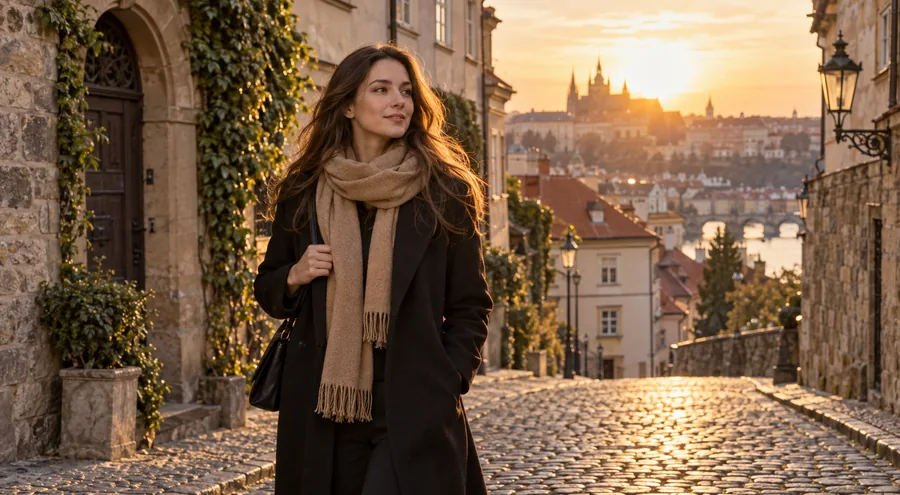
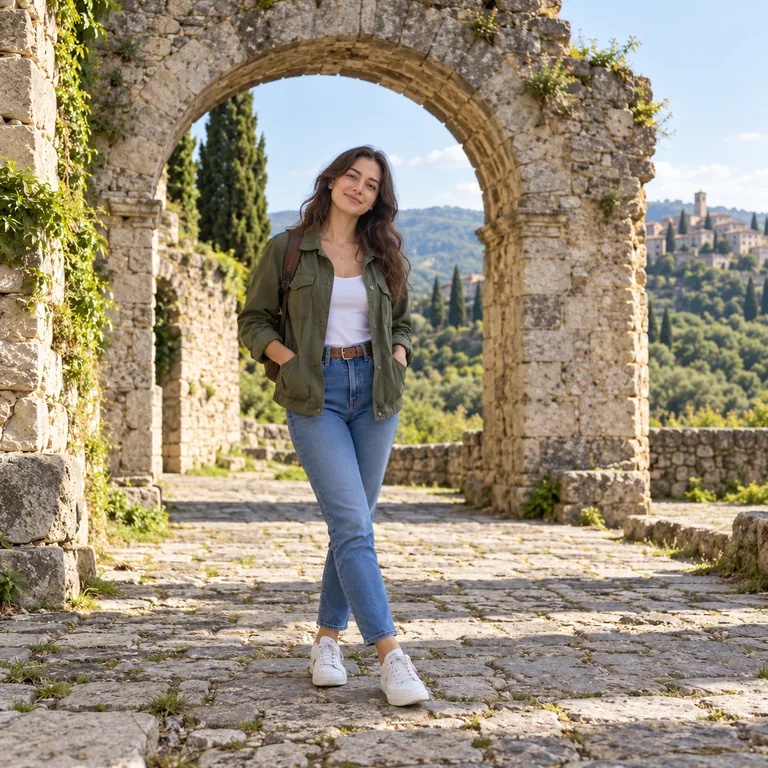
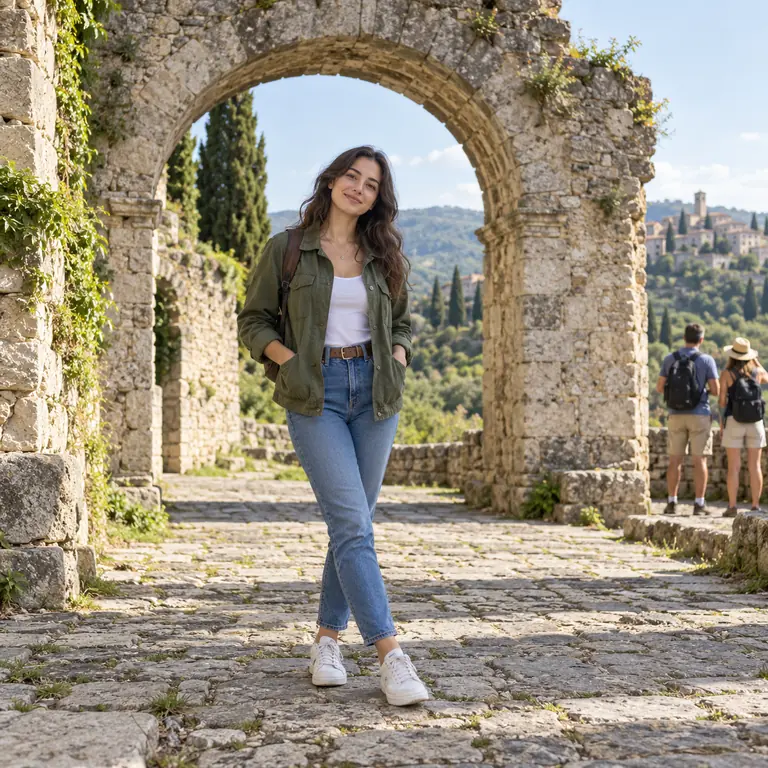
Two hikers stood under an old arch behind the traveler. Remove background people clears the path and keeps her pose, her jacket and the hill-town view.
Brush over a photobomber, or switch to Remove background people and let the AI keep your main subject while it clears the crowd behind. Check the filled scene, then save a copy.
Common photobomb scenes
Fine-tune
Reference example. It is not a result generated from your upload.
Tourists behind you at a landmark, a stranger walking through a street portrait, a guest at the back of a wedding shot: this AI person remover takes them out and rebuilds the scene behind them. It is told to keep your main subject, the framing and the light as they were.
If you are wondering how to erase people from pictures, there are two ways here. Brush lets you mark exactly who should go, which suits group shots and crowded scenes. Remove background people needs no mask: the AI keeps the person in front and removes everyone behind, a quick way to delete people from photos taken in busy places.
What was hidden behind a person is generated from the surrounding scene, not recovered. Check the filled area before sharing, and never use a person remover to misrepresent who was at an event.
Two hikers stood under an old arch behind the traveler. Remove background people clears the path and keeps her pose, her jacket and the hill-town view.
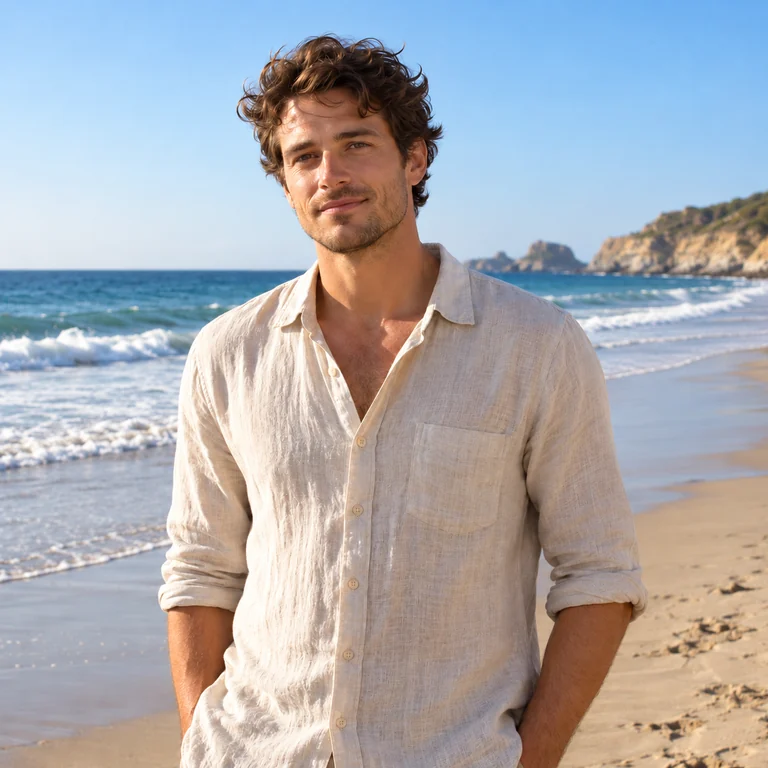
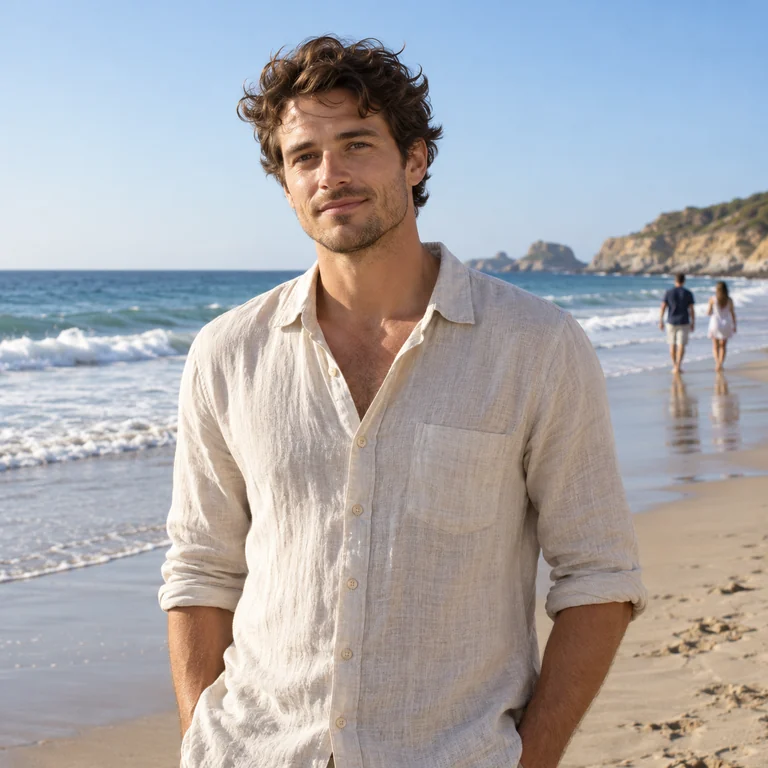
A couple strolled along the waterline behind a man in a linen shirt. The waves and wet sand are filled in, and he stays as photographed.
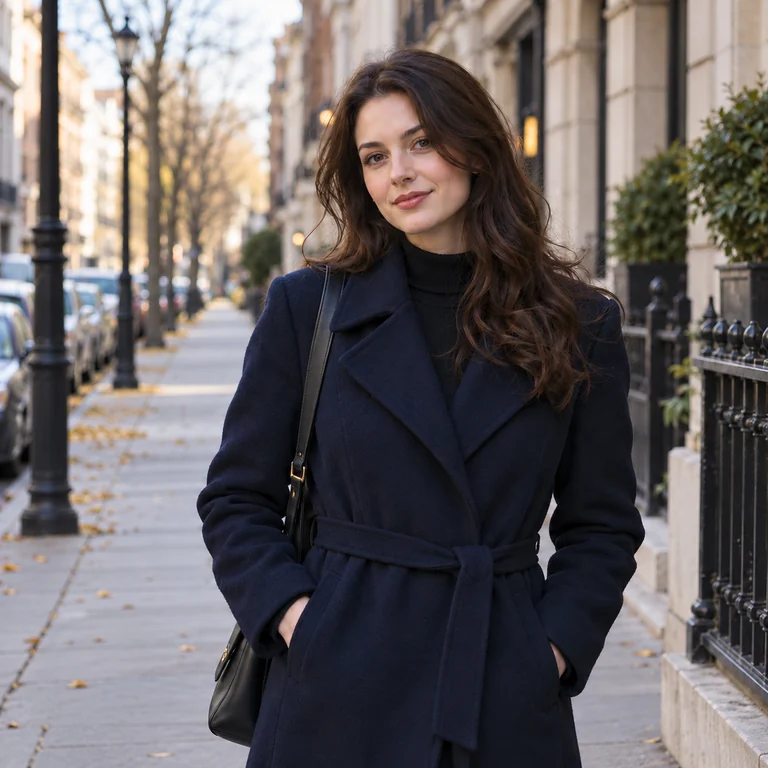
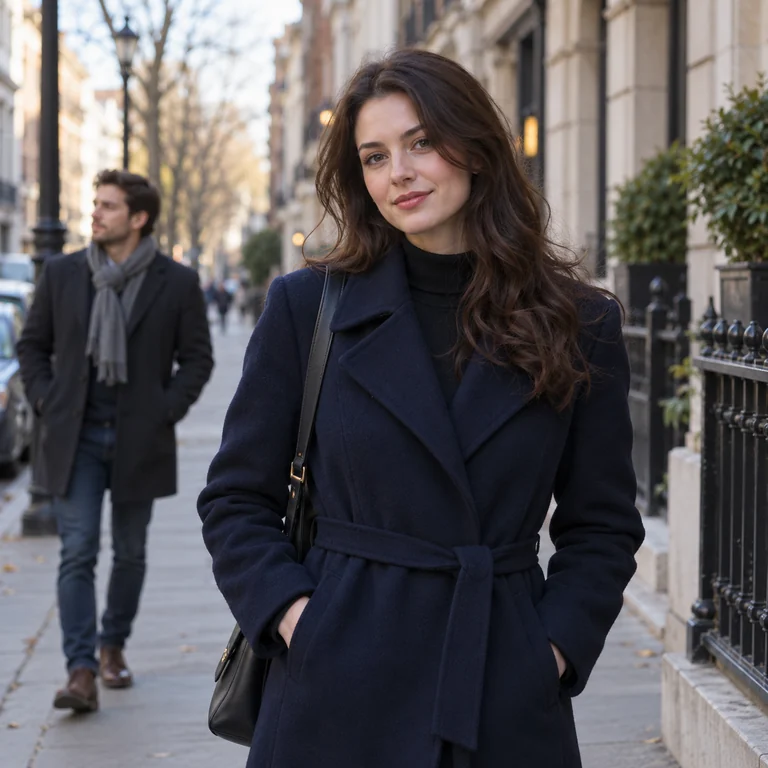
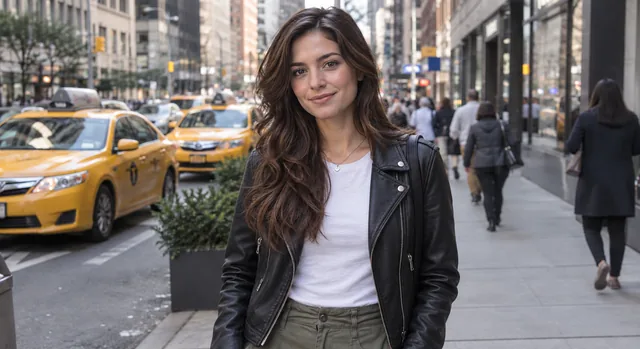
A man in a scarf walked through the left of the frame. With him gone, the sidewalk, railings and street lamps continue behind the woman in the navy coat.
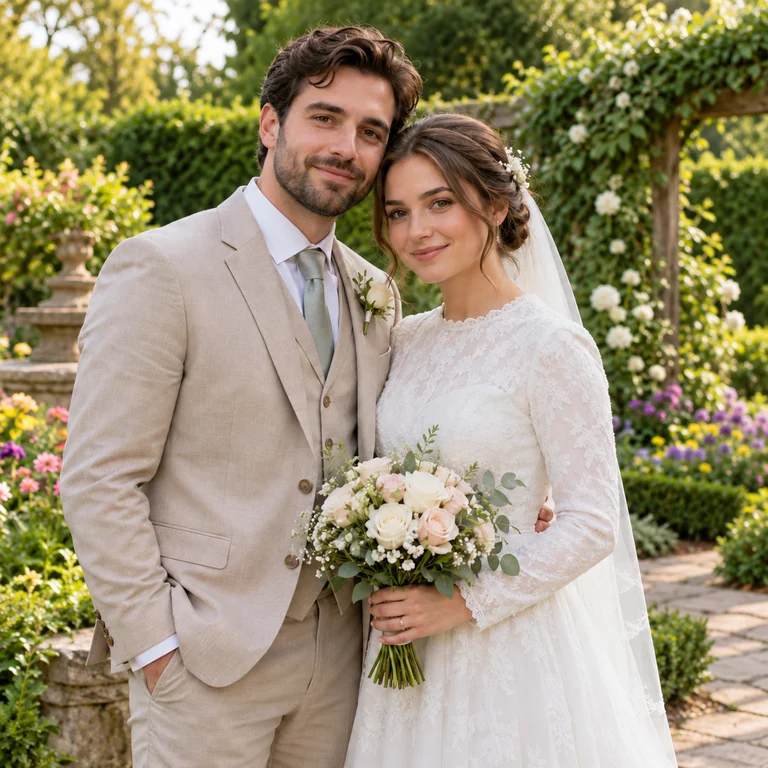
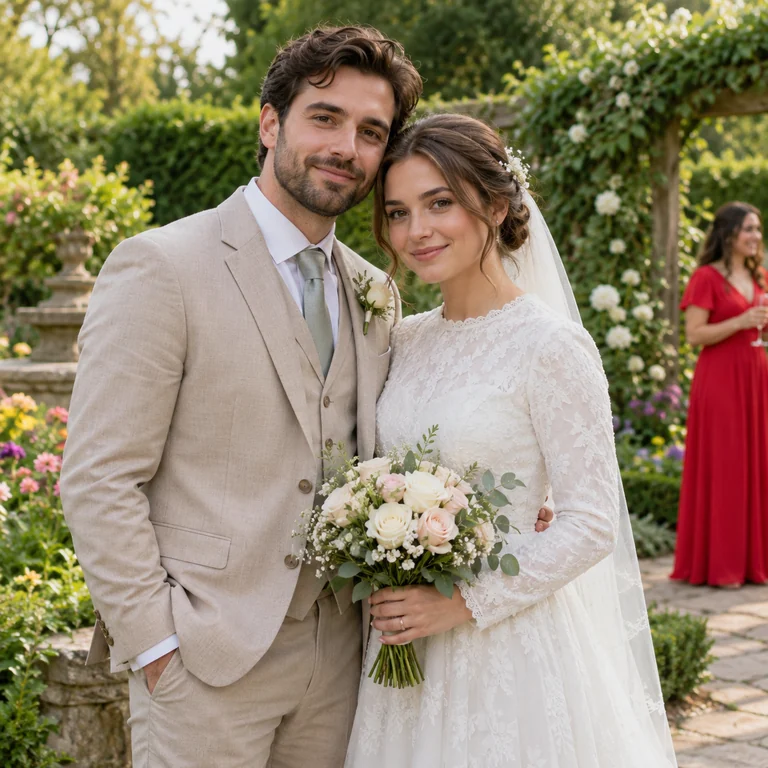
A guest in a red dress stood behind the couple. Removing her leaves hedges and flowers in her place, with the bride’s veil and bouquet unchanged.
Use a JPG, PNG or WebP up to 20 MB in which the person you want to keep is clearly visible.
With Brush, paint over each person to remove, plus their shadow. With Remove background people, skip the mask; the AI keeps the main subject in front.
Optionally describe who should go, such as ‘the man in the gray scarf on the left’. Notes help when several people share the scene.
Look at the spot where each person stood, their shadow and any overlap with your subject. Then save the edited copy and keep the original.
Brush mode gives you full control: mark the person, their bag or umbrella and the shadow on the ground, and leave everyone you want to keep unmarked. The AI is told to change only the marked people, which makes this the right mode for group photos where it is not obvious who should stay.
When one person stands clearly in front, choose Remove background people. The AI keeps that subject and clears the people behind, a quick way to remove people from images of beaches, plazas and paths. If the main subject could be confused with someone else, add a note that describes them.
Open scenery such as sand, sky, grass or paving is the easiest to rebuild, so travel and beach photos tend to come out clean. Where a person overlapped your subject’s arm or hair, check that edge closely; hidden parts are generated, not recovered.
Edit your own photos and keep the original. Do not use the result as evidence, to misrepresent who attended an event, or to remove someone in a way that misleads the people who see it.
People standing against sky, sand or a plain wall are the easiest to remove. A dense crowd behind your subject takes more checking.
A person’s shadow on the ground or reflection in a window stays behind unless you brush over it too.
Leave a small gap between the brush and the person you are keeping, especially around hair and hands.
In a crowded scene, work in several passes. Smaller edits are easier to check than one big mask.
If two people wear similar clothes, describe the one to remove, such as ‘the woman with the white hat’.
Do not edit others out of shared photos to mislead, and ask before posting edited group photos of friends or family.
Upload your photo, choose Brush and paint over the person you want gone, including their shadow. Press Generate and check the filled area. If the unwanted people all stand behind one clear subject, Remove background people does it without a mask.
Removing people is free to try. Each edit uses account credits, and the Generate button shows the cost before you start.
Only upload photos you own or have permission to edit. Removing someone from another person’s picture, or from a shared photo to mislead others, is not acceptable; respect the people pictured and the photographer.
Brush removes only the people you mark, so you decide exactly who goes. Remove background people needs no mask: it keeps the main subject in front and removes the others behind. Use Brush for group shots and background mode for one clear subject.
Choose Remove background people, or start from a preset such as Travel landmark or Quiet beach. The AI keeps the person in front and fills the background where the others stood. For one or two passersby close to your subject, Brush gives more control.
You do not need to install a remove people from photos app: this AI people remover runs in the browser on desktop and phone, so it works as an app to remove a person from a photo without the download. When comparing tools, test them on your own photo and check where the person stood, their shadow and the edges near your subject.
Cropping only works when the person stands at the edge of the frame. To edit someone out of a photo when they are in the middle, open this page in your phone’s browser, upload the picture and brush over them with your finger.
Use Brush and keep the mask tight against the person you are removing. The part of your subject that was hidden, like an arm or a shoulder, has to be generated, so check that edge closely and redraw the mask if the shape looks wrong.
Only if it is included. In Brush mode, paint over the shadow and any reflection as well; in background mode, add a note such as ‘remove their shadows too’ if one stays behind.
Upload a JPG, PNG or WebP up to 20 MB. A sharp, full-size photo gives the AI more background detail to rebuild from than a compressed copy saved from a chat app.
Upload a travel, street or event photo, choose Brush or background mode, and compare the result with your original. Removing people is free to try.