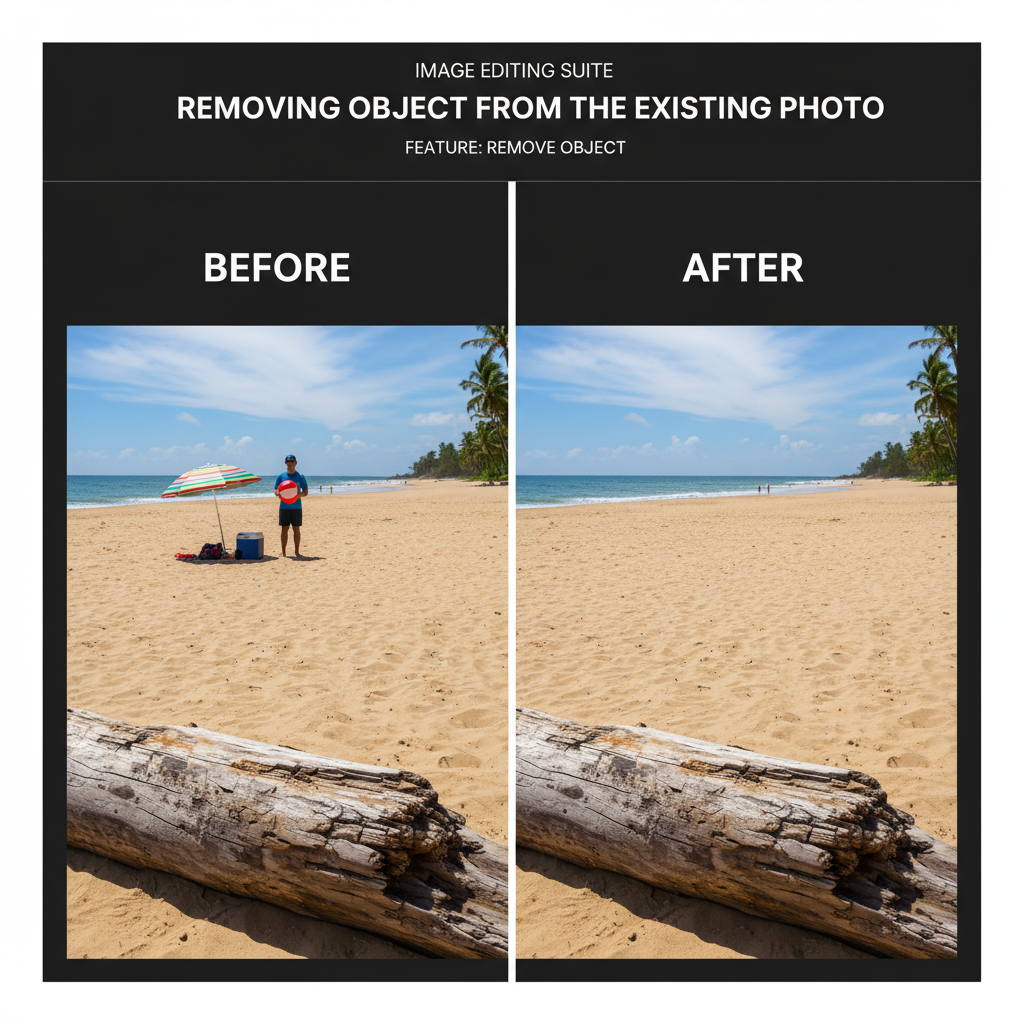
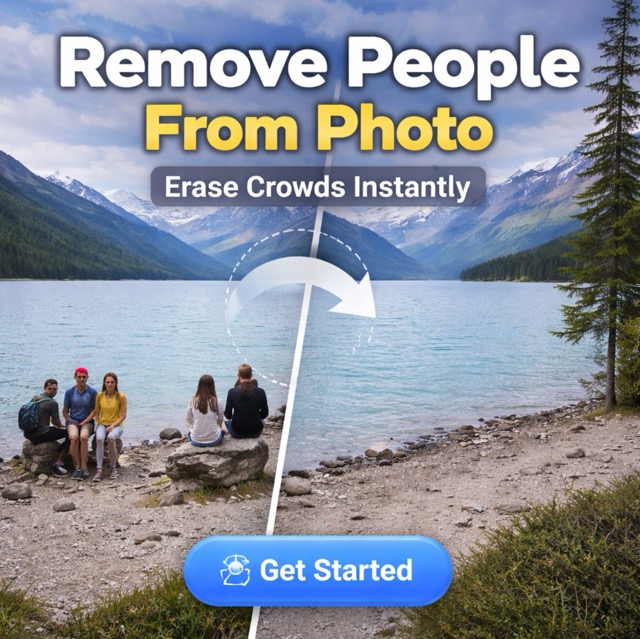
Remove a Person: Before
A stranger stands behind the group.
Upload a clip and describe what should disappear: a passer-by, a sign, a stray cup, a shadow. The AI erases it on every frame and rebuilds what was behind it, keeping the camera motion, timing, and original audio.
Fine-tune
Your video stays in this browser during this UI preview.
Reference example. It is not a result generated from your upload.
An AI video object remover, often called a video eraser, deletes unwanted things from moving footage: people who walked into the shot, a logo on a wall, a cup left on a table, a shadow, or a stray hair. It tracks the object as the camera and subject move, then fills each frame with what would naturally be behind it.
Doing this by hand means masking frame after frame in a video editor. Here you describe what to remove from video in plain words, optionally say what should fill the space, and let the AI handle the tracking and fill while the timing and soundtrack stay the same.
Each pair shows the original clip and the cleaned version. Play them side by side.
A stranger stands behind the group.
Street lights and traffic fill the gap.
A potted plant clutters the desk.
The desk is clear; the city view continues.
Remove something from a video in three steps, with no frame-by-frame masking.
Add an MP4 or MOV clip from 3 to 60 seconds, up to 100 MB. Short, steady shots where the object is clearly visible give the cleanest result.
Choose Person, Object, Logo or sign, Shadow, or Other, then describe it, for example “the red car parked on the left”. Optionally say what should fill the space, such as grass or an empty sidewalk.
Play the result and look at the erased area through the whole clip. Download at 720p or 1080p with the original audio.
Remove objects from videos without reshooting or masking every frame.
Tourists, crew members, or a stranger who wandered into your shot can be erased while the people you want stay sharp. The AI rebuilds the street, wall, or crowd behind them so the scene reads naturally.

You describe the object once. The AI follows it as the camera moves and the subject shifts, so the item does not pop back in halfway through and the filled area does not flicker.
Use it as an item remover from video for cups, cables, trash, and props, or to remove logos from video footage such as a sign on a shop front or a brand mark on a T-shirt you are not cleared to show.
Tell the AI what belongs in the empty space, such as blue sky, a plain wall, or more grass, when the background behind the object was never visible. It also helps to remove shadow in video shots and clean up small things like flyaway hair.
From travel clips to product shots, a few common jobs for AI remove object from video.
Remove people from videos shot at busy landmarks and keep the view.
Erase cables, clutter, and reflections of the crew from walk-throughs and demos.
Remove logos from videos when a sign or label cannot appear in the final cut.
Delete the one thing that ruins a shot instead of filming it again.
Small choices that help the AI video eraser.
Mention color, position, and what it is: “the white van on the right”, not just “the car”.
Stable footage under 60 seconds gives the AI more consistent frames to fill from.
If the background is hidden the whole time, describe it in the fill box.
For several objects, remove the biggest first, then run the result again.
Typical reasons people erase things from footage.
Illustrative examples adapted from reference material, not verified reviews of EzImgMaker.
A stranger kept walking behind us in our best travel clip. Describing him once was enough to get a clean version of the whole shot.
The client spotted a coffee cup on the desk after the shoot. Removing it was faster than booking the studio again.
We had a shop sign in the background that legal would not clear. I erased it and filled the space with plain brick wall.
Our listing walk-through had a tripod shadow on the floor in one room. It came out clean after one pass.
Common questions about erasing objects and people from video.
Upload the clip, choose what kind of thing it is, describe it in a few words, and start. The AI finds the object, tracks it through the clip, and fills the background on each frame, so you do not need to mask or keyframe anything.
Describe the moving object as you would to a person, such as “the dog running across the lawn”. The AI tracks it across frames. Fast, blurry motion is harder, so check the result and try a shorter clip if needed.
Yes. Choose Person and describe who should disappear, for example “the woman in the yellow coat on the left”. Only edit footage you own or have permission to edit, and do not remove people to misrepresent what happened.
Yes, choose Logo or sign. It works for signs, labels, and marks that are part of the scene. Do not use it to remove another creator’s watermark or credit from their work.
It tells the AI what should appear where the object was, such as grass, sky, or a plain wall. Leave it empty to let the AI use the surrounding background.
Cropping changes the frame and blurring leaves a visible patch. A video eraser rebuilds the background, so the shot keeps its full composition.
MP4 or MOV clips from 3 to 60 seconds and up to 100 MB. Output is 720p or 1080p, and the original soundtrack is kept.
Only upload videos you own or are allowed to edit, and respect the people in them. Edited footage should not be used to deceive, such as faking evidence or hiding what really happened.
New users get free credits to try the video object remover. Credit packs cover more clips after that.
Upload a clip, describe what should go, and keep the rest of the shot exactly as filmed.